Share a release with another organisation
Who can do this
Owners, administrators, the branch's manager and the project's lead. Your plan must include "External sharing"; the free plan does not. "Compare all features" on the Plan and usage screen shows which plans do. Receiving a share needs no plan feature.
Let another organisation on GISweaver open one published release of your project on a map of their own, without exporting anything.
- Open Projects and choose the project. The project opens.
- Select the Access tab. The tab lists who can see the project.
- Select Give access, then Share a release — they view it on the map until a date. The dialog opens.
- Type The other organisation’s code. The name of the organisation appears under it, after This will be shared with.
- Check the name is the organisation you meant, then choose the Release to send. The field shows the release.
-
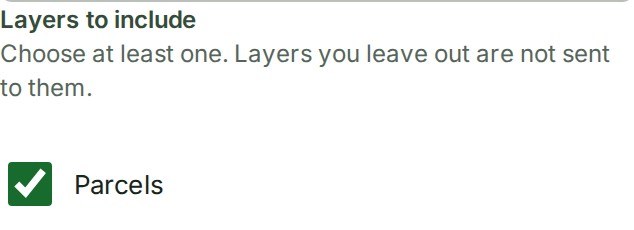
Under Layers to include, tick the layers they may see. Layers you leave out are not sent at all.
-
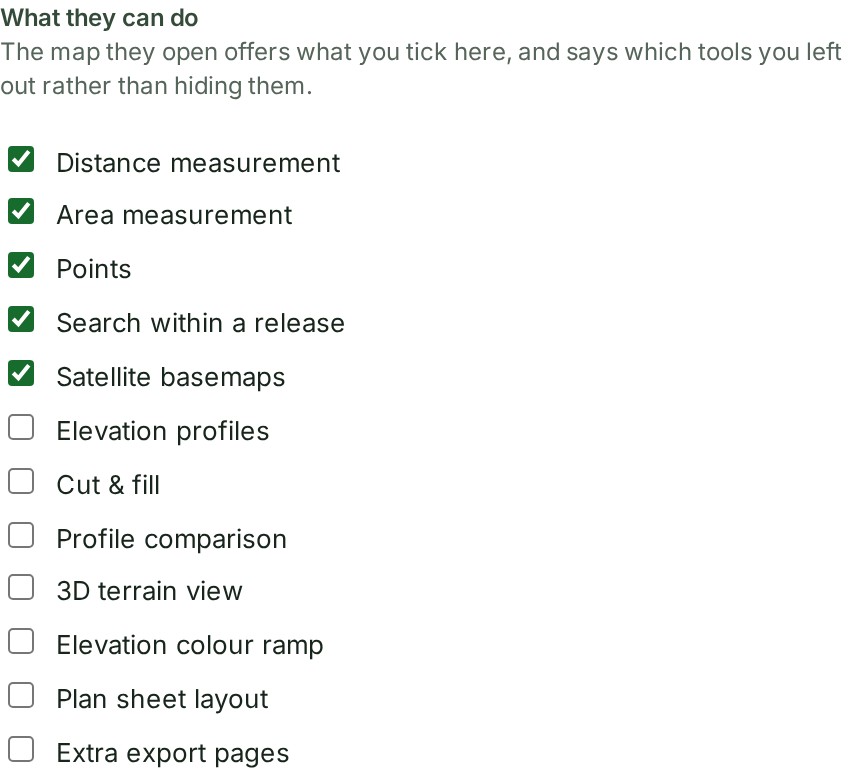
Under What they can do, tick the map tools they may use. The ticked tools are the ones they get.
-
Tick Let them download the release only if they should have the files themselves. It is off unless you tick it.
- Choose how long it stays open in Access lasts: 30, 90, 180 or 365 days, with 90 chosen unless you change it. The field shows your choice.
- Add a Message (optional) if you want to. The text appears in the box.
- Select Share. The dialog closes and the share is a row on your Access tab.
What happens next
The other organisation is told, and the release appears on the Shared releases tab of their Deliveries page until the day it ends. On your Access tab the share is a row of the kind Shared, with the release, the number of layers and the day it ends. Making, changing and ending a share are written to your audit trail.
To change a share or end it early, see Change or end a share. To read what the other organisation can take, see How access to other organisations works.
If something goes wrong
- External sharing is not part of your … plan. Give access does not offer sharing. The sentence names the plan your organisation is on. The free plan does not include sharing. Select See what each plan includes to see which plans do, or ask an administrator to change the plan. If you are on a paid plan and still read this, reload the page; if it stays, tell support the plan the sentence names.
- No organisation on GISweaver holds that code. Check the code with the other organisation. Anyone there can copy it from the Shared releases tab of their Deliveries page.
- This project has published nothing yet, so there is nothing to send. Publish a release first.
- This release cannot be shared: its record of what is in it is incomplete, and support has to look at it. Select Open a support ticket.
- A tool reads Not on your plan: your plan does not include that tool, so you cannot offer it to anyone else.
- Your organisation does not allow sharing this outside the organisation. An access administrator has prohibited external sharing, for every project or for this one, so a new share, client access or review invitation is refused. What was already shared keeps working until someone ends it, and ending it is never refused. Ask an access administrator; see Access policies.