Delete or restore a project
Delete a project to take it off Projects, stop everything you shared from it, and restore it from Recently deleted until its restore period ends.
-
Open Projects and choose the project.
The project's page opens.
-
Open the ⋯ menu at the top right of the page's header and select Delete project….
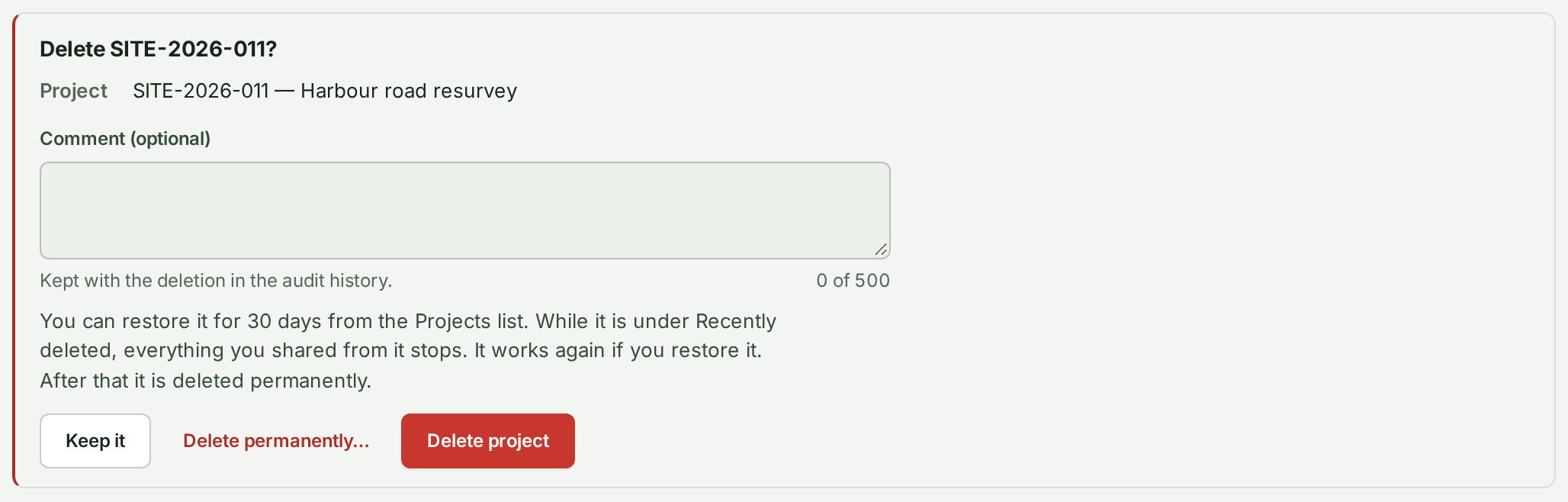
The Delete panel opens. On a phone, Delete project… is the last row of More.
-
Read how long you can restore it.
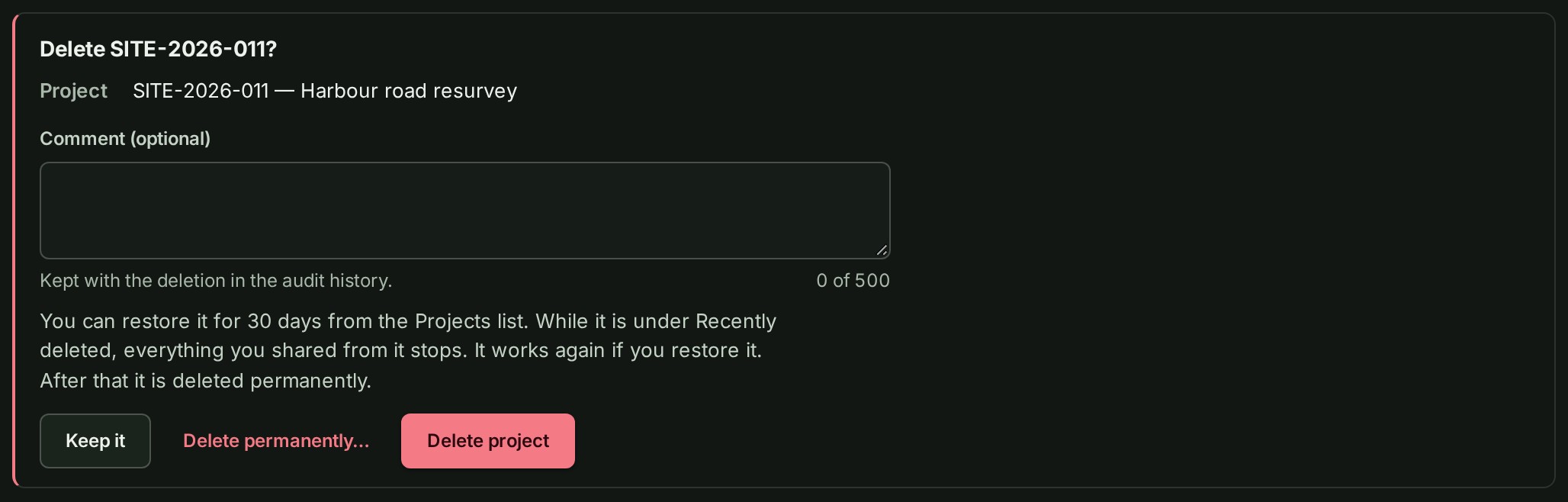
The panel says, for example, You can restore it for 30 days from the Projects list. While it is under Recently deleted, everything you shared from it stops. It works again if you restore it.
-
If you like, add a comment.
The comment is kept in the audit trail.
-
Select Delete project.
The project leaves the list. GISweaver says SITE-2026-011 was deleted. You can restore it from Recently deleted until …
To delete an archived project, open the Archived tab and select Delete beside it.
What happens next
During the restore period everything you shared from it stops: client access, deliveries, delivery links and reviews. Its files keep counting towards your storage.
When the period ends, the project is deleted permanently, as if each of its files had been. Its storage is freed within a few hours. It can no longer be restored.
Restore a project
Restore a project to bring it back as it was, with everything you shared from it working again.
-
Open Projects.
The list shows your projects.
-
Open the Recently deleted tab above the list.
The tab is there only while a deleted project can still be restored. Each project shows when it was deleted and the last day it can be restored (Restore by …).
-
Select Restore beside the project.
GISweaver says SITE-2026-011 is restored. and the project is back on the list in the state it was in.
Delete a project permanently
Delete a project permanently when you do not want to wait for the restore period. This cannot be undone.
-
Open the Delete panel as in steps 1 and 2 above.
The Delete panel opens.
-
Select Delete permanently….
A box asks you to type the project's number.
-
Type the project's number where it says Type … to confirm.
Delete permanently can now be selected.
-
Select Delete permanently.
Every file is removed from the deliveries it was published in, clients can no longer download them, and their storage is freed within the hour.
If something goes wrong
- The time to restore this project has ended. It is being deleted permanently. It is too late to restore it.
- Another project now uses this project's number. Archive that project to free the number, then restore this one. A live project uses the number. Archive that project, or change its number, then restore this one.
- There is no Delete project… in the menu. Your role cannot delete projects. Ask an owner or an administrator.
- This project was deleted while you had its page open. Someone deleted it. Select Back to Projects.
More: The restore period.
Next: See a project's activity