Change a colleague's role
Change the role a colleague holds across your organisation, to give them more access or less.
- Open People and clients under Organisation, then select the People tab. The list shows your colleagues, each with their role.
-
Find the colleague's row and open its Organisation role list.
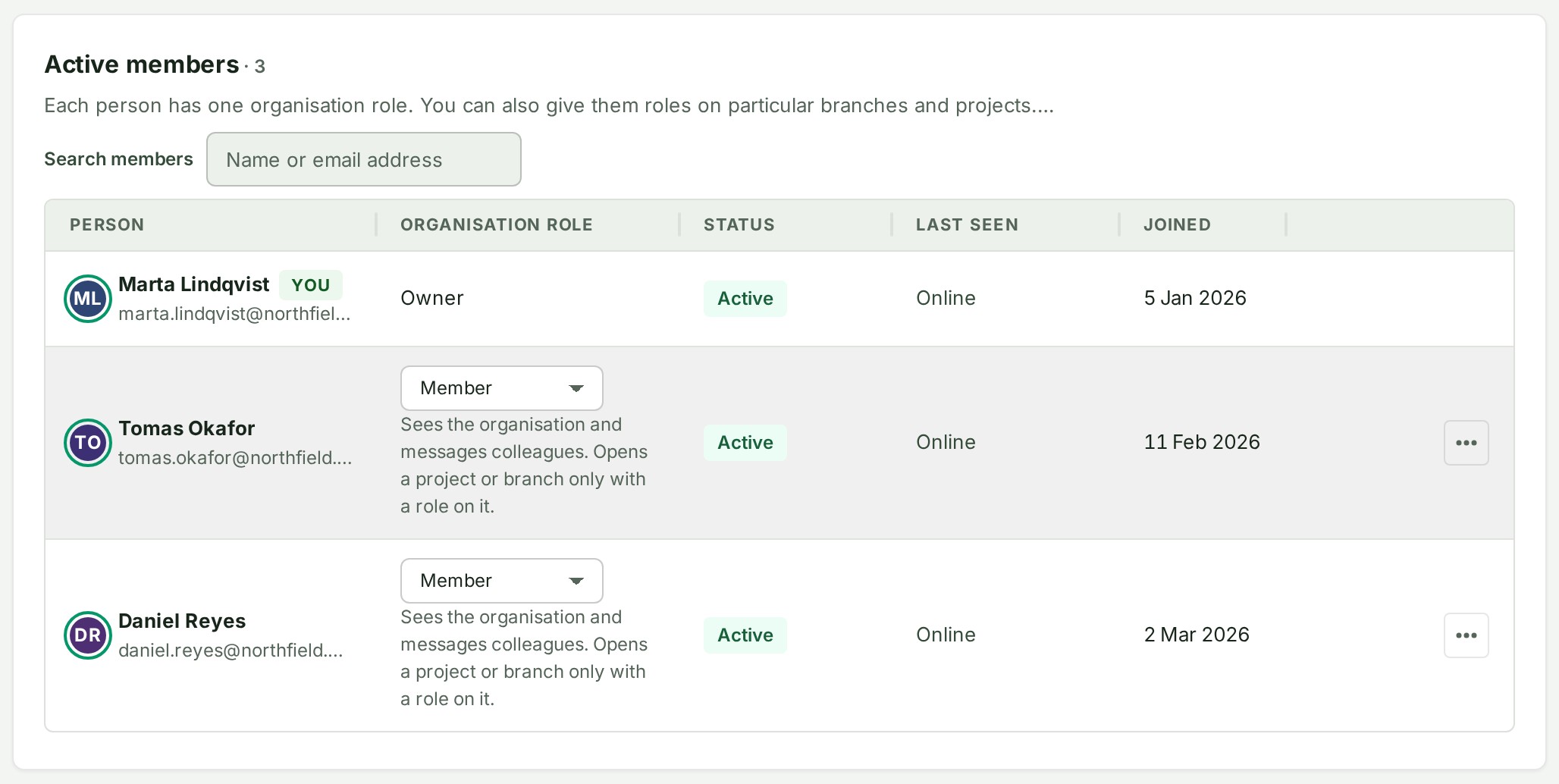
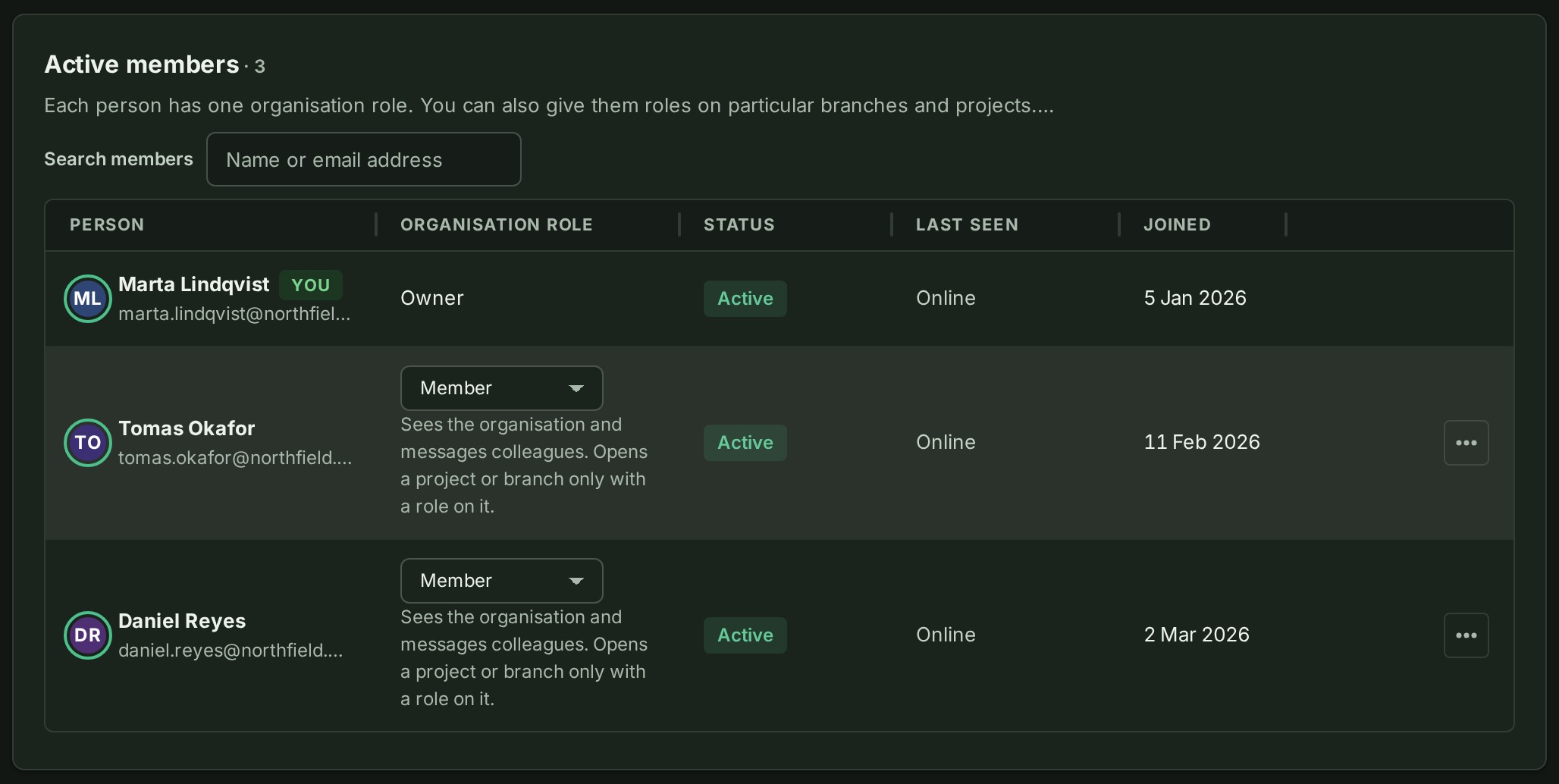
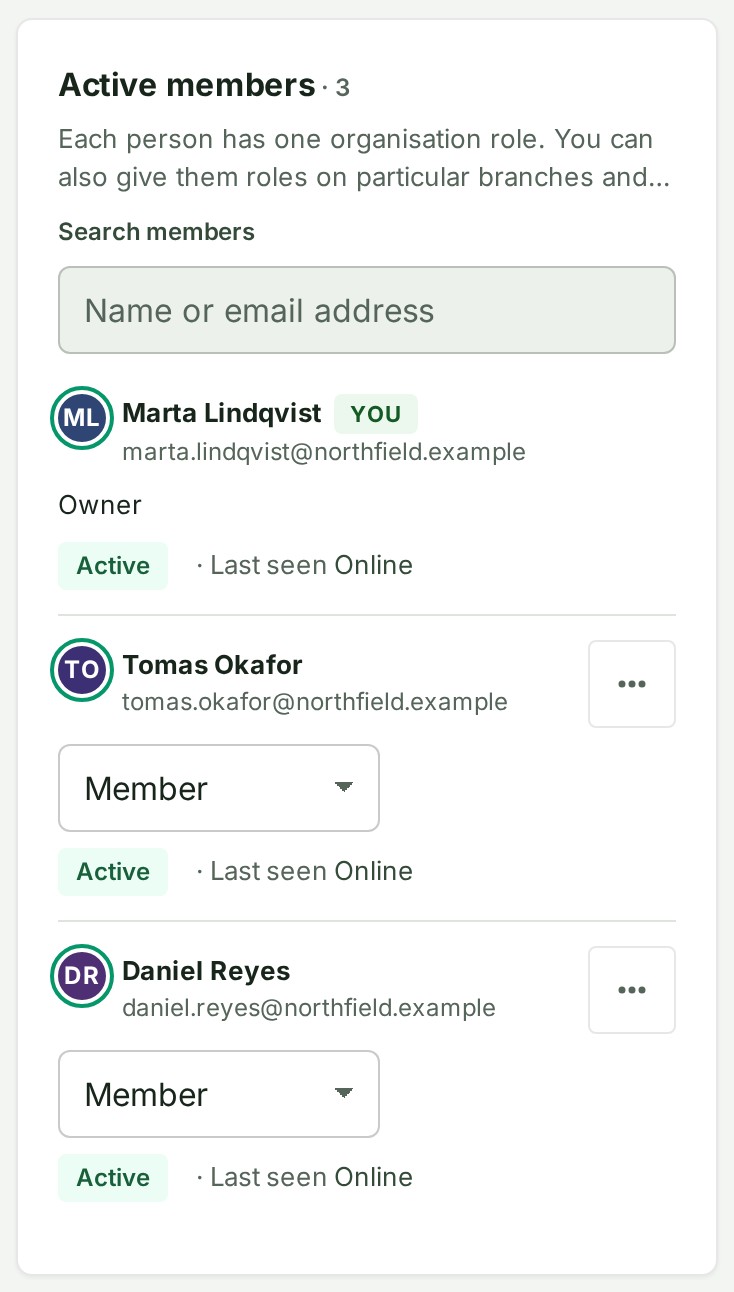
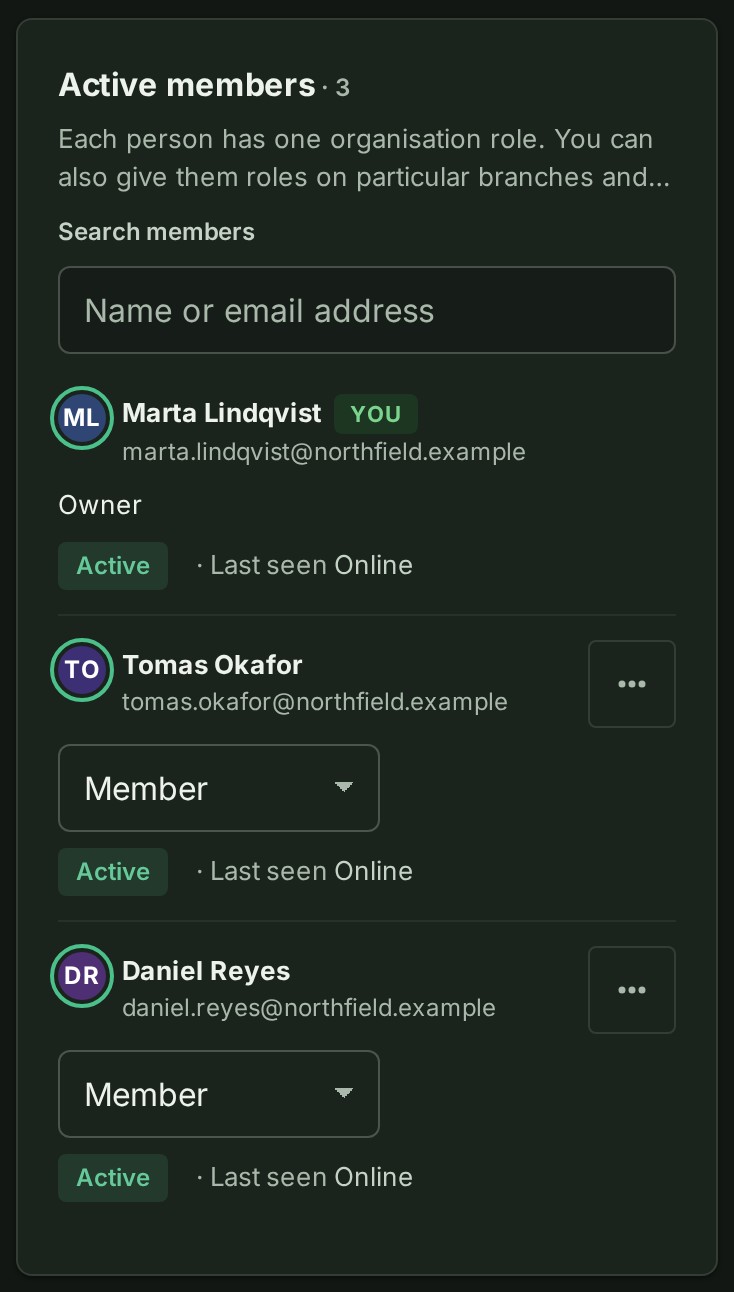 3. Choose the new role.
The line under the list says what the role is for, and a notice says the colleague now holds it.
What happens next
The new role applies as soon as it is saved. For what each role can do, see Roles and what they can do.
If your organisation asks for a second access administrator's approval, People asks you to say why, in 3 to 500 characters. Select Ask for approval. The change waits for another administrator (Approve or reject an access change), and a notice says Waiting for approval by another access administrator.
If something goes wrong
- There is no list on the row. The Owner's role never changes here, and a role you cannot manage is shown as text. Ask an Owner or an Admin.
- The role you need is not offered. You can give only roles at or below your own. Only the Owner can make someone an Admin, from People.
- To give a role on one branch or one project only, use Roles on the branch (Create a branch) or Members on the project.
Next: Lend a role