Conversations
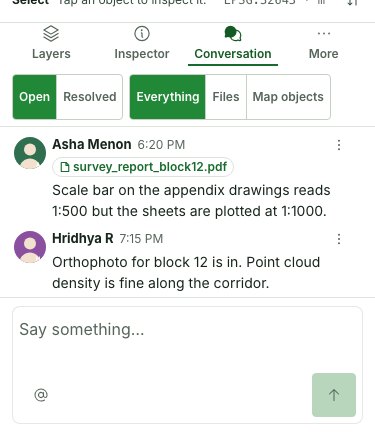
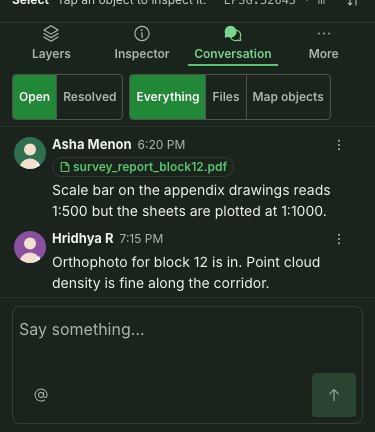
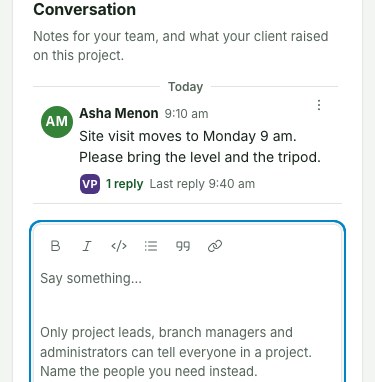
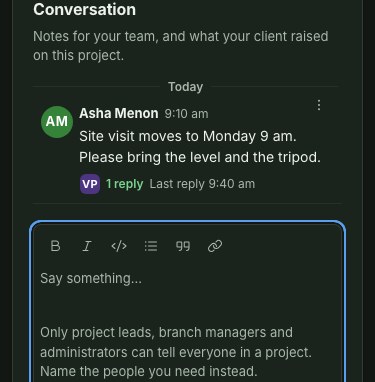
The project page's Project notes holds notes about the whole project. The map's Conversation panel holds every thread, including discussions on files and map objects. A map object's Conversation tab and a file's Threads show discussions about that object or file. Every message shows its writer's picture, name and time. Nothing here is a chat: every reply sits under the message it answers, one level deep, and nothing nests further.
Why this is so
Project notes, a map object's discussion and a file's threads are the same kind of record: a thread with one opening message and a flat list of replies. A note is a thread about the whole project; the others are about one parcel, one saved measurement or one file. That is why the box, the formatting, the mentions and the thread work exactly alike in all of them.
See what is unread
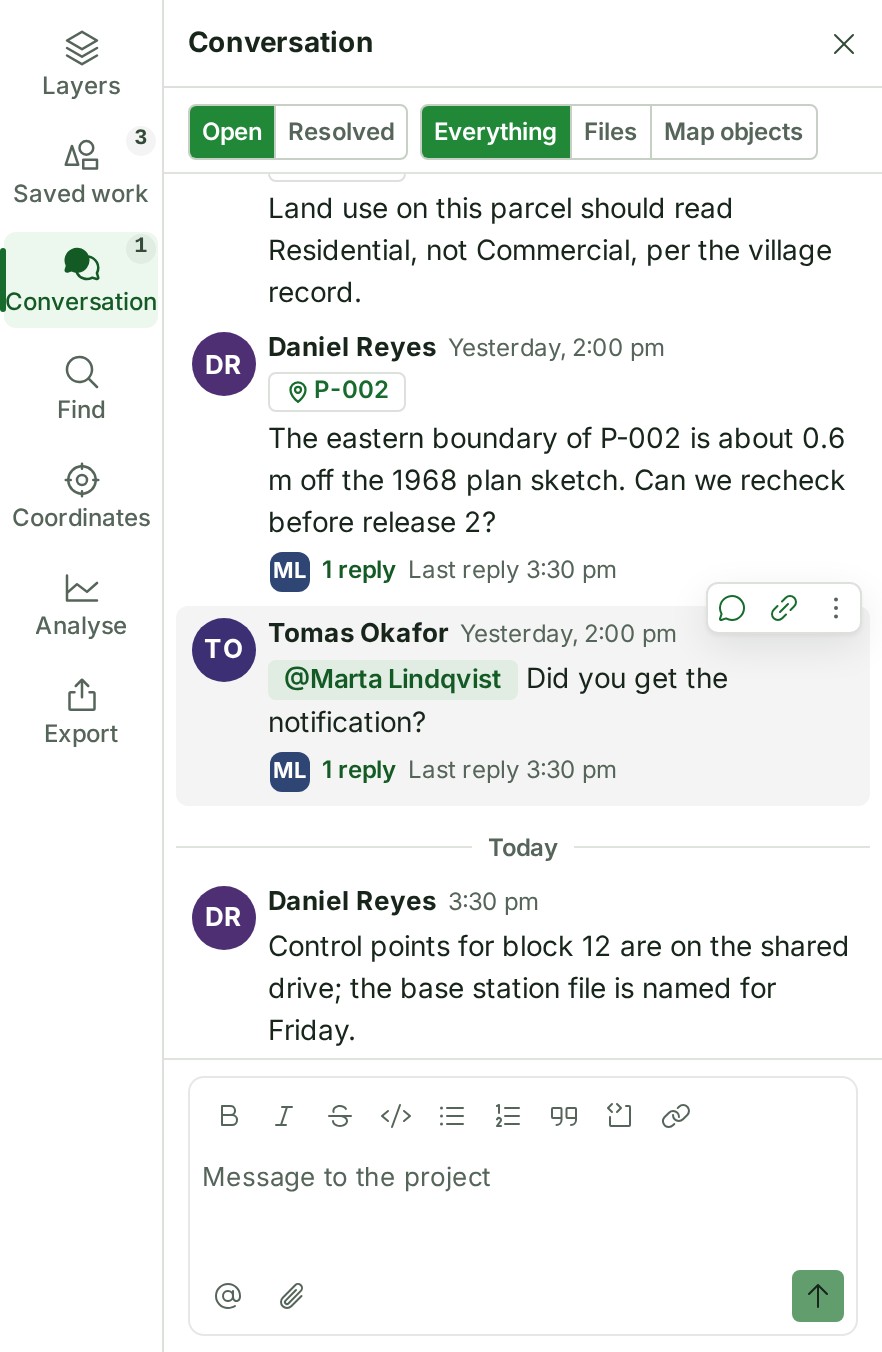
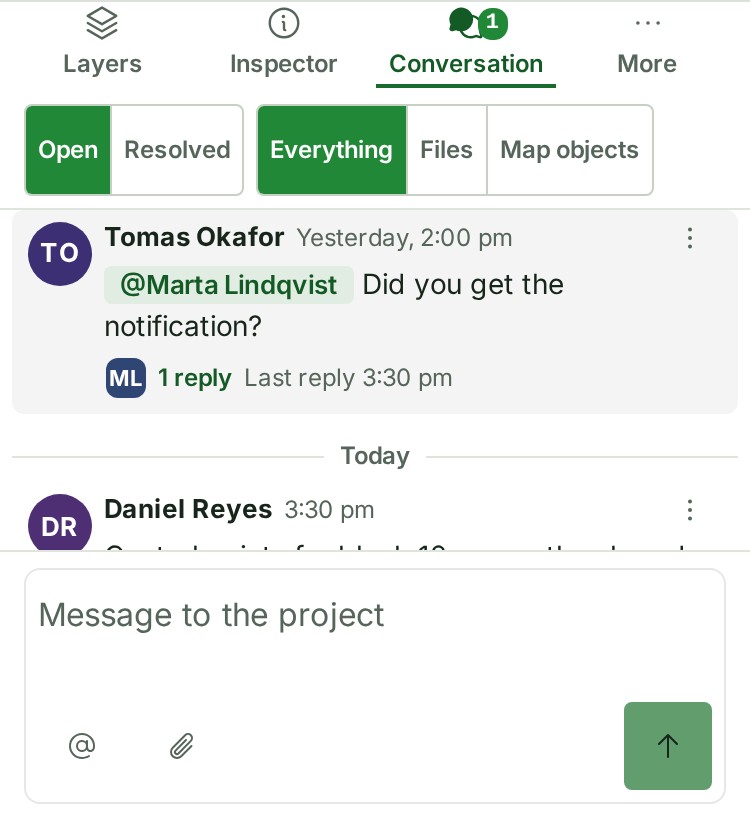
The number beside Conversation on the map's rail and phone tab counts unread threads across the project, including map objects and files. A dot beside a message's time marks a thread where someone else has written since you last opened it. Your own messages do not add to your unread count. Opening a thread clears its mark; replies arriving while you read it are marked read too.
The project page continues to show only project notes. Object discussions stay in the map workspace and do not appear in the project page's notes.
Choose Load earlier above the stream to read the next page. Repeat to reach older threads; the stream keeps the messages already loaded.
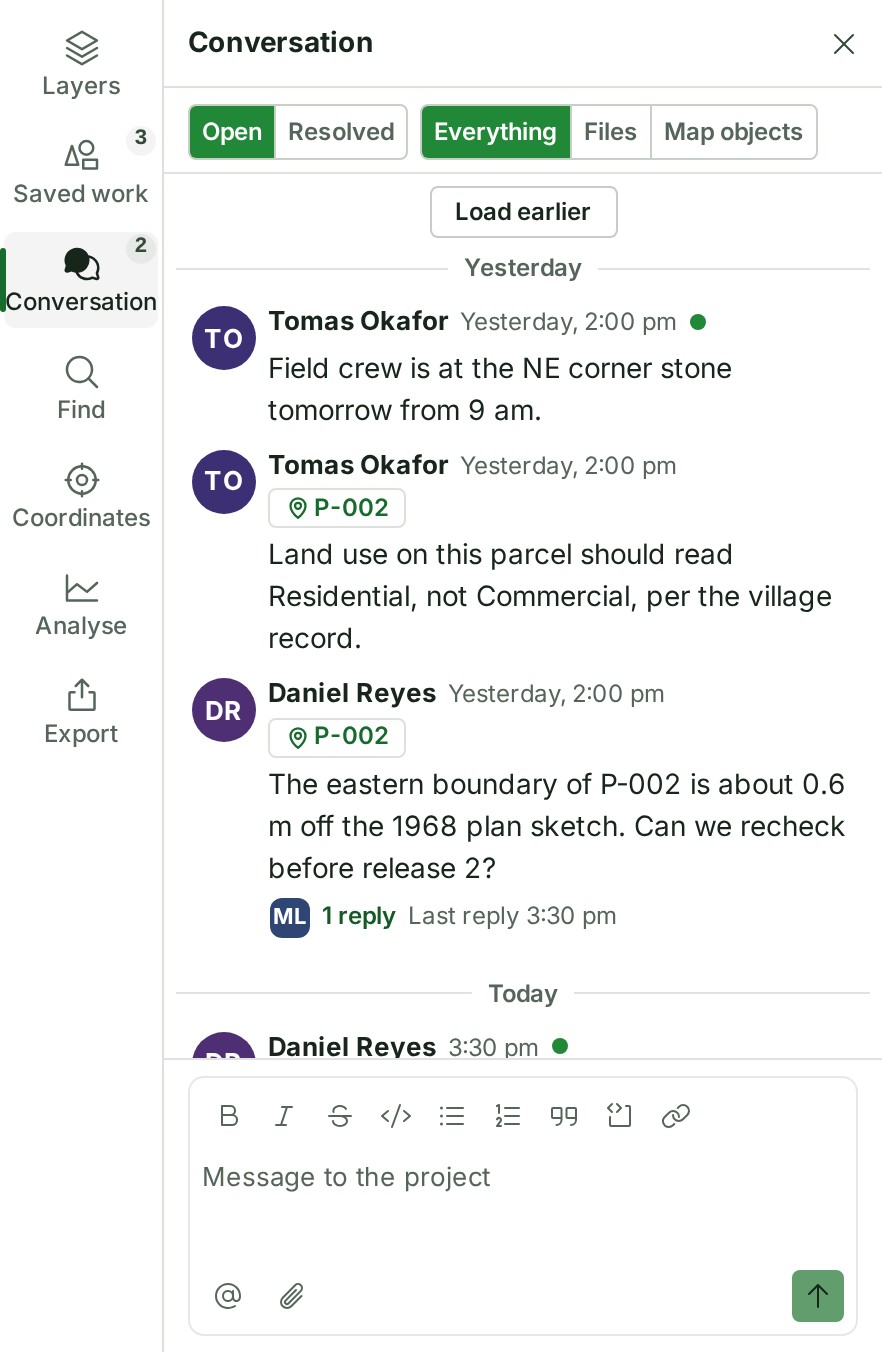
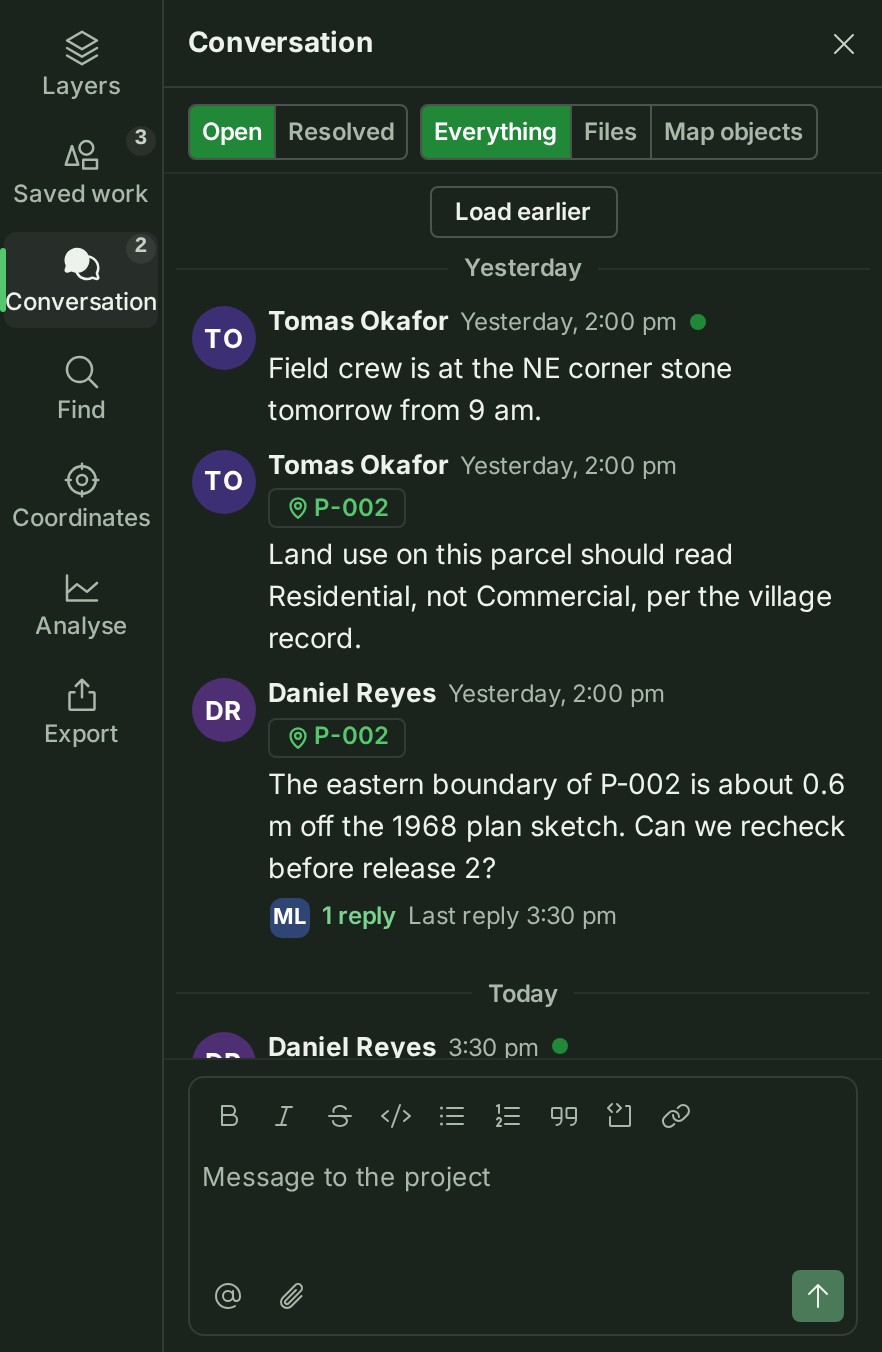
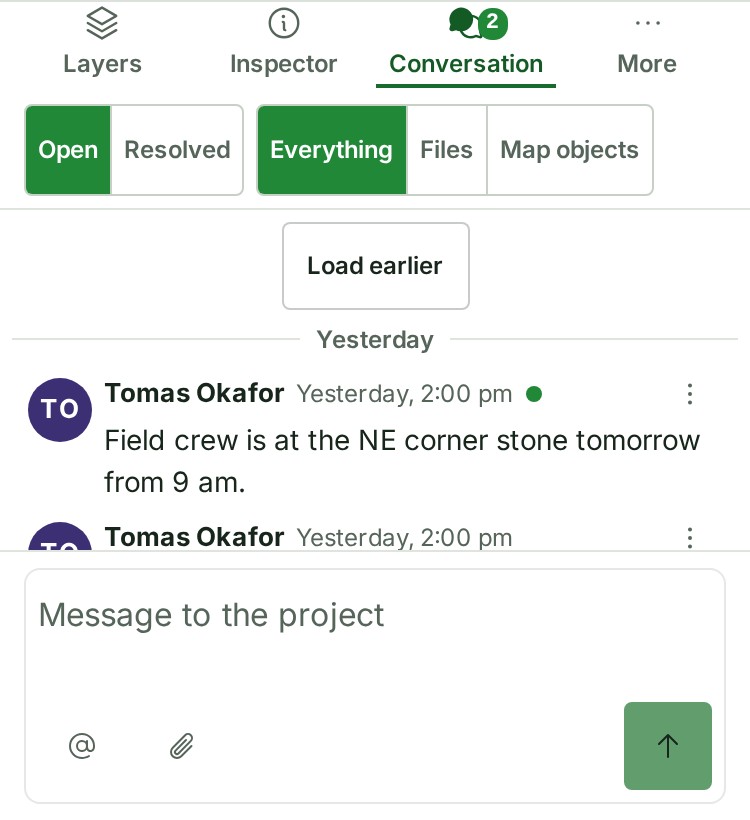
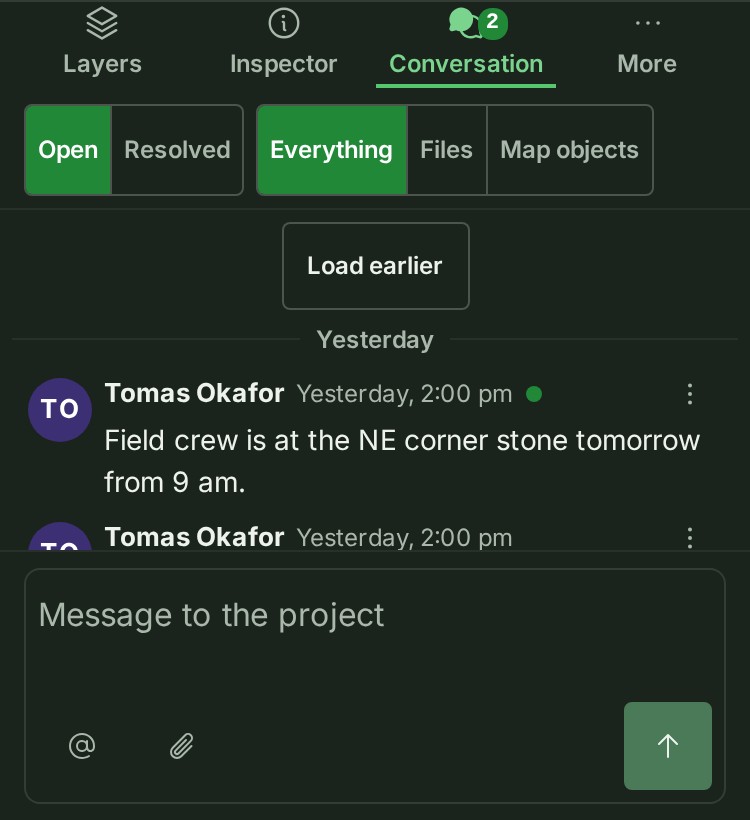
After you open an unread thread and return to the stream, its unread mark clears. The number drops by one; loading an earlier page does not mark its threads read.
Find a map object's threads, and open Messages
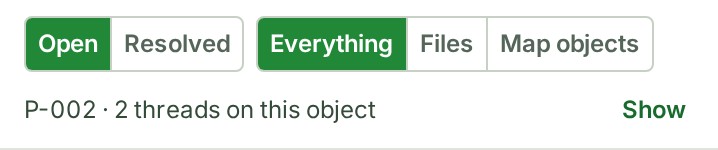
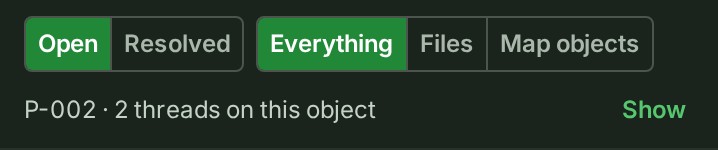
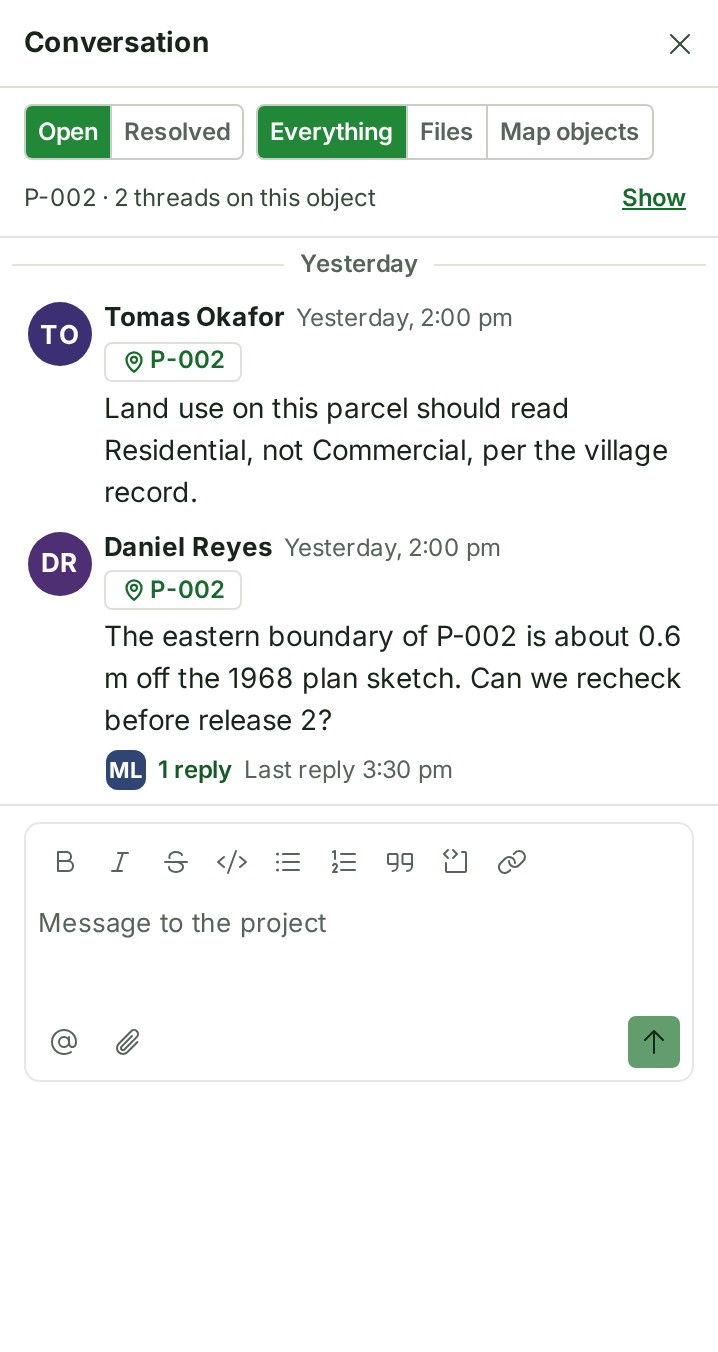
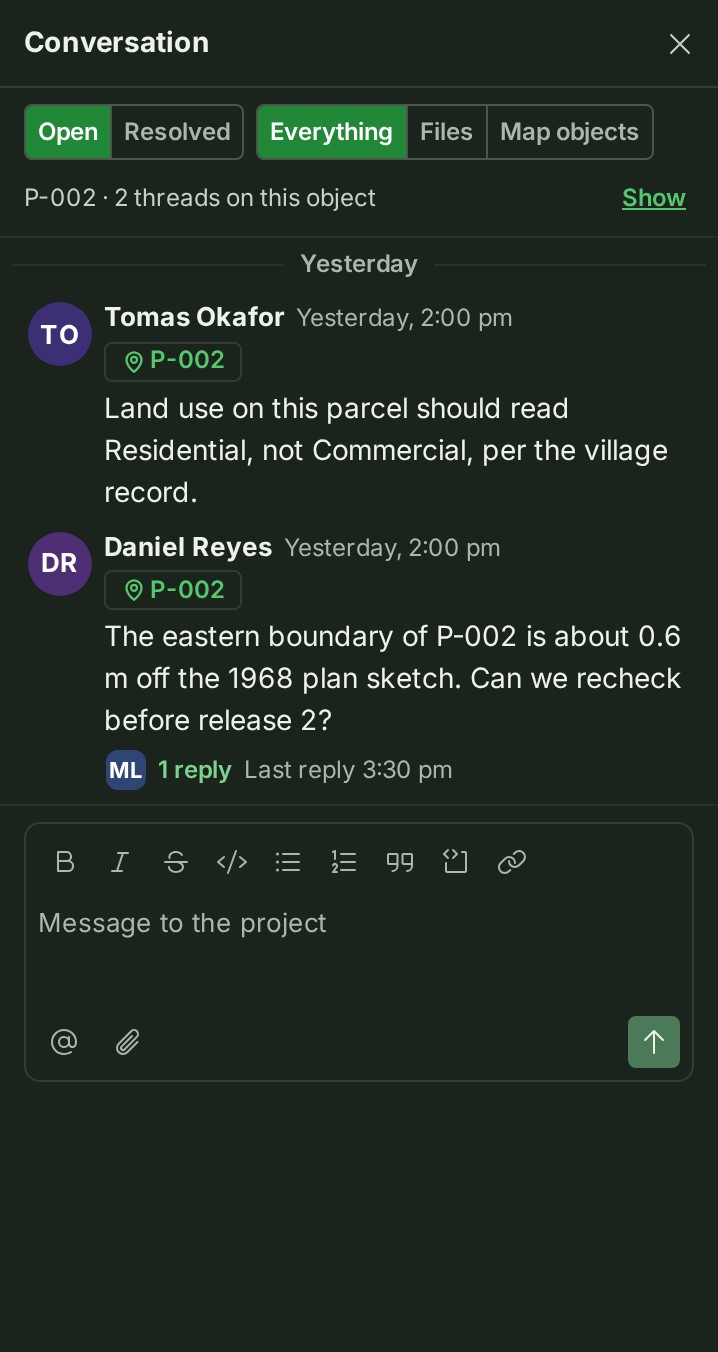
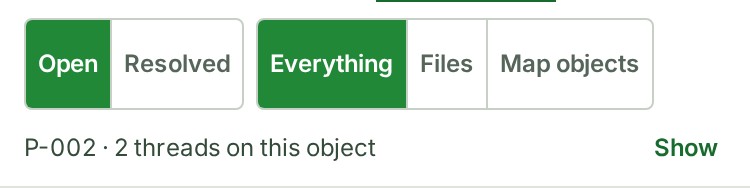
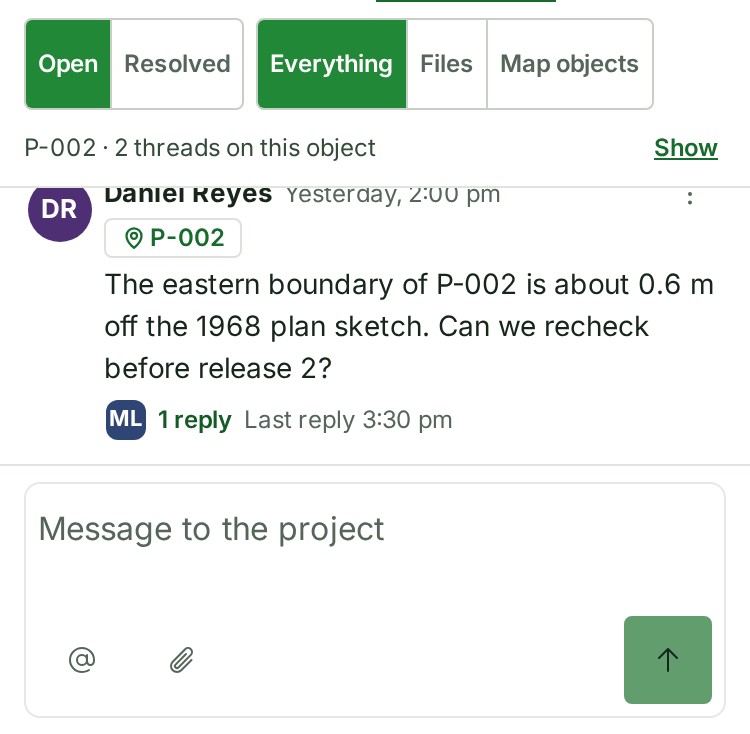
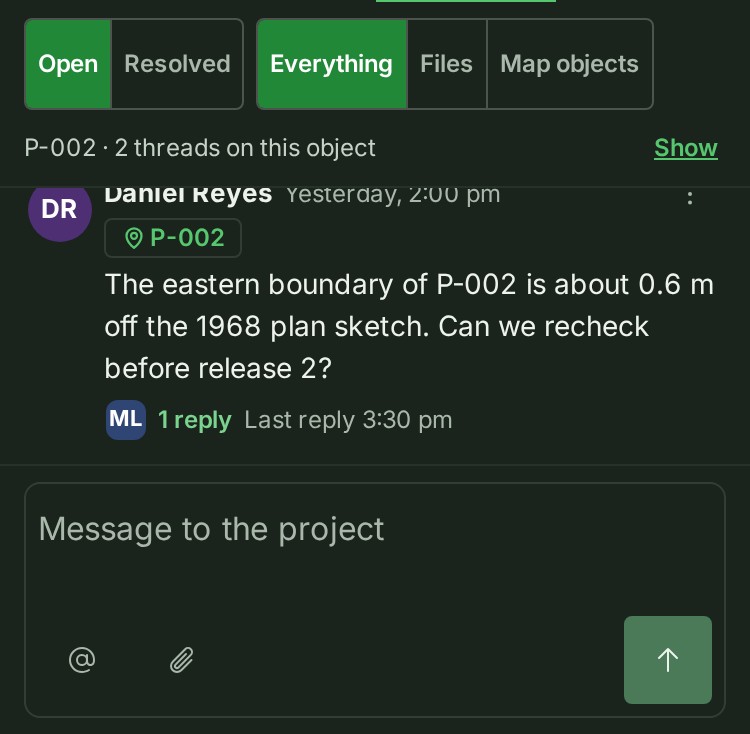
With a parcel, line or saved measurement selected, one quiet line ends the filter row of the map's Conversation panel: the object's name, how many threads it has, and Show. Show narrows the stream to that object's threads, all of them, however far back they go; press it again to see the whole project. The box under the stream is still Message to the project: to start a thread about the object, use the box on its Conversation tab. Selecting another object ends the narrowing.
Direct and group messages stay on their own page. The title bar of the map has a Messages button beside the bell; the number on it counts the unread direct messages, and pressing it opens Messages.




Write a message
- Open the project. Project notes sits under Files, full width (on a phone, the Notes tab). In the map, open Conversation from the left dock's rail (Conversation on a phone's sheet).
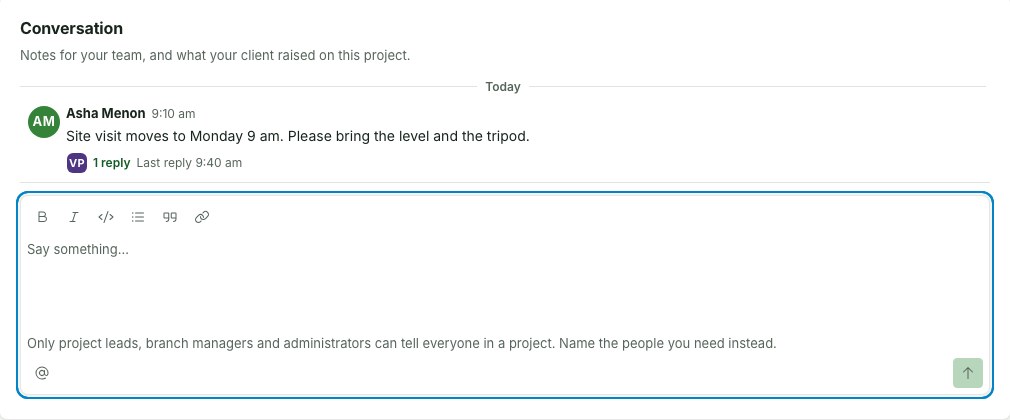
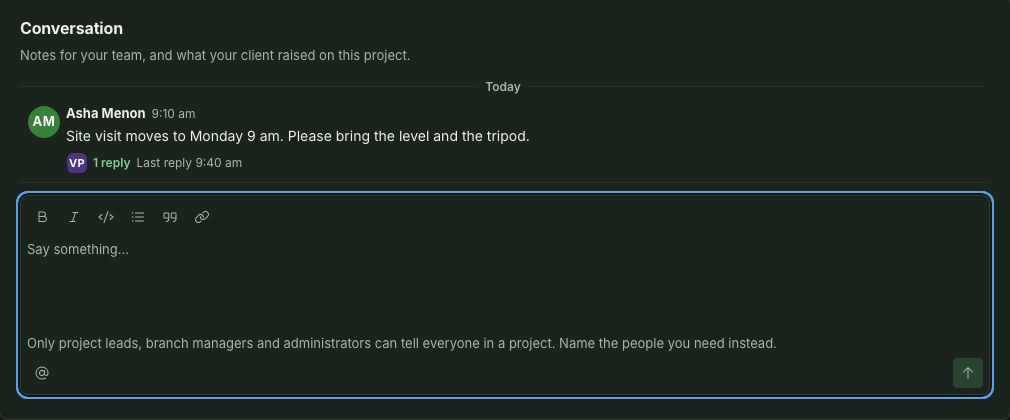
- Write in the box under the latest message. While the conversation is short the box sits directly under it; once the messages fill the panel the box stays at the foot and the messages scroll above it, the newest just over the box. A long link or a string of coordinates breaks onto the next line, so the messages never scroll sideways. There is nothing to choose first: a message written here is about the whole project, and in the map's Conversation panel the empty box says so: Message to the project.
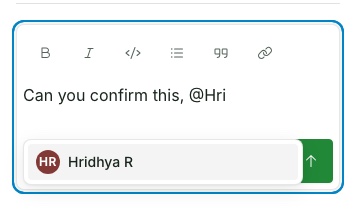
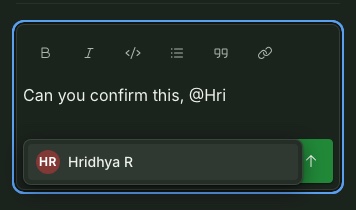
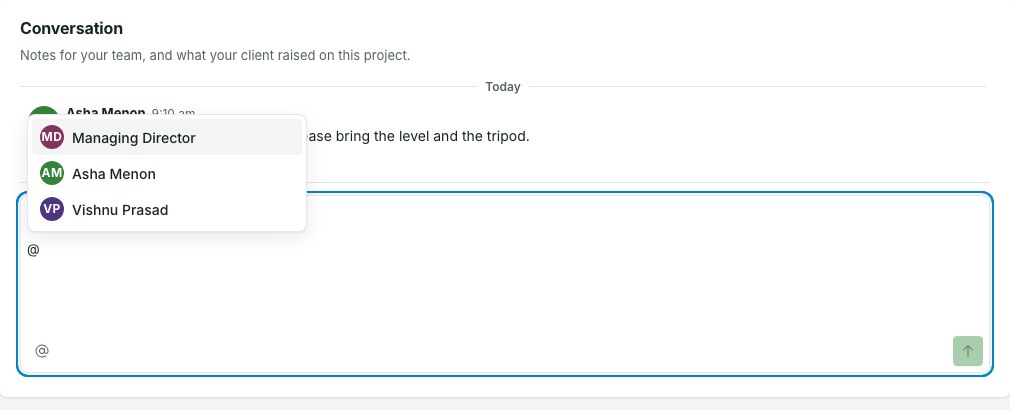
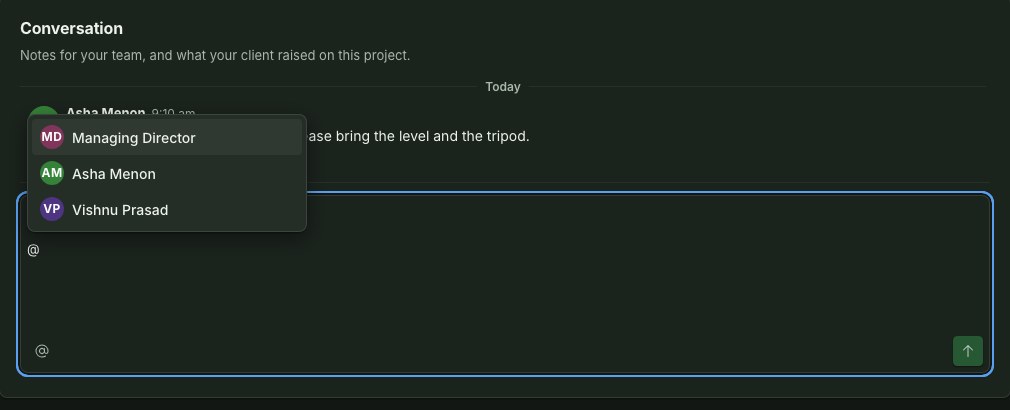
- Type @ and a colleague's name to open the mention list, then select them — they are told. A mention is how you ask somebody for something; say what and by when in the message itself.
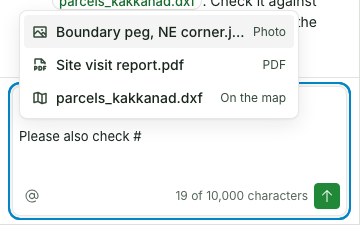
- Type # and a file's name to refer to one of the project's files (see Refer to a file).
- Use the toolbar for Bold, Italic, Code, a bulleted list, a quote or a link.
- Press Enter, or select Send (see Keyboard). While the message is going, the arrow on Send gives way to one small busy mark and the button is dimmed; the arrow returns when the message has been sent, or has failed with your words still in the box.
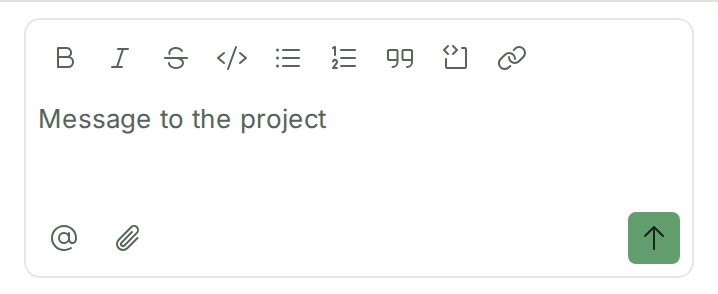
To write about one parcel, line or saved measurement instead, select it on the map and write in its Conversation tab in the Inspector (see About a map object); its box says “Message about” and the object's name. To write about a file, open its threads (see Discuss a file).
Why this is so
Only your own organisation's members read and write project notes. Your client never sees them, however they are marked — see What a client reviewer sees. Anyone who can write here may mention any colleague who can write here too, whether or not they have written here before — see Who can write here.
Keep an unsent draft when your session ends
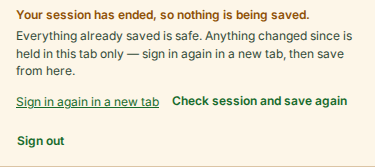
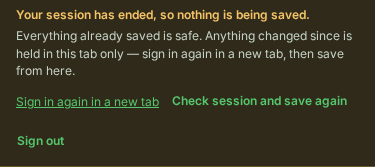
A note, reply or changed message stays in this tab when your session ends. The page becomes inactive and a notice explains that nothing new is being saved. Keep this tab open, use Sign in again in a new tab, then return and select Check session and save again. Use the same account and organisation to resume the draft. Reloading or closing this tab can lose words you have not sent.


Who can write here
Everyone in your organisation who can open the project can write in its conversation, reply in a thread and be mentioned: the Owner, Admins, the billing role, and every branch or project role — manager, member, lead, contributor and viewer. A message changes no survey data, so a viewer, who reads the map and draws nothing, can answer the colleague who mentioned them.
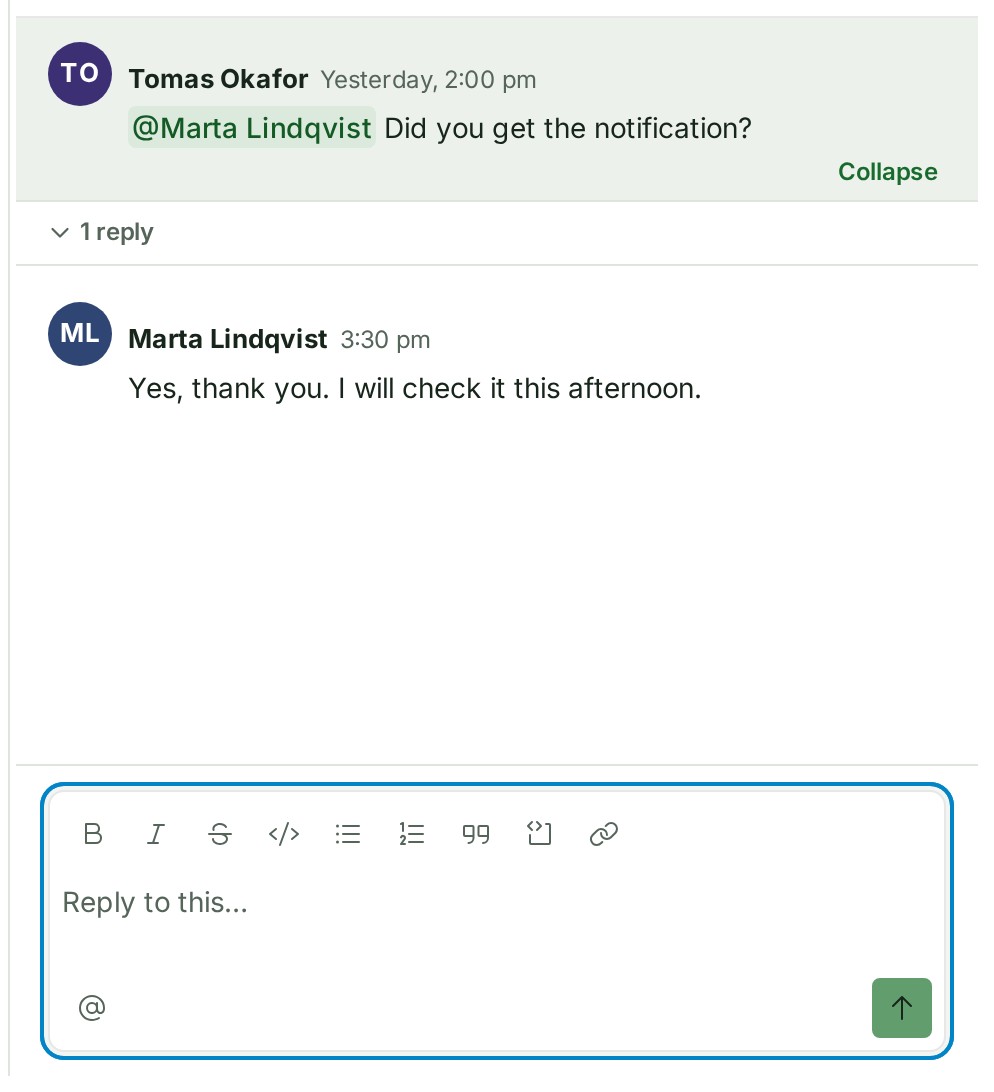
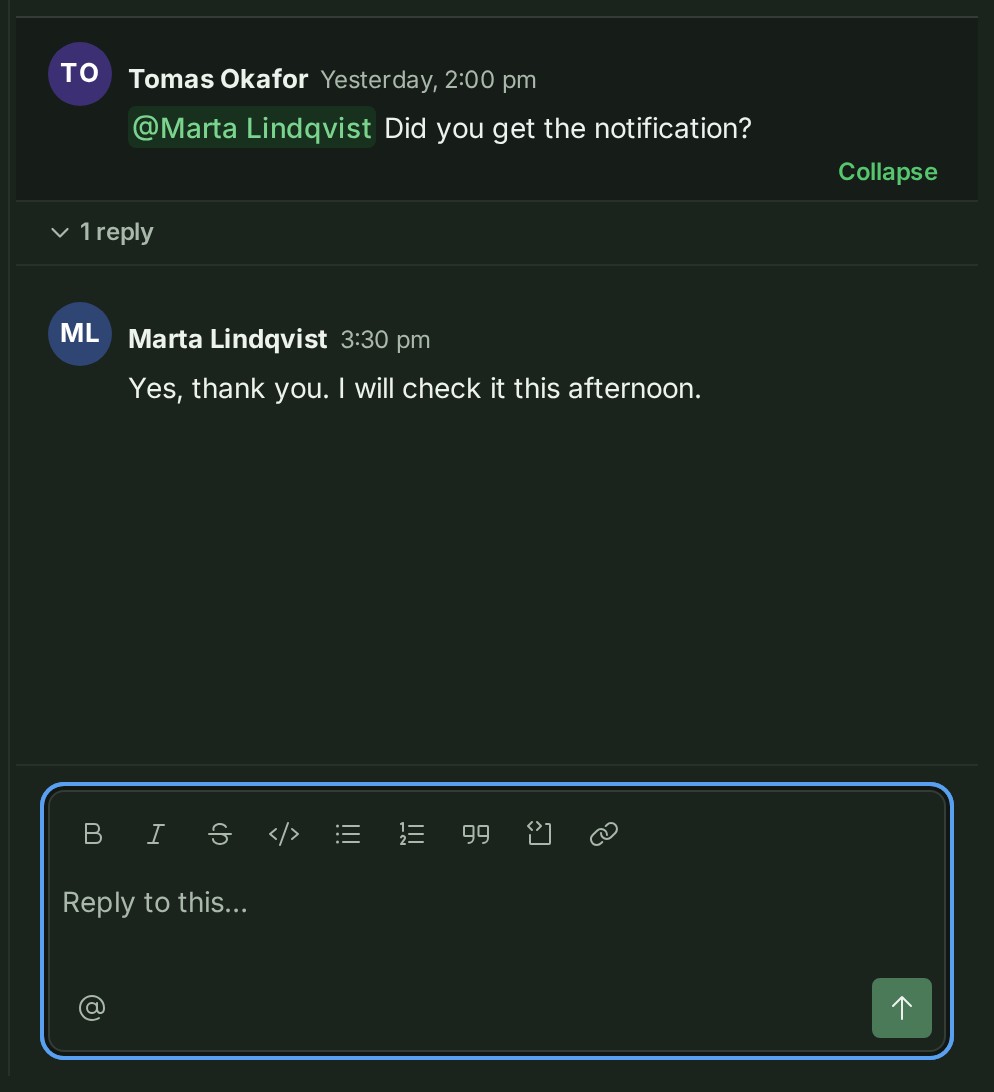
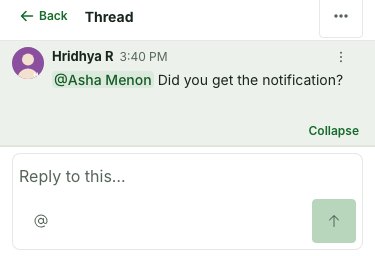
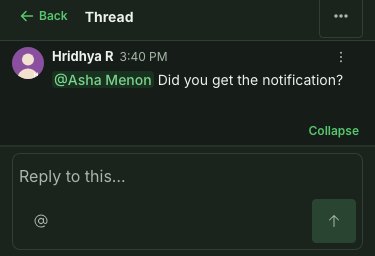
An auditor reads the conversation and does not write in it: they read everything and change nothing. In place of the box they see You can read this conversation but not reply to it., on the project page, in the map and in a file's Threads, and a file row offers them no Start a thread. A thread opened in the conversation's place — on a phone, in the map's panel and in a file's Threads — ends in the same line where the reply box would be; on the project page at desk width the thread opens beside the conversation, whose own line says it. An auditor who also holds a branch or project role, or an Admin's role lent to them, writes through that role like anyone else who holds it.
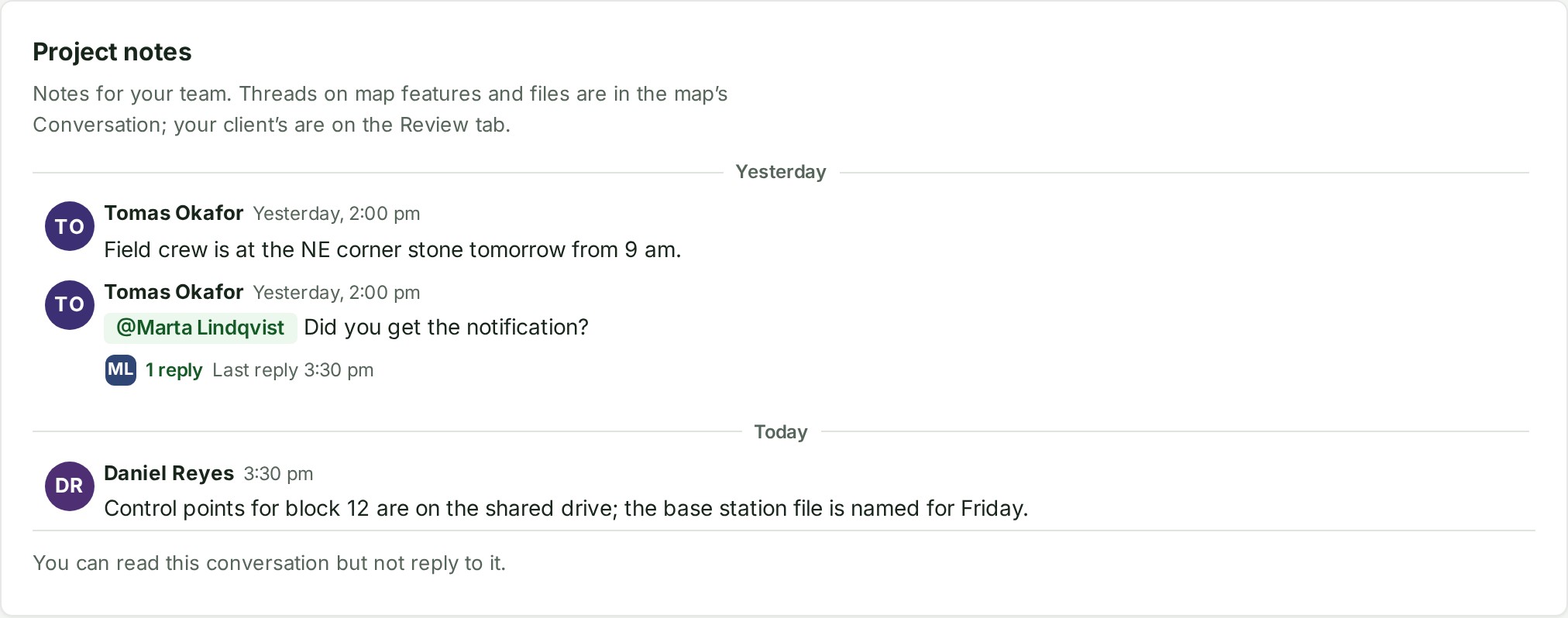
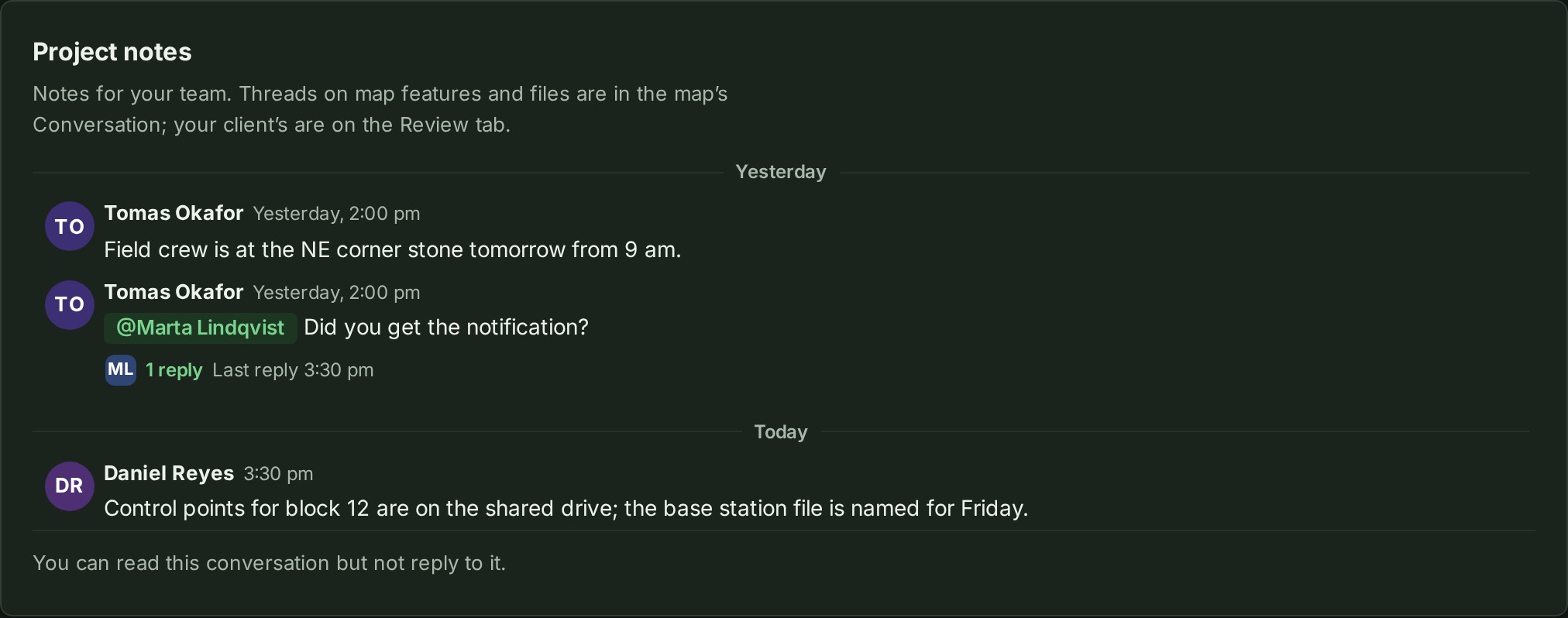
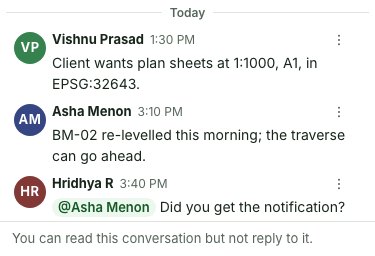
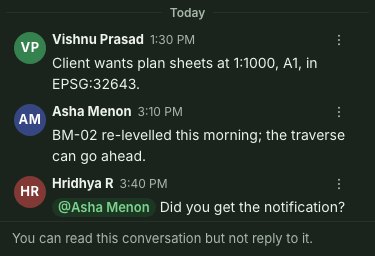
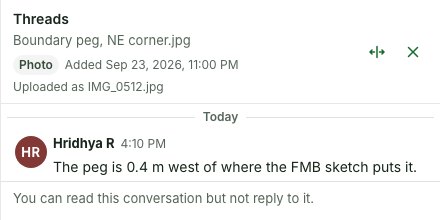
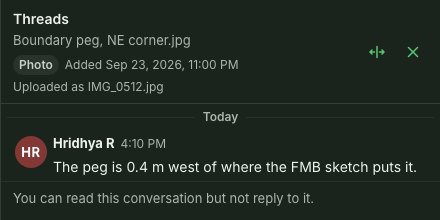
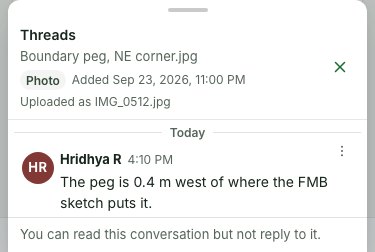
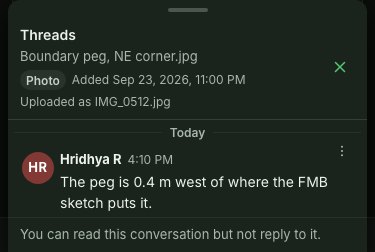
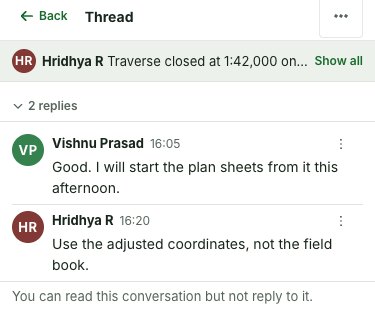
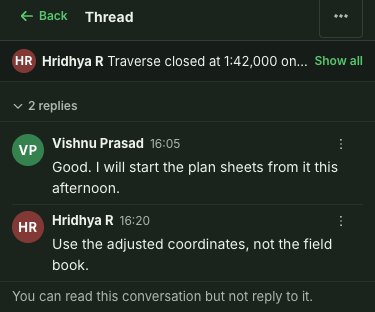
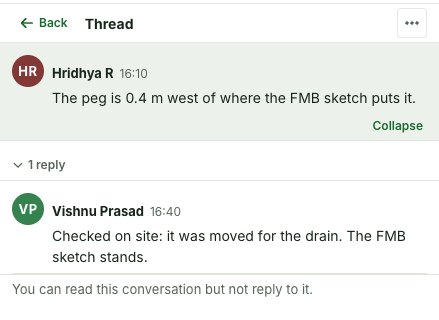
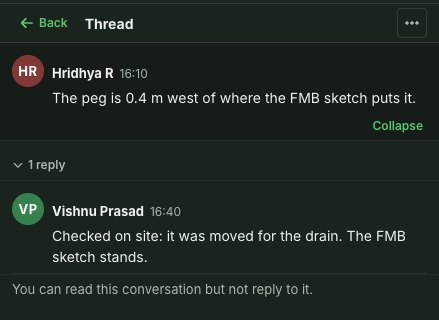
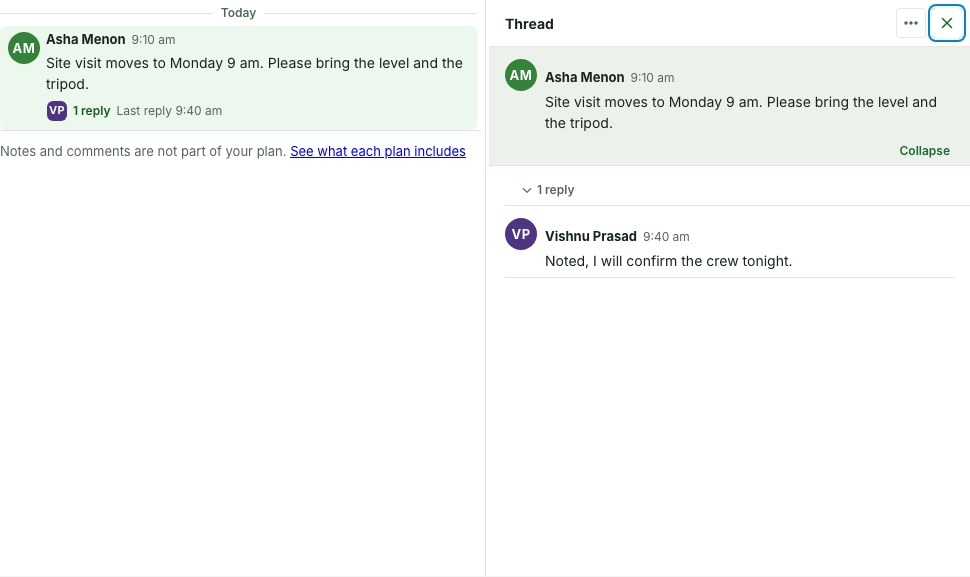
Somebody who can write here still sees a line in place of the box, and no Start a thread on a file row, when new messages are refused for the whole organisation: "Notes and comments are not part of your plan.", followed by where to change the plan or who can, when your plan leaves notes and comments out; "This organisation is suspended. Your data is safe and readable."; or This organisation is closed. While the plan leaves notes and comments out, you can still correct or delete your own messages and resolve or reopen threads. A frozen account keeps its box, which says it is frozen.
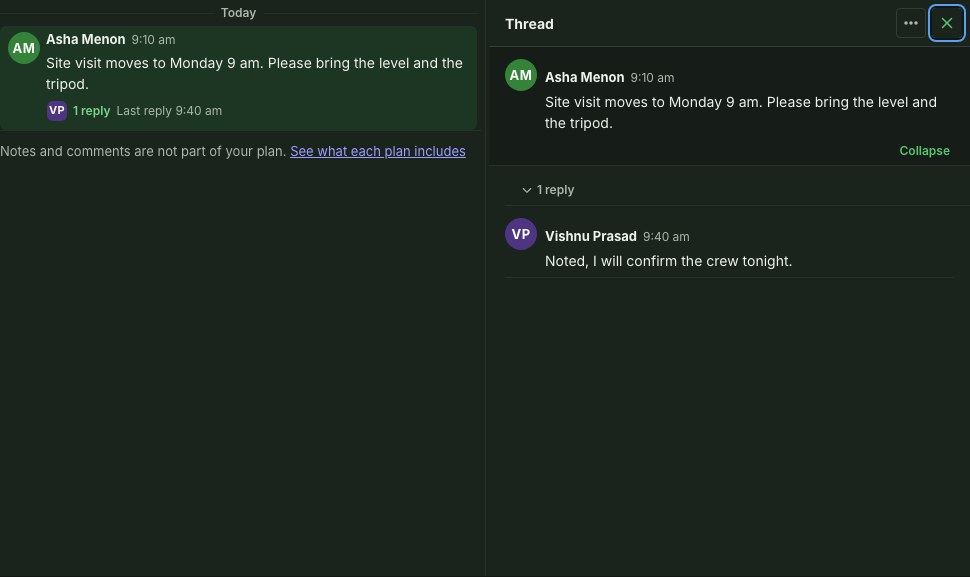
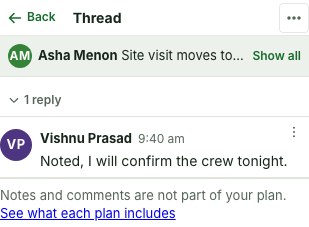
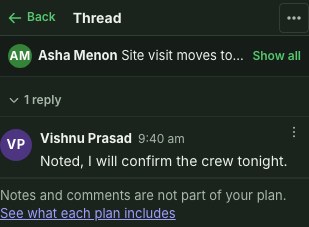
The line is said once. On the project page at 900 px and wider, where a thread opens beside the messages, it stays under the messages and is not drawn again under the thread; where a thread takes the messages' place (a phone, the map panel, a map object's tab), it is drawn at the foot of the thread instead, because the messages are then out of sight.
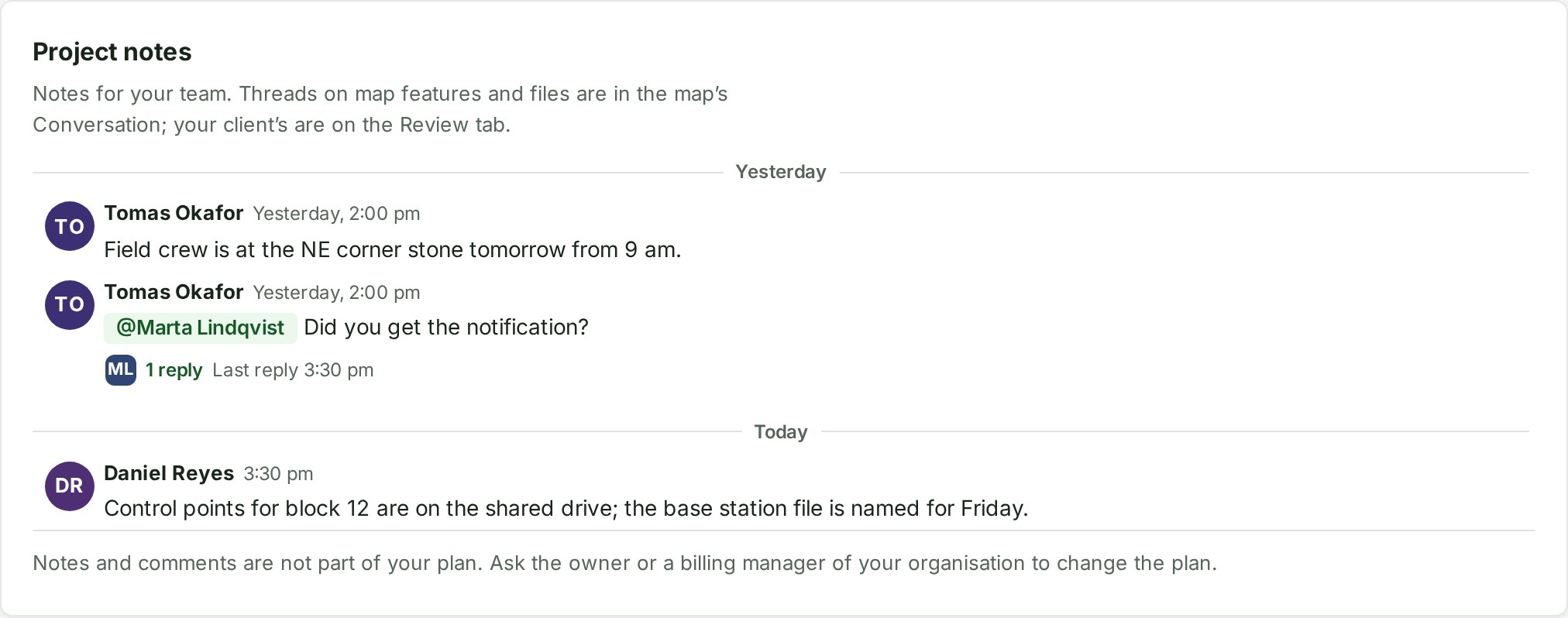
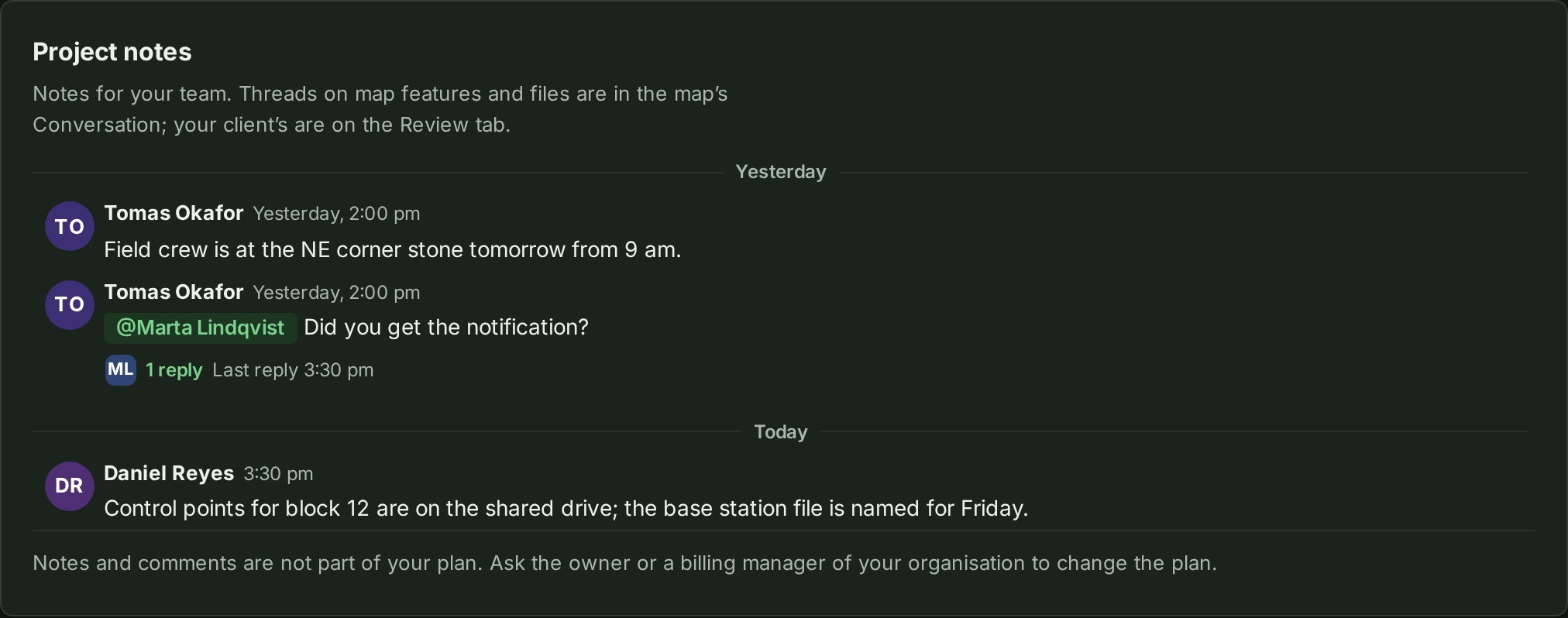
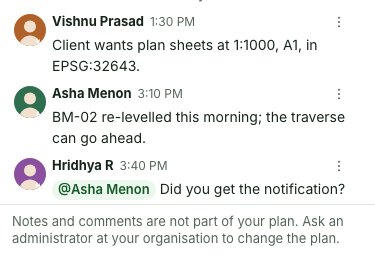
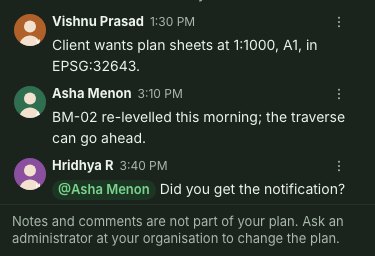
With a thread open, the line is drawn once:
The @ list offers exactly the people who can write here, so the person you ask can always answer. A message that mentions anybody else — an auditor, a colleague with no access to the project, or someone outside your organisation — is not sent, and the box says Somebody you mentioned cannot take part in this conversation. Remove the mention and try again. What you typed stays in the box. When you edit an older message, a name already in it stays exactly as you wrote it even if that person can no longer write here; it simply tells nobody.
Why this is so
Being mentioned is being asked something, and being asked something you are not allowed to answer is a dead end. So the people who can be mentioned and the people who can reply are one list. Showing a thread to your client is a separate decision and stays with a project admin, or with the colleague who opened the thread if they also work on the project — a viewer can reply in a thread your client reads but cannot open one for the client or mark one.
See who someone is
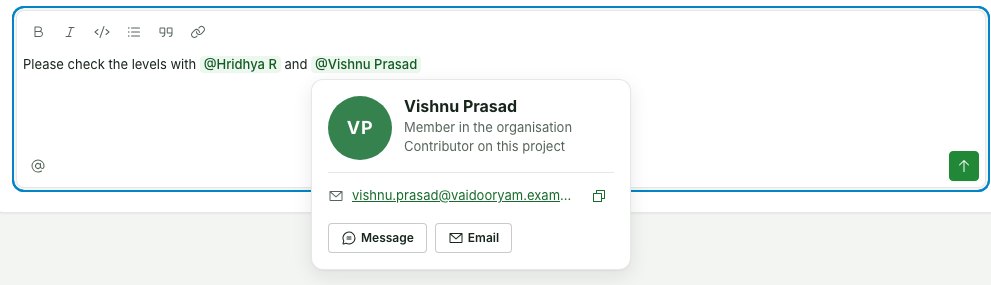
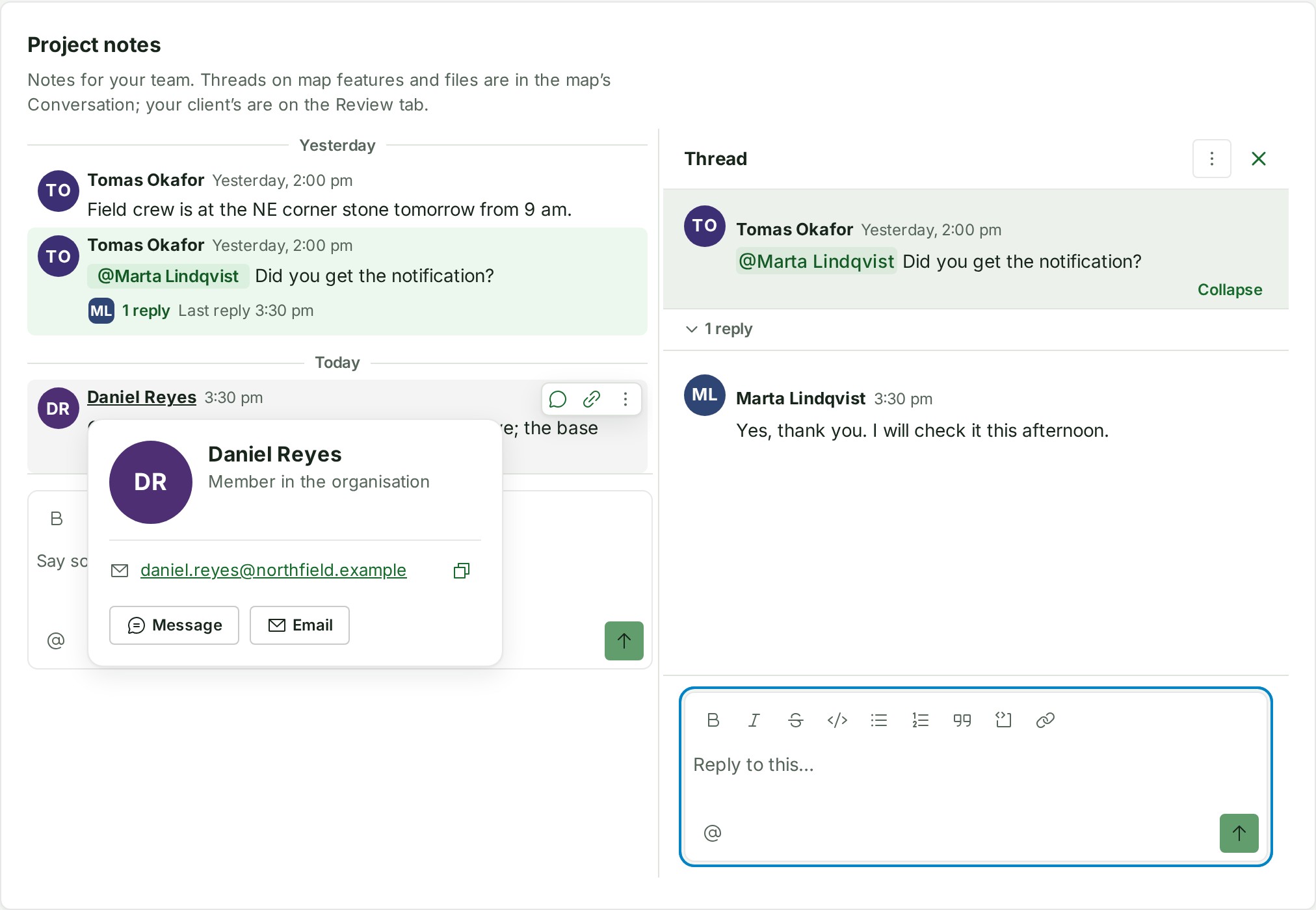
Rest the pointer on a person's name or picture in a conversation — or on an @mention in a message — for about a second and their card opens beside it: a larger picture, their name, their job title, their role, and the ways to reach them. The card also shows whether the person is online, busy or offline. It shows none of these when your plan does not include presence, when the connection to live updates is down, or when the person is not an active colleague. A passing pointer shows nothing. Move off and the card closes; move onto the card and it stays, so you can read it or use it. Scrolling, Esc or a click elsewhere closes it, and resting on a name never takes the cursor out of your message box.
From the keyboard, Tab to a name and stay on it for a second to read the card, or press Enter to open it and move into it: Tab then goes through its links and buttons and stays inside the card, and Esc closes it and puts you back on the name.
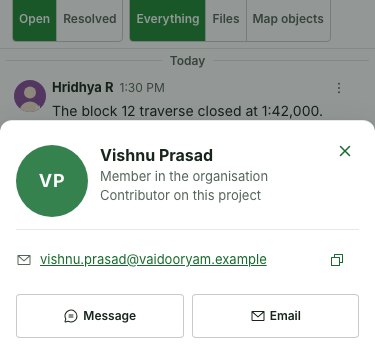
On a phone, tap the name or picture: the card rises from the bottom of the screen. Tap Close, or anywhere above the card, to put it away.
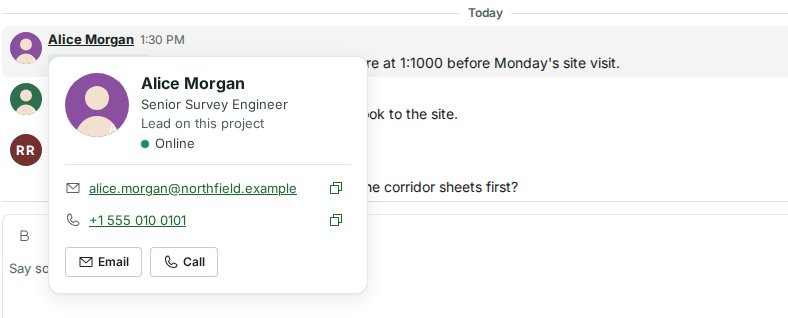
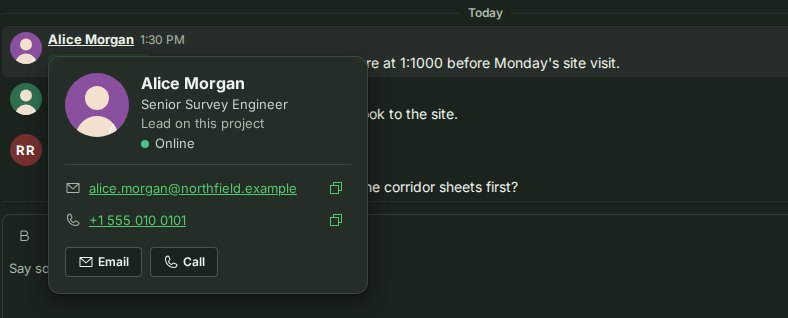
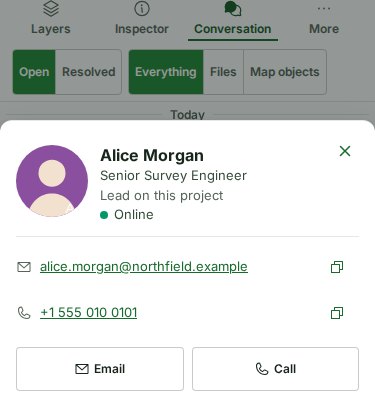
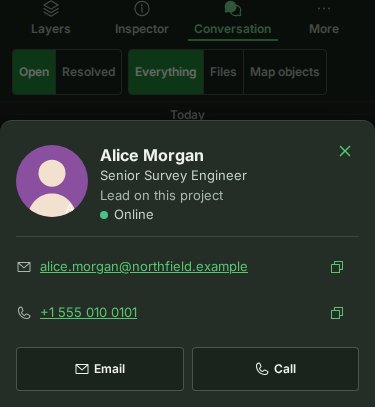
What the card says depends on who it is and who is reading:
- Your own card says You, with your job title, your role, your email address and your phone number, and has Edit your profile, which opens Preferences where you change your name, job title, phone number and picture.
- A colleague's card shows their role in the organisation where you may read your organisation's list of people (the Owner, Admins, the billing role and the Auditor), and the role they hold on this project when they have one. A colleague whose role you cannot read is marked Colleague.
- Their job title stands under their name, when they have added one in Preferences. Every colleague sees it, wherever the card opens: in a project's conversation, a direct conversation, a group and a group's Members.
- Their email address is shown only to the people who already see it elsewhere in GISweaver: the Owner and Admins, who see it on the People page, and a project's lead or its branch's manager, who see the addresses of the people on that project. The whole address is shown, on two lines if it is long. Beside it is a copy button; GISweaver says Copied over the button when your browser took it, and if your browser refuses, it says so and you can select the address on the card instead.
- Their phone number, when they have added one, is shown to exactly the same people as their email address, with its own copy button; select the number, or Call, to call them from a phone or a calling app. Anyone who does not see the address does not see the number either: a plain member on a plan with roles sees a colleague's job title and no number.
- Message opens your private conversation with them, or starts one (see Messages). Email starts a new email to them in your mail program, and Call (where you see their number) calls them. None of the three is on your own card, a client reviewer's or a former member's.
- A client's reviewer shows their company — Client · Kestrel Builders — and never a role, a job title, an address or a number.
- Somebody who has left reads A former member, with no role, job title, address or number. You see this where you can read the list of people, or where a direct conversation says so; elsewhere the card says Colleague and does not guess.
When a client reviewer reads a conversation on their review page, the firm's people show the name they were given and the firm they are at, and nothing else.
A name in the box you are writing
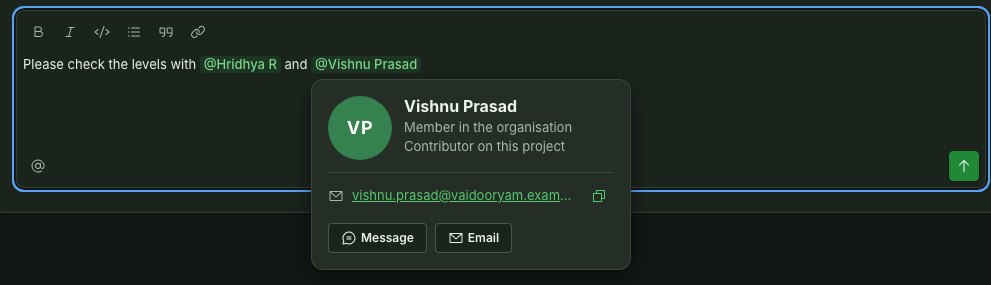
A colleague you have mentioned opens the same card while you are still writing: select their chip
in the box, as in the picture below. The cursor stays in the box, after the chip, so you can keep
typing; typing, Esc or a click elsewhere puts the card away. From the keyboard, put the cursor
beside the chip and press Alt + Enter (Option + Enter on a Mac): the card opens with you
inside it, and Esc brings you back to the box with the cursor where it was. On a phone, tap the
chip and the card rises from the bottom of the screen. An @All chip shows who it includes (see
See who All includes). The card shows exactly what it shows from a sent
message, to the same people.
Why this is so
The card shows nothing you could not already read elsewhere in GISweaver: the list of people and its addresses for those who may manage it, the project's members for everyone who reads the project. A colleague who works beside you on one project is not handed the whole company's addresses, and nobody from outside your organisation ever is. A phone number follows the same rule as the address, because it is the same kind of thing: a way to reach somebody directly. Alonstech's support staff never see it, even while helping your organisation. A job title says who somebody is, like their name and role, so every colleague sees it.
Keyboard
At a desk, Enter sends a message or a reply and Shift + Enter starts a new line; on a phone or a tablet the keyboard's return key starts a new line and Send sends, and while the mention list is open — or the file list, see Refer to a file — Enter picks the highlighted colleague or file instead. With the cursor beside a name in the box, Alt + Enter (Option + Enter on a Mac) opens that person's card; Esc brings you back to the box (see A name in the box you are writing).
How long a message can be
A comment or reply in a project's conversations can be up to 10,000 characters. A message in Messages holds up to 4,000. The box says nothing about this while you are within it, however long the message, and shows no running count. At the limit it speaks once:
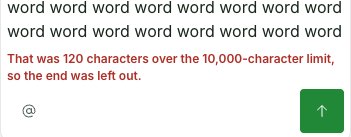
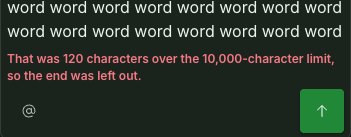
- In the conversation's message box and in a note you are editing, anything typed or pasted past the limit is left out, and the box says so in red under the writing: That was 120 characters over the 10,000-character limit, so the end was left out.
- In a reply on a thread or a comment on the review page, your words stay and the box says This is 120 characters over the 10,000-character limit. Send is dimmed until you have cut that much.
A screen reader is told once, when the limit is crossed, and not again for every key after it.


Ask a colleague for something
To ask somebody for something, mention them in a note or a reply and say what you need.
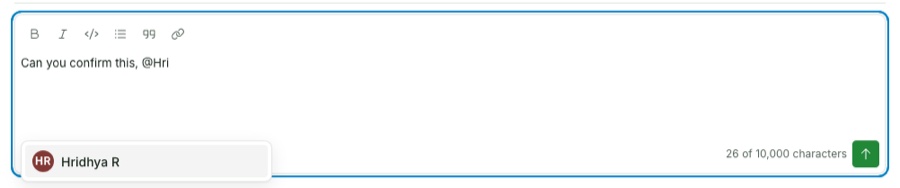
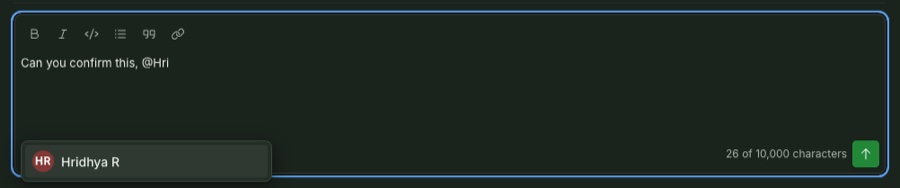
- Write your note as usual, and type @ followed by their name where it belongs in the sentence — for example "Can you confirm this, @Tomas Okafor" or "@Daniel Reyes, please send the traverse sheets by Friday".
- Select them from the list that opens under the box — above it instead, on a phone or a tablet, when the on-screen keyboard leaves no room underneath.
- Select Send. They are told, in the bell and by email, exactly as any other mention is.
- Once they have answered, select Resolve in the thread's menu (⋯) to record that the conversation is settled — the same control every conversation already has.
Tell everyone in the project
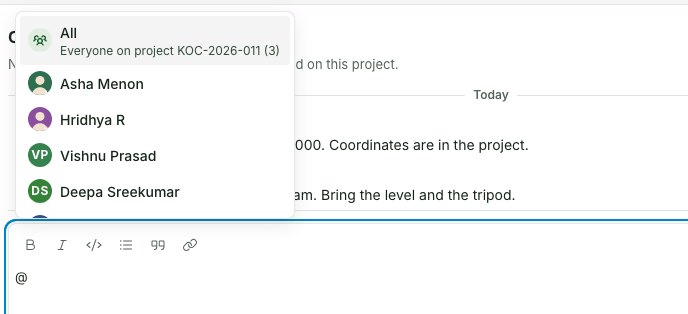
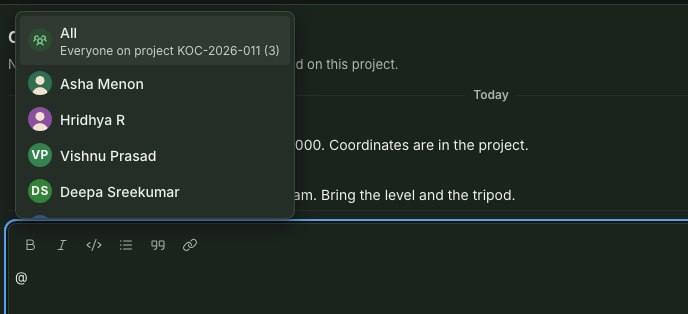
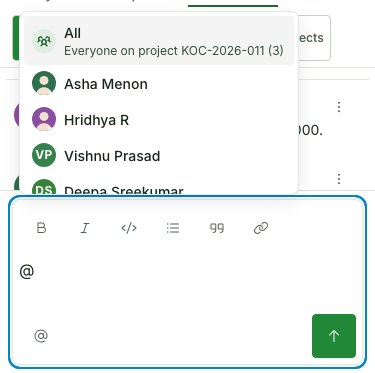
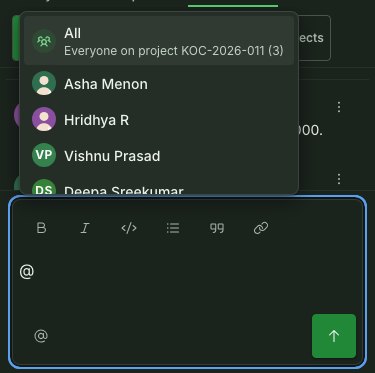
When a whole project needs to know something at once, a project lead, a branch manager, an Admin or the Owner can type @ at the start of a new conversation and choose All, the first row in the list. It says who that is, for example "Everyone on project SITE-2026-011 (12)". Nobody else is offered All (see Who can use All).
- Start a new message in the box at the foot of the conversation, and type @.
- Select All. It becomes a chip reading
@Allin the message. - Write what everyone needs to know and select Send.
Who is told depends on the project:
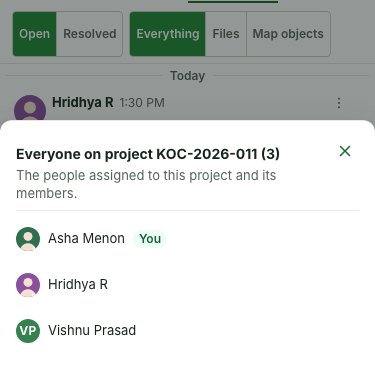
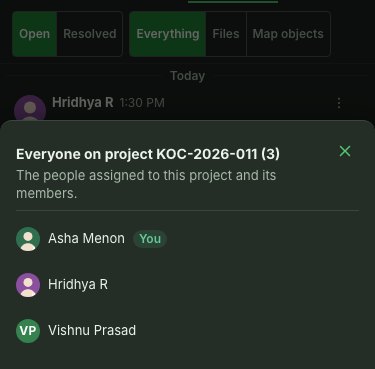
- The people on the project. When people are assigned to the project (under Assigned in
About this project) or it has members of its own — its lead, contributors and
viewers —
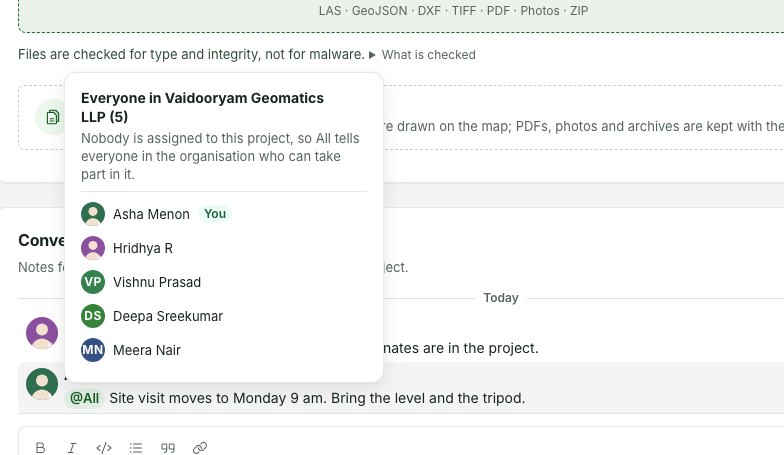
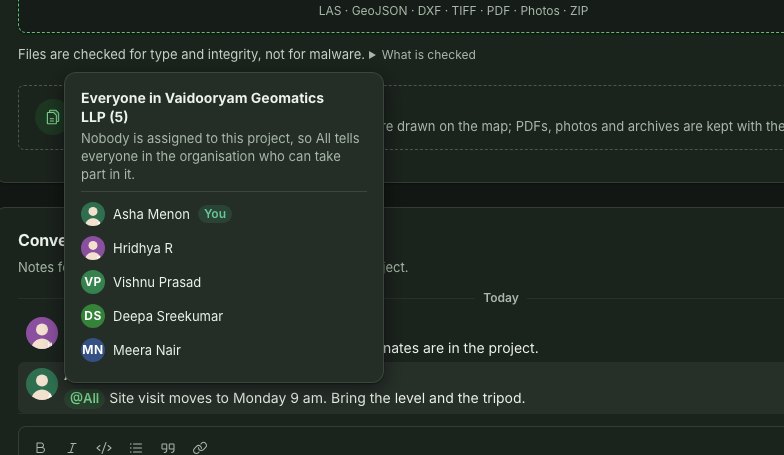
@Alltells them, as long as they can take part in its conversation. Colleagues who can open the project only through their branch or their organisation role are not told; name them if they need to know. The row reads "Everyone on project SITE-2026-011 (12)". - Everyone in the organisation, when nobody is on it. A project with nobody assigned and no members of its own tells everyone in your organisation who can take part in its conversation, and the row says so: "Everyone in Northfield Survey Co (34)".
- The client's reviewers, in a conversation visible to the client. When the conversation is
Visible to the client and the project has people on it, its client reviewers who can read the
conversation are told too. A client reviewer is never told by an organisation-wide
@All, never sees who it includes, and cannot use@Allthemselves.
Each person told, apart from you, gets one notice in the bell that reads, for example, Marta Lindqvist
mentioned @All in SITE-2026-011. A colleague you also named in the same message is told once,
not twice. No email is sent for @All; it is a bell notice only.
See who All includes
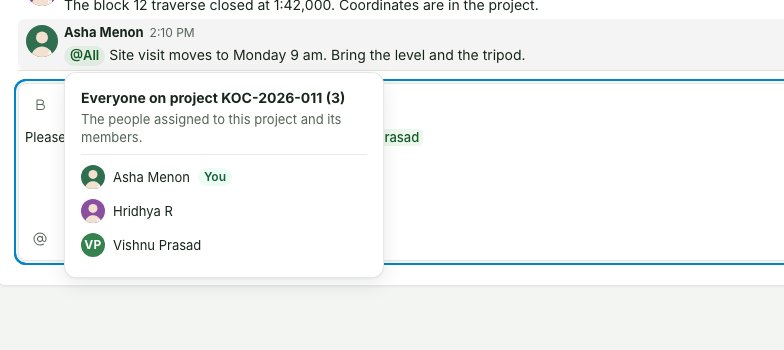
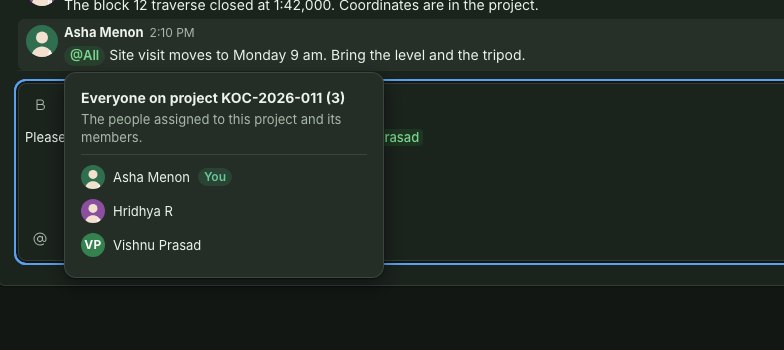
Select an @All chip — in a message, or in the box while you write — to see who it includes: a
heading such as "Everyone on project SITE-2026-011 (12)" or "Everyone in Northfield Survey Co (34)",
a line saying why it is those people, and the list of names, which scrolls if it is long. Select a
name to open that person's card. The list is who @All would tell now, not a record of who was
told when the message was sent: somebody assigned since then is in it, and if the conversation was
made visible to the client after the message was sent, the client's reviewers are listed although
they were not told. The reviewers listed are every client reviewer of the project whose invitation
is still open; each of them is told only if they can read that conversation, so one whose copy of
the project does not include the file or object it is about is listed and not told. On a phone the list rises from the bottom of the screen; Close
puts it away. Only people who can take part in the conversation see the list; anybody else is told
so.
Four limits apply to All:
| Limit | What happens |
|---|---|
| Only some roles | A project lead (on the project they lead), a branch manager (on projects in their branch), an Admin and the Owner can use All. Everybody else who can write in the conversation can still name colleagues one by one, reply, resolve and reopen threads. See Who can use All. |
| Only when you open a conversation | In a reply, or when editing a message, the All row still shows but reads "Only when you open a conversation". Selecting it says "@All can only be used in the first message of a thread. Mention the people you need by name in this reply." Nothing is written. |
| Once per message | A message that already mentions everyone says so and does not add a second chip. |
| 25 a day for the whole organisation | Past that, Send is refused with "Your organisation has told everyone in a project 25 times in the last day. Name the people who need to know, or try again tomorrow." The count is a rolling day. |
Who can use All
Telling everyone is limited to senior roles, so that a project's bell stays a signal: a project lead on the project they lead, a branch manager on projects in their branch, an Admin and the Owner. If your organisation's plan does not enforce roles, everybody who can write holds the same rights, and All is offered to all of them.
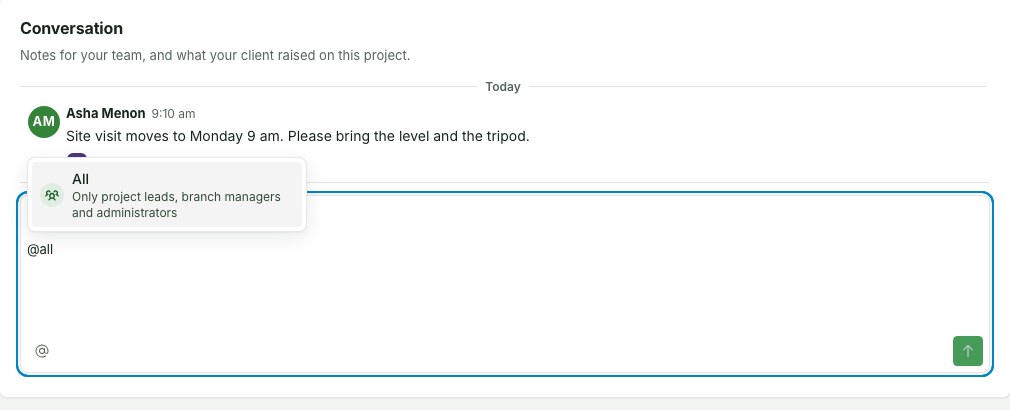
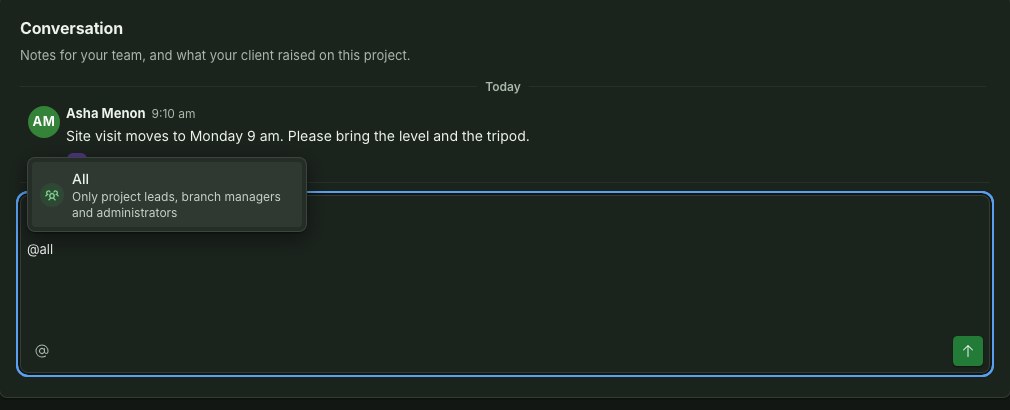
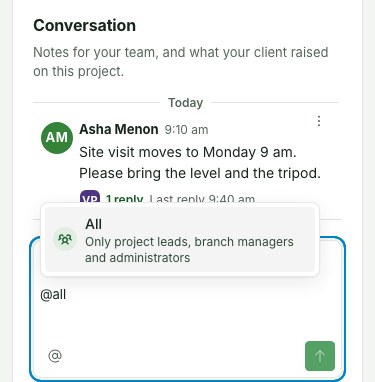
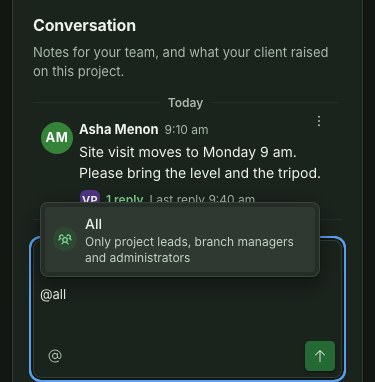
For anybody else the @ list does not offer All: it shows the colleagues you can name and
nothing more. If you type @all, the list shows All with "Only project leads, branch
managers and Admins", and selecting it writes nothing: the box says "Only project leads,
branch managers and Admins can notify everyone in a project with @All. Name the people you need
instead." The server refuses the same message if it is sent another way, with the same sentence, and
nothing is saved and nobody is told.
Replying, correcting your own message, resolving a thread and reopening it are for everybody who can write here; none of them changes with this rule.
Refer to a file
A message or a reply can name one of the project's files, so the reader can open it from the words. A photo, a PDF, a map file or anything else kept with the project can be named.
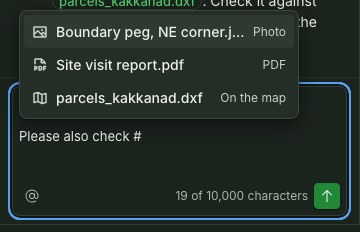
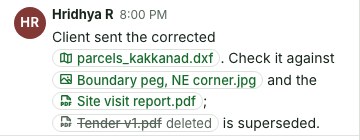
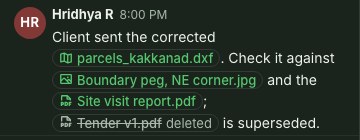
- Write your message, and type # where the file belongs in the sentence — for example "Check it against #" and then the start of its name. Type # after a space or at the start of a line: in the middle of a word (as in "C#") it is only a hash.
- Select the file from the list that opens under the box — above it instead, on a phone or a tablet, when the on-screen keyboard leaves no room underneath. Each file shows its own icon and its kind (Photo, PDF, Map file), and you can keep typing to narrow the list. Files you have deleted are not in it.
- It becomes a chip in the box. Select Send.
In the saved message the chip carries the file's icon and its name as the project holds it now, so a file you rename later reads under its new name. Select the chip to open the file: a photo or a PDF opens in the gallery with its threads beside the picture, and any other file opens its Threads beside the Files list. If the file has since been deleted, the chip shows its name struck through with the word deleted, and there is nothing to open. Naming a file tells nobody: to ask a colleague to look at it, mention them as well, as in Ask a colleague for something.
If the project's files cannot be read for you, a chip shows only the name it was written with and does not open.
Why this is so
A chip is a reference to the file, not a copy of it and not a request: the message stores which file it means, and the name you see is looked up when you read it. That is why a rename shows and a deletion is said, and why a chip cannot point at a different file than the one it names. Only a person who can read the project's files sees a chip open.
Reply in a thread
Messages use the same threads: a direct message or a message in a private group can be answered the same way — see Reply in a thread in Messages.
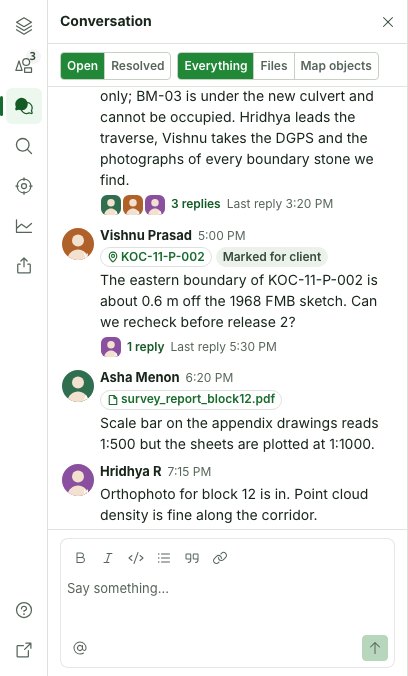
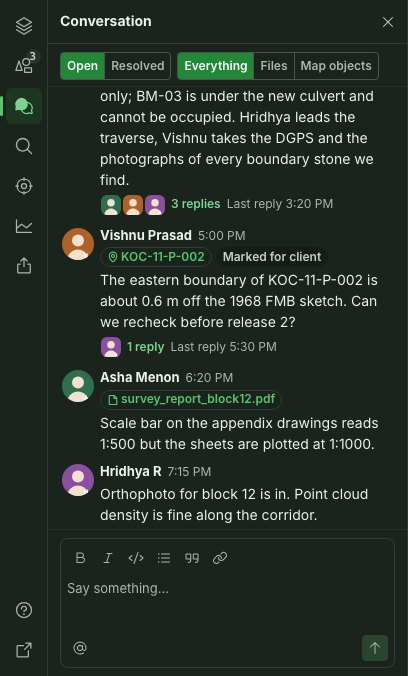
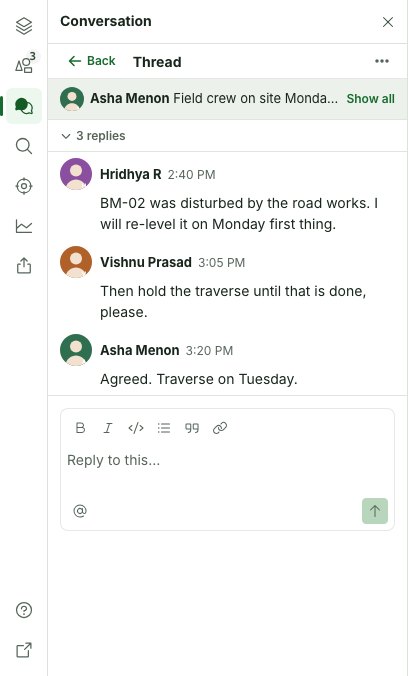
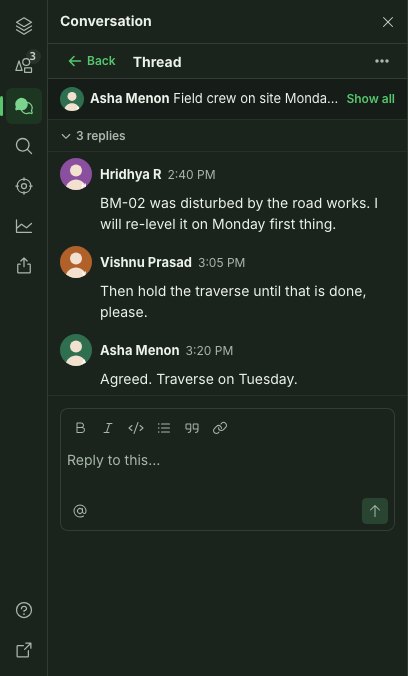
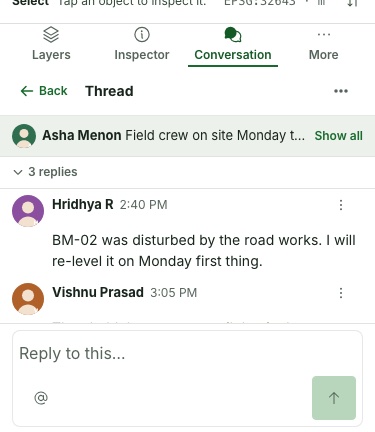
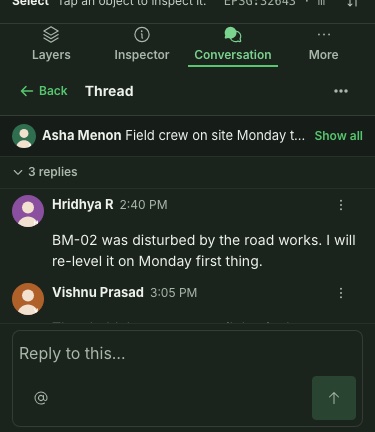
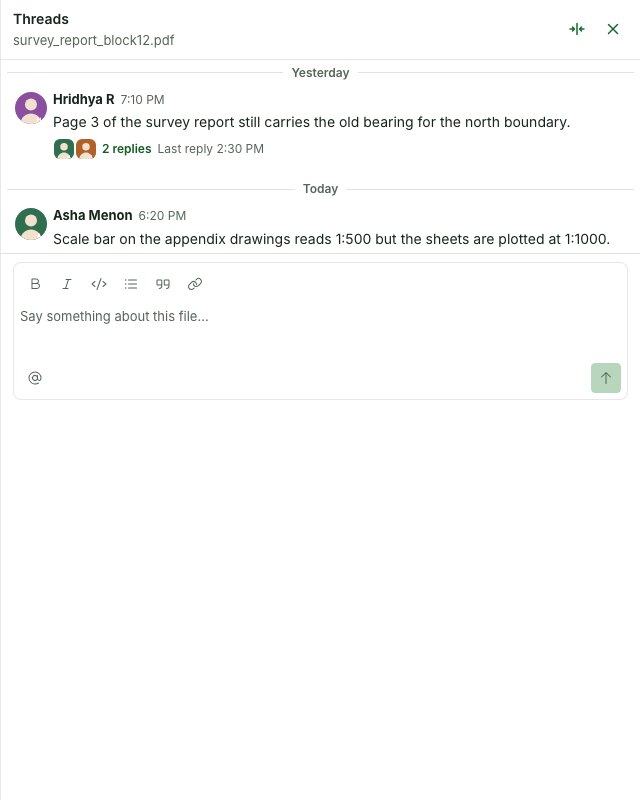
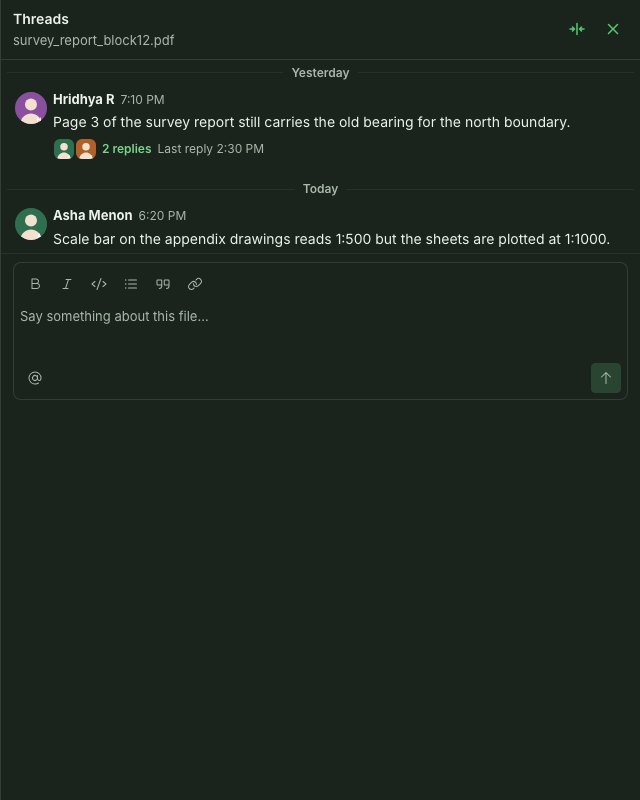
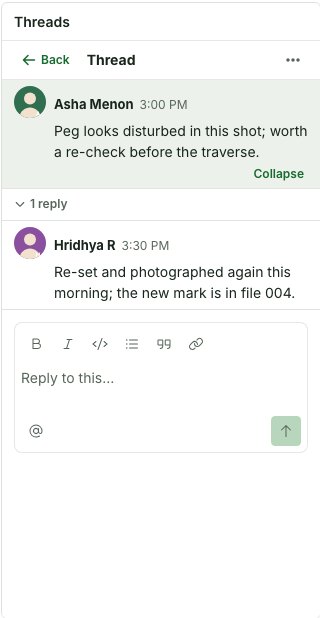
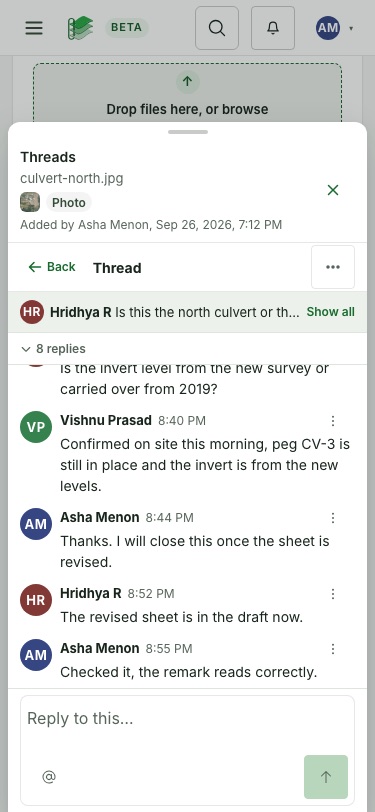
- Point at a message and select the speech-bubble, Reply in thread — on a phone, open More (⋮) and select Reply in thread there instead. A message that already has replies shows who answered, as faces, and a line such as 3 replies followed by Last reply time; select that line.
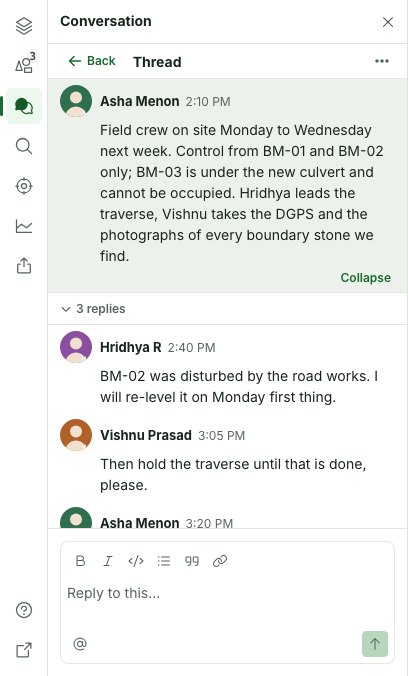
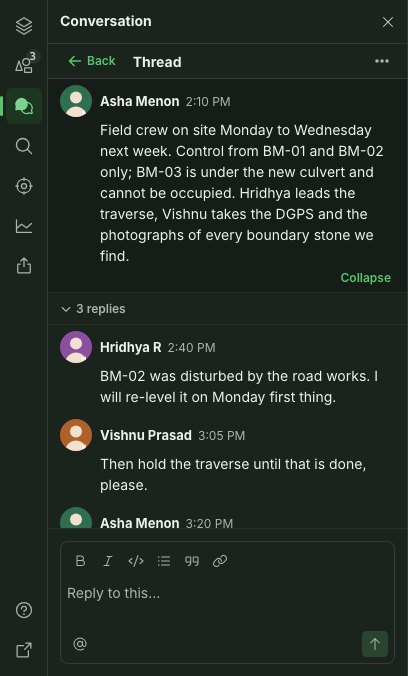
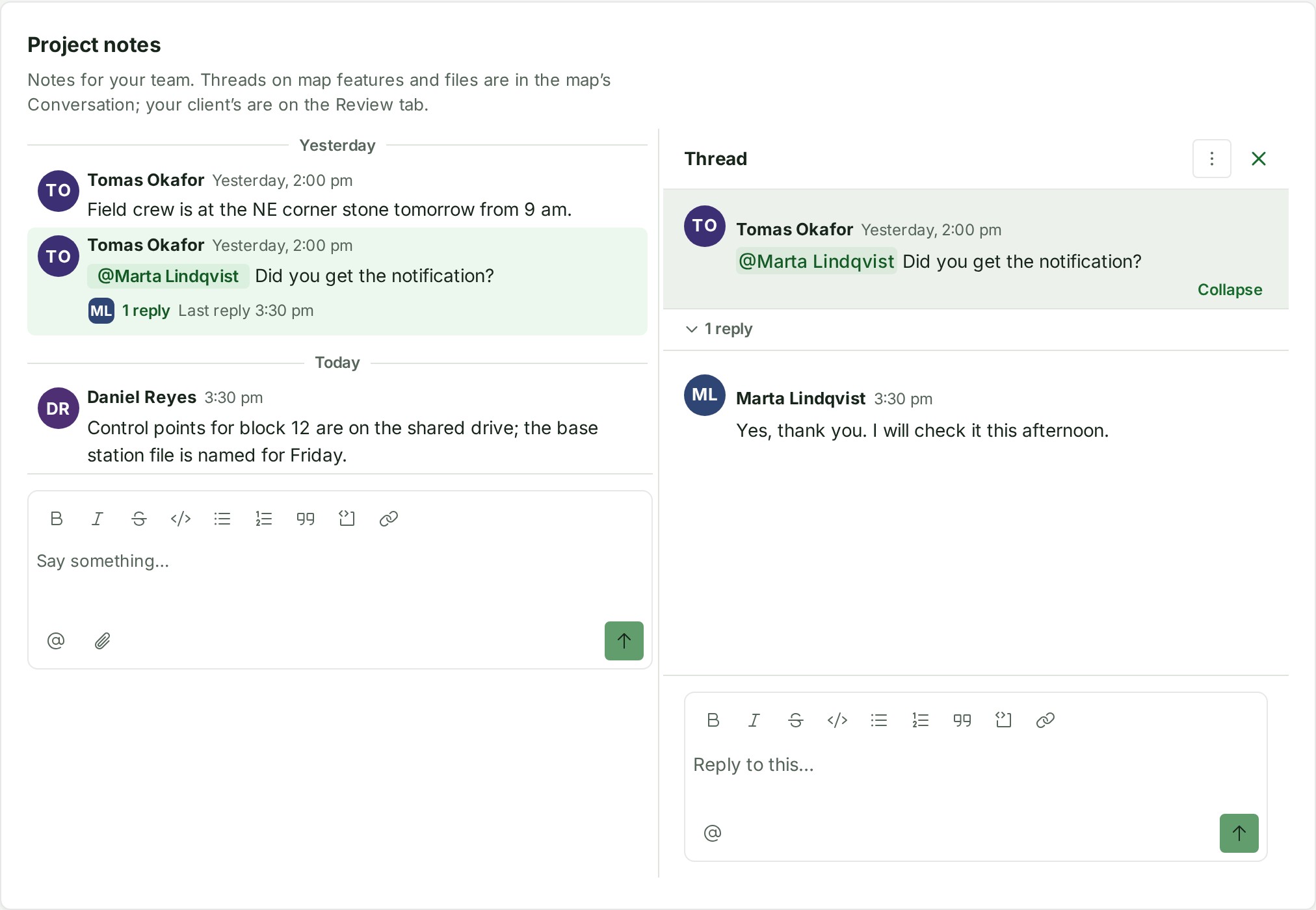
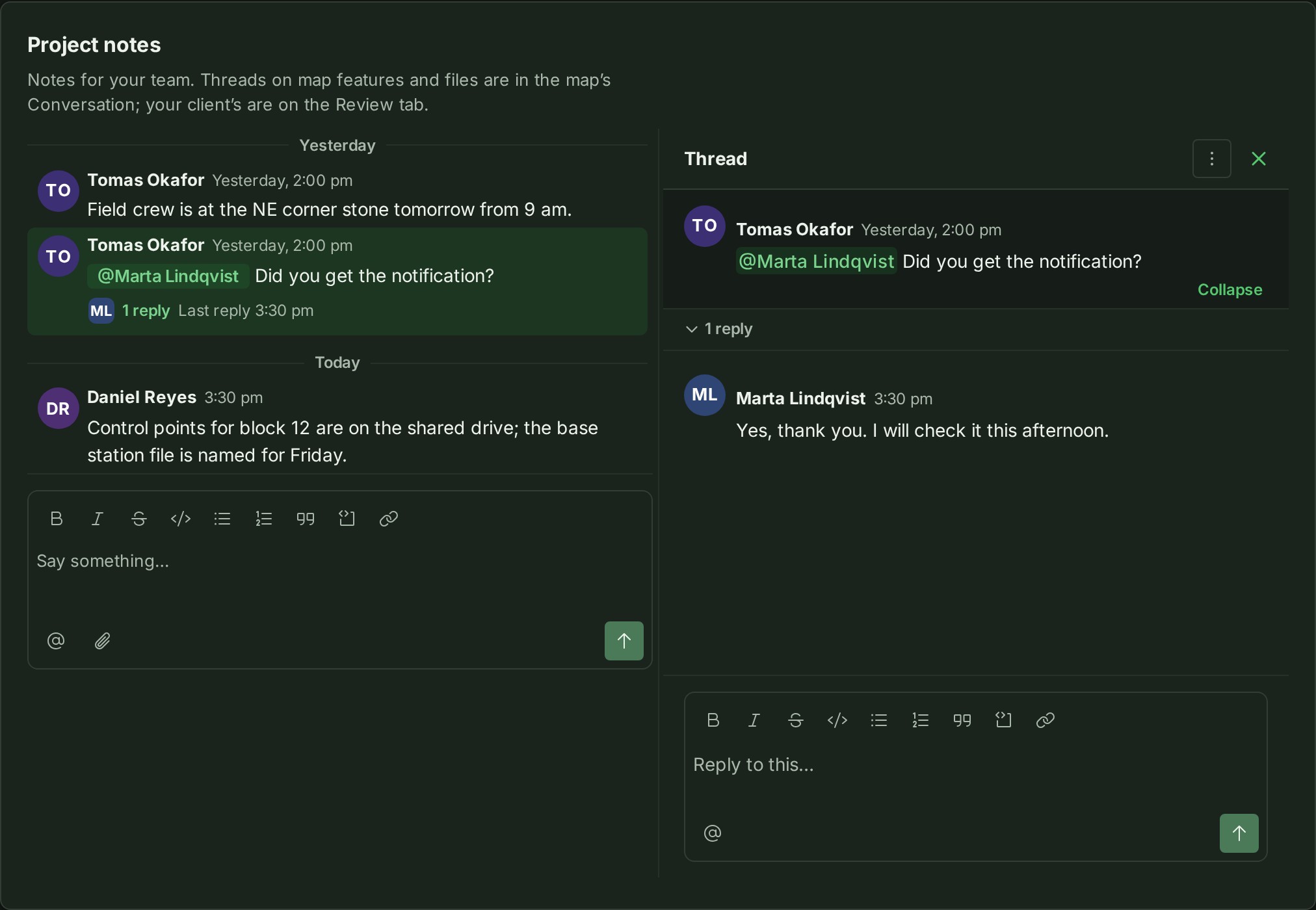
- The thread opens with the message it answers in view:
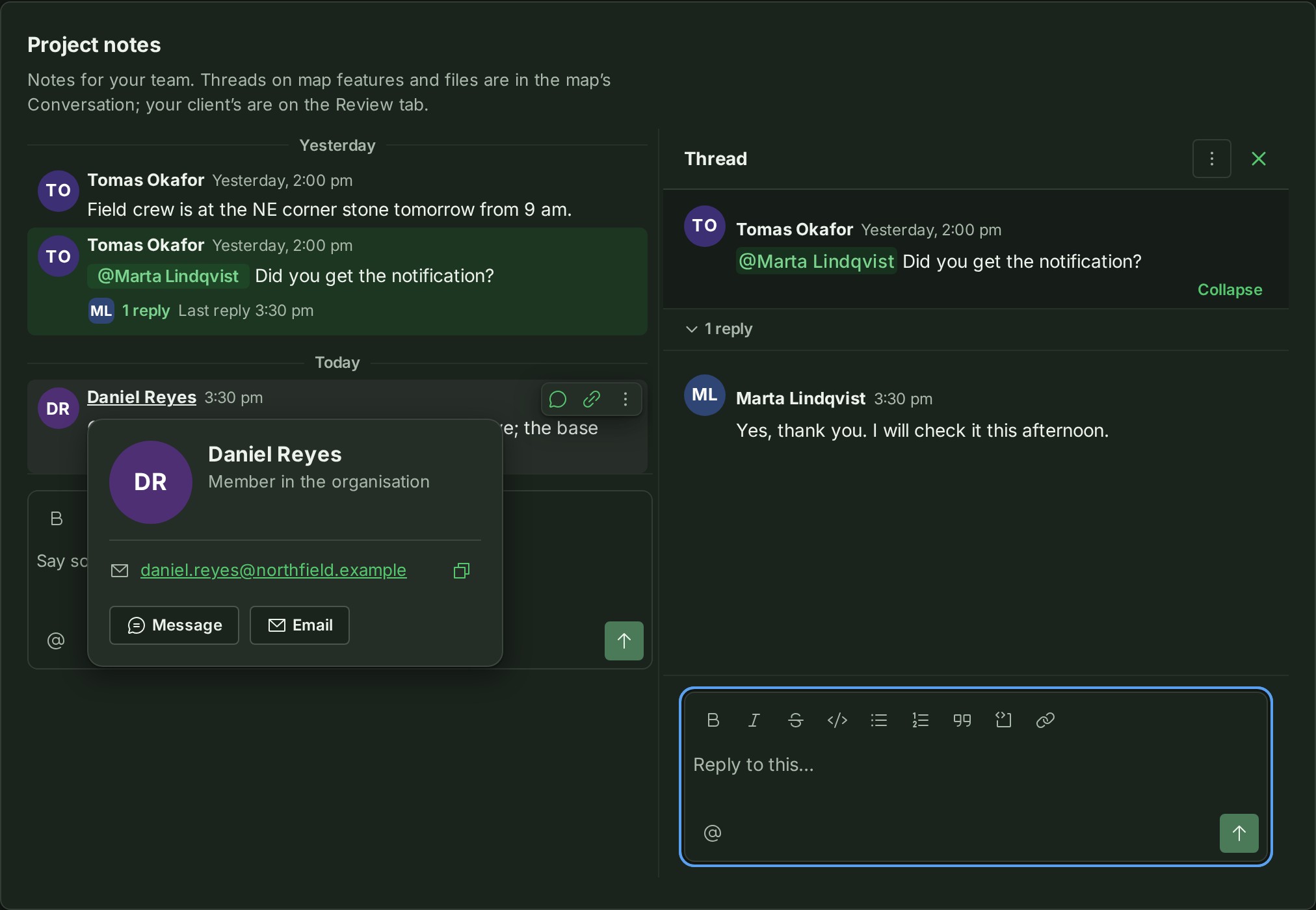
- On the project page at 900 pixels and wider, the notes area splits in half: the stream stays on the left and the thread opens on the right. Drag the divider between them — or focus it and press the arrow keys — to give either side more room.
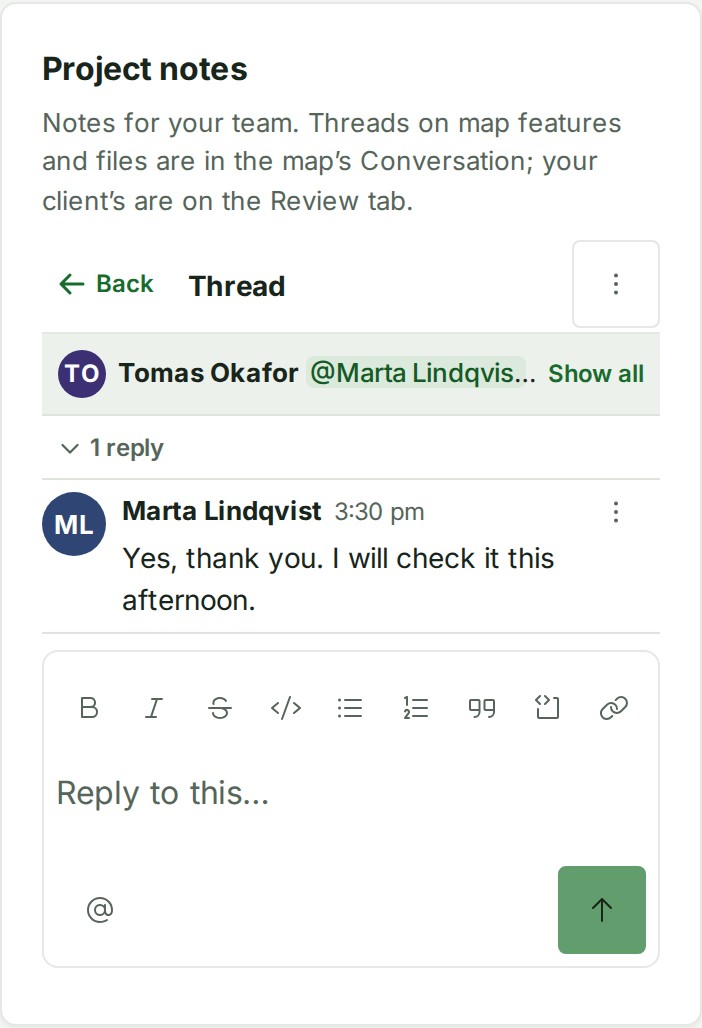
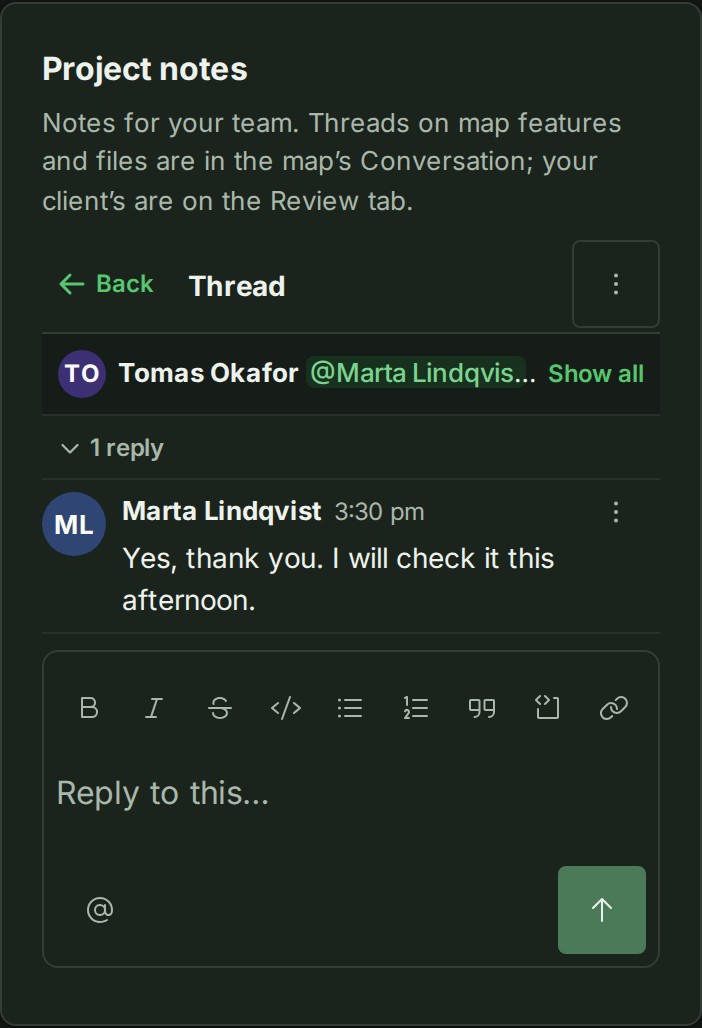
- Everywhere else — the map's Conversation panel, a map object's Conversation tab, a file's Threads, a narrower screen and a phone — the thread takes the stream's place.
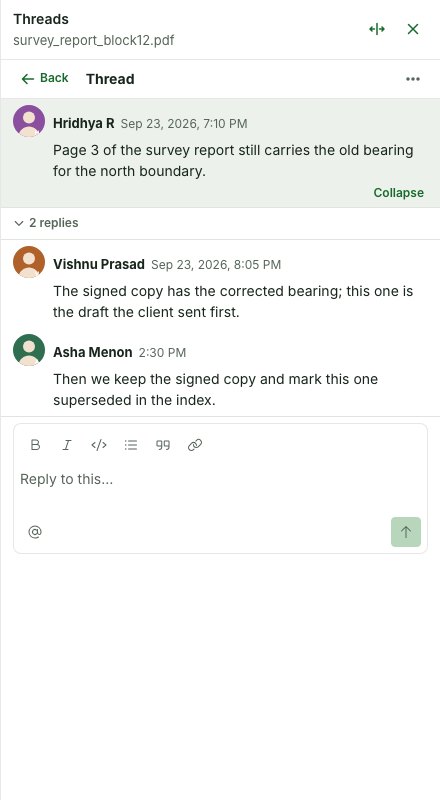
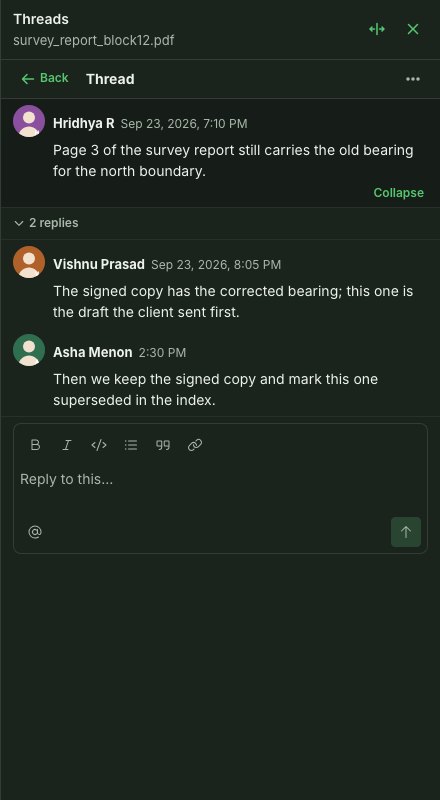
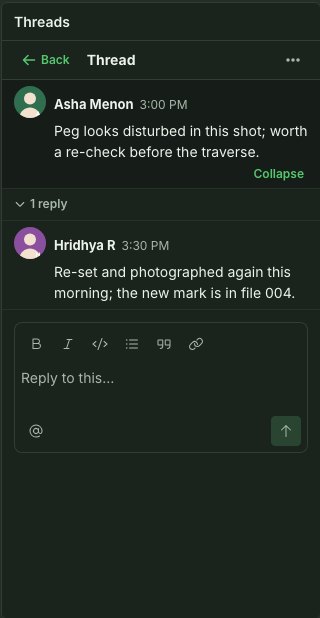
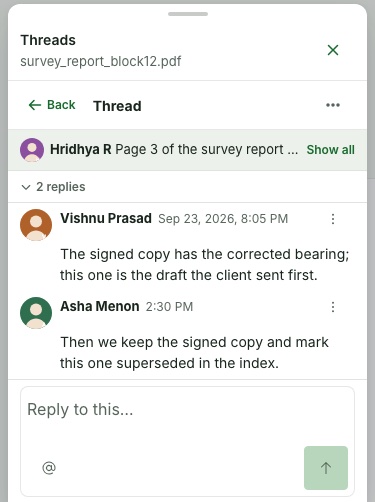
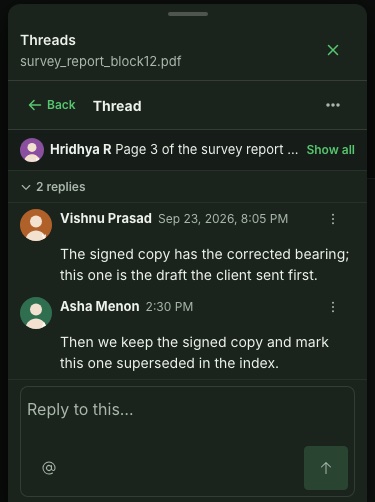
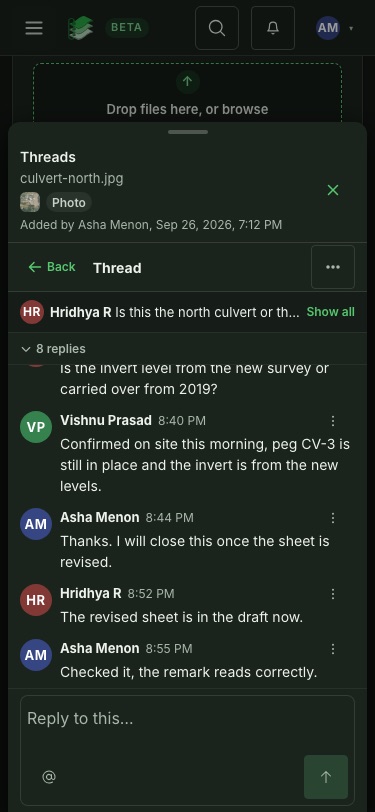
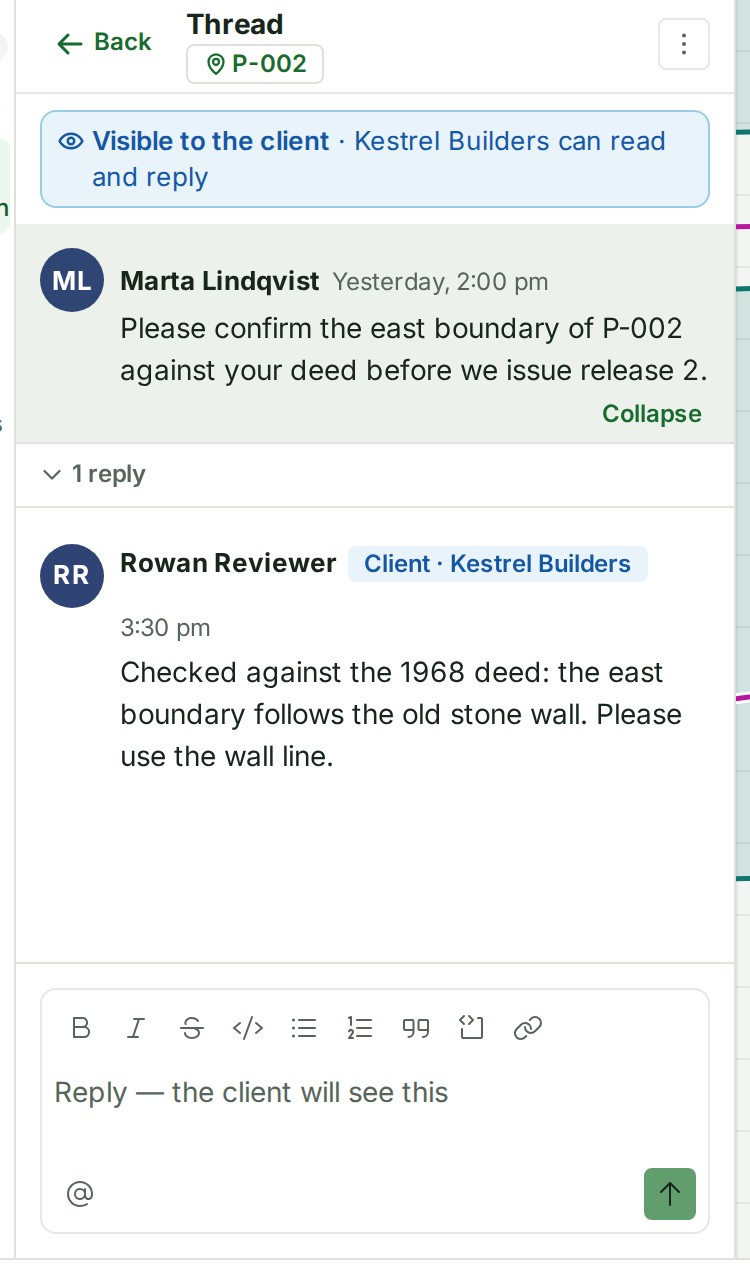
- The message you are answering is pinned at the top of the thread, on a tinted ground, and stays there while the replies scroll under it. Select Collapse under it to fold it to one line — its writer and first words — and select that line (Show all) to read it whole again. On a phone, a thread with replies opens with that message folded, so the replies have room.
- Select the N replies line under it to fold the replies away, and again to show them.
- Write your answer in the thread's own box and press Enter (or select Send); editing a message saves with Enter too (see Keyboard).
- Select Back (at the top left of the thread) to return to the stream, at the place you left it. On the project page's split, select the close button in the thread's head, or press Esc.
The thread's menu
The Thread options menu (⋮) in the thread's head holds what is done to the whole thread:
- Resolve once the question it raised is settled — Reopen later if it is not. The thread then shows Resolved and who resolved it. A mention asked somebody for something; resolving the thread records that the ask is settled.
- Show to the client on a thread about a map object or a file, offered to whoever opened the thread, if they also work on the project, and to a project admin (anyone who may share the project), so your client reviewer can read it and reply in it; Hide from the client takes it back at once. Showing asks once, naming your client and saying that the thread is read from now on and that your organisation's What clients see setting decides whether earlier messages are read too; hiding asks nothing. Both are written to the audit trail. A project note is internal by rule and has no such entry. See What a client reviewer sees.
- Copy link, the thread's own address.
The message menu
Messages use the same menu — see The message menu in Messages.
A message's own action bar, inside its top-right corner when you point at the message, holds Reply in thread, Copy link and More (⋮); More holds Edit note and Delete note, offered only on a message you wrote. A phone has no hover bar, so its More menu holds all four: Reply in thread, Copy link, Edit note and Delete note. A reply in a thread has Copy link and More too — never Reply in thread, since replies do not nest. Right-click a message, or press and hold it on a phone, for the same More menu.
From the keyboard, Tab stops once on each message's bar; the left and right arrow keys move between its buttons.
Copy link puts the thread's own address on the clipboard, so pasting it into another message, an email or a chat opens this exact thread for whoever has access to the project.
Delete a note
- Open More (⋮) on a message you wrote and select Delete note.
- Read Delete this note? — its text cannot be recovered — and select Delete this note.
The message is replaced in place by a grey This message has been deleted, naming who deleted it and when. Its replies stay exactly where they were.
The same holds for the first message of a thread on a file or a map object: the thread stays in the list as This message has been deleted, with who deleted it, when, and its replies line under it. A reply never moves up to take the deleted message's place. Open the thread and it reads … deleted a comment first, then the replies.
In the map
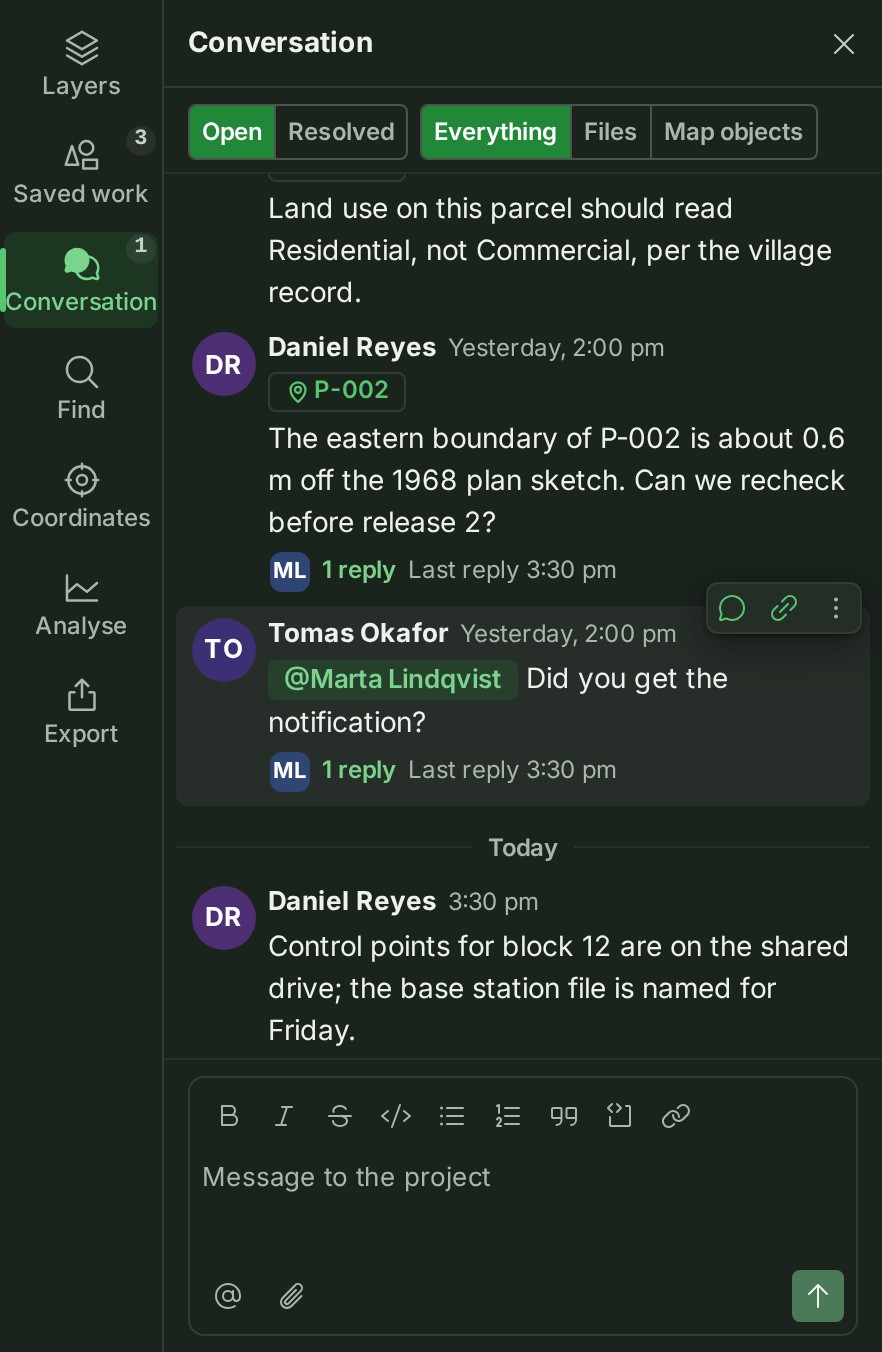
The map's left dock has one Conversation panel. It includes every thread in the project; the project page's Project notes shows only notes about the whole project:
- Choose Open or Resolved, then Everything, Files or Map objects. That one row is the only filter.
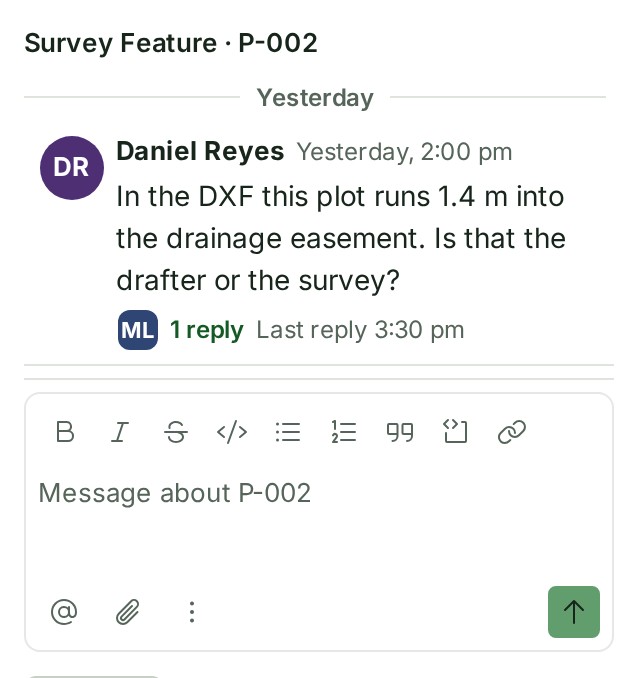
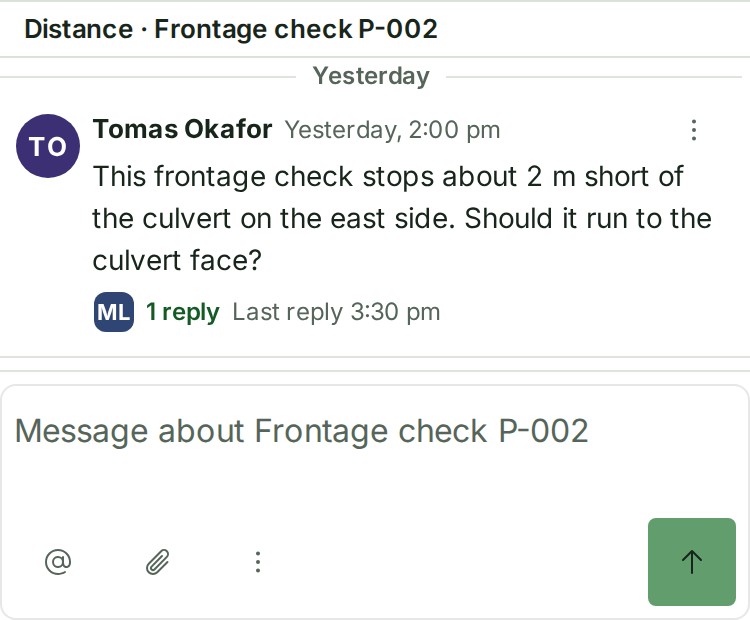
- A thread that is not about the whole project carries a chip naming what it is about — a parcel
such as
P-002, a saved measurement, or a file such assurvey_report_block12.pdf. Select the chip to select the object on the map (it is highlighted, brought into view and shown in the Inspector), or to open the file in the project's Files list. Visible to the client and Resolved are chips on the message too. - Opening a thread never sends it to the Inspector: it opens in the panel, in place, as above, so the panel stays open beside the map at every width.
Any member who can read the project can open Conversation; a viewer reads it without a box. A notice about a mention or a reply in a thread on a map object opens the map with Conversation in the left dock (on a phone, the sheet's Conversation tab) and that thread open in it; a notice about a project note opens the project page, and one about a file's thread opens the file's Threads.
A discussion on another release
- Read the notice before comparing a discussion with the map. A published release can be opened with Open that release. An object on any loaded file's working release is already on the map.
-
If the notice says the object was discussed on a working copy that has since changed, there is no release to open. Read the discussion as a record of that working copy.
-
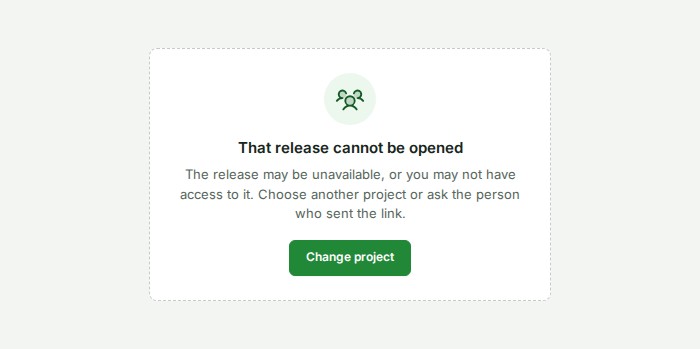
If a release link cannot be opened, the screen says so. Choose Change project, or ask the person who sent the link which release to use.


About a map object
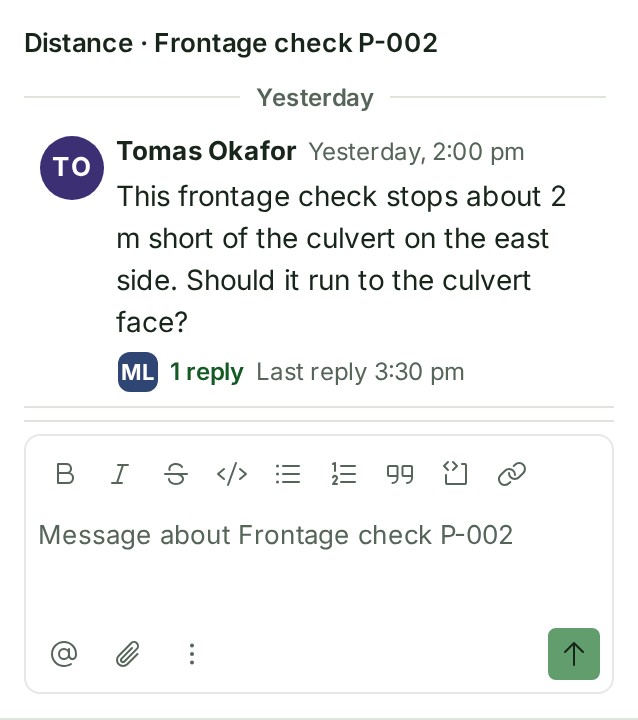
- Select a delivered feature such as a parcel or a line, or something drawn on the map: a distance, an area, a point or another saved measurement. The Inspector shows its card.
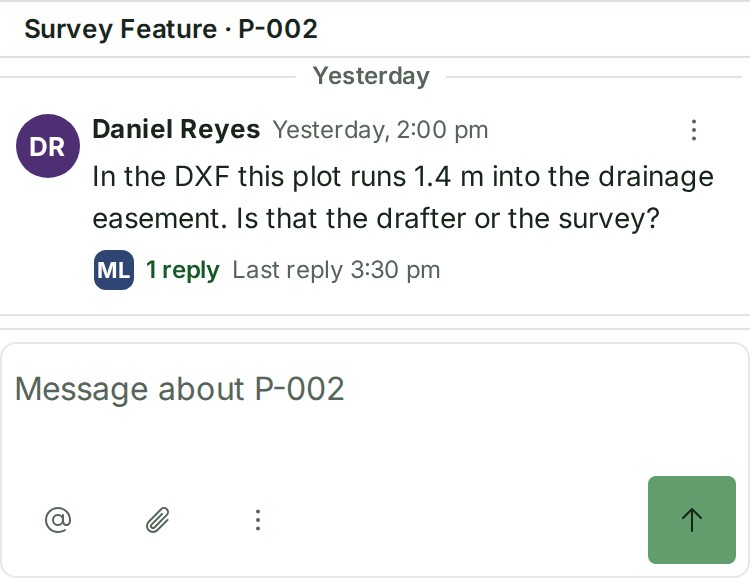
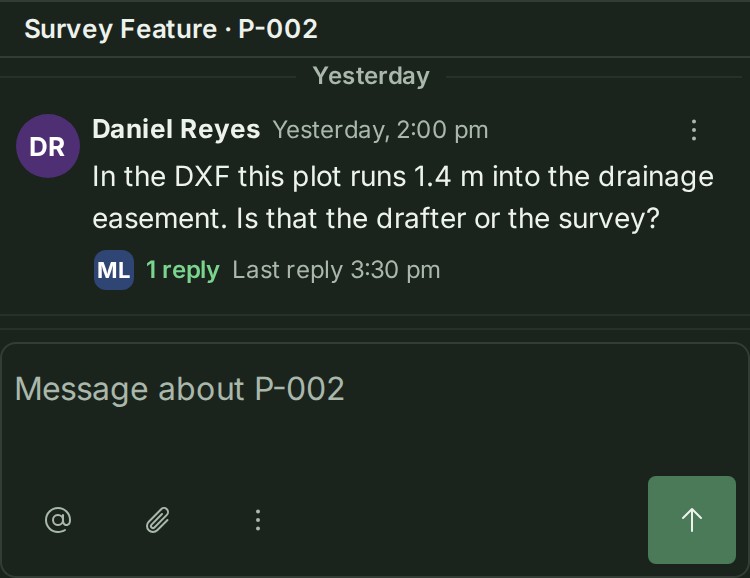
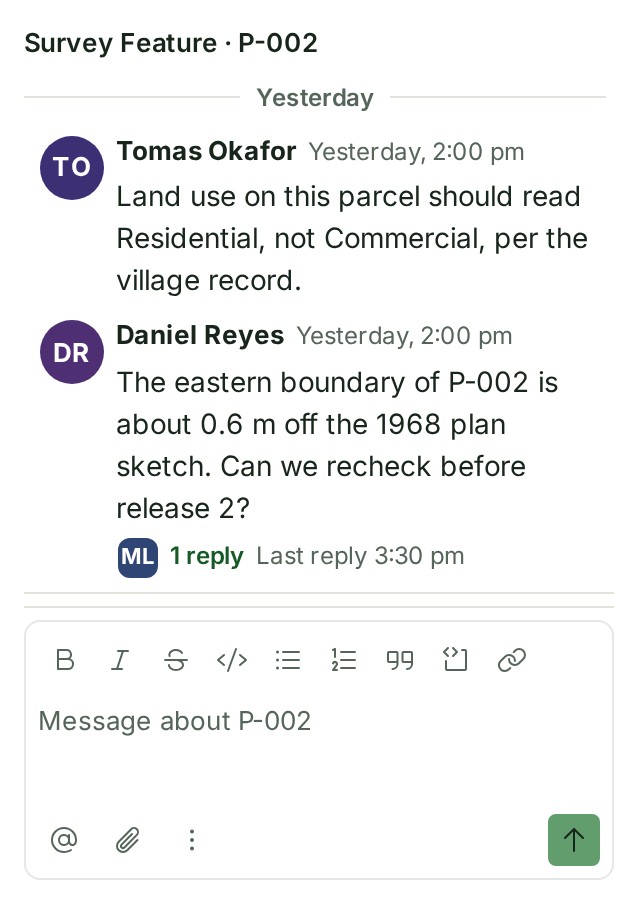
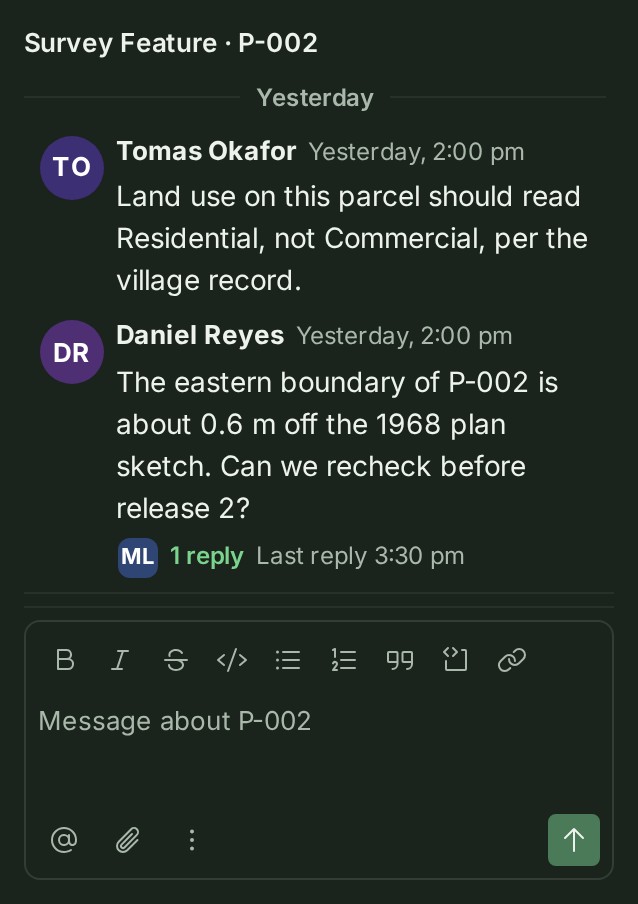
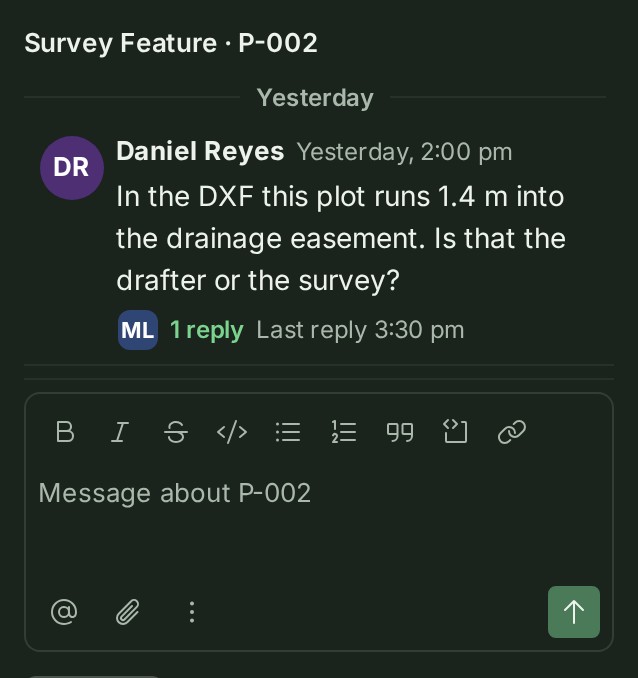
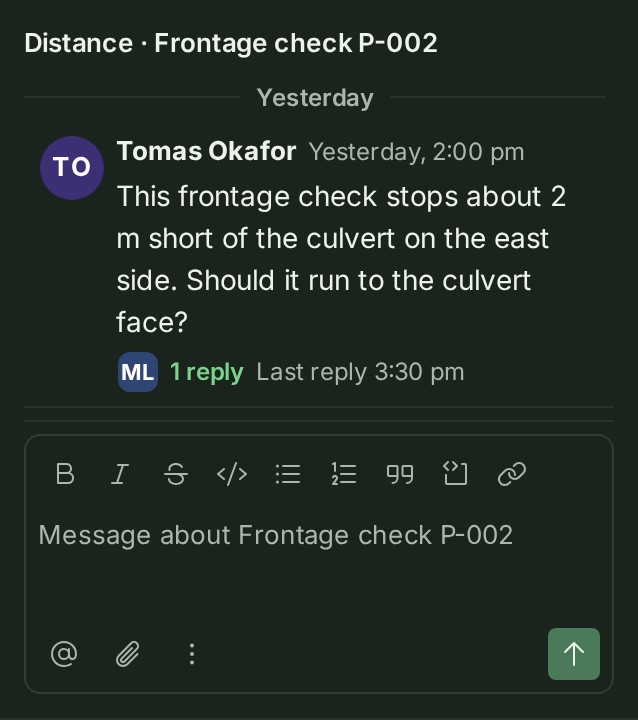
- Open its Conversation tab, beside Attributes. It holds the same conversation, narrowed to that object: one line above the threads naming it, with its kind, then its threads and a box that starts a new one about it. The box says “Message about” and the object's name (Message about this object if it has none). The tab shows how many threads the object has.
- Write in the box and select Send, or open a thread to reply; the thread opens in the tab, in place, with Back to the object's threads.
Something you have just drawn can be discussed once it is saved to the project, which usually takes a second or two. Until then its Conversation tab says it is not saved yet.
A feature of a map file that is still in the open draft — the parcels of a DXF you have filed but not yet published — can be discussed the same way, by the people who can read the draft. Its Conversation tab is the ordinary one. The thread belongs to that feature of that file: if the file is later removed from the draft, or fails, the thread stays and can still be read and answered, but nothing new can be started on it, and once the draft is published the parcel on the map is the published one, so the draft's threads are found under Conversation, whose notice says the discussion is about another release.
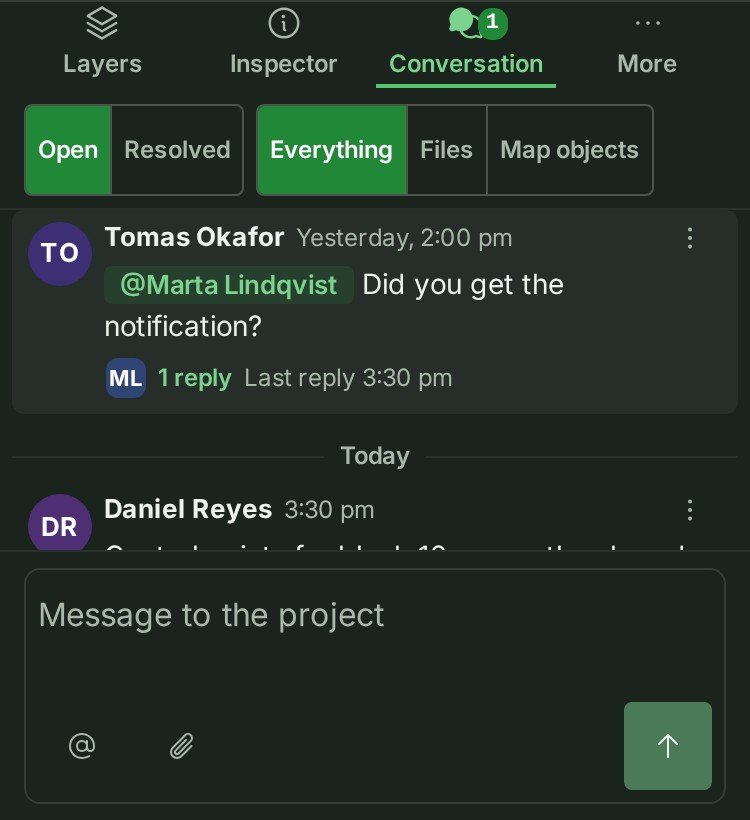
On a phone, Comment on the tool strip opens the sheet's Conversation tab narrowed to the selected object: its kind and name above its threads, the box that starts one about it, and Back to the whole conversation. With nothing selected it opens the whole conversation. The sheet's Conversation tab itself shows no number, because it opens the whole project's conversation, not the selected object's threads.
Discuss a file
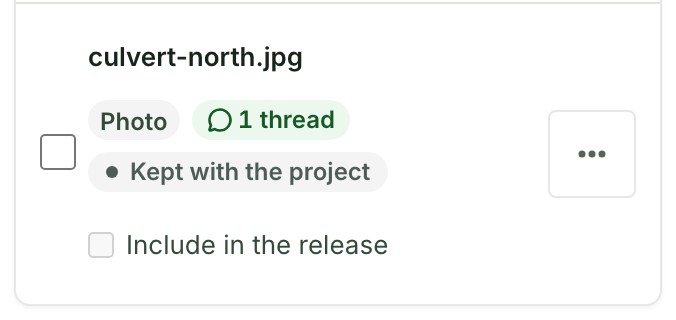
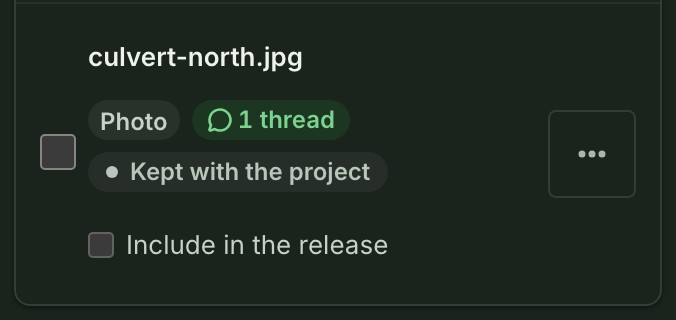
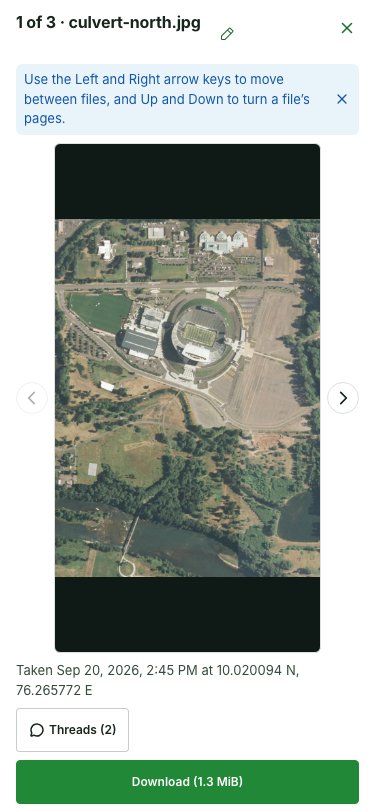
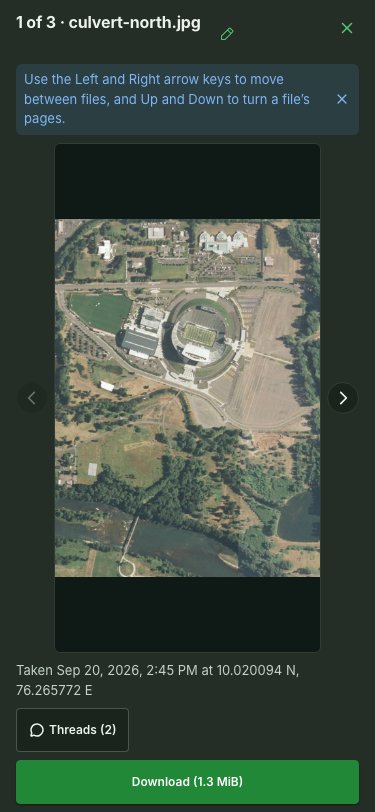
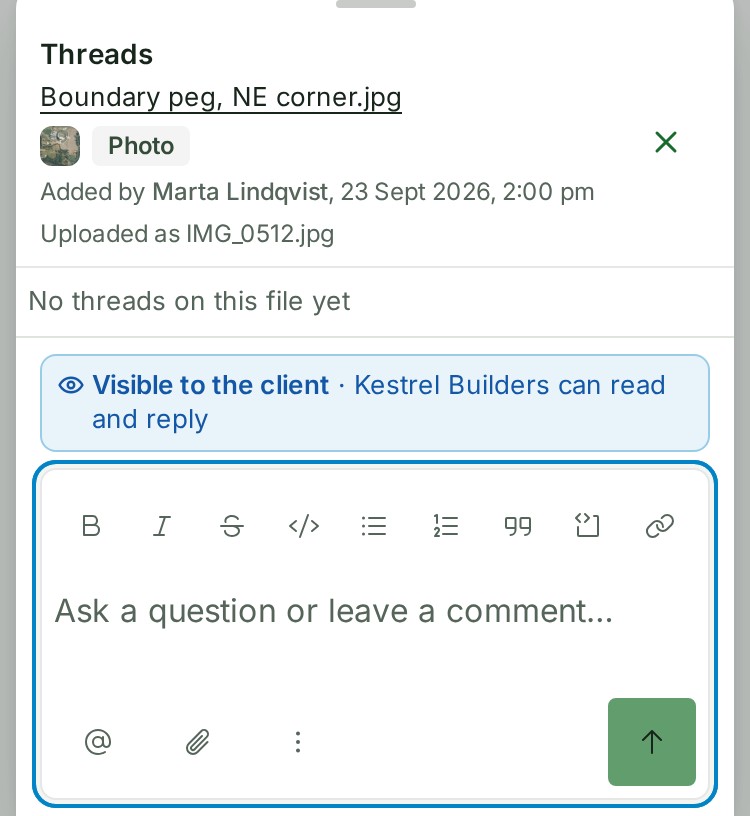
A thread can also belong to one file — a photo, a PDF, a map file or a link kept with the project — instead of the whole project. It stays with the file wherever it is read: from the Files list, from the gallery, or from a phone's own sheet. See Discuss a file for the full task; the control that opens it is the green "1 thread" (or "N threads") chip beside a file's own details — or, on a file nobody has discussed yet, "Start a thread" beside it:
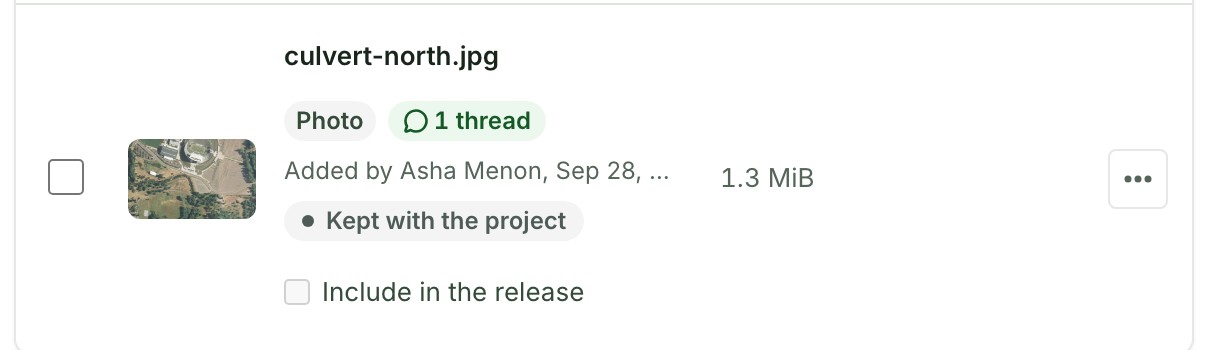
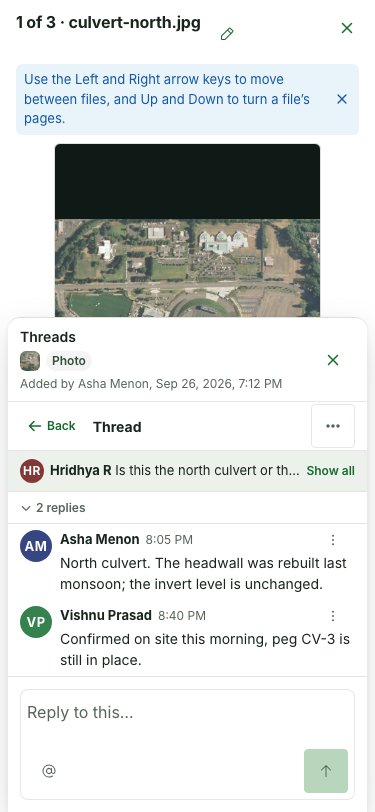
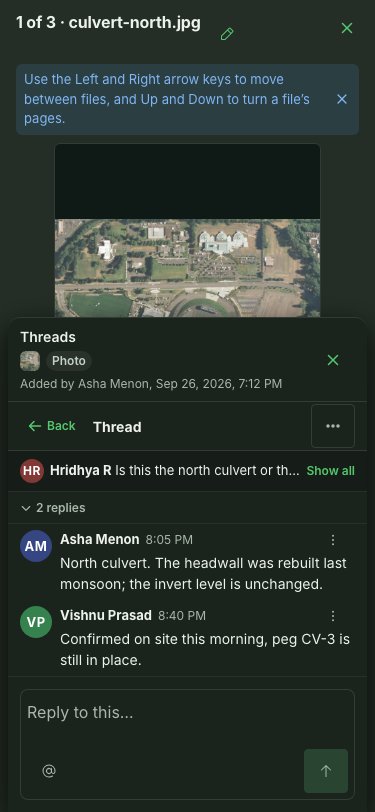
The file's Threads open in a drawer beside the list, headed with the file's name, and in the gallery's Threads panel beside the photo or the page on stage (on a phone, a sheet rising over it). They are the same stream as everywhere else — each thread as its opening message with the writer's picture, name and time, the action bar and the replies line — and a thread opens in the drawer in place, its message pinned at the top, with Back to the file's threads.
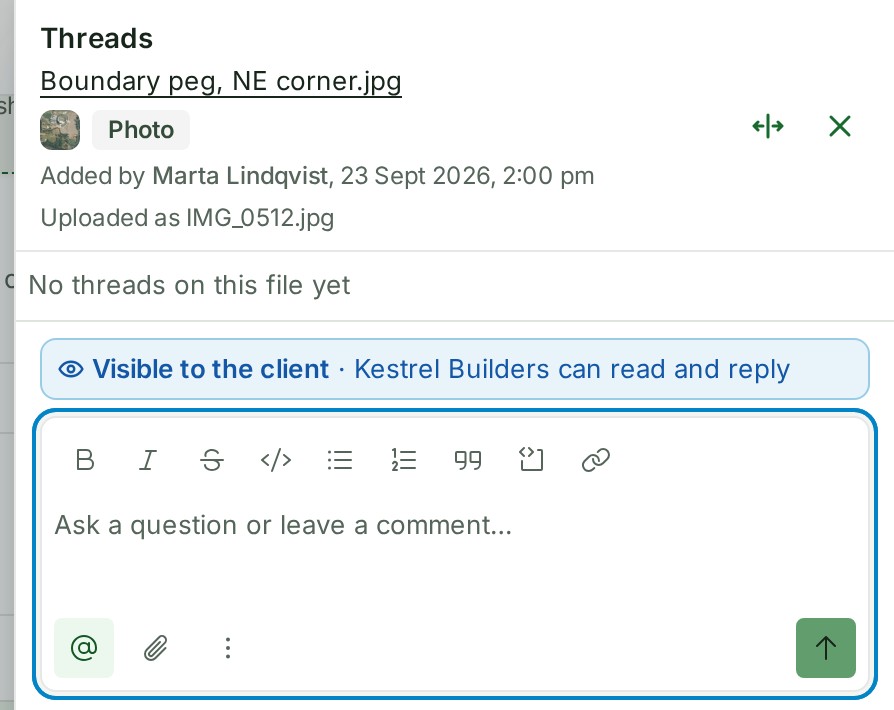
When several files share a name, the row a thread's drawer is open on is tinted and scrolled into view, and the drawer's own header names the file below its title — its kind, who added it and when, and the name it was uploaded under where that differs — so the file the conversation is about is never in doubt.
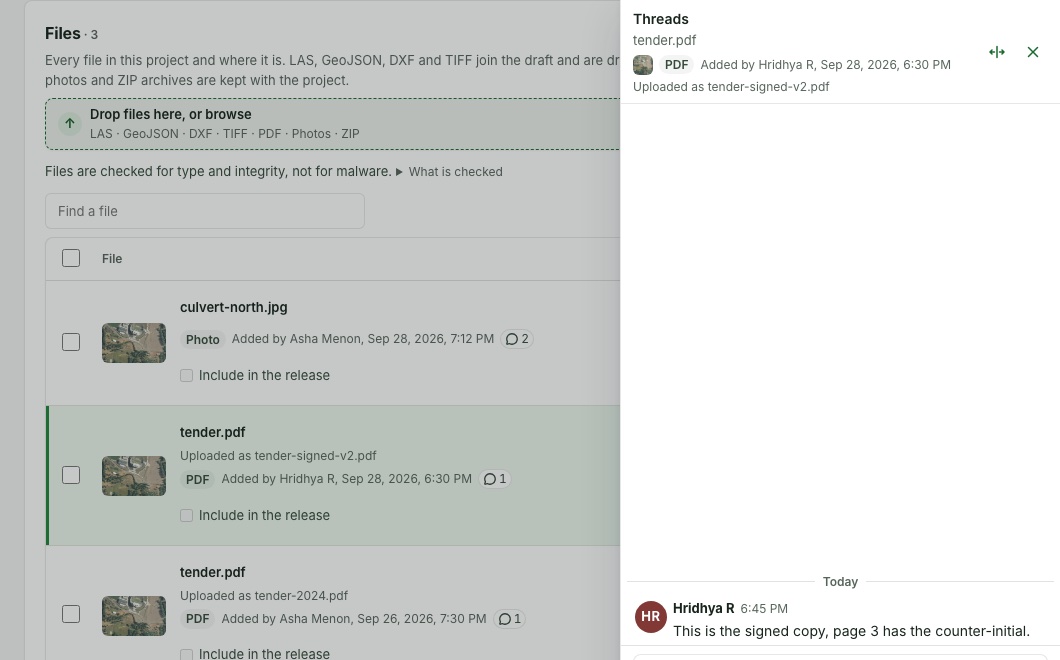
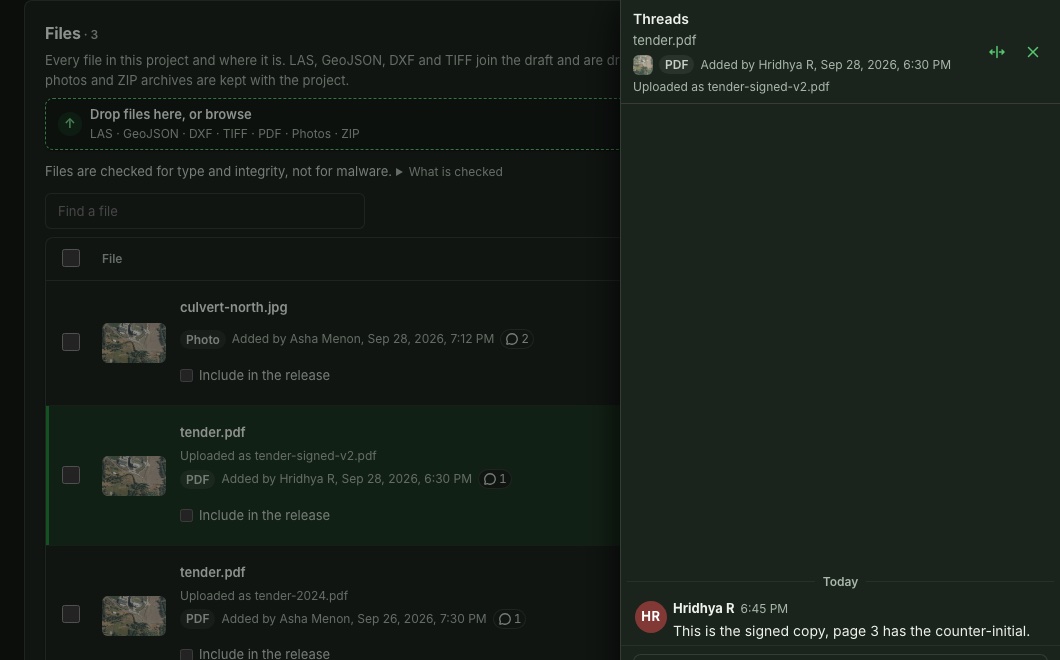
The drawer opens at its own width. Select Widen the threads (the arrows beside the close button) to widen it to about half the window, and Narrow the threads to put it back; or drag its inner edge — or focus that edge and press the arrow keys — to any width in between. Close it with its close button or Esc.
Read a thread beside the file
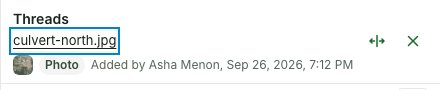
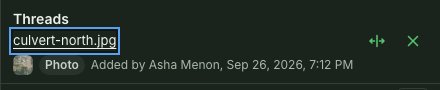
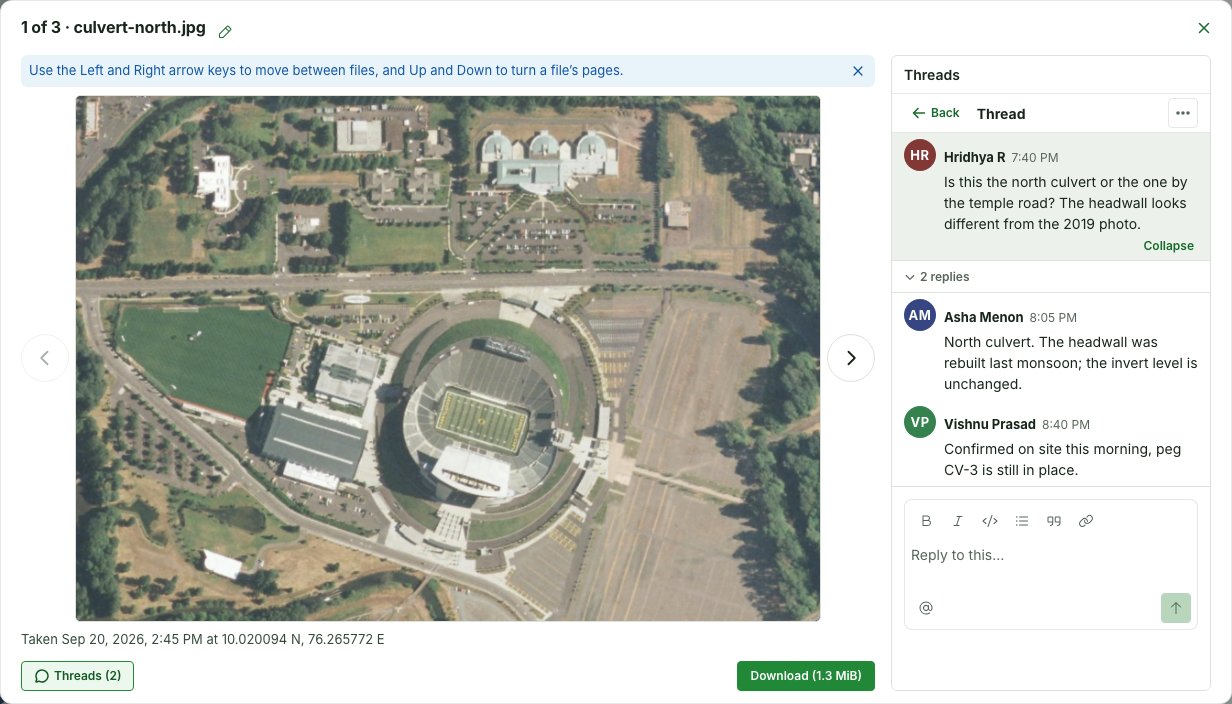
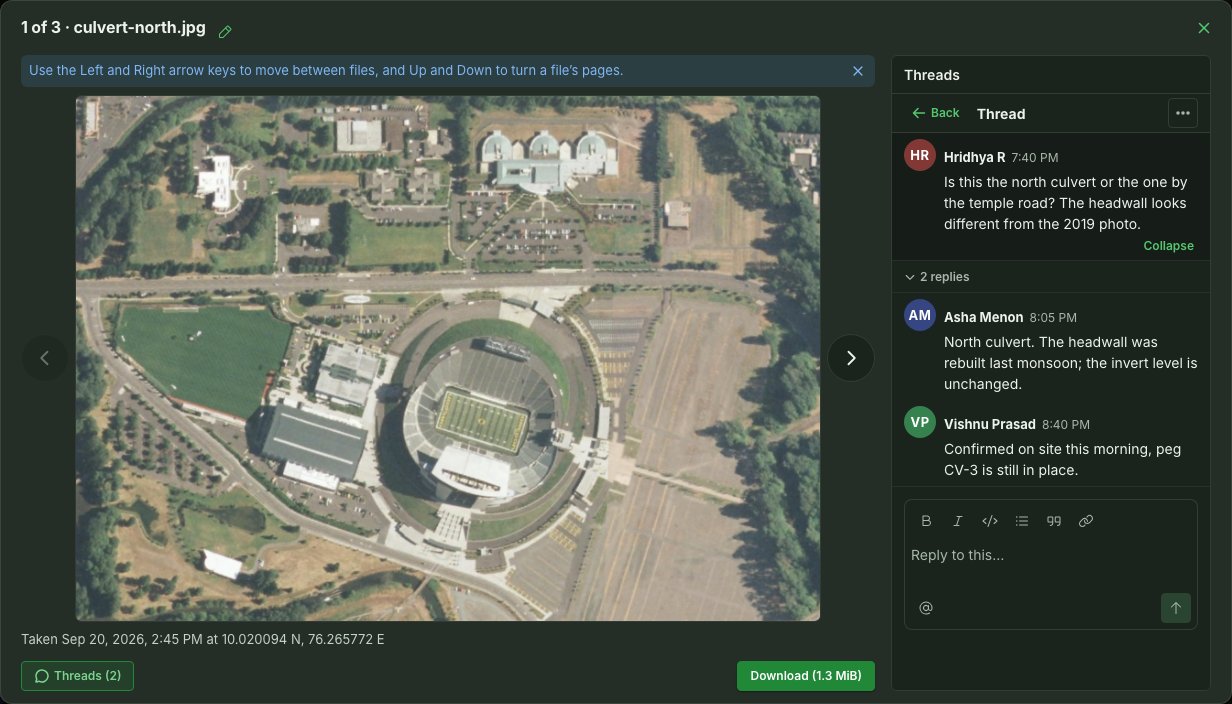
The file's name under Threads in the drawer's header opens the file itself. Select it — or tab to it and press Enter — and the gallery opens on that file with the thread you were reading open beside the picture, its reply box at the foot, so you can look at the photo or the page while you read and answer. The drawer stays where it was underneath: close the gallery and you are back on the Files list with the drawer as you left it. A file with no preview yet has no picture to open, and its name stays plain text.
It works the other way too: open a thread in the gallery's own Threads panel — on the file you started from or on another you moved to with the arrow keys — and closing the gallery opens the drawer beside the Files list on that thread.
On a phone the gallery fills the screen and the thread rises over the picture as the same sheet. Select the sheet's close button to drop it and see the whole picture; Threads under the picture brings it back, still on the same thread.
Notifications for mentions and replies
- Select the bell in the top bar. It reads how many notices are waiting, or nothing at all when none are.
- Open a notice such as Marta Lindqvist mentioned you in SITE-2026-011 or Tomas Okafor replied in a conversation in SITE-2026-011 to jump straight to that thread, with the message the notice is about brought into view. A notice about a file's thread opens the project's Files list with that file's Threads beside it (a sheet on a phone), under the same top bar, even when you are already on the project. A notice about the project's own conversation opens the project's Project notes with that thread open beside it and brought into view; on a phone the page moves to its Notes tab, even when you are already on the project's Files tab.
- Select Mark all as read to clear the waiting count.
When a new notice arrives while you have GISweaver open, the bell gives a short ring, a gentle swing that lasts about a second, and then rests highlighted with its count as before. A screen reader hears one polite line, "1 new notification" (or the number), and a soft sound plays if you have it on. The sound is on until you turn it off under Preferences → My notifications; see Choose a notification sound. Nothing rings when you open or refresh the page, when you switch organisation, when the count goes down, or for something you did yourself, such as a reply you have just posted. A burst of notices is one ring, and the bell rings at most once in ten seconds; the number is always true. The sound stays quiet when the page is in front of you and you are already reading the thread or conversation the notice is about, though the bell still rings. If your system is set to reduce motion, the bell does not swing; the number's badge gives two soft pulses of light instead. Your browser plays sound only after you have used the page, so the first notice after you open a tab you have not touched may be silent.
The same link in an email opens the same place. The top bar stays at the top of the window wherever a notice, a search result or a link in an email takes you; only the page beneath it moves to bring the thread into view.
What a client reviewer sees
- Project notes are never sent to a client, whatever they say and however they are formatted.
- Every other thread is internal too, until it is made visible. A thread about a file, a
parcel or a drawn object becomes readable by the project's client reviewers only when it carries
Visible to the client:
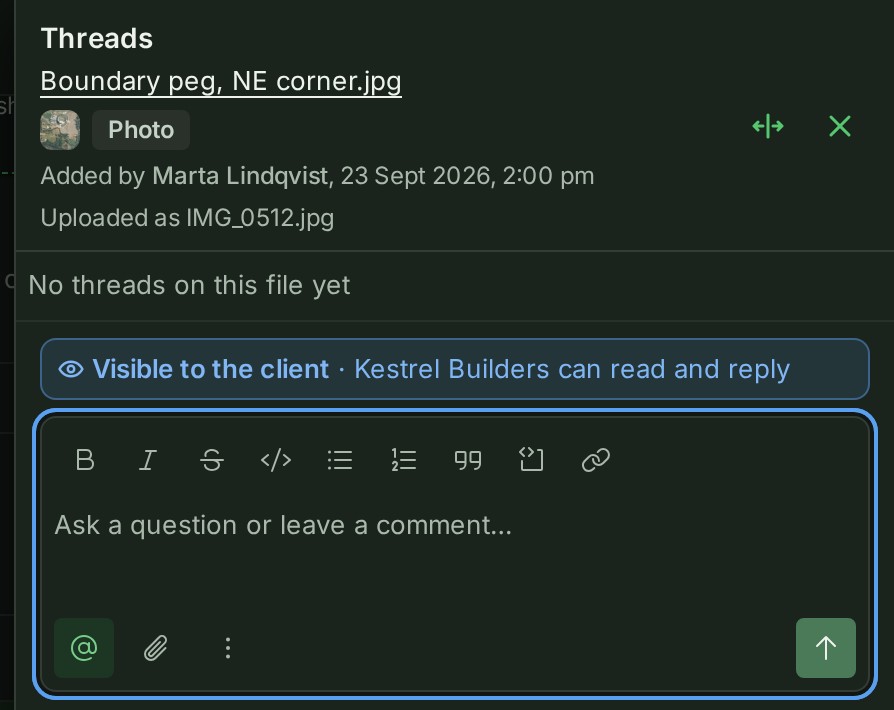
- When you start it: the box under an object's Conversation tab or a file's Threads has a ⋮ Thread options button beside @, and Show to the client in it is off unless you choose it. Chosen, it puts a band over the box, Visible to the client and the client's name, and changes the box's prompt to "Ask a question or leave a comment…". It turns itself off again after each message.
- Later: Show to the client in the thread's menu (⋮), offered to whoever opened the thread, if they also work on the project, and to a project admin. A viewer does not see the menu entry.
- The reviewer reads it only when it is about something in the copy they were sent — a file of their review, a feature of one of its files, or a drawn object the review carries. The thread is visible from the moment it is shown, earlier messages included when your organisation's Client sees setting is The whole conversation (the default), and they may reply; their replies carry the Client · {their organisation} chip in your conversation, and you are told as for any client reply.
- While the thread is visible, the @ list in its reply box (and in the opening box once the
thread is shown to the client) also offers the reviewer, shown as "Name (Client)". Naming them rings their own bell,
which opens their review page. They are never part of
@All. - The reviewer reads your colleagues' names as plain text. A colleague you mention appears to them as the words "@Marta Lindqvist", an everyone mention as the words "@All", and a file you named as its name, with no link: the client is never sent the identifiers behind them. The same holds for the reviewer's own message once sent. A client reviewer you mention is the exception, and still appears as a name.
- Hide from the client removes it from the reviewer's page at once and withdraws any notice that named them in it. Their replies stay in your conversation.
- Your client reviewer comments from their own review link, on a file they were sent, a feature
they pick on the map, or the review as a whole.
- A conversation on a file or a feature is a separate, longer-standing conversation your team reads from the Review tab and answers in the map's Conversation.
- A conversation on the review as a whole is anchored to the project, so it appears directly in this same Conversation, beside your own project notes, carrying a Client · {their organisation} tag. Reply to it exactly as you would to a colleague's note; there is nothing to open elsewhere for this one.
- Either way, your team answers in place and the reviewer reads the reply from their own review link. See What your client can do, and where it appears.
Cross-references: Files for the file list itself, and Review with colleagues for working through a review in the map.