Restore a deleted file
A file deleted from a project keeps its stored copy, so you can bring it back until someone deletes it permanently.
- Open Projects and choose the project.
- Under the Files list, select Show 3 deleted files (the number is how many there are). The deleted files are listed, each reading Deleted.
-
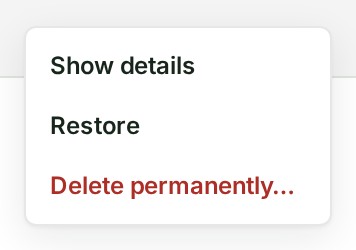
Open the ⋯ menu on the deleted file's row and select Restore. The file leaves the deleted files.
What happens next
GISweaver says … is back in the project’s files. and the file returns to the Files list. A map file whose draft is still open goes back into that draft.
If its draft was published or closed since, GISweaver says … is back in the project’s files, but not in the current draft. The row reads Not in a draft, and a release stays as it was published.
If something goes wrong
- Restore is not in the menu. The file was deleted permanently and its stored copy is removed, or it never finished arriving, or you may not add files to this project. Add the file again, or ask someone who can.
- … could not be restored. Either the file was deleted permanently meanwhile, its project was deleted, the same file is already in the project, or a publication is copying the draft the file was in. Reload the list; if Restore is still there, wait for the publication to finish and try again.
- A file in a deleted project is not restored until the project is. A file that is already in the project again (a duplicate) is not restored: delete the duplicate first.
More
- Where a restored file goes in each case: The Files list. A restore is recorded in the audit trail.
- To remove a file for good, see Delete a file permanently. Other words are in the glossary.