Change a project's details
Who can do this
Owners, administrators, the branch's manager and the project's lead. Everyone who can open the project reads the card. Every plan.
Use the About this project card on a project's page to say who the project is for, what it is, which websites the team needs and who to call on site.
-
Open Projects and choose the project.
Its page opens on the Project tab.
-
On the About this project card, select Add details on an empty card, or Edit on a filled one.
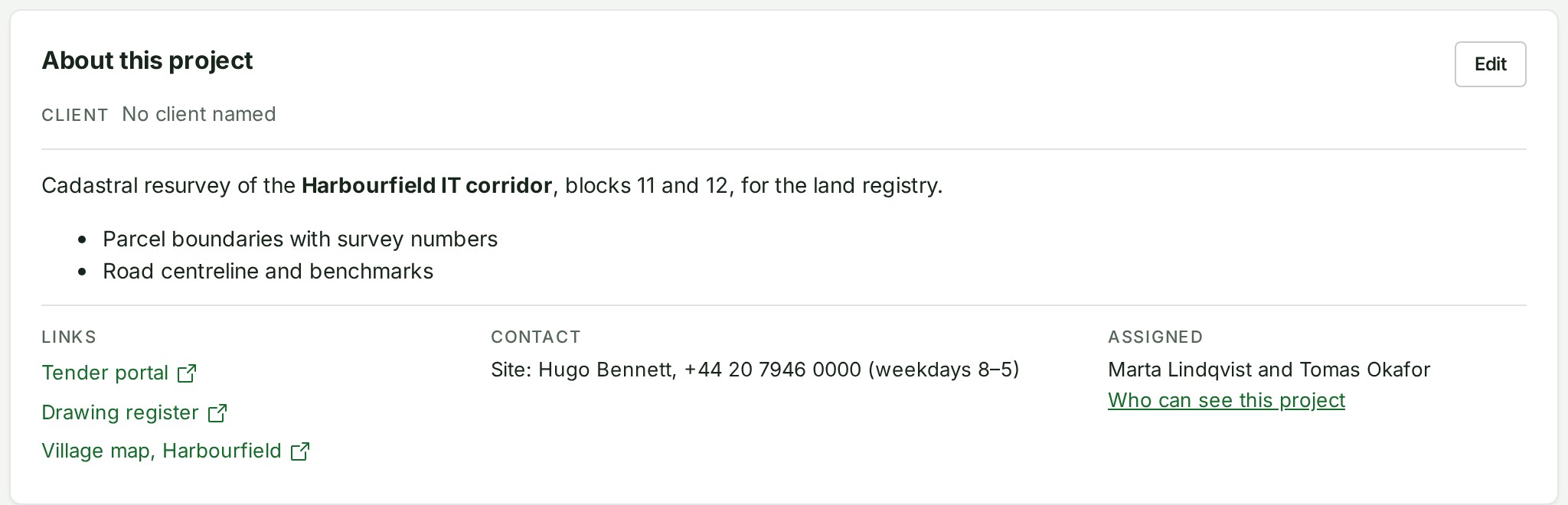
The card opens as a form, with Picture and Client above the description.
-
Under Description, write what the project is and what it delivers.
The buttons above the box add bold, italics, a list, a quote and a link.
-
Under Links, select Add a link.
A row opens with a label and an address.
-
Type a label and the website's address in the row.
The row shows both.
-
Under Contact, write a line or two: who to call on site, and how.
The box holds your line.
-
Select Save details.
The client, description, links and contact save together. The form closes and the card shows what you wrote, to everyone who can open the project.
What happens next
The change is listed on the project's Activity tab, which names the parts that changed, never what the description or contact now say.
Search this organisation finds the project by words in its description and its links' labels. The search box on Projects looks only at the name and number.
If something goes wrong
- A link must be a website address starting with http:// or https://. Type the whole address, starting with
https://. - Every link needs an address. A link row has a label and no address. Fill it in, or remove the row.
- That client has been archived. Restore them first, or choose another client. Choose an active client before saving, or restore the archived client.
- If you no longer have permission to update the project, ask an administrator to check your access. Retrying alone does not change your permission.
- Somebody else changed these details while you were editing. Cancel and open them again to see their changes. Select Cancel, then Edit again, and make your change on top of theirs.
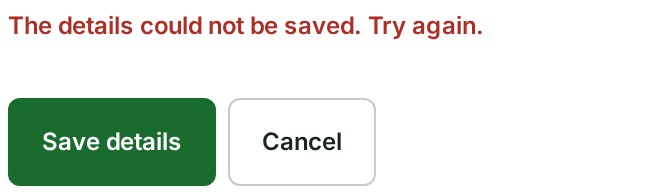
- The details could not be saved. Try again. The form keeps your choices. Select Save details again in a moment. A refused save changes neither the client nor the details. If the response was lost after saving, a retry cannot apply the change twice; cancel and reopen the form if it reports a conflict.
-
The project details could not be loaded. The card could not read the details. Select Try again; only this card reads them again and the rest of the page stays as it is. On a phone the same line stands in place of the About row, so a failed read is not mistaken for a project with no details.


-
A notice on another part of the project page (the branch, Files, Releases, the people and companies with access, or the line that says where things stand) with Try again. That part could not be read just now and the rest of the page is unaffected. Select Try again on that notice to read only that part again.
Rename a project, or change its number or coordinate system
Use this to correct a project's Name, Project number or, while the project holds no data, Coordinate system (EPSG code).
-
On Projects, open the row's menu and select Rename.


The row opens a strip with the boxes.
-
Change the Name, the Project number, or the Coordinate system (EPSG code).
The box shows your change.
-
Select Save changes.
The row shows the new name and number, and the change is recorded in the organisation's audit trail.
If something goes wrong
- A project already uses that number. Another live project has it. Type another.
- This project already holds files or a delivery, so its coordinate system can no longer be changed. The stored data is in that system. Somebody added a file while you were editing. The box disappears once the project holds a map file, a release or an upload in progress.