Go back to draft
Who can do this
Owners, Admins, the branch's manager and the project's lead. Every plan.
Take a project from Review back to Draft when its files are being worked on again; the files stay as they are and nothing is sent to anyone.
Before you start: A client you invited keeps their access when you go back to draft. To stop it, see End a review.
- Open Projects and choose the project. Result: the state bar marks Review.
-
Open the menu beside the main button. === "Desktop" Select More options. === "Phone (375px)" Select More.
Result: the menu lists Back to draft.


-
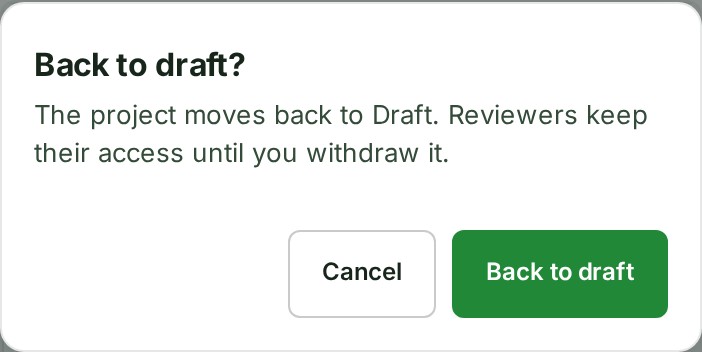
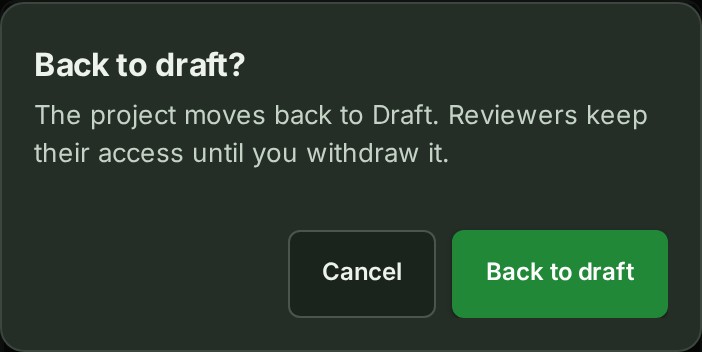
Select Back to draft. === "Desktop" Result: the state bar marks Draft, and you are done. === "Phone (375px)" Result: the Back to draft? question opens.
-
On a phone, confirm in Back to draft?. Result: the state bar marks Draft.
What happens next
The state bar shows Draft. The move is listed under State history on the Review tab and in your organisation's audit trail. Start review is the main button again once every file is ready.
If something goes wrong
- A publication is running. It finishes by itself. Back to draft waits while a release is being made. Wait until the state bar shows Published; then select Start a new draft instead.
- A project lead or an Admin moves this project to its next state. Your role cannot move the project. Ask the project's lead or an Admin.
- A published project does not go back to Draft. See Review and publishing reference.
Next: Start a review