Choose your quick reactions
Who can do this
Anyone in your organisation Only when message reactions are switched on for your organisation.
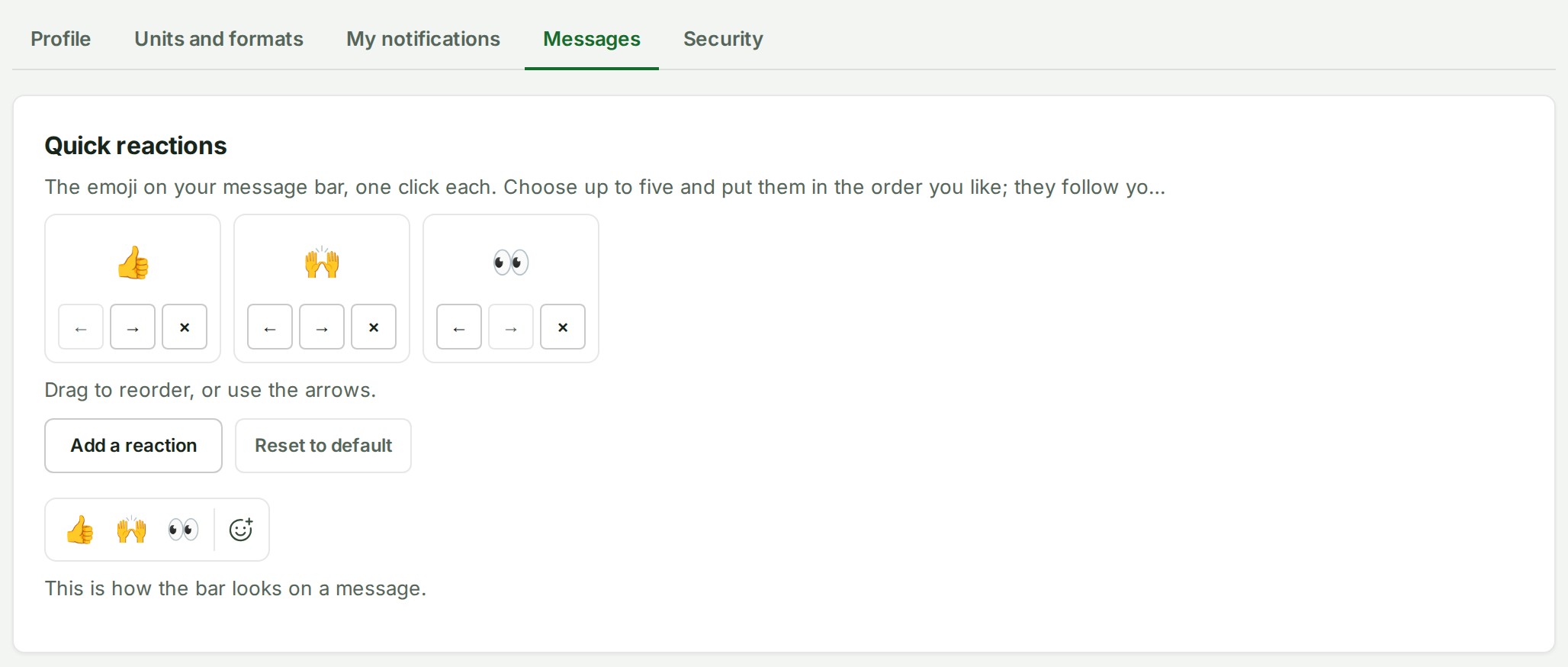
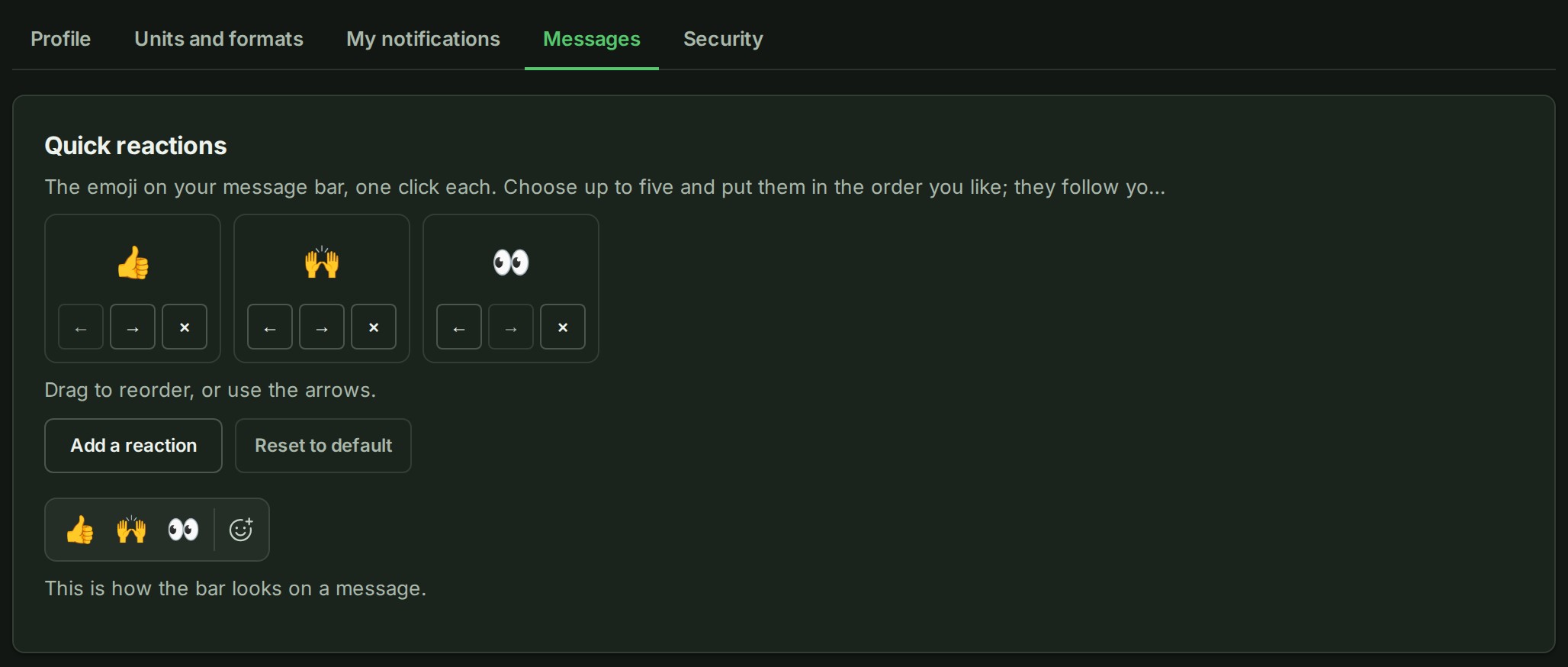
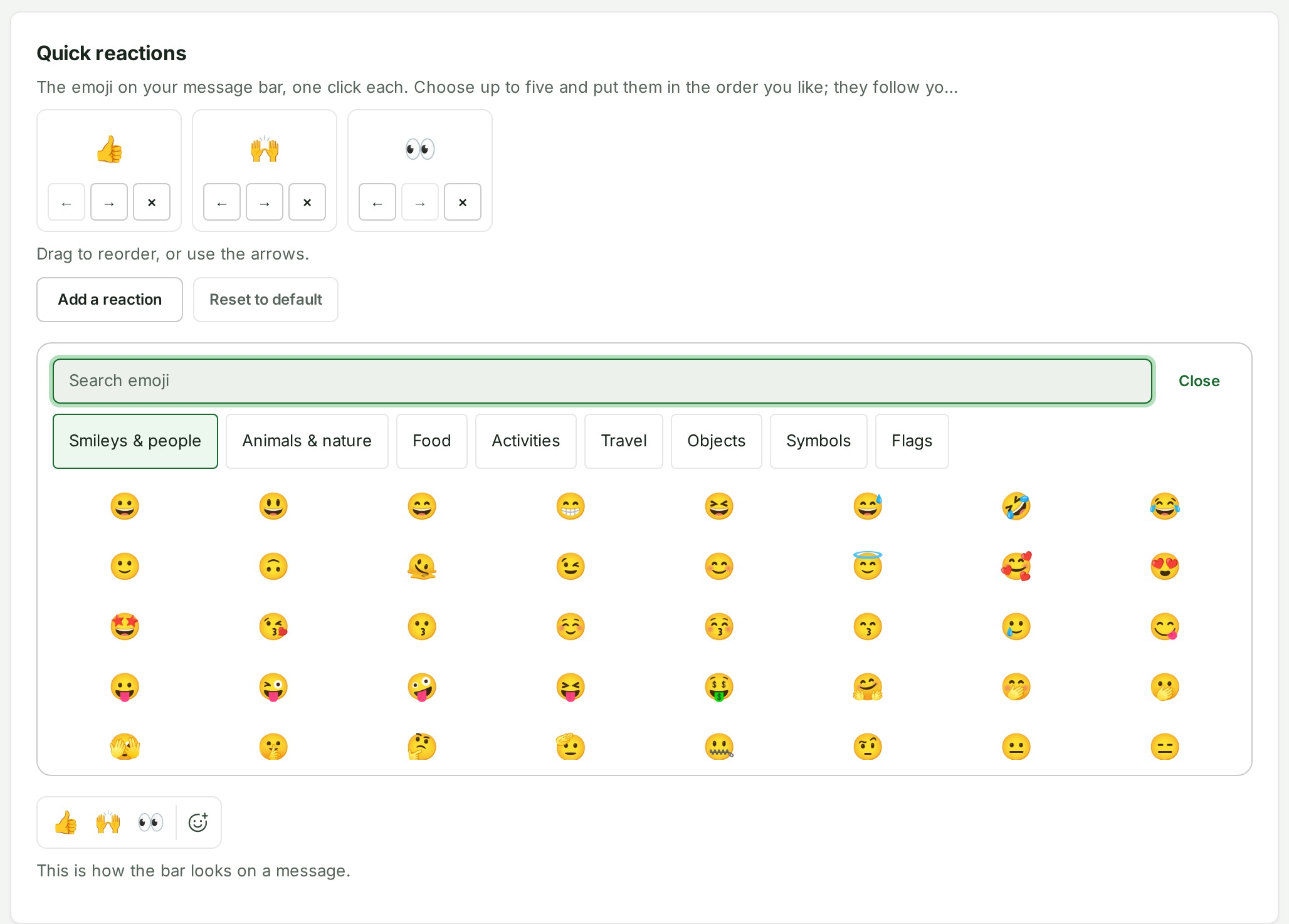
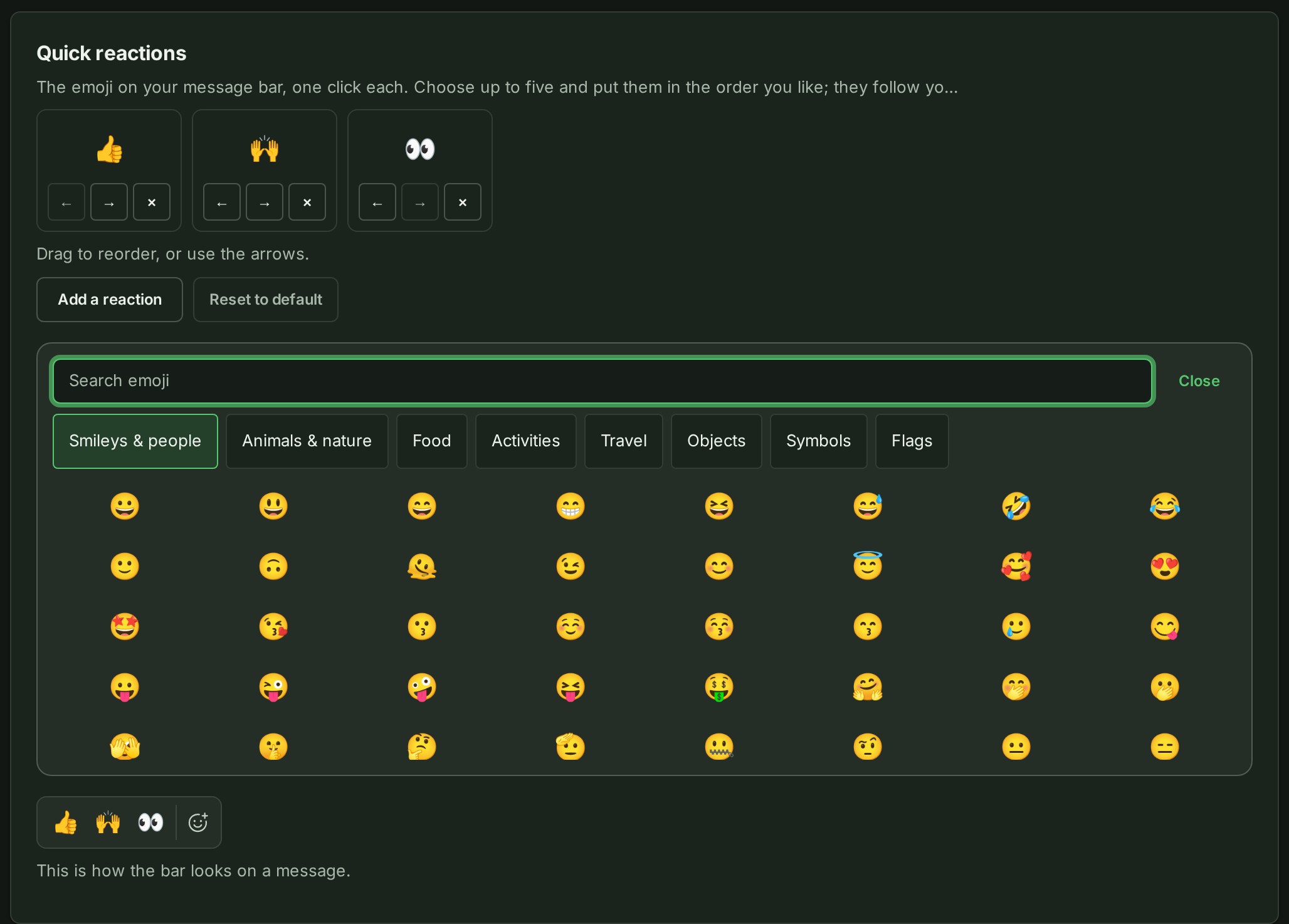
Choose the one to five emoji on your message bar and the order they come in; the default is 👍 🙌 👀.
- Open Preferences from your picture at the top right, then the Messages tab.
-
Under Quick reactions, select an emoji to change it.
-
Search or choose a category, then select the emoji you want. It replaces the one you changed.
-
Select Close. The chooser goes away and Saved appears.
- To add one, select Add a reaction. The button is hidden once you have five.
- To remove one, select the × under it. You always keep at least one.
- To reorder, drag an emoji to its new place, or use the ← and → under it.
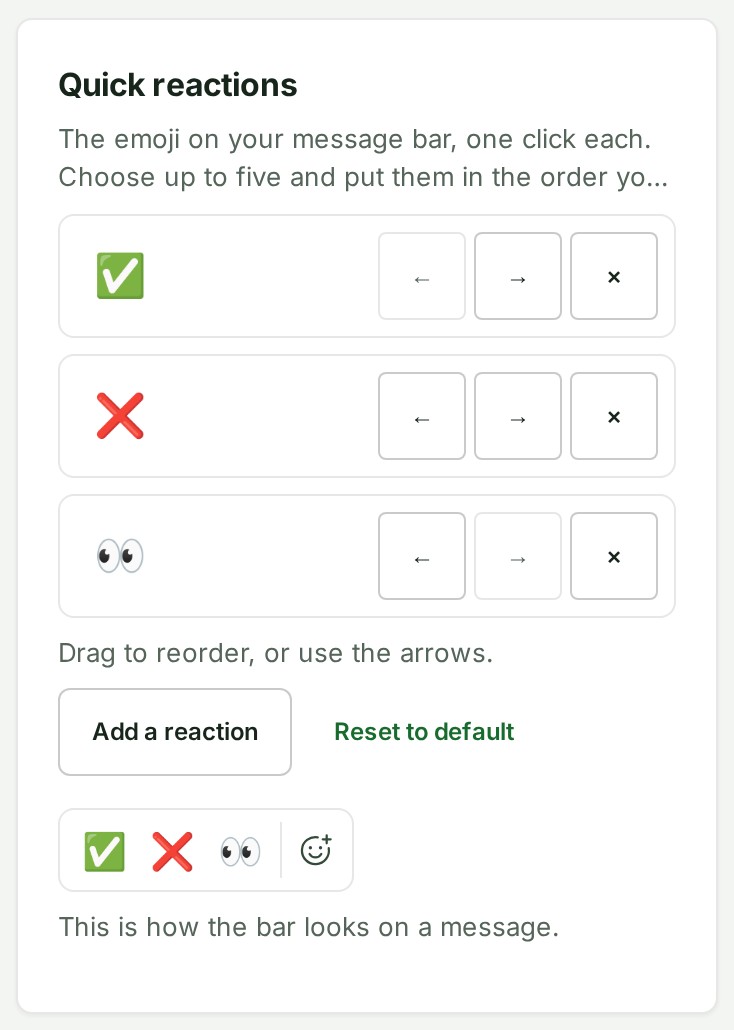
Each change is saved at once. A reviewer who mostly answers yes or no might set ✅ ❌ 👀.
What happens next
The bar on your messages shows your emoji in your order, on every device you sign in on. A bar that is already open changes without a reload.
Reset to default puts the bar back to 👍 🙌 👀. It is greyed out when your bar already is the default.
If something goes wrong
- Somebody else changed this while you were editing. You changed your Preferences on another device or tab a moment ago. Select Reload, then make the change again.
- The bar holds one to five emoji. A sixth, or the same emoji twice, is refused.
- An emoji greyed out in the picker is already on your bar. Each one can be chosen once.
- You do not see the Messages tab. Message reactions are not switched on for your organisation yet.
Details
- Your choice is yours alone: colleagues keep their own bars, and nobody else sees your list.
-
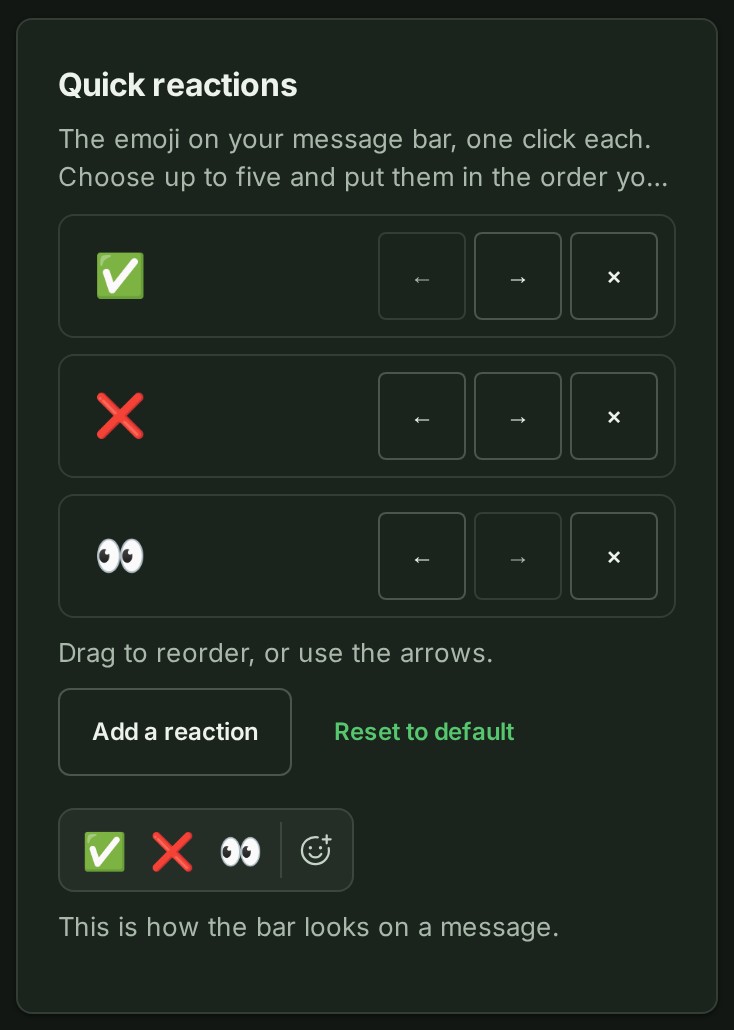
On a phone the same card stacks, with the preview under the buttons.