Edit or delete your message
Who can do this
The person who wrote the message Editing needs a paid plan, or the free plan within its 60 days; deleting your own message works on every plan.
Correct or delete a message you wrote in Messages; nobody can change someone else's words.
-
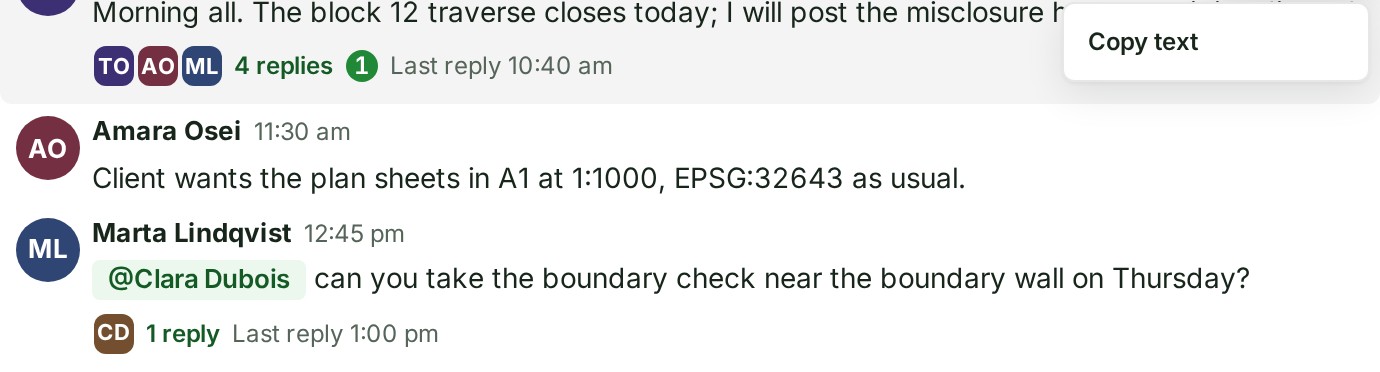
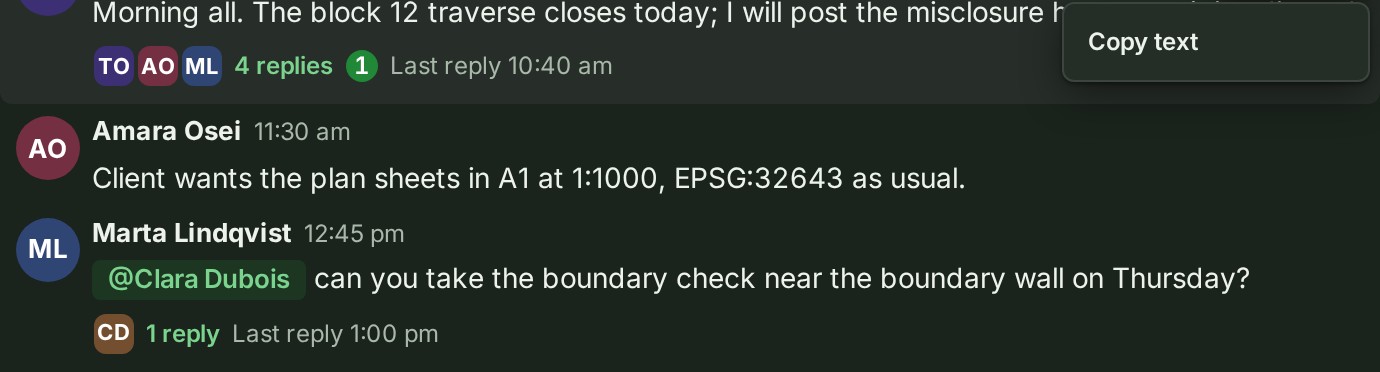
Point at your message and select the ⋮ (More actions for this message) beside its time. On a phone the ⋮ is always there.
-
Select Edit. The message opens for changing.
- Change the words and select Save. The message shows (edited) beside its time.
Delete your message
- Point at your message and select the ⋮ (More actions for this message) beside its time.
- Select Delete. You are asked to confirm.
- Select Delete message. The message keeps its place and reads This message has been deleted.
What happens next
- The screen confirms each change for a few seconds: Message saved. or Message deleted.
- There is no history of an edited message's earlier versions.
- A deleted message has a line under it saying who deleted it and when. What it said is gone and cannot be recovered, and its replies stay where they were.
If something goes wrong
- Too many changes in a short time. Try again in 5 seconds. You changed a great many messages quickly. Save and Delete message wait for the time it gives.
- This message changed since you opened it. It is shown as it is now. The message changed on another of your devices. Look at it again before you change it.
- Edit is not offered: your organisation's 60 free days of direct messages have ended. You can still delete your own messages.
Details
- While your organisation is frozen, suspended or closed, nothing can be edited or deleted until it is open again.
- Select Cancel, while editing or in the question, to keep the message as it was.
To edit or delete a note or a comment in a project's conversation, see Write in a project's conversation.
The product words on this page are explained in the glossary.
Next: Mention a colleague