Attach a file or link to a feature
Who can do this
Anyone who may add files to the project (Owners, Admins, branch managers and members, project leads and contributors). Everyone who can open the project sees what is attached, and the files on their way to it. Every plan.
Attach a photo, PDF, map file or link to a feature or a drawn object, so it sits where it applies.
- Open Projects, choose the project and select Open map on the map at the top of its page.
- Select the feature or drawn object on the map. Its card opens in the Inspector, the panel on the right that shows what you selected (on a phone, the Inspector tab).
- Open the card's Files tab.
- Choose one of the two ways below: add a new file, or attach one the project already has.
A. Add a new file
- Select Add files and choose the file, or drop it on Add files. The file appears on the tab with its progress.
- Wait for the progress to finish. The row reads Checking, then the file is attached.
On a phone, select Take a photo in place of Add files to use the camera.
<img class="gw-shot-light" src="../../assets/figures/projects/attach-a-file-or-link-to-a-feature/object-upload-1280-light.6382fc67168e.jpg" width="315" height="255" alt="A parcel's Files tab with a photo uploading at 55% and Cancel beside it, Add files under it, and Attach." loading="lazy"><img class="gw-shot-dark" src="../../assets/figures/projects/attach-a-file-or-link-to-a-feature/object-upload-1280-dark.c0f588cc68be.jpg" width="315" height="255" alt="A parcel's Files tab with a photo uploading at 55% and Cancel beside it, Add files under it, and Attach. Dark theme." loading="lazy">
B. Attach a file the project already has
- Select Attach.
- In Attach a project file or link, type in Find a file. The list narrows to matching files.
-
Select the file, then select Done. The file is listed on the tab.
What happens next
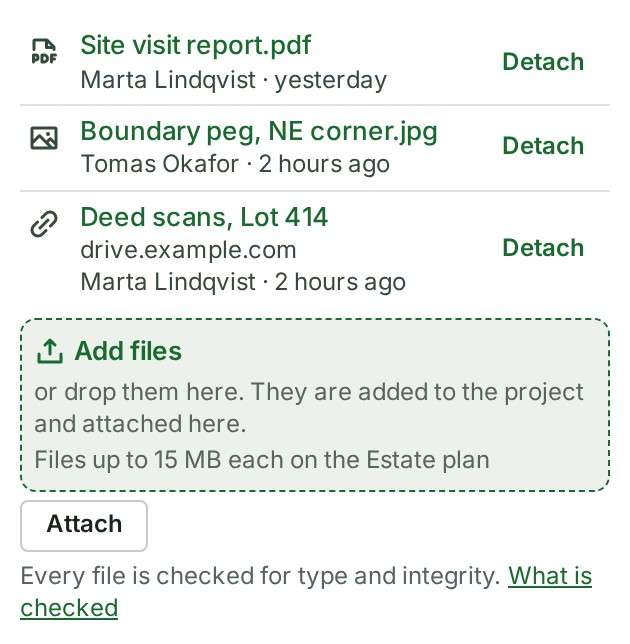
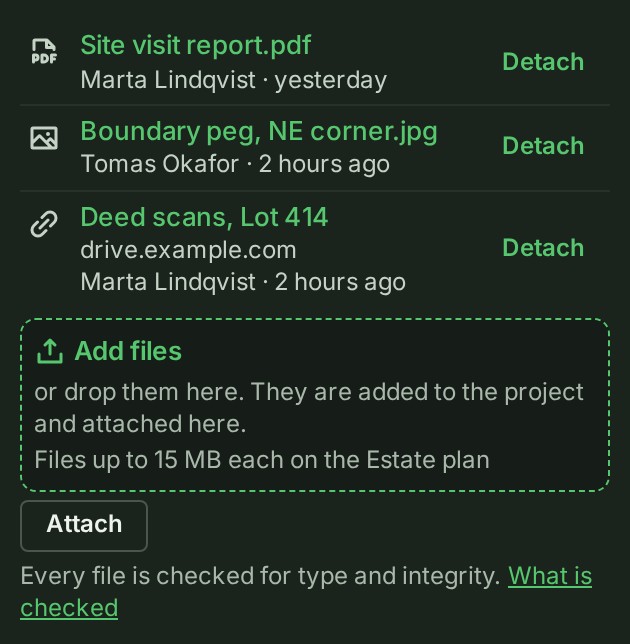
A new file goes into the project's files, as any upload does, and is attached as soon as its checks pass. GISweaver then says … is uploaded and attached. A file you picked with Attach is attached at once: … is attached.
Either way the file is listed on the object's Files tab, with who attached it and when, and the project's Activity records it. You can close the tab while a new file is checked; it is still attached when the check passes, provided the person who sent it can still add files to the project then.
Select a file on the tab to open it: a photo or a PDF opens in the gallery, a link in a new tab. In the project's Files list, the file's row now says what it is attached to: see See which features a file is attached to.
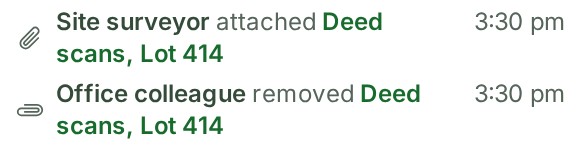
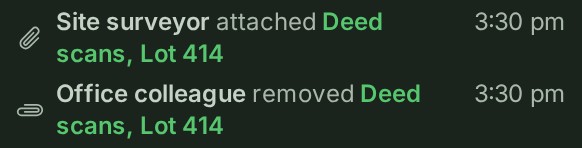
In the feature's Conversation, a quiet line says who attached or removed the file, in order among the messages. It is a note, not a message: it rings nobody, is never unread and cannot be replied to.
Detach a file from a feature
- Open the object's Files tab, as above.
- Select Detach beside the file. The file leaves the tab. It stays in the project's files and on every other object it is attached to.
If something goes wrong
| Message | What it means | What to do |
|---|---|---|
| 1 file was not sent: | The file's name and why appear under Add files. It is too large for GISweaver, or GISweaver does not take that kind of file. | Smaller files go through. For the largest file, select Compare all features on the billing screen. |
| Refused by the file check, so it is not attached. | The file is damaged or not what its name says. It is listed in the project's files with the reason. | See Fix a file that stopped. |
| Upload not finished. If it stopped, add the same file again to carry on. | The transfer was interrupted, for example by closing the tab. | Add the same file again from the same feature and it carries on. |
| This object was deleted before the file was checked, so the file is not attached. | The file is in the project's files. | Attach it to another object with Attach. |
| The sender could no longer add files to this project when the file was checked, so it is not attached. | The person who sent the file lost their access to the project, or the project was archived, between sending the file and its check finishing. The file is in the project's files. | Someone who may add files can attach it with Attach. |
| This object is not saved to the project yet, so nothing can be attached to it. | A drawn object has to be saved first. | Save it, then attach. |
| That file has been deleted from the project. Restore it before attaching it. | The file is under Show 3 deleted files. | Choose another file, or restore this one from Show 3 deleted files. |
| Files can’t be attached to this sample layer. | Sample layers carry no attachments. | Choose a feature on another layer. |
| That did not work. Try again in a moment. | Nothing was attached. | Try again. |
More
- What changes when a file is attached, deleted or restored: The Files list.