Fix a file that stopped
Who can do this
Anyone who may add files to the file's project. Anyone who can open the project reads why it stopped. Every plan. Retrying a file does not count as a new upload.
A file that could not be processed reads Failed, and one its checks turned away reads Refused.
-
Open the project's Files list, or Uploads. A line above the list names the file, for example 1 file could not be processed: followed by its name and reason.
Each stopped file says what happened, why, and what to do about it, so you can send a corrected file or try again.
-
Select the file's name, in that line or in the list, to open its details.
The details open on the file.
-
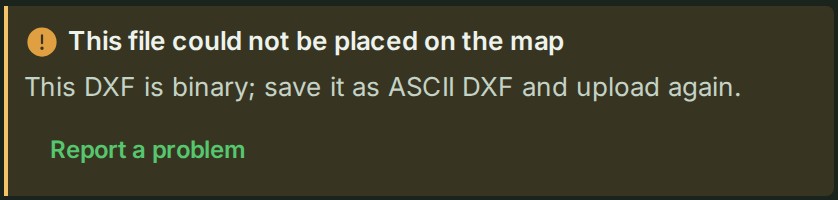
Read the block that says what happened (This file could not be placed on the map, or The checks refused this file), why, in the file's own words, and what to do. Under Show steps, the step it stopped at reads Stopped here.
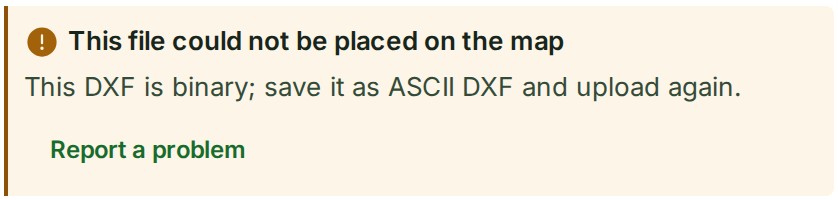
-
Choose what to do, from what is offered:
- Replace file sends a corrected file into the same row. It keeps the row's name and every thread on it; only the content changes.
- Retry tries again, only where that can help: a fault on GISweaver's side, a restarted worker, a file that stopped making progress.
- Remove deletes the file from the project: see Delete a file.
- Report a problem opens a report to GISweaver support already naming this file; add what you were doing.
On Uploads, a stopped file's details offer Try processing again and Send the file again where they apply, and Open the project to replace it there.
The file is replaced, retried, removed or reported, as you chose.
What happens next
A replacement is sent like any other file: it waits for a free slot, shows its stage on a row of its own with Cancel, and is swapped into the stopped row once it has been processed. A retried file reads Processing with Queued to process again; it runs on the copy GISweaver already holds and costs nothing from the month's uploads.
Reasons and what to do
What each reason says in the common cases, and what helps, is on Supported files and limits.
If something goes wrong
If Remove is refused or the connection fails, the project shows the deletion reason and keeps the file listed. A file still listed has not been confirmed removed.
- If you opened its details, the reason also appears there.
- Resolve the stated restriction, or reconnect, then select Remove again.
Details
Why a file waits
GISweaver processes files one after another, so a file sent while another is converting reads Waiting its turn; nothing is wrong. A problem on GISweaver's side that may clear by itself is tried again on its own, and the line reads Trying again after a problem on our side meanwhile. A file that makes no progress for several minutes is stopped rather than left running, and its reason says how long and at which step.
Refused at the door
A file over your plan's limit for one file, or over the most one file may be, is refused before it is sent and never becomes a row. See Add files to a project.
Words on this page: a release is a published version of the project's survey, fixed once published, and what you deliver; a thread is a conversation about one file, feature or message. Other words are in the glossary.