Change, pause or end a client's access
Who can do this
Owners, administrators, the branch's manager and the project's lead. Every plan.
You can reduce a client organisation's access to a release at any time, from changing its files to ending it.
- Open Projects and choose the project. The project opens.
- Select the Access tab. The tab lists the access given to other organisations.
-
Select ⋯ on the client's row. The menu lists the acts you may do on it.
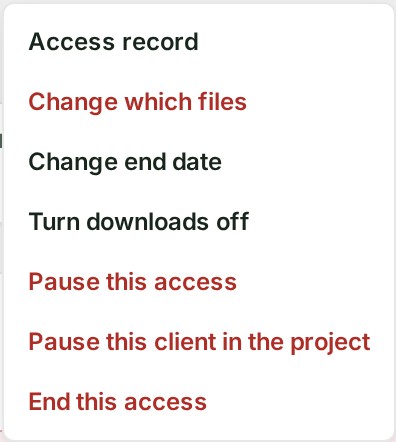
Each act below starts from this menu. What each one does is in What a client may do.
Change which files
- Choose Change which files. The files the client may download open under the row, with those allowed now ticked.
- Untick the files they should lose. The count of files chosen changes.
- Select Save the change. The client keeps the rest.
Change the end day
- Choose Change end date. A field, New end date, opens under the row, with the day it ends now under it.
-
Pick the new day in New end date. The field shows your day.


-
Select Save the new date. The row reads Access ends 15 Oct 2026 and your client is told.
Other grants for the same client keep their own end day.
Turn downloads off
- Choose Turn downloads off. A question opens under the row.
- Select Turn downloads off again. The client keeps the map and loses every way of downloading files from it.
Pause this access
- Choose Pause this access. A question opens under the row.
- Select Pause this access again. The row reads Ending… while the change reaches every connection the client has open, then Paused.
Pause this client across the project
- Choose Pause this client in the project. A question opens under the row.
- Select Pause this client in the project again. The row reads Ending…, then Paused, and the client is listed under Clients paused in this project.
End this access
- Choose End this access. A question opens under the row.
- Select End this access again. The row reads Ending…, then Ended.
Your client is told in its notifications of any pause or end. Files already downloaded stay theirs: nothing reaches a copy that has left.
Resume
- Select ⋯ on the paused row, or find the client under Clients paused in this project. The menu offers Resume this access, or the list offers Resume this client in the project.
- Choose Resume this access or Resume this client in the project. A question opens under the row.
- Select the same button again. The row reads Active again, as it was before.
What resuming gives back is in How access to other organisations works.
If something goes wrong
- Nothing is unticked, so there is nothing to change yet. Untick at least one file in Change which files.
- This access covers every file in the release. To limit it to named files, give access again with only those files, then end this one. End this access and give a new one that names the files.
- You want to add a file: Adding a file is a new grant, with its own date in the record. Give a new access for that file.
- The row stays on Ending… for a while: the change is recorded and is still being applied. The row says so when it has been.
- Choose today or a later day. Access ends at the end of the day you choose, India time (UTC+5:30). The day has already ended. Pick today or a later day.
- Choose a day within a year of the day this access was given. An access can last at most a year from the day it was given. To go further, give a new access.
- Change end date is not in the menu: the access reads Ended or Expired. A date does not bring it back; give access again.
- An act is refused or missing while your organisation is suspended or frozen: see While your organisation is suspended or frozen.