Tick a checklist step
Who can do this
Anyone who works on the project: owners, administrators, branch managers and members, the project's lead and contributors. Billing, auditors and viewers can read the list. Every plan.
Tick a step on a project's checklist to show who finished it and when, add a note about where the evidence is, or untick a step ticked by mistake.
-
Open Projects, choose the project and select its Checklist tab.
The tab lists the steps under their headings.
-
Find the step. A step that is Required, and still open when the project has reached its stage, has a coloured line at its left edge and a Required chip.
-
Tick the box beside the step.
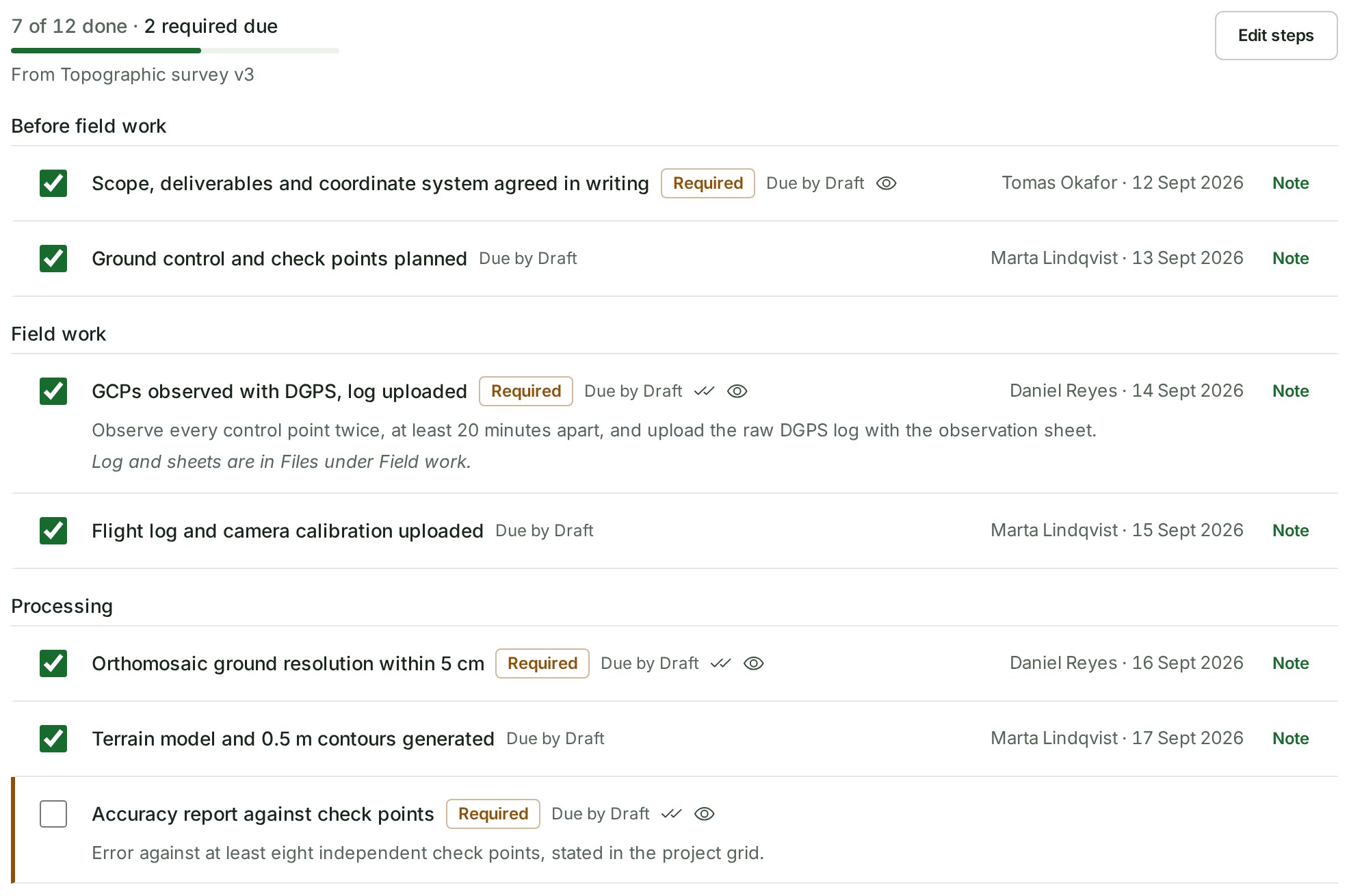
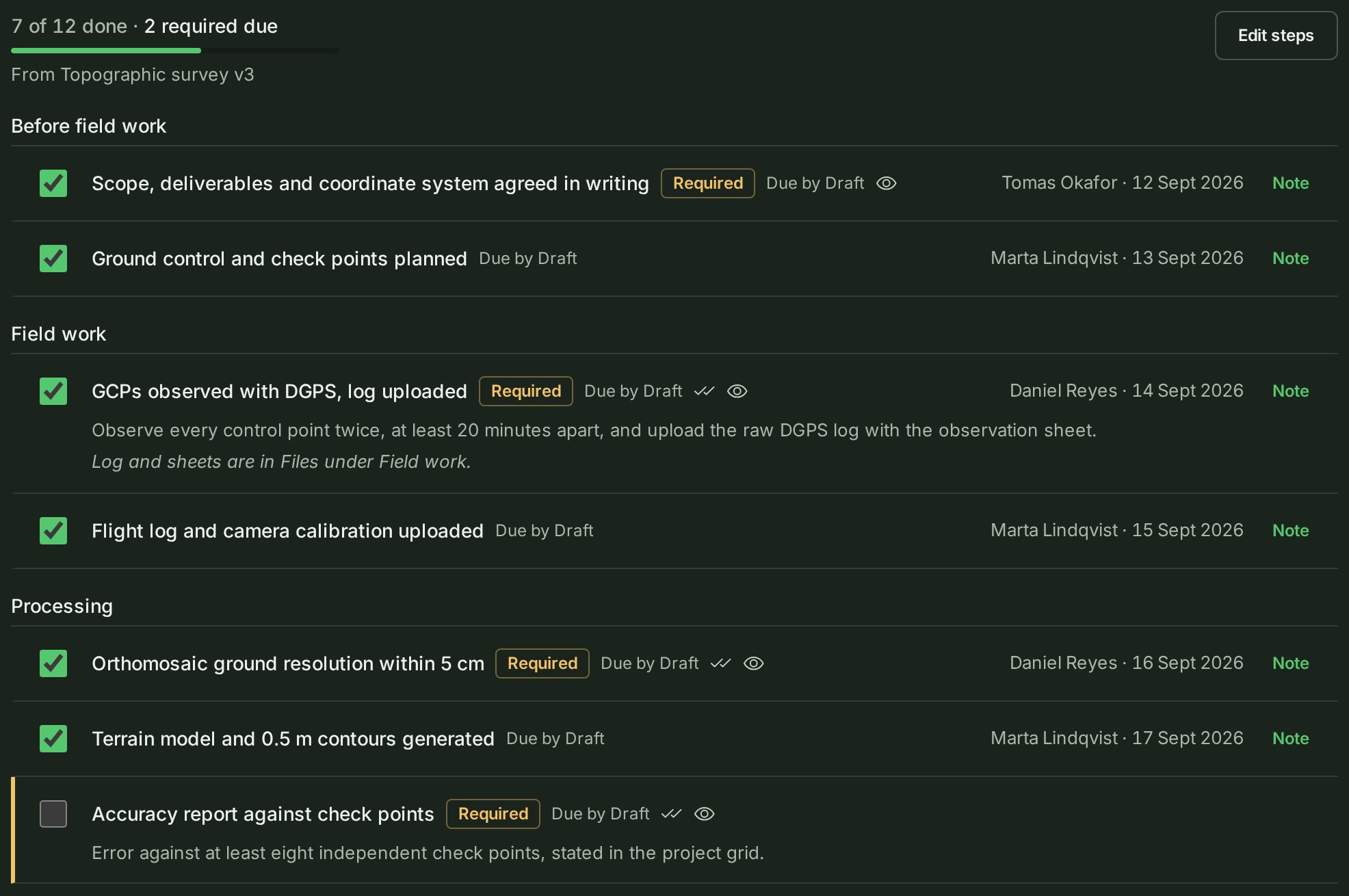
The row waits for GISweaver to answer, then shows your name and the date.
-
To say where the evidence is, or what was agreed, select Note on the ticked step, type up to 280 characters and select Save note.
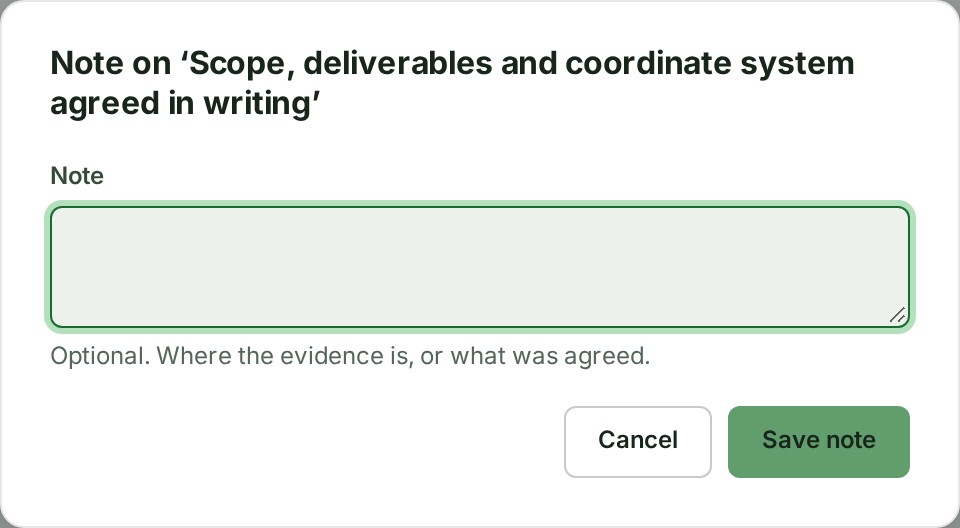
The note shows on the step.
What happens next
The summary at the top moves, for example from 7 of 12 done to 8 of 12 done, and so does the line under the project's state. Every tick, untick and note is written to the project's Activity tab and the organisation's audit trail.
A tick says who marked a step done, and when. It does not check the survey's accuracy.
Untick a step
-
Tick its box again.
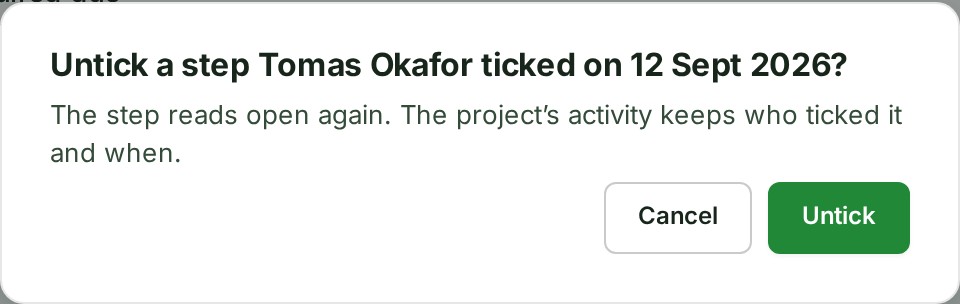
If a colleague ticked it, GISweaver asks first.
-
Select Untick.
The step reads open again; the audit trail still shows who ticked it.
If something goes wrong
- Ticking is for people who work on this project appears when you point at a box you cannot use. Your role reads the list. Ask the project's lead if you should be able to tick.
- Approval is for the project's leads appears on an approval step. See Approve a checklist step.
- Untick this step before changing or removing it. You tried to change the words of a ticked step. Untick it first.
- Tick the step before adding a note. A colleague unticked the step while you were writing. Tick it again, then add the note.
- A step you pressed is gone or has changed. A colleague edited the list meanwhile. GISweaver reads the list again; press the box again.
- No Checklist tab. The project has no checklist and you cannot add one. See Add a checklist to a project.
Details
On a phone
A phone ticks and unticks exactly as a computer does, so a lead on site can tick a step from the field; the same rules apply, including the question before an approval or before unticking a colleague's tick. A phone does not edit the steps, add a checklist or add notes; use a tablet or a computer for those.
What the tags mean
| Tag or icon | What it means |
|---|---|
| Required | A step your organisation has said must be done. It is the only tag drawn as a chip. |
| Due by Draft, Due by Review or Due by Published | When the step is due. A step that can be done any time says nothing. |
| Two ticks | The kind is Check. |
| A stamp | The kind is Approval. A plain step has no icon. |
| An eye, Client sees | The step travels with a delivery; see See the checklist sent with a delivery. |
Point at an icon to read its name; a phone writes the name beside the icon. Guidance shows under a step, two lines at first and the rest after More.
Next: Approve a checklist step