Format a message
The box you write in shows the formatting as you type, so bold words look bold before you send them and a link shows its words, not a long address.
- Select the words you want to format.
-
Select a button in the toolbar above the box, for example Bold. The words take the formatting; a button that is already on takes it off again. Every button, its shortcut and the marks you can type instead are in the Messages reference.


-
Select Send. Everyone in the conversation sees the formatting.
The formatting buttons appear when you start writing: they show while the cursor is in the box or the box holds words, and they tuck away when it is empty and you are elsewhere. The shortcuts work either way.
Add a link
- Select the words that should be the link. With no words selected, the link goes where the cursor is.
- Select Link.
-
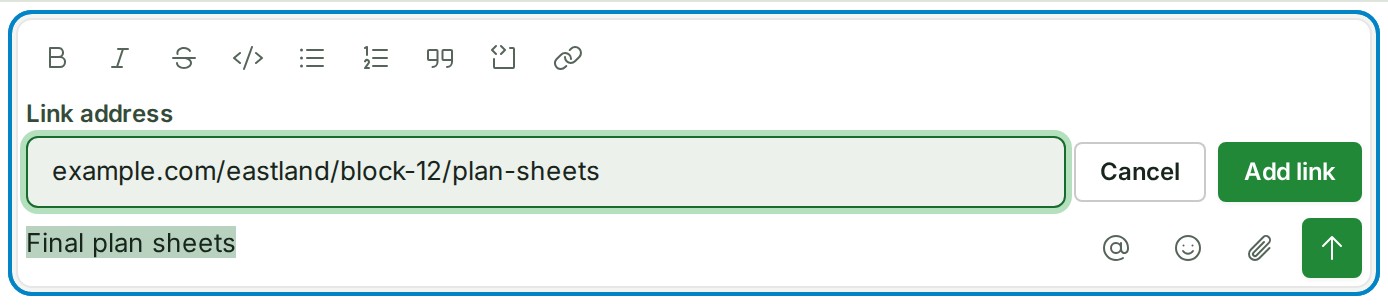
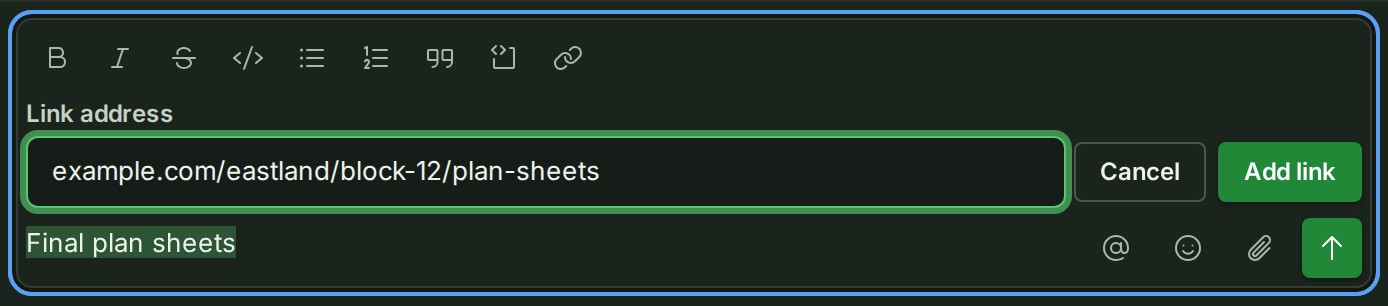
Type the address in Link address. The words you selected stay marked while you type the address.
-
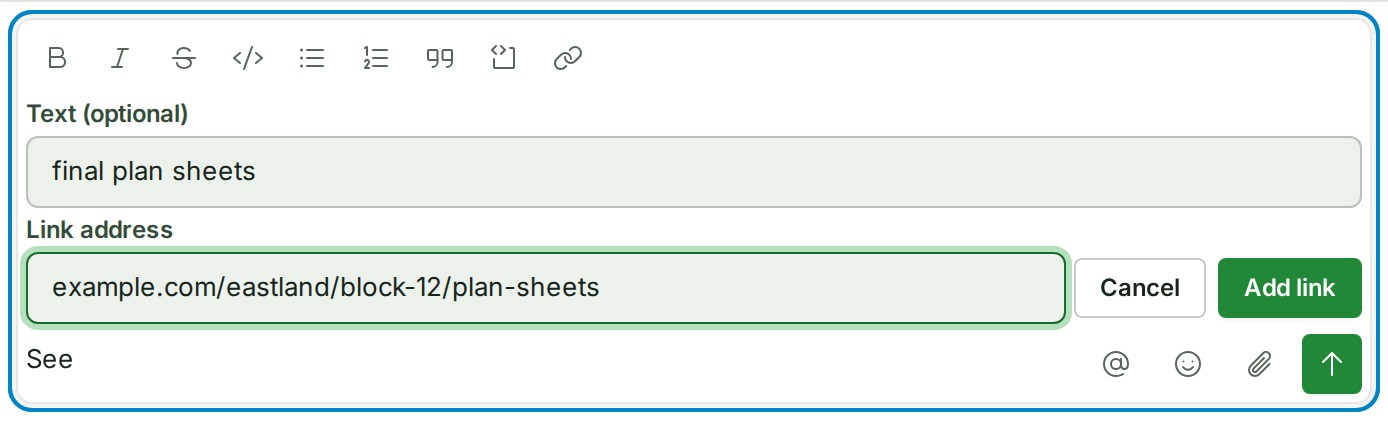
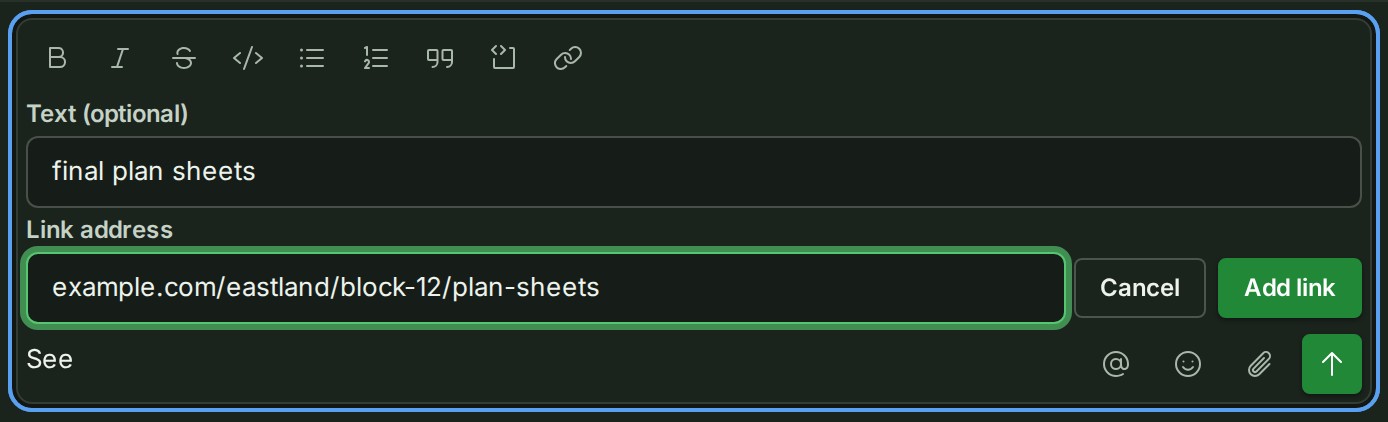
With no words selected, type the words in Text (optional); leave it empty and the address itself goes in.
-
Select Add link. The box shows the link as its words; put the cursor in them to see the address.


Change a link
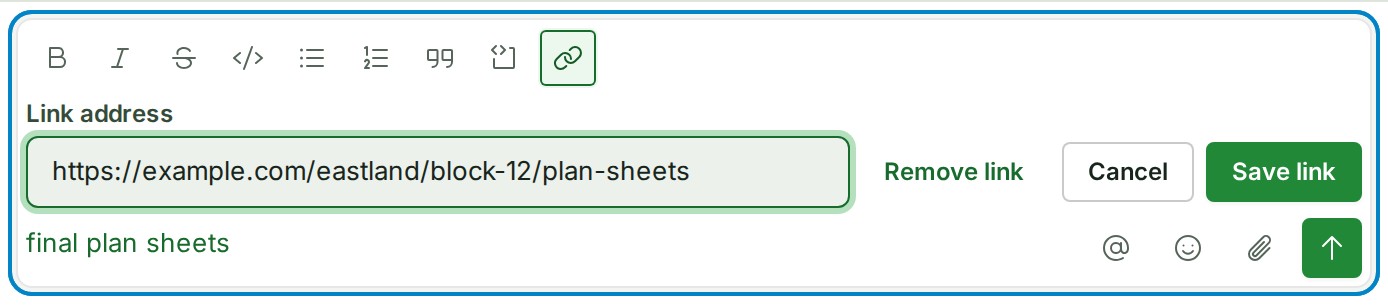
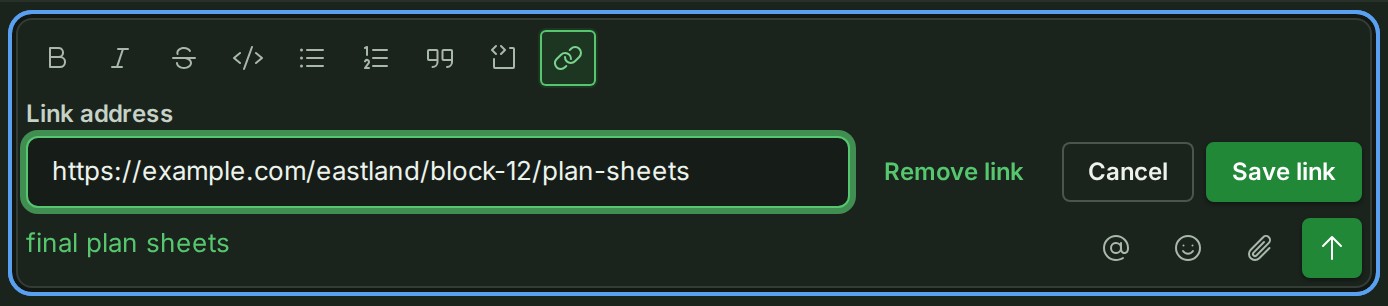
- Put the cursor in the link and select Link.
-
Change the address and select Save link, or select Remove link to keep the words without the link.
What happens next
A long web address shows as its site and the ends of its path; point at it, or move to it with Tab, to see the whole address.


If something goes wrong
- Enter a web address, such as https://example.com. The address has a space in it, or is not a web address. Type it again;
example.comon its own is read ashttps://example.com.
Add an emoji
This works in a direct message and a group, and in a project's notes and their threads.
-
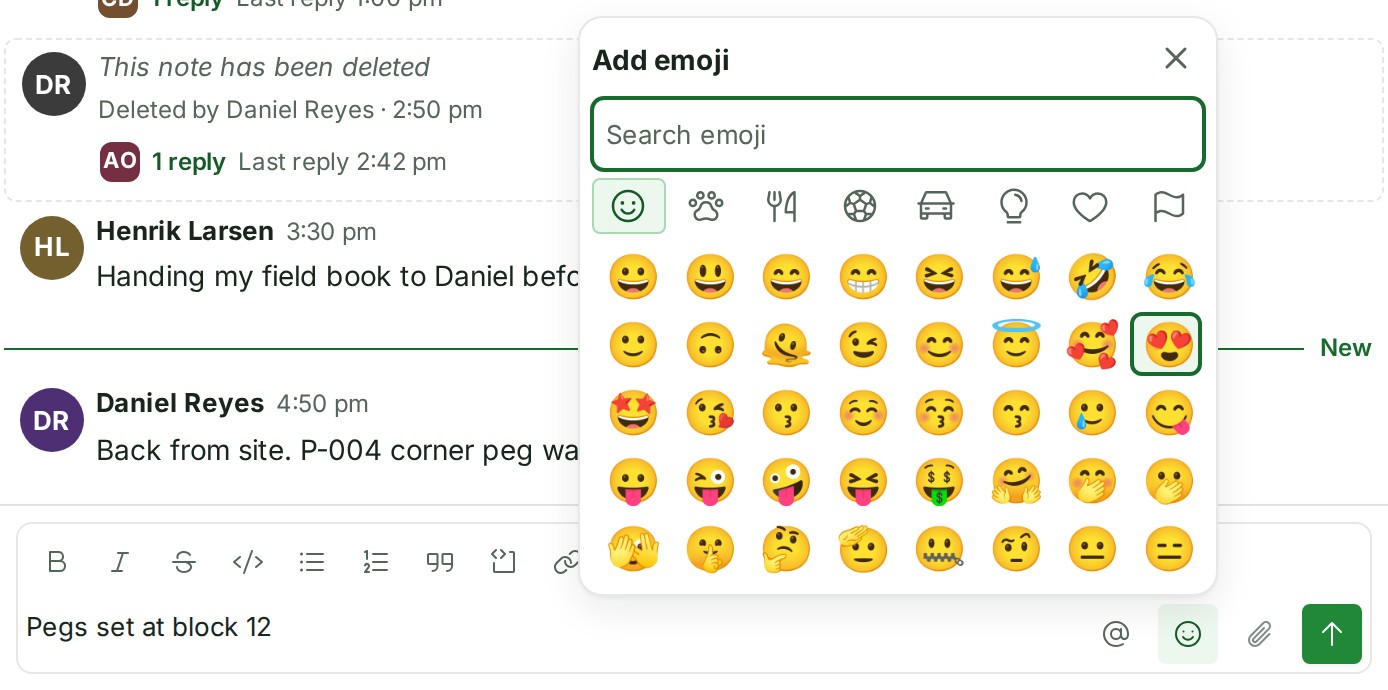
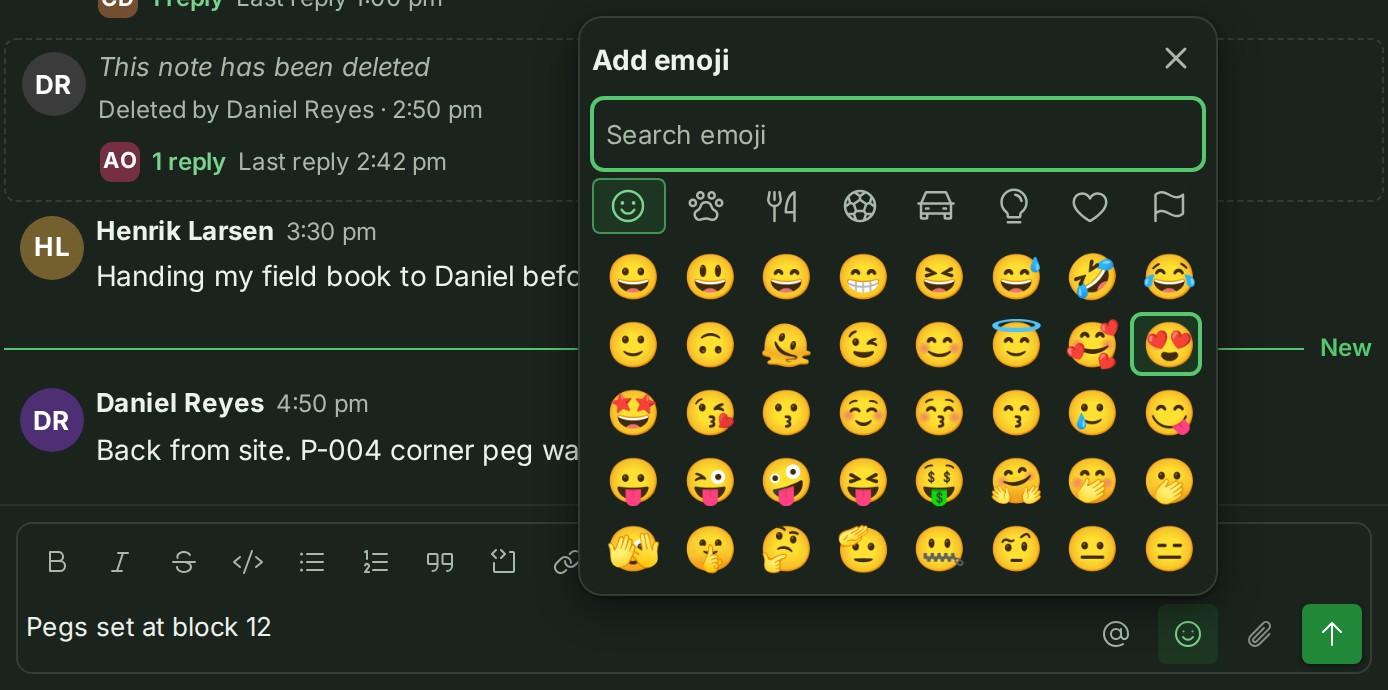
Select Add emoji in the row under the box. The emoji picker opens.
-
Type to search, or choose a category, then select an emoji. It goes where the cursor was and the picker closes.
The picker remembers the emoji you choose, here and in reactions, in this browser. Once you have chosen one, a Frequently used icon appears first in the row. The picker opens on Frequently used when you have eight or more, and on Smileys & people until then.
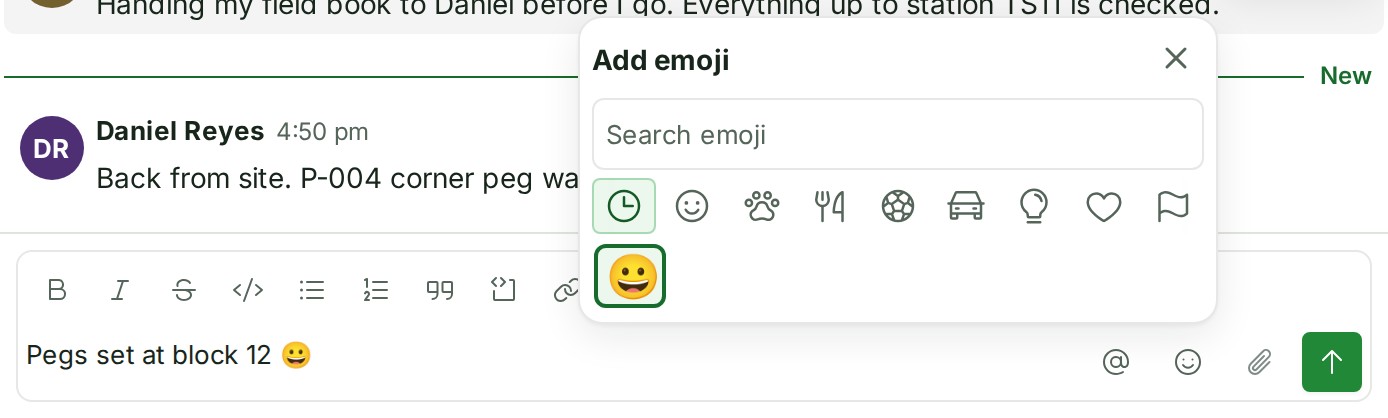
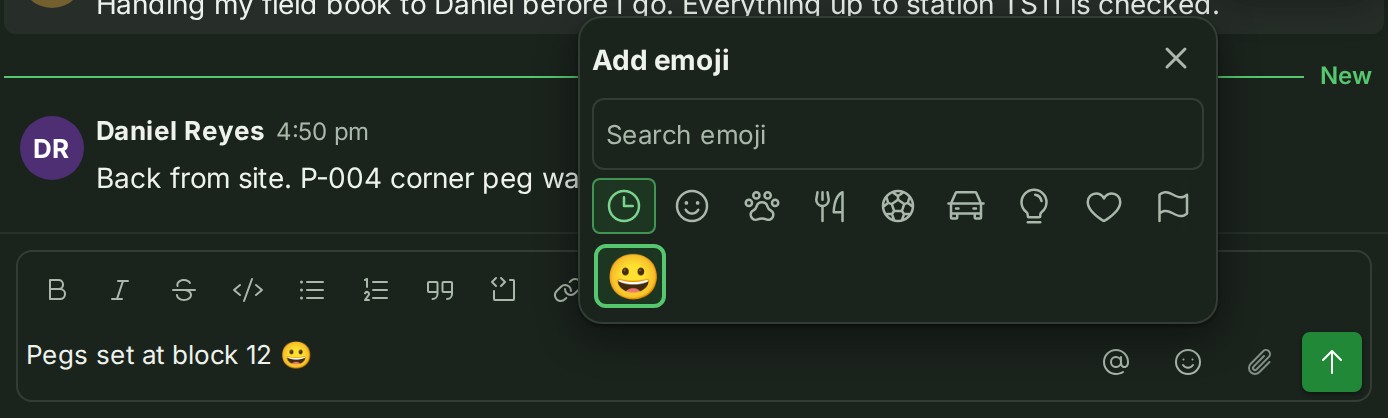
Or type it. Type a colon and at least two letters of the name, such as :thumbsu, and a list of emoji appears. Use the arrow keys and Enter (or select one) to choose.
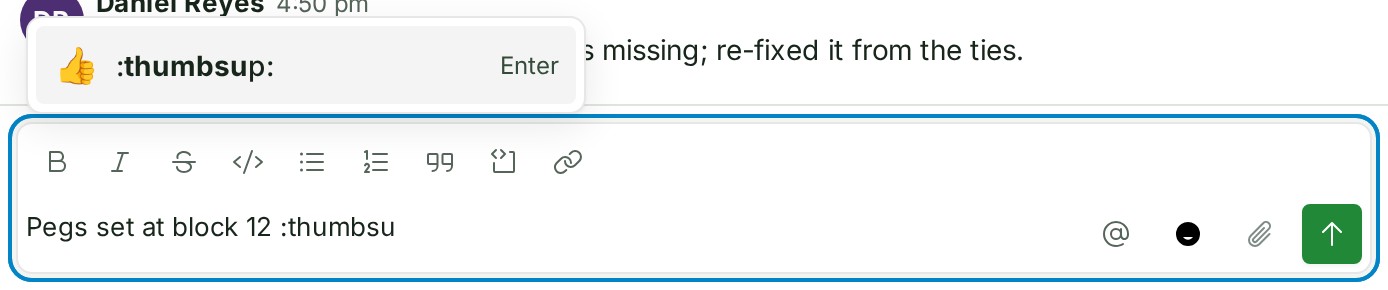
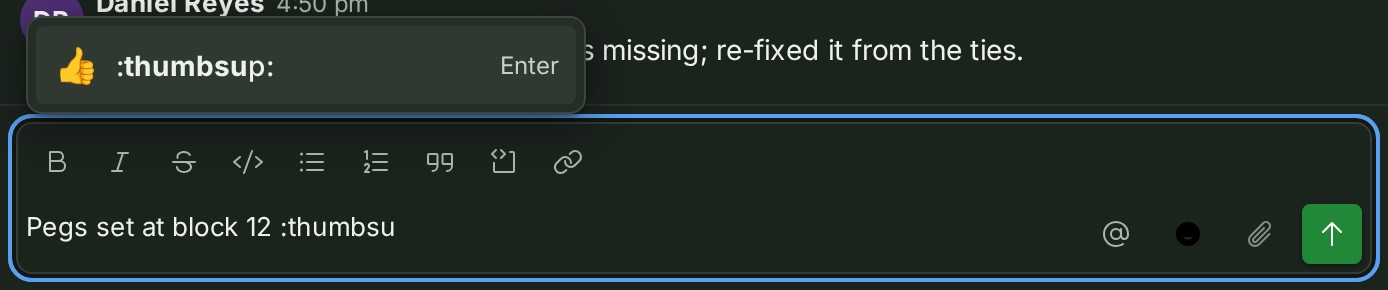
A whole name between colons, such as :smile:, turns into the emoji as soon as you type the second colon. A name that is not an emoji, such as :peg:, stays as the words you typed.
Good to know
- Paste a web address onto selected words to make them a link.
- Text you paste from a web page or a document keeps its bold, italic, strikethrough, code, links, lists and quotes. Anything else arrives as its words, and an asterisk or a backtick in them stays one.
- In a list, a new line starts the next item: Shift and Enter at a desk, Enter on a phone. A new line on an empty item ends the list.
- Underlining, colours and pictures are not part of a message.