Create your organisation
Who can do this
Anyone setting up their organisation on GISweaver. A new organisation starts on the plan the sign-up form names.
An organisation is your account in GISweaver, holding your projects, your people and your plan, and creating one makes you its Owner. If a colleague has already set it up, ask them to invite you and join their organisation instead.
- Open Create your organisation, or select Create one beside New organisation? on the sign-in page.
-
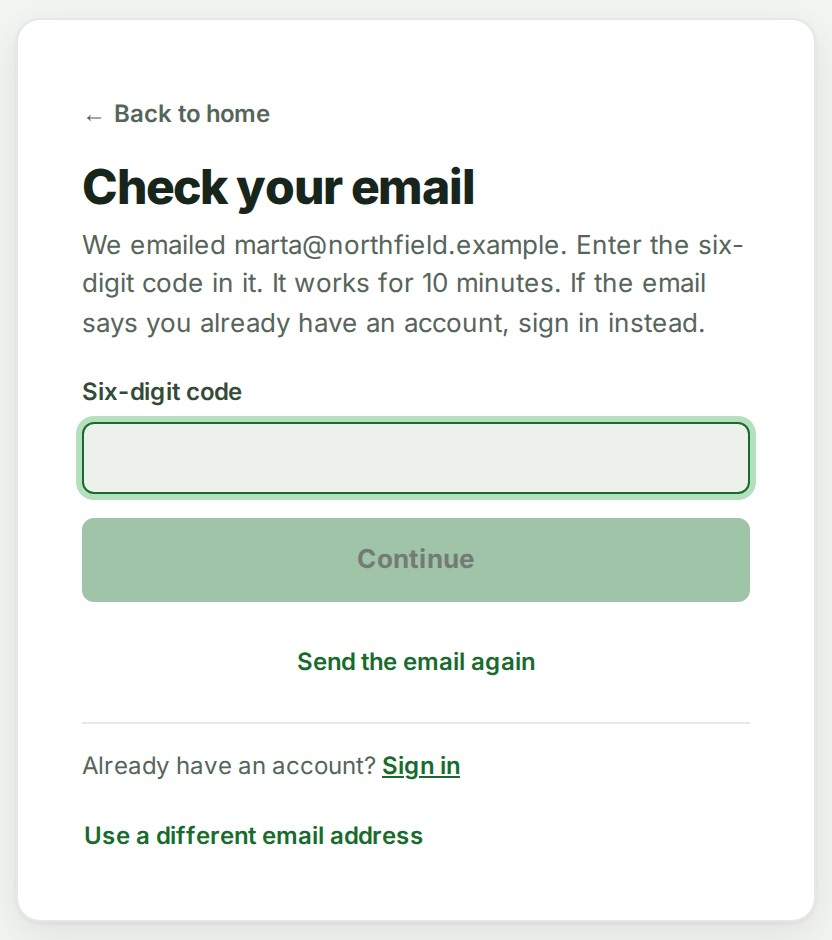
Type your email address in Email address and select Email me a code. The card changes to Check your email.
-
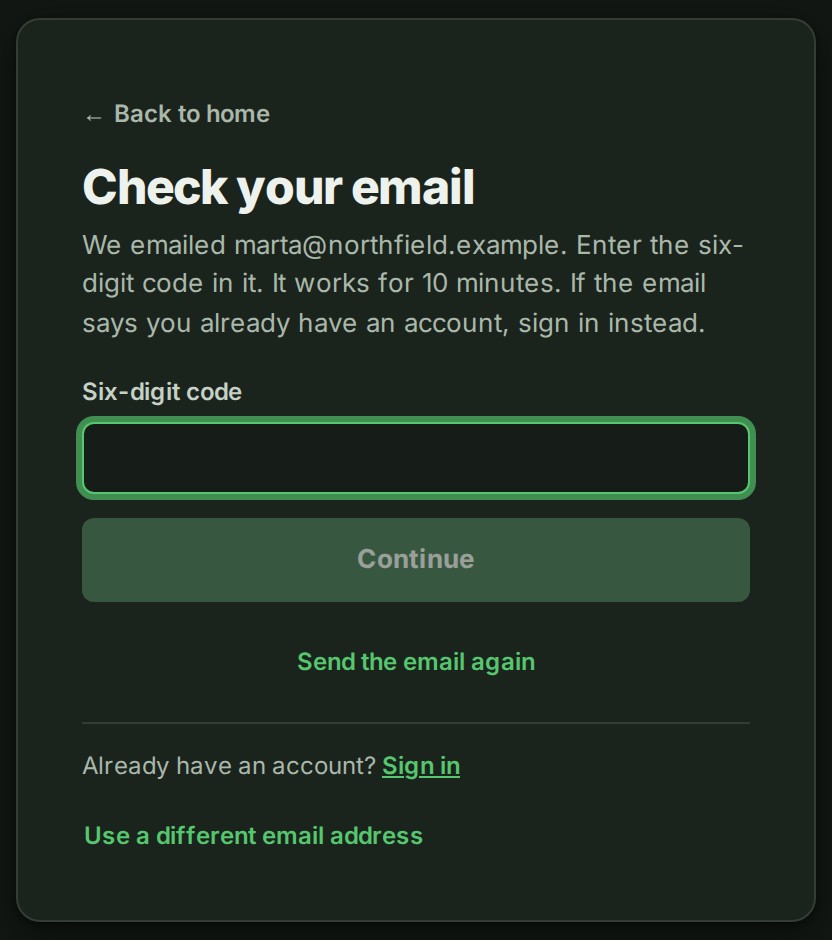
Open the email, type the six-digit code in Six-digit code and select Continue. The code works for 10 minutes. The card changes to Finish setting up.
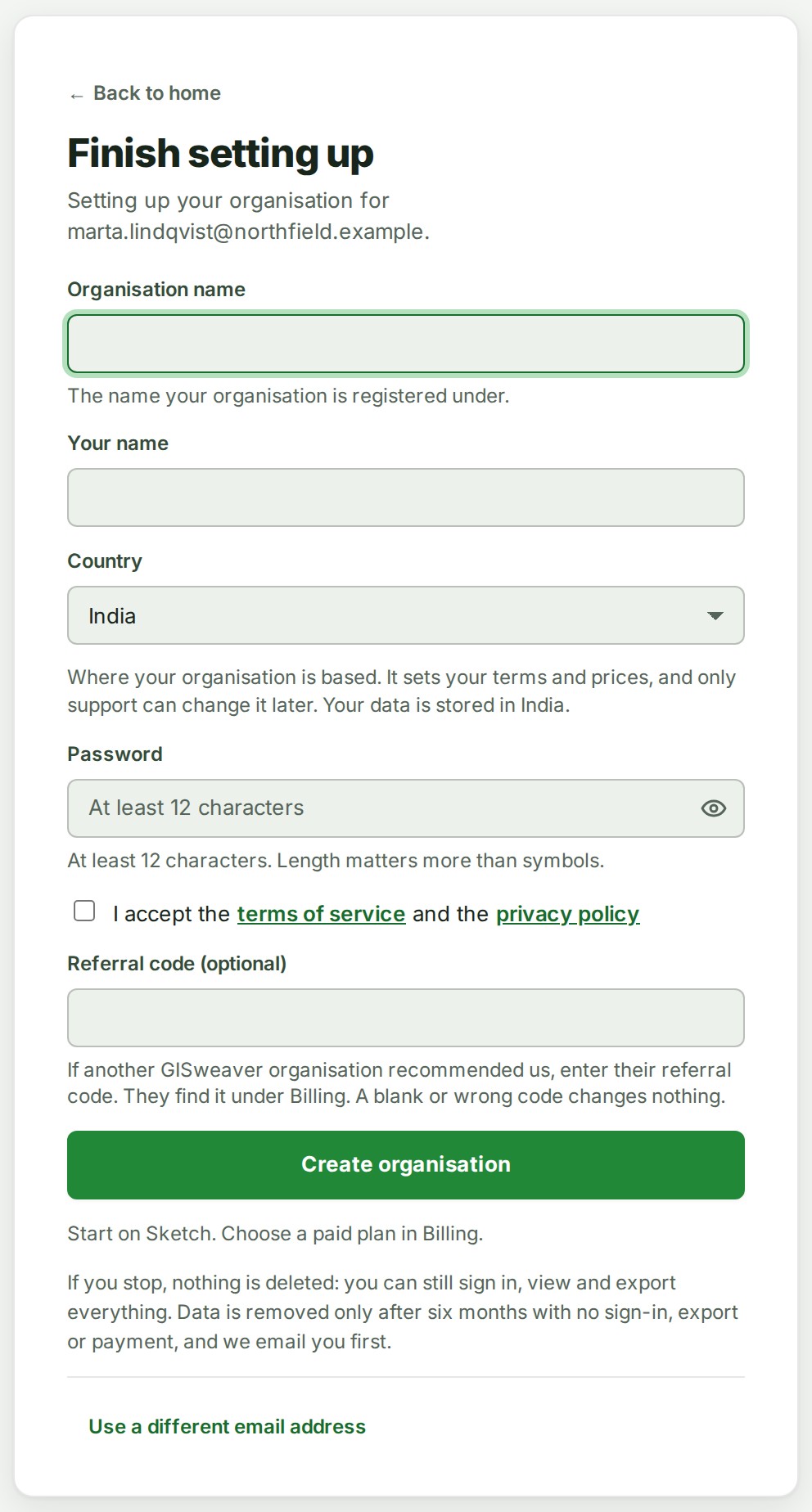
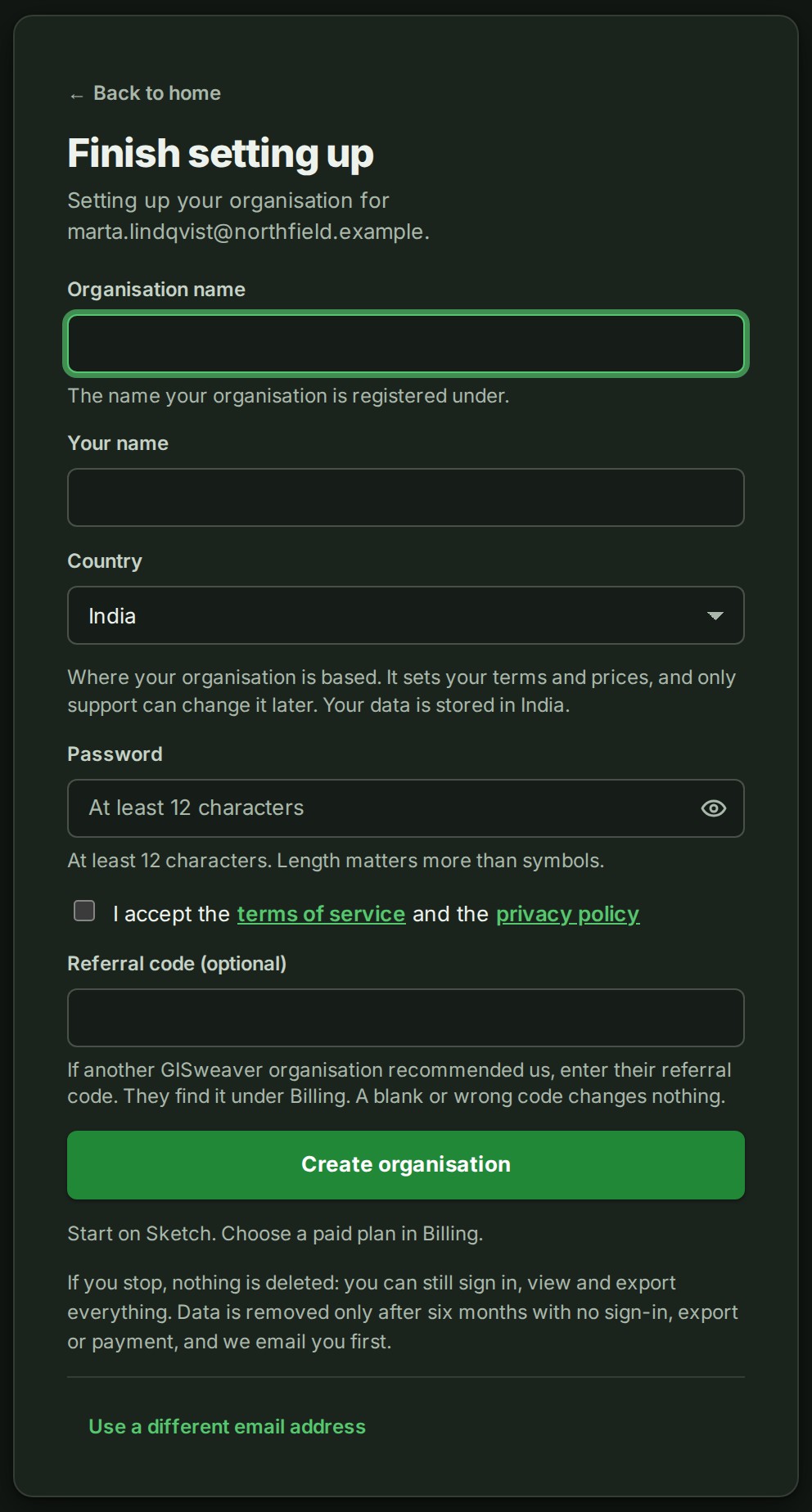
- Type the name your organisation is registered under in Organisation name, and your own name in Your name.
-
Choose your Country. It sets your terms and prices, and only support can change it later. Your data is stored in India.
-
Choose a Password of at least 12 characters.
- Tick the box that reads I accept the terms of service and the privacy policy. Both links open in a new tab.
- Select Create organisation.
To sign up with Google or Microsoft, or to enter an access code, a referral code or a tax ID, see Sign up another way.
What happens next
GISweaver creates the organisation, makes you its Owner and signs you in. Your email address is already confirmed by the code. Home opens with a notice, Welcome to GISweaver. Finish setting up followed by your organisation's name, and a link to Getting started: see Follow the Getting started checklist. You can start work straight away. Set up two-factor authentication within 30 days; GISweaver gives one automatic 30-day extension before it becomes required.
If something goes wrong
- If the email says you already have an account, sign in instead. You do not need a new organisation. Select Sign in beside Already have an account? on the card. It opens the sign-in page with your address filled in, so sign in with your password.
- That code is incorrect. Check the email and try again. The code does not match the newest email. Type it again, or select Send the email again; a code in an earlier email then stops working.
- This sign-up has ended. Enter your email address to start again. If you already finished signing up, sign in instead. The 10 minutes passed, or five wrong codes were typed. Select Use a different email address and start from step 2.
- Accept the terms of service and privacy policy to create an account. Tick the box in step 7.
More errors, and why the email can say two things, are in How sign-up works.