Name or change a project's client
Who can do this
Owners, administrators, the branch's manager and the project's lead pick a client. Adding a new client to the list is for owners and administrators. Every plan.
Name the client a project is for, change it or take it away, so everyone sees who the work is for.
-
Open Projects and choose the project.
Its page opens on the Project tab. From the list you can instead select ⋯ on a row that shows No client, then Name the client.
-
On the About this project card, select Edit, or Add details on an empty card.
The card opens as a form, and Client is its first field.
-
Choose one of your organisation's clients in Client, or No client named to take the name away.
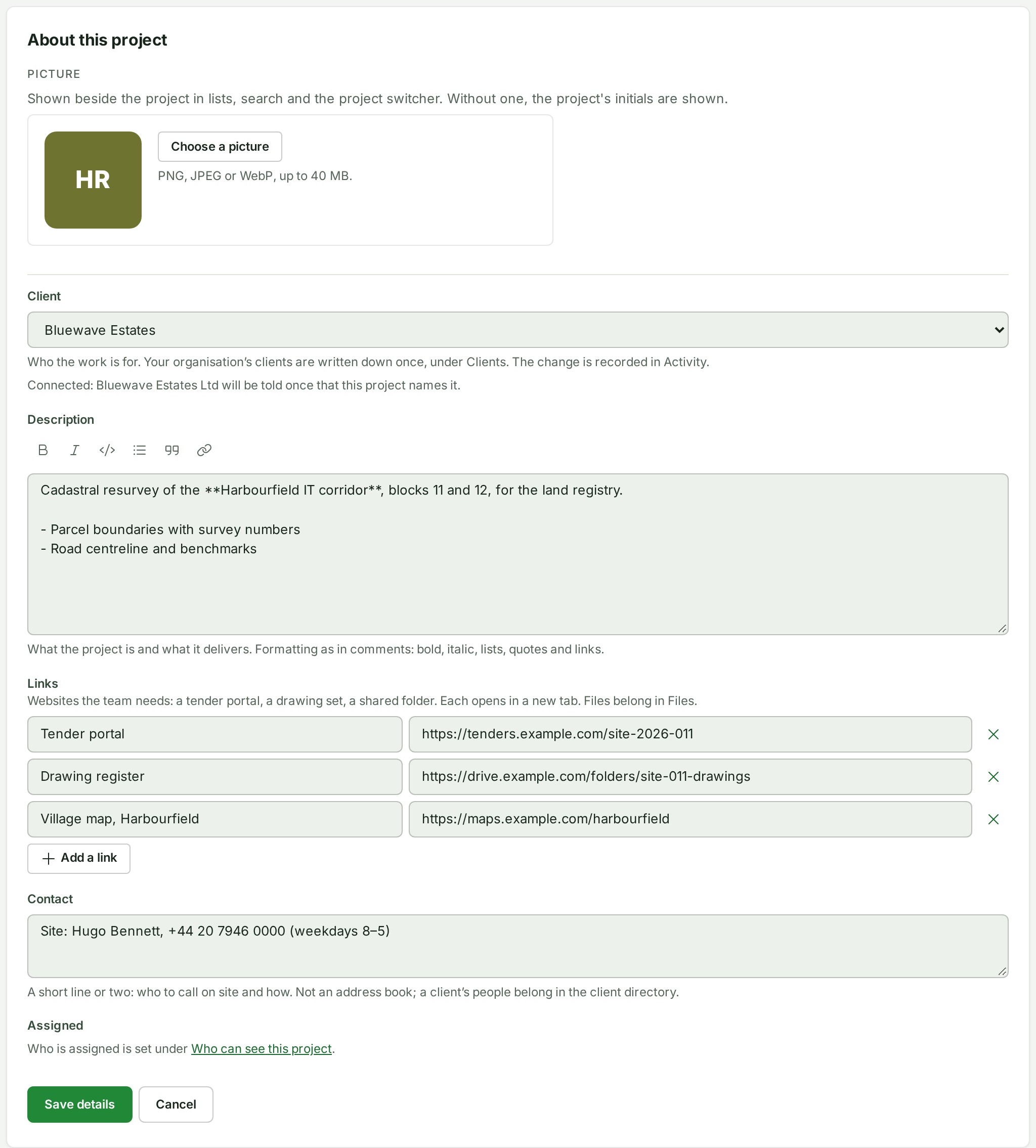
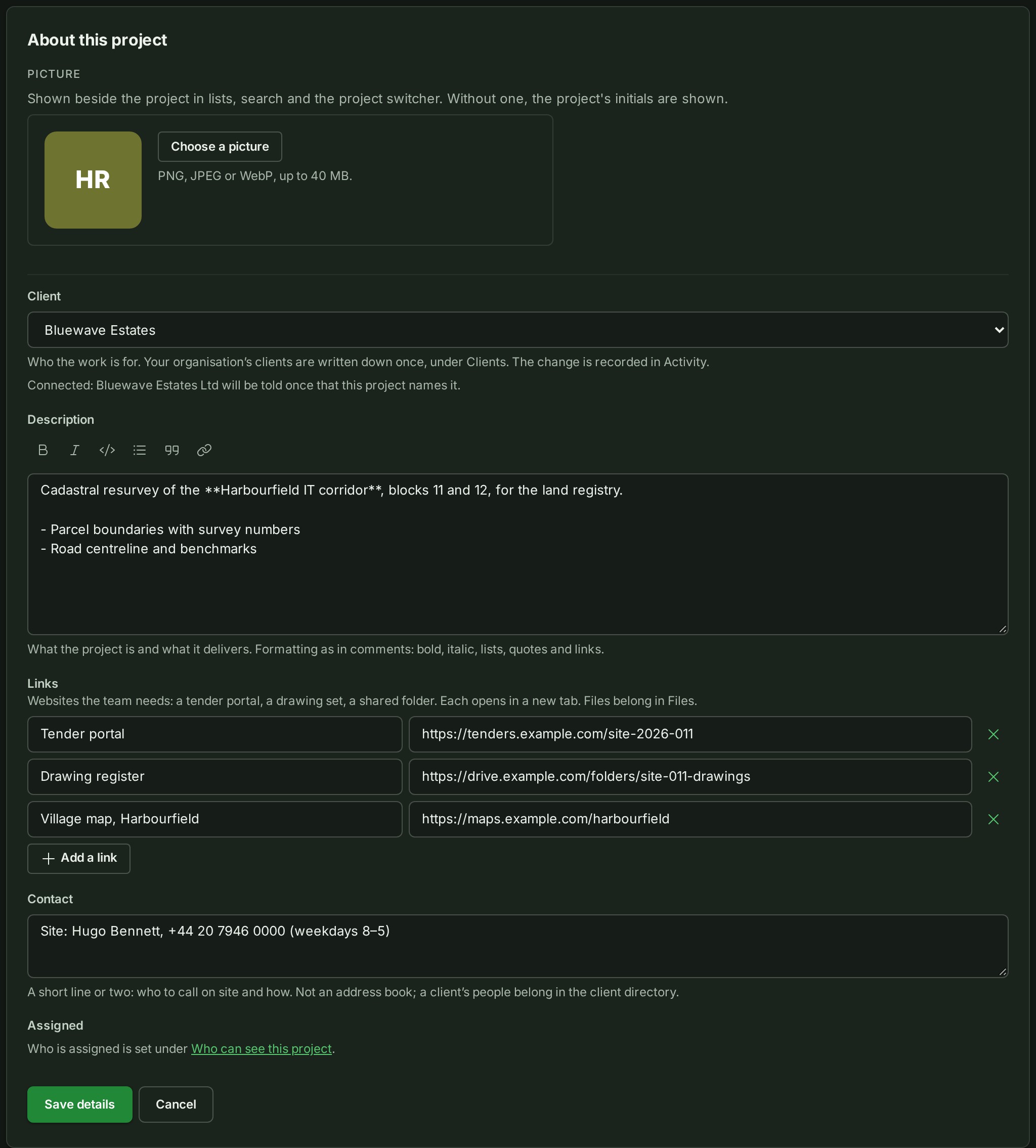
The list shows your choice.
-
Select Save details.
The card closes and shows the client.
What happens next
The client shows on the card and in the line of facts under the project's name. The change is listed on the project's Activity tab.
If something goes wrong
- Your organisation has no clients yet. Nobody has written down a client yet. An owner or administrator sees Add one under Clients, which opens Clients; anyone else asks an owner or an administrator to add the client.
- Your organisation’s clients could not be loaded. Try again in a moment. Close the card with Cancel and open it again.
- An Owner or Admin names the client, from your organisation’s clients. The list of clients was not offered to you. Ask the Owner or an Admin to name the client.
More: Clients. You can also name the client when you create the project.
Next: Add files to a project