Uploads
Uploads lists every file travelling into any project in the organisation and what became of it, with a column naming the project. Start uploads from the project that will own the files — its Files list is the one door for every file — and use this page to monitor work across the organisation.
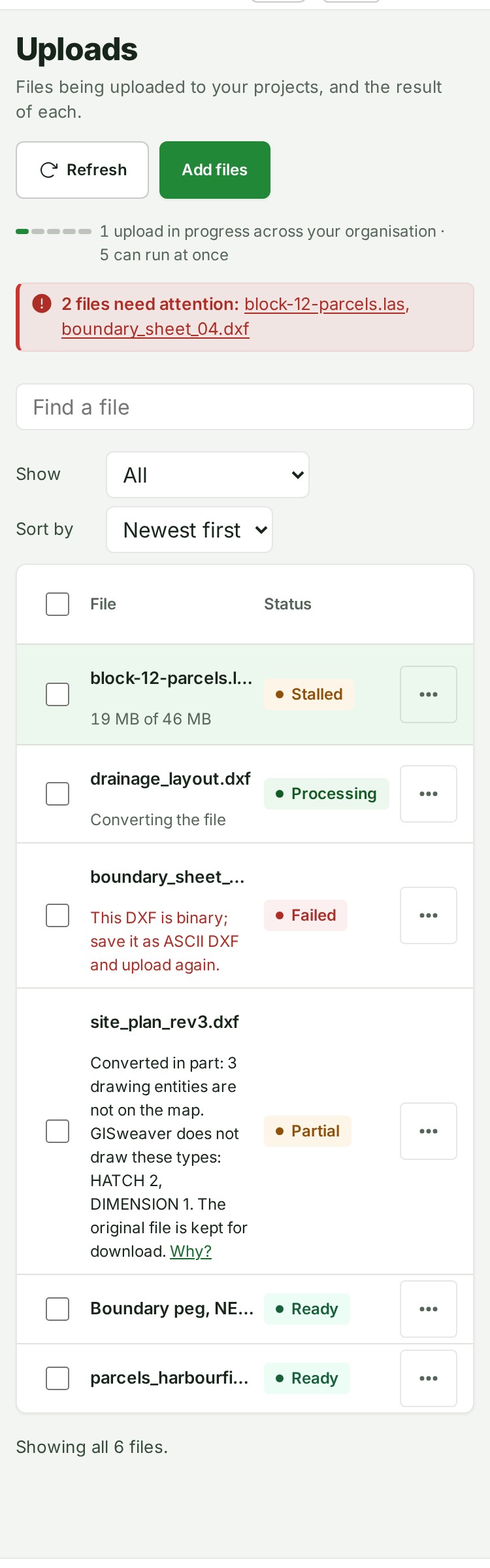
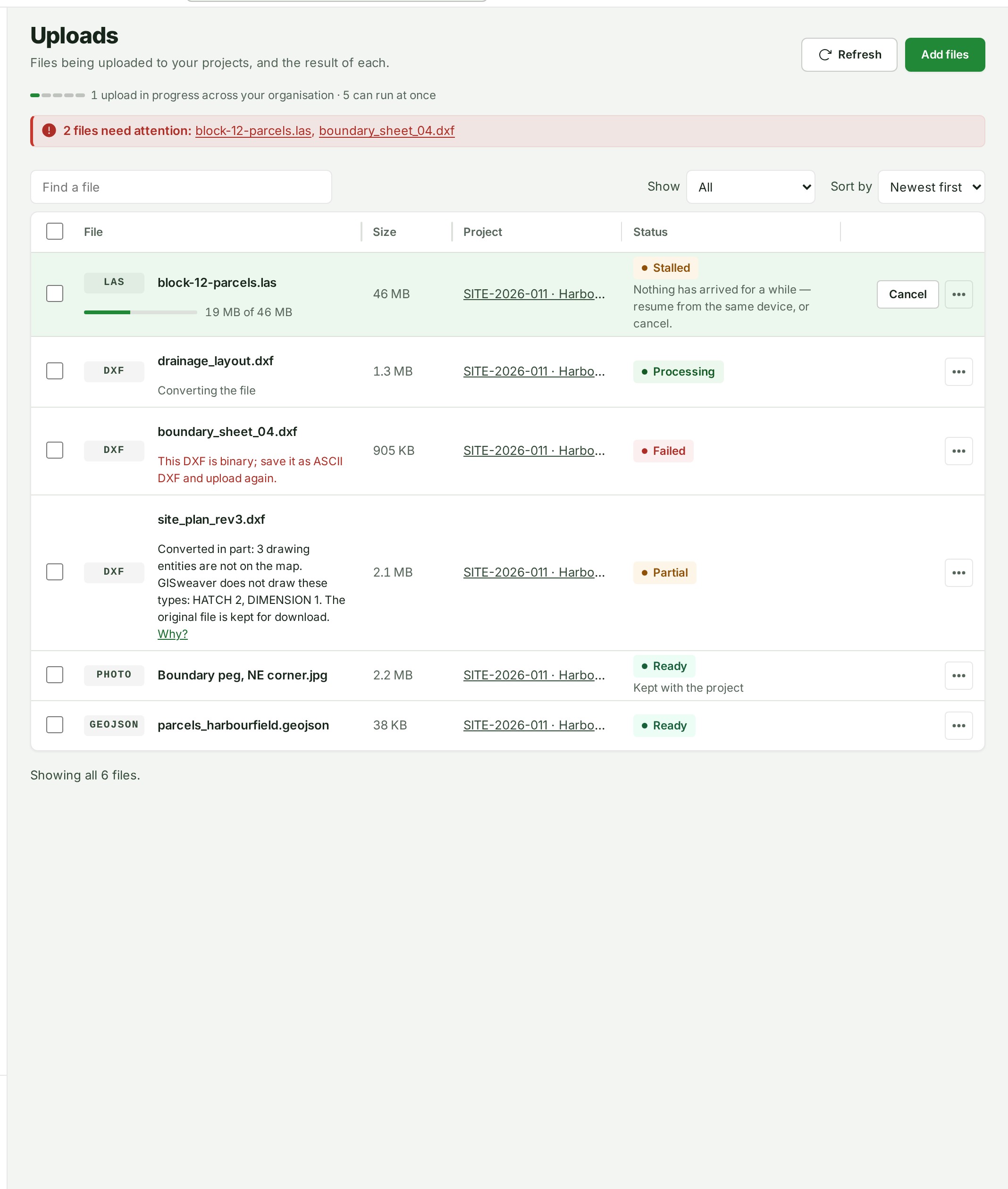
Add files, when you have permission, takes you to Projects to choose the destination. For new survey work, create a project first; existing files and transfers stay on this page.
Before you start
Owners, Admins, Billing managers and Auditors can view the organisation-wide list. Anyone who can upload to a project, such as a project Contributor or Lead, can open Uploads too and sees the uploads of the projects they can upload to, and only those; the line above the list then counts the files in your projects. A colleague who can upload to no project does not see Uploads in the menu. Uploading, deleting a file from its project and processing it again need upload access to the file's project. Owners and administrators can delete any file permanently; a project Lead can delete permanently only a file they added themselves that has never been in a release.
Find an upload
- Open Uploads. A file that is uploading right now is pinned at the top, with how much has arrived, the rate and the time left. Everything else follows, newest first. Type in Find a file to find a file by the name its row shows, the name it arrived as, its type (for example
geojson), who dropped it, or its project's number or name, in capitals or not. When older uploads are not loaded yet, the first letters you type load them, once, so the search covers every upload in the organisation. Choose an order from Sort by — newest first, name, size or status — to make a specific file easier to find on a busy organisation; your choice is remembered the next time you open this page. Choose Show — All, In progress, Needs attention or Ready — to see only the files in one state. Until every page is loaded it narrows the files loaded so far and says so (of the uploads loaded); Show older looks further back. - When a file has failed, been refused or been interrupted, a line above the list names it, for example "2 files need attention: survey-points.las and site-photos.zip". Select a file name in that line to open it. A file refused before it was sent — for example, larger than your plan allows for one file — reads Refused, with its size and the plan's limit under its name, and Clear followed by its name puts the row away; the file was never sent, so nothing else changes.
- Select a file's name in the list to open its details: a panel at the side of the screen on a computer, and a sheet over the list on a phone. It shows the file's project, how far it got, its checks and its support reference. Close it with × or the Escape key.
- Select Open the project in the details to go to the project the file belongs to.
For a file that failed or was refused, the details lead with one sentence about the file and what to do. Select Why? for the reason and the support reference; where no specific reason is available it reads "Processing stopped. Choose Send the file again; if it stops again, contact support." One line summarises how far the file got, and Show steps shows each stage and the checks inside it.
Keep the list current
The list reads itself again every few seconds while any file is moving, as soon as a file you are sending from this tab finishes or stops, and when you come back to the tab. While it is doing that, nothing above the list dates it. When nothing has moved for a minute and the list is no longer reading itself, a quiet line above it says when it was last read, for example Updated 3 min ago. Select Refresh, beside Add files at the top of the page, to read it again now. If a read fails, the list stays on screen and the line says Could not refresh., and once what is shown is a minute old, when it was last read, for example Could not refresh. Updated 3 min ago.; it keeps trying.
Every file still uploading, checking or processing is listed first, however old it is. Below it the list shows the newest 100 files; select Show older at the foot of the list to load the next 100.
Resize columns
On a computer screen wider than a tablet, drag the right edge of a column heading — File, Size, Project or Status — to make that column wider or narrower. Double-click the edge to put the column back to its starting width. With the keyboard, move to the edge (it is announced as "Resize" followed by the column's name) and press the Left or Right arrow to change the width by 16 pixels, Shift with an arrow to change it by 64, or Home to reset it. A column stops at the narrowest width that still reads. Your widths are saved a moment after you stop, and they follow you to every device you sign in on. To start over for every table at once, use Reset column widths in Preferences. The same edges work on a project's Files list.
Read the figures on this page
The line above the search box counts the files your organisation holds or is receiving, not counting deleted ones, transfers that were cancelled or ran out of time, or files the safety check refused, for example 1 file in your organisation. It is read with the list itself, so it always agrees with the rows below, and it goes up by one as soon as a file you send starts arriving. While files are on their way it also says how many, and how many can run at once: your organisation can send five files at a time across every project, so the line reads, for example, 3 files in your organisation · 1 upload in progress · 5 can run at once. With nothing on its way it says nothing about uploads in progress.
Beside it, a second line counts the uploads your plan allows each month, for example 1 of 20 uploads this month · refills on 1 Nov 2026. A file counts from the moment you start sending it, including one whose processing later stops; a transfer that is cancelled or never finishes arriving does not count. The figure is GISweaver's own count, the same one your plan's monthly limit is checked against, and it is read again as soon as a file you are sending from this tab finishes. When the month's uploads are all used it reads All 20 uploads this month are used, and the count starts again on the date it names.
The line at the foot of the list counts the files. When every file is on screen it says so in one figure — Showing 1 file. or Showing all 12 files. When some are not, it says how many of how many are shown and why the others are not:
- The rest are not in the state chosen under Show. — a choice under Show is narrowing the list. Choose All to see every file again.
- One is a deleted file: Show 1 deleted file lists it. — deleted files are kept behind Show 1 deleted file, between the list and this line. Select it to list them.
- Older ones are behind Show older; everything still in progress is listed. — there is an older page; select Show older to load the next 100.
While you search, the same line counts the files that match, for example Showing the 1 file that matches., beside the search box's own 1 of 129 files, which does not count deleted files. Find a file looks at what each row shows: the name (the name you gave a file kept with the project, or the name a photo is listed under), the name it arrived as, its type, who dropped it, and its project's number and name, in capitals or not. The list narrows as you type; nothing is read again for each letter, and the box keeps what you typed and where you are typing. When the only files that match are deleted ones, it says Only a deleted file matches “…”. Show it below. above Show 1 deleted file. When older uploads are not loaded yet, the first letters you type load them all, once. Until they are in, the list shows the matching files already on screen and neither line gives a count; when none of those match, it says Searching every upload for “…”… and never that nothing matches, and Show older is not offered. If the older uploads cannot be read, the list keeps what you typed and says The search for “…” could not be run. with Try again. A deleted project's files are not listed here and are not counted.
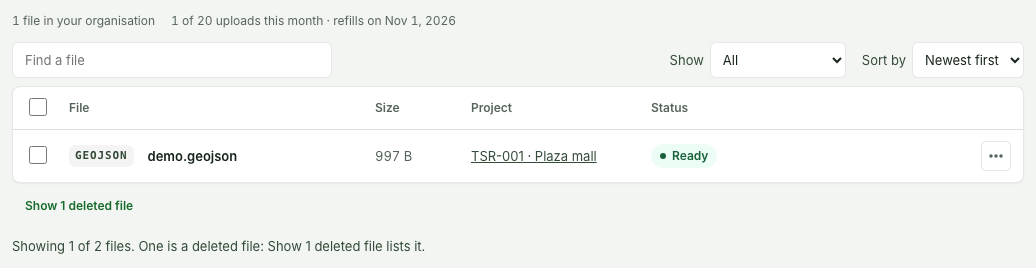
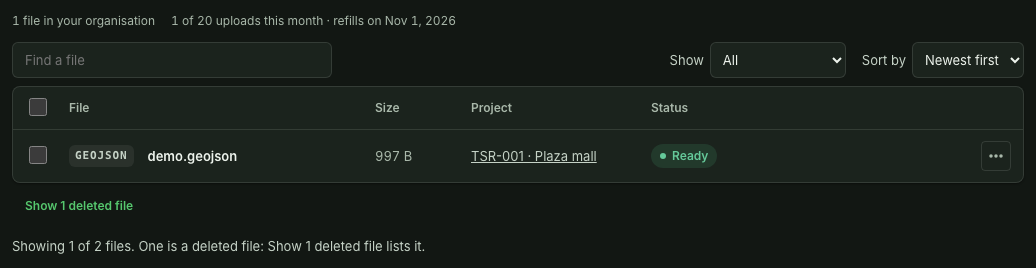
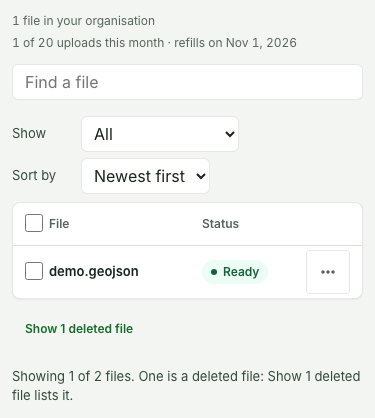
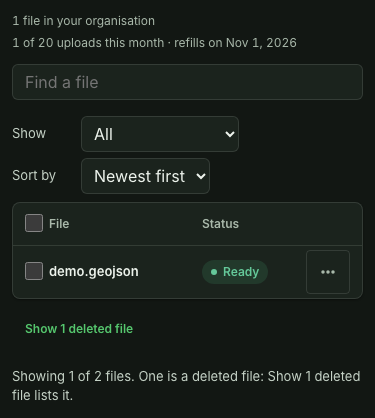
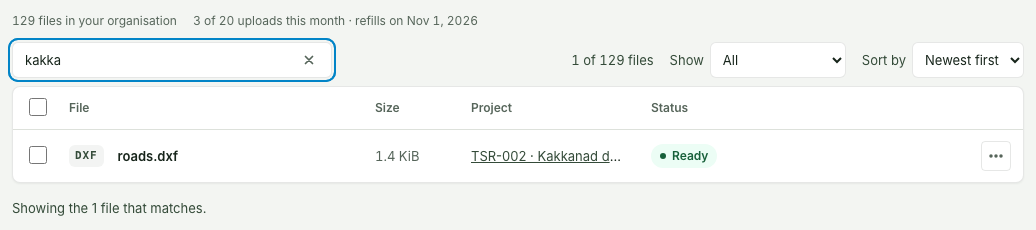
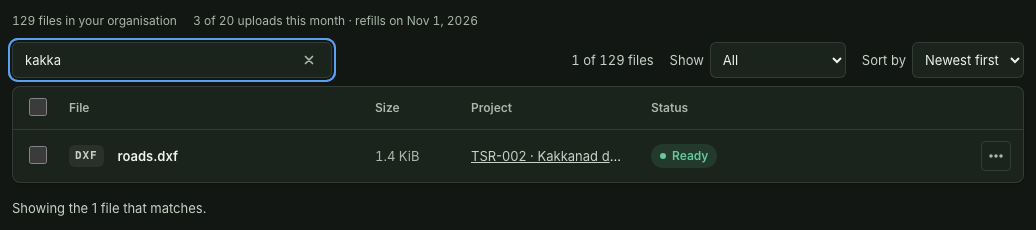
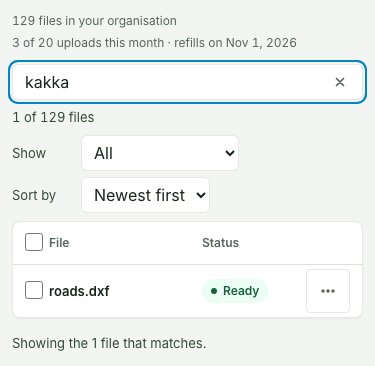
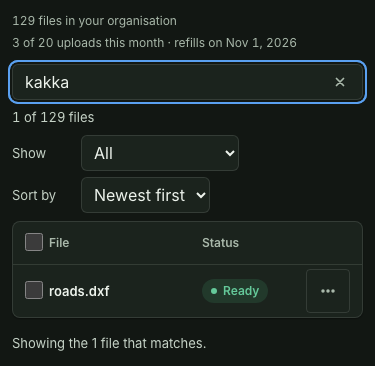


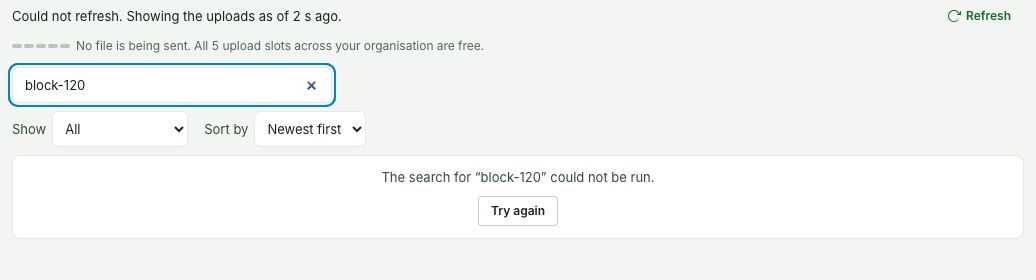
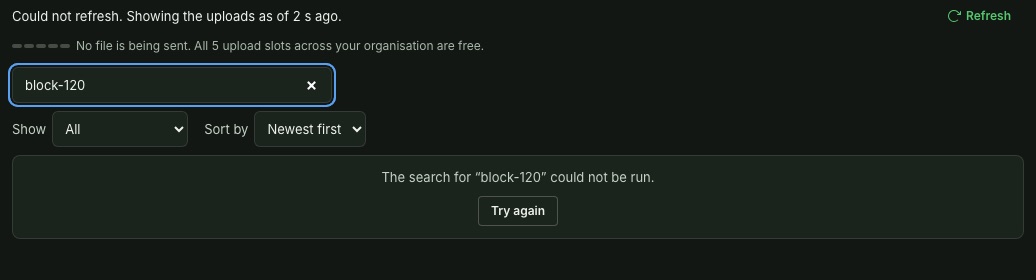
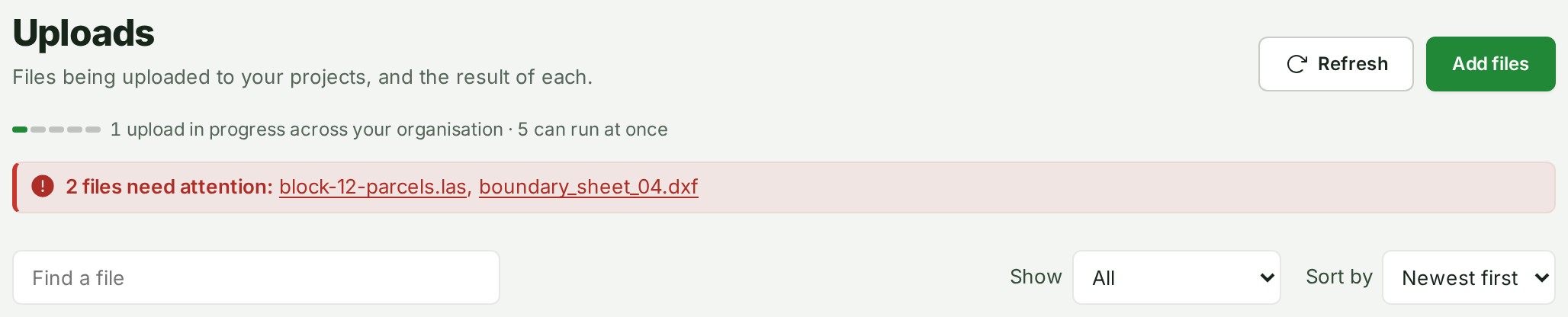
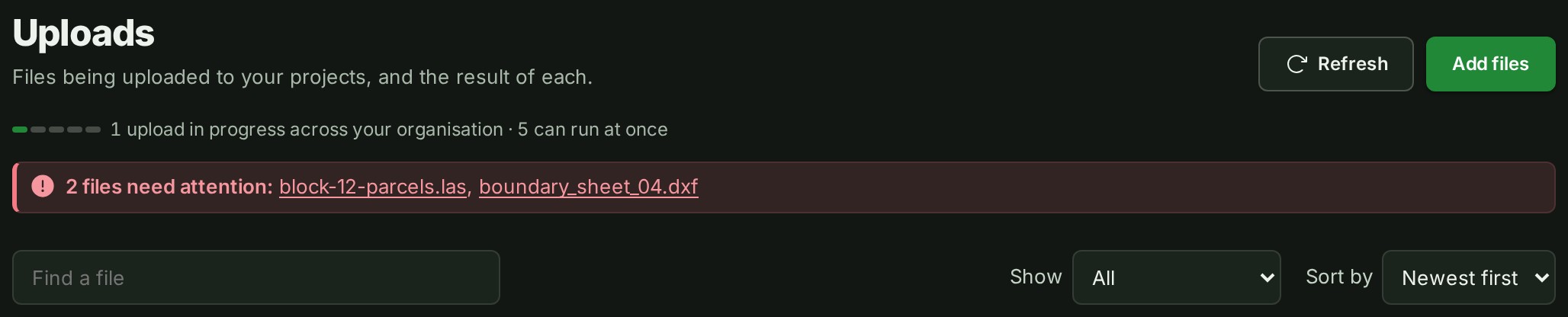
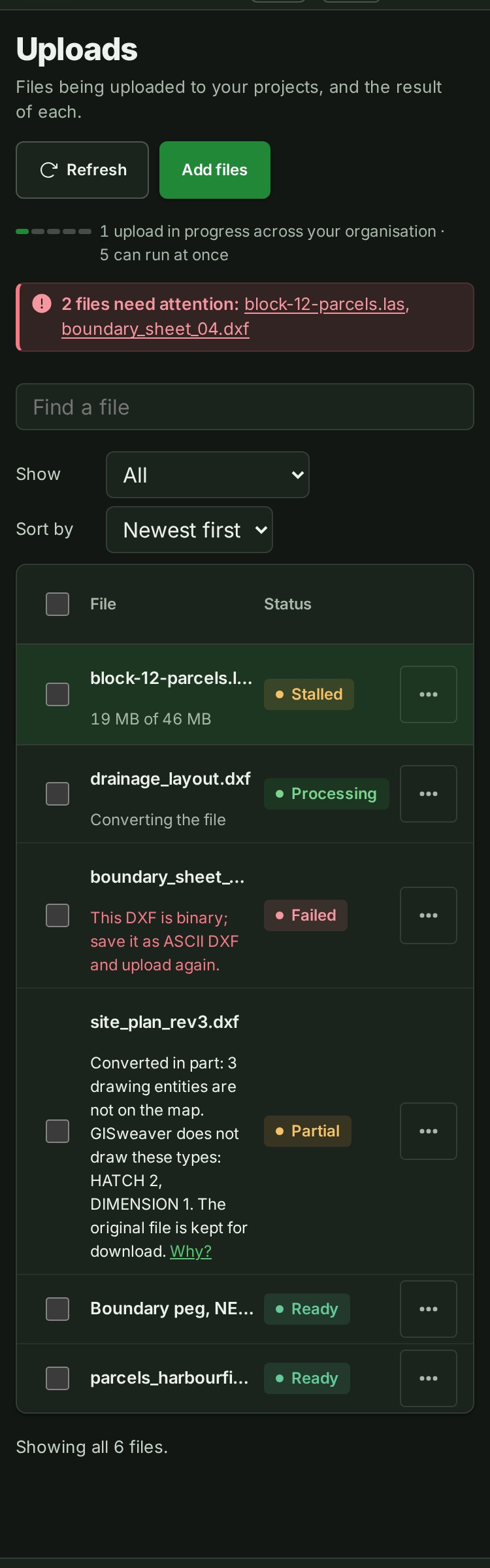
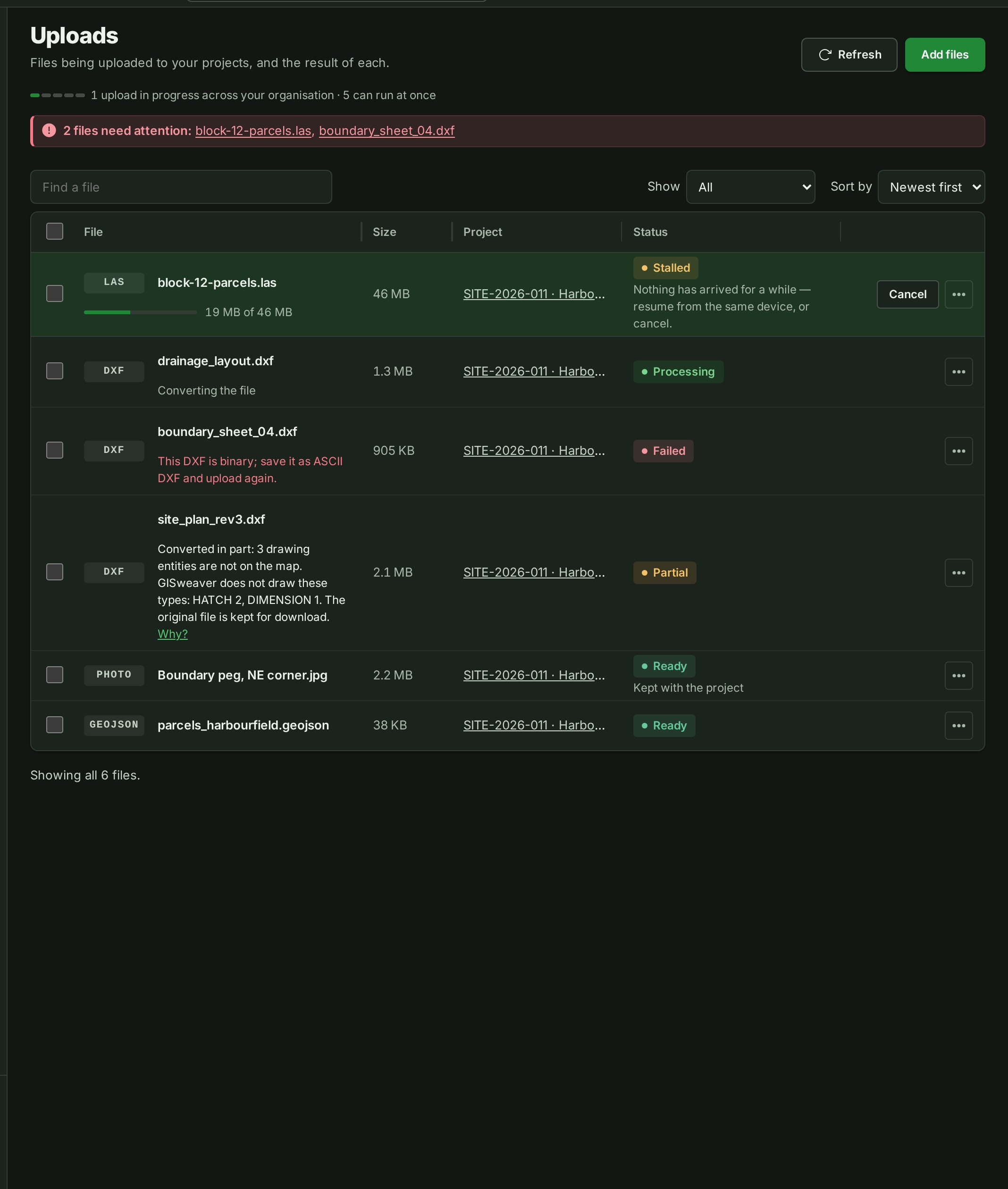
Refresh beside Add files, and nothing dating a list that is still reading itself · Synthetic example.


The same attention line appears above a project's own Files list, where it also gives each file's reason under its name, and on the project's row in Projects.
Include the support reference in a support ticket. It identifies the upload without sending the file again.
Read the status
Every file shows one of twelve words, on the project page and here alike.
| Status | What it means |
|---|---|
| Waiting | The file is held in this browser: being read, waiting for a free upload slot, paused, or being sent from another tab. Nothing of it is moving yet; keep the tab open. |
| Uploading | The file is on its way. A second line says Finishing the upload once every part is in. |
| Stalled | The transfer stopped part-way and nothing has arrived for a while. Resume it from the same device, or cancel it. |
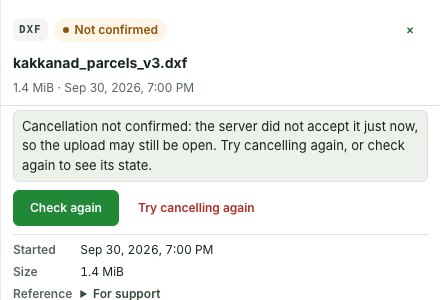
| Not confirmed | You cancelled the upload and GISweaver did not confirm it. The line under the file's name says what is known; see When a cancellation is not confirmed. |
| Checking | The file has arrived and its checks are running. Closing the tab does not stop this. |
| Processing | The checks passed and GISweaver is making the file ready to draw. This can take the longest; the line under the file's name says which step it is on. |
| Ready | The file is ready and can be drawn on the map. |
| Partial | The file is on the map, but some of its entities could not be converted. The line under its name says how many, of which types; see When a drawing is converted in part. |
| Original only | The file is kept as the original; there is nothing in it to draw on the map. |
| Failed | Processing stopped on GISweaver's side, or the transfer ran out before the whole file arrived. The line under the file's name says why. |
| Refused | The checks turned the file away. Sending the same file again is refused again. |
| Deleted | Somebody deleted the file from its project, or deleted it permanently. |
Follow a file while it is processed
A file in Processing says what it is doing on a second line under its name, on the project's Files list and here alike. Every format walks the same steps; a step a format has no work for is passed over.
- Find the file in the list. Under its name you read Waiting its turn, Reading the file, Checking the file, Converting the file, Preparing the map, Making the preview or Adding it to the draft.
- Leave the page open. The line and the status change on their own within a few seconds; you do not need to refresh.
- To see every step, select the file's name to open its details and select What is checked. Steps behind the file read Done, the one it is on reads Now, and the rest read Next.
When a drawing has entities off the site
A DXF often carries a few entities that are not where the survey is: a line or a label left at an unset 0,0, say. Every entity with a point outside the project's coordinate zone is left out, and the rest of the drawing is filed and drawn on the map as usual.
- Find the file in the list. It reads Ready, and the line under its name says how many were left out: "1 entity was off the site and was left out." (or, for several, "N entities were off the site and were left out.")
- Select the file's name to open its details; the same sentence stands under where the file is.
- If the entities left out were meant to be there, check the drawing's coordinate system and Replace file. Otherwise there is nothing to do.
A drawing with no entity inside the zone at all is not filed; it stops with the reason in the table below.
When a drawing is converted in part
Some DXF entities cannot be converted to map features yet — hatches and dimensions among them, and block references whose block is missing or nested too deep. A drawing that has them is still drawn on the map with everything that could be converted, but it never reads plain Ready.
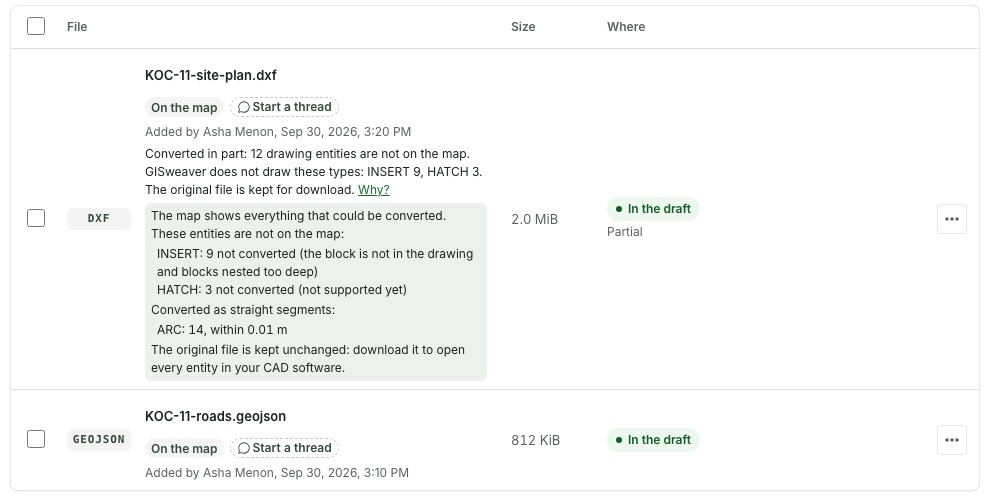
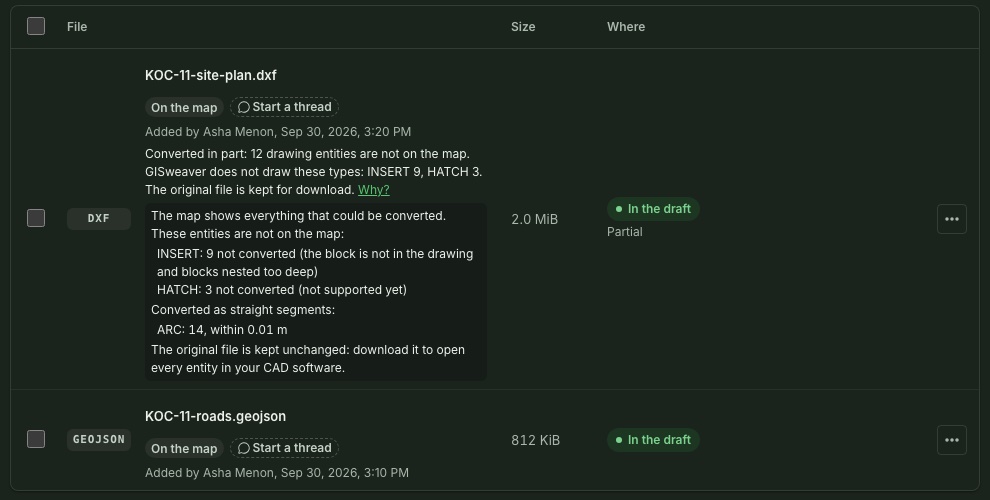
- Find the file in the list. It reads Partial, and the line under its name says what was left out, for example Converted in part: 3 drawing entities are not on the map. GISweaver does not draw these types: HATCH 2, DIMENSION 1. The original file is kept for download.
- Select Why? on that line. It lists each entity type, how many were not converted and why (not supported yet, the block is not in the drawing, blocks nested too many levels deep), and how many curves were converted as straight segments and within what distance, in the project's own unit.
- The original file is kept unchanged. Select Download original in the file's details, or in its ⋯ menu, to open every entity in your CAD software, or explode the blocks and hatches into lines there and Replace file.
How a DXF is converted
A DXF is drawn on the map from its lines, polylines, points, text, circles, arcs, ellipses, splines and block references. Some entity types are not drawn: a hatch, a dimension, a solid fill, a 3D face. The rest of the drawing is filed and drawn as usual, and the file says what was left out.
What the converter does with what it draws:
- Curves. An arc in a polyline (a bulge), a circle, an arc, an ellipse and a spline are drawn as short straight segments. No segment stands more than 0.01 of the drawing's unit off the true curve: 1 cm for a project in metres, which is every projected coordinate system GISweaver serves. A closed polyline with a bulged side keeps its area to within that tolerance along its length.
- Block references. A block inserted into the drawing is drawn where the insert places it, at its scale and rotation, with its attributes as labels. An entity of the block drawn on layer 0 takes the insert's layer, as CAD shows it. Blocks nested more than eight deep, and a reference to a block the drawing does not define, are counted among the entities left out; a reference to an empty block loses nothing and is not.
- Layers. Every layer is kept and titled on the map by the name you gave it, even when two names differ only in case or punctuation (A-B and A_B) or are not in Latin letters. A drawing with thousands of layers has all of them on the map; the file's details list the first ones and say that the list is shortened.
When a file stops
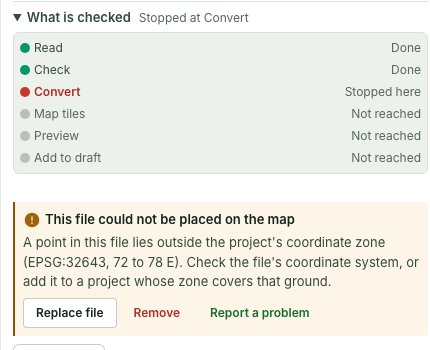
A file that stops shows Failed, and a block under its name says three things: what happened, in plain words ("This file could not be placed on the map"), why, in the file's own cause, and what to do about it. The banner above the list names the file the same way, with the same acts beside it.
- Select the file's name in the banner, or in the list, to open its details.
- Read the block. What is checked and Show steps are open already while a file is moving or stopped, so the step it stopped at reads Stopped here without a click; the steps after it read Not reached.
- Choose an act, offered where it applies:
- Replace file — send a corrected file into the same row. It keeps the row's name and every comment on it; only the content changes. The correction is sent like any other file: it waits for a free slot, shows its stage on its own row with Cancel, and carries on if you open another page; it is swapped in once it has been processed.
- Retry — only where trying again can plausibly help: a fault on GISweaver's side, the worker being restarted, a file that stopped making progress, hit the converter's own time limit, or stopped while your plan's storage was checked again. It is never offered for a format, a coordinate system or a size the file itself was refused for, because sending the same bytes again would refuse it the same way.
- Remove — takes the file out of the draft. See Deleting files and projects.
- Report a problem — opens the dialog already naming this file; add what you were doing.
- If a code this build does not have a plain-words reason for is shown, the sentence names a reference; quote it to Help.
What a file's reason actually says, in the common cases:
| Reason | What it means | What Replace or Retry looks like |
|---|---|---|
| Nothing in the file lies inside the project's coordinate zone | Every entity in the drawing converted to a position outside the project's coordinate zone, usually because the drawing is in another coordinate system. A few stray entities do not stop a file; see When a drawing has entities off the site | Check the drawing's coordinate system and Replace file |
| This DXF is binary | The file is AutoCAD's binary DXF variant, which the converter does not read; it is kept as a file and not drawn | Save it as ASCII DXF in the software that produced it, then Replace file |
| The coordinate system in a LAS is not recognised, missing, or mixes a horizontal and vertical system | The point cloud's header does not say a coordinate system the converter can use | Export it with a standard, horizontal-only EPSG coordinate system and Replace file |
| A file is larger, or needs more memory, than one conversion allows | The file, or a single tile or archive inside it, is past a converter's own ceiling | Split it into smaller files and Replace file with one of them |
| Stopped after some minutes without progress | The worker made no progress for longer than a conversion is allowed | Retry — a stall is not a verdict on the file |
| Processing stopped because of a fault on our side | GISweaver's own worker did not run to completion | Retry |
| Processing stopped because the worker running it was restarted | The worker holding the job was replaced mid-run | Retry |
| Processing was interrupted by a fault on our side and will be retried automatically. Nothing is needed from you. | A step failed on GISweaver's side and a new attempt is already scheduled. It is one fixed sentence, whatever failed | Nothing: it is tried again by itself |
| Processing stopped before this file's map layers were saved, because your plan's storage had to be checked again | The file converted, but the storage its map layers needed was no longer held for it when they came to be saved, so nothing was saved and nothing counts against your plan | Retry |
| Processing stopped; support has the details | A cause this build does not have plain words for | Report a problem with the reference the sentence names |
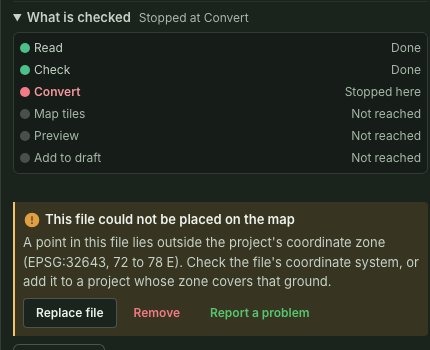
The block under What is checked names what happened, why, and offers Replace file, Retry (only where it can help), Remove and Report a problem:
The banner above the list names the same file with the same acts. It says could not be processed only when every file it names stopped in processing; when every file was refused — by your plan as the upload started, or by the checks — it reads N files were refused, each file with its own reason, and for a file over the plan's limit it ends with See what each plan includes (or a sentence asking an administrator, if you cannot change the plan). A file the checks refused offers Remove and Report a problem:
Why this is so
GISweaver processes files one after another, so a file sent while another is being converted waits for a free worker; that is what Waiting its turn means, and nothing is wrong with it. A problem on GISweaver's side that may clear by itself is tried again on its own, and the line says Trying again after a problem on our side meanwhile, with the fixed sentence above as its reason, never the technical error. A file that reports no progress for several minutes is stopped rather than left running, so one stuck file cannot hold the worker for everybody; its reason says how long and at which step. The reason is recorded the moment the file stops, so the Failed status and the banner appear without a refresh.
Files kept with the project
Every file goes into a project through the same door, and GISweaver files it by what it contains: a PDF, a photo, a video (MP4 or MOV) or a ZIP archive is kept with the project as it came, not drawn on the map. Once its checks pass, its row reads Ready with Kept with the project beside it (the second line is hidden on a phone), and Show steps ends at Kept with the project instead of Processing and Ready. Its ⋯ menu and its details offer Open in project, which opens the project's Files list. It has a tick box and Delete… like any other file, and is deleted from the project, or permanently, in the same way; see Deleting files and projects. Once somebody deletes it, its row reads Deleted.
What each kind of kept file is checked for on the way in (What is checked in a file's details shows the same steps):
| Kind | Checked for | Then |
|---|---|---|
| Its type and that it arrived whole | Page preview | |
| Photo | Its type; it must open as a picture | Turned the right way up, hidden camera fields removed, thumbnail |
| Video (MP4 or MOV) | Its type and that it arrived whole | Kept as it came, played in the viewer; no thumbnail |
| ZIP archive | Its structure, entry count and size when unpacked | Kept as it came |
A video is limited by your plan's largest file and by your organisation's uploads for the month, like any other file. See Photos from a phone.
While a file is uploading, a small chip in the title bar shows its name (or how many files), how far it has got and Cancel on every screen, including the map and a phone; select it to open the project's uploads. A notice says when each file has arrived and is being checked, why it could not be uploaded, that you cancelled it, or that a cancellation was not confirmed. The browser asks before you close a tab that still holds a file you chose: one uploading, being read, waiting for a slot, waiting for your answer, or paused.
Act on a file
Each file's acts are in its ⋯ menu, and only the ones that apply are offered. Right-click a row, or press and hold it on a phone, for the same menu; Shift+right-click still gives your browser's own menu. This page offers the same acts as the file's project page; Resume and Send the file again send into the file's own project. A file in a published release does not offer Try processing again; it can still be deleted.
- Try processing again: for a file that failed on GISweaver's side. It runs again on the copy GISweaver already holds, so nothing is sent and it does not count against the month's uploads. The file shows Processing with Queued to process again until it starts.
- Delete…: for any file that is not still moving, published ones included. Add a comment if you like, then choose Delete from this project: the file leaves the project's list, its counts and every later release, and releases it was already published in keep it. Owners and administrators can instead choose Delete permanently…, which also removes it from the deliveries it was published in; a project lead can do so for a file they added themselves that was never in a release. See Deleting files and projects.
- Delete several at once: tick the files (or the box in the header, which ticks every file that can be deleted), then choose Delete from this project in the bar that appears and confirm.
- Resume — choose the file again: for a transfer that stopped part-way. Choose the same file; the parts already received are kept until the time shown in the details. Only a file whose parts reached GISweaver can be resumed: a file that was still waiting in the browser when its tab closed has nothing on the server, so choose it again to send it.
- Send the file again: for a file that never arrived whole, or one that failed where Try processing again is not offered. The reason under Why? says whether sending it again can help. It is a new transfer and counts as a new upload.
- Cancel this upload: for a transfer that should stop. Confirm Stop upload; received parts are discarded and the organisation slot is freed. Nothing already published is removed from the map. The file says it was cancelled only when GISweaver confirms it; see When a cancellation is not confirmed.
Do not delete or change a file before resuming it. Choosing a different file starts a different transfer.
Files waiting in this browser
A file you have chosen stays in your browser until one of your organisation's upload slots is free, and while it is being read before it is sent. Its row says Waiting in this browser; keep this tab open. Nothing of it has reached GISweaver yet: it starts on its own when a slot frees, but only while this tab stays open. If the tab closes, choose the file again to send it; there is nothing to resume.


If you choose a file again while it is already on its way from this tab, GISweaver does not start a second copy: the row says You chose this file again: this is its transfer, already on its way.


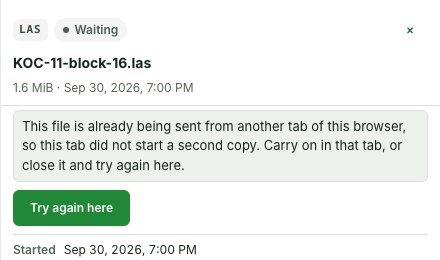
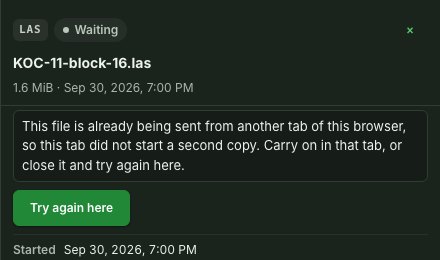
If another tab of the same browser is sending it, this tab reads Waiting, In another tab, and says Already being sent from another tab of this browser. Carry on in that tab, or close it and choose Upload from this tab, on the row or in the file's details. Upload from this tab first asks GISweaver about the other tab's upload: if it has already arrived, the row says so and nothing is sent twice; if GISweaver cannot be asked, a notice says so and nothing is sent.


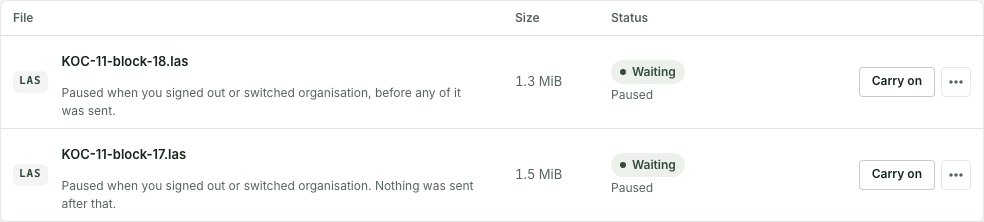
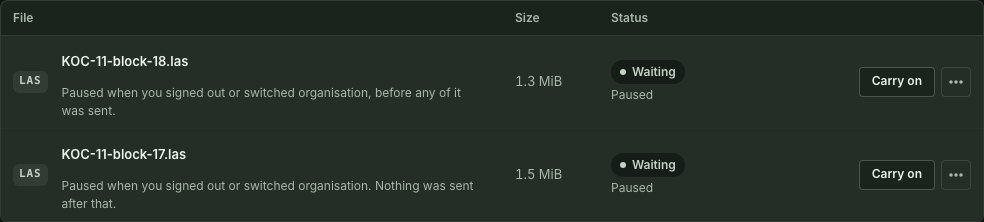
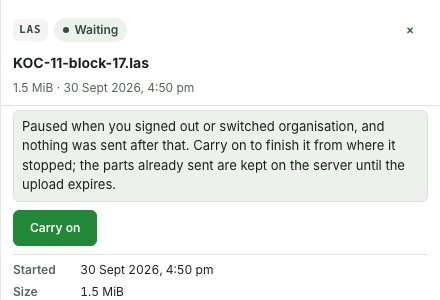
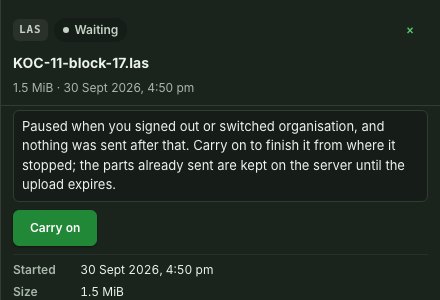
If you sign out or switch organisation while a file is uploading, being read or waiting for a slot, it is paused and nothing more is sent. The next person, or your other organisation, does not see it. A connection that drops while the page checks who you are does not pause anything. When you come back to the same organisation in the same tab, the row reads Waiting, Paused: a file that had started arriving says "Paused when you signed out or switched organisation. Nothing was sent after that.", and its parts are kept on the server until the upload expires; a file that had not says "Paused when you signed out or switched organisation, before any of it was sent.", and nothing of it is on the server. Choose Resume upload, on the row or in the file's details, to finish or send it.
When a cancellation is not confirmed
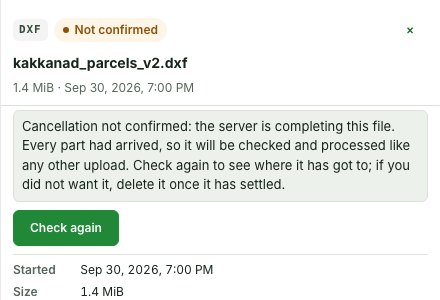
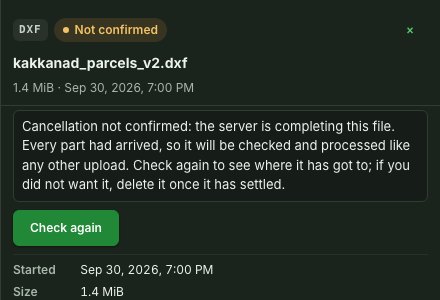
A file says it was cancelled only when GISweaver confirms that its parts were discarded. Otherwise its row reads Not confirmed and says "Cancellation not confirmed:" with the reason, and the file keeps its recovery actions:
- Cancellation not confirmed: the server is completing this file. every part had arrived and the file is being checked and processed like any other upload. Choose Check again to see where it has got to; if you did not want it, delete it once it has settled.
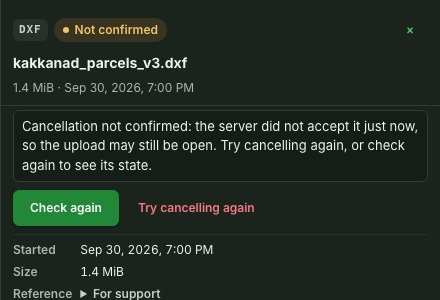
- Cancellation not confirmed: the server did not accept it. the upload may still be open. Choose Try cancelling again, or Check again.
- Cancellation not confirmed: no answer reached this browser. it is not known whether the upload stopped. Choose Check again before you send the file again.




Common problems
| Problem | What to do |
|---|---|
| Upload cannot start | Check the message for plan allowance, role, project or file-format requirements. |
| The upload is waiting | Keep the tab open: the file is waiting in this browser and starts on its own when a slot frees. Let a current organisation upload finish, or cancel an unwanted in-progress transfer. |
| Browser or network closed | Return to Uploads, open the file that reads Stalled, and choose the same file to resume. A file that was still waiting in the browser has no row: choose it again to send it. |
| A file says Not confirmed | Choose Check again. Do not send the file again until the row says what happened to it. See When a cancellation is not confirmed. |
| A file was uploaded by mistake | Use Delete…. See Deleting files and projects. |
| You need help | Record the support reference and status, then open Help. Do not attach unrelated survey files or send passwords. |
Which file formats the intake accepts is stated, without a sign-in, on Supported formats for survey deliverables; what each published plan allows is on Pricing. The allowance actually applied to your organisation is the one in Billing, under Plan and usage.
Related: Projects and uploads, Deliveries, Help.