Add or remove people in a group
Who can do this
Owners and Admins who are in the group, and the maintainer who started a team's group. Direct messages are on in a paid plan. On the free plan they work for 60 days from your organisation's first direct message.
Bring a colleague into a private group, or take someone out, at a desk.
- Open Messages and open the group.
-
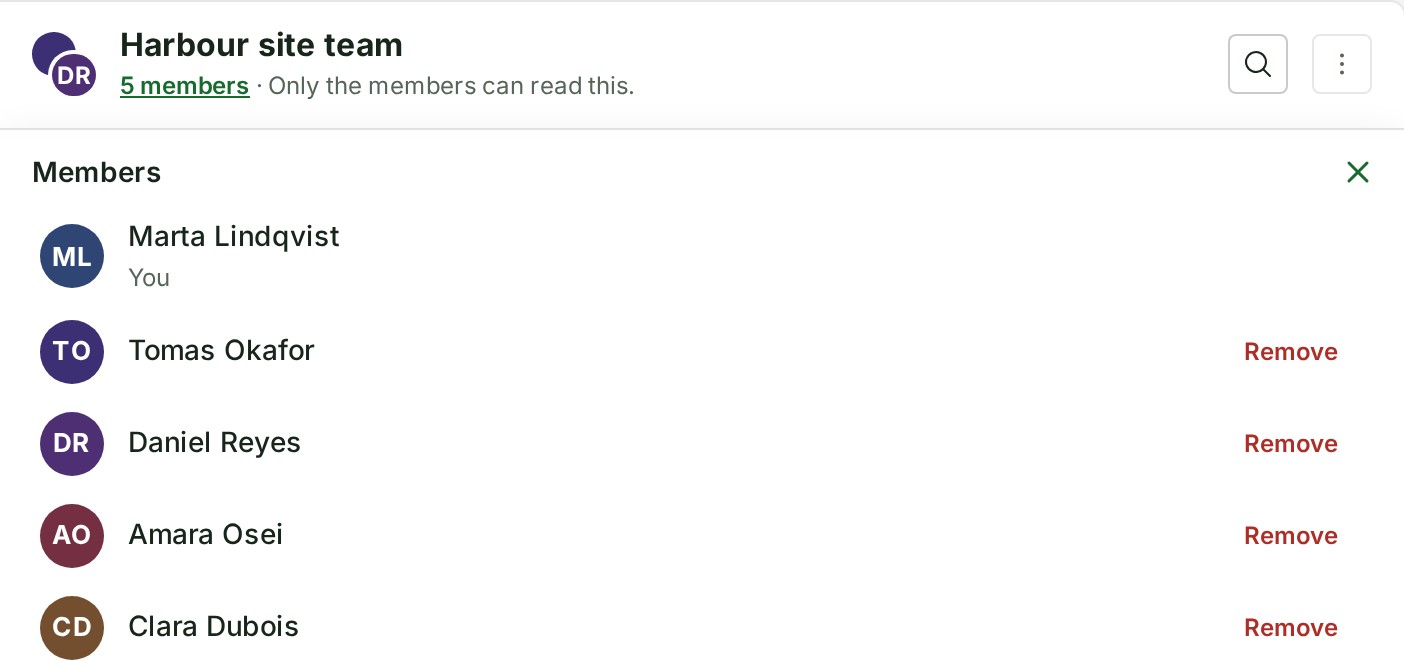
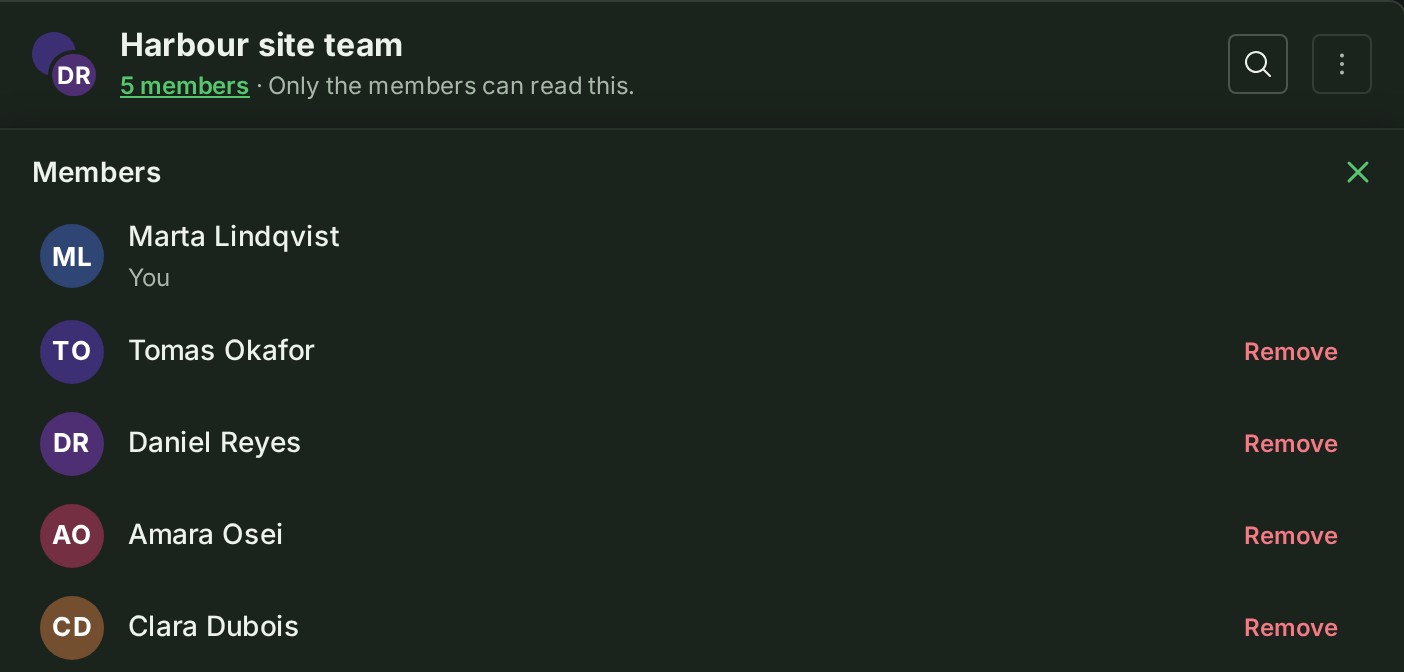
Select the number of members under the group's name, for example 5 members. The Members panel opens over the conversation.
-
Select Add people at the foot of the panel. A list of colleagues opens.
- Choose one or more colleagues. Each one shows as chosen, and the count says how many people the group would hold.
- Select Add to group. The people you chose are listed in the panel.
Remove someone from a group
- Open Messages and open the group.
- Select the number of members under the group's name. The Members panel opens.
- Select Remove on the person's row. A question asks you to confirm.
- Select Remove from group. The person leaves the panel's list.
Add a team to a group
You need to run the group and be able to use the team: a maintainer of the team, or an owner or administrator. A group manager who is not the team's maintainer cannot add it, and neither can a maintainer who does not run the group.
- Open the Members panel.
- Select Add a team at the foot of the panel, or in the group's menu.
- Choose the team. The dialog says what the link does: Current and future members of Survey crew will be able to read everything written here, including earlier messages and threads.
-
Select Add team. The Members panel shows the team.
Once the team is in, the Members panel changes:
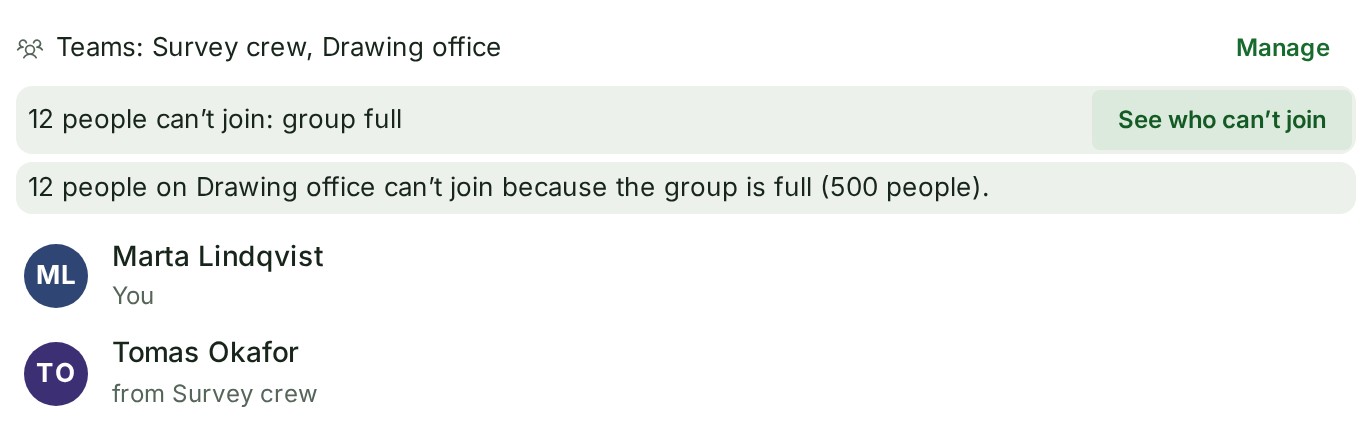
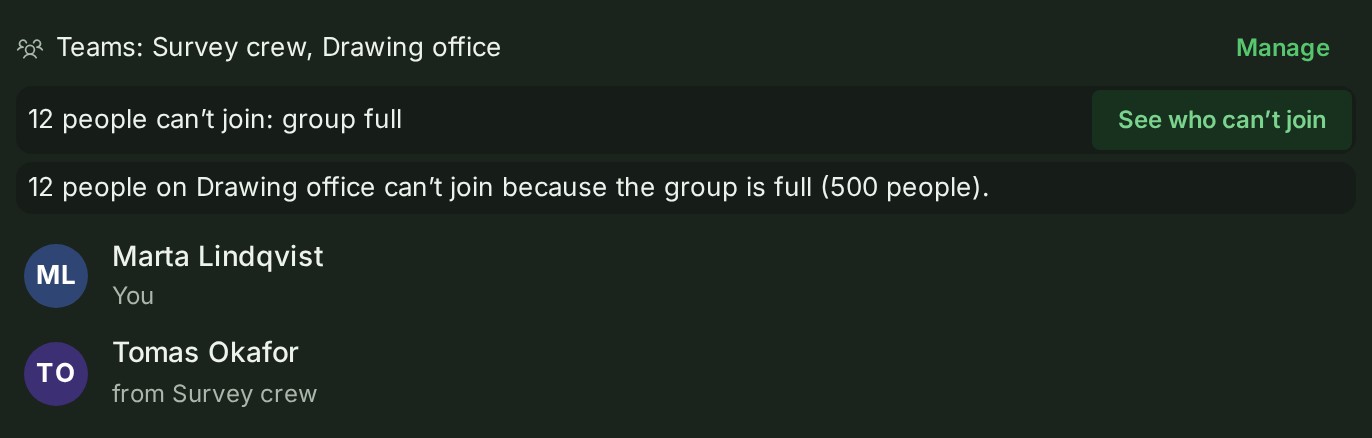
- One Teams line at the top names the teams in the group, so the people stay in view.
- A person who reaches the group only through a team shows via Survey crew under their name, and has no Remove button. Take them off the team, or remove the team.
- When the group is full, the people over the limit cannot join, and one line says so: 12 people can’t join: group full. Select See who can’t join for the count by team: 12 people on Drawing office can’t join because the group is full (500 people).
- Nobody who cannot join can read the group, write in it or be told about it. When a place frees, the person who has waited longest joins.
The numbers of people, teams and groups are in Limits.
Remove a team from a group
- In the Members panel, select Manage (Details, if you do not run the group). Each team shows how many of its people read the group.
-
Select Remove team, then confirm.
-
If it is the group's last team, the people on it now stay in the group as members added by hand, and the group stops taking new people from the team. People who had already left the team are not kept.
- The group then takes no one by hand until it is under 100 people.
- A person who leaves a group they reached through a team is not put back when the team changes. A hand addition does not clear that: the person is back in because a manager added them, and stays in whatever happens to the team.
What happens next
- A person you add is told: the bell gives them Marta Lindqvist added you to Harbour site team., and selecting it opens the group.
- They find the group in their list at once and can read everything written in it, including earlier messages and threads. The dialog says so before you add them: They will be able to read everything written here, including earlier messages and threads. People you choose when you start a group are told the same way.
- A person you remove is told too: Marta Lindqvist removed you from Harbour site team. That notice opens Messages and not the group, which they can no longer read; the group leaves their list. Their messages stay, under their name.
-
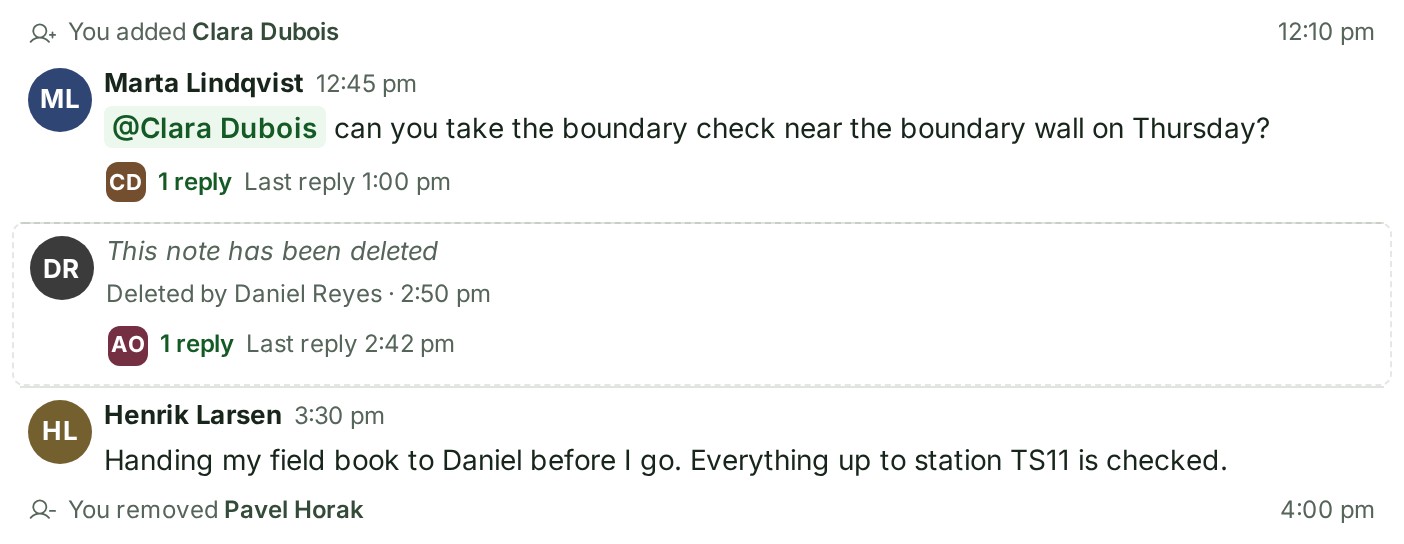
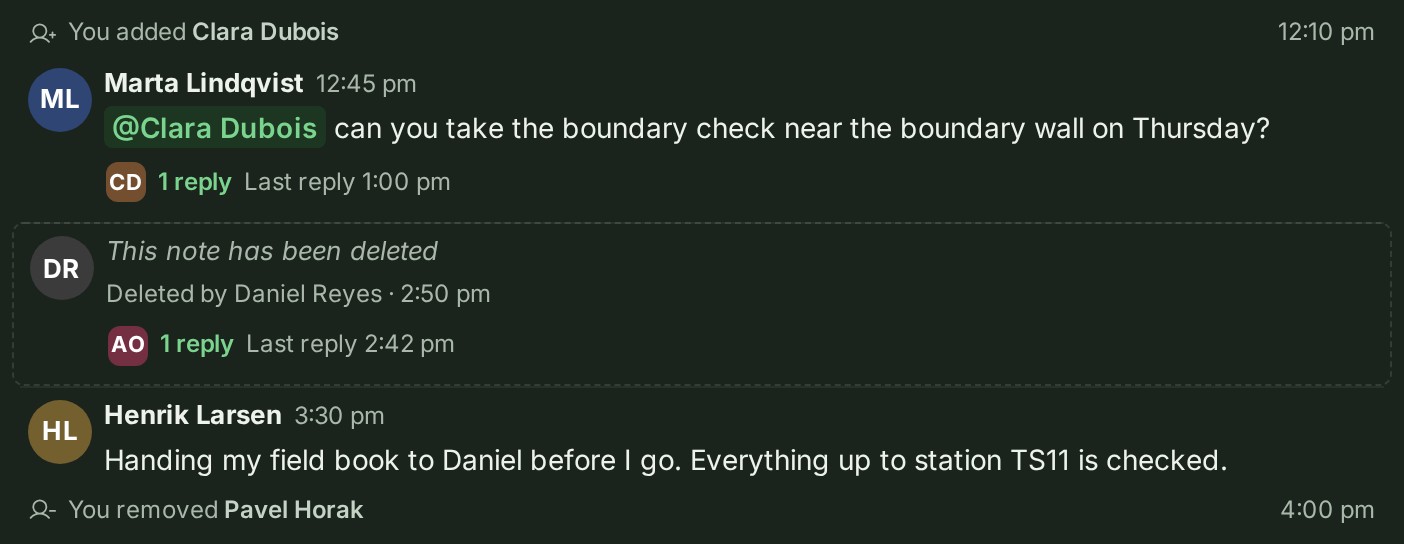
Everyone still in the group sees a quiet line in the conversation, between the messages, with the time at the end: Marta Lindqvist added Clara Dubois or Marta Lindqvist removed Pavel Horak, and You added… or You removed… on your own. It is not a message: it has no replies and cannot be edited or deleted.
-
Nobody is told about what they did themselves.
If something goes wrong
- That person is in this group through …. Take them off the team, or remove the team. The sentence names the team. You tried to remove someone who is present through a team.
- A group with a team can have at most 500 people. Linking this team would take the group over its limit; the team's current members are counted, not only the ones you chose.
- A team can be in at most 25 groups. and A group can have at most 10 teams. are the limits on links.
- A group can have at most 100 people. The group is full. Add people counts as you choose, for example 1 chosen · 6 of 100 people in the group, and says this before you go past 100.
- Only an Owner or Admin who is a member of this group can do that. You are not one of the people who manage this group.
- Nobody in this group can add people any more, because no Owner or Admin is in it. Nobody who manages the group is left in it. People can still write in it and leave it.
- Manage this group on a larger screen. You are on a phone. Use a desk.
- Remove and Add people are not offered, and the panel says Direct messages are not included on your organisation’s plan. Your organisation is on the free plan and its 60 days have passed: people can be added or removed again once it moves to a paid plan. Anyone can still leave the group.
Details
- Add people is also in the group's menu, the ⋮ (Group actions) beside its name.
- People already in the group are not offered. Someone who was removed, or who left, can be added again; they are told again, and the line says they were added (the earlier removal is no longer shown).
- The lines name people added after the group began, and people taken out by someone. People who started the group have no line, and neither does someone who left on their own.
- Someone who leaves your organisation stays listed with Left your organisation, and their earlier messages stay. If they rejoin your organisation, they are not put back in the group; add them again if that is wanted.
- To leave a group yourself, see Rename, archive or leave a group.
The product words on this page are explained in the glossary.