Organisation controls
Organisation controls is the one place to set up your organisation: who can do what, its offices, its drawing standard, its checklist templates, its public profile and its settings. A control your role cannot open is not listed.
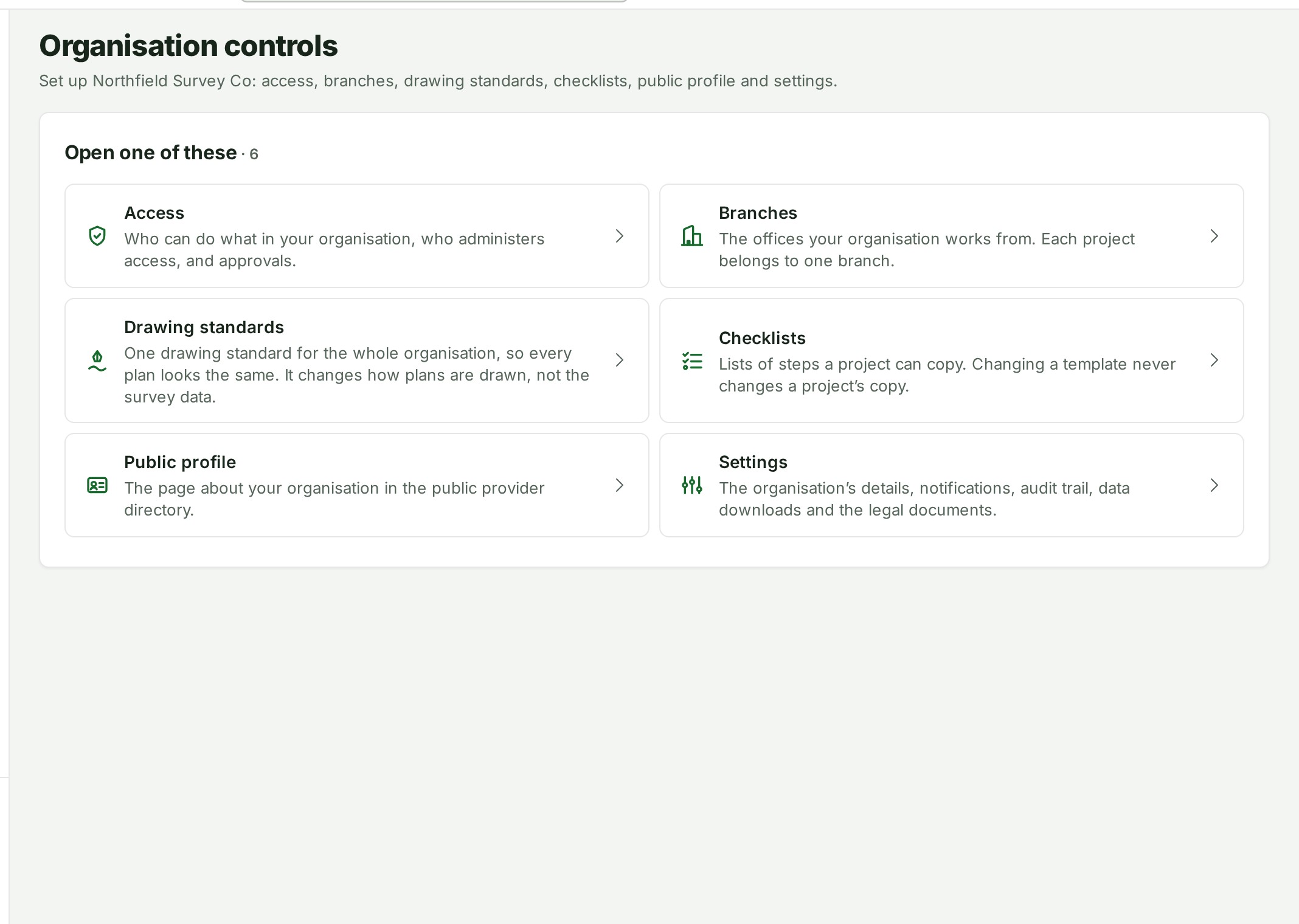
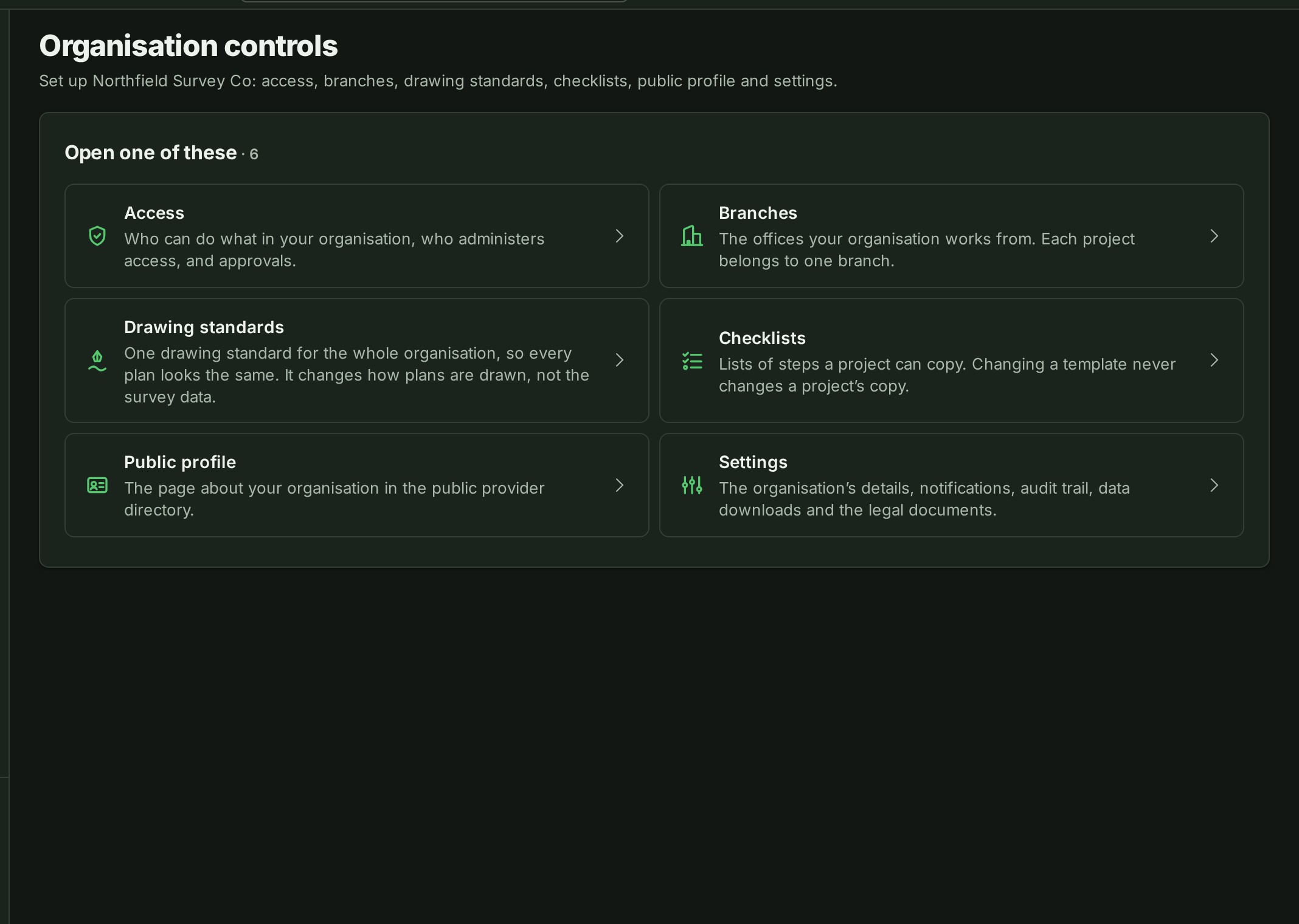
Open a control
- Select Organisation controls under Organisation in the Console navigation. If the Organisation section is closed, select it to open it.
- Select the card for the control you want. The page shows the cards your role can open, up to six.
On a phone the cards stack in one column:
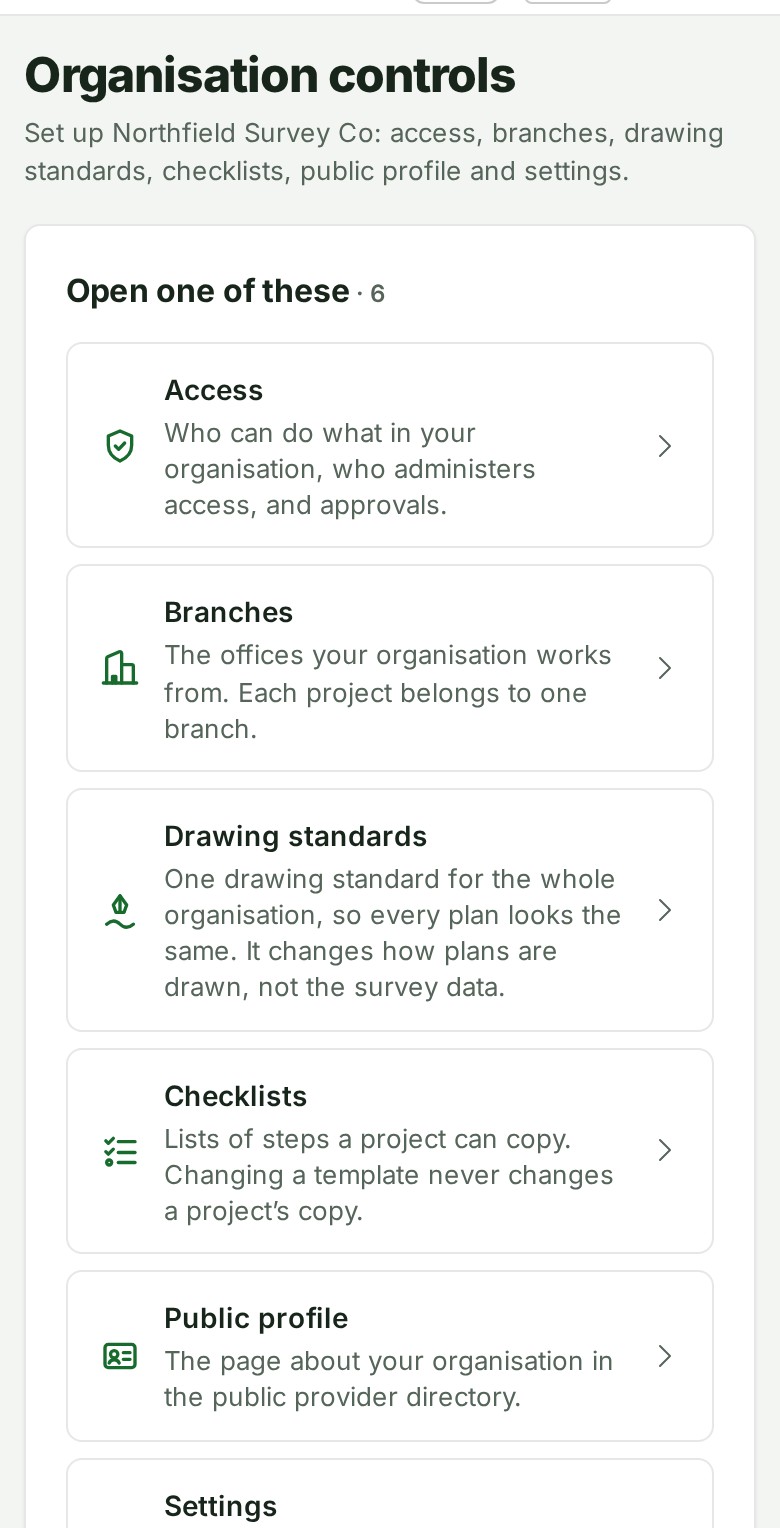
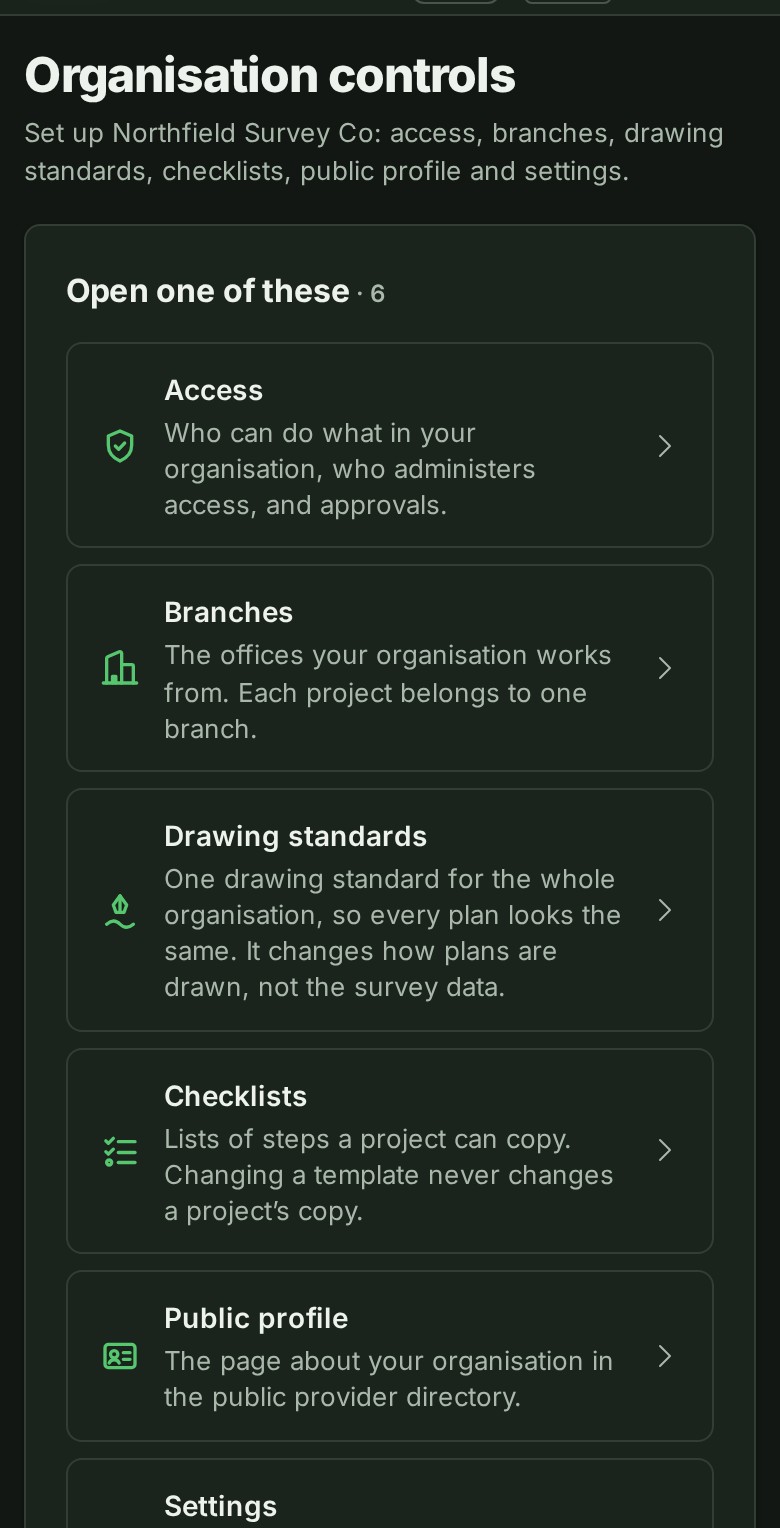
While you are on any of these controls, Organisation controls is the row marked as current in the navigation.
The controls
| Control | What it is for | Who sees it |
|---|---|---|
| Access | Who can do what in your organisation, who administers access, and approvals. See See who can do what. | Every member, who reads it; the Owner and access administrators act |
| Branches | The offices your organisation works from. Each project belongs to one branch. See People, teams, branches and clients. | Every member |
| Drawing standards | One drawing standard for the whole organisation, so every plan looks the same. It changes how plans are drawn, not the survey data. See Settings and preferences. | Every member |
| Checklists | Lists of steps a project can copy. Changing a template never changes a project’s copy. See Make a checklist template. | The Owner, Admins and anyone given the permission to edit checklist templates |
| Public profile | The page about your organisation in the public provider directory. See Public profile. | The Owner and Admins |
| Settings | The organisation’s details, notifications, audit trail, data downloads and the legal documents. See Settings and preferences. | Every member, though some tabs inside it are for the Owner and Admins |
Every control keeps the address it had, so a bookmark or a link in an old email still opens it.
If something goes wrong
- A control you expected is not on the page. Your role does not open it: for example Public profile is for the Owner and Admins. Ask the Owner or an Admin.