Teams
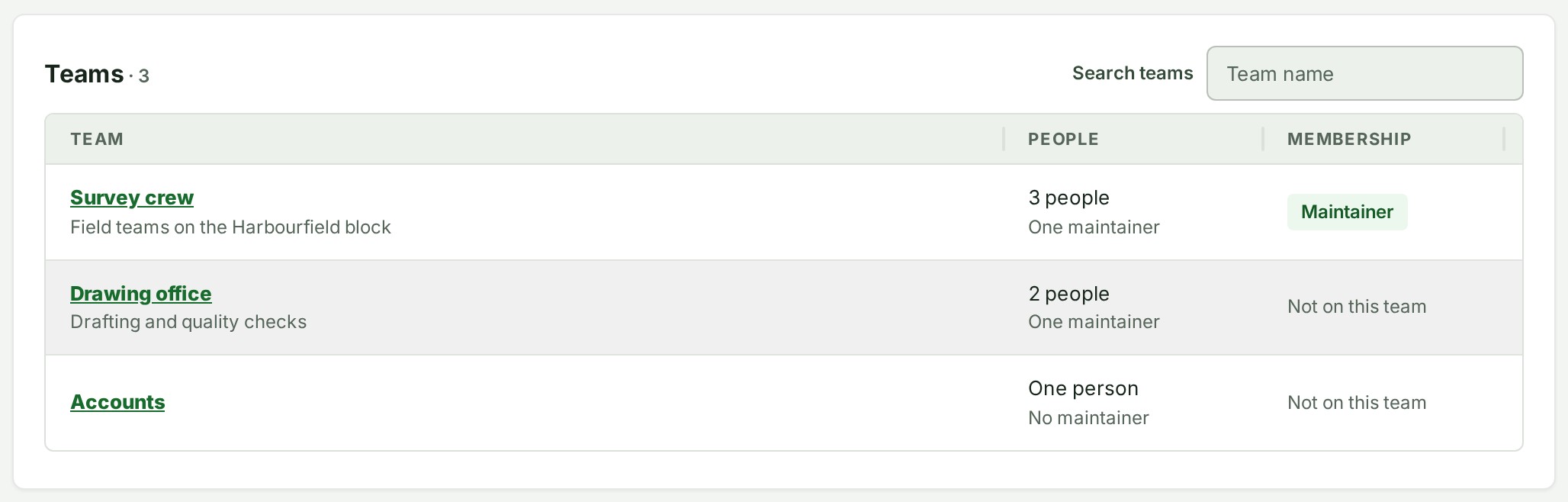
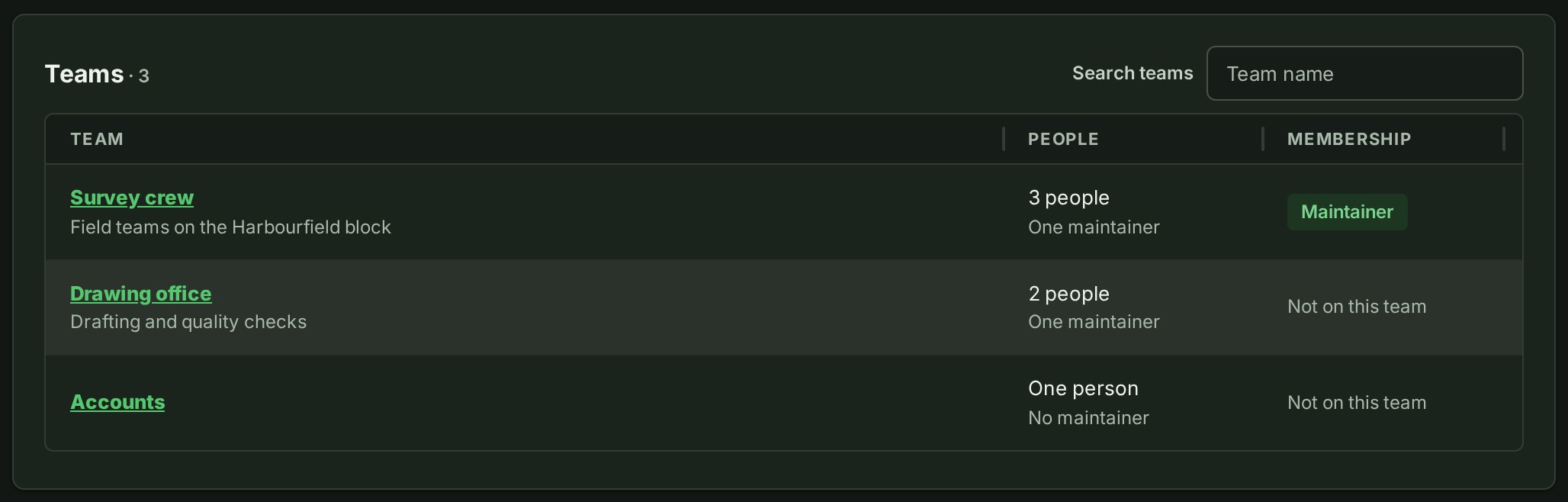
A team is a named group of colleagues in your organisation, such as a survey crew or the drawing office. Each team has one to three maintainers: the people who put colleagues on the team and take them off. Teams live under People and clients, on the Teams tab. Who can do each act is in Who can do what with teams.
A team can be given a role on a project or a branch, and then everyone on it can open that work (see Give a colleague access to a project). Putting a colleague on a team, or taking them off, therefore gives or takes away what the team's roles open for them; it changes none of the roles they hold in their own right. It also changes the private groups linked to the team (see A team's private group below), which the team's members read while they are on it.
Make a team
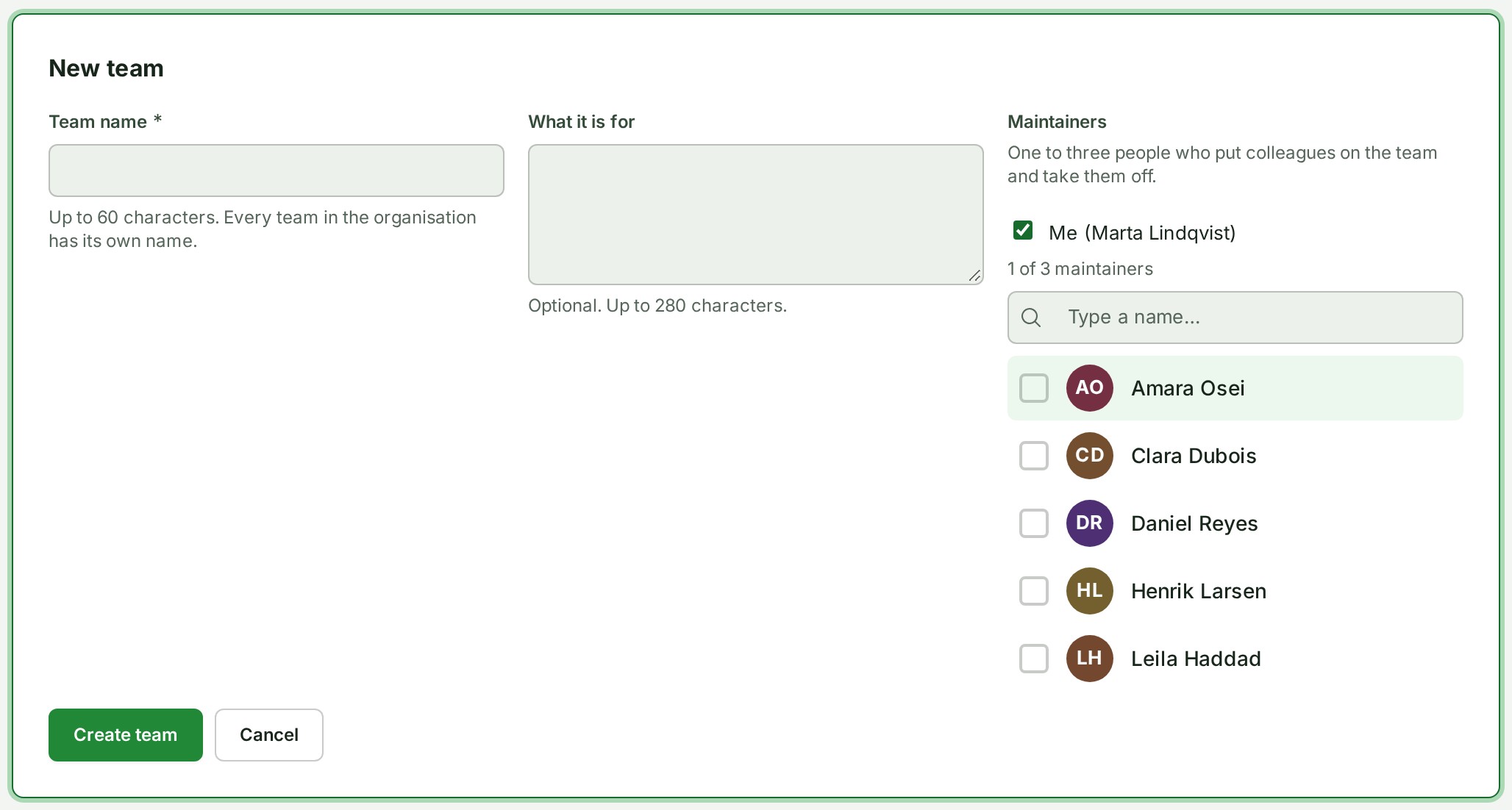
- Open People and clients, then Teams.
- Choose New team.
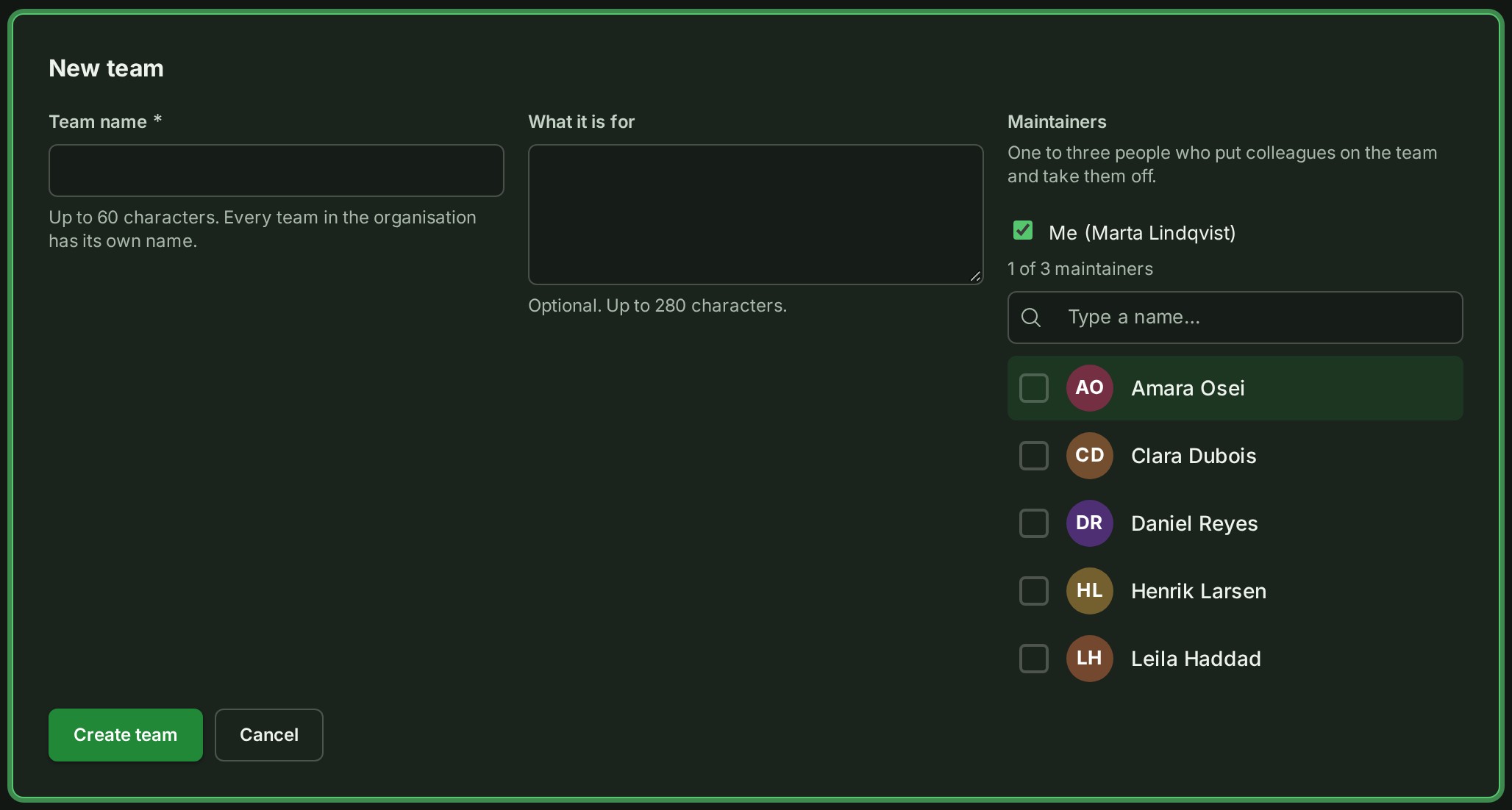
- Give the team a name of up to 60 characters. Two live teams cannot share a name, whatever the capital letters; a name comes free again when its team is archived.
- Optionally say what it is for, in up to 280 characters.
- Choose one to three maintainers. You can be one of them with the Me tick; search for others by name.
- Choose Create team. The team's page opens, ready for its people.
An organisation can have 200 teams. A maintainer can be named only from the people in your organisation.
Add people to a team
- Open the team and choose Add people.
- Search for colleagues and tick each one. People already on the team are ticked and cannot be chosen again.
- Choose Add to team.
Each person you add is told once, in their bell: "\<name> added you to \<team>". A team holds up to 500 people. A suspended colleague stays on the team and is marked Suspended on its page.
If one of several people cannot be added, the others stay added, and the dialog says who could not and why.
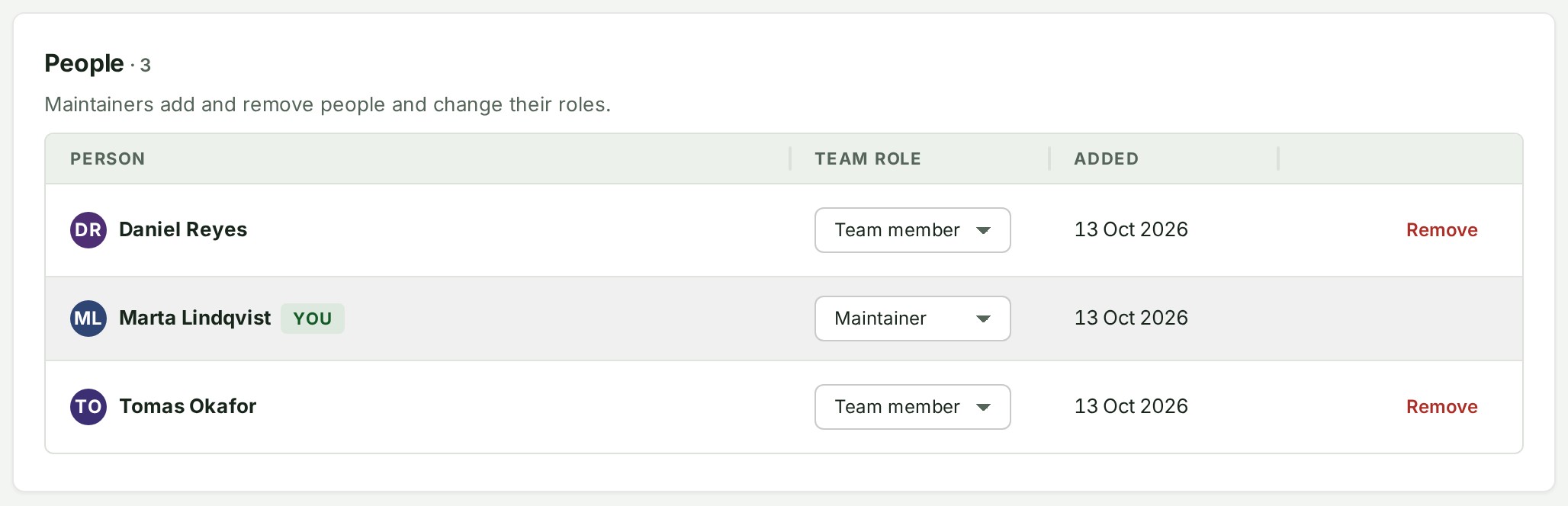
See what a team can open
Under Access this team holds, a team's page lists each role it has and where, for example Contributor on Harbour bypass. A team with no role anywhere says This team does not hold a role anywhere yet. A role is given from the project's or the branch's Members panel; see Give a colleague access to a project.
Remove someone from a team
Choose Remove on their row, then Remove again to confirm. They stay in the organisation and keep their own roles; a maintainer can put them back. A maintainer may take a co-maintainer off the team too.
Change a person's role
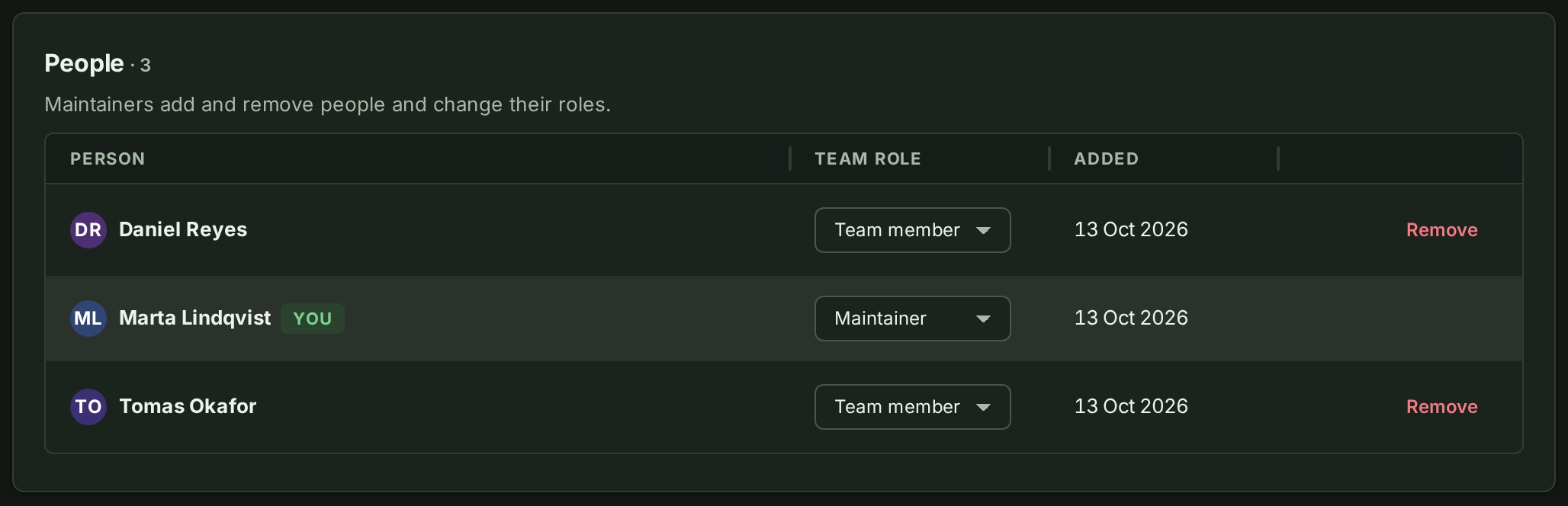
The owner, an administrator or an access administrator changes the Role on a person's row between Maintainer and Member. The change applies at once. The one time it asks first is when it would leave the team with no maintainer: the owner and administrators then look after the team's people until someone is named. If the server refuses a change, the role goes back to what it was and the row says why. A team has at most three maintainers, and may have none: then the owner and the administrators put people on it and take them off.
A maintainer who is suspended still counts as one of the three, and still keeps the team. The team page shows their name with (suspended) beside it. To change the team meanwhile, make them a member first.
A team's private group
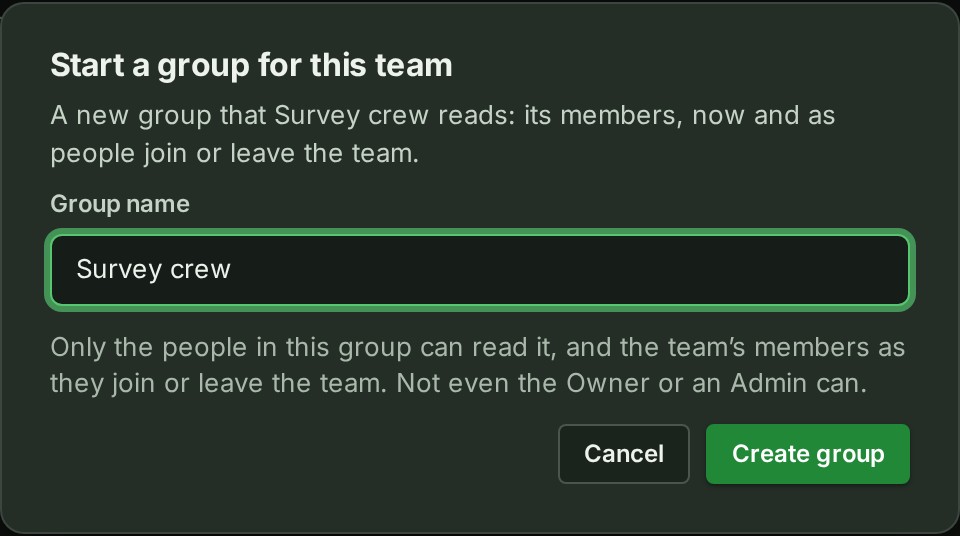
A maintainer can start a private group that the team reads. Open the team and choose Start a group, name the group, and choose Create group. You become its first member and its manager, for as long as you take part in it and remain a maintainer of a team linked to it: you can rename it, add and remove people, link other teams you maintain, take a team out, archive it and reopen it. The team's members are added to it as they join the team and taken out as they leave it. An owner or an administrator who runs groups can also link a team to a group that already exists (see Add or remove people in a group), and anyone who runs groups can choose Add a team when they start a group.
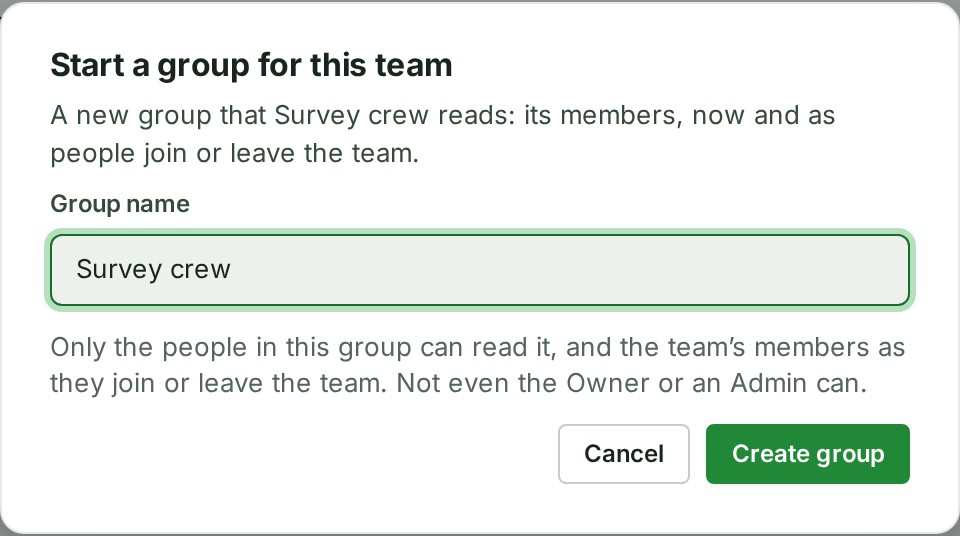
Two things to know before you link a team to a group that has history. The team's members, now and later, read everything already written there. And a group holds up to 500 people when a team is linked: if the team is larger than the room, the people over the limit wait and read nothing until a place frees. A group can have up to 10 teams and a team can be in up to 25 groups.
Taking someone off the team takes them out of its groups at once; putting someone on the team adds them to its groups within moments. A person who leaves one of the groups themselves is not put back by the team. On a plan without Teams, you cannot start or link a team's chat; unlinking and taking people off teams still work.
A team that works with a firm
To let a firm review a project with people from a team, see Connect a team to a firm.
Rename a team or change what it says
Open the team and choose Edit details, change the name or the description, and choose Save changes. A maintainer can do this, and so can the owner and the administrators.
Leave a team
Open the team and choose Leave team, then Leave team again to confirm. You can always leave a team. If you were its only maintainer, the owner and the administrators look after its people until someone is named.
Archive a team
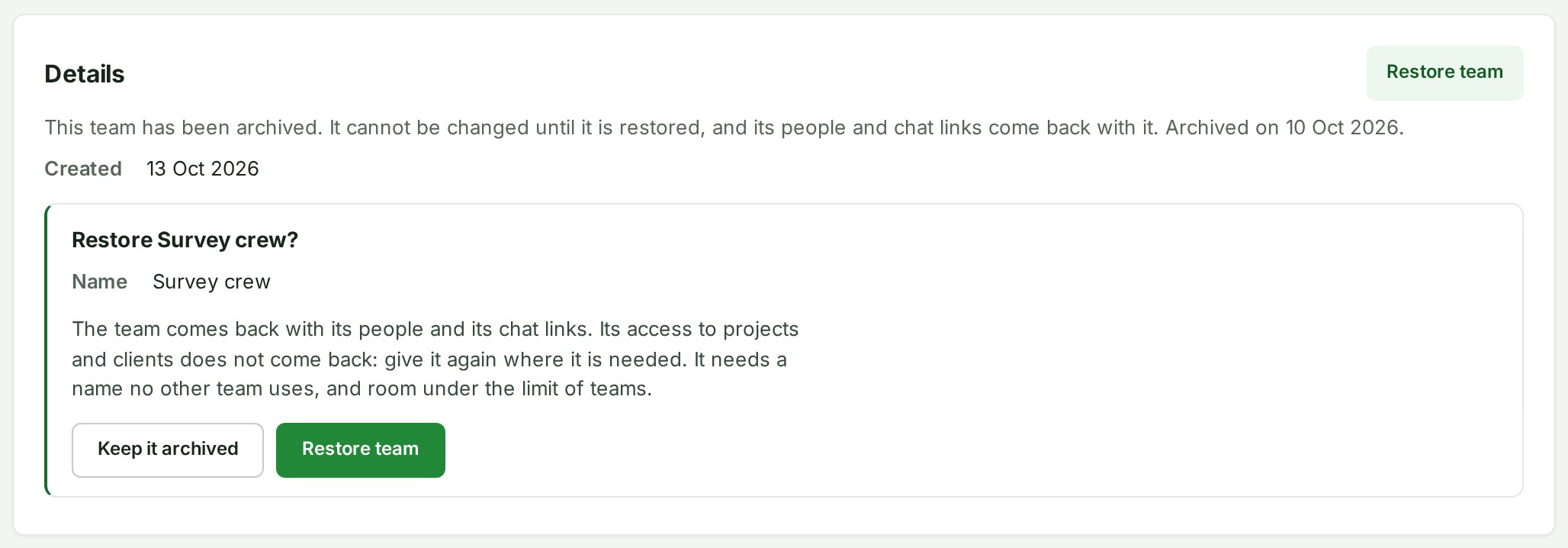
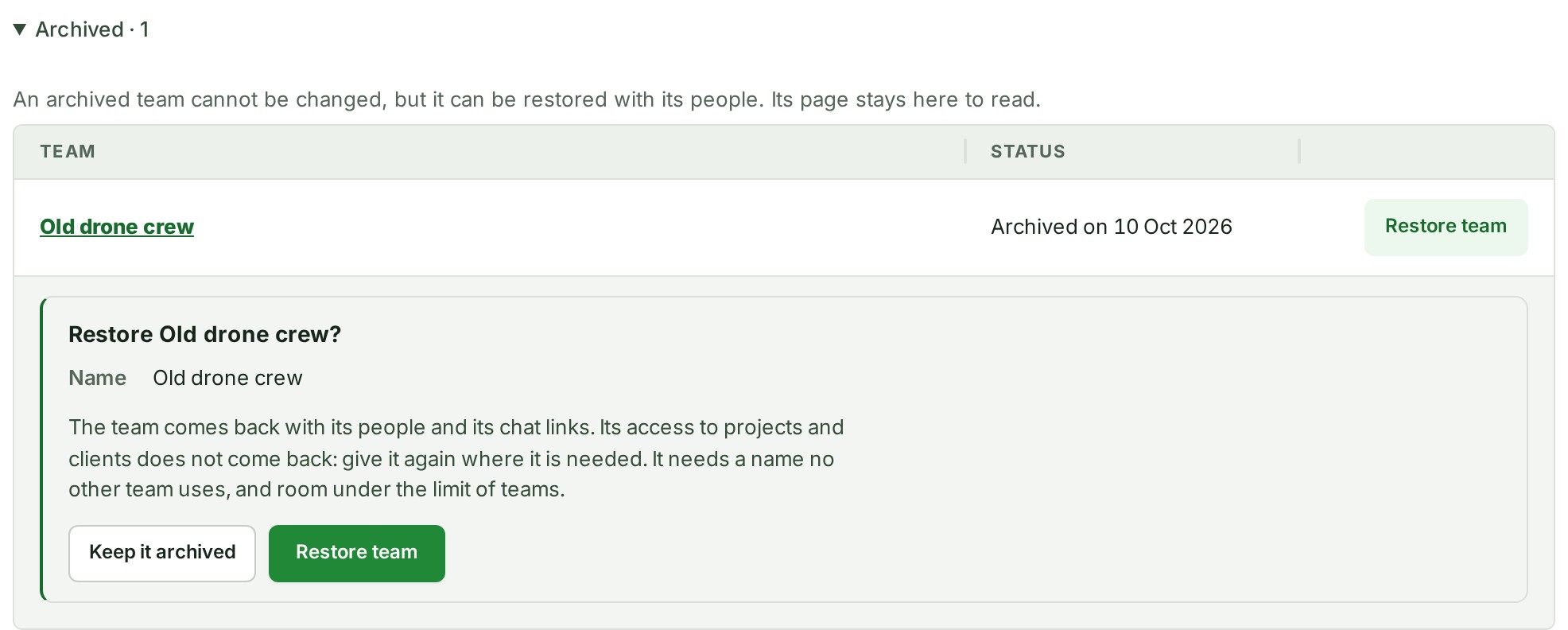
The owner, an administrator or an access administrator can choose Archive team, then Archive team again to confirm. An archived team cannot be changed until it is restored, and its people and chat links come back with it; its page still opens, and its history stays in the audit trail. Its name can be used again. Archived teams are listed by name, with the day each was archived, under Archived · 1 (the number is how many) at the foot of the Teams tab, for everyone who can read the teams; they are read-only. The list shows the 200 most recently archived teams, and a line under it reads Showing the 200 most recently archived teams. when there are more than that.
Restore an archived team
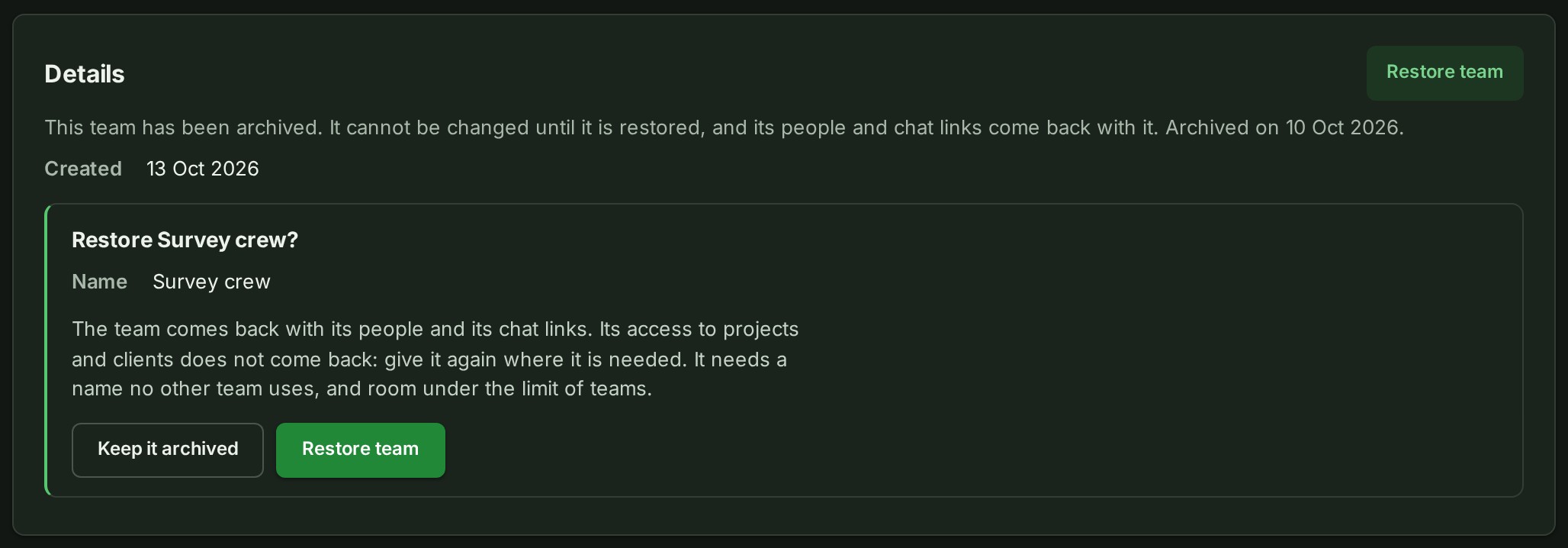
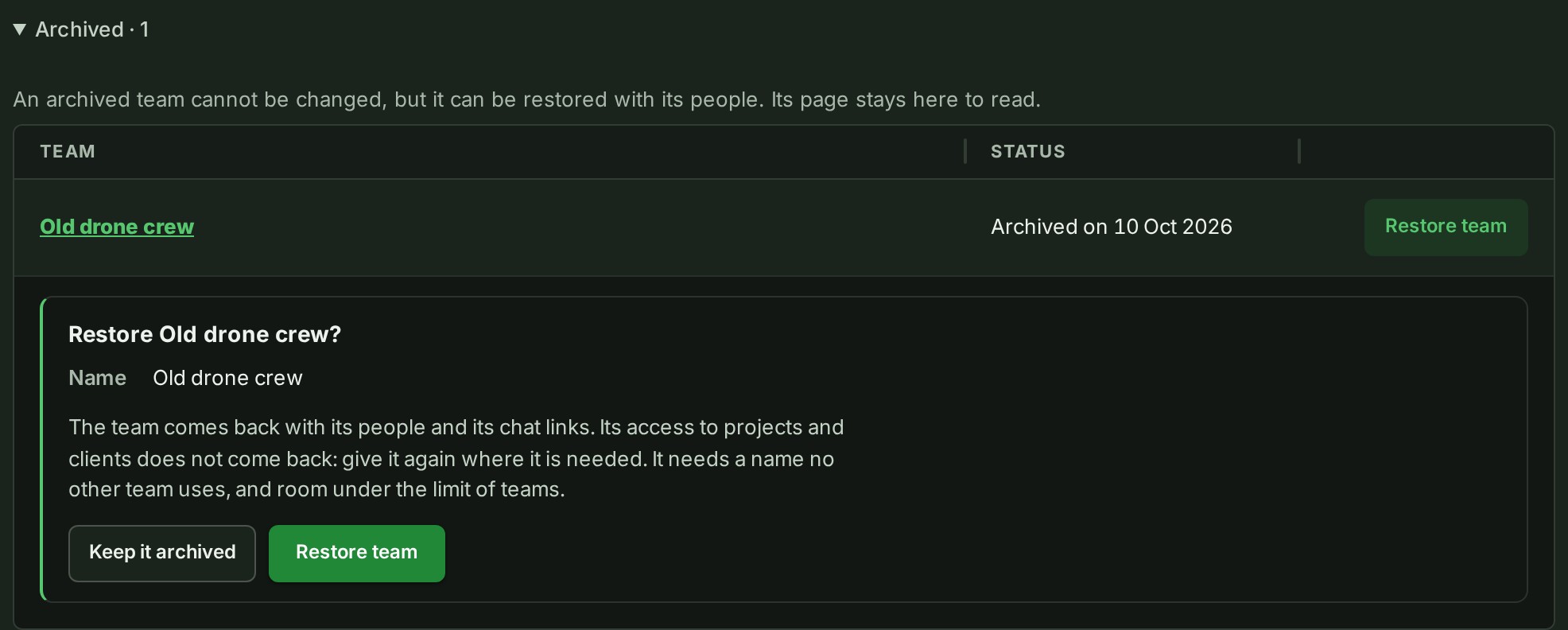
The people who may archive a team may also bring it back: choose Restore team on the archived team's page, or on its row under Archived, then Restore team again to confirm. The team comes back as it was: the people who were on it and its chat links return. Its access does not: roles given to the team on projects and its connections to clients are ended, so give them again where they are needed. Anyone who has left the organisation since is not on the team. A restore is refused if another team now uses the same name (in any case) or your organisation already has 200 teams. Rename the other team, or archive a team you no longer use, and try again.




On a plan without Teams
If your plan does not include Teams, you cannot make a team or put a colleague on one. You can still read teams, rename them, take people off, leave and archive them: nothing that takes someone off a team is ever held back by a plan.
If something goes wrong
-
Only a maintainer of that team, or an Owner or Admin, can add it to a group. You can add a team you maintain; ask the maintainer, or an owner or administrator.
-
A team already uses that name. Choose another name. Archived teams do not count.
- Your organisation already has 200 teams, the most it may have. Archive one you no longer use.
- This team already has 500 people, the most a team may have. Take someone off first.
- This team already has three maintainers, the most it may have. Release one first.
- That person is not a colleague in good standing here, so they cannot be put on a team. They may have left the organisation or have been deactivated.
- Only a maintainer of this team can do that. If the team has no maintainer, the owner or an administrator can. Ask one of the team's maintainers, or the owner or an administrator.
- Only the owner, an administrator or an access administrator can do that to a team. On a plan without roles, only the owner can. Ask one of them. Connecting a team to a firm and disconnecting it are theirs too.
- That team has been archived, so it can no longer be changed. Choose Restore team to bring it back.