Keep your draft when a session ends
If your session ends while you have unsaved work, the work stays in this tab. Sign in again in a new tab, then save from here.
- Leave the original tab open. Read You’ve been signed out, so new changes aren’t being saved.
- Select Sign in again in a new tab, and sign in with the same account.
- Return to the original tab and select Check session and save again. GISweaver checks the account and organisation before allowing actions again.
- Check that your work has saved before closing the tab.


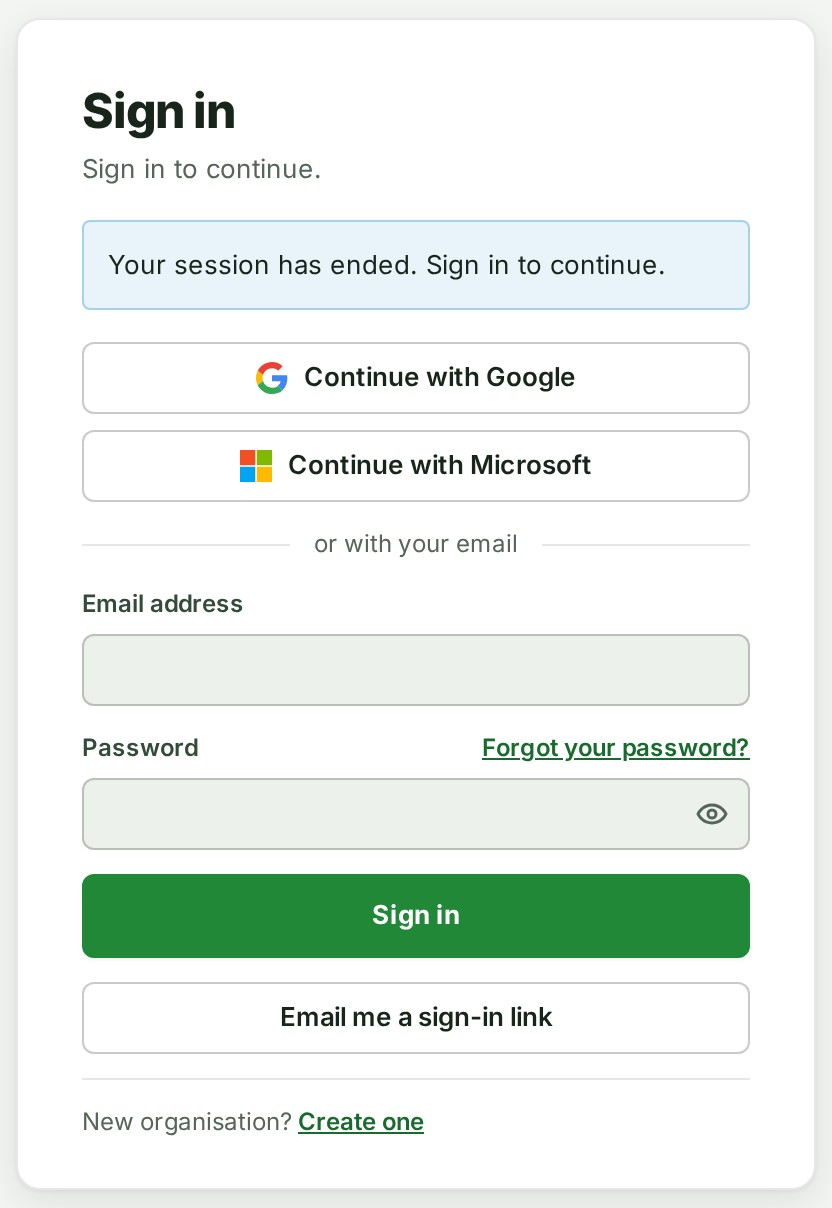
A tab with no work to keep goes straight to the sign-in page, which says Your session has ended. Sign in to continue. Sign in there. Keep any other tab holding a draft open.
What happens next
Actions in the original tab start again, and your draft can be saved.
If your connection is interrupted
A failed connection check keeps the current screen in place.
- Keep the tab open and check your connection.
- Select Check session and save again, or return to the tab once the connection is back.
- Check any pending saves before leaving.


If access cannot be confirmed
An access refusal hides the draft and pauses actions while access is checked.
- Select Check session and save again to ask again. If needed, select Sign in again in a new tab first.
- If the notice says Unsaved work from the previous account has been discarded, that work cannot be recovered. Check the session again to continue.
- If your membership has ended, ask your organisation's administrator about access.




If a screen cannot open
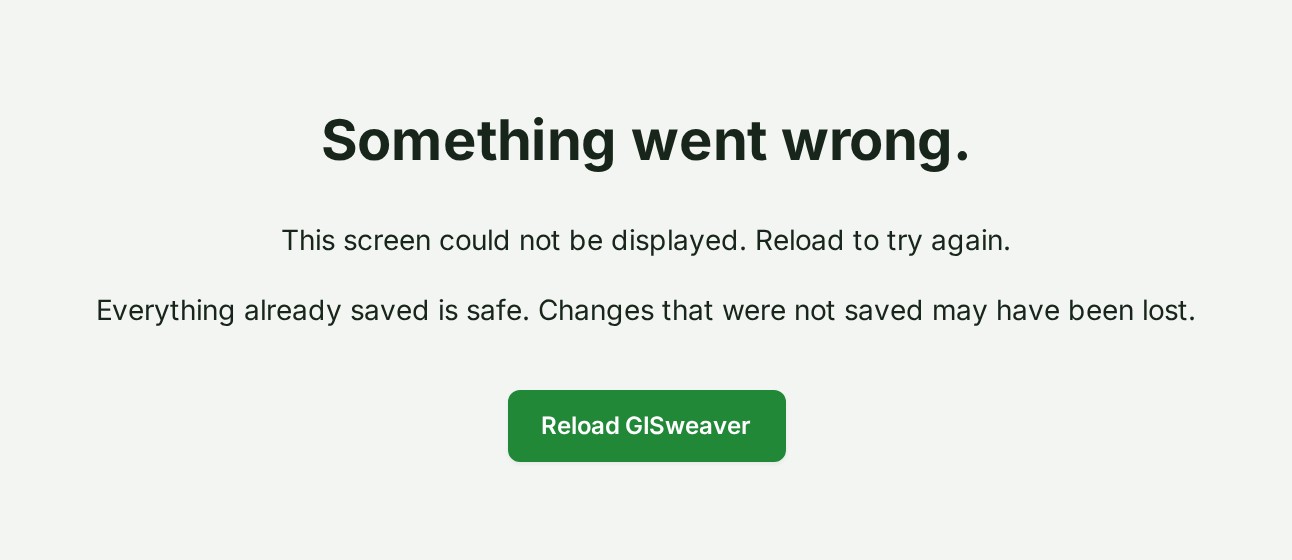
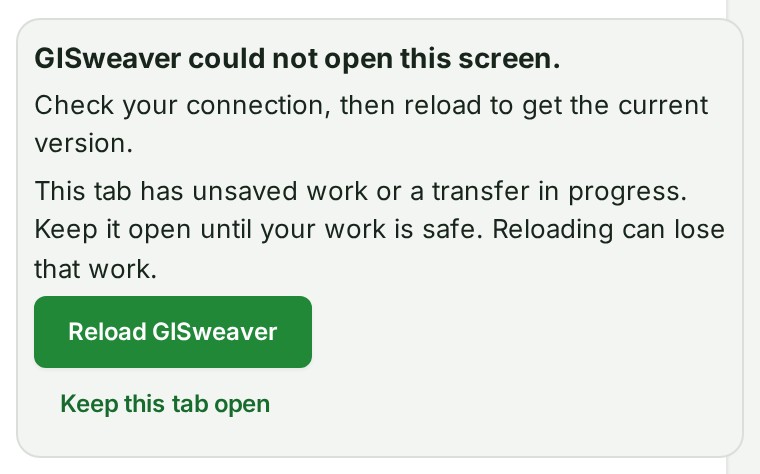
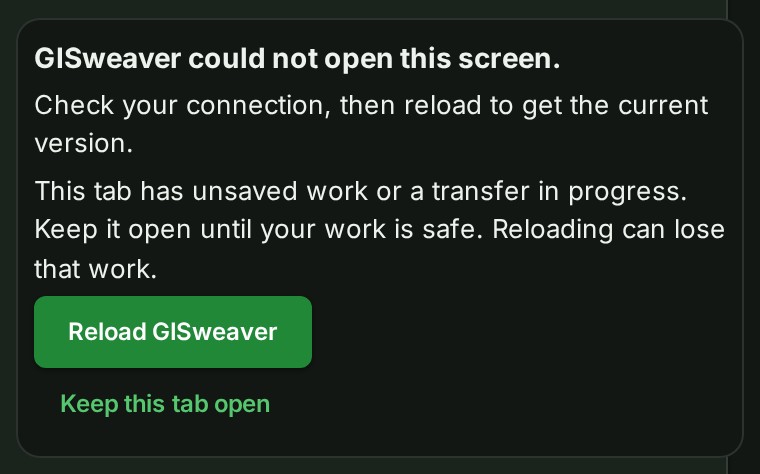
A screen failure shows a recovery message with Reload GISweaver.
- Read the message and check your connection.
- If the message warns about unsaved work or a transfer, select Keep this tab open when offered. Make your work safe before reloading.
- Select Reload GISweaver when ready. If this tab held unsaved work, confirm only if you accept losing that work or interrupting the transfer.
Details
What the session notice covers
A screen holding unsaved work stays in this tab when the session ends. The work is hidden and actions pause until the same account and organisation are confirmed again. Open dialogs, including Report a problem, search, and pending leave-page or organisation-switch questions, are hidden too. They return for the same account and organisation, and close when a different account is identified.
Why this is so
Saved work is safe. An unsaved draft exists only in the original tab; signing in in another tab leaves it there. When a check identifies a different account, a removed or paused membership, or a different organisation after expiry, the previous unsaved work is discarded. You can select Sign out from the notice to leave the session.
A tab left open during an update can fail to open a screen. GISweaver can reload automatically once per tab, only when no unsaved work or transfer is reported. After that, or when automatic recovery cannot be safely bounded, it offers a reload. An optional guide or Messages screen that cannot load leaves the surrounding screen in place. A rendering failure may leave only the recovery message; work already saved is safe, but changes that were not saved may have been lost.
Next: Sign in to GISweaver