Clients
Use Clients to keep one reusable record for each customer your organisation works for.
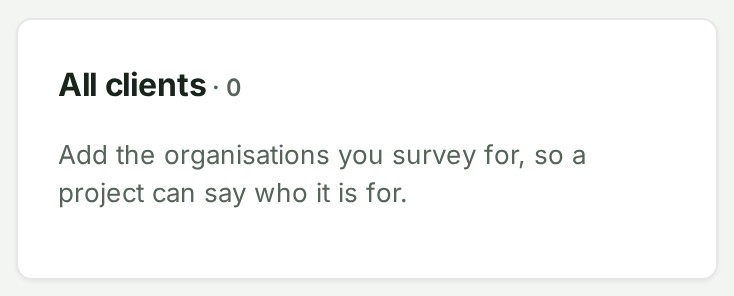
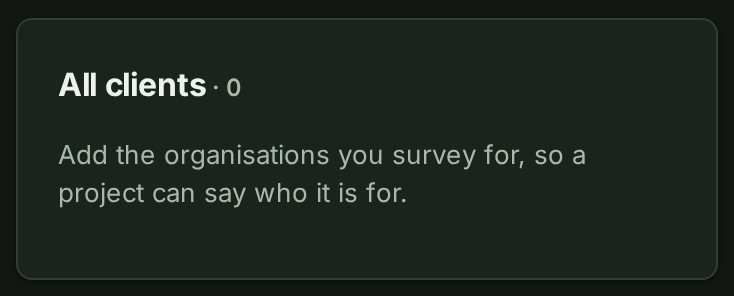
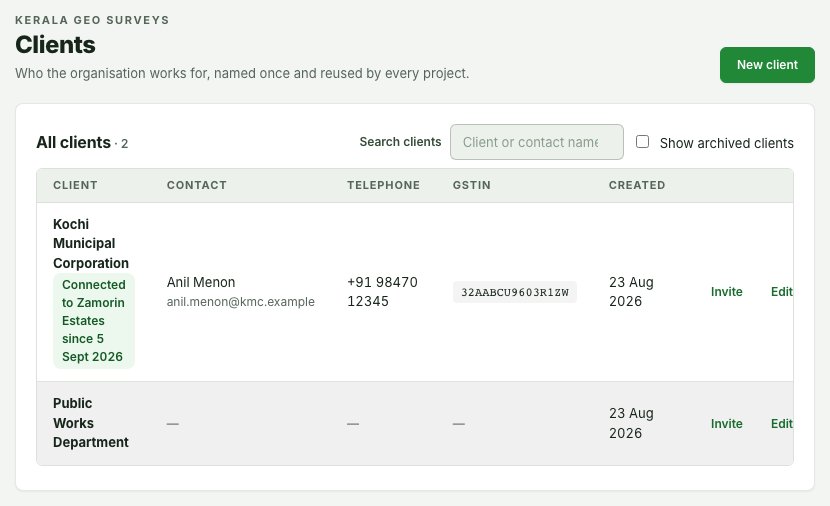
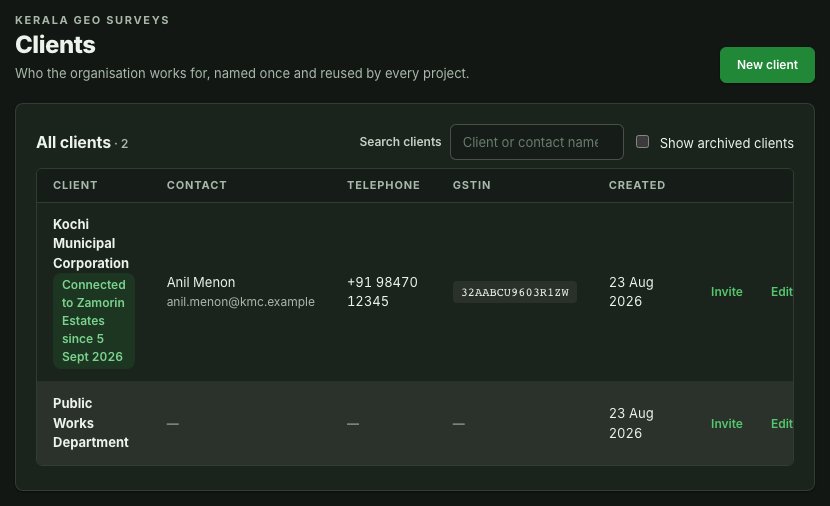
When your organisation has no clients, including archived ones, the empty list hides Search clients and Show archived clients. Both controls appear once there is a client to find. New client stays in the page header, so you can add the first client from the same place as every other.


Why this is so
The directory is organisation-wide. Owners and admins can add, edit, archive and restore clients; other permitted roles may read it without those actions. A branch-only or project-only role does not give access to the directory. A client can be used by more than one project. The client list is kept by the owner and administrators, and project leads and branch managers only associate: on a project's About this project card they choose from the existing clients' names, without seeing a client's contact details, and cannot add, edit, archive or connect one (see Name or change the client).
Keep an unfinished client
While adding or editing a client, following a link to another page or switching organisations asks Leave without saving?. Choose Stay on this page to keep your entries, or Discard and leave to leave them behind. Cancel closes the client form and discards its entries. Save before using the browser's Back or Forward buttons; these do not show this decision.
Add a client
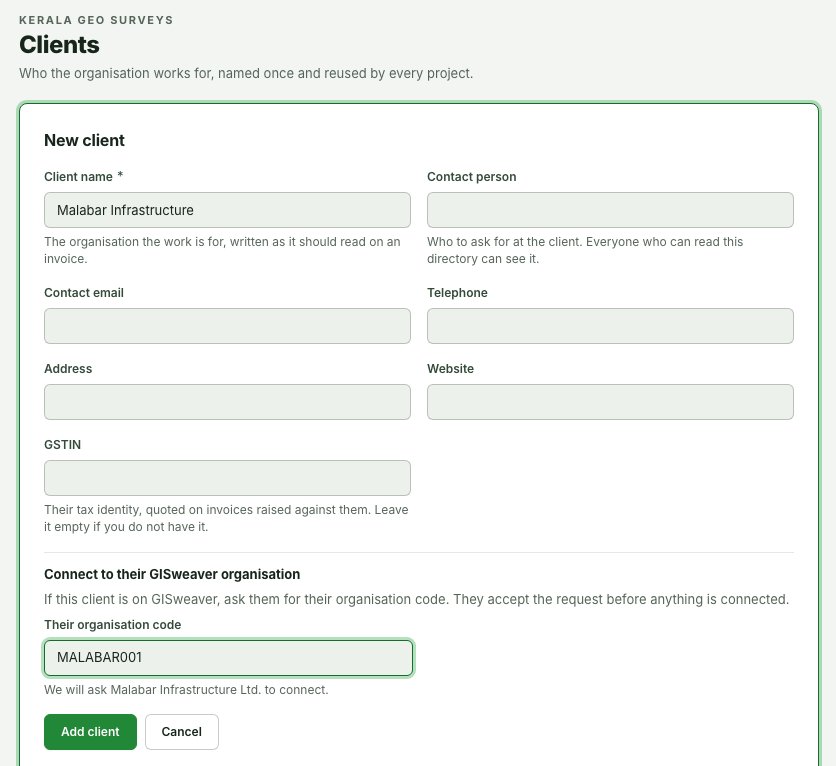
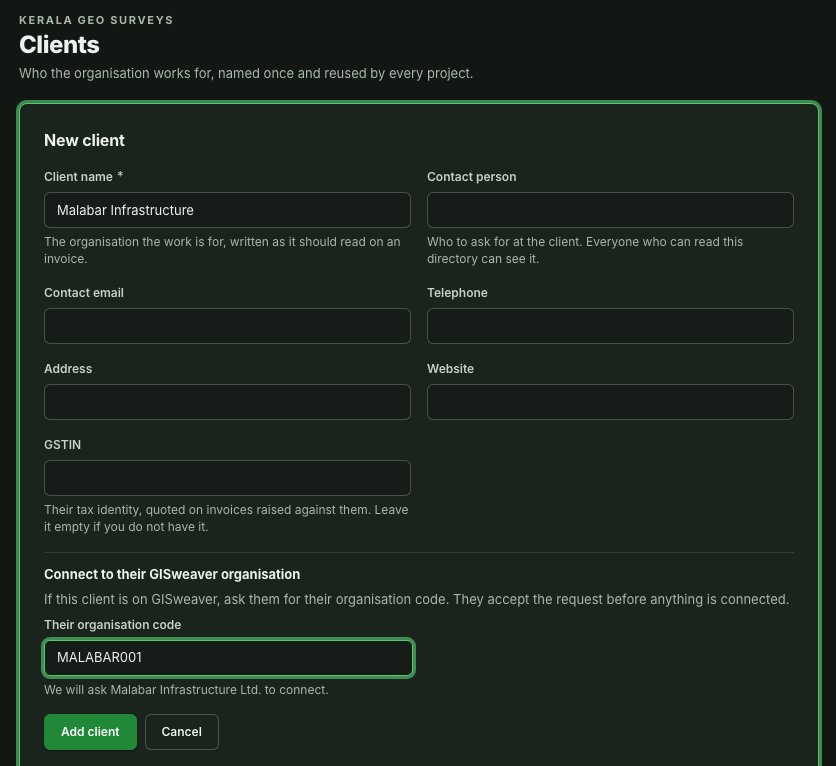
- Open People and clients, select its Clients tab and select New client.
- Enter Client name — the only required field.
- Add the contact person, email, telephone, address or website when you have them.
- Add the tax ID if you have it.
- Select Add client.
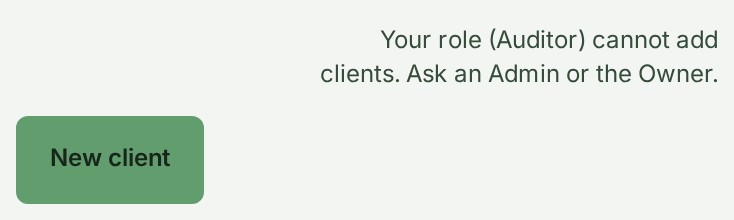
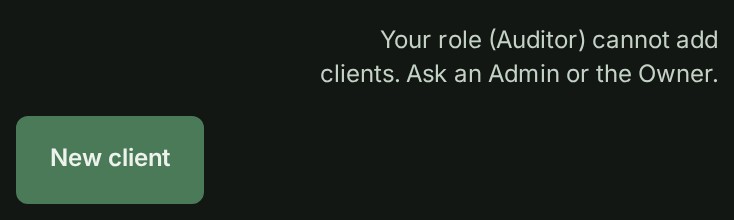
Only the organisation's owner and its administrators add clients. For every other role New client is shown disabled with "Your role (\<role>) cannot add clients. Ask an Admin or the Owner." beside it.


Why this is so
The client appears in the directory and can be selected for project work. Check names and contact details before saving — they are shared organisation records.
Connect a client's organisation by code
If the client already has its own GISweaver organisation, ask to connect your client record to it.
Before you start, ask someone at the client to copy their organisation code from the Shared releases tab of their Deliveries screen, using Copy organisation code.
- On New client, fill in the client as usual, then enter Their organisation code under Connect to their GISweaver organisation. For an existing client, select Edit on its row and enter the code there.
- Wait for the line under the field.
- Check the line. We will ask \<organisation> to connect. confirms their legal name. No organisation on GISweaver has that code. means the code is wrong, is your own, or is not in use.
- Select Add client (new client) or Send request (existing client).
Why this is so
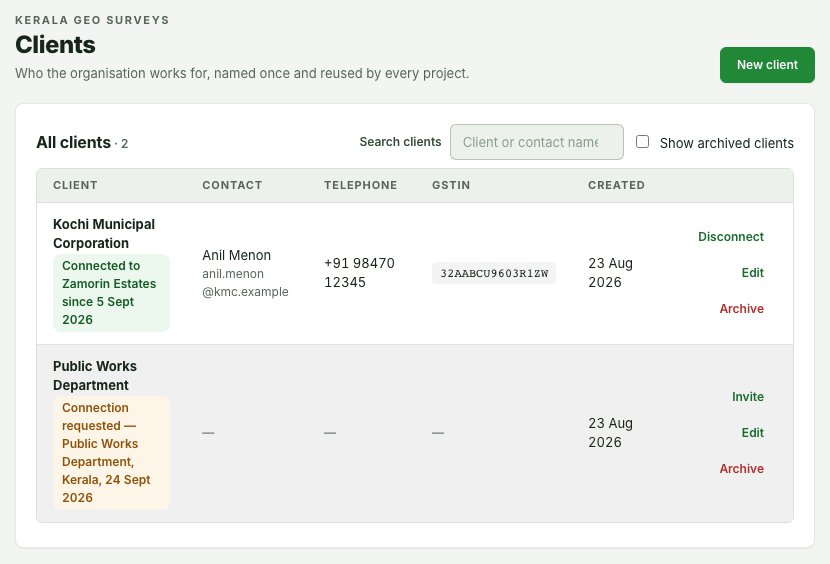
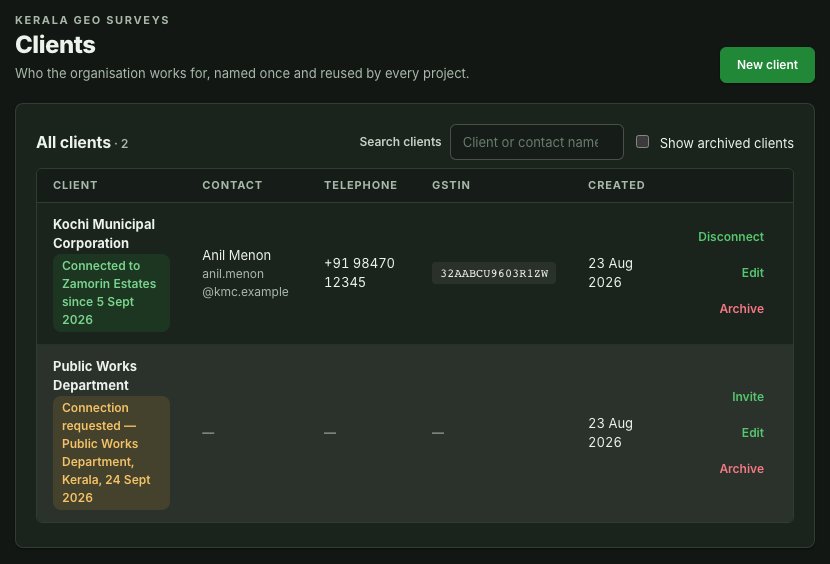
Entering the code only sends a request: nothing connects until someone at the client with permission to change their organisation settings accepts it. The row reads Connection requested — \<organisation>, \<date> until they answer; select ⋯, then Edit, then Withdraw request to take it back. When they accept, the row shows the Connected chip and you are notified; if they decline, you are notified and the row goes back to plain. A request is refused when the client is already connected, a request is already waiting, or the client organisation has switched connection requests off, which refuses an invitation to a person there as well. Invitations and connection requests share one limit of 20 in any 24 hours.
Disconnect a client
- On a connected client's row, select ⋯, then Disconnect.
- Read the consequence.
- Select Disconnect again.
Why this is so
Either side can end a connection, at any time — while your organisation is suspended, frozen or closed too. Every review invitation you sent to people at that organisation through this client stops working at once, and they are notified. You can ask to connect again later with their code.
How a client connects on its own side
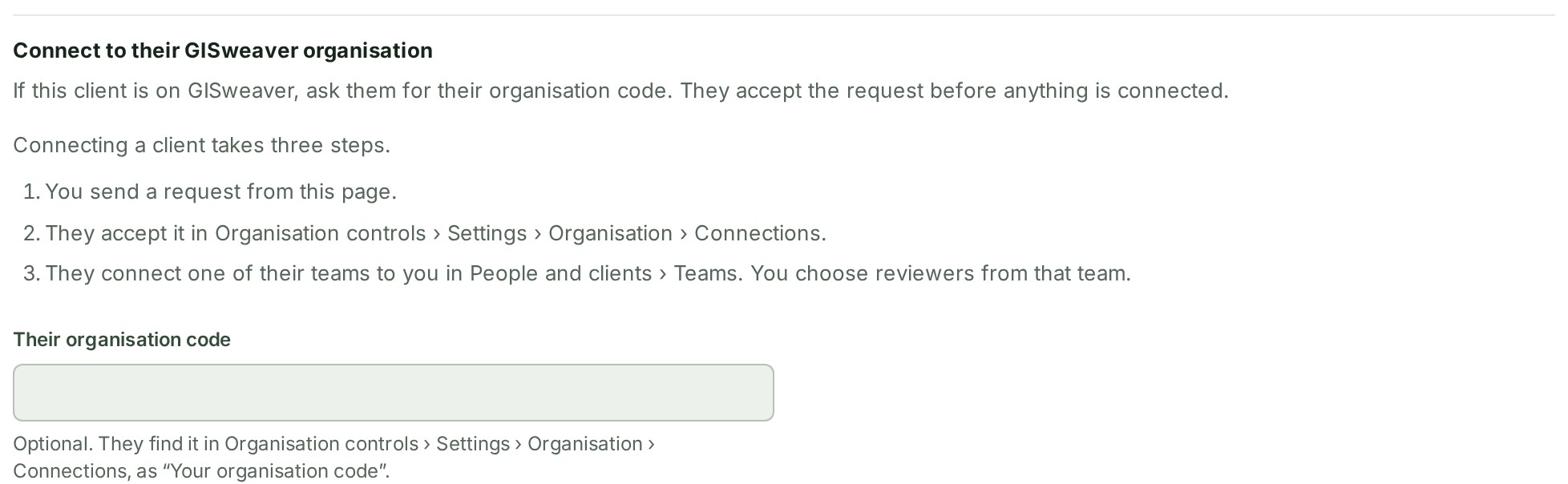
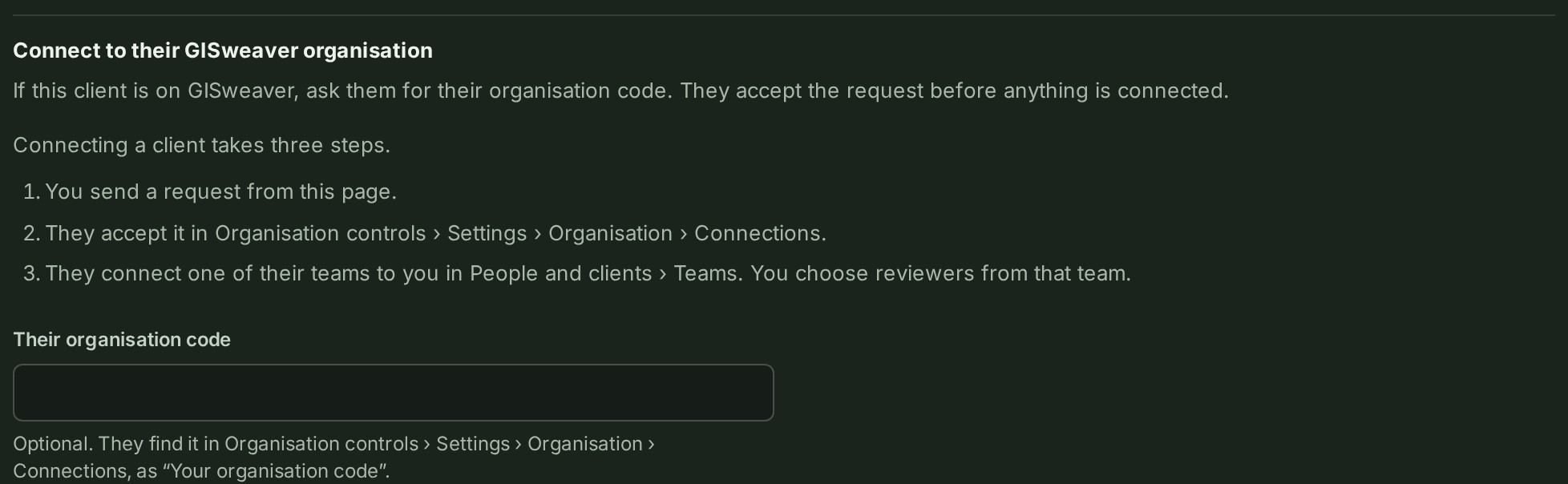
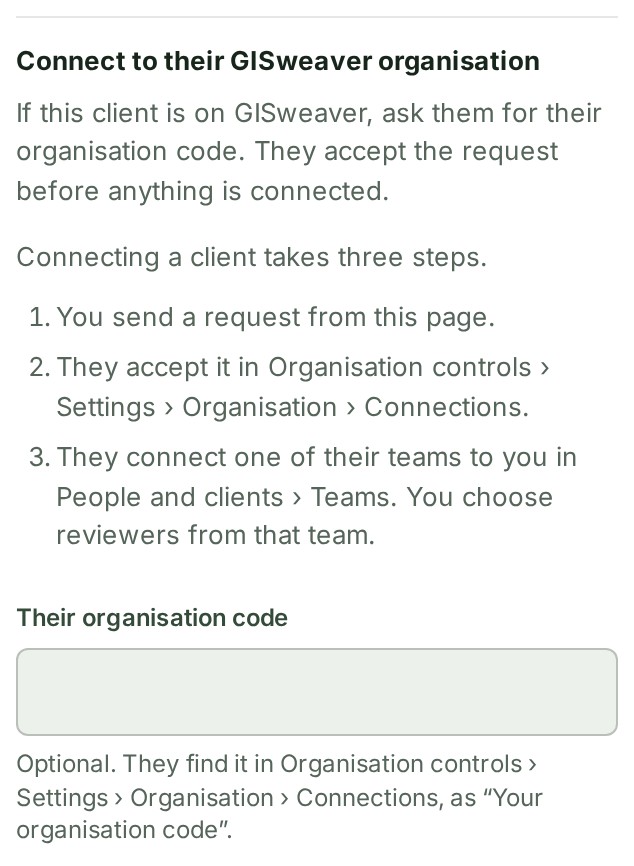
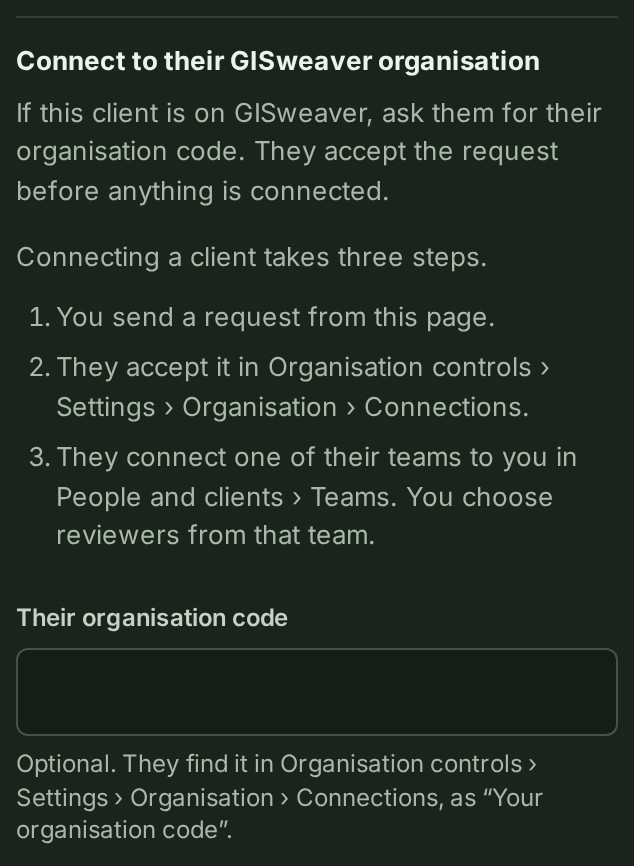
Connecting a client takes three steps, and the New client form lists them under Connect to their GISweaver organisation:
- You send a request from the Clients tab.
- They accept it in Organisation controls → Settings → Organisation → Connections.
- They connect one of their teams to you in People and clients → Teams. You choose reviewers from that team.
A client that has accepted but has not connected a team cannot be picked from a list when you invite it to review; see Invite a client to review.
Use what a connected organisation shares
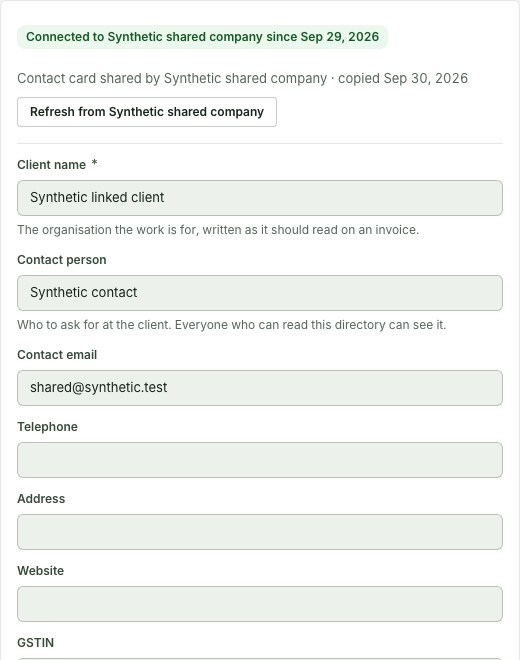
A connected client organisation decides, on its own Connections settings, whether you may copy its contact card, tax ID and billing address.
- When they accept your request, whatever they share is copied into the empty fields of your client record — a value you already typed is never overwritten.
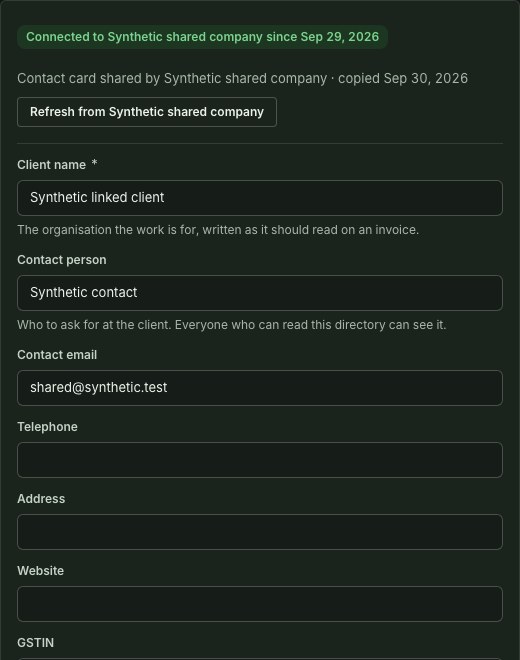
- On a connected client's Edit, read the muted line saying what they share and when your record last copied it.
- Select Refresh from \<organisation> to copy it again into the empty fields. If a field you filled holds something different, choose Replace to take their value or Keep mine.
Why this is so
Each of contact card, tax ID and billing address is shared separately, and none is shared until the other organisation chooses to. The action is not shown when they share nothing or the client is not connected. What you copy is your own record — you can edit it, your invoices quote it, and it never changes by itself when they change their details or stop sharing. Each copy is recorded in your organisation's audit trail with the fields it filled.
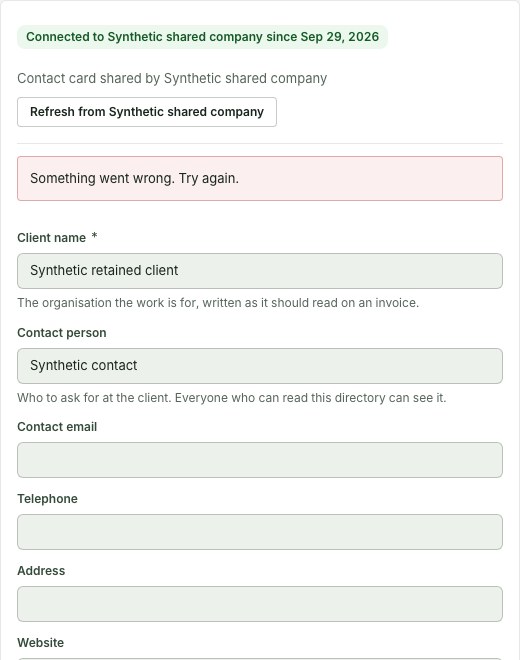
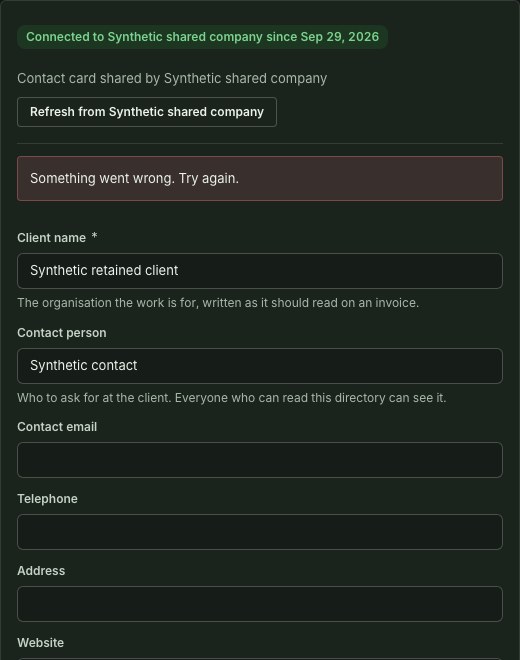
Saved client changes are recorded in your organisation's audit trail. A refresh is recorded when it copies shared fields. If the audit entry is refused, the change is not saved; the form keeps your draft. If a save fails or its outcome is unclear, copy any unsaved text somewhere safe, then check the client record and audit trail in another tab before submitting again. The Connected chip identifies the connection; it does not confirm that your latest edits were saved.
Use a connected organisation's people
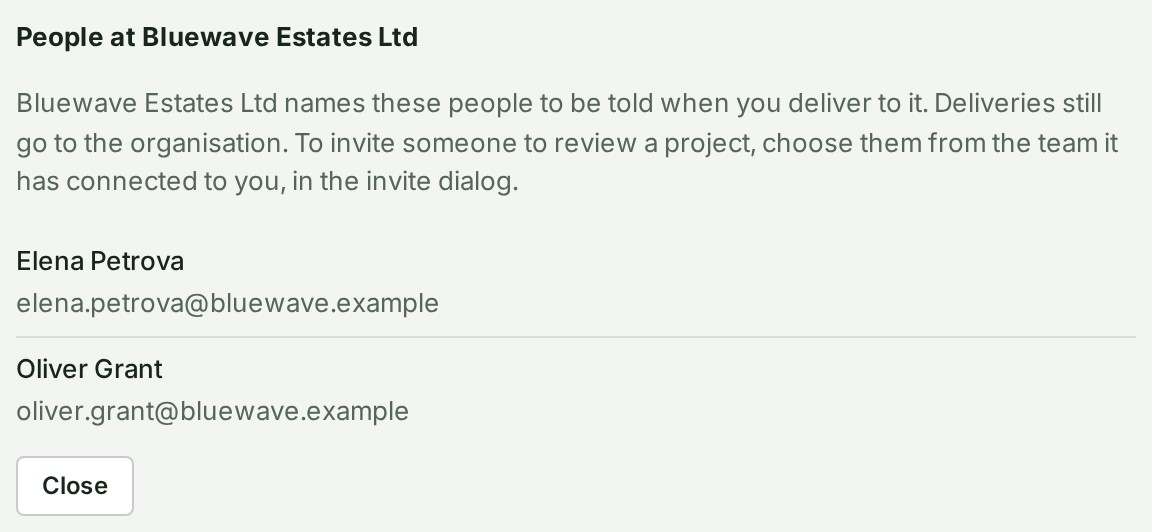
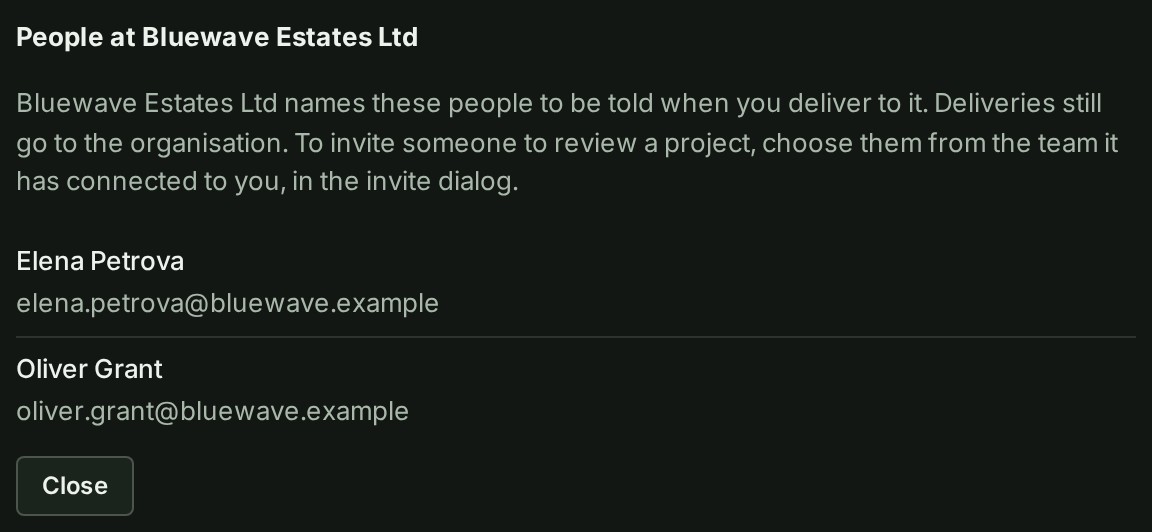
A connected client organisation can name its own Contact persons for connected organisations: the people told when you deliver to it. Who you can invite to review is decided by the teams your client has connected to you, not by this list; see Invite a client to review.
- On a connected client's row, select People under the Connected chip to see them.
Why this is so
The list is read from the organisation each time you open it, so someone taken off it, or everyone once the connection ends, is gone from it at once — you never see anything else about their people. A person an earlier release named for review alone is not listed. Review: inviting a client to review a project offers the people on the teams your client has connected to you, by name and never by address. When the client has been connected and has nobody on a team to choose, the dialog says so and asks you to ask them to add the person to their team; it takes no address. Deliveries: when the project's client is connected, Deliver prefills the recipient organisation and lists the people who will be told; select Deliver to another organisation by code to deliver elsewhere.
Invite a person from a client organisation
Use this when the client has no GISweaver organisation of its own to connect by code.
- Select Invite them to GISweaver on the client's row.
- Enter Their email address — the invitation is for one person at that address.
- Optionally choose Which project is this about? — this labels the invitation and your records only.
- Select Continue, read the details and consequence, then select Send the invitation.
The email comes from the sender name GISweaver invitations and its subject names your organisation. If the
recipient does not see it within a few minutes, ask them to check their spam or junk folder, mark it
Not spam, and add support@gisweaver.com to their contacts, so the next one is not filtered.
Why this is so
An invitation links the recipient's own GISweaver organisation to the client record; it does not add the person to your organisation and does not share a project by itself. If the address already belongs to a GISweaver account, the invitation also appears in that person's notifications; the email is sent either way, and GISweaver never tells you whether the address has an account. The link lasts 14 days — open Invitations sent on the client row to see its state, and Withdraw to stop it and invite the same address again.
The person you invite accepts on the page Accept a client invitation.
Read the Connected chip
A client's row and its Edit view show a Connected to \<organisation> since \<date> chip once the invited person or the client organisation accepts.
Why this is so
Only their acceptance writes the chip, and only the linked organisation's legal name and the date travel to your Console — never its account id or its own organisation code, so this directory can never be used to look another company up by anything it did not choose to give you. The connection also decides who the review invitation dialog offers: only a client whose account is linked can be sent one. A firm with no linked client sees a short empty state there, with a link back to this screen.
Know when a project names a connected client
Once per project, when you choose a connected client on New project or on the project's About this project card, or when the client organisation later accepts your connection request or invitation, its owner, administrators and people marked for review get a notice naming your organisation and the project.
Why this is so
Choosing the same client again, disconnecting and reconnecting, or renaming the project sends nothing more. Nobody at your organisation is named in the notice, and they cannot open the project from it. Each notice is recorded in your organisation's audit trail.
Find or update a client
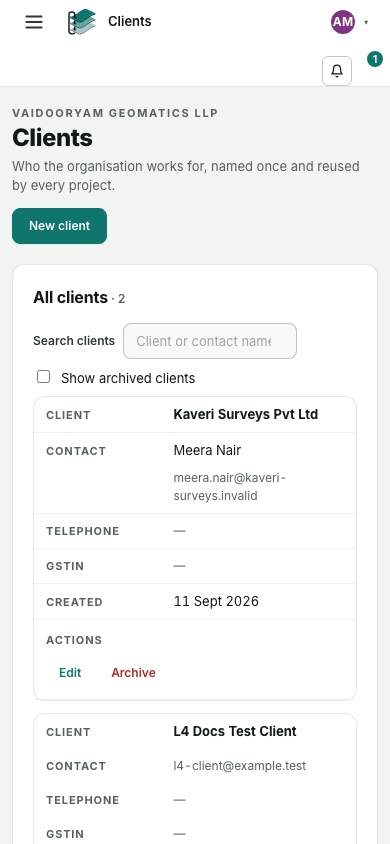
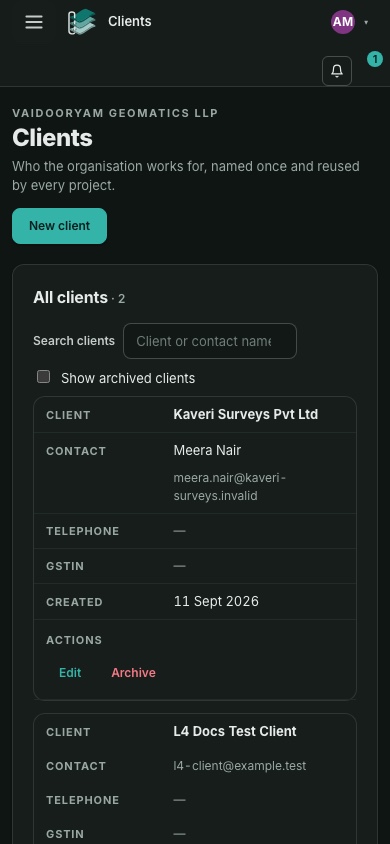
A client's row shows one act as a button and keeps the rest behind its ⋯ menu (More actions for \<client>): the button is Invite them to GISweaver, or Edit once the client is connected, and the menu holds Edit (or Disconnect for a connected client) and Archive. An archived client shows Restore. Right-click the row, or press and hold it on a phone, for every act in one menu; only someone who may manage clients is offered them. On a phone a client's card leaves out the contact, telephone and tax ID lines that are empty.
- Use Search clients to search by client or contact name (not email or telephone).
- Select Edit on the correct row (from the ⋯ menu when the row's button is Invite them to GISweaver).
- Change the fields and select Save changes.
- If GISweaver says somebody changed the record first, reload it, check it, then enter your change again.
Archive or restore a client
- Select ⋯ on the client row, then Archive.
- Review the details and the consequence.
- Select Archive client.
- Turn on Show archived clients to find it again, and select Restore when it should be available.
Why this is so
Archiving is not deletion. Projects that already name the client keep that record. Archiving only stops the client being used for new work until restored.