See the steps the sender reported
Who can do this
Owners, admins, billing managers and auditors of the organisation that received the delivery. Every plan.
See the steps the sender of a delivery reported as done on their project checklist.
- Open Deliveries and select the delivery on the Received tab.
-
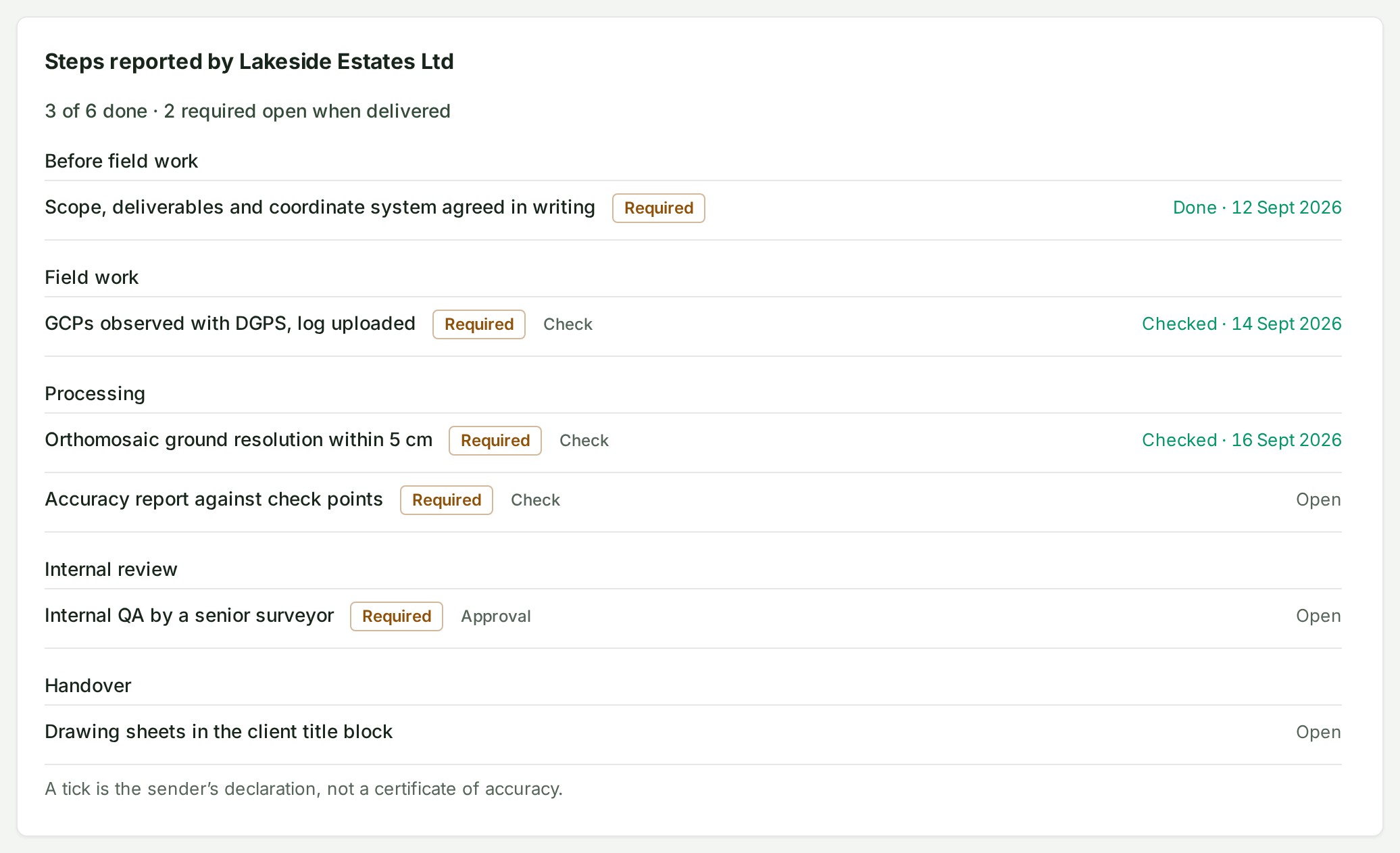
Find Steps reported by \<organisation>, where the sender's name is shown. The section lists the steps the sender marked for you.
-
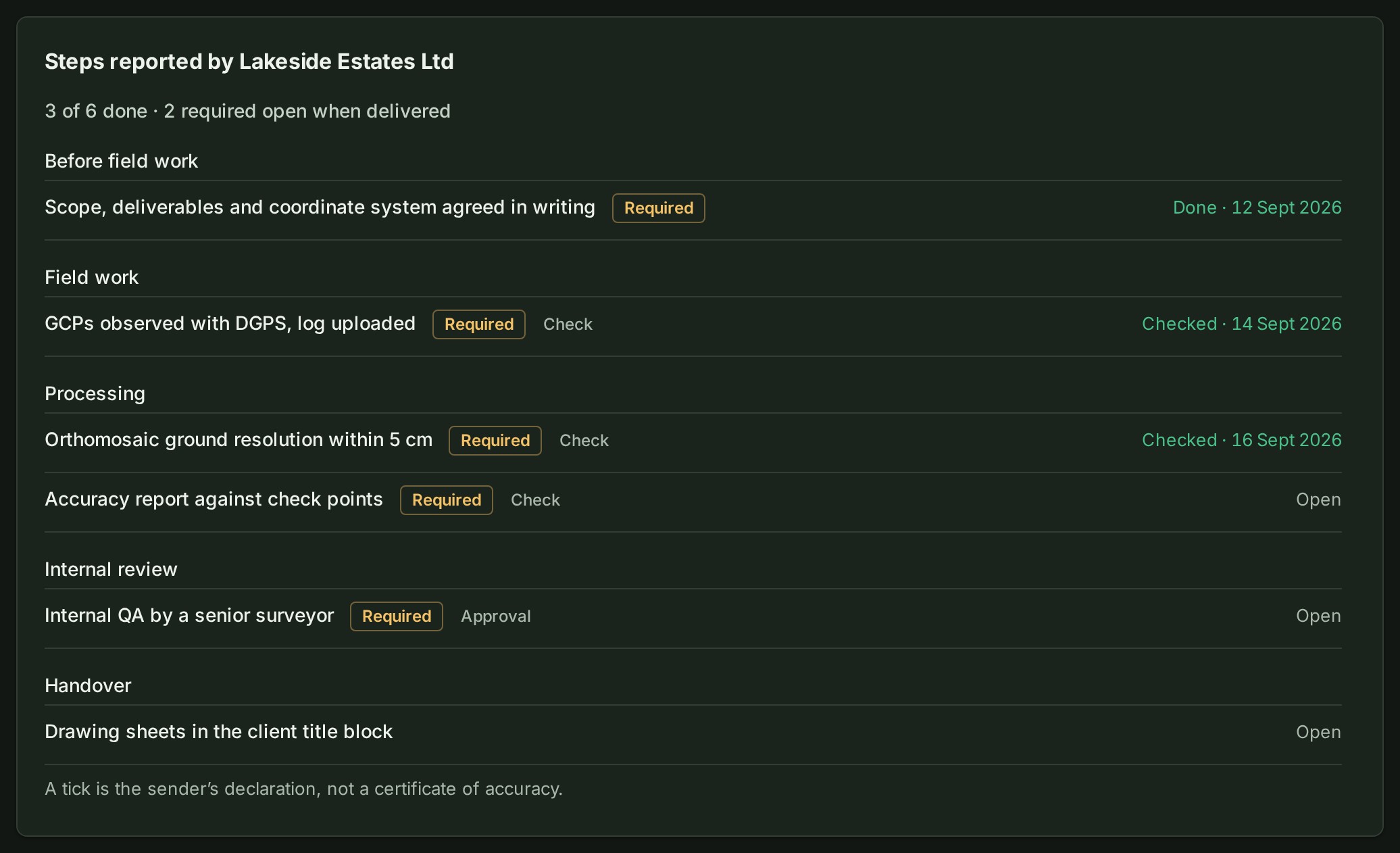
Read the line under the heading, such as 3 of 6 done · 2 required open when delivered, then the steps. Each step shows whether it is Required, its kind (Check or Approval), and Done or Checked with a date, or Open. No names are shown.
- Read the line under the steps: A tick is the sender's declaration, not a certificate of accuracy.
What happens next
The download carries the same steps as a spreadsheet, so the record stays with the files.
If something goes wrong
- There is no such section. The sender marked no step for you, or the project had no checklist.
- Sender organisation closed in place of a name. The sender's organisation was closed; the record stays.