Photos from a phone
A site photo belongs with the project it was taken for — GISweaver keeps it in the project's Files list, prepared so any colleague can open it on any screen.
Add a photo
- Drop the photo on the Drop files here, or browse strip at the top of the project's Files — or use Upload on the project's map.
- On a phone, use the browse part of that strip to open the phone's own picker and choose or take a photo.
- Wait while the pinned row at the top of Files moves from its progress to Checking. The photo then shows in the list as Photo, with Internal only as its place and Kept with the project as its hold.
Why this is so
A photo goes through the project's one door like every other file. You can choose survey files and photos together — GISweaver files each one by what it is, so survey files join the draft and photos are kept with the project; nothing asks you which is which.
Which photos are accepted
| Photo | What GISweaver does with it |
|---|---|
| HEIC or HEIF — what an iPhone's camera saves by default | Converted to a JPEG, turned the right way up. A HEIC is always converted, because most browsers cannot show one. |
| JPEG | Kept, or compressed — see Compress or keep full quality. |
| PNG | Kept, or compressed to a JPEG. |
| WebP — often what a chat app or a browser saves | Converted to a JPEG. |
A photo larger than 150 megapixels, or a file that is not the photo its name says it is, is refused and is not added. Your plan's largest file applies to a photo as to any other upload.
Find and open a photo
In the project's Files list a photo shows as a small picture beside its name, with Photo and who added it when.
Select the picture's name to open the photo. It opens large, fitted to the screen, with when and where it was taken when the camera recorded them:
Taken 20 Sept 2026, 10:15 am at 00.000000 N, 00.000000 E
Zoom with your browser as you would on any page. Under the picture is Download with the size of the stored photo. On a phone the photo fills the screen and the download sits at the bottom.
When the project has more than one previewable file — photos and PDFs — opening one opens a gallery over all of them, in the order the list shows them: the title reads "3 of 12 · IMG_0412.jpg", and the Left and Right arrow keys (or the arrows either side of the picture, or a swipe on a phone) move to the previous or next file, stopping at either end. Up and Down turn the pages of a file that has more than one — see Preview a PDF or a photo. The first time you open the viewer it shows a one-line reminder of the arrow keys; Escape, or the close button, closes it and returns you to the row you opened it from.
A file's Threads drawer opens the viewer too: select the file's name under Threads in the drawer's header, and the viewer opens on that file with the thread you were reading beside the picture (a sheet over it on a phone, which its close button drops and Threads under the picture brings back). Closing the viewer returns you to the drawer as you left it, and a thread you opened in the viewer's own Threads panel is the one the drawer opens on. See Read a thread beside the file.
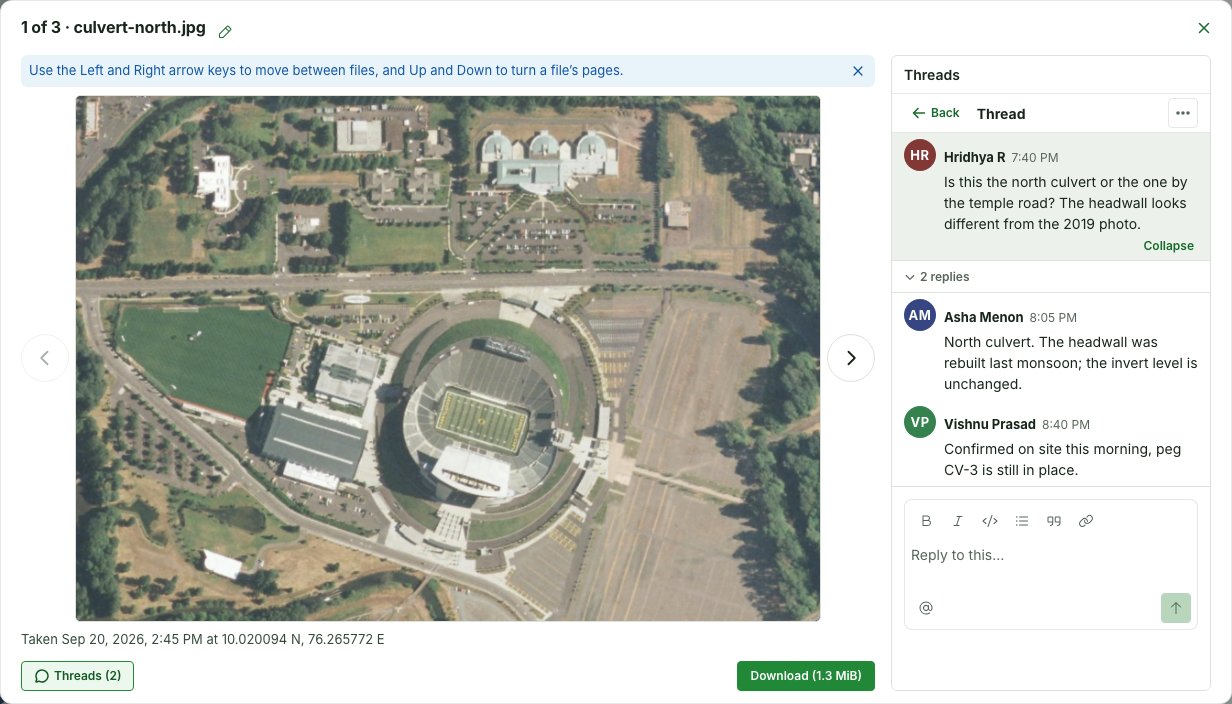
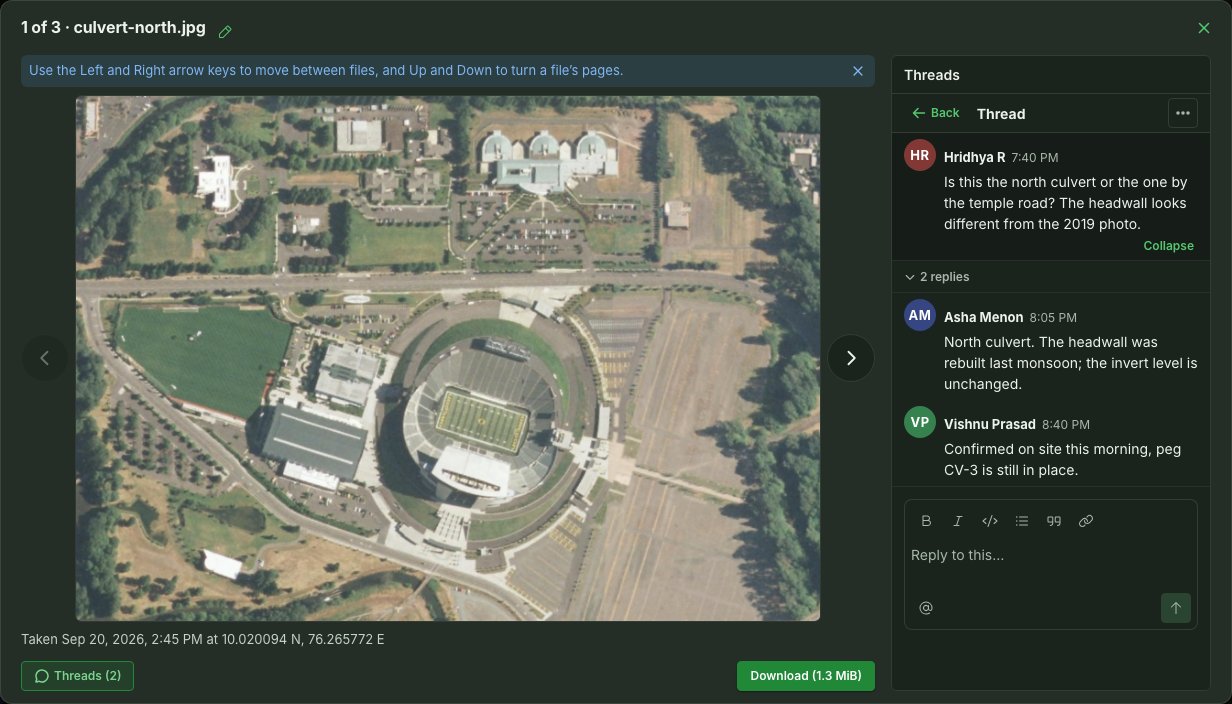
An iPhone photo added as IMG_0412.HEIC is downloaded as IMG_0412.jpg, because that is what is stored.
Photos added before this feature have no small picture and open only by Download.
The name a photo is shown under
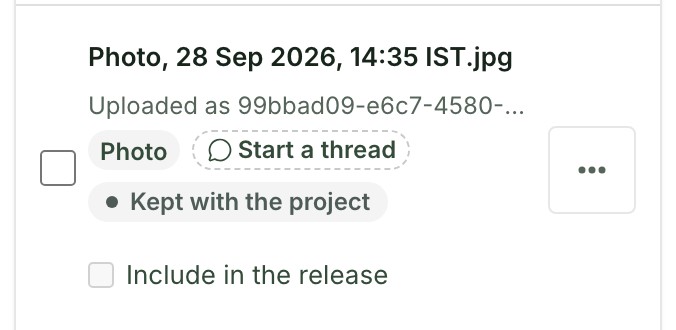
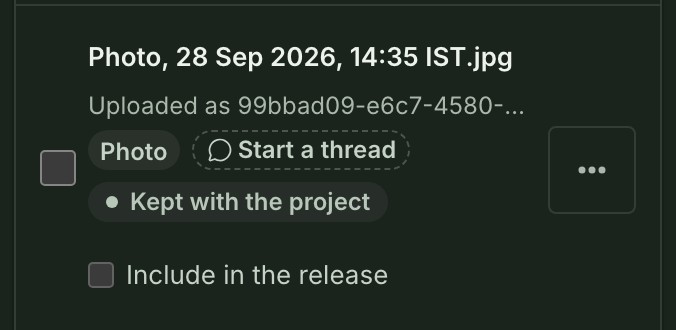
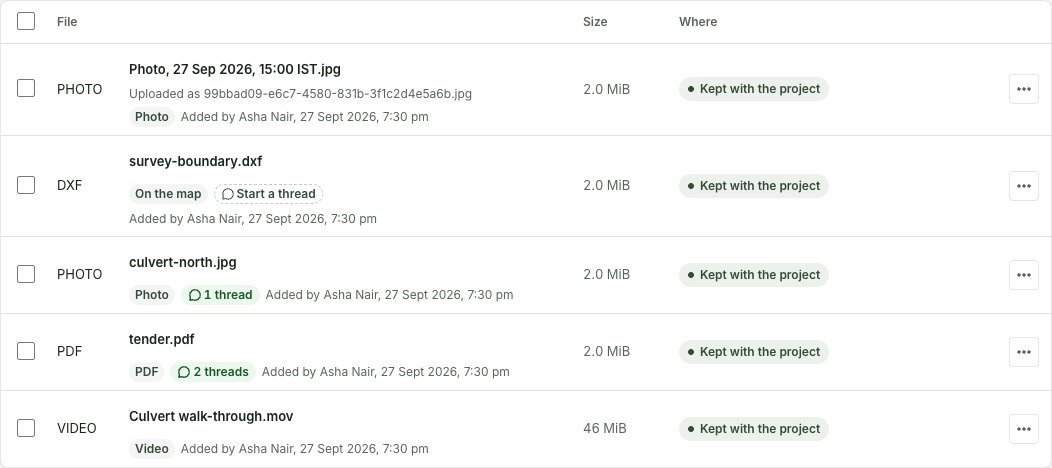
A photo keeps the name it arrived with — IMG_0512.jpg from a camera or a computer is shown as IMG_0512.jpg. An iPhone does not always send one: a photo chosen from its library reaches the browser under a long string of letters and digits such as 99bbad09-e6c7-4580-831b-….jpg, which tells nobody what it is. GISweaver never shows a file under a name like that. It gives the photo a name from when it was taken instead:
Photo, 28 Sep 2026, 14:35 IST.jpg
The time is the one the camera recorded; a photo with no recorded time is named by when it was uploaded. Both are India Standard Time (IST, UTC+5:30). Any other file that arrives under such a name — a PDF, an archive — is named by its kind and the next number in the project: PDF 3, Archive 1.
The name it arrived under is kept, and shown under the new one as Uploaded as 99bbad09-e6c7-4580-831b-….jpg. You can rename the file as you would any other — see Rename a file.
Rename a file
Select Rename in the file's ⋯ menu in the project's Files, the pencil beside its name when the photo is open, or Rename in its row menu in Uploads, type the name you want and select Save name; the file keeps its ending (.jpg), so IMG_0412.jpg can become NE corner peg.jpg but not a PNG. The stored file does not change: its original name is shown under the new one as Uploaded as IMG_0412.jpg, a download is offered under the new name, and the rename is recorded in the audit trail.
What is kept, and what is removed
A camera writes fields into every photo that you cannot see: the phone's make and model, its serial number, the lens, the software, and often where and when the photo was taken.
- Removed before anybody can download the photo: every one of those hidden fields.
- Kept and shown, in the open beside the photo: where it was taken (latitude and longitude, when the camera had a position) and when (when the camera recorded the time with its time zone). Anyone in your organisation who can open the project can see them.
- Kept in the picture: its colours and which way up it goes.
A photo whose camera recorded no position, or a time without its time zone, is shown with No time or place recorded by the camera.
Compress or keep full quality
Your organisation chooses what happens to every photo added to its projects, in Console → Organisation → Organisation controls → Settings → Organisation → Privacy, under Photos. The owner or an administrator can change it; everyone else can see the choice.
| Choice | A JPEG or PNG | A HEIC, HEIF or WebP |
|---|---|---|
| Compress on upload (recommended) — the default | Kept as it came when it is already 2,560 pixels or smaller on its longest side; otherwise reduced to 2,560 pixels and saved as a sharp, smaller JPEG | Converted to a JPEG and reduced to 2,560 pixels on its longest side |
| Keep full quality | Kept at the size and quality it came, with its hidden fields removed | Converted to a JPEG at its full size |
A compressed phone photo is typically a quarter of the size the phone wrote, and still sharp on any screen. Choose Keep full quality when your work needs the camera's full resolution, for example to inspect cracks or read small markings; it uses more of your organisation's storage.
A change applies to the next photo added. Photos already on your projects stay as they are.
When a photo is refused
In Uploads, on the project page and in the Console, a photo that has been added reads Ready, Kept with the project, and its steps end at Kept with the project: it is finished, not waiting to be processed. Its menu offers Open in project, which opens the project's Files, and Delete…, which deletes it like any other file (see Deleting files and projects). See Uploads.
A photo that cannot be prepared is not added: the project's Files list shows it as Refused, and a line above the list names it. The usual causes:
| Cause | What to do |
|---|---|
| The file is damaged, or is not the kind of file its name says — a HEIC that is really an audio file, for example | Check the photo opens on the phone or computer it came from, then add it again. |
| The picture is larger than 150 megapixels | Export it at a smaller size and add it again. |
| You have used up your plan’s uploads this month. Or the file is over your plan's largest file | A plan limit; see Billing. |
Videos
A video from a phone or a camera is kept with the project like a photo, in the project's Files list, and played there.
| Video | What GISweaver does with it |
|---|---|
| MP4 — what most Android phones, cameras and chat apps save | Kept as it came. |
| MOV — what an iPhone's camera saves by default | Kept as it came. |
A video is never drawn on the map and is never converted, compressed or reduced: what you add is what your colleagues play and download. Your plan's largest file applies to a video as to any other upload (your plan card says Files up to … each), and a video counts against your organisation's storage and monthly uploads. Add one the same way as a photo, by dropping it on the Drop files here, or browse strip or with the browse part of that strip on a phone.
A video's row reads Video, with the letters VIDEO where a photo has its thumbnail. GISweaver does not make a still picture of a video, so there is no thumbnail.
Play a video
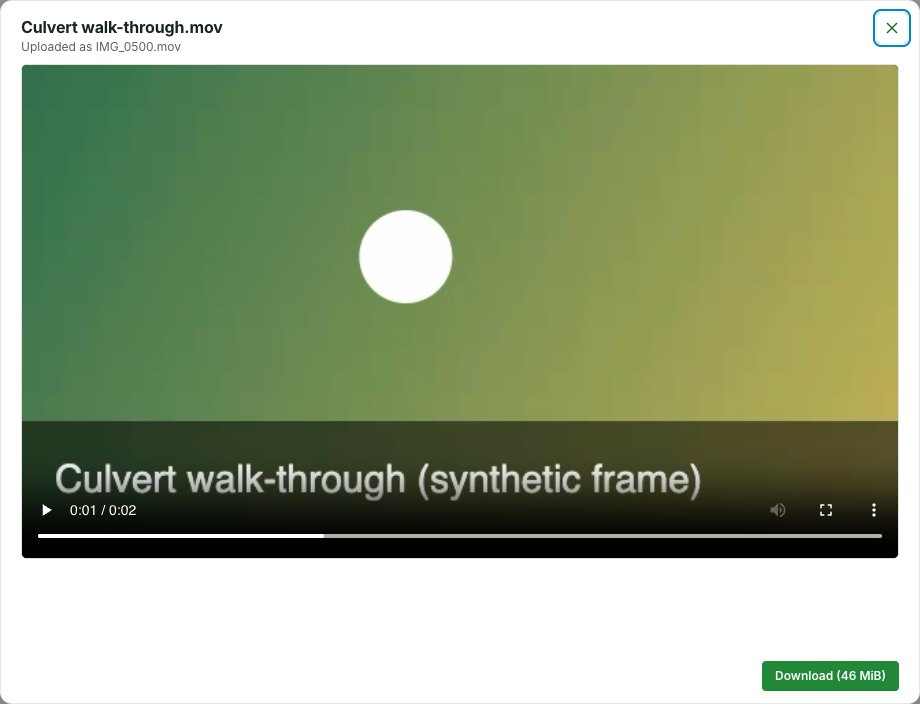
- Select the video's name in Files.
- The viewer opens with your browser's own player. Press play; the video does not start by itself. On a phone it plays in the viewer, not full screen, unless you choose full screen in the player.
- Select Download under the video to keep a copy on your device, as for a PDF.
The viewer plays a video only as far as your browser can decode it. Most phones and current browsers play an MP4 saved by a phone; if yours cannot play a file, the viewer says so and Download still works. You can start a thread on a video as on any file; see Conversations.
A file that is not a video, or a video the checks cannot read, is refused like any other file; see When a photo is refused. GISweaver identifies a video by its content, so renaming a file to end in .mp4 does not make it one. Videos are checked for their type and upload, and scanned for malware before they reach another organisation.
Related guides
- Projects — the project page and its Files list
- Uploads — every transfer and what became of it
- Settings and preferences — where the photo setting lives
- Preview a PDF or a photo — previews of PDFs and photos