Send a delivery by link
Who can do this
Owners, administrators, the branch's manager and the project's lead, on a plan that includes delivering. Your plan must include delivering releases, and orthophotos only when it includes raster views.
A link lets somebody with no GISweaver account open one published release of your project on a map, and download its files if you allow it, until a day you choose.
- Open Projects, choose the project and select the Access tab.
- Under Delivery links, select Send by link. The dialog opens. The same dialog opens from Send or share… in the project header.
- Choose the Release. The newest published release is selected.
- Choose how long the link works in Access lasts: 1, 3, 7, 14, 30, 60 or 90 days. It starts at 14.
- Add a Label (optional) and a Message (optional). The person who opens the link reads both as plain text, so write them for them.
- Tick Only one email address may open it if the link is for one person. Leave it unticked to copy the link and pass it on yourself. The Email address box appears.
- Type their Email address. They get the link by email, and a code each time they open it.
- Tick Include orthophotos to show the delivered orthophotos on the map. It is off unless you tick it.
-
Tick Allow original file downloads if the person may download the files. It is off unless you tick it.
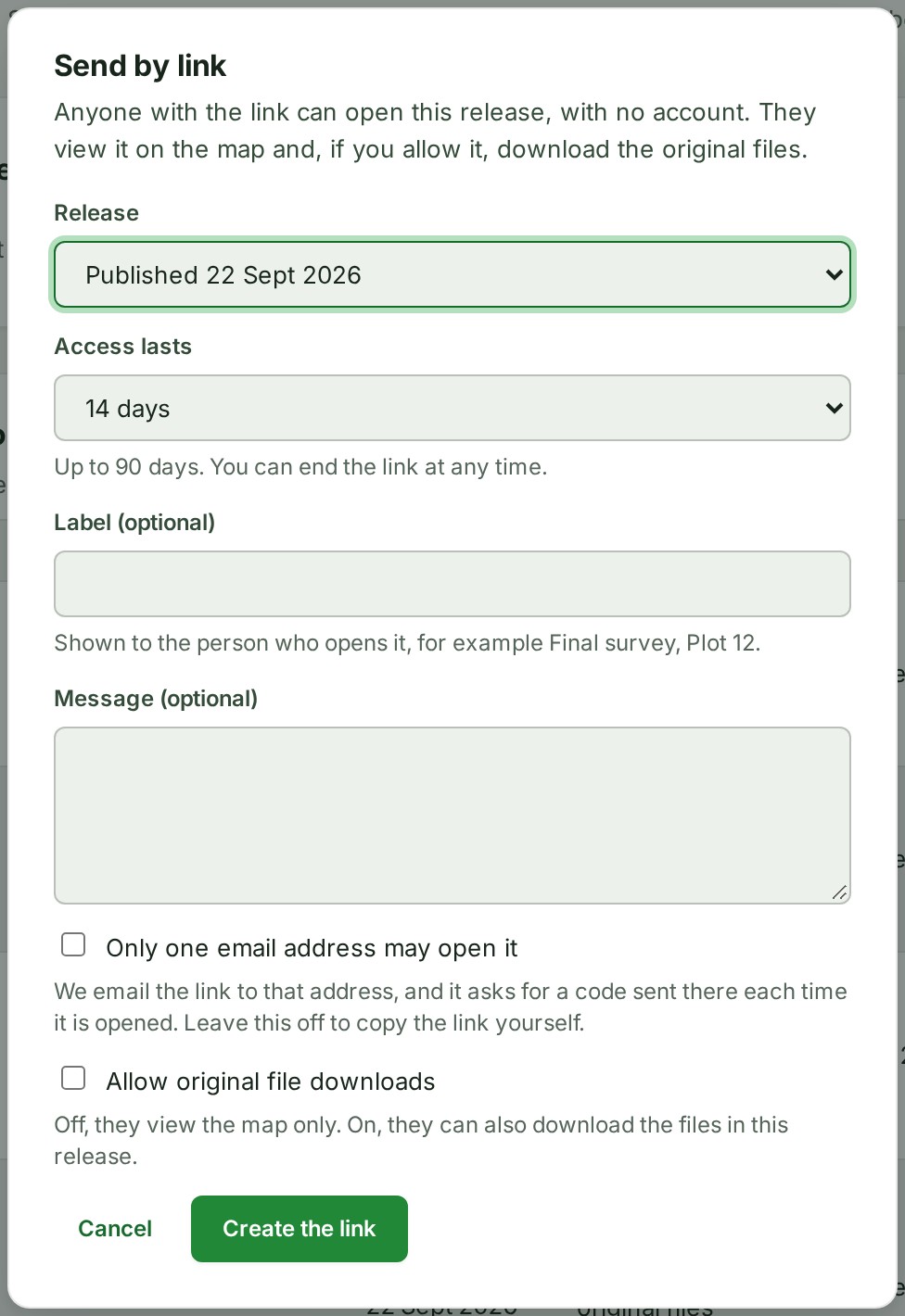
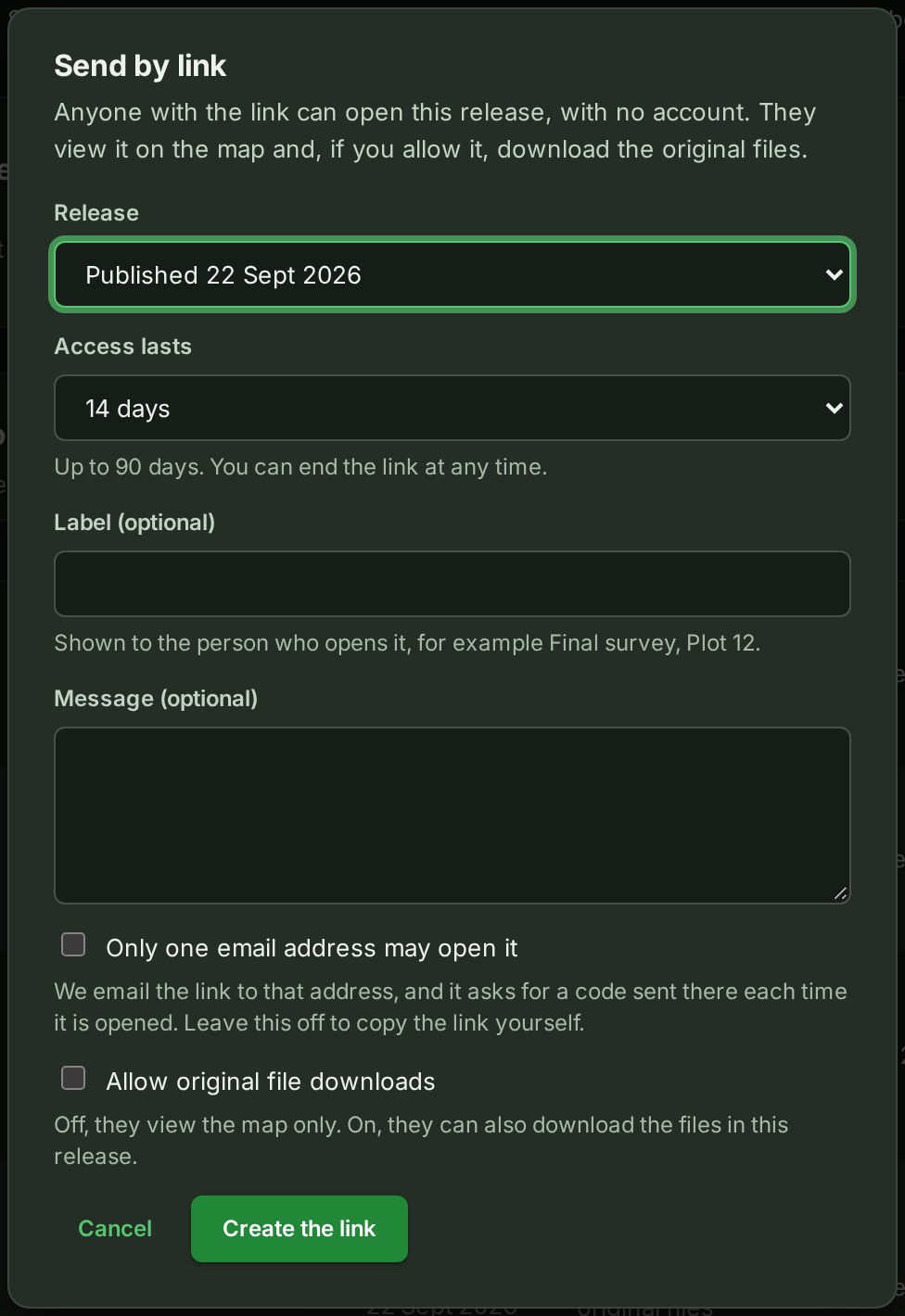
-
Select Create the link. The Your link is ready dialog opens.
-
Select Copy the link and send it to the person. This is the only time the address is shown.
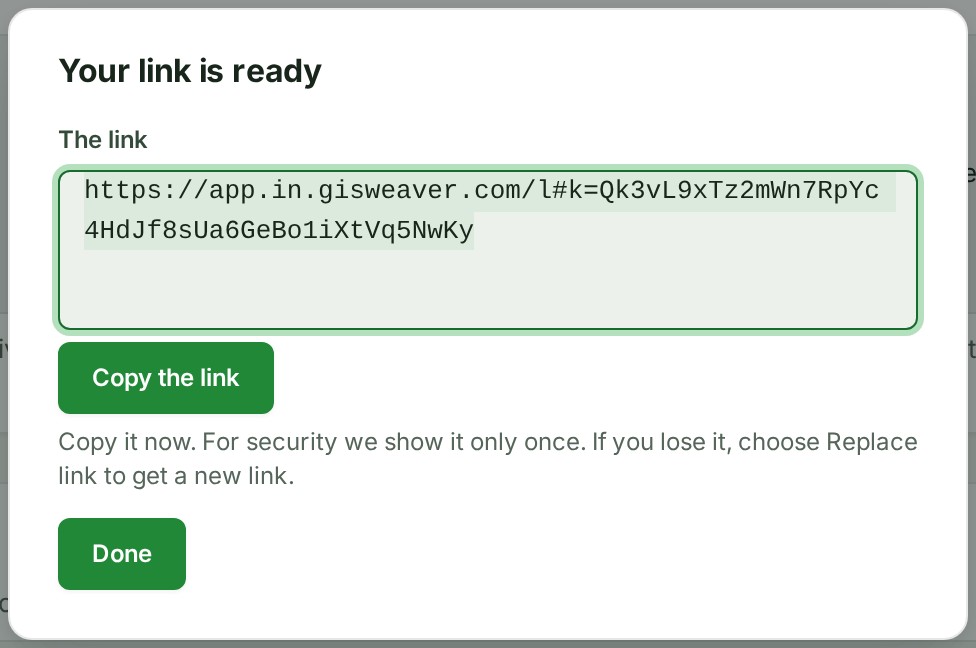
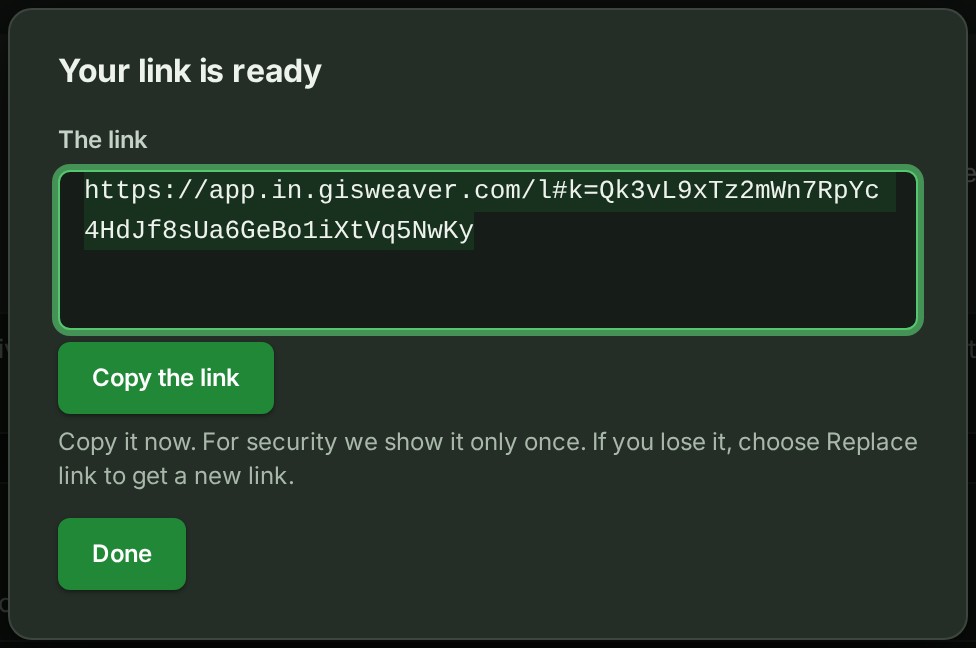
What happens next
The link is listed under Delivery links on the Access tab with its state and the day it ends, and the day, time and country of each opening are recorded for you; see See who opened a link. If you lose the address, choose Replace link to get a new one; see End or replace a link.
If something goes wrong
- Sending by link is switched off on this service at the moment. Send the delivery to an organisation instead. Links are not available just now. Use Share a read-only release or Deliver the final package from the Send or share… menu instead.
- Your organisation’s policy on sensitive downloads does not allow this. Turn off original downloads or orthophotos, or ask an admin. Your organisation has restricted what may leave it. Untick the option, or ask an Owner or Admin to change the policy.
- Enter a full email address. The address under Email address is not complete. Correct it, or untick Only one email address may open it.
- This project has no published release to send yet. Publish a release first.
- A bell notice says A delivery link lost its files because its creator lost access to this project. The map still opens. Send a new link.
- The person who made the link can no longer share the project, so its originals and orthophotos stopped.
- Owners and Admins are told once; selecting the notice opens the project.
- Send a new link from someone who can share it. A link also stops, and starts again when it is put right, under the one rule in How access to other organisations works.
Details
Nothing is copied to the person who opens the link, and you can end it at any time.
Who can open it
Anyone who holds the address can open the delivery until the link ends, unless you bound it to one address. Treat the address as you would the delivery itself: it can be forwarded. A one-address link is the safer choice for a delivery you do not want forwarded.
Which links keep their files
A link hands over the original files and orthophotos only while the person who made it can still share and read that project, and your organisation's policy on sensitive downloads allows it. If they are suspended, leave the organisation or are taken off the project, the link's map still opens but its originals and orthophotos stop. GISweaver then tells your organisation's owners and administrators once, in the bell: A delivery link lost its files because its creator lost access to this project. The map still opens. Send a new link. Selecting it opens the project. Send a new link from someone who can share it. A link also stops, and starts again when it is put right, under the one rule in How access to other organisations works.
What the person sees
They see the whole release on the map, titled with your project and the release, with the measuring tools you allowed and no tool that draws or saves. A point cloud or elevation grid in the release can always be looked at in 3D. Nothing they open is rewritten: ending the link closes the page they have open (see End or replace a link). They cannot comment; the page tells them to ask you to invite them, or to sign in. See Open a link someone sent you.
| Panel | What it shows |
|---|---|
| About this delivery | Who sent it, the release, its Fingerprint, the day the link ends and what the link allows. |
| Files | The release's file names, types and sizes, even when downloads are off. |
The Files panel lists no files if your organisation's policy holds the originals back, or the person who made the link can no longer share them. It offers downloads only when you ticked Allow original file downloads; otherwise it says downloads are not included.