Deleting files and projects
Delete a file from a project, delete it permanently, or delete or restore a whole project. Every deletion is recorded in your organisation’s audit trail with who did it, when, what it was and the comment you add.
Before you start
- A file that is still uploading, being checked or being processed cannot be deleted yet. Cancel the transfer, or wait a few minutes for the checks or processing to finish.
- A file kept with the project — a PDF, a photo or an archive — is deleted the same way as a map file, from its row in the project's Files list or in Console → Uploads.
- A deleted file stays in the project's Files list behind Show N deleted files, where it reads Deleted. Anyone who can upload to the project can choose Restore there while its stored copy is kept, and whoever may delete it permanently still has Delete permanently….
- GISweaver support working in your organisation cannot delete your files or projects.
Delete a file from a project
- Open the project's Files list, or Console → Uploads.
- On the file's row, open ⋯ and choose Delete….
- Optionally, add a comment saying why — for example "Uploaded to the wrong project". It is saved in the audit trail.
- Choose Delete from this project.
The file leaves the project's list and its counts, and no release you publish afterwards includes it. A release it was already published in is not changed, and the release's own record says the file was deleted from the project and on which day. Your client keeps full access to that release. For a file that was never in a published release, the dialog says so instead: nothing already delivered changes, and deleting it permanently means it cannot be restored.
To delete several files at once, tick them and choose Delete from this project in the bar that appears.
Restore a deleted file
Select Show N deleted files under the list, open ⋯ on the file's row and choose Restore. The file comes back to the project's list. It returns to the draft if that draft is still open; otherwise it returns as Not in a draft. A release already published is not changed. A file deleted permanently cannot be restored. Restoring is recorded in the audit trail. See Restore or permanently delete a file.
Delete a file permanently
An owner or an administrator sees this choice on any file. A project lead sees it only on a file they added themselves that has never been in a release; any other file is an owner's or an administrator's to delete permanently.
- On the file's row, open ⋯ and choose Delete…. For a file already deleted from the project, select Show N deleted files under the list first, then choose Delete permanently… in that file's menu.
- Optionally, add a comment.
- Select Delete permanently… and read the warning. It says the deletion cannot be undone and that clients can no longer download the file. Its storage is freed within the hour.
- Select Delete permanently to confirm.
From that moment nothing in GISweaver serves the file: not its download, its map layer, its preview or its place in a release's zip. The release record keeps the file's name, size and checksum and says it was removed and on which day. A client who opens a delivery of that release sees, in place of the file's download, "This file was deleted permanently on
Within the hour GISweaver removes the stored copy and your storage figure on Billing drops by the file's size. In the project's deleted files (Show N deleted files under the list) the row then reads Deleted · Storage freed, and the audit trail gains a row by GISweaver: "The storage of cadastre.las was freed: 11 MiB left your storage." A release's Download all counts only the files its zip still carries.
If the client still needs a corrected file, upload it and publish a new release.
Delete a project
Only an owner or an administrator can delete a project.
- Open the project, open ⋯ in its header and choose Delete project….
- Optionally, add a comment.
- Choose Delete project.
The project leaves the project list at once. For the restore period — 30 days unless Alonstech has set another, and the dialog says how long before you confirm — you can bring it back: open Projects, then the Recently deleted tab, and choose Restore. Each project there shows the last day it can be restored. It comes back as it was, in the same state. While it is under Recently deleted, everything you shared from it stops: your clients cannot open or download its grants, deliveries, delivery links or reviews, and all of them work again, as they were, if you restore it. Its files keep counting towards your storage.
When the restore period ends, GISweaver deletes the project permanently, with the same effect as deleting each of its files permanently — including removing their stored copies within the hour — and it can no longer be restored. The audit trail records that the restore period ended, and then that each file's storage was freed.
The restore-by date is fixed when you delete the project. If Alonstech later changes the restore period, a project you already deleted keeps its date.
To delete a project permanently at once, choose Delete permanently… in the same dialog, type the project's number, and choose Delete permanently. Its files' storage is freed within the hour.
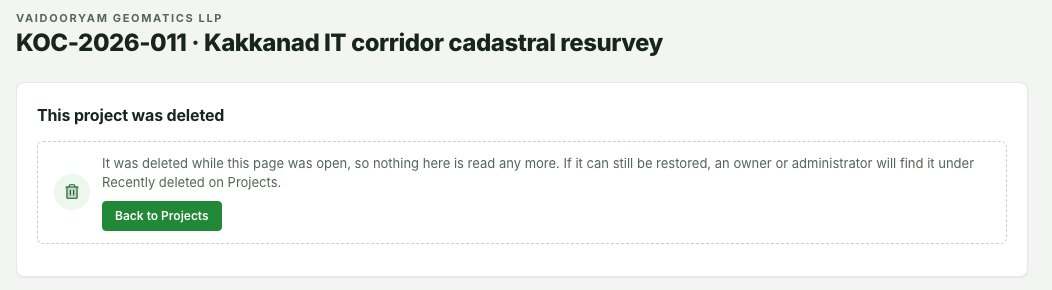
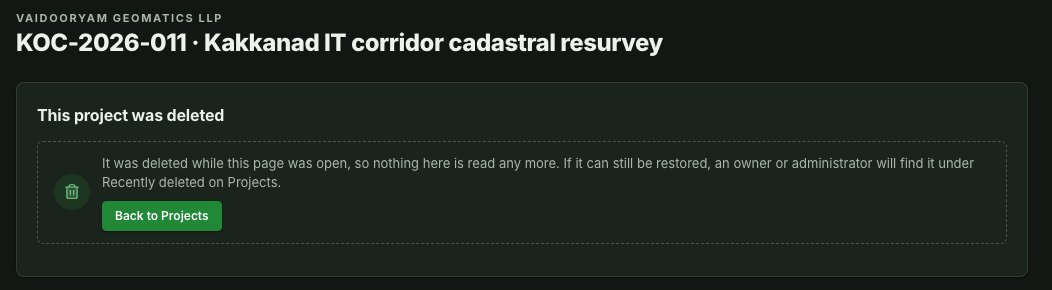
If someone deletes a project while you have its page open, the page stops updating and says This project was deleted, with Back to Projects. Nothing on the page is read again. If the project can still be restored, an owner or administrator finds it in the Recently deleted tab of Projects.
What each deletion changes
There are two kinds of deletion, and the difference is what your clients can still download.
| Delete from this project | Delete permanently | |
|---|---|---|
| The project's file list | The file leaves it at once | The file leaves it at once |
| Releases you publish later | Do not include the file | Do not include the file |
| Releases already published, and deliveries of them | Unchanged: your client can still download the file | The file is removed from them: your client can no longer download it |
| The stored copy, and your storage | Kept, and still counts towards your storage | Removed within the hour; your storage drops by the file's size |
| Who can do it | Anyone who can upload to the project | An owner or an administrator; a project lead, for a file they added themselves that was never in a release |
Deleting from the project keeps the stored copy. Deleting permanently removes it: the file as uploaded and everything GISweaver made from it — its map layers, 3D tiles and previews — in every release that holds it. The audit trail keeps the file's name, size and checksum as the record. To have everything else your organisation stores erased, the organisation owner asks for an erasure; see Terms and policies.
Read deletions in the audit trail
Open Console → Organisation → Organisation controls → Settings → Audit trail. Each deletion and each restore is one sentence naming the person, the file (with its size) or the project (with its number), whether it was deleted from the project or permanently, and your comment. Use it to answer "who removed this, and why?". Each permanently deleted file is followed by a row by GISweaver saying its storage was freed and how much.
Common problems
| Problem | What to do |
|---|---|
| Delete… is not in the menu | The file is still uploading, being checked or being processed. Wait, or cancel the transfer first. |
| Delete permanently is not offered | Owners and administrators can delete permanently; a project lead only a file they added themselves that has never been in a release. Ask an owner or an administrator. |
| The file was deleted by mistake | Open Show N deleted files and choose Restore on its row: it comes back to the list, and to the open draft it was in when that draft is still open. A file deleted from the project stays in its published releases either way. A permanent deletion cannot be undone; upload the file again and publish a new release. |
| Restore says the time has ended | The restore period has passed and the project is being deleted permanently. |
| Your storage has not dropped after a permanent deletion | The stored copy is removed within the hour. If the row still reads Deleted permanently rather than Storage freed after that, contact support. |
| Restore says the number is taken | Another project now uses the same number, and a number cannot be changed. Archive that project to free the number, then restore. |
Related: Projects and uploads, Uploads, Deliveries, Audit trail.