Rename a file
Who can do this
Anyone who may add files to the project (Owners, Admins, branch managers and members, project leads and contributors). Every plan.
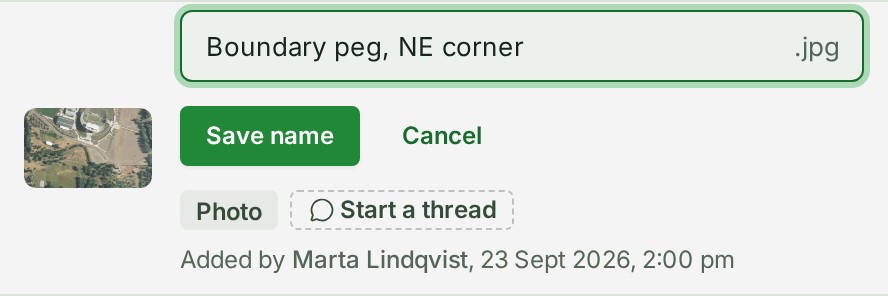
Rename a file that arrived as IMG_0412.jpg to something colleagues recognise, for example NE corner peg.jpg.
- Open Projects and choose the project.
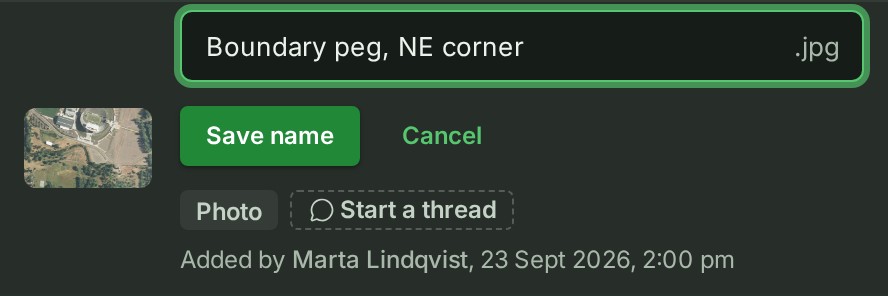
- In Files, open the ⋯ menu on the file's row and select Rename. The row's name becomes a box.
-
Type the new name. The file keeps its ending, so you type only the part before it.
-
Select Save name.
What happens next
GISweaver says Renamed to … and the row shows the new name, with the name it arrived under shown beneath it as Uploaded as IMG_0412.jpg. Downloads use the new name. The stored file does not change, and the rename is recorded in the organisation's audit trail.
If something goes wrong
| Message | What to do |
|---|---|
| Give the file a name. | The box is empty. Type a name. |
| A file name cannot contain a slash, a backslash or a line break. | Take those characters out. |
| A file name is at most 200 characters, with its ending. | Shorten it. |
| This file is in a published release and keeps the name it was delivered with. | A file that is only in a published release cannot be renamed. Kept files, and map files while the project is in Draft or Review, can. |
| The new name was not saved. Try again. | Select Save name again in a moment. |
More
- If Rename is not in the menu, the file cannot be renamed: see What can be renamed.
- Other words are in the glossary.