Public profile
Your organisation can publish one optional public profile: a page about the organisation that anyone can read without a GISweaver account, listed in the public provider directory at gisweaver.com/providers. Nothing is public until you publish it.
Open the editor
- Open Console → Organisation → Organisation controls → Public profile. If the Organisation section is closed, select it to open it.
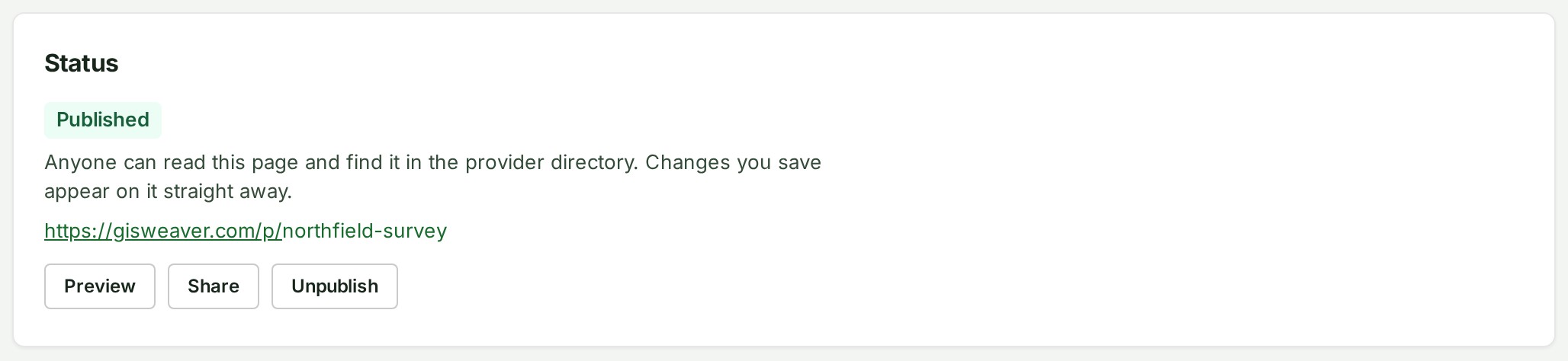
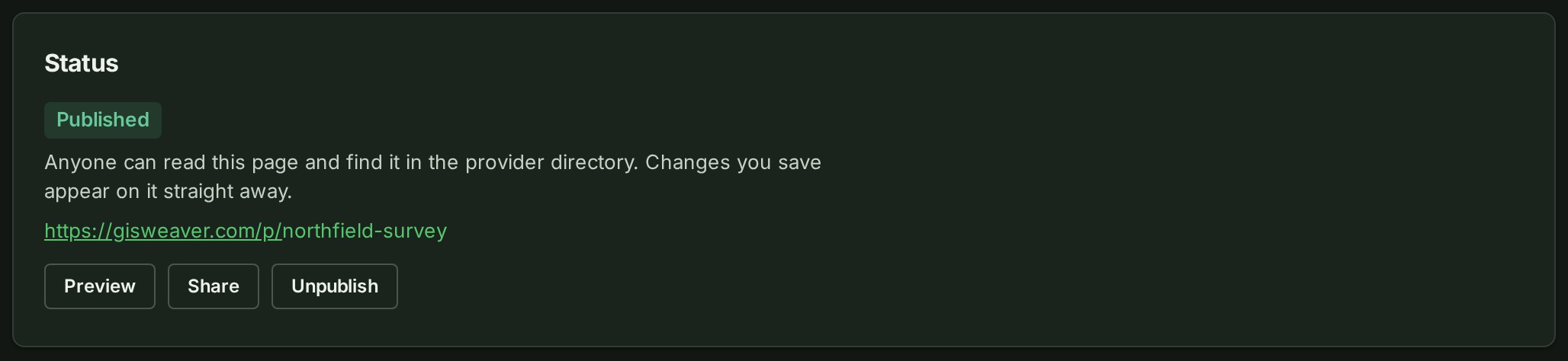
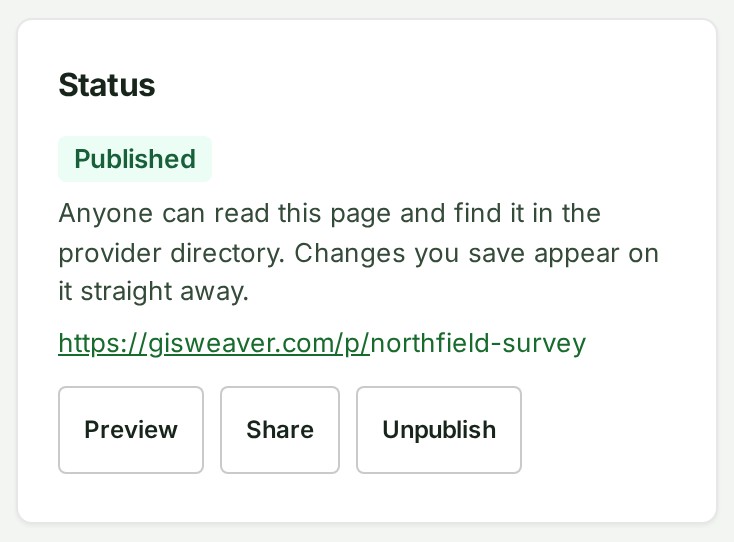
- Review its four parts: Status (not started, not published, published or hidden, with Publish/Unpublish and Preview), Details, Photo, and Web address.
Write the details
Only the Name is required. Everything else is optional:
| Field | What it is for | Limit |
|---|---|---|
| Name | The name clients know you by | 120 characters |
| Kind of organisation | Survey provider, Engineering firm, Real estate company, Construction company, Government body, Utility, Consultant, or Other with your own short label | Survey provider by default; 40 characters for Other's label |
| Tagline | One line under the name | 120 characters |
| About | A description of your organisation | 10,000 characters |
| Services, Expertise, Equipment | Short lists shown as tags | 20 items each, 40 characters per item |
| Where you work | Areas, regions or a radius, in your own words | 200 characters |
| Office address | Your office's address | 300 characters |
| Location on the map | A latitude and a longitude in decimal degrees; the directory uses it to list the nearest providers first | Both or neither |
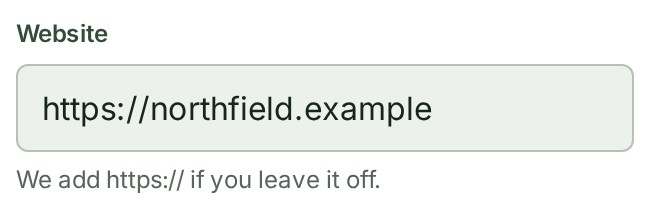
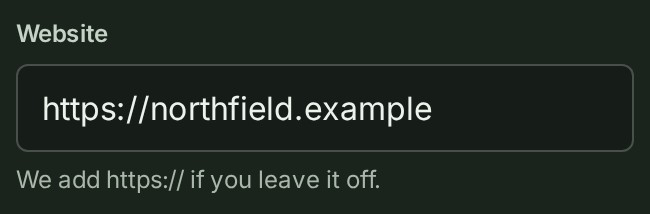
| Website, contact email, contact phone | How a client reaches you | Up to 5 phone numbers, 30 characters each |
| Availability | Open for work, limited availability or fully booked, with an optional one-sentence note | 200 characters for the note |
Contact phone is a list, like Services: type a number and press Enter (or choose Add) to add it, and remove one with its ×. Every number you add is shown on the public page and, for the first one, on your card in the directory.
For Website, you can enter example.com without the start of the address. GISweaver adds https:// when you save it.


Your kind of organisation decides what the top of your public page says instead of a fixed "Survey provider" — clients who search the directory can also filter to one kind. Choosing Other asks for a short label of your own, up to 40 characters.
About has a formatting toolbar (Bold, Italic, Code, Bulleted list, Quote, Link) above the box, always visible — select some words and press a button to mark them, the way any other editor works. You can also type Markdown. Images and HTML are not shown: they appear as the text you typed. Links on the public page open in a new tab and are marked so search engines do not treat them as endorsed by GISweaver.
The first Save details creates the profile and makes its web address from the name, for example gisweaver.com/p/example-survey-firm. If another organisation already uses that address, a number is added to the end. The profile stays unpublished.
Details you have typed stay in the form when you change the photo or web address, or unpublish the page. These actions save separately; they do not save the Details form. Preview and Share show the saved details. While Details has unsaved changes, Publish waits until you save them.
You can keep typing while a save is running; anything typed after you select Save details stays unsaved in the form until the next save.
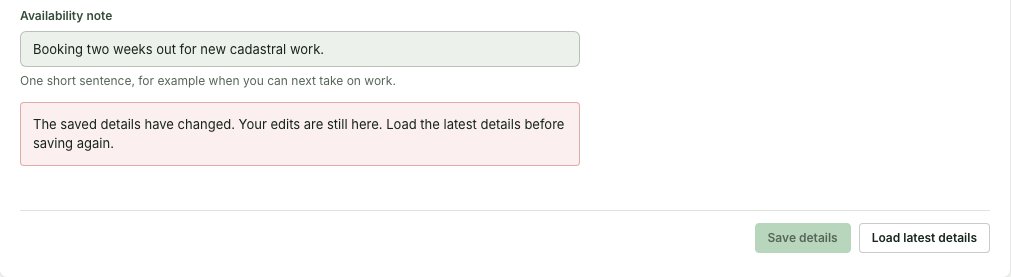
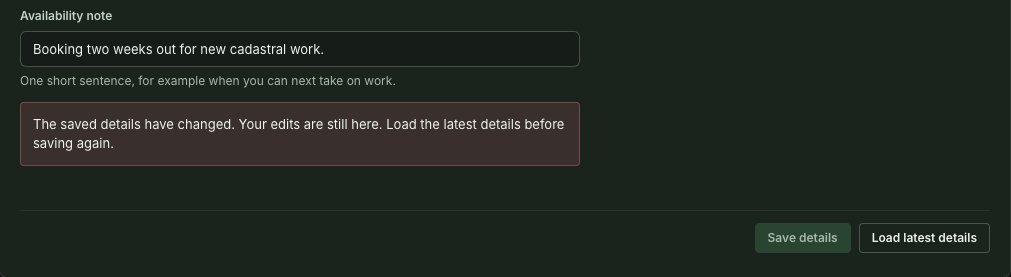
If your save is refused, because another owner or administrator saved different details first or because the editor was left open during a GISweaver update:
- Your text stays in the form. Copy anything you want to keep.
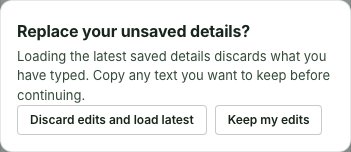
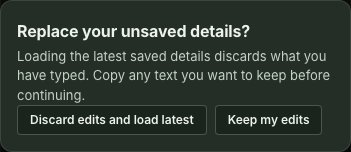
- Select Load latest details, beside Save details. It asks before replacing your unsaved text: choose Keep my edits to go back to the draft, or Discard edits and load latest.
- If loading fails, the message appears in the dialog and your draft stays as it was. Try again, or choose Keep my edits.
- Read the latest saved details, add your changes again and select Save details.
Once a profile is published, everything you save is public straight away. There is no separate draft of a published profile. If you want to make larger changes privately, unpublish first, edit and preview, then publish again.
Preview and publish
Preview opens the page exactly as the public will see it, in a new tab, whether or not it is published. Only people signed in to your organisation can open the preview.
Share is available only while your profile is public. It is unavailable for an unpublished or hidden page, so clients are not sent a link they cannot open. Beside Preview, it offers your public page through your device's own share sheet where one is available; otherwise it copies the address and shows Link copied. The public page itself has the same Share button on its top card.
Publish asks you to confirm this statement before the page goes public:
I confirm that I am authorised to publish this profile for my organisation, that what it says is accurate and lawful, and that GISweaver does not check or verify it.
Tick I confirm the statement above, then choose Publish now. Your confirmation is recorded in the organisation's audit trail. You confirm it again each time you publish.
Unpublish takes the page off the public web and out of the directory at once. Anyone who opens its address then sees that there is no profile there.
Every public profile page, and the directory, says: “GISweaver has not verified this profile. The organisation that published it is responsible for what it says.” See Section 3.6 of the Terms of Service.
Why this is so
Every public profile's address has the same shape — gisweaver.com/p/ followed by your
organisation's web-address name, for example gisweaver.com/p/example-survey-firm. The
console's Status line, the Share button and link previews all use that address; a link
shared earlier on another GISweaver address, such as app.in.gisweaver.com/p/, still
forwards to the same page. Only the organisation's owner and administrators can edit, publish
or unpublish the profile — other members do not see it in Settings.
Add a photo
The public page shows its photo as a rounded square. Save the profile first, then:
- Under Photo, select Choose a picture (or Change picture), and pick a PNG, JPEG or WebP image up to 40 MB; a phone photograph is fine, since only the part you keep is sent.
- In Position the profile photo, drag the picture inside the rounded-square frame, and zoom with the slider, the − and + buttons (Zoom out and Zoom in), a pinch or the mouse wheel. The arrow keys move it and
+and−zoom. - Select Save. Only what is inside the frame is used; Cancel changes nothing.
The saved picture is resized to at most 512 pixels on its long side and re-encoded as a compressed JPEG (or PNG if it has transparency), and any camera information in the file — including where a photograph was taken — is removed, so it stays a small download wherever it is shown. A second, smaller 128-pixel version is made from the same picture for your card in the provider directory. The photo appears at the top of the page and in link previews on messaging apps and social networks. Remove takes both away. The editor is the same one your own picture uses: see Change your picture.
Change the web address
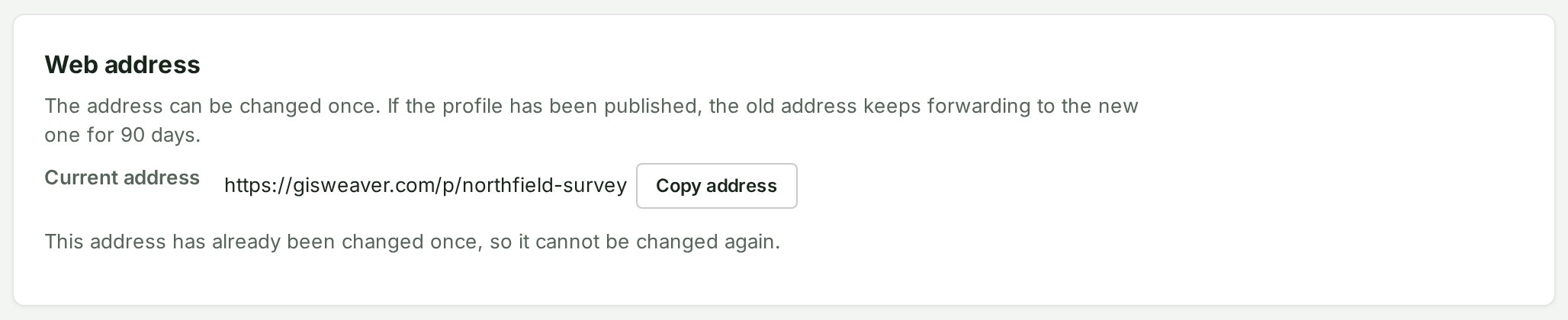
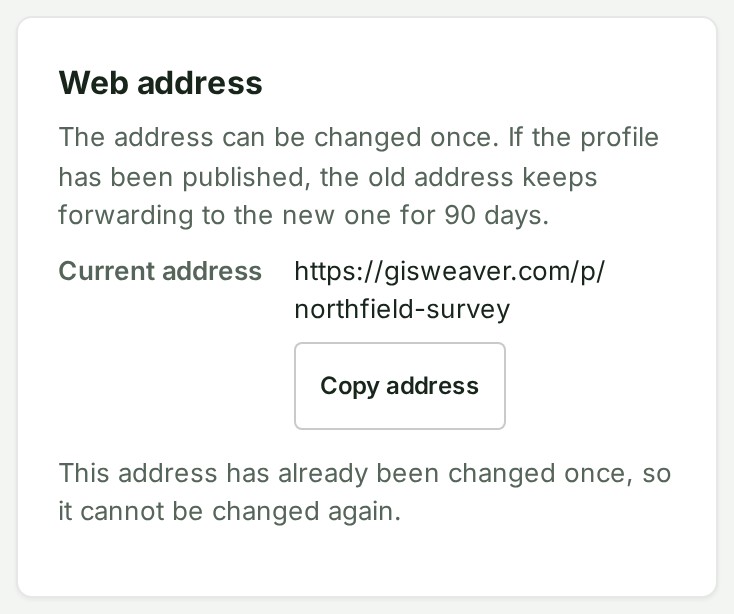
Under Web address, enter a new address ending: 3 to 60 lower-case letters, digits and single hyphens. You can change the address once. If the profile has been published, the old address keeps forwarding to the new one for 90 days, and no other organisation can take it during that time. After that the old address stops working.
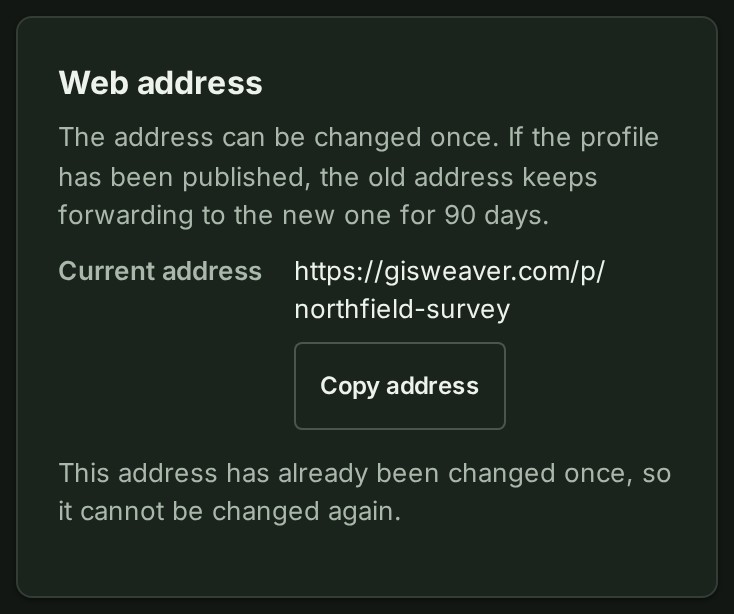
A Copy address button sits beside the current address, so you can copy it without selecting the text by hand. The copied address opens for visitors only while the profile is public. Once you have used your one change, the section stops offering the field and says instead that the address has been changed once, so it cannot be changed again.
Reports and hidden pages
Every public profile page has a “Report this page” link. Visitors can report a page as inaccurate, offensive, explicit, impersonating someone, or for another reason. Reports go to GISweaver staff. Your organisation is never shown who reported the page or what they wrote.
What you may see under Status:
| Status | What happened | What to do |
|---|---|---|
| Hidden while reports are reviewed | Visitors from three different places reported the page within a day, so it was hidden automatically until GISweaver staff look at the reports. | Nothing is required. If staff find nothing to act on, the page is shown again. |
| Hidden by GISweaver | GISweaver staff hid the page after a report. You cannot publish it until they restore it. | Select Help and ask support. |
| Publishing turned off | GISweaver staff turned off publishing for your organisation after a report. The page is unpublished. You can still edit the details. | Select Help and ask support. |
While your organisation is suspended or closed, its public profile is not shown or listed, and an owner or administrator can still unpublish it. It is still shown while the workspace is frozen for non-payment.
Hiding a page, turning off publishing and restoring are recorded in your organisation's audit trail, without any detail of the reports. See Audit trail.
When the organisation is erased
If your organisation is erased, its public profile, its forwarding addresses and every report about it are deleted with it.