Refer to a file in a message
Who can do this
Anyone in your organisation who can write in the project's conversation Every plan.
A note or comment in a project's conversation can name one of the project's files, such as a photo, a PDF or a map file, so whoever reads it can open the file from the words.
-
In the project's Project notes, or in a thread's reply box, write your note or comment.
The words are in the box.
-
Type
#and the start of the file's name.A list of the project's files opens, narrowing as you type.
-
Select the file from the list. Each file shows its icon and its kind, such as Photo, PDF or Map file.
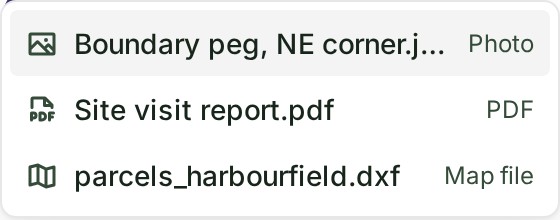
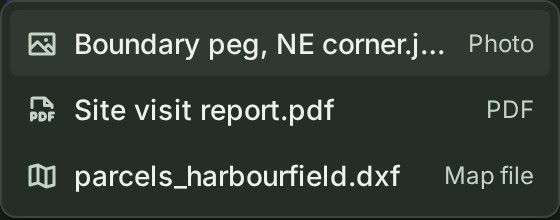
The file becomes a chip in the box.
-
Select Send.
The note or comment shows the chip with the file's icon and its name.
What happens next
Select the chip to open the file: a photo or a PDF opens in the gallery with its threads beside it, and any other file opens its Threads beside the Files list.
Naming a file tells nobody. To ask a colleague to look at it, mention them as well: see Ask a colleague for something.
If something goes wrong
- No file in this project is called that. Check the name, or the file has been deleted; deleted files are not offered.
Details
- Type
#after a space or at the start of a line. A#in the middle of a word, as in C#, stays a plain character and opens no list. - The chip shows the file's name as the project holds it now, so a file you rename later reads under its new name.
- If the file is deleted later, the chip shows its name struck through with the word deleted, and there is nothing to open.
- If you cannot read the project's files, a chip shows only the name it was written with and does not open.
- Messages in Messages cannot name a project's files with
#. If your organisation has files in Messages, you can attach a file there instead: see Send a file.
Next: Discuss a file