Follow an upload
Who can do this
Owners, administrators, billing managers and auditors. Anyone else follows a project's own files in its Files list. Every plan.
The Uploads page lists every file travelling into any project of your organisation, and what became of it.
-
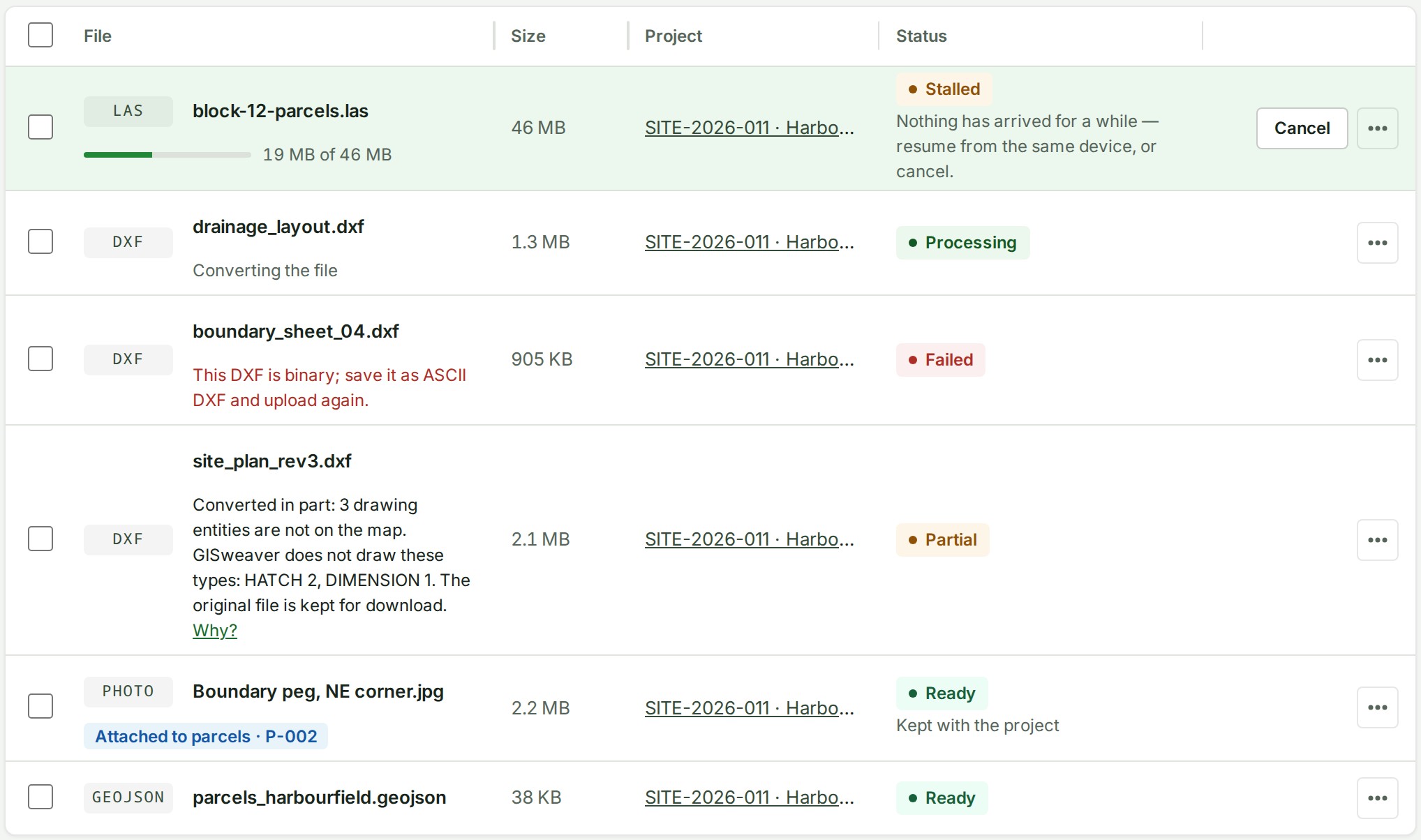
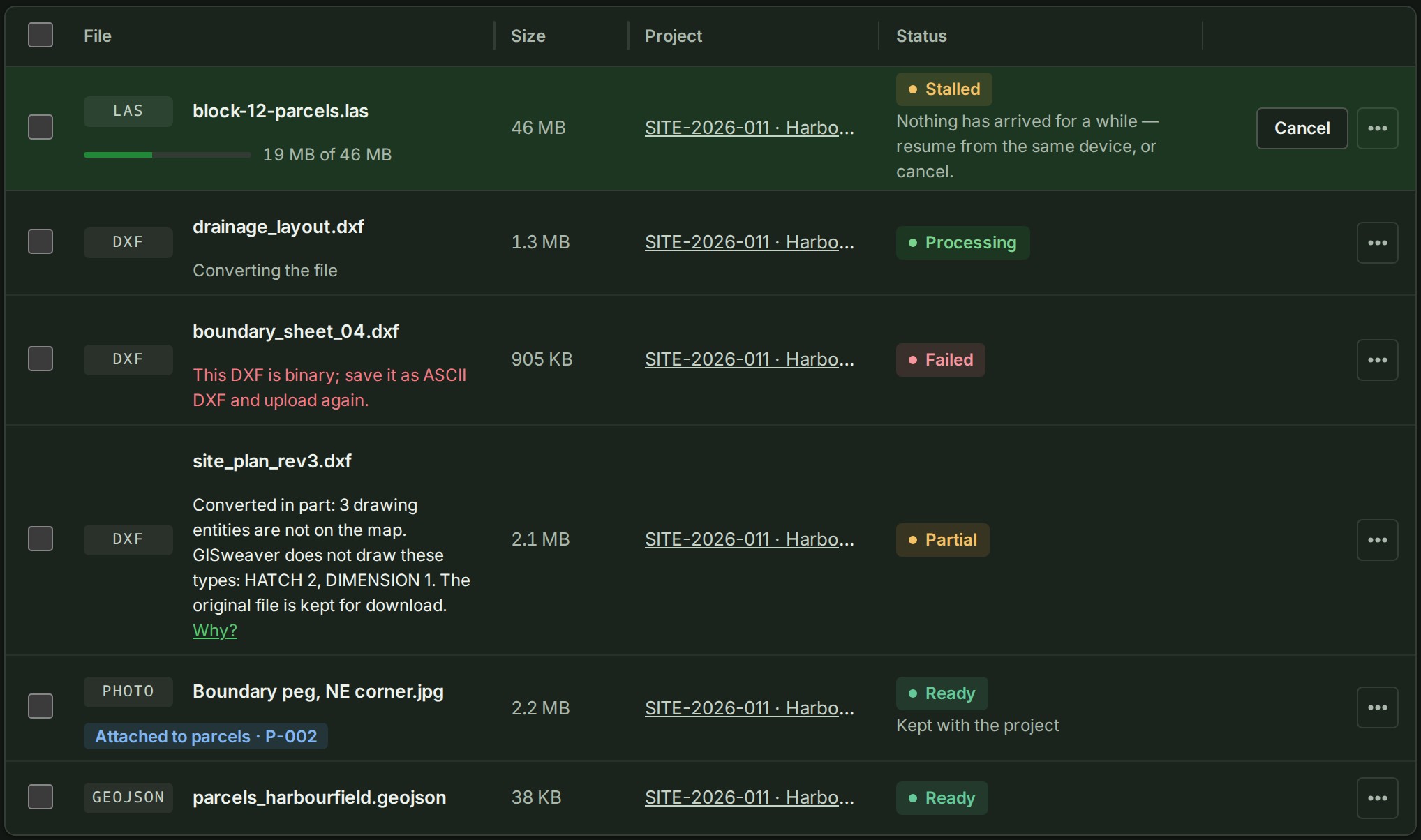
Open Uploads. A file that is uploading right now is pinned at the top, with how much has arrived; everything else follows, newest first.
The page reads Uploads with a row for each file.
-
Read each file's Status, and the line under its name, which says what it is doing now. A file added from a feature on the map reads Attached to that feature under its name.
Every row shows a status and, under the name, what the file is doing now.
-
To find one file, type its name, who sent it, or its project's number or name in the search box. The list narrows to matches among every upload in the organisation, not only the ones on screen.
Only files that match are listed.
-
To see only some files, choose Show: All, In progress, Needs attention or Ready. The list shows only those files.
The foot of the list says how many files are shown.
-
Select a file's name for its details: its project, how far it got, its checks and its support reference. Open the project takes you to the project it belongs to.
The file's details open, with Open the project among them.
What happens next
A file that reads Waiting with Uploaded. Waiting for your other files to be processed has arrived whole. It waits for your other files to finish processing; keep this tab open, and you can select Cancel while it waits.
The list reads itself again every few seconds while any file is moving, and when you come back to the tab. When nothing has moved for a minute, a quiet line above it says when it was last read, for example Updated 3 min ago; select Refresh, beside Add files at the top of the page, to read it now.


If something goes wrong
- A line above the list reads, for example, 2 files need attention: and names them. Select a name to open that file. See Fix a file that stopped.
- A file reads Stalled with Nothing has arrived for a while — resume from the same device, or cancel. Its transfer stopped part-way; see Resume an interrupted upload.
- Only a deleted file matches “…”. Show it below. The file you searched for was deleted from its project; select Show 1 deleted file under the list to see it.
- Could not refresh. The list could not be read just now. It keeps what it had and keeps trying; once what it shows is a minute old, the line also says when it was last read.
- Only Owners, Admins, Billing managers and Auditors see every upload. You see uploads to projects you can upload to. Ask one of them for more. Your role can neither see every project's uploads nor upload to any project. Follow your files in each project's Files list instead.
Details
The statuses
Each status, and what it means, is on Supported files and limits, with what to do about a file that is Original only.
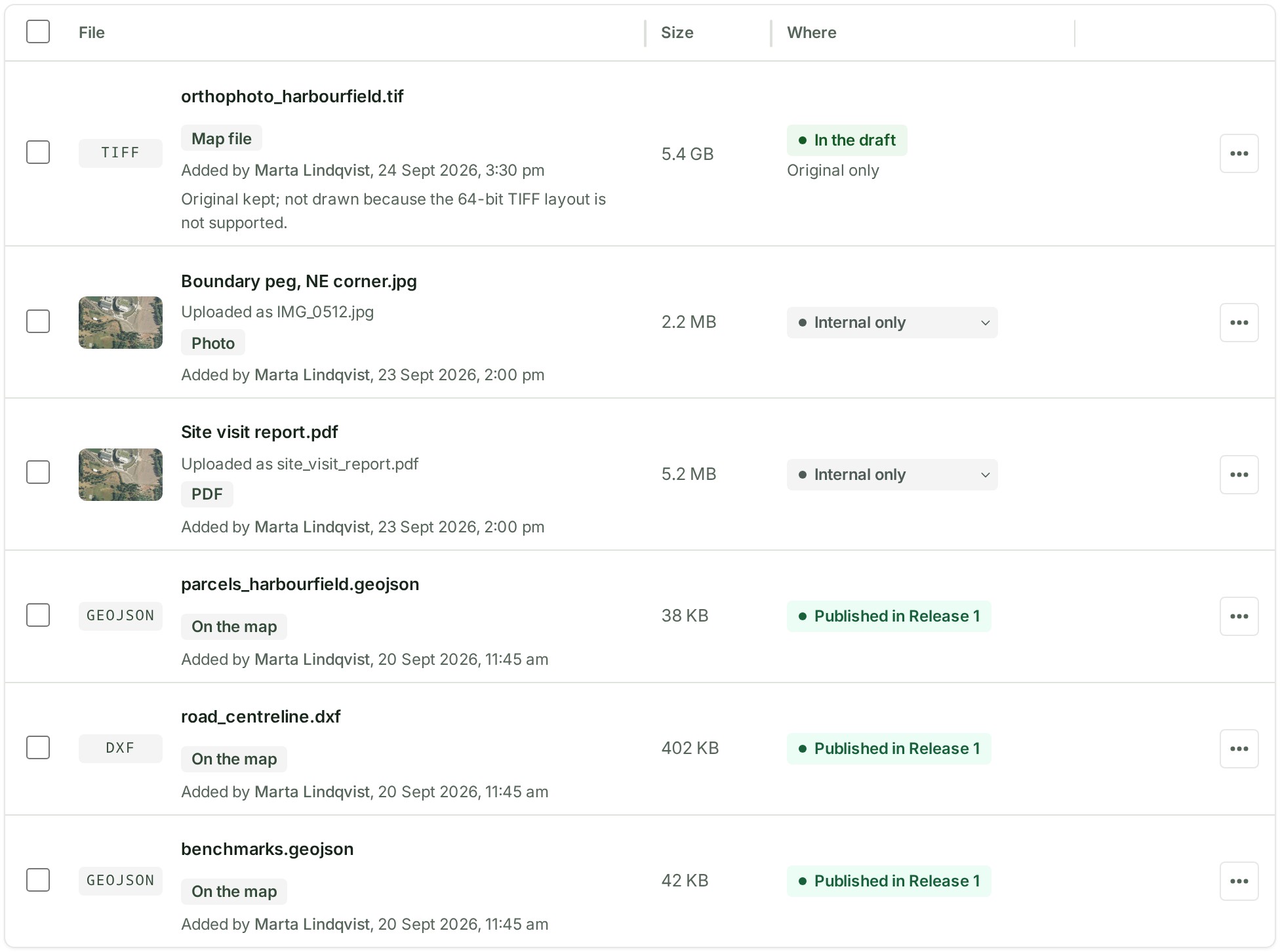
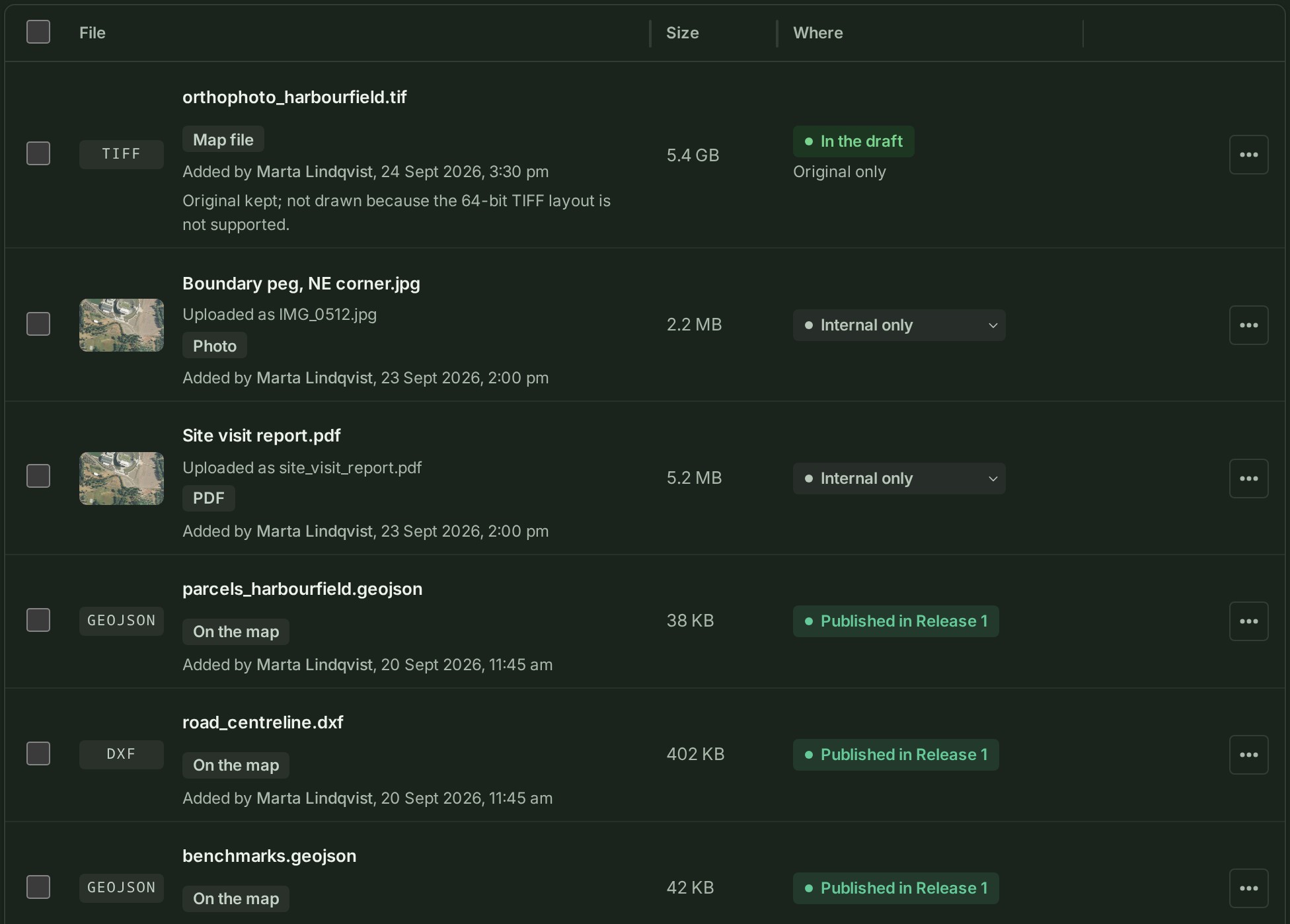
Uploads in progress and the month's allowance
The lines above the search box count three things.
| Line | What it counts |
|---|---|
| Files, for example 1 file in your organisation | The files your organisation holds or is receiving, not counting deleted files, cancelled or expired transfers, or refused files. It goes up by one as soon as a file you send starts arriving. |
| Uploads in progress, for example 3 files in your organisation · 1 upload in progress · [limit] can run at once | Added to the first line while files are on their way: how many are in progress, and how many can run at once. |
| Uploads this month, for example 4 of [limit] uploads this month · refills on … | The month's uploads against your plan, or All [limit] uploads this month are used when none are left. |
Sorting and older files
- Sort by orders the list by Newest first, Name, Size or Status, and is remembered for next time.
- The list shows the newest 100 files, after everything still in progress; Show older at its foot loads the next 100.
- The line at the foot says how many files are shown and why any are not. A deleted project's files are not listed.
While a file is uploading
A small chip at the top of every screen, the map and a phone included, shows the file's name (or how many files), how far it has got and Cancel; select it to open the project's uploads. Your browser asks before you close a tab that is still sending a file.
Words on this page: a kept file is a photo, PDF, video or archive kept with the project as it came. Other words are in the glossary.