Take site photos on a phone
Who can do this
Anyone who may add files to the project (owners, administrators, branch managers and members, project leads and contributors). Every plan. Your plan's largest file applies to a photo as to any other file.
Add a site photo from your phone to a project's Files list, where any colleague can open it, see when and where it was taken, and discuss it.
-
On your phone, open Uploads and select Add files, then choose the project.
The project opens with its Files list.
-
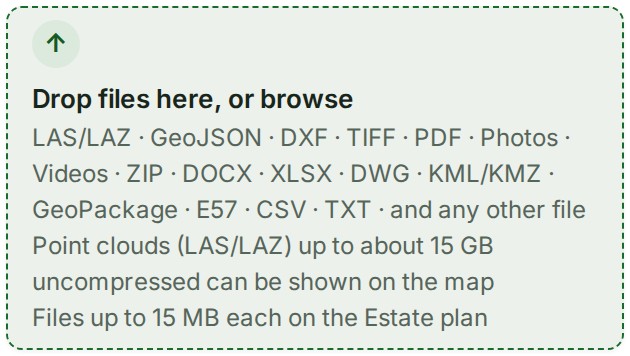
Tap the strip Drop files here, or browse.
Your phone offers its camera and your photo library.
-
Choose Take Photo, or choose photos from your library.
Each photo starts to upload. Its row moves from its progress, to Checking, to its place in the list as Photo and Internal only.
What happens next
The photo shows as a small picture beside its name. Tap the name to open it full screen, with when and where it was taken, for example Taken 20 Sept 2026, 10:15 am at 12.345678 N, 23.456789 E, and Download with the photo's size. Swipe to move between the project's photos and PDFs.
If something goes wrong
- The photo's row reads Refused: the file is damaged, is not the kind of file its name says, or the picture is larger than 150 megapixels. Check that it opens on the phone, or export it at a smaller size, and add it again.
- The photo is refused as a plan limit: it is over your plan's largest file, or the notice reads You have used up your plan’s uploads this month. See Compare all features in Billing.
- The photo shows No time or place recorded by the camera. The camera did not record a position, or recorded the time without its time zone. See What GISweaver keeps from a site photo.
Details
Which photos are taken
| Photo | What GISweaver does with it |
|---|---|
| HEIC or HEIF, an iPhone's default | Made a JPEG and turned the right way up, because most browsers cannot show one |
| JPEG | Kept, or compressed (your organisation's photo setting decides) |
| PNG | Kept, or compressed to a JPEG |
| WebP, often what a chat app saves | Made a JPEG |
An iPhone photo added as IMG_0412.HEIC downloads as IMG_0412.jpg, because that is what is stored.
The name a photo is given
A photo that arrives under a long code is renamed by when it was taken, such as Photo, 28 Sep 2026, 14:35 IST.jpg (IST is India time, UTC+5:30); see Rename a file. A photo with no recorded time is named by when it was uploaded.
Photos and survey files together
You can choose photos and survey files in one go. GISweaver files each by what it is: survey files join the draft, photos are kept with the project.
On a computer
Drop the photos on the same strip, or use Upload on the project's map. See Add files to a project.
Words on this page: the draft is the working copy of the survey you check before publishing; a kept file is a photo, PDF, video or archive kept with the project as it came. Other words are in the glossary.