Write in a project's conversation
Who can do this
Anyone in your organisation who can open the project, except the auditor, who reads it Every plan.
Write a note in a project's Project notes, where the people in your organisation who can open the project read it beside the files and the map.
-
Open Projects and open the project.
The project page opens.
-
Find Project notes under Files. On a phone, select the Notes tab at the top of the project.
The notes so far show, with a box under the latest one.
-
Write in the box under the latest note.
The words are in the box.


-
To add an emoji, select Add emoji in the row under the box, then choose one. It goes where the cursor was.
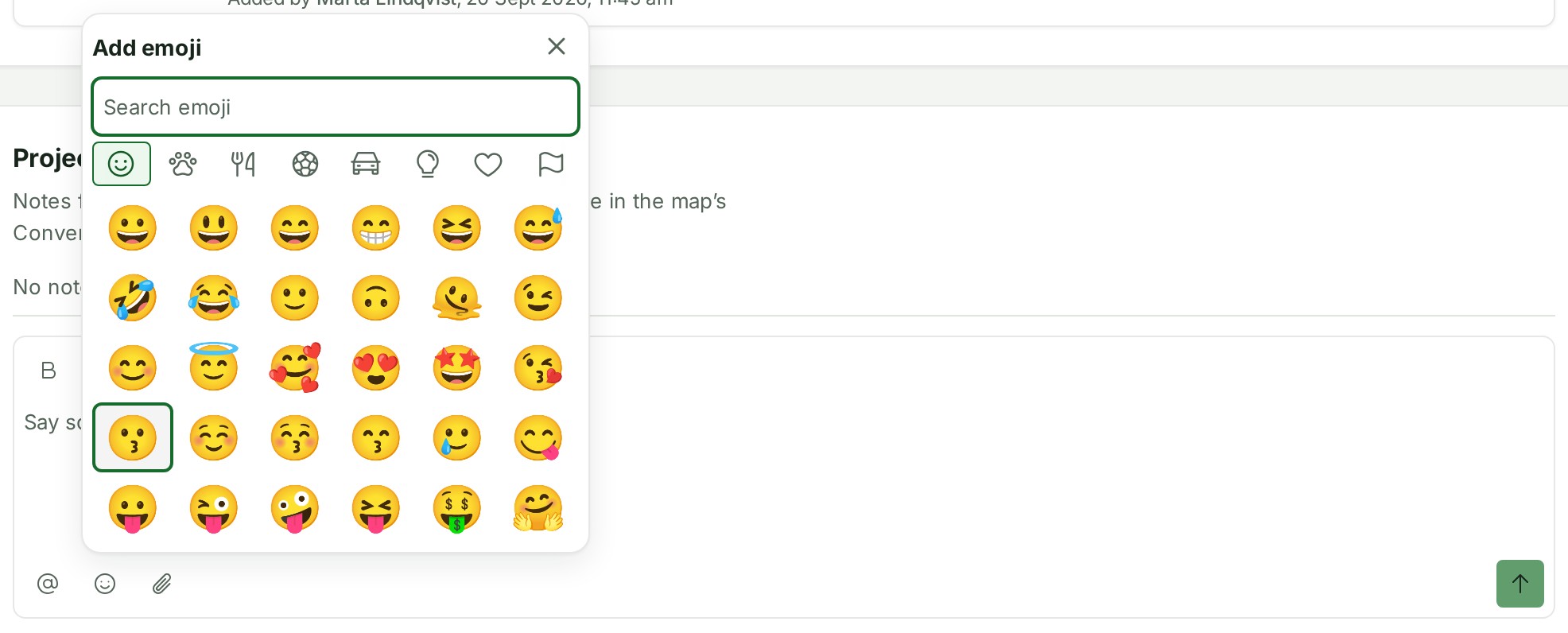
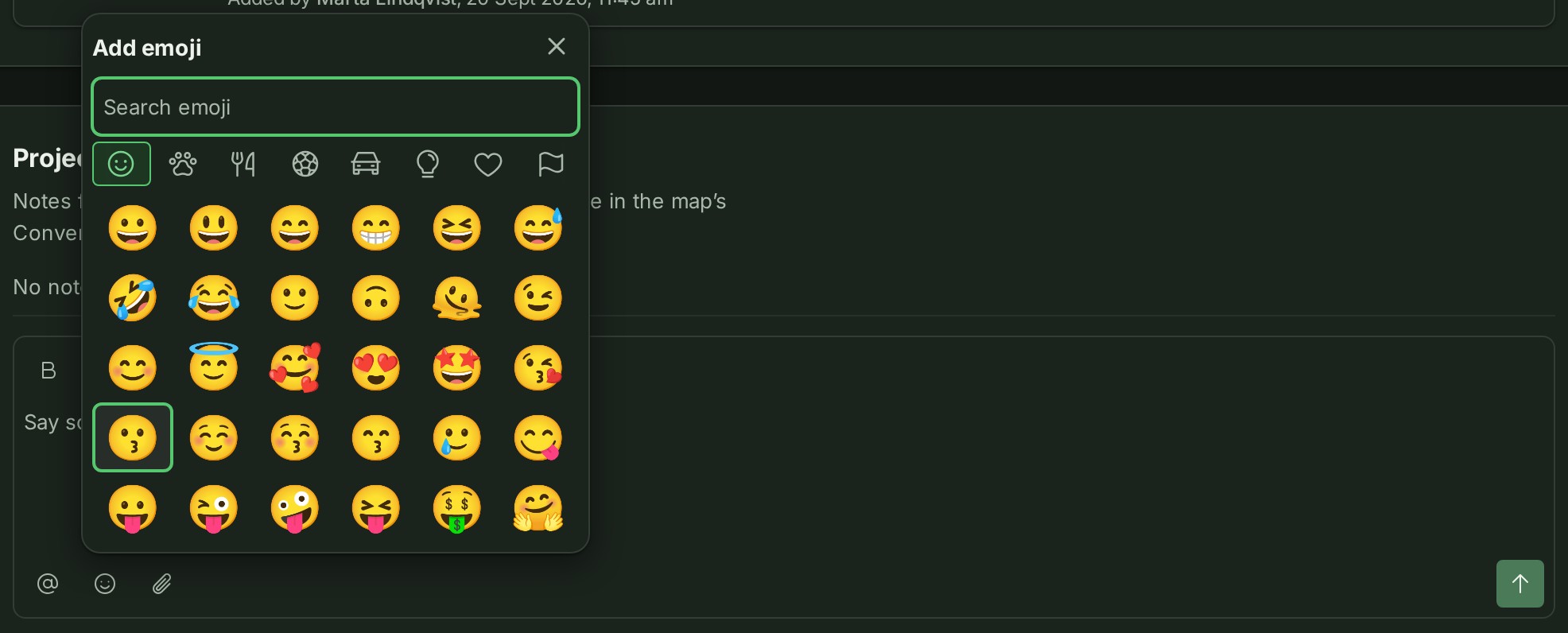
You can also type a colon and the first letters of its name, such as
:thumbsu: see Format a message. -
To add a file, select Attach a file (the paperclip) and choose it on your device.
The file's name and progress show in the page header, with a Cancel control. When it is ready, a file chip appears in the box.


-
Press Enter, or select Send. On a phone or a tablet, Enter starts a new line and Send sends.
Your note appears at the foot of the conversation, with your picture, name and time.
What happens next
Everyone in your organisation who can open the project can read your note, and colleagues who have the project open see it arrive. Nobody is told unless you mention them: see Mention a colleague. Your client reads a thread only when you show it to them: see Mark a thread for your client.
A file you attached shows in the note as a chip for the file.
A photo shows in the note as a small picture beside its name. Select it to open the photo over the page, and close it to come back to the note. Any other file's chip opens the file in Files.


An object's link that you copied in the map and pasted into a note stays a link. Select it to open the map at that object, on the project page or in the thread.


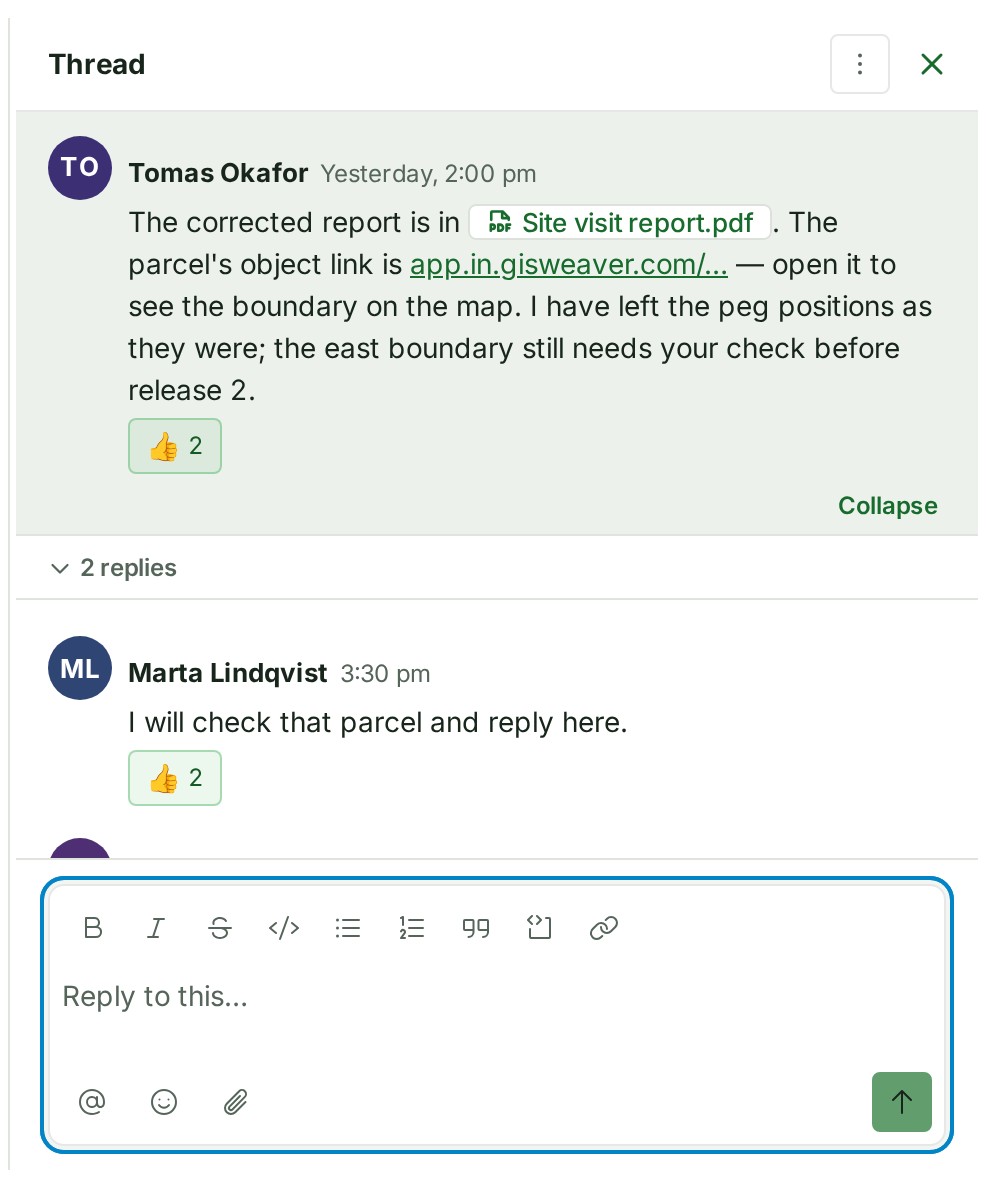
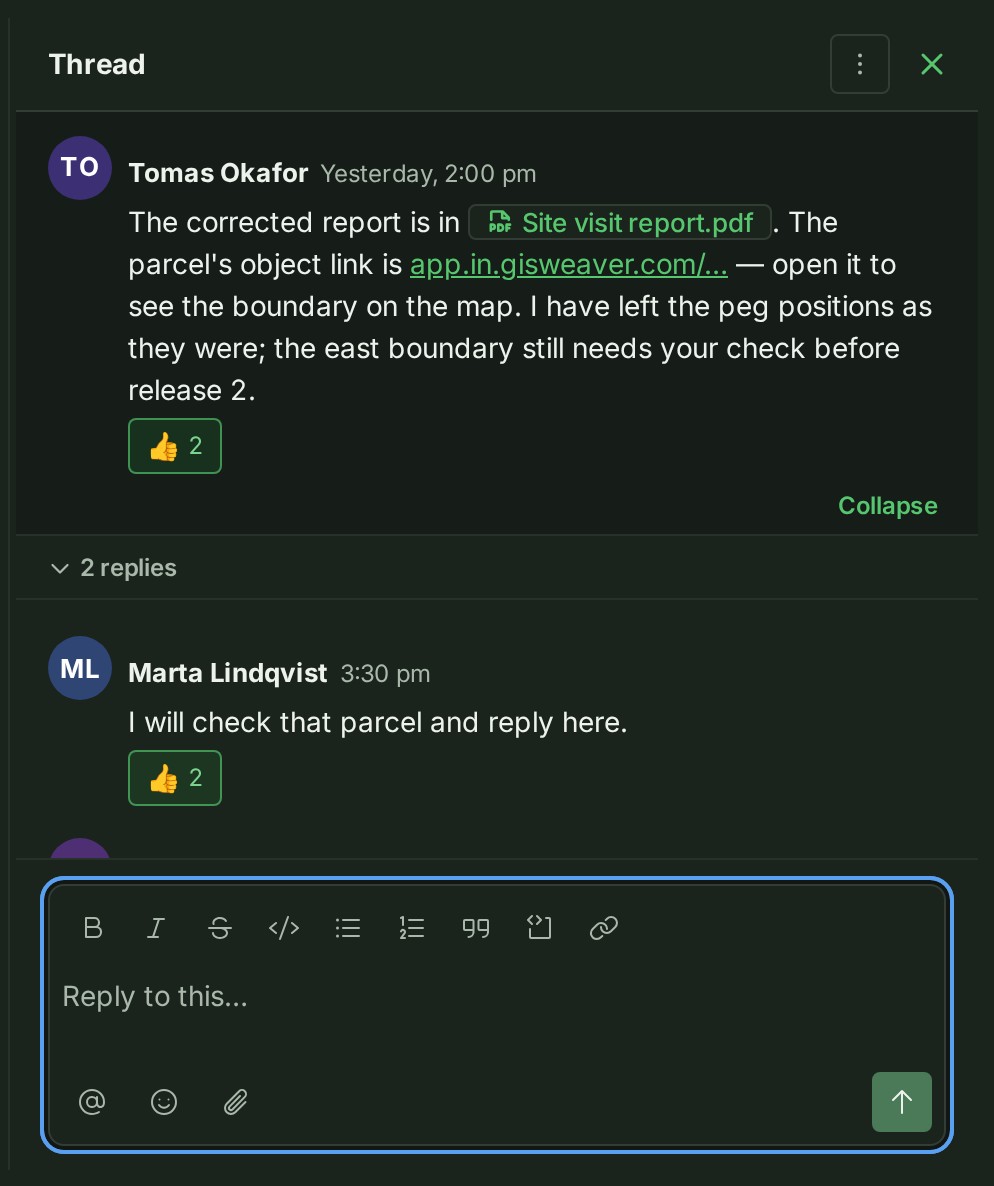
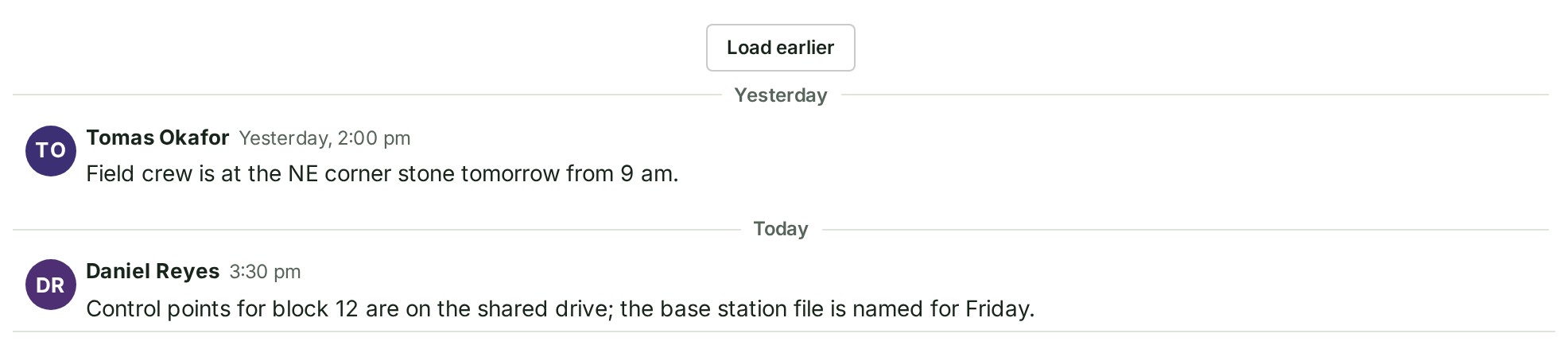
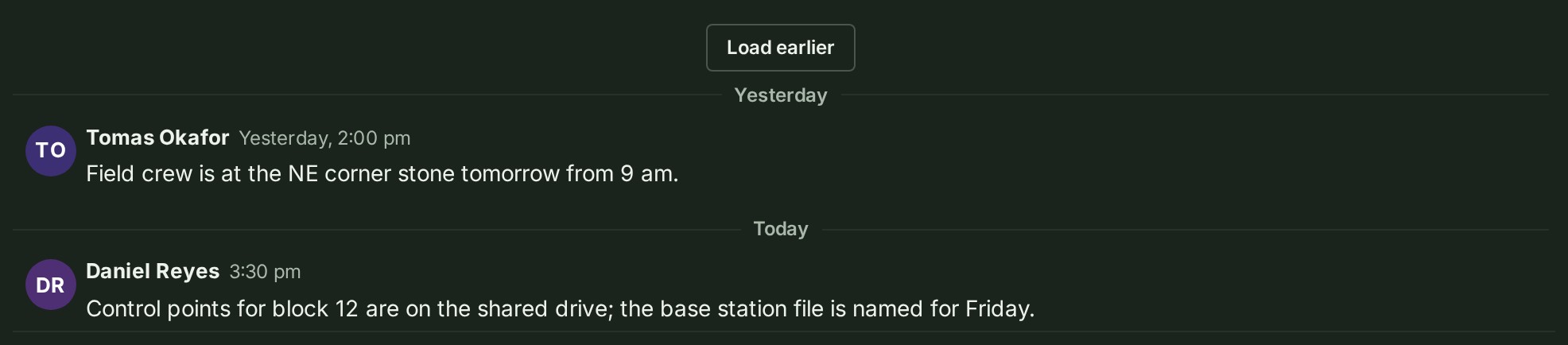
When a project's conversation holds more notes than one page, Load earlier sits at the top of the stream. Select it to read the next older page; the notes you were reading stay where they are.
To write about one file or one map object instead, see Discuss a file. For a map object, select it on the map and write in its Conversation tab, beside Attributes; on a phone, select Comment on the tool strip. A drawn object can be discussed once it is saved to the project.
If something goes wrong
- You can read this conversation but not reply to it. You are the auditor, who reads every conversation and writes in none.
- That was 120 characters over the 10,000-character limit, so the end was left out. A note holds up to 10,000 characters. Split it into two.
- Somebody you mentioned cannot take part in this conversation. Remove the mention and try again. Remove that name; your words stay in the box.
- This organisation is suspended. Your data is safe and readable. or This organisation is closed. stands in place of the box. Nothing new can be written until your organisation is open again.
More
- The toolbar formats your words as you write: see Format a message.
- Type
@to name a colleague and#to name a file: see Refer to a file in a message. - At a desk, Shift and Enter together start a new line.
- While a note is sending, the arrow on Send gives way to a small busy mark. If it fails, your words stay in the box.
- Who can write here and where a conversation shows: Conversation reference.