Open something shared with you
Who can do this
Owners, administrators, the billing role and auditors. Every plan, including the free plan. Receiving a share needs no plan feature.
Open a release another organisation shared with yours, or gave you client access to, on the map.
- Open Deliveries. The page opens on its first tab.
-
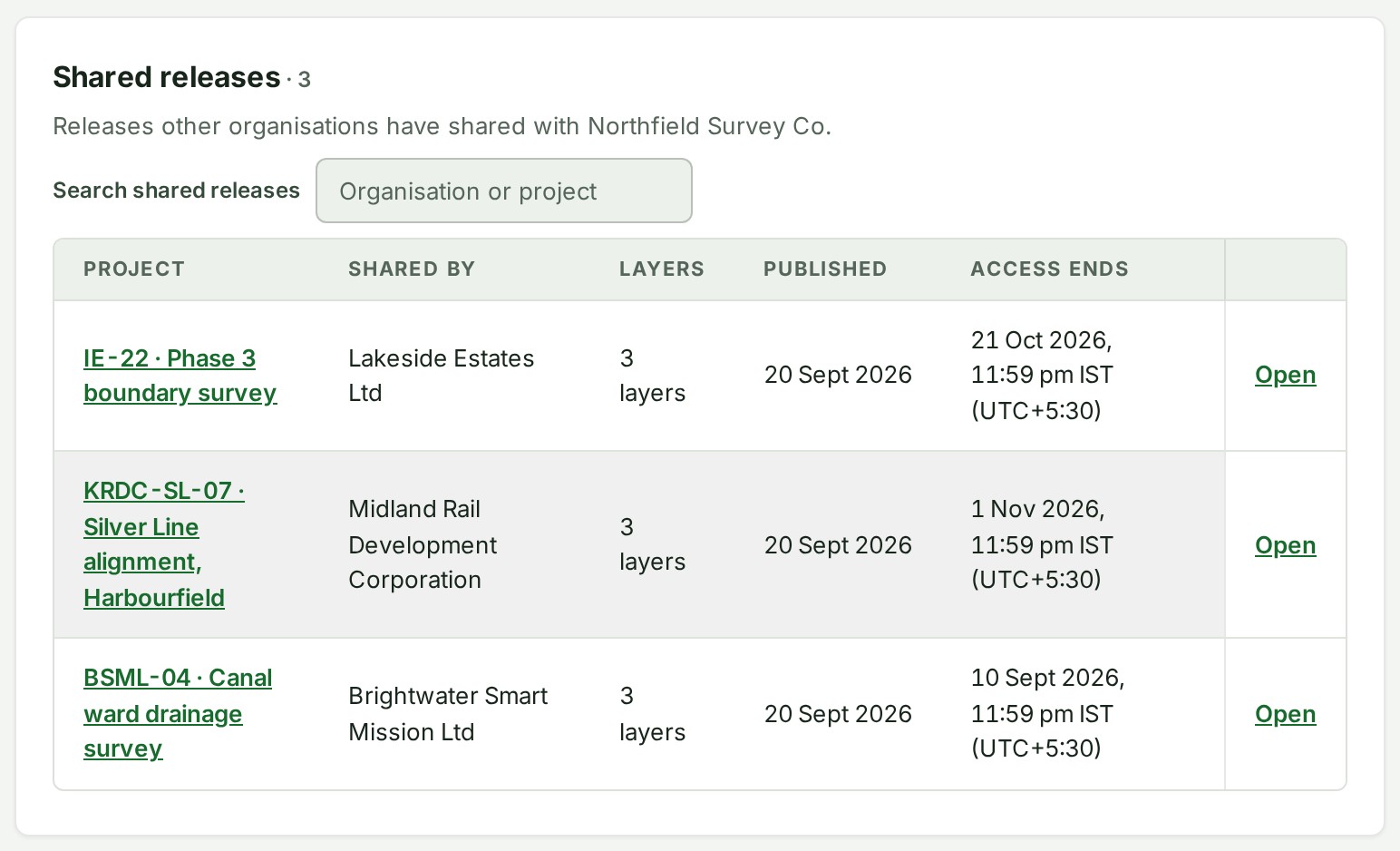
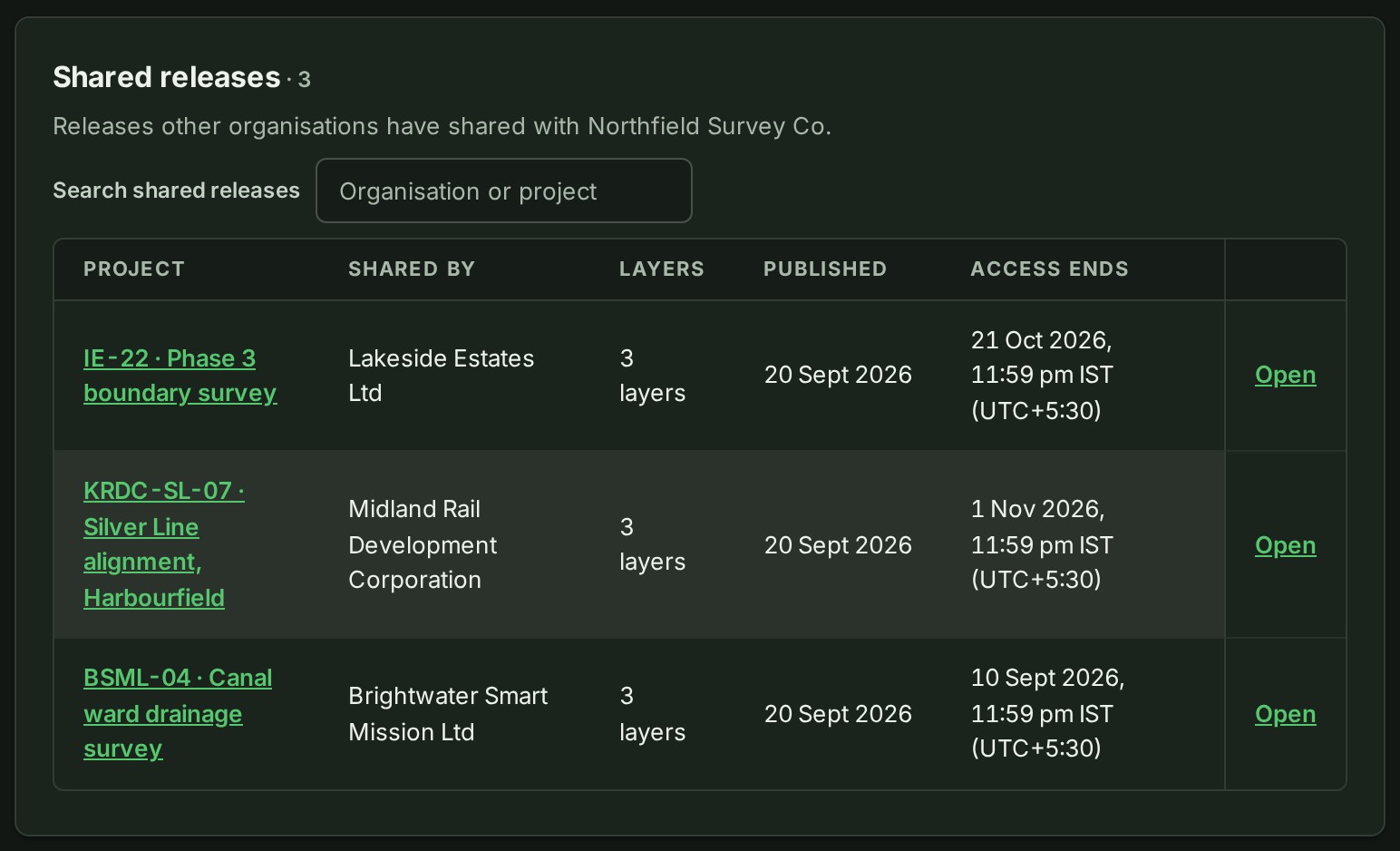
Choose the Shared releases tab. It lists each release with its Project, who it was Shared by, Published version and Access ends.
-
Type part of the project or sender's name in Search shared releases. The list narrows to the matching rows.
- Select the project's name, or Open. The release's page opens and says what you may do with it.
- Select Open map. The map opens with only the layers and tools the sender allowed, marked as a shared release.
The release is not added to any of your projects and uses none of your storage. Access ends is the last moment you can open it, in India time, such as 15 Oct 2026, 11:59 pm IST (UTC+5:30); client access the sender has paused reads Paused by the sender instead of a date.
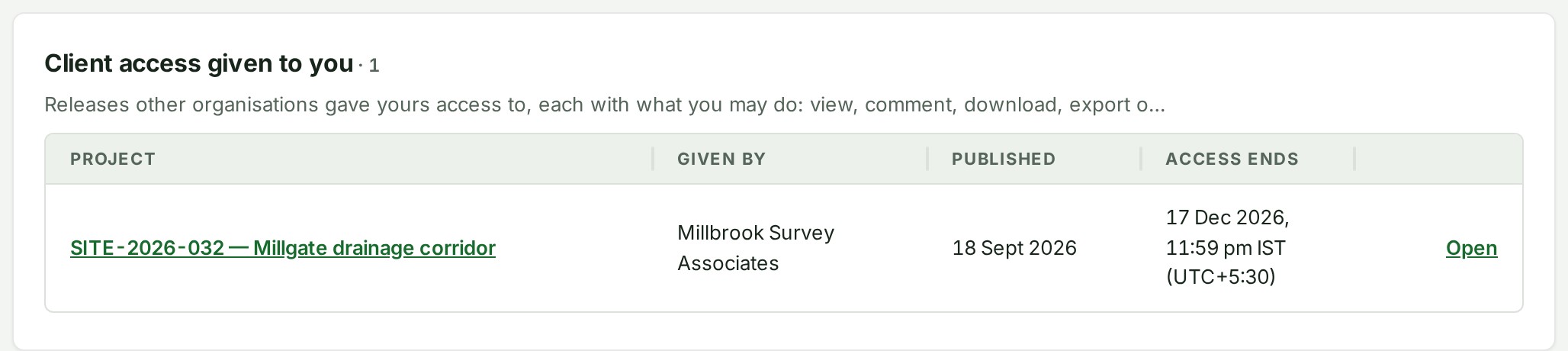
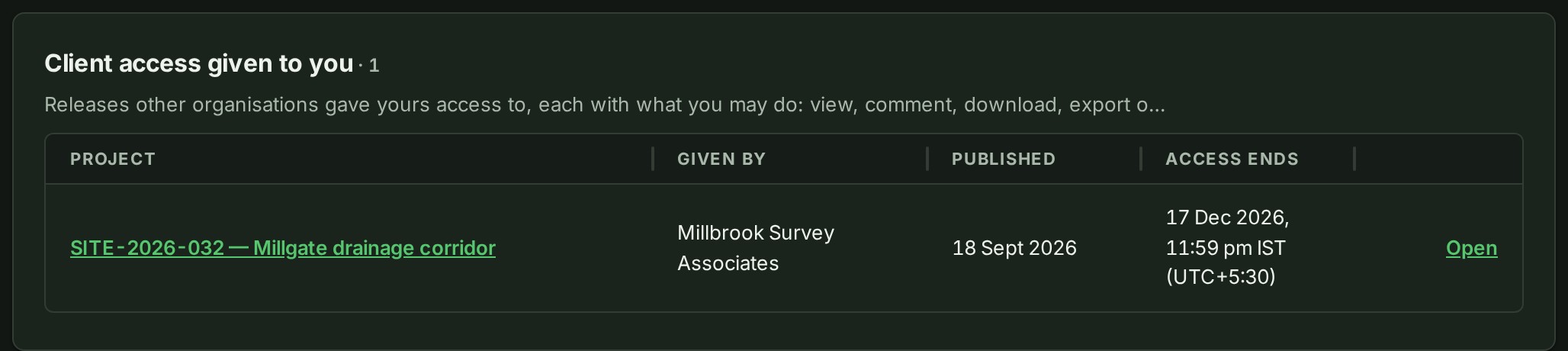
Client access you were given directly is listed in its own section, Client access given to you, with who gave it and the day it ends. The letter that tells you about it links straight to its page.
Use a client access
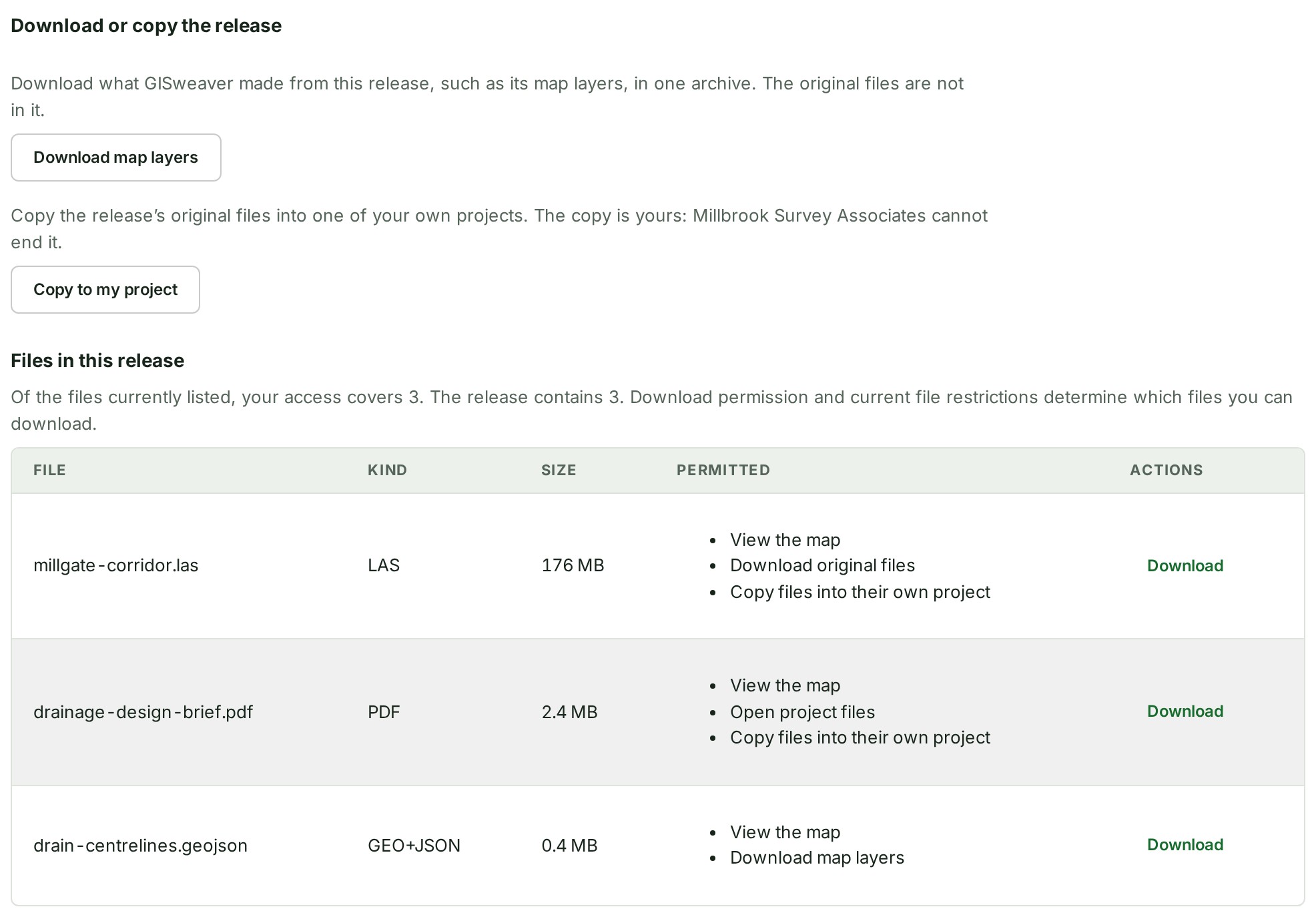
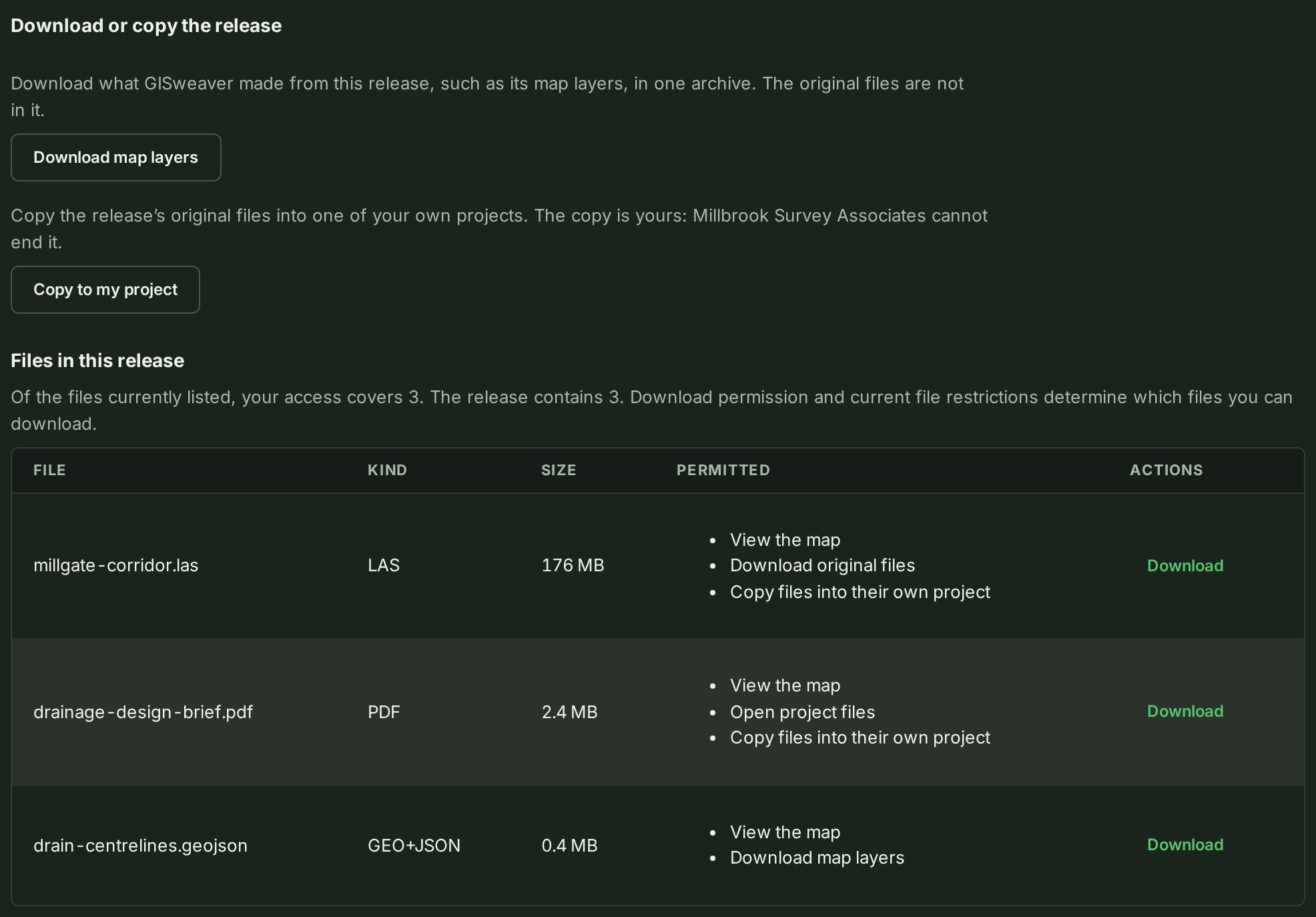
Do these from the page of a client access, only where the sender allowed them. A plain share lists Layers you can see and What you can do; client access lists, under What you may do with this, every file of the release with what it allows.
Download
-
Select Download beside a file. The file downloads.
-
Or select Download map layers. What GISweaver made from the release downloads in one archive.
Copy into your own project
-
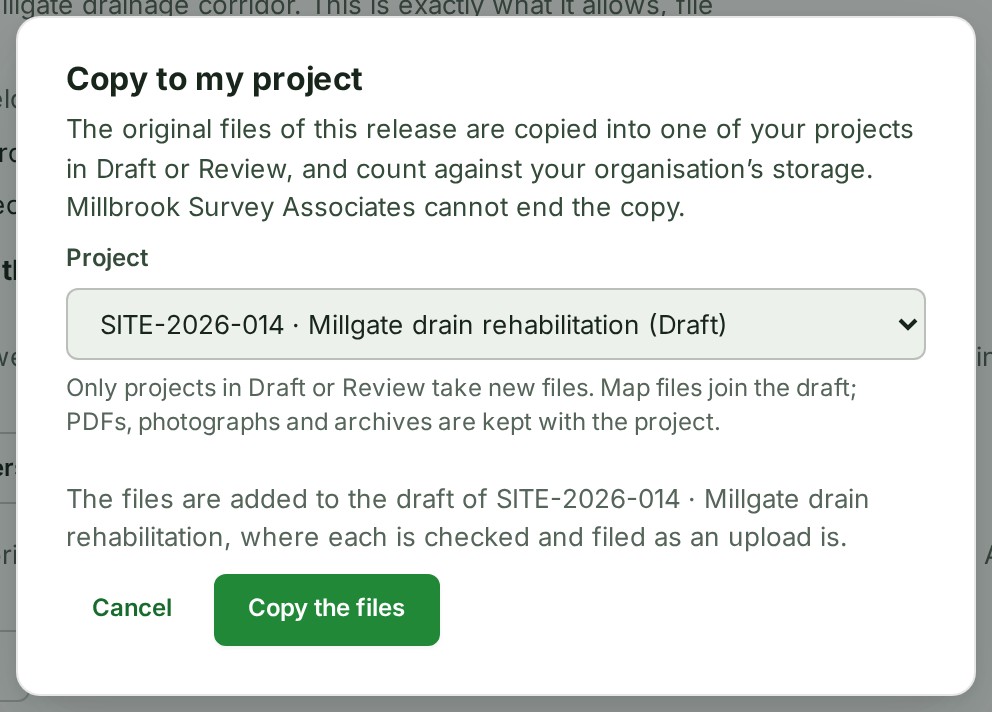
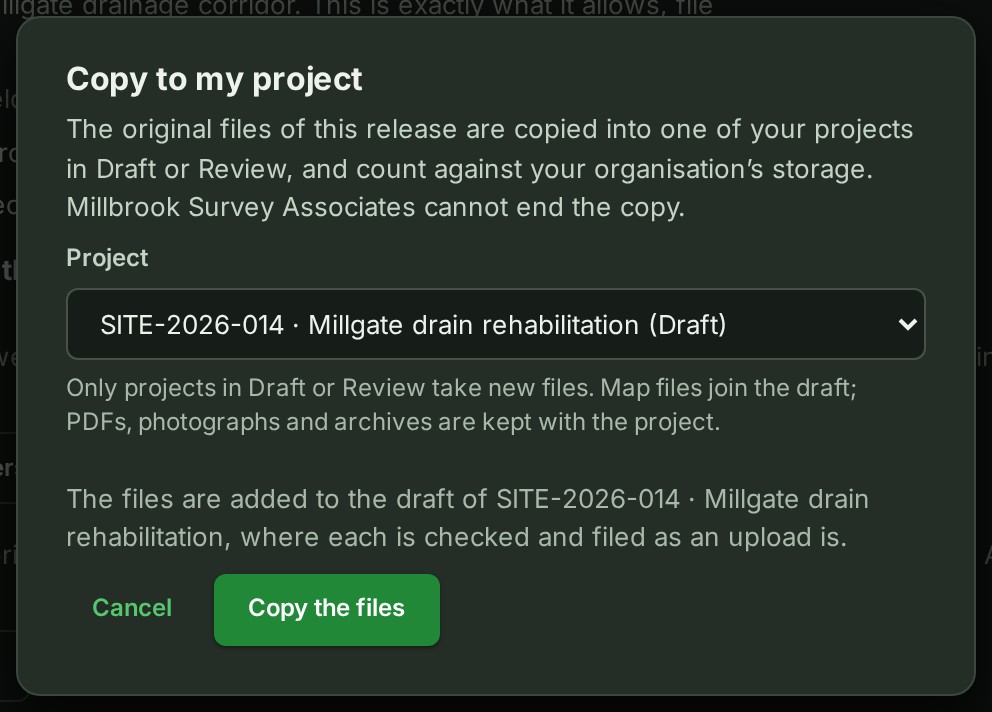
Select Copy to my project. A panel opens with the sentence saying the copy is yours and the sender cannot withdraw it.
-
Choose one of your projects in Draft or Review. The project is chosen.
- Select Copy the files. The files are copied into that project, count against its storage and are its own once they have landed.
Comment
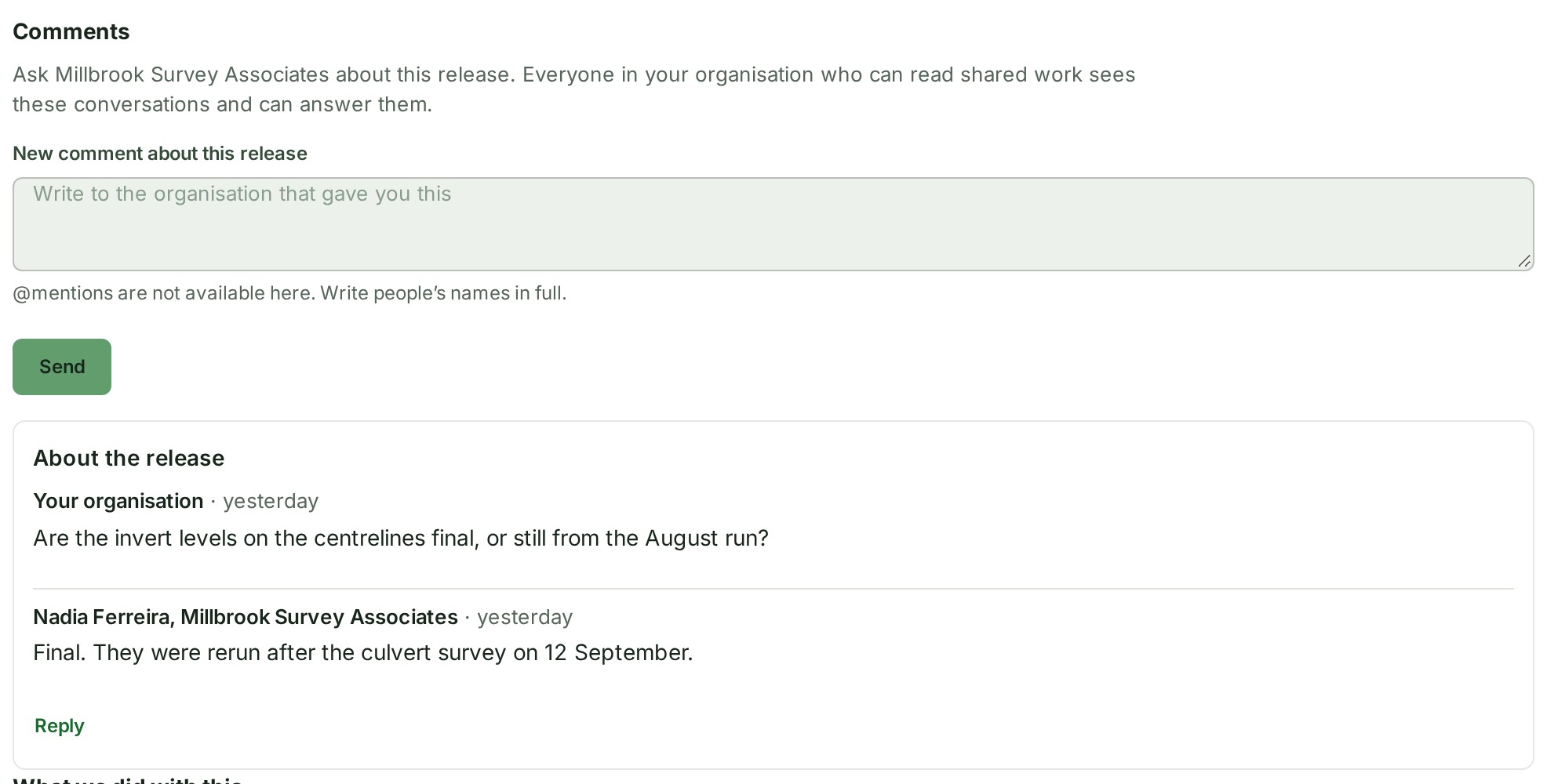
- Write to the sender in the box under Comments. The text appears in the box.
-
Select Send. A conversation opens with your question, and the sender answers there.
-
Select Reply in a conversation to answer back. Your reply is added to it.
Everyone in your organisation who can read shared work sees these conversations, and comments sent this way cannot mention people. What each permission allows is in What a client may do.
If something goes wrong
- Nothing has been shared with you yet: give the sender your organisation code; see Give another organisation your code.
- Only owners, admins, billing managers and auditors can see releases shared with your organisation. Ask one of them if you need a release from here. Your role cannot open this list. Ask one of them.
- This access has ended, with a sentence saying why: the sender took the access back, or the period they shared it for ran out. Ask them if you still need it; they can share it again.
- The organisation that gave you this has paused it. Nothing has been deleted; they can put it back. Ask the sender.
Why a file reads Not included, who in your organisation can use a share, and how a share differs from a delivery are in How access to other organisations works.