Give a colleague access to a project
Who can do this
Owners, administrators, the branch's manager and the project's lead. Anyone who can open the project sees who holds a role on it. Project roles need "Roles and permissions" in your plan. On a plan without it, every member can open every project and there is nothing to give.
Give a colleague a role on one project so they can open it.
- Open Projects and find the project. Its row is in the list.
- Select the ⋯ on its row. A menu opens.
- Choose Members. The panel lists the roles held directly on the project.
-
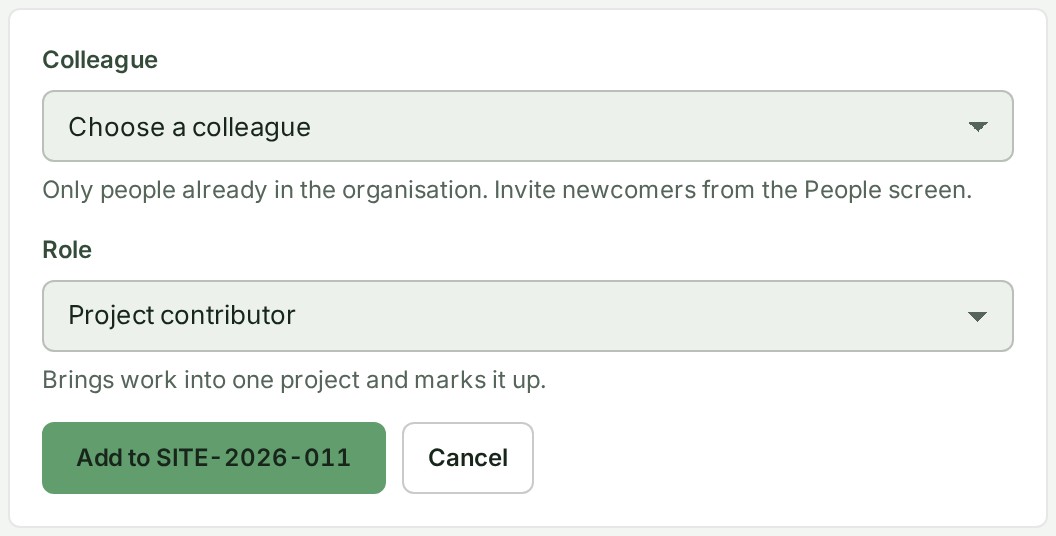
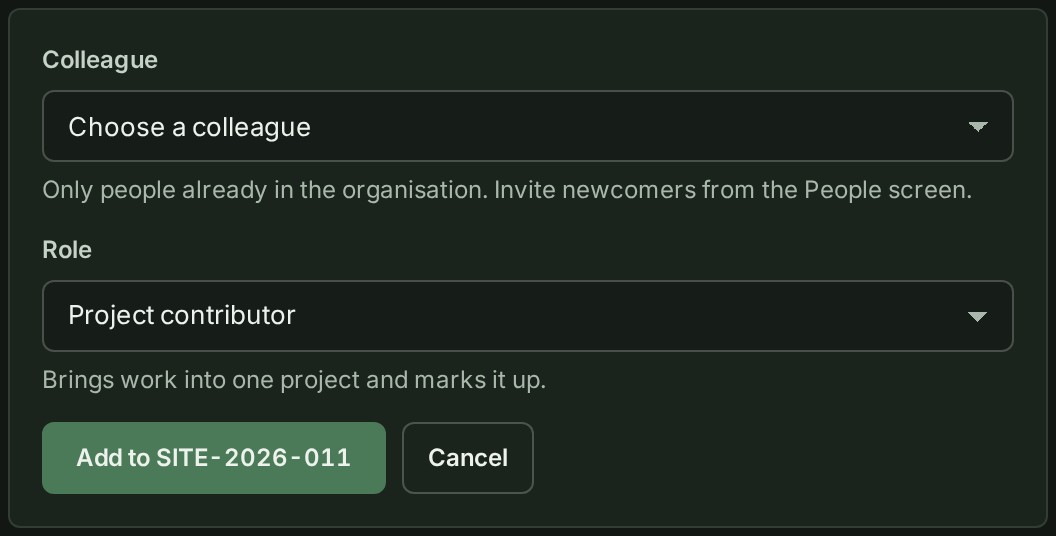
Select Add to \<project>, which names the project's number. A form opens under the members.
-
Choose the person in Colleague. The field shows their name.
- Choose their Role: Project lead, Project contributor or Project viewer. The field shows the role.
- Select the Add to \<project> button in the form. The form closes.
What happens next
The colleague appears under Roles held directly on \<project>, with their role, and can open the project from their own Projects list. To send them straight to it, see Send a project's link to a colleague.
A colleague who does not run your organisation or the project's branch can open a project only when they hold a role on it. You can also give the role from the project's Access tab: select Manage access roles beside Assign responsibilities, and the same panel opens under Access roles.
To give a whole crew the same role at once, see Give a team or branch a role. To see what each role allows, see What each project role allows.
If something goes wrong
- The person is not in the Colleague list: Only people already in the organisation. Invite newcomers from the People screen. Invite them first.
- The form stays open and shows a sentence above it. Read it and change what it names, or choose another person.
- No role you can give here: you can give only roles at or below your own. A project lead can give lead and below; ask an administrator for anything more.
- Your colleague sees You have not been given access to this project and Ask a project lead or an Admin to give you a role on it. They do not hold a role on the project yet. Add them as above.
- They see There is no such project: the link is mistyped, the project was deleted, or it belongs to an organisation they are not a member of.