Create a project
Who can do this
Owners, administrators and branch managers (a manager in their own branch). Every plan. A plan allows a number of new projects a month.
Create a project to keep one piece of survey work together: its files, map, conversation and the releases you deliver from it.
-
Check that the page header names the organisation the project is for.
The project is created in that organisation. To change it, see Switch to another organisation.
-
Select New project on Projects.
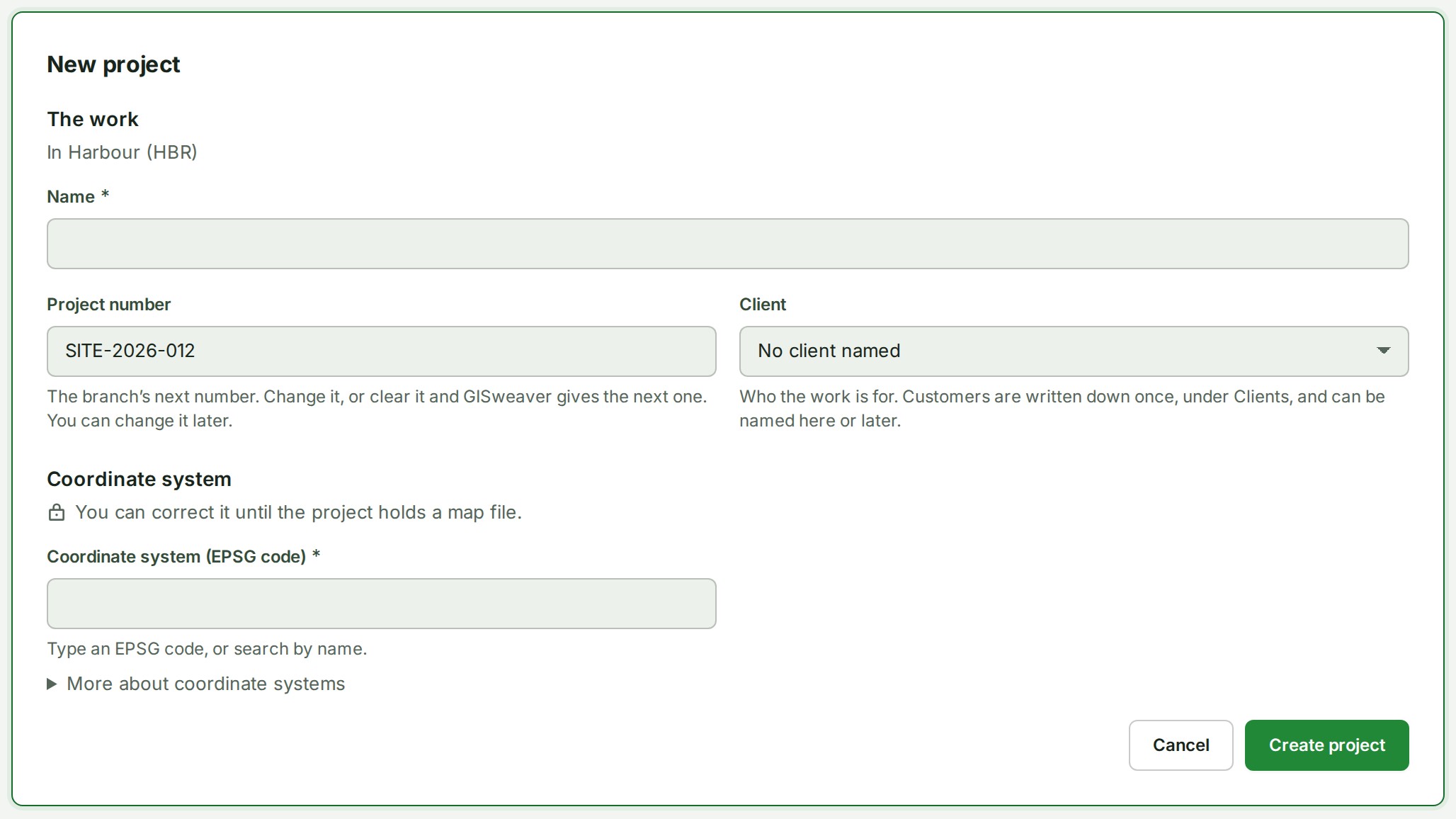
Name the work first, then check its coordinate system before creating the project.
The form opens with two groups: The work, then Coordinate system.
-
Under The work, type the project's Name: what the work is, in words.
The name shows in the box.
-
Check the Project number.
GISweaver has filled in the next number for the branch, such as SITE-2026-012.
-
To use your own number, type it; to let GISweaver choose, clear the box.
A number you typed is kept. An empty box is filled in when you create the project.
-
Beside it, choose a Client, or leave it on No client named.
The box shows your choice. You can name or change the client later.
-
If you may create projects in more than one branch, choose the Branch.
The filled-in number follows the branch, unless you have already typed your own. With one branch the form shows a line such as In Harbour branch (HBR), and there is nothing to choose.
-
Under Coordinate system, check Coordinate system (EPSG code).
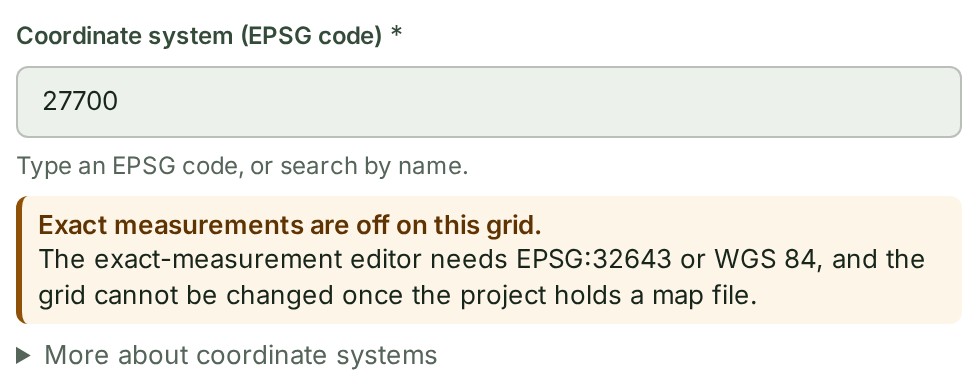
The box starts on the grid for your organisation's country. If the country is not known, it starts empty and you must choose a grid.
-
Select the box.
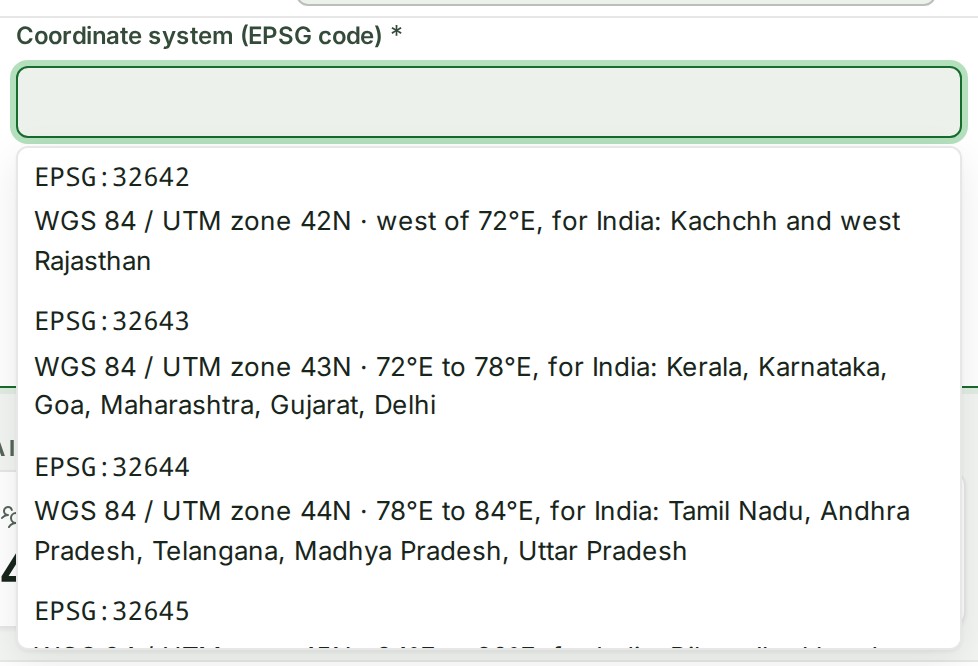
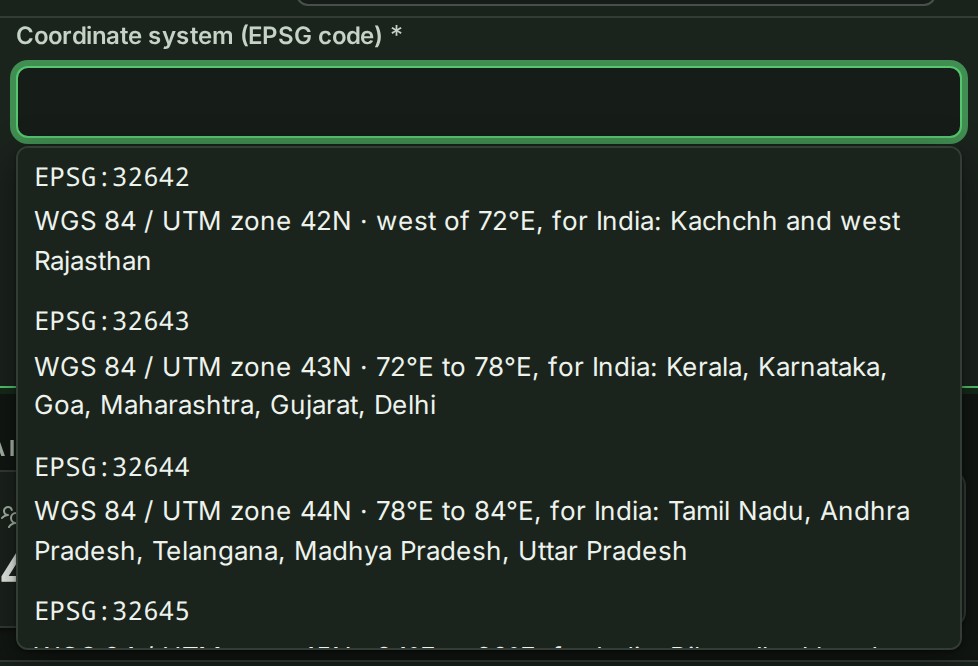
A list opens, each row a code and a name.
-
Choose the grid the survey is delivered in, or keep typing its code, such as 7755, or part of a name, such as UTM zone 40N.
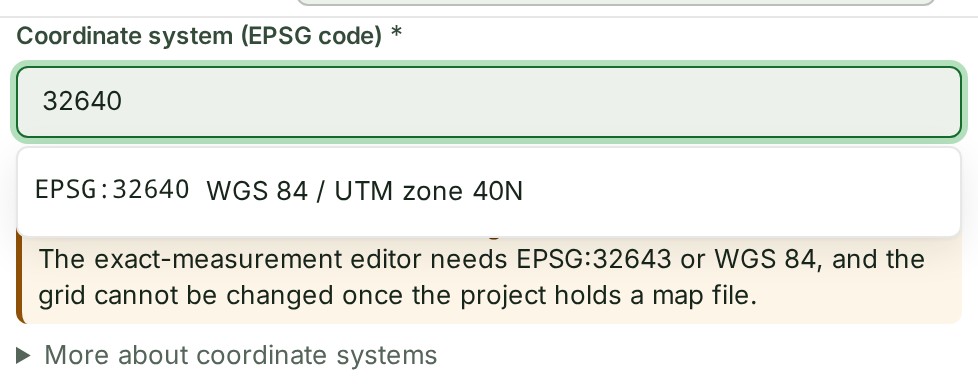
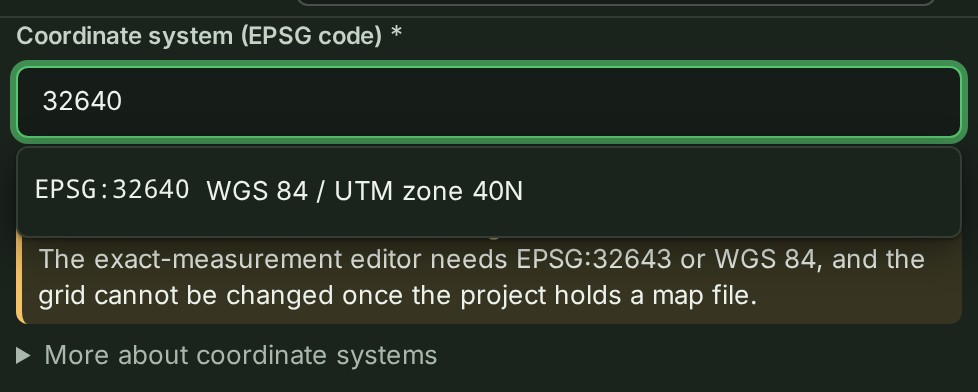
The box holds the code you chose.
-
Select Create project.
GISweaver says Project created. and opens the new project's page, ready for its first files.
What happens next
The project appears on Projects under the branch you chose, with its number and grid in the header.
If something goes wrong
- Give the project a name. The name was left empty. Fill it in and select Create project again. Nothing was created.
- A project already uses that number. A live project has the number you typed, or took the filled-in one while you were typing. Type another, or clear the box so that GISweaver gives the next one.
- The search could not be completed. Try again. The list under Coordinate system (EPSG code) could not reach GISweaver. Try again, or type the code in the box.
- No coordinate system matches that. Nothing in the registry has that code or name; check the survey's own statement of its grid.
- Choose a coordinate system for this project. or An EPSG code is a whole number, like 4326. Type the EPSG code as a number, without the letters EPSG.
-
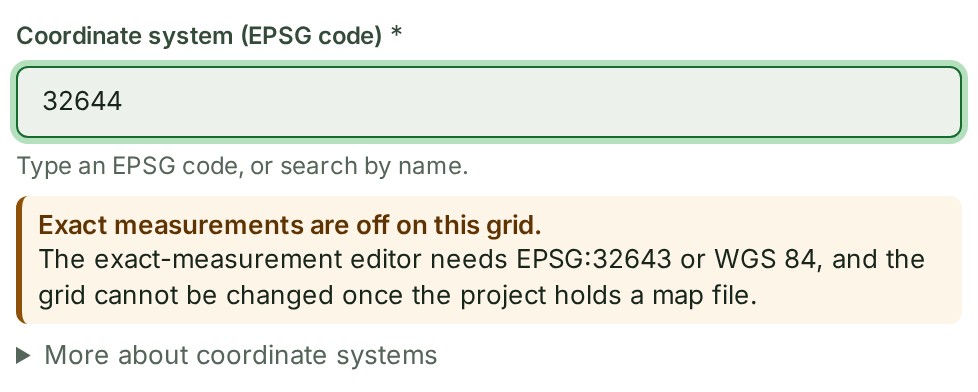
Exact measurements are off on this grid. A highlighted note under the box, not a refusal: the project can still be created, but its exact-measurement editor will be off. Change the code if the survey is stated on a grid that supports it.
-
Reading your branches. Create project is ready as soon as they arrive. Wait a moment; the button comes back by itself.
- Your role (Member) cannot create projects. Ask an Admin under People. beside a greyed-out New project. Your role does not open projects. Ask an owner or an administrator to create it, or to make you a manager of the branch.
- A project belongs to a branch, and your access does not include one. You have no branch to create the project in. Ask an owner or an administrator.
- You have used up your plan’s … The sentence ends projects this month: your plan's allowance of new projects for the month is used up. Whoever manages your organisation's billing can change the plan; see Billing, plans and invoices.
- Frozen — renew to save new work beside New project. The organisation's paid plan has lapsed. Whoever manages your organisation's billing renews it.
More: Coordinate system, and the project number.
Next: Add files to a project