See who can do what
Who can do this
Everyone in the organisation sees their own entry. People who may read the list of colleagues see everyone's. Every plan.
See what a colleague can do: the role they hold in the organisation, in branches and on projects.
- Open Access from Organisation controls. It opens on the Who can do what tab.
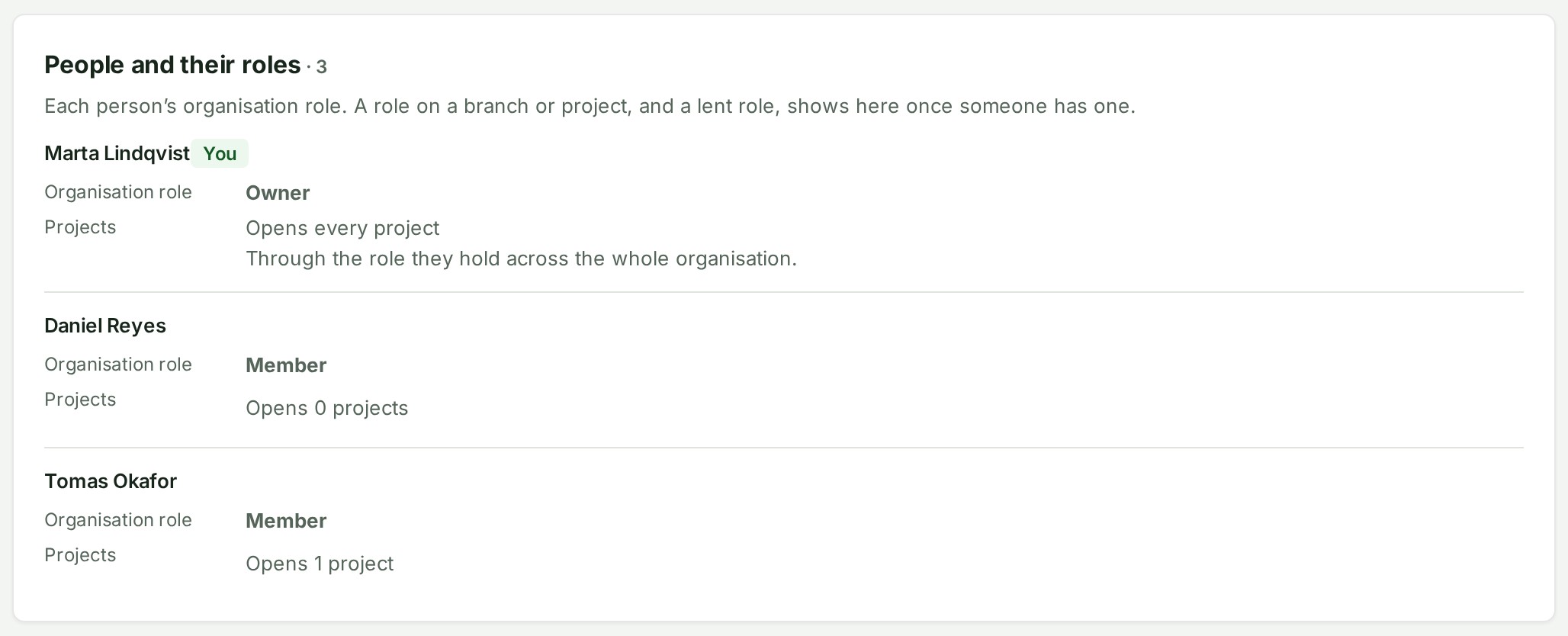
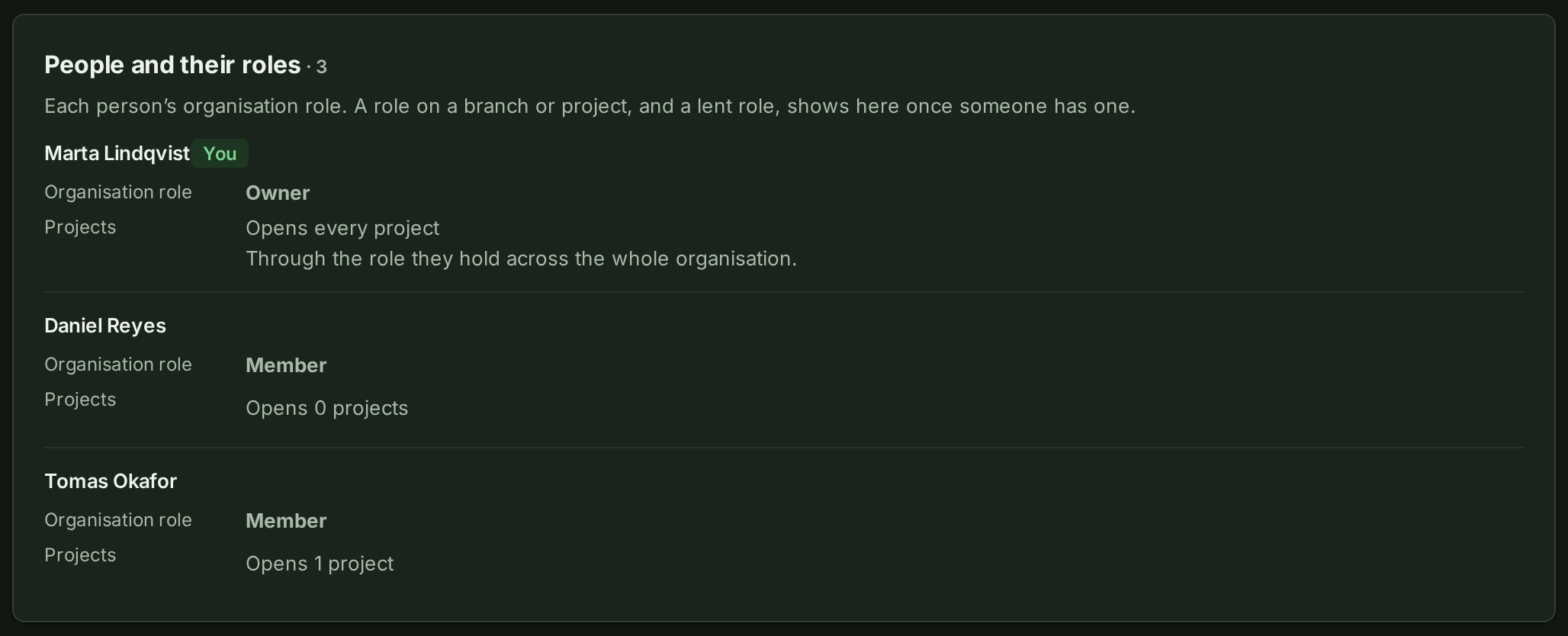
- Find the person. Your own entry is first and marked You; the others follow it.
-
Read their entry. It shows:
- Organisation role: the role they hold across the organisation, with a line saying what it is for.
- Branches: the role they hold in each branch, if any.
- Projects: every project they can open, under a line such as Opens 3 projects; select the line to list them. A person whose role reaches every project reads Opens every project instead.
- Lent: any role lent to them, with the day it ends. A role lent for a branch or a project says where.
Each project in the list carries one mark: Lead, Direct role or Via team. See People and access reference.
To change someone's organisation role, open People and choose a role in the Organisation role list on their row.
What each role can do
See Roles and what they can do for the table.
Related
Administrators, approvals and emergency access are on the Administrators and approvals tab: see Name an access administrator, Approve or reject an access change and Switch on emergency access.
If something goes wrong
- Only the Owner and Admins can see everyone’s roles. Ask one of them what a colleague can do. This is your own entry.
- A person's entry shows no branch role you expected: open the branch's Roles to check; a role lent for a while appears under Lent.
Details
- Who holds which role on one project is on that project's Access tab, under Manage access roles.
- The projects listed are those you can open yourself. A person's entry never lists a project that is hidden from you, and on a very large organisation it says so when the list stops short.
- Everyone in your organisation can open Access. Only people with permission can use the controls on the Administrators and approvals tab.
- Your organisation's own roles are listed under Roles on the same page: see Create a role.