Join an organisation you were invited to
Who can do this
Anyone with an invitation to a GISweaver organisation
When a colleague invites you, GISweaver emails you a link to join their organisation with the role they chose. Accepting it gives you that access.
- Open the newest invitation email from GISweaver and select its link. It works for seven days.
-
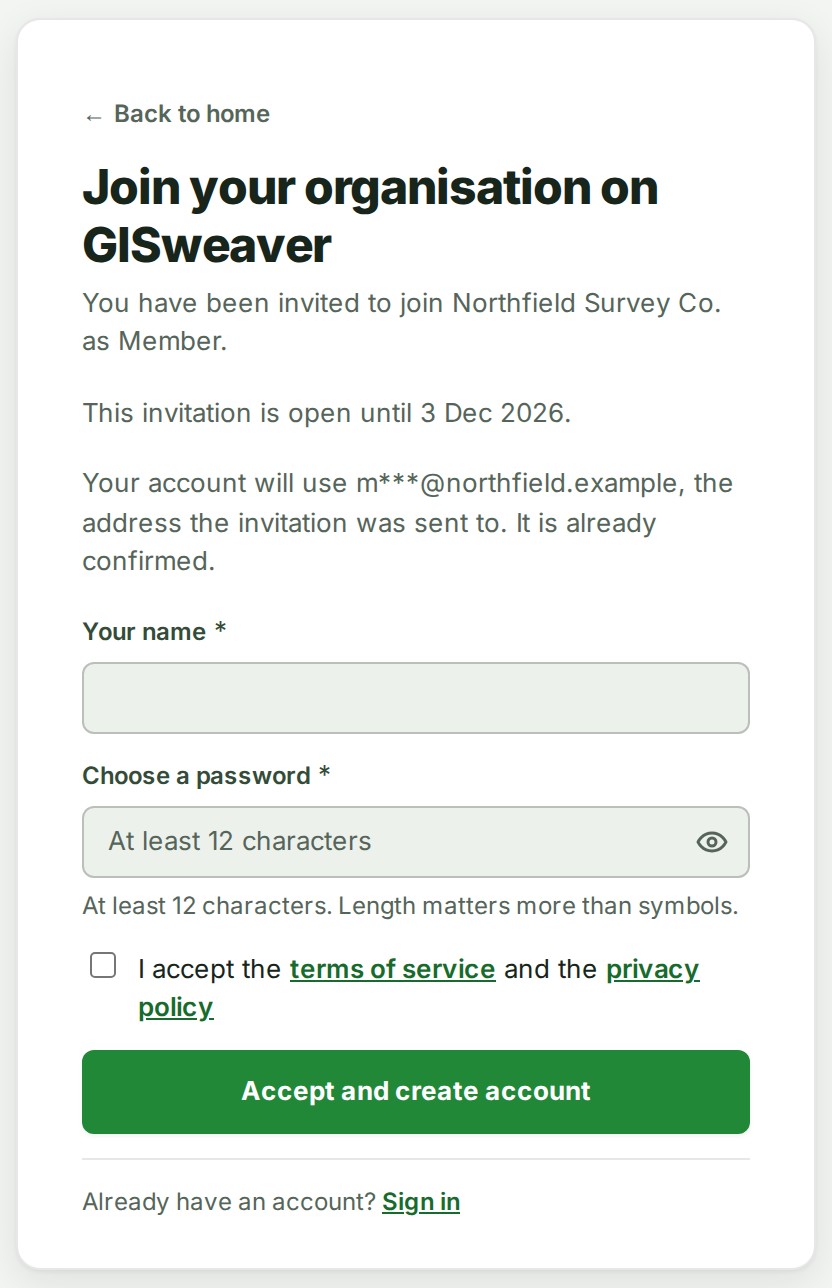
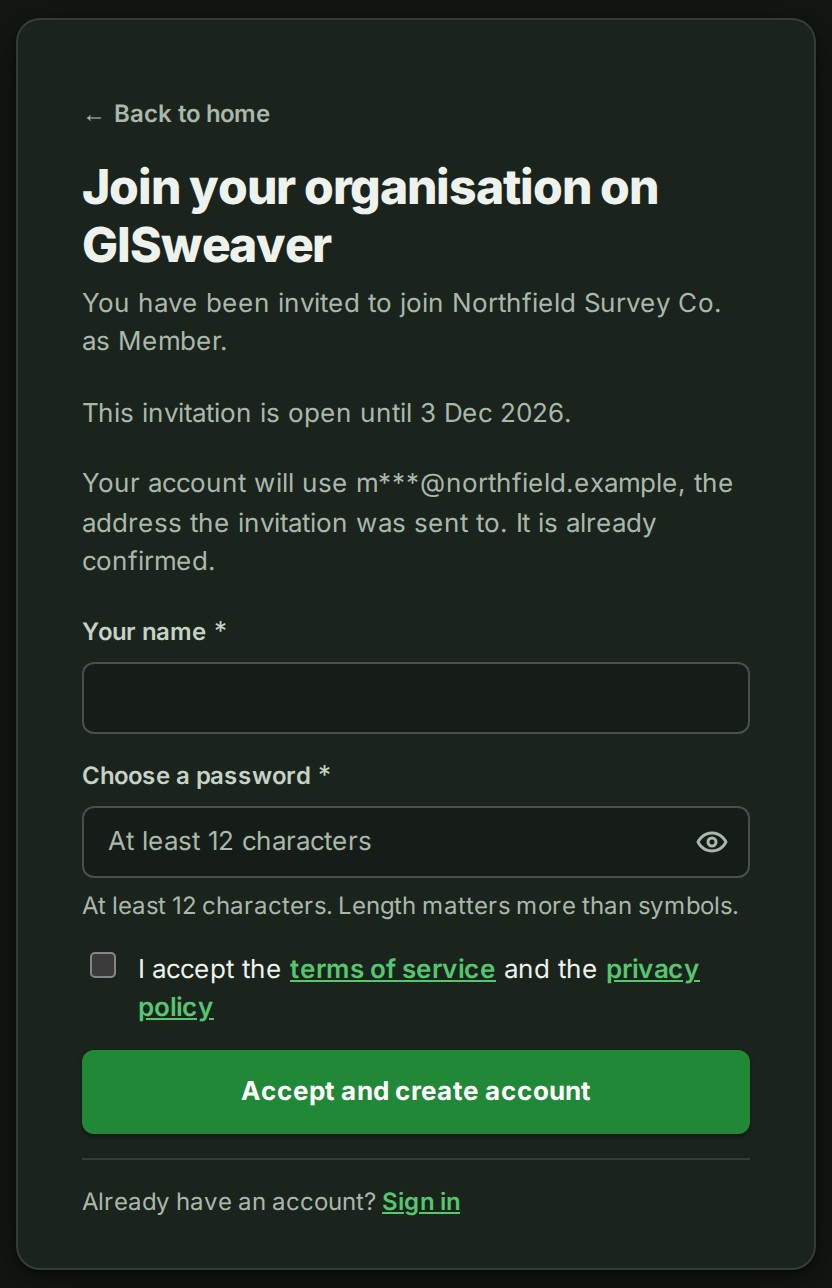
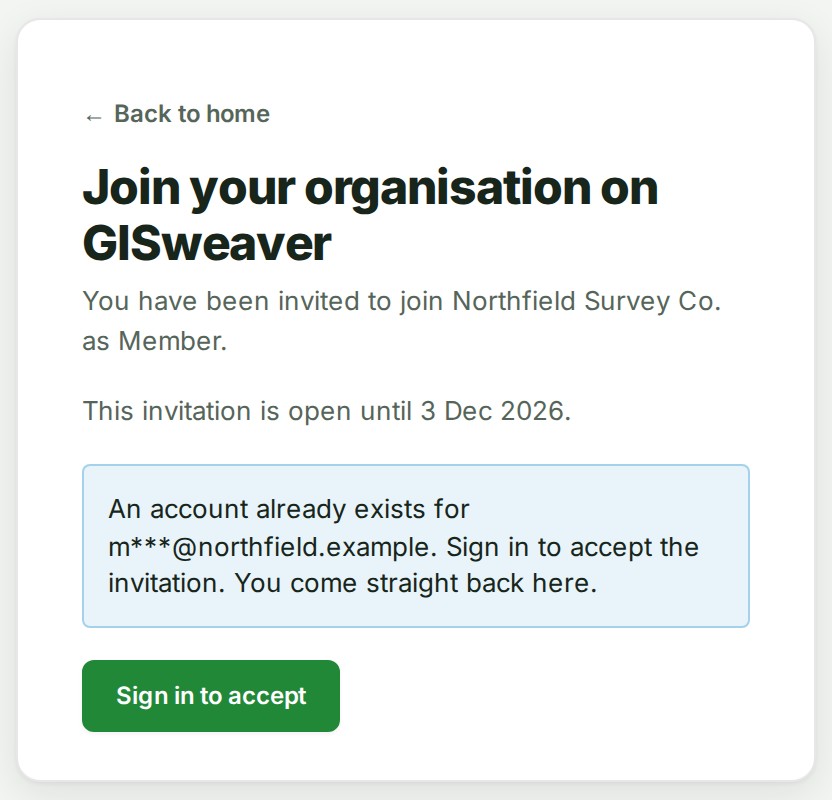
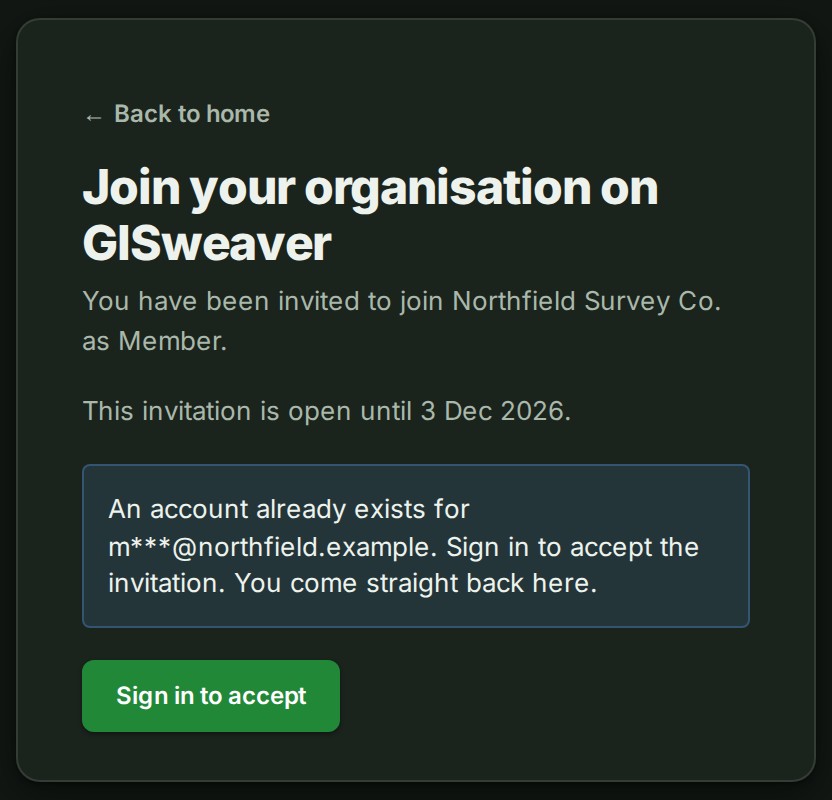
The page Join your organisation on GISweaver names the organisation and your role, for example You have been invited to join Northfield Survey Co. as Member. Below it, This invitation is open until gives the last day.
Then follow the one section that matches you.
New to GISweaver
- Type Your name.
- Choose a password of at least 12 characters in Choose a password.
- Tick the box that reads I accept the terms of service and the privacy policy.
- Select Accept and create account. Your account uses the invited address, which is already confirmed.
You already have an account
- Select Sign in to accept and sign in. You come straight back.
-
Tick the same box and select Accept invitation.
You are already signed in as the invited address
- Tick the box and select Accept invitation.
Joining records that you accepted the Terms of Service for this organisation.
What happens next
You are signed in to the organisation that invited you, and a notice says You have joined followed by its name. What you see depends on your role: an organisation member sees no projects until someone gives them a role on a branch or a project, so ask whoever invited you if Projects is empty.
If something goes wrong
- This invitation was sent to one address, not another. You are signed in as someone else. Select Sign out, then open the link again and sign in with the invited address.
- Accept the terms of service and privacy policy to join this organisation. Tick the box above the button.
- The terms changed while this page was open. Reload the page, read the current terms and accept them again. The Terms were updated after you opened the invitation. Reload the page, read them and tick the box again.
- This invitation has expired, been withdrawn or already been accepted. If you already accepted, sign in. Ask whoever invited you to send a new invitation.
- This invitation link is incomplete. The address was cut short when it was copied. Open the link from the invitation email again.
- The organisation's name followed by cannot take new members right now. Ask whoever invited you to try again later. The organisation cannot add people at the moment. Ask whoever invited you.
- That sign-in uses a different email address from the invitation. Sign in with the address the invitation was sent to. You used Continue with Google or Continue with Microsoft with a different address. Sign in with the address the invitation was sent to.
Details
Each invitation is for one address and one place: the whole organisation, one branch or one project. A branch is a part of an organisation, such as an office, that owns its own projects. To join as a client, rather than as a colleague, the invitation looks different: see Shared with you.
Words on this page: a role says what you may do, such as Member, Admin or Viewer. Other words are in the glossary.