Resend or withdraw an invitation
Send an invitation again when the colleague missed it or it lapsed, or withdraw one sent to the wrong address or no longer needed.
- Open People and clients under Organisation, then select the People tab. The People tab opens.
-
Find Invitations. The table lists each invitation with its status: Waiting, Expired, Accepted or Withdrawn.
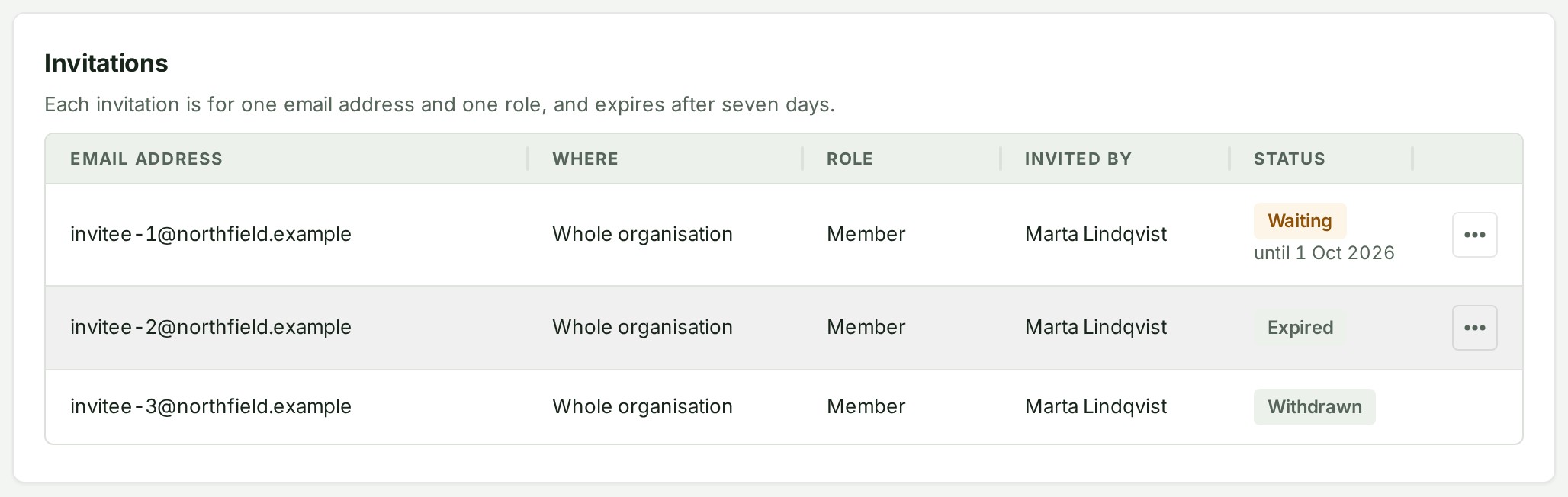
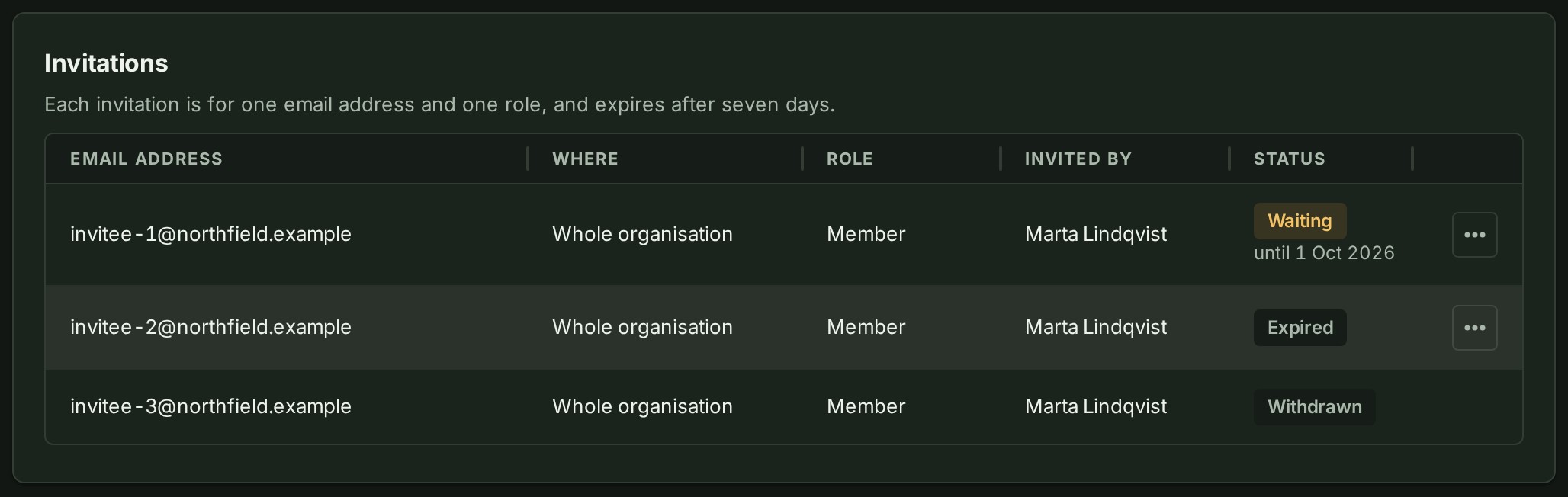
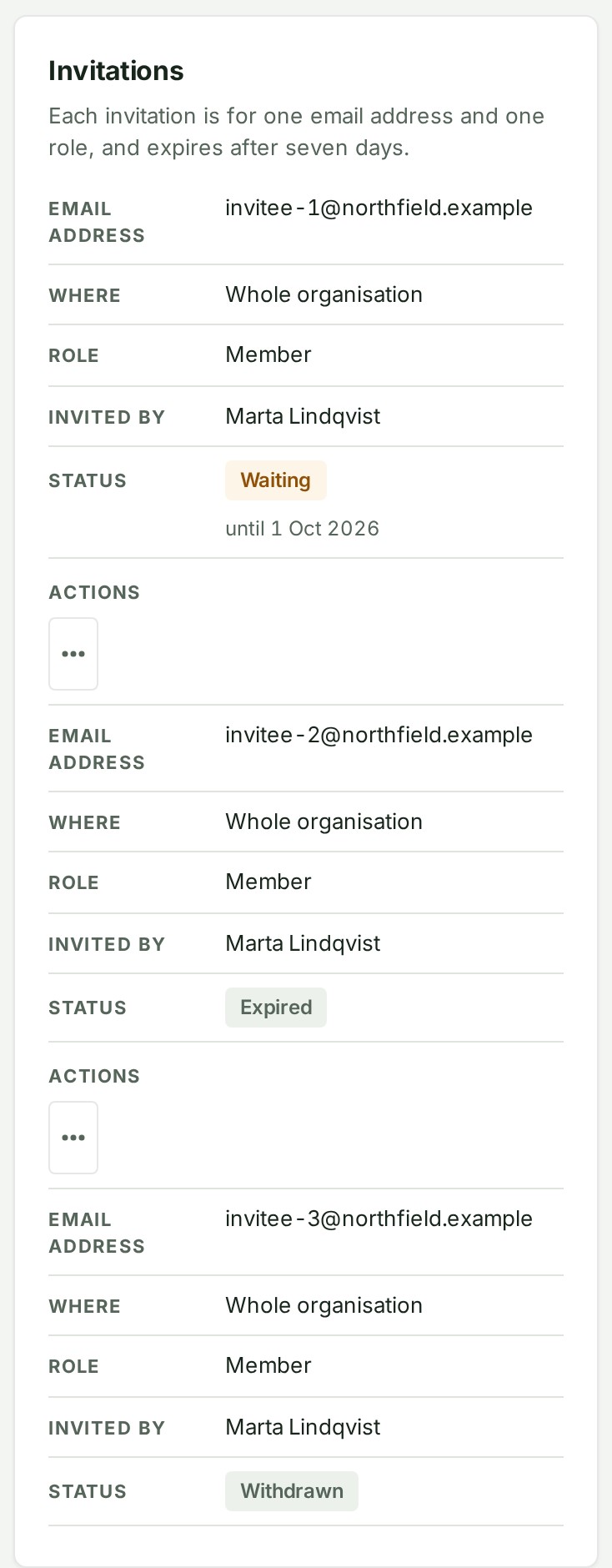
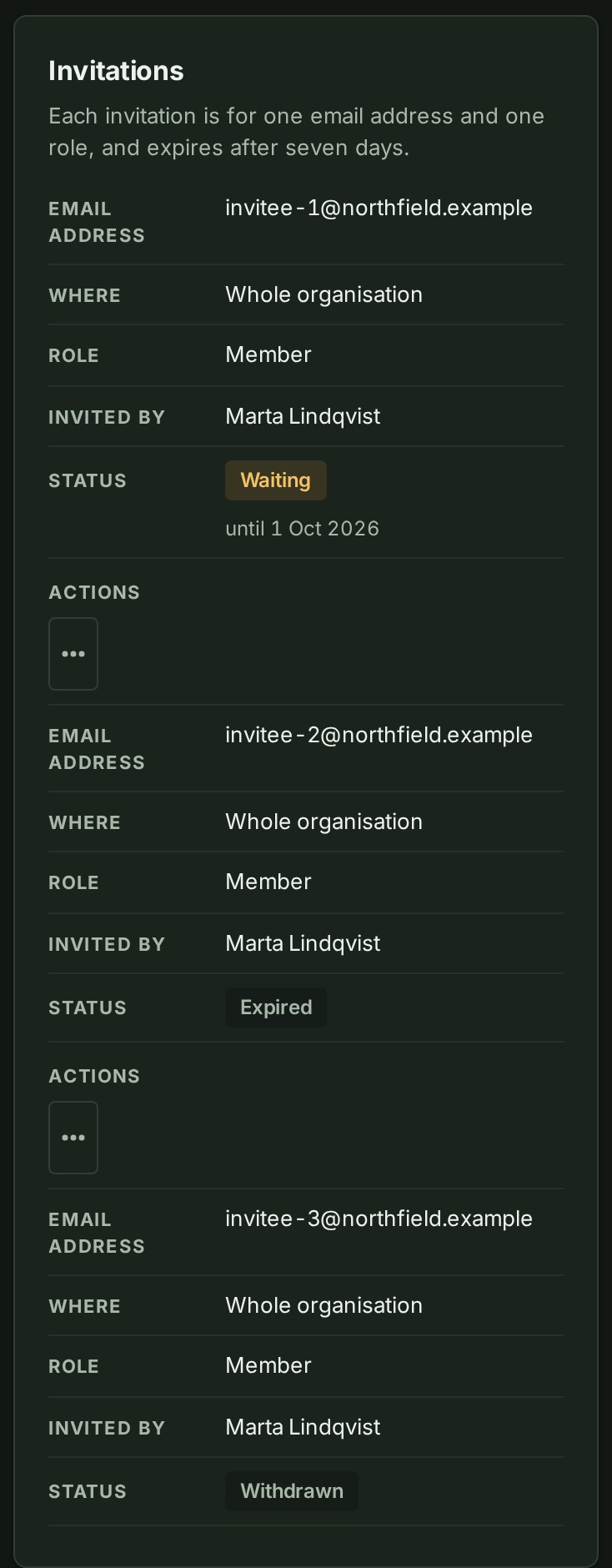 3. Open the … menu at the end of the invitation's row.
The menu offers the actions that row allows.
4. To send it again, select Resend.
The question Send the invitation to … again? opens.
5. Select Send it again, or Keep invitation to back out.
The colleague gets a new email.
6. To withdraw it instead, select Withdraw.
The question Withdraw the invitation to …? opens.
7. Select Withdraw invitation, or Keep invitation to back out.
The invitation reads Withdrawn.
An expired invitation can be sent again but not withdrawn; it has already stopped working.
What happens next
Resend sends a new email with a fresh link, and the earlier link stops working. Withdraw makes the emailed link stop working; nobody is removed and nothing is deleted.
If something goes wrong
- No Resend on the row: the invitation was accepted or withdrawn. Resend shows only on Waiting and Expired invitations.
- The colleague says the email never came. Select Tell them in the same menu, then Copy message or Send on WhatsApp. The message asks them to look for the email; it does not carry the link.
Next: Invite a colleague