Reply in a thread
Answer one message in a thread under it, in Messages or in a project's conversation, so the conversation stays readable.
-
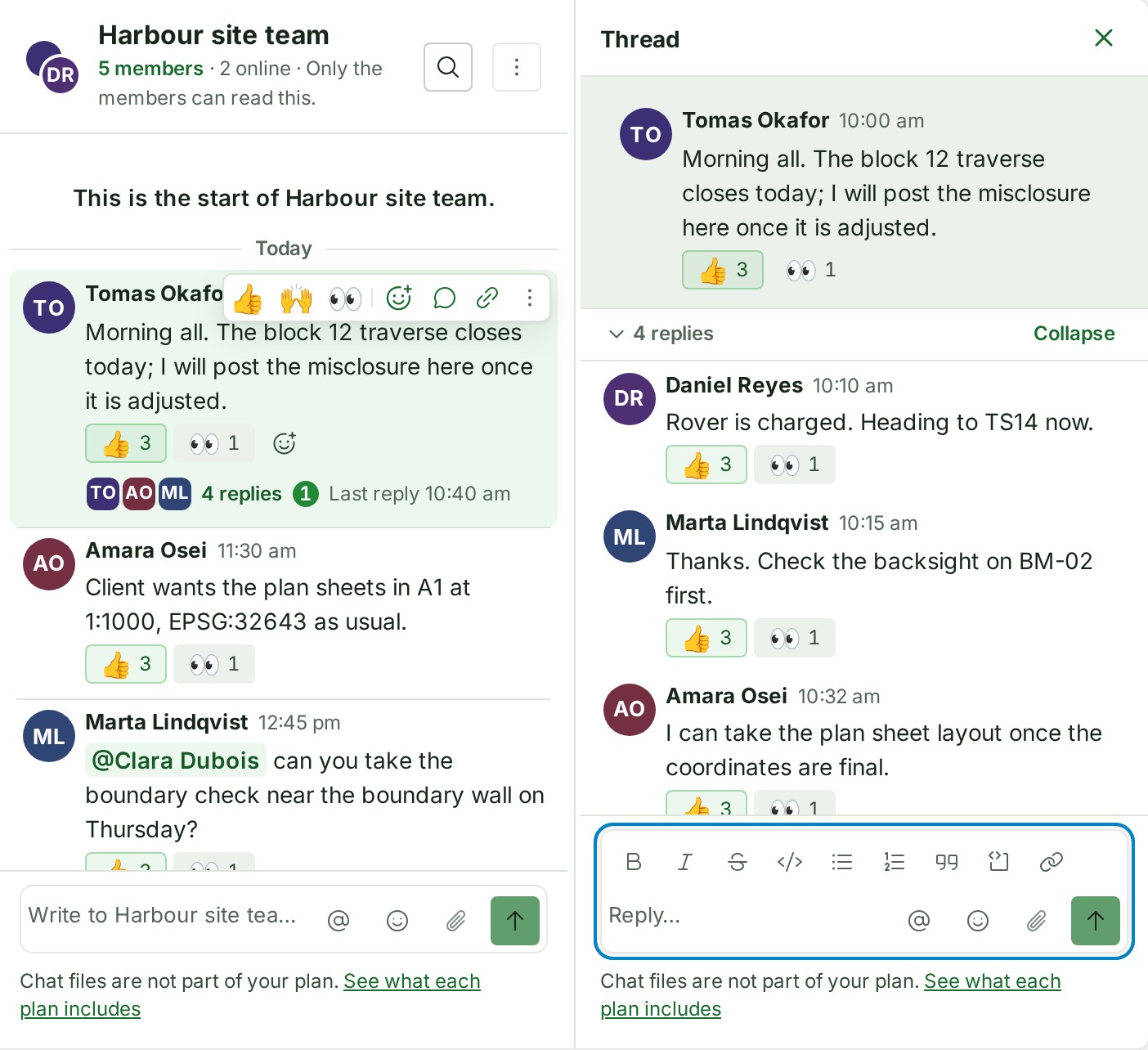
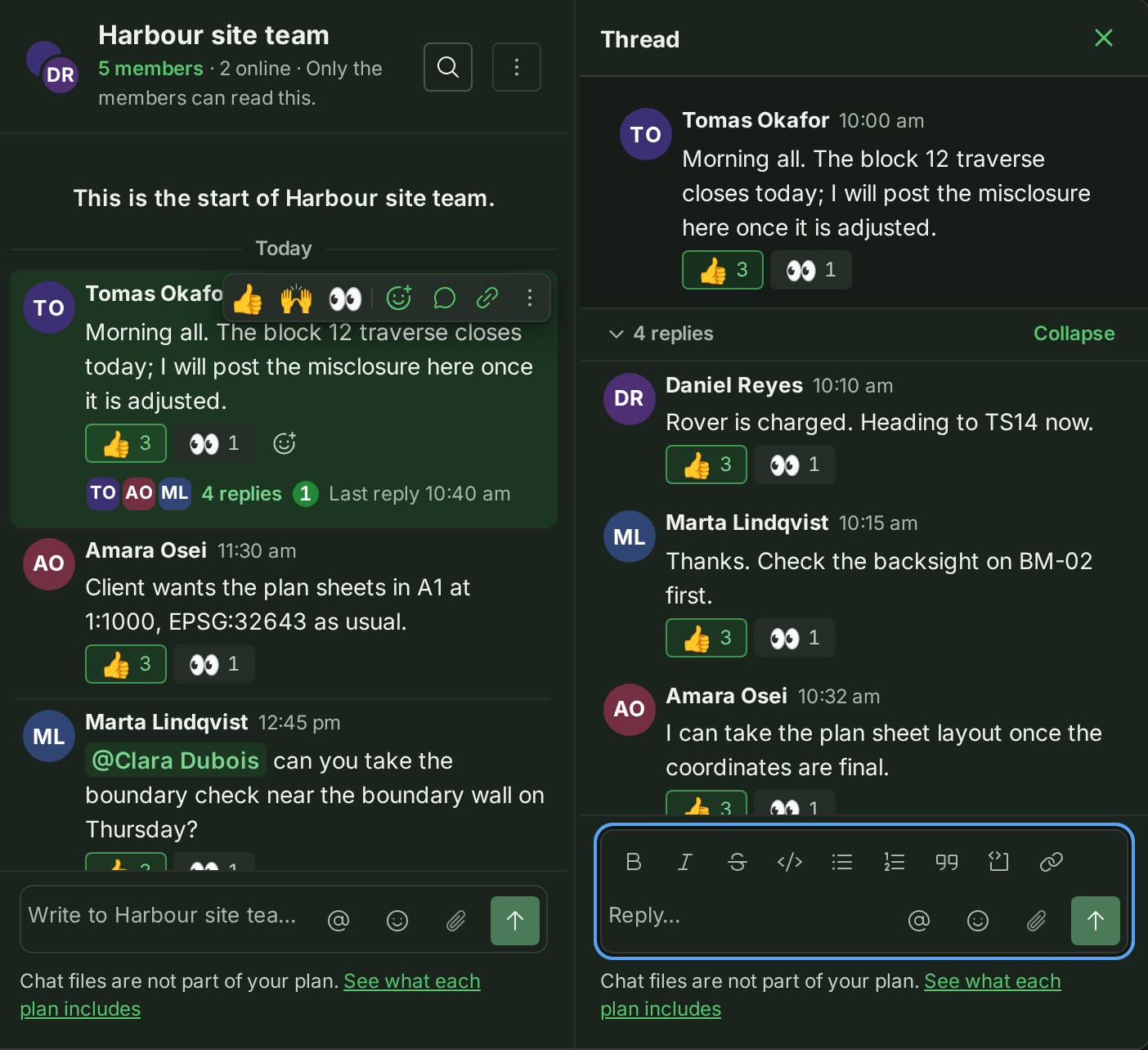
Point at the message you want to answer and select Reply in thread, the speech bubble in the bar at its top right. On a phone, open the ⋮ beside its time and select Reply in thread. If the message already has replies, select the line under it, for example 4 replies.
The thread opens with the message you are answering pinned at its top. On a wide window it opens beside the conversation; on a narrower one and on a phone it takes the conversation's place.
-
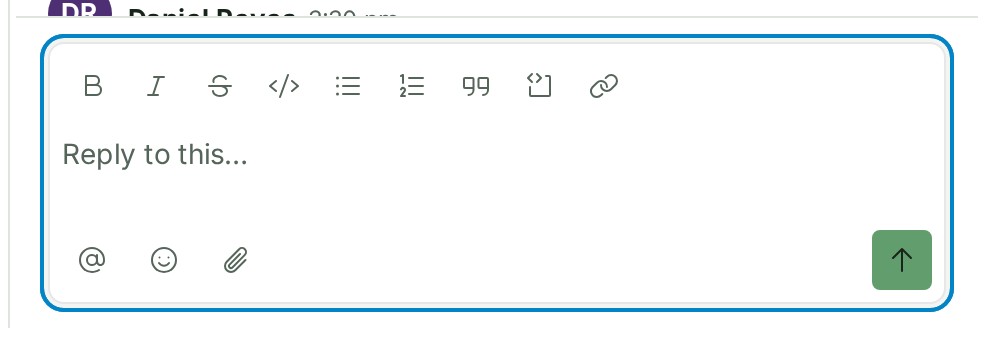
Write your answer in the thread's own box.
Your words stay in the box until you send them. The row under the box has Add emoji too, and in a project's conversation Attach a file: see Write in a project's conversation.
-
Press Enter, or select Send (the send arrow).
Your reply appears in the thread, above the reply box.
-
Select Back, or Close thread when the thread is beside the conversation. Esc also closes it.
The conversation shows again.
What happens next
Your reply goes to the thread only, not to the main conversation. The line under the message counts it, and shows the faces of the people who have answered. The bell tells the people who follow the thread, once for each thread: see Follow your notifications.
React to a reply
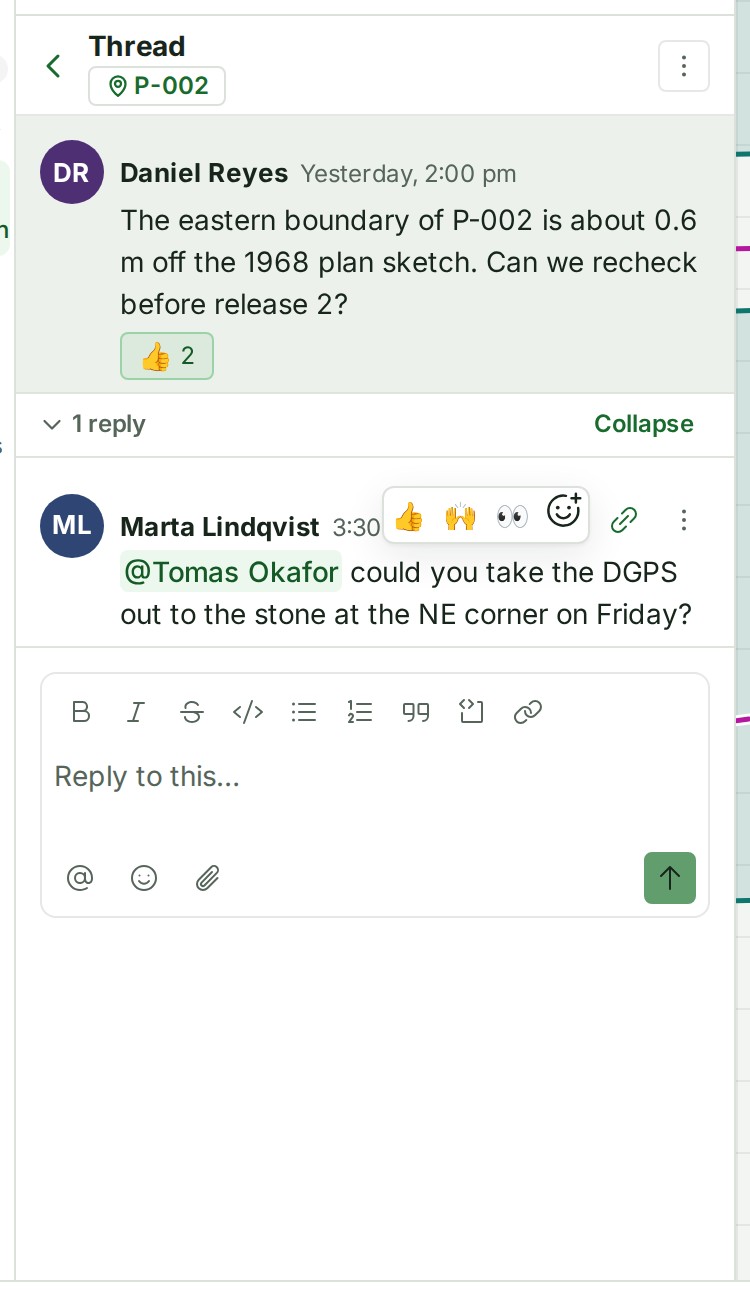
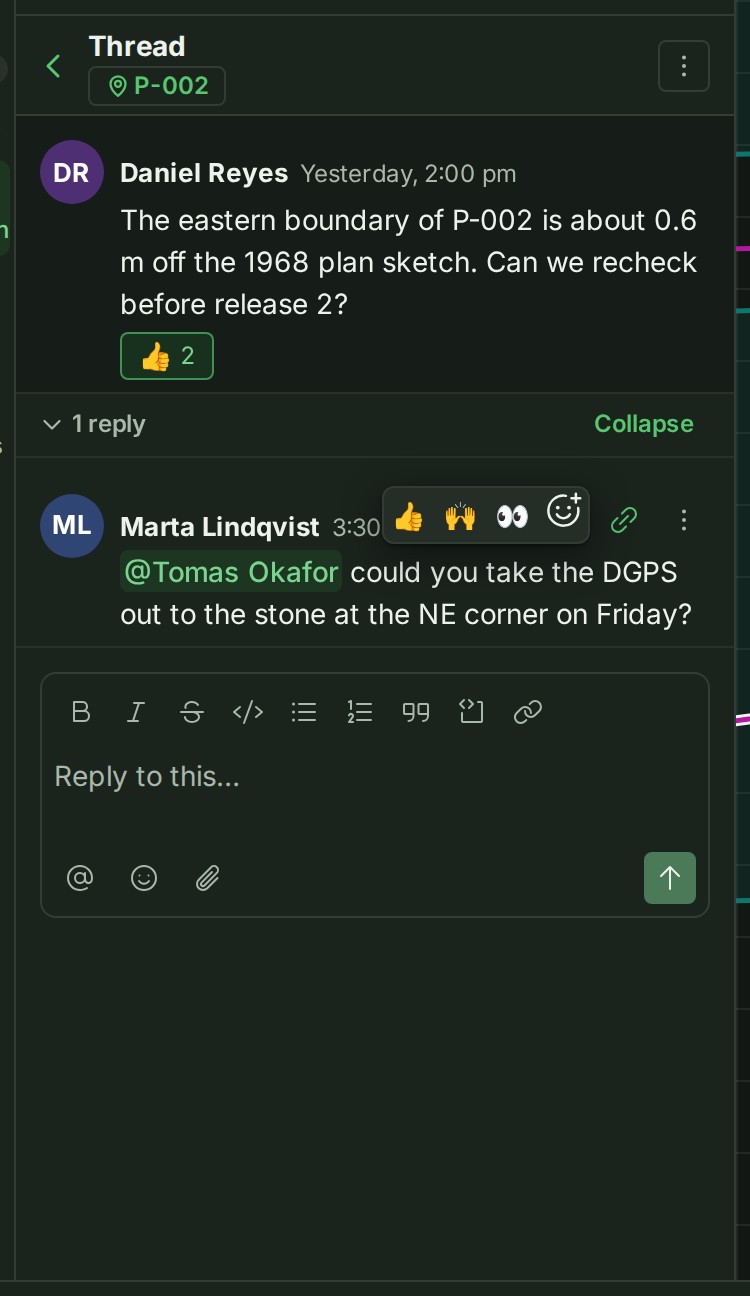
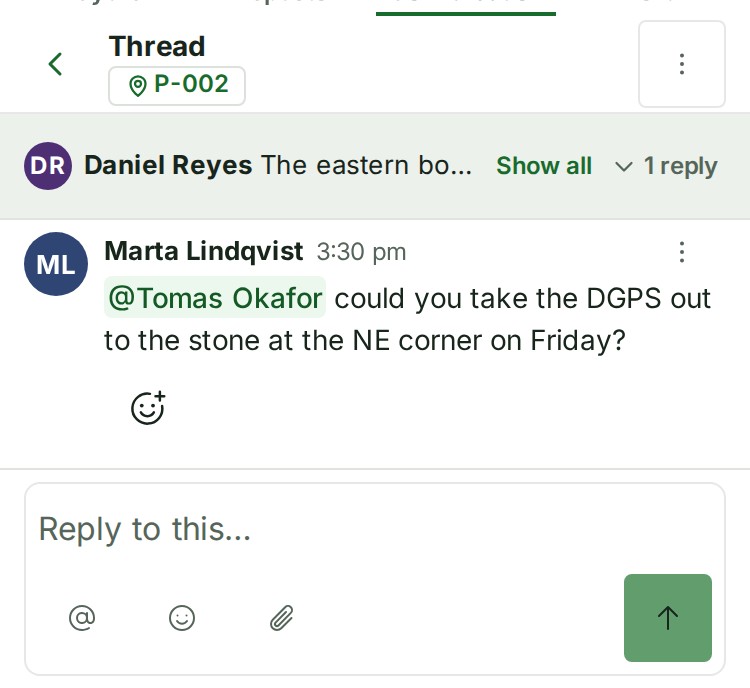
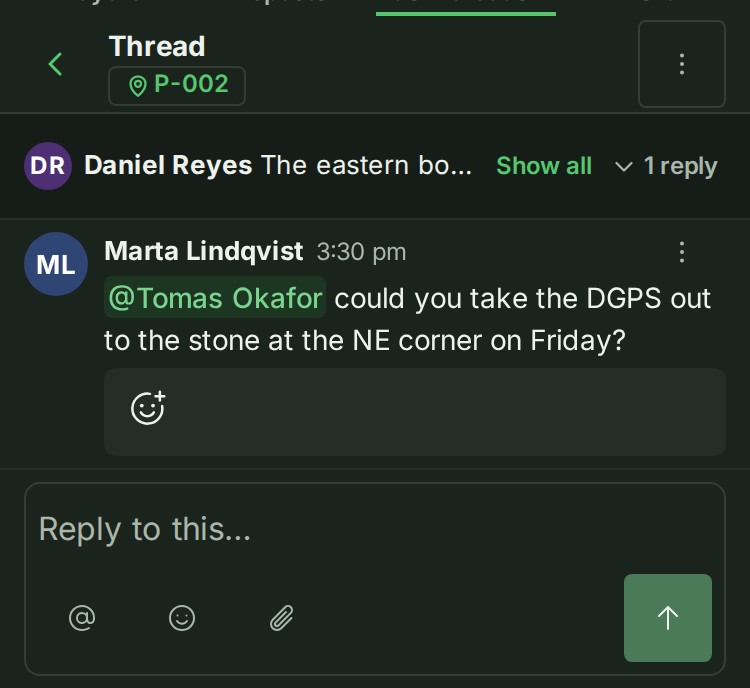
Point at a reply in the thread, or move to it with your keyboard, to show its quick emoji at the top right. On a phone, use the Add reaction button (a smiley with a plus) under the reply. On a touch screen wider than a phone, tap the reply once to unfold its quick emoji row. Reaction counts stay under the reply whether or not the quick row is showing.
A reply with nothing to read shows No message text. instead of an empty row.
If something goes wrong
- You can reply to a message, not to a reply. Replies do not nest, so Reply in thread is not offered on a reply.
- The replies could not be loaded. The connection dropped. Close the thread and open it again.
- You can read this conversation but not reply to it. In a project's conversation an auditor reads and does not write.
- This message has been deleted stands where the message was deleted. Its replies stay, and you can still reply under it.
More
- To record that a question is settled, see Ask a colleague for something.
- Anything you have written in a thread's box stays there if you press Esc.
- An open thread is part of the page's address: reloading keeps it open, and your browser's Back closes it.
- At a desk, drag the divider between the conversation and the thread to give either more room.
- In a project's conversation, a thread's reply box sits right under the last reply, however short the thread is.
Next: Copy a link to a message