Edit your profile
Change the name, job title, phone number and picture colleagues see for you. They follow you into every organisation you belong to.
-
Open Preferences from your picture at the top right. It opens on the Profile tab, with Your profile.
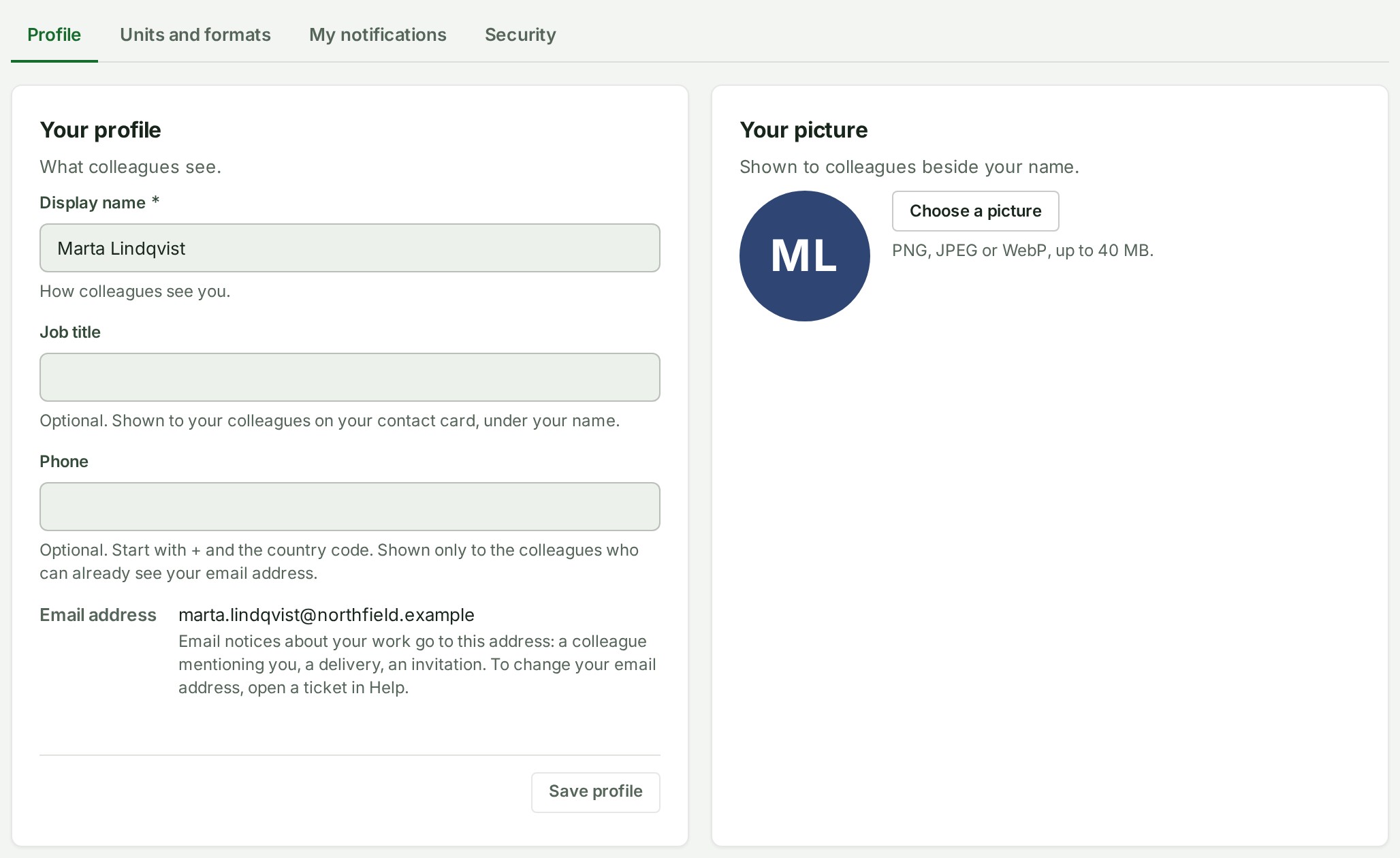
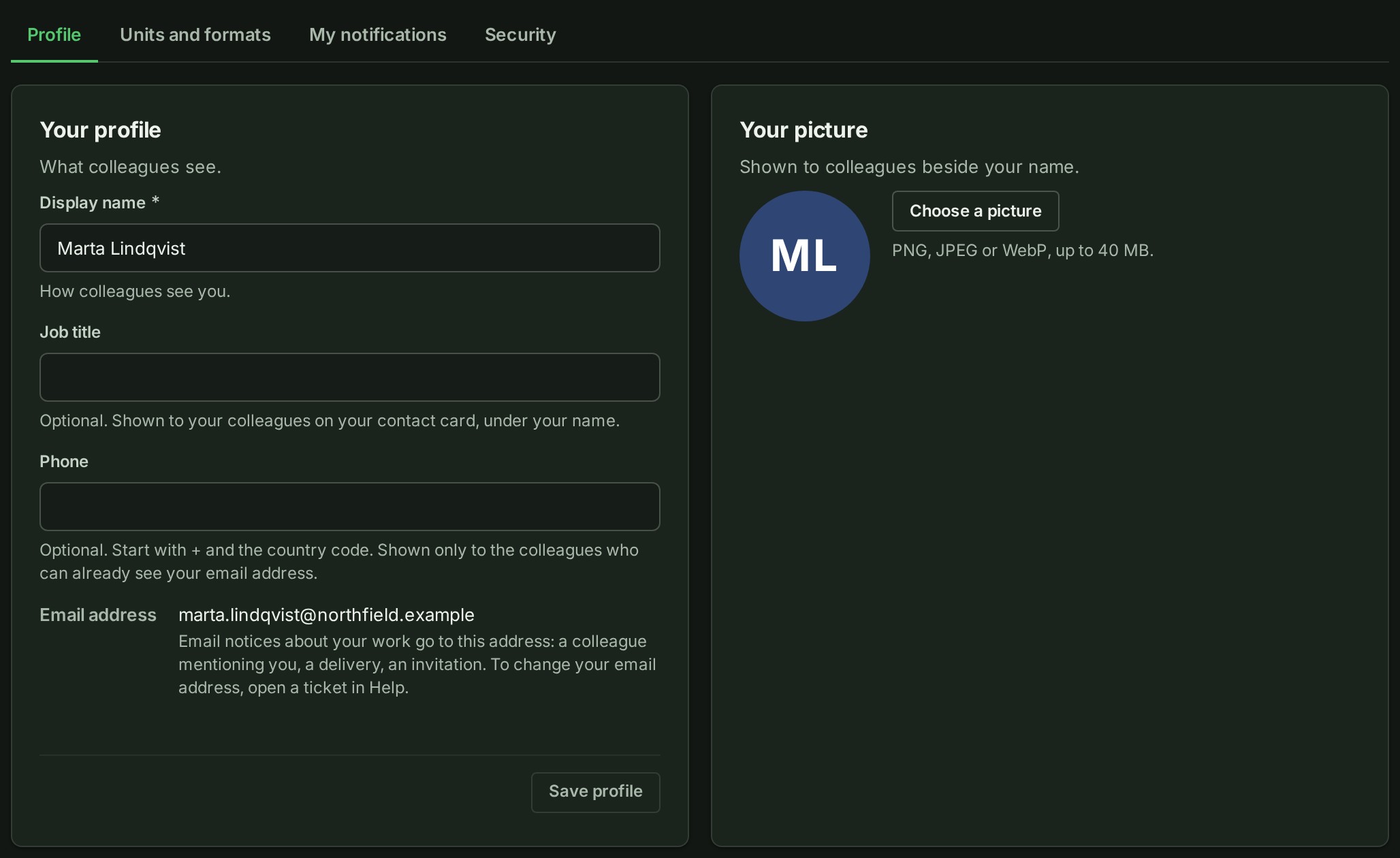
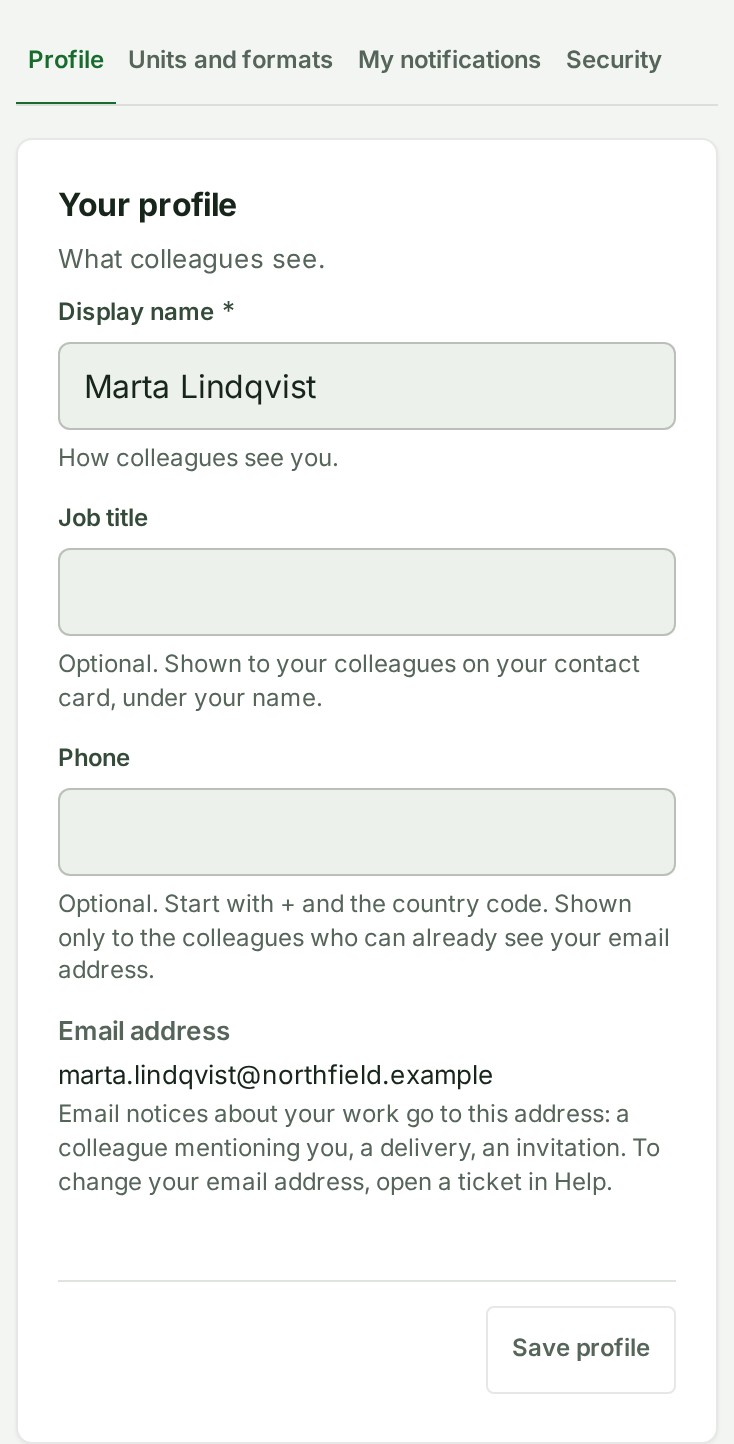
 2. Type your Display name.
3. Type your Job title, up to 80 characters on one line.
4. Type your Phone number, starting with + and the country code.
Will be saved as … shows how GISweaver reads the number.
5. Select Save profile.
Saved appears. To remove a job title or number, clear the box and save.
6. To change your picture, follow Change your picture.
What happens next
Colleagues see your name and job title on your contact card (See who someone is). Your phone number is shown only to the people who can already see your email address.
If something goes wrong
- The number cannot be read. The reason appears under Phone, and nothing is saved until you fix it or clear the box.
- Leave without saving? asks when you follow a link with unsaved changes. Choose Stay on this page to keep them.
- To change your email address, open a ticket in Help; it cannot be edited here.