Billing, plans and invoices
Use Billing to see your organisation's plan and how much of it is used, to renew or change the plan, to use a code, and to find payments and invoices. Most of it is for the people who look after the organisation's plan.
- Choose the organisation you want in the organisation switcher.
- Open Console → Organisation → Billing. If the Organisation section is closed, select it to open it.
- Choose a section.
| Section | What it holds | Who sees it |
|---|---|---|
| Plan and usage | Your plan, its status, what you have used, the plans on offer, codes and referrals | Owner, Admin, Billing manager and Auditor |
| Payments | Payments, refunds and attempts that did not complete | Owner, Admin, Billing manager and Auditor |
| Invoices | Invoices and credit notes | Owner, Admin, Billing manager and Auditor |
| Billing details | What appears on your invoices | Owner, Admin and Billing manager |
An Auditor can read Billing but cannot start a payment or change the plan; Billing says to ask the Owner, an Admin or a Billing manager. A Billing manager can pay for a plan but cannot cancel one.
Billing is the page for these tasks:
- See your plan and usage, Unfreeze your organisation and Compare the plans.
- Renew a paid plan, Switch between monthly and yearly billing, Cancel a paid plan and Move to a higher or a smaller plan.
- Use a code or an offer, Keep your billing details current and Review a purchase.
- Check your payments, Download invoices and credit notes and Billing outside India.
See your plan and usage
Check what your organisation's plan is, when it ends and how much of it you have used.
- Open Plan and usage.
-
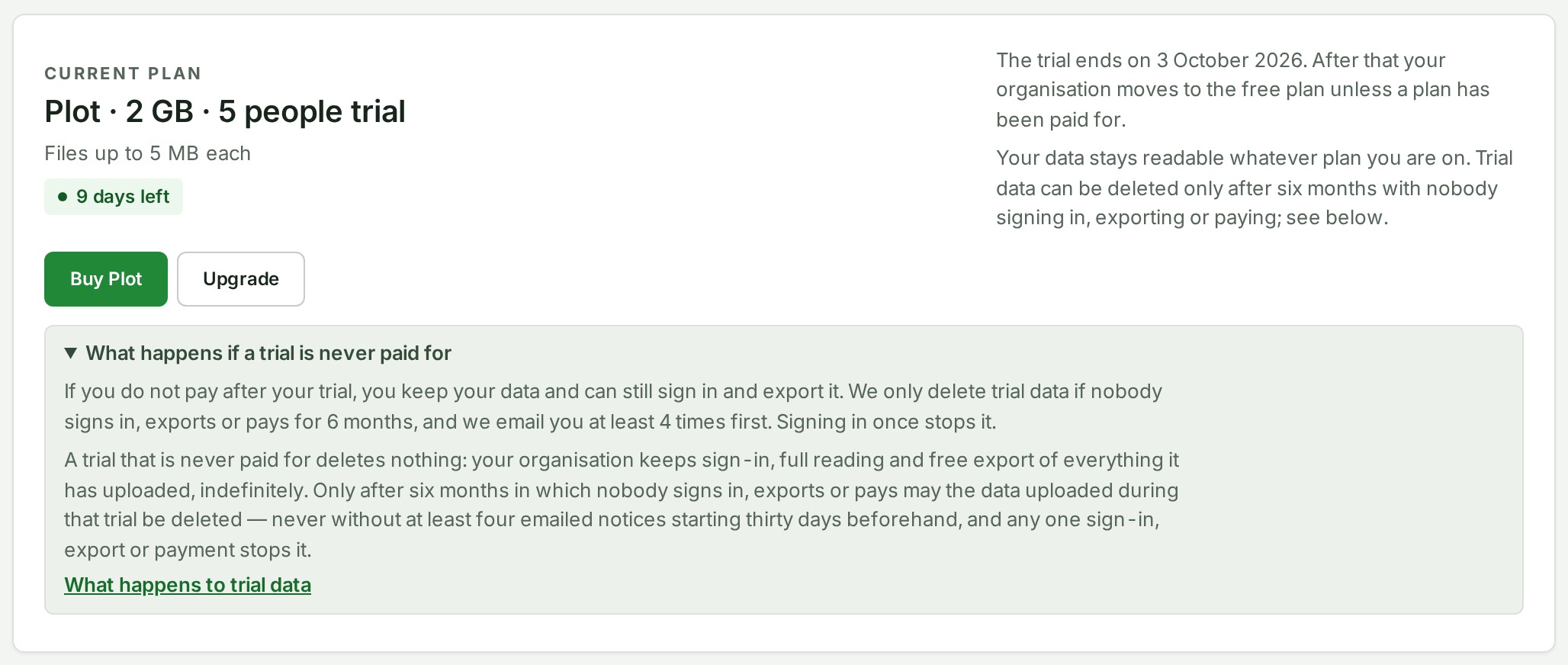
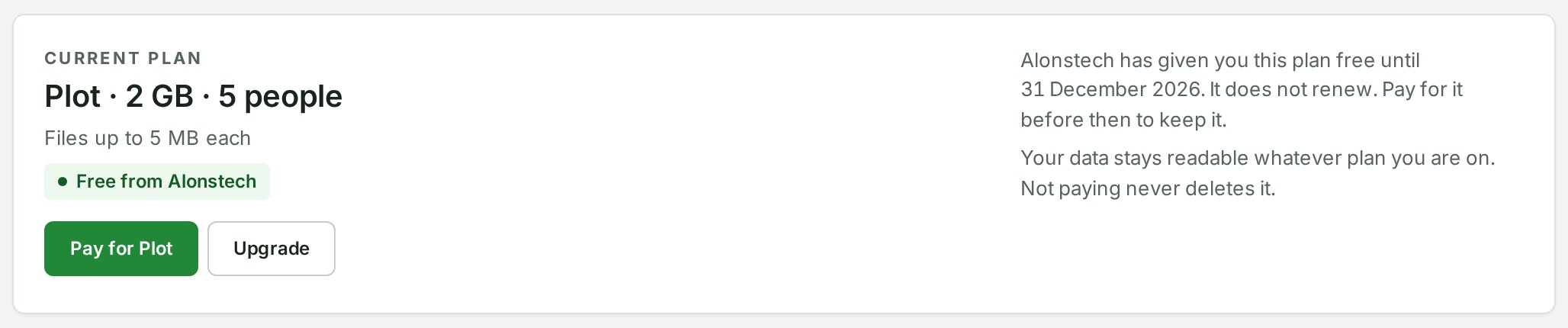
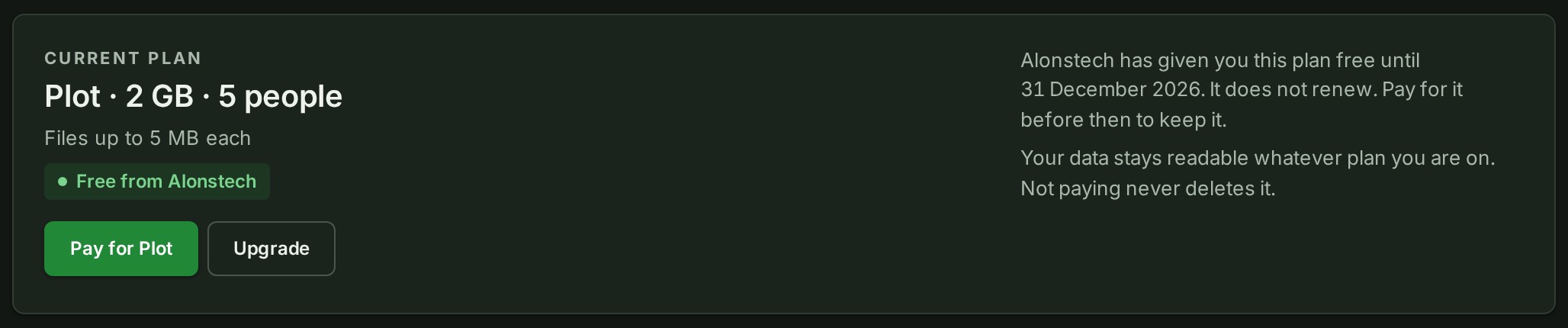
Read the Current plan card: the plan, its status, its billing period and the day it ends. A plan is shown as its name with its storage and its people, such as name · 5 GB · 8 people, with the per-file limit beneath. The same words appear on the plan cards, on an upgrade prompt, on the invoice and in billing emails.


-
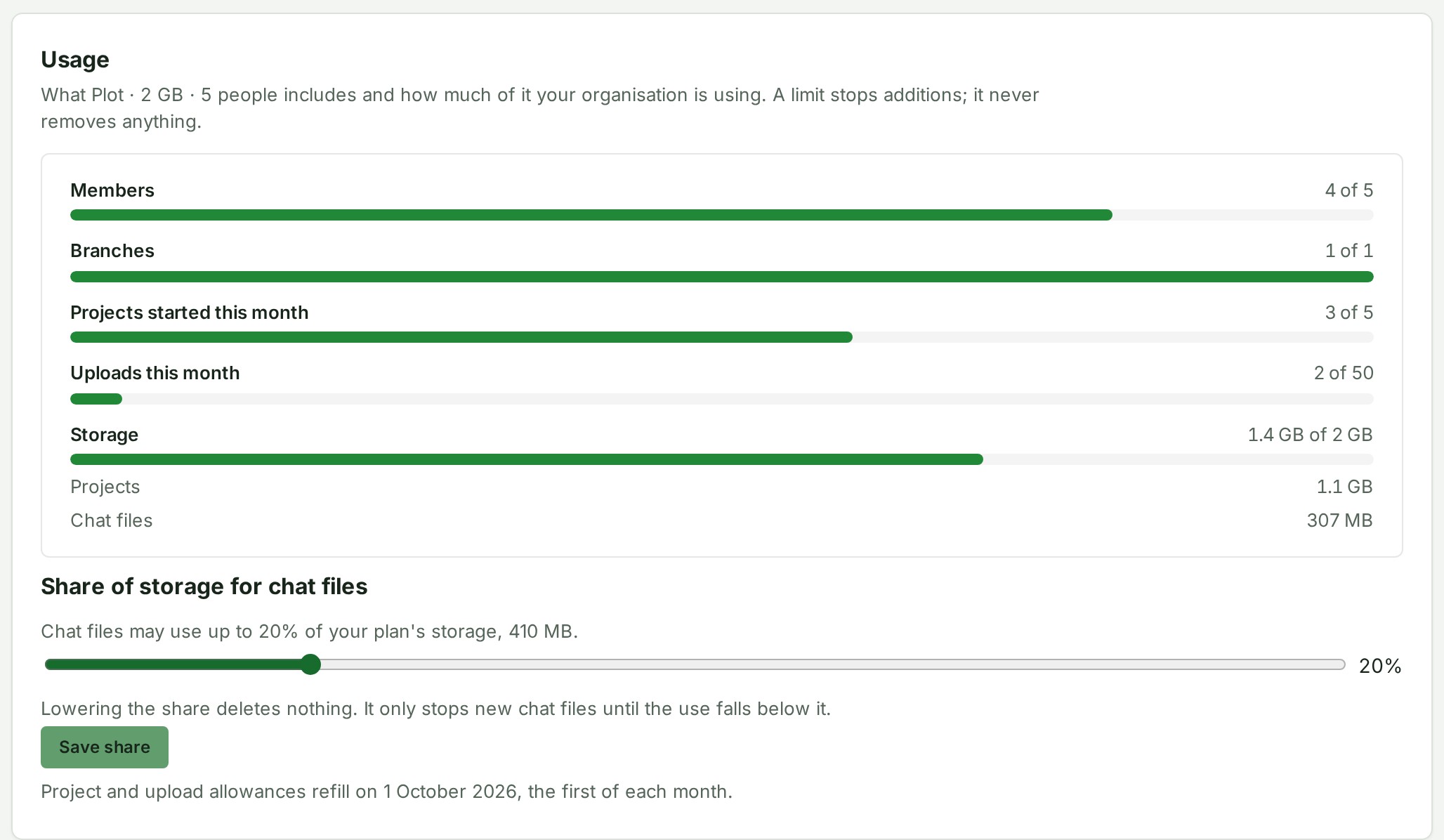
Read Usage under it. If an action reaches a limit, check which bar is full and how much is in use. A limit stops additions; it never removes anything.
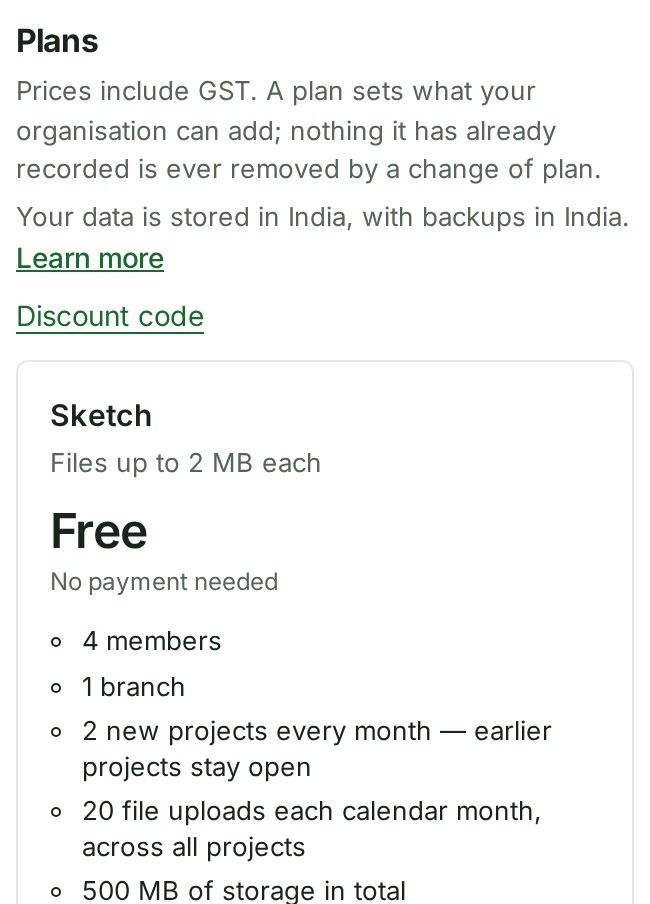
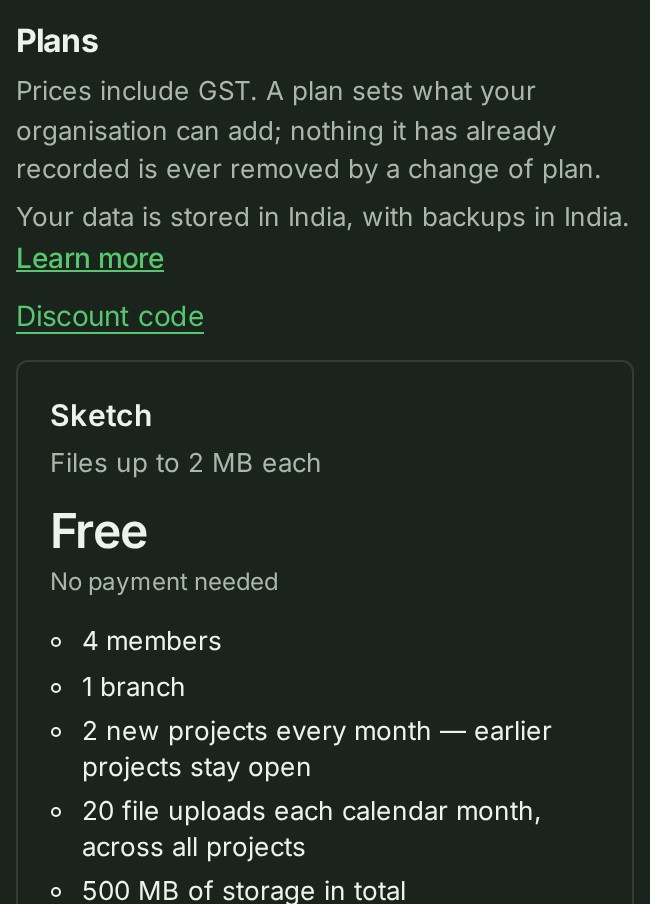
Billing says in one line where your data is kept, under the Plans heading: in India, with backups in India.
Why this is so
Treat this screen as the current record for your organisation. Plans, prices, tax treatment, availability, grants and dates can differ between organisations and change over time. The published shelf on Pricing is what each plan includes and costs in general; where the two differ, this screen is the one that applies to you. New organisations normally start on the free plan. GISweaver does not automatically start a trial of a paid plan, so an explicit grant or offer is what gives different access. Repeating an action does not create more allowance, but a quota refusal does not remove work already held. A discount code or referral shown here does not promise a benefit until the screen shows the actual result applied.
What the status says
| The card says | What it means |
|---|---|
| Active | The plan is paid for until the date shown. Nothing is charged automatically. Renew by that date to keep the plan. If you do not, it keeps working for an extra week, then your organisation moves to the free plan. |
| Ends date | The plan was cancelled. Everything in it keeps working until that day, then your organisation moves to the free plan. Nothing is refunded. |
| Renewal due | The last paid period has ended. Renew to keep the plan; otherwise your organisation moves to the free plan. |
| Free from Alonstech | Alonstech has given your organisation a plan without payment. The card names the end date, if there is one. It does not renew; pay for the plan before then to keep it. |
| n days left | A trial is running. It ends on the date shown, and then your organisation moves to the free plan unless a plan has been paid for. |
| Replaced | A newer plan took over before this one was due to end. Nothing was lost. |
| Ended | The plan ended on the date shown. Your organisation is on the free plan until another is paid for. |
What happens to your data if a trial is never paid for
Your data stays readable whatever plan you are on. On a trial, and on the free plan after a trial, a short summary says what that means.
- Open Plan and usage and find What happens if a trial is never paid for under the Current plan card.
- Open it and read the plain summary: you keep sign-in, reading and export after the trial.
- For the full wording, select What happens to trial data. It opens the Terms.
Trial data can be deleted only after six months in which nobody signs in, exports or pays, and never without at least four emailed notices starting thirty days beforehand. Any one sign-in, export or payment stops it.
See what your storage holds and be warned before it is full
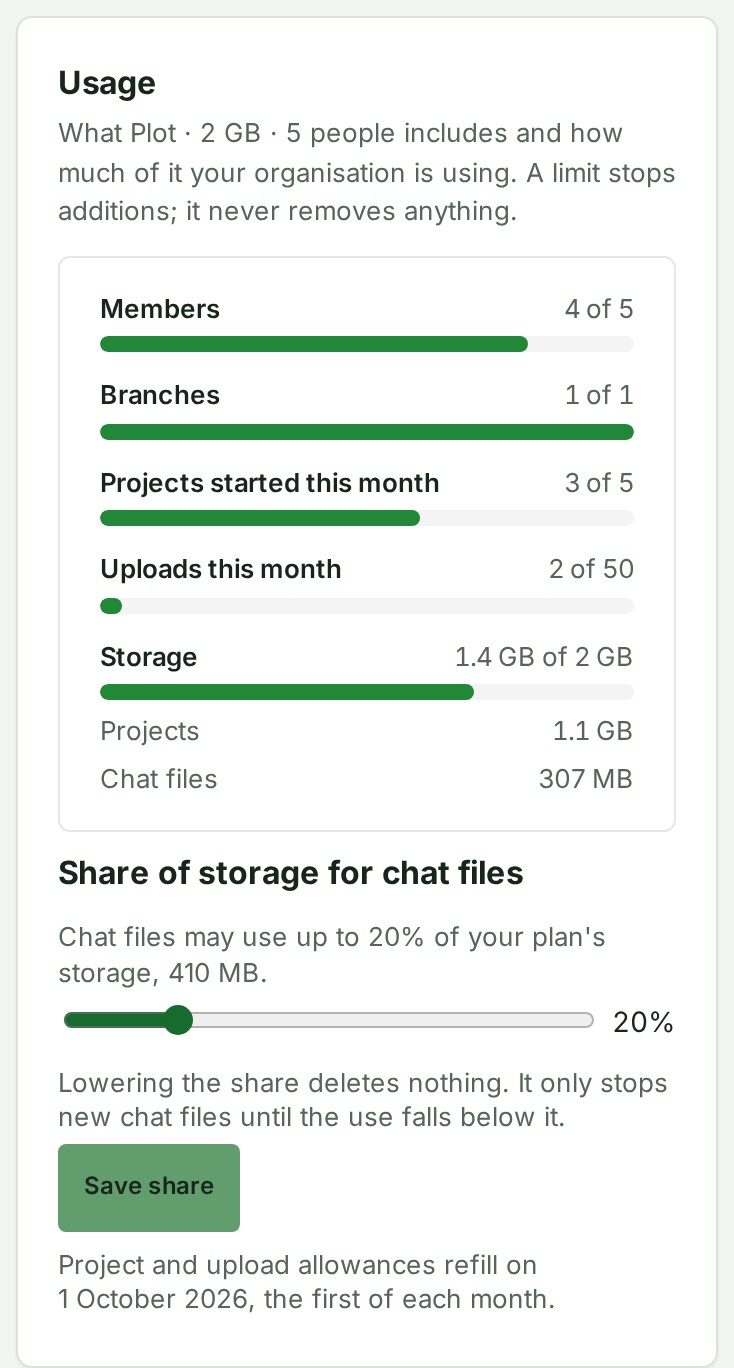
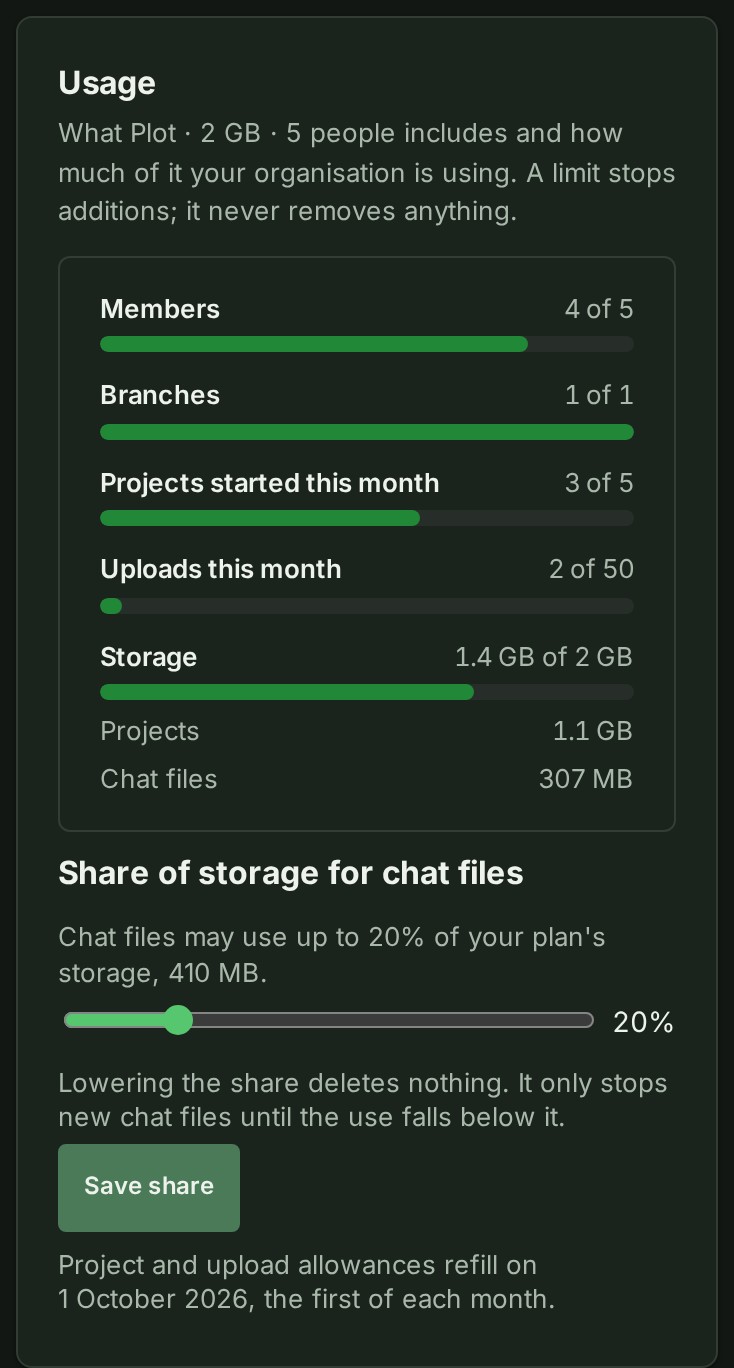
Under the Storage bar, a short list says what the stored bytes are made of: Projects, and Chat files once files have been sent in Messages. The two lines add up to the figure on the bar. Only totals are shown: nobody here, the owner and administrators included, can see which conversations or people the chat files belong to.
Chat files may use a share of your plan's storage, 20% unless it has been changed, so that conversations cannot use up the room your project deliveries need. An Owner or an Admin can change the share:
- Open Plan and usage and find Share of storage for chat files under the Storage bar.
- Move the slider from 0% to 100%.
- Select Save share.
Everybody else sees the share as a sentence, without the slider.
- The share is a percentage, so it follows the plan when you upgrade or downgrade.
- Above 50% the screen warns that chat files can crowd out uploads to your projects. At 0% nobody can send a file in a conversation.
- Lowering the share deletes nothing. It only stops new chat files until the use falls below it, and everything already sent stays readable.
The Owner and the Admins are also told in the bell when storage reaches 70%, 90% and full, measured against the storage your organisation may actually hold (the plan, with any grant or trial cap already counted). Each message opens Plan and usage.
- A level is told once for each person in a calendar month (India time, UTC+5:30). Only the highest level reached is told, so an organisation that jumps from 60% to 95% gets the 90% message, not two. If storage is still at that level next month, the message comes again.
- The messages name no project and no person, and they cannot be switched off: they are service notices, like a billing notice.
- At full, new uploads are paused. Permanently delete files you no longer need, or choose a bigger plan. What is already stored stays.
- Members who are not Owners or Admins are not sent the message.
Under the bars, one line says when the project and upload allowances refill: on the first of each month.
Members, branches or storage given to your organisation
Alonstech can change three of your organisation's numbers (members, branches and storage) in two ways, and the Current plan card says which, figure by figure:
- A benefit grant from Alonstech staff adds to what your plan includes for a stated period. You redeem nothing. The card reads Members: 8 (plan normally 5). Extra from Alonstech until 31 March 2027. It never lowers a number.
- A tailored plan sets your organisation's numbers for its subscription, up or down, as agreed with Alonstech: Branches: 2 (plan normally 1), agreed for your organisation. It is never set below what your organisation already holds.
When either applies, the plan's name on the card carries your organisation's own figures, such as name · 20 GB · 8 people instead of the published name · 2 GB · 5 people, and the usage meters are drawn against them.
Why this is so
A benefit grant or a tailored plan changes what your organisation may add; it changes no price and nothing is charged for it. It ends on the date shown. By then the Owner, the Admins and the Billing managers have had an email naming the numbers and the day. From that day the plan's own numbers apply again. Nothing is removed when it ends: if your organisation then holds more than the plan includes, what is held back is adding more, never what is already there. Every benefit grant and tailored plan, and its withdrawal, is recorded in your organisation's audit trail with the reason Alonstech gave. A gift code you redeem can turn on features, add trial days or give a plan, for the period shown, and is recorded in that audit trail. It never changes your members, branches or storage.
Unfreeze your organisation
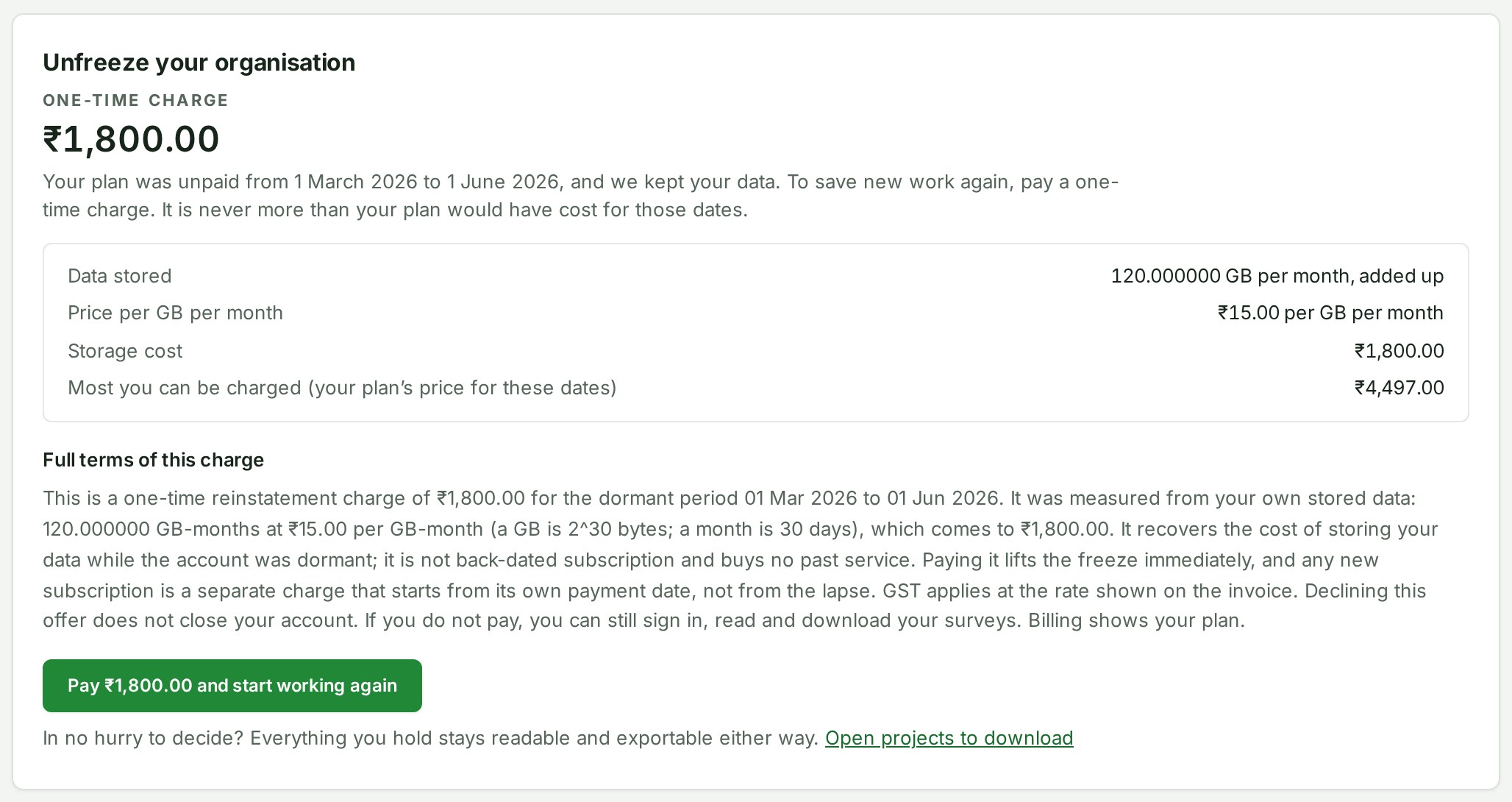
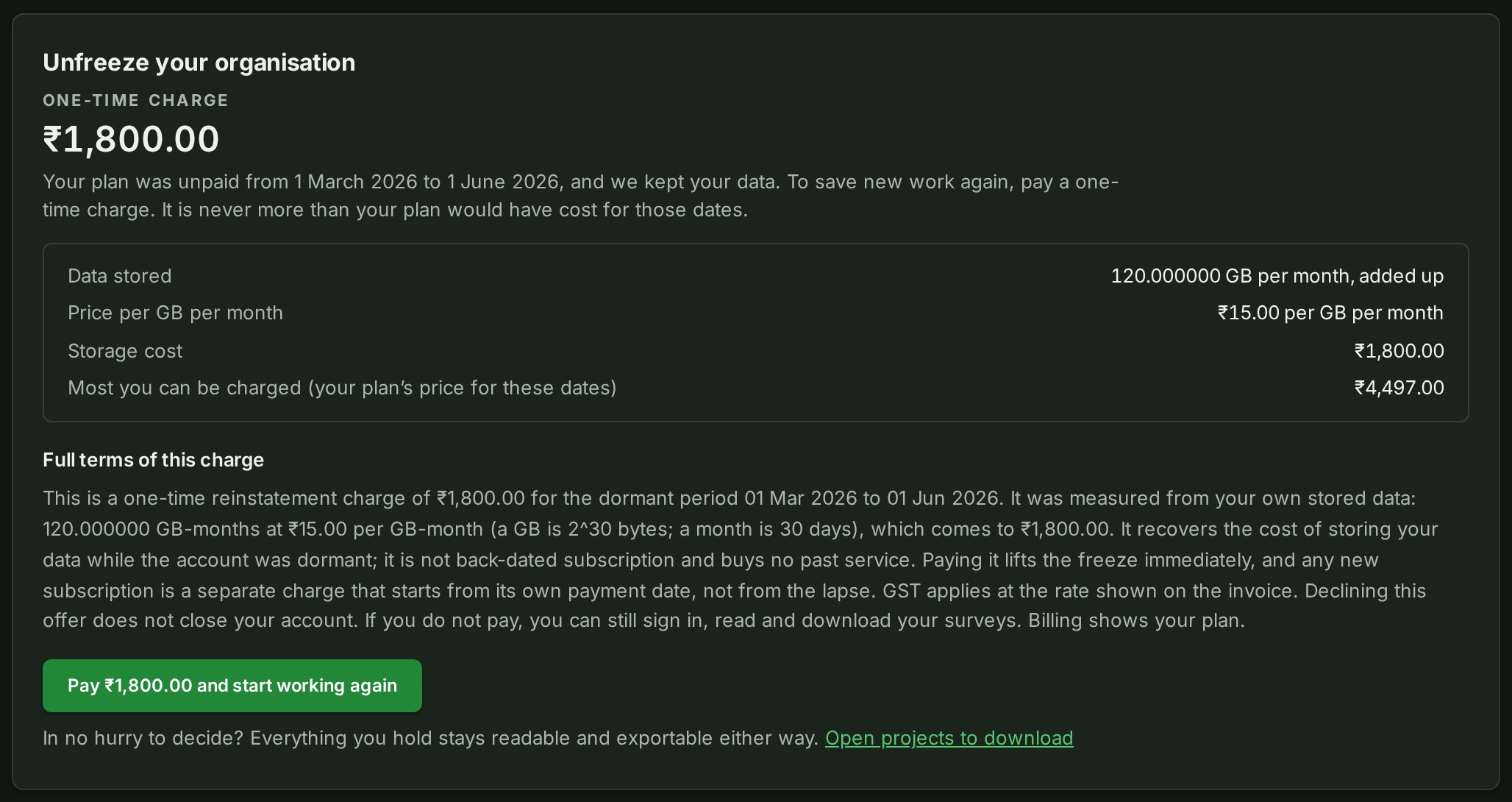
If an Unfreeze charge is offered, read its dates, amount and full terms before paying.
- Find Unfreeze your organisation in Plan and usage.
- Check Data stored, Storage cost and Most you can be charged (your plan’s price for these dates). A flat charge does not show a storage measurement.
- Read Full terms of this charge, then choose whether to pay. Your existing data remains readable and exportable either way.
Why this is so
Your plan was unpaid for the dates shown, and GISweaver kept your data. The one-time charge recovers the storage cost for those dates and is never more than your plan would have cost for them. A waived charge has nothing to pay. Paying lifts the freeze so the organisation can save new work again. If you do not pay, you can still sign in, read and download your surveys.
Compare the plans
See what each plan includes and costs before you change plan.
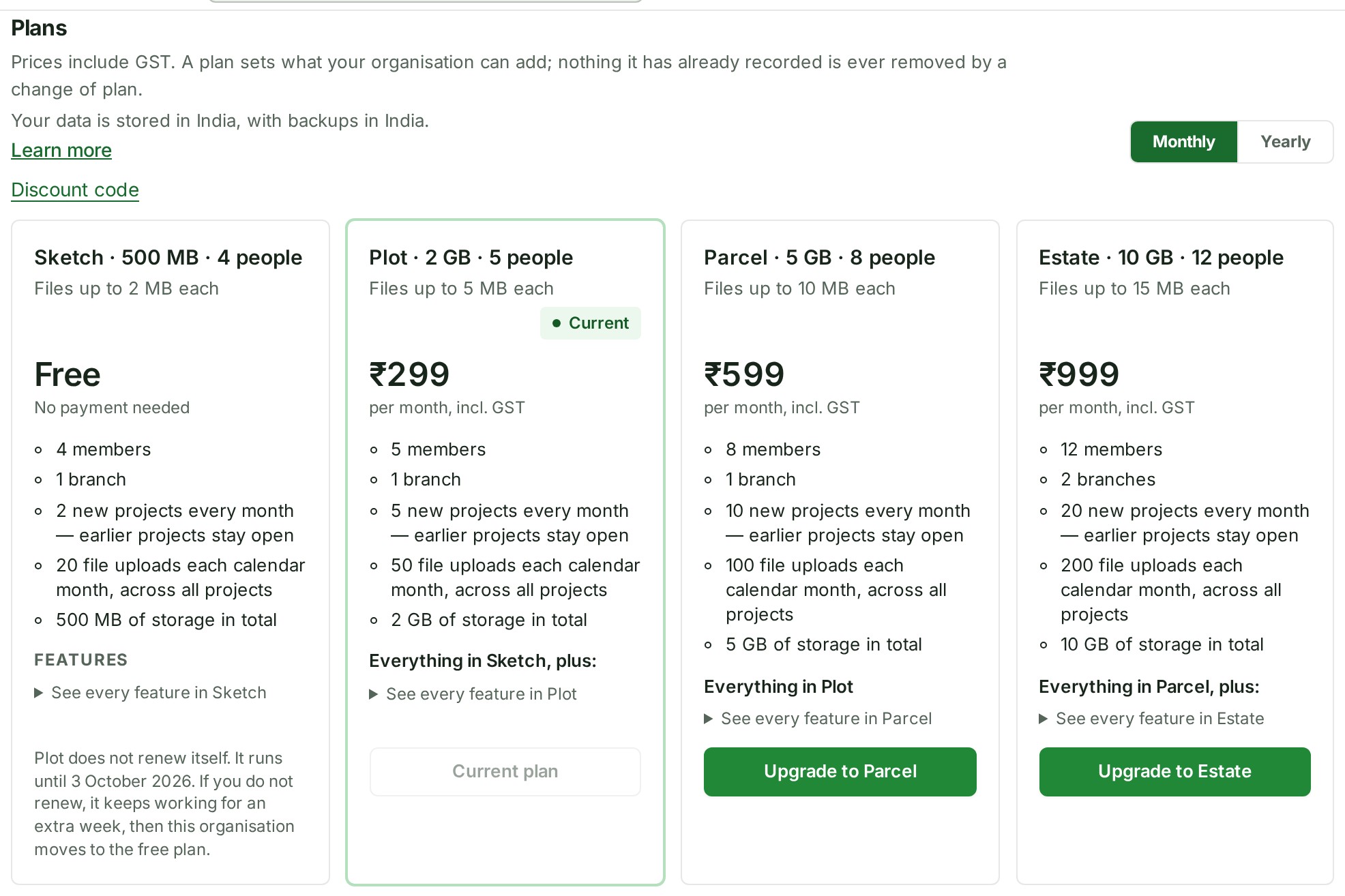
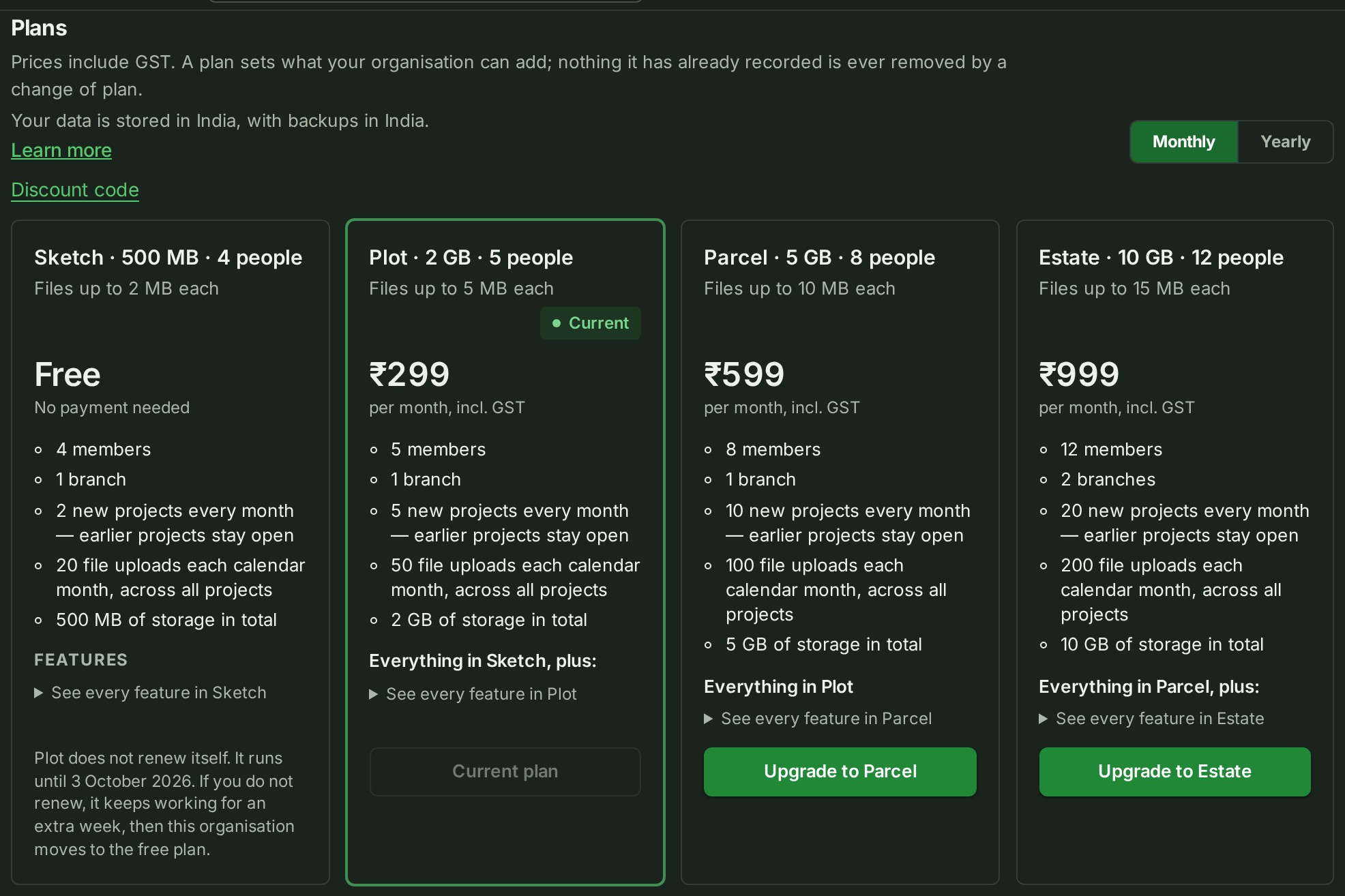
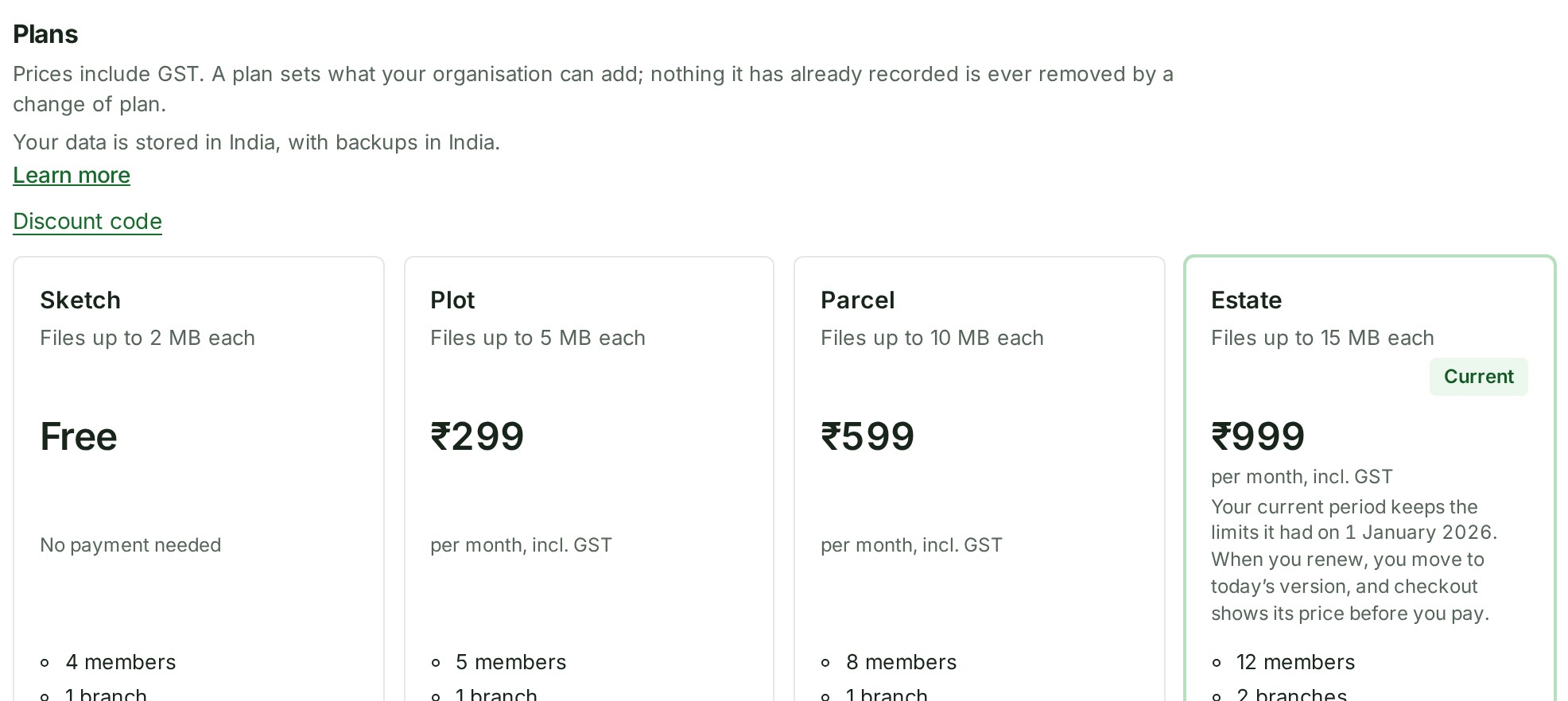
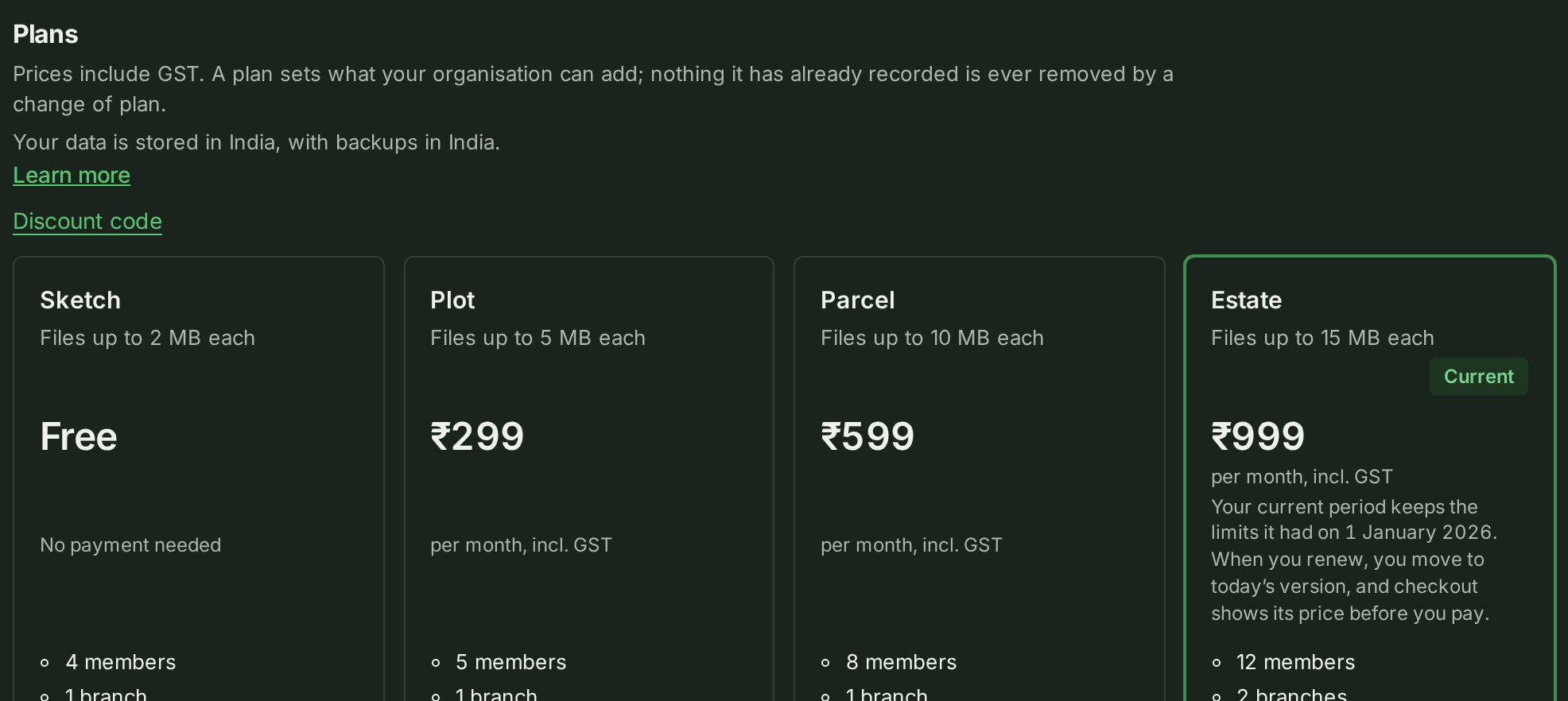
- Open Plan and usage and find the Plans heading. The cards show the plans on offer, with the monthly price.
- If yearly plans are offered, a Monthly and Yearly choice appears above the cards. Choose the one you want to read.
- Scroll to Compare all features under the cards. It lists every plan as a column, with every quantity and every feature as a row.
A tick means the plan includes the feature and a dash means it does not. The plan your organisation holds is marked by a small Current chip beside its name; nothing else about that column is highlighted.
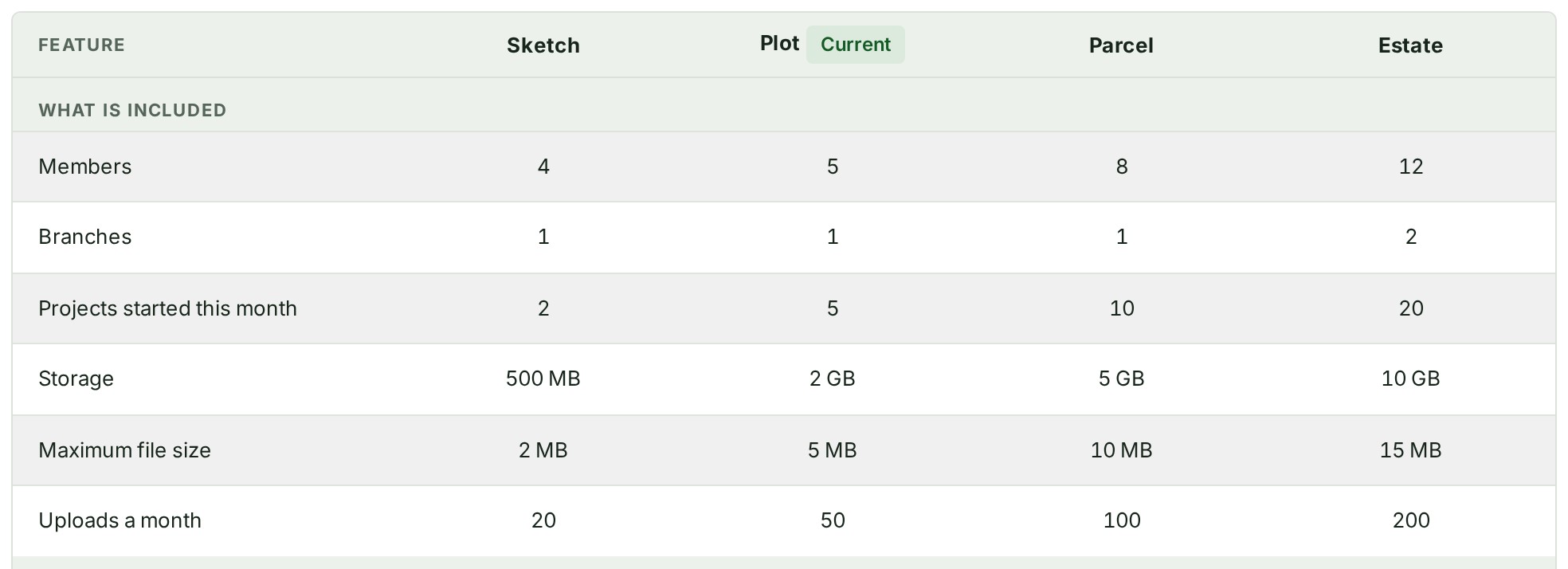
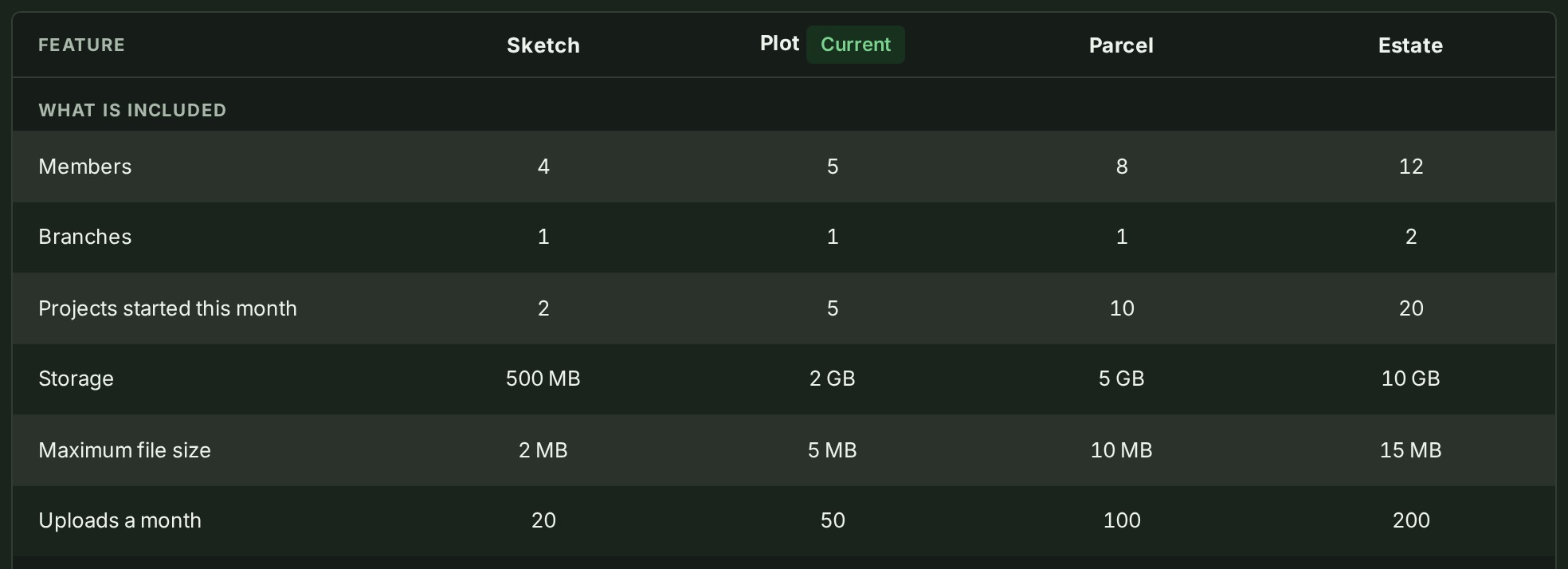
- Every feature a plan can include has a row, including one that no plan on sale includes at the moment. When a screen says a feature is not part of your plan, for example External sharing on a project's Access tab, its row here shows which plans include it, and a sentence under the table says so in words.
- A Trial row appears only while a plan is offered with a trial.
- Every value in the table is a limit on what your organisation can add. Changing plan never removes anything you have already recorded.
- Plans no longer offered are not on the page. An organisation still on one keeps it, sees it on its own card, and may renew it.
When yearly plans are not offered
When the catalogue does not offer yearly plans, there is no Monthly and Yearly choice and the prices are monthly. A request for a yearly period from anywhere else is refused, and nothing is charged. An organisation that already pays for a yearly term can renew it: its own plan's card shows the yearly price it pays, with Renew plan in the last week of the year, or Renew plan once the payment is overdue. The other plans are shown at their monthly prices, so moving up to another plan is on that plan's monthly price.
Renew a paid plan
GISweaver does not renew a paid plan automatically. Renew it yourself before it ends, or in the extra week that follows.
- Open Plan and usage.
- In the last week of a paid period, select Renew plan on the Current plan card, under the line that says when the paid period ends. The plan and the billing period stay the same.
- Read the review and pay: see Review a purchase. The new period starts when the current paid period ends, so renewing early does not discard paid time.
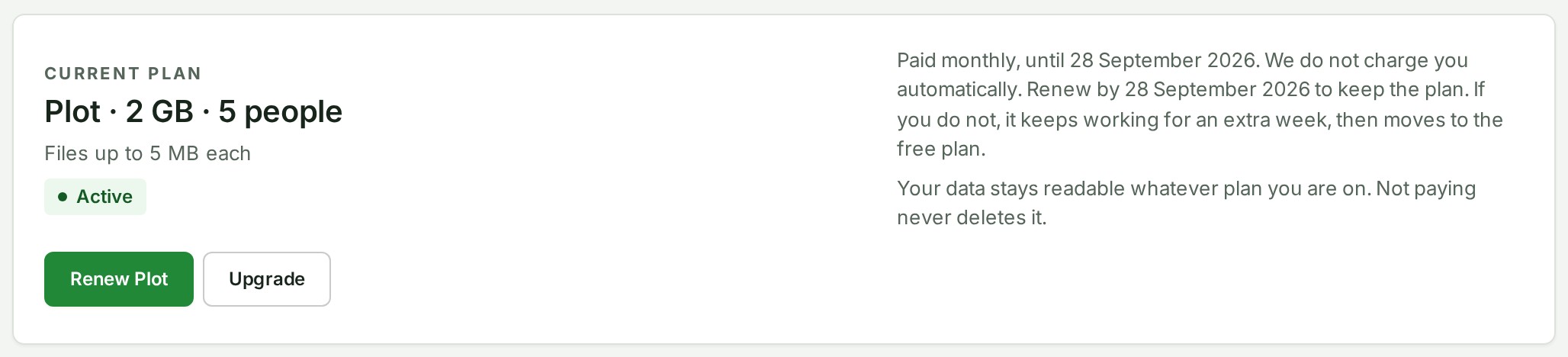
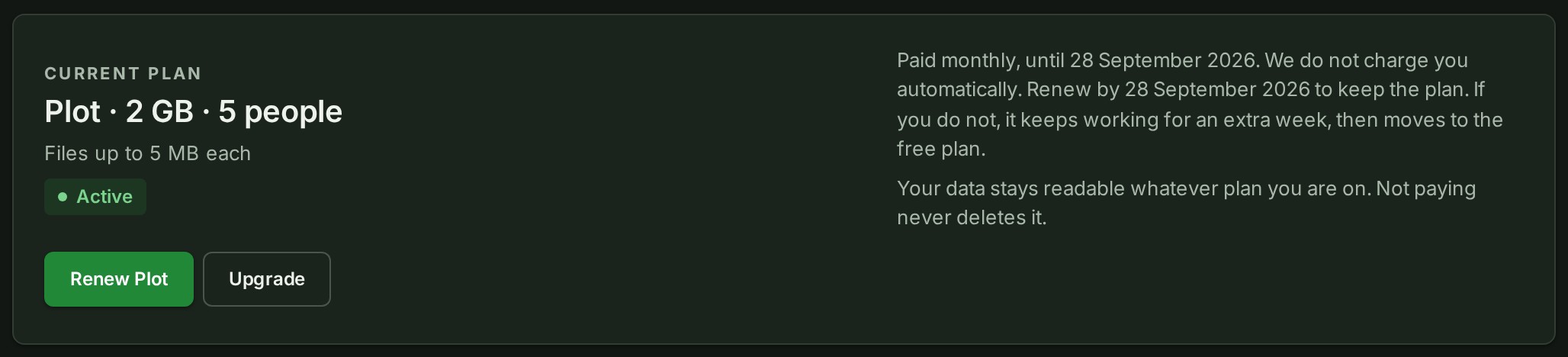
Beside it, Upgrade takes you to the next plan up and highlights that plan's card, with keyboard focus on its name. It buys nothing; you still choose the plan and review the payment. Upgrade is not shown on the top plan, or to anyone who may not change the plan.
Before the last week, the same paid plan and billing period shows a disabled Current plan button. This prevents a duplicate purchase, and nothing is charged by it. Wait until Billing shows Renew plan.
The disabled Current plan button does not stop every change:
- Choosing the other billing period for the same plan can show Switch to yearly billing or Switch to monthly billing. During the beta only monthly billing is offered, so you will not see Switch to yearly billing. An organisation that pays yearly does not see Switch to monthly billing on its own plan either, and renews its year instead. See Switch between monthly and yearly billing.
- Choosing a different available plan can show Upgrade to plan or Switch to plan.
- A trial, a plan free from Alonstech, a past-due plan or a plan in grace can show its own live payment or renewal action.
Read the review screen before continuing. The button labels and availability on the current Billing screen are the authority for the organisation selected.
When a paid plan or a trial has ended and your organisation is on the free plan, the plan's card and the top of the page both offer to buy that plan again. A plan that was replaced by a newer one before its end date is not an ended plan and offers nothing to buy.
Switch between monthly and yearly billing
Moving the same plan to the other billing period takes effect when the period you have paid for ends. You pay for the new period when you confirm; it begins the day the current one ends. You don’t lose any days you have already paid for, and nothing is refunded.
- In Plan and usage, choose the other period and select Switch to yearly billing or Switch to monthly billing on your plan's card.
- The review screen shows Starts as the day your current period ends, with the billing period you pay now and the one you are on. Select Continue to payment.
- When the payment is confirmed, the notice names the day the new period starts: Your yearly plan period starts on 12 November 2026, when your current period ends.
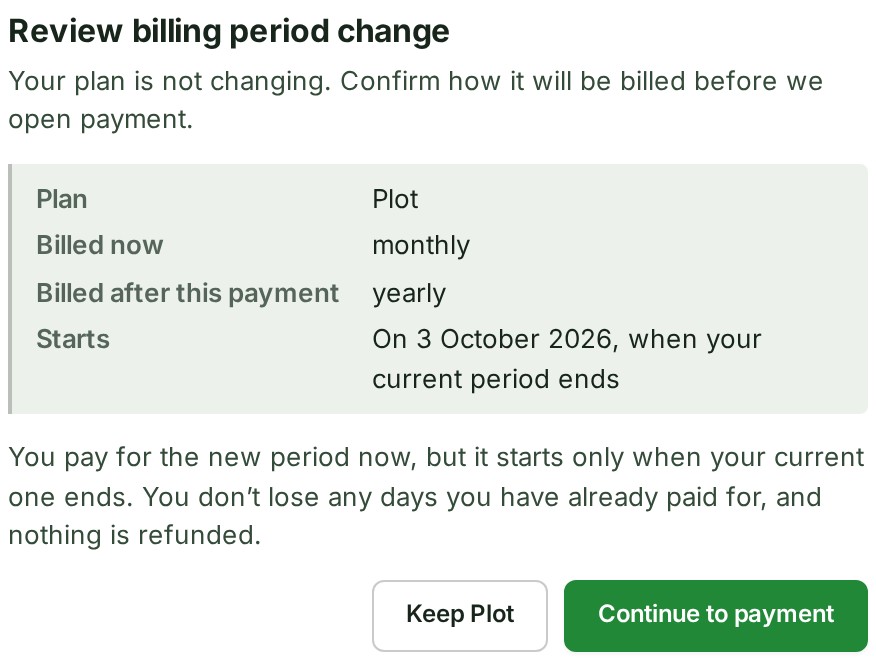


Until that day the plan card says you are on the period you paid for and names the day the new period begins and ends. A switch from a yearly period to monthly waits for the whole year to end. The invoice names the period it covers, which starts on that day. If you change your mind, ask Alonstech; a refund of the payment gives the earlier period back to you.
Cancel a paid plan
An Owner or an Admin can cancel a running paid plan. The plan keeps working until the end of the period already paid for.
- Open Plan and usage and go to Change or cancel your plan, the last section, below the plans and their comparison.
- Select Cancel plan. Billing shows the date the plan ends, that the organisation then moves to the free plan, and that nothing is refunded.
- If you want, say what made you decide, from a short list, or leave it at I would rather not say. It is not required and changes nothing about the cancellation.
- Select Cancel plan. To stay, select Keep plan.
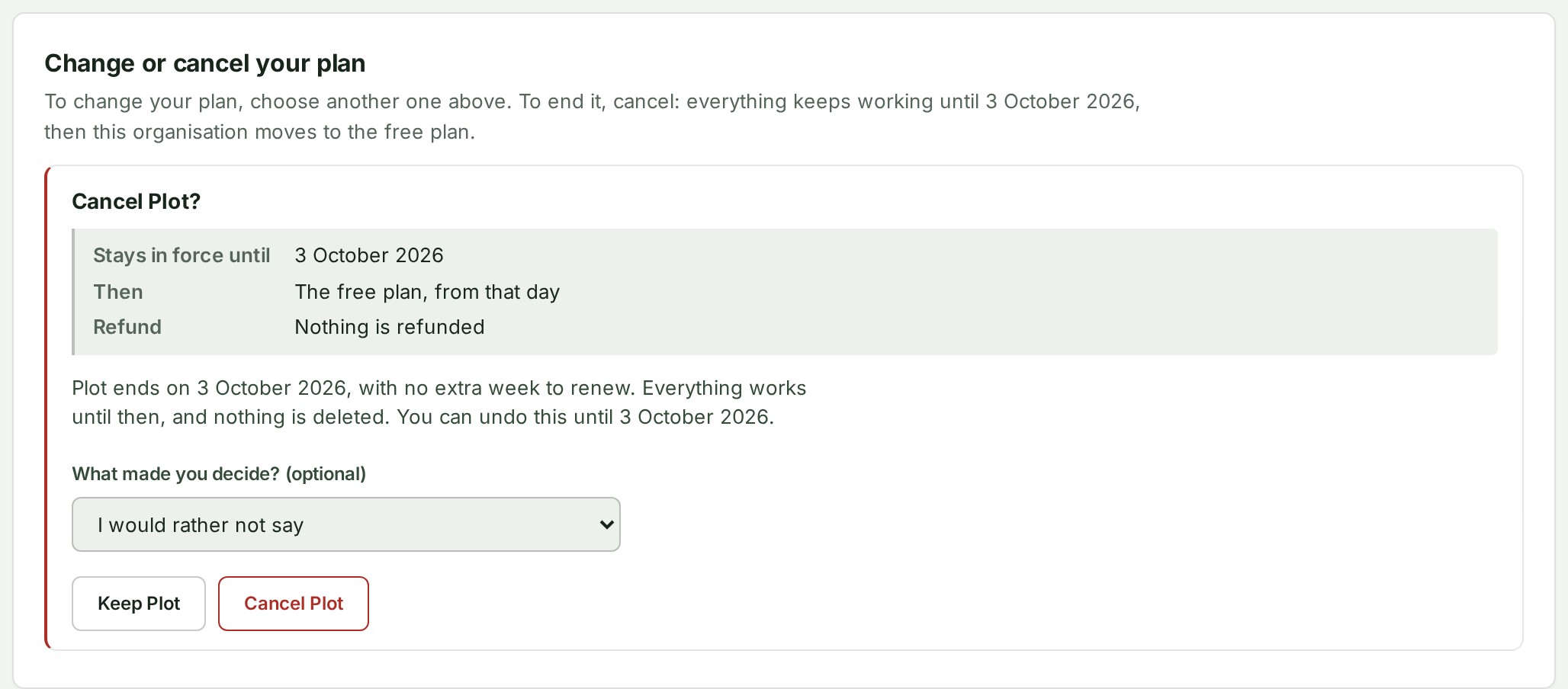


- The plan keeps working, with everything it includes, until the end of the period already paid for, and nothing is deleted.
- On that date the organisation moves to the free plan. A cancelled plan has no extra week to renew.
- A plan in its extra week after its period has ended cannot be cancelled; it moves to the free plan when the week ends unless you renew.
- Nothing is refunded for the time left, and no invoice or credit note is issued. A refund Alonstech makes of a payment in full also ends the plan that payment bought, unless Alonstech decides to keep it running; a refund of part does not.
- Until that date, Keep plan on the Current plan card withdraws the cancellation, and the plan runs on as before. A cancelled plan does not offer Renew plan, even in its last week.
Move to a higher or a smaller plan
A higher plan
A higher plan can be bought at any time.
- In Plan and usage, select Upgrade to plan on the higher plan's card.
- Read the review. It shows the new plan's price, the value of the unused days of your current period, and the amount to pay now.
- Select Continue to payment. The new plan starts when payment is confirmed, for a full new period from that day.
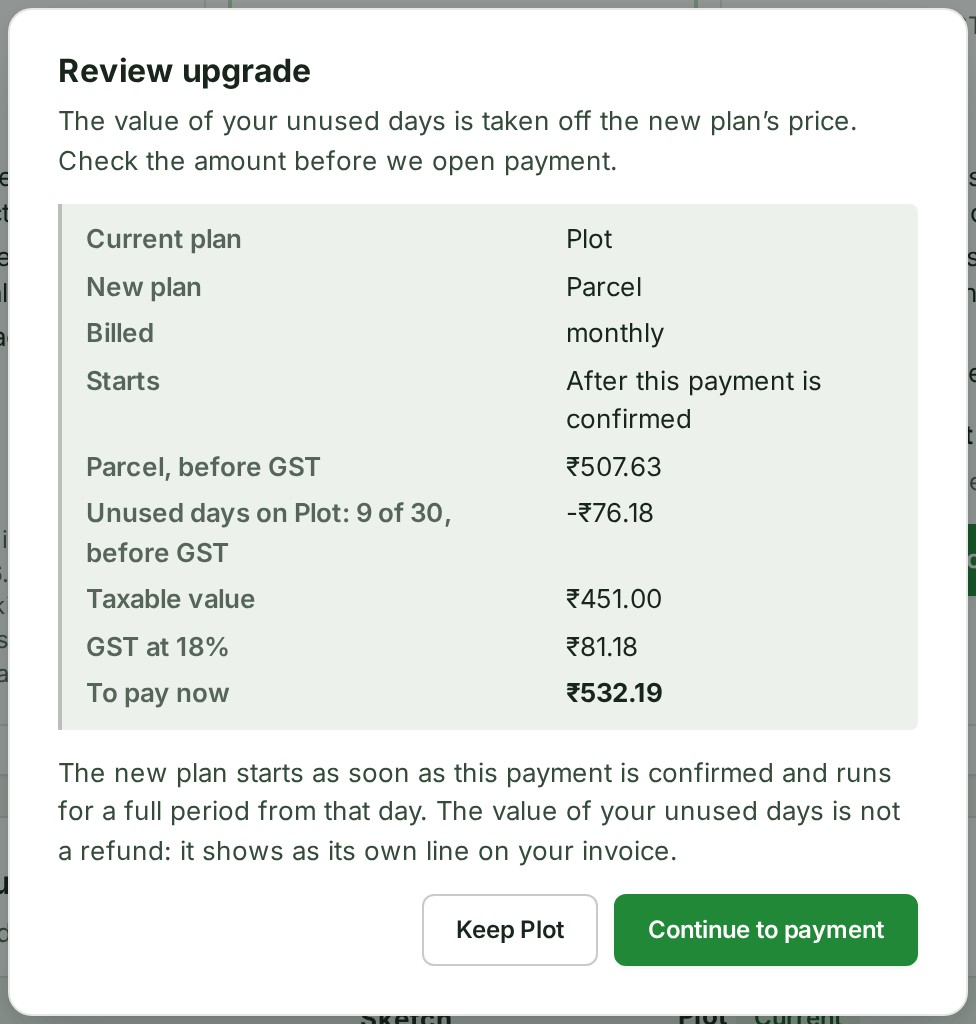
- The value of your unused days is not a refund: the invoice shows it as its own line.
- If you renewed early, the whole renewed period you have not started yet is taken off, as well as the unused days of your current period.
- In India the review shows every figure before GST, as the invoice prints them: the price, the unused days, the taxable value they leave, the GST on it and the amount to pay.
A smaller plan
A smaller plan cannot be bought while a paid period is running. Its button reads Smaller plan from date and is disabled, and a sentence under it says how to move down.
- Cancel your plan, as described in Cancel a paid plan. It keeps working until the date on that button.
- On or after that date, buy the smaller plan.
Until you buy it, your organisation is on the free plan.
Use a code or an offer
Billing has two boxes for codes, and each is for one kind:
| Kind | Where it goes | What it does |
|---|---|---|
| Discount code | Discount code over the plans in Plan and usage | Takes money off a plan's price, for one payment. Not available to organisations outside India. |
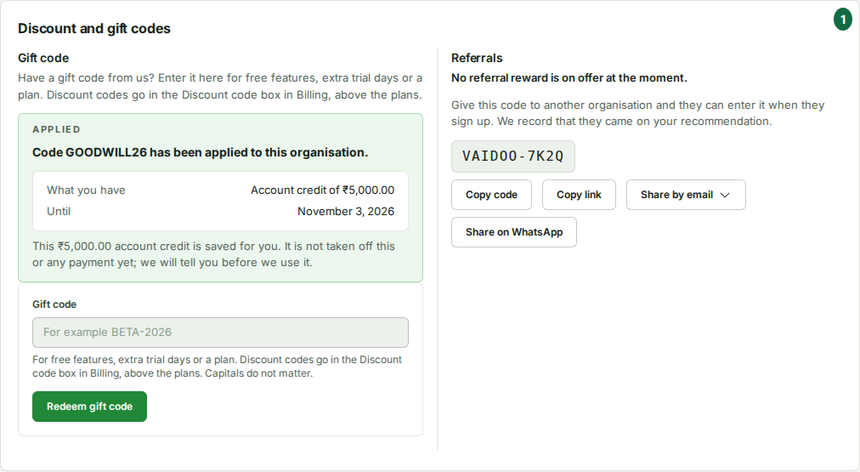
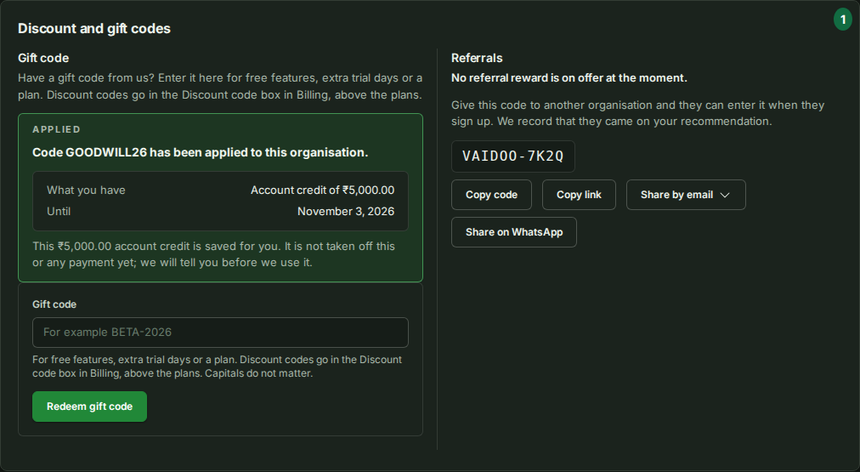
| Gift code | Gift code in Settings → Organisation → Profile → Discount and gift codes | Gives extra features, more trial time or a plan for a stated period. |
If you type one kind in the other's box, the reason says so and points to the right box. Nothing is applied and nothing is charged.
Use a discount code


If you were given a code that takes a percentage or a fixed amount off a plan's price, enter it where you choose the plan, before you pay.
- In Plan and usage, under Plans, choose Monthly or Yearly if the page offers both. During the beta there is no such choice: every price is monthly.
- Select Discount code, type the code in Discount code and select Apply.
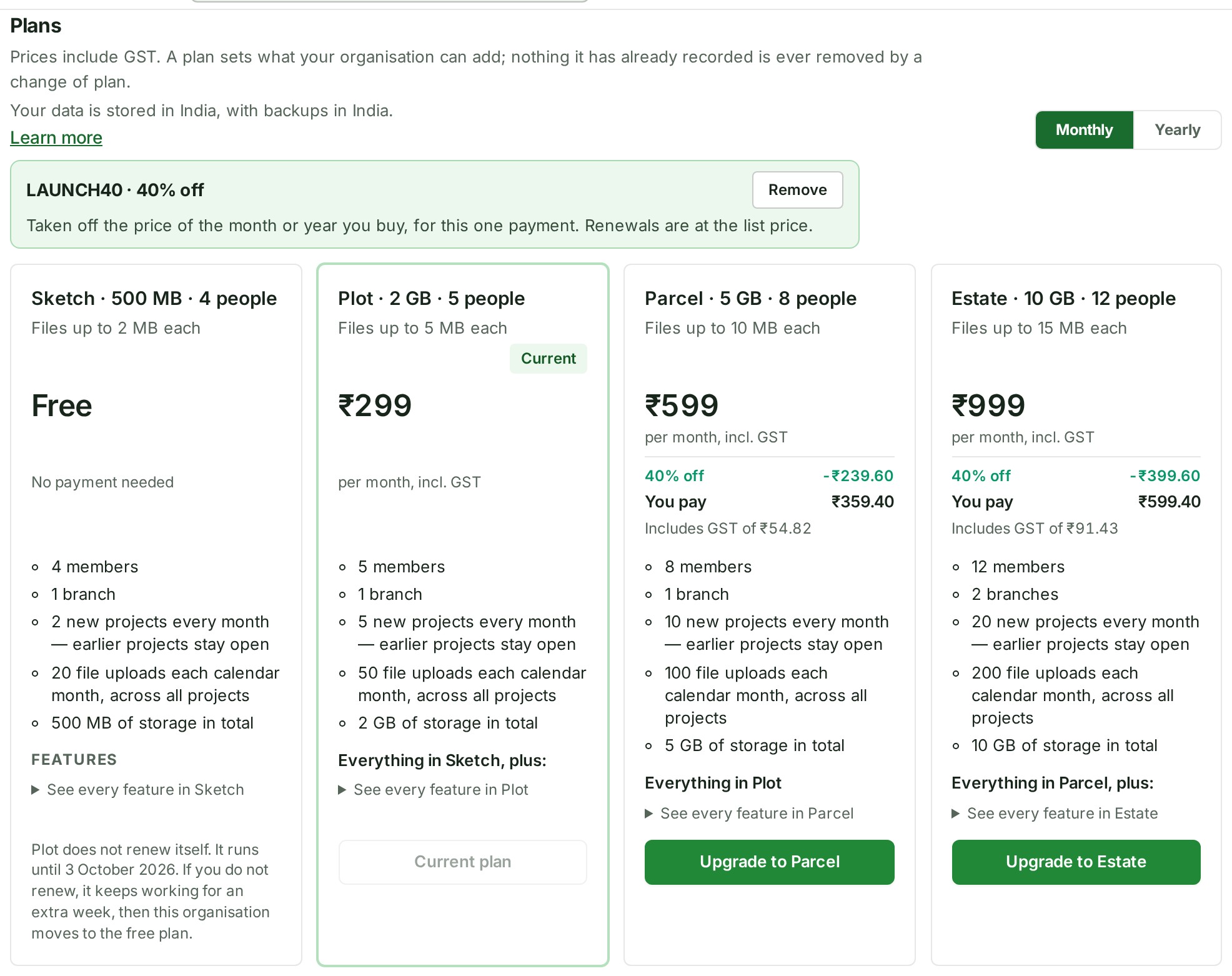
- Read the plans again. The code and its percentage, or its amount such as ₹500.00 off, stand over the plans. Each plan the code applies to shows what the code takes off, You pay, and the GST included in that price. A plan the code is not for says so on its card.
- Select the plan's upgrade or buy button. The payment review shows the List price, the code's line and the Amount you pay. Continue to payment as usual.
- To buy without the code, select Remove before you choose a plan.
A code that takes a fixed amount off works the same way. The amount comes off the price of the term you buy once: ₹500 off a yearly plan is ₹500 off the year, not ₹500 a month.
- If the amount is the whole price of a plan for that term, or more, or leaves less than ₹1 to pay (the least the payment provider can take), that plan's card says the code leaves less than ₹1 to pay and it cannot be used on it. It may still work on a dearer plan or on the year.
- A purchase whose price, after a code and any credit for the unused part of your current plan, would be under ₹1 is refused before any payment is opened. Nothing is charged.
- If the code cannot be used, the reason appears under Discount code: for example that it has expired, has been used the maximum number of times, is for a different plan, or has already been used by your organisation.
Why this is so
The code takes its percentage, or its fixed amount, off the price of the term you buy — the month or the year you have chosen — and applies to that one payment only. A fixed amount is never allowed to take the whole price. The renewal after it is at the list price. GST is worked out on the reduced price, so the invoice shows the discount as its own line and the GST on what you actually pay. Each code can be used once per organisation, and a code may be limited to one plan or to one organisation. If you later move to a higher plan, the credit for the unused part of your period is worked out from what you actually paid, not from the list price. On an upgrade itself, the review takes the code off the new plan's list price first and then the credit for your current plan.
A referral reduction at checkout
If your organisation signed up with another organisation's referral code, and GISweaver is running a referral programme that covers the plan you buy, the reduction is taken off at checkout without you entering anything. Most organisations never see this line: there is no programme unless GISweaver has published one.
- In Plan and usage, choose the plan and Monthly or Yearly as usual, and apply a code under Discount code if you have one.
- Read the plan cards. With a code applied, a card shows the code's line, then Referral · percent% off (or Referral · amount off), then You pay.
- Select the plan's buy or upgrade button. The payment review lists every reduction in the order it is taken, then the tax and the Amount:
- For a yearly plan, 12 months at amount (the monthly price), then 12 months for the price of months (or Yearly price).
- Otherwise, List price.
- The code's line, if you applied one.
- Referral · percent% off (or Referral · amount off), with its percentage or amount.
- Place of supply, Taxable value and the GST lines, worked out on the reduced price.
- Continue to payment as usual. The invoice prints the same lines, before GST, in the same order.
Why this is so
The reductions are taken one after another, each off the price the one before it left: the yearly price, then a code, then the referral. That way every line on the invoice is a share of a figure printed directly above it. The referral comes off before any credit for an upgrade, because that credit is your own unused time coming back to you rather than an offer. Unless the programme says otherwise, the referral reduces your organisation's first paid plan only; a renewal is at the price then published. An organisation that shares an owner, a billing e-mail address, a GSTIN or its owner's e-mail domain with the one whose code it used gets no reduction. The organisation that recommended you is never named on your review or your invoice. The full terms are in Section 4.2 of the Terms of Service.
A code and a referral reduction that cannot be used together
Usually a code and a referral reduction both come off, in the order above. A code can say it cannot be used together with a referral reduction, and a referral programme can say that referred organisations cannot also use a discount code. When that is so, only one of the two is taken, and the screen says which.
- Apply the code under Discount code as usual. If the referral programme does not allow a code, the code is refused under the box with a sentence such as "Your referral reduction stays; code X cannot be used with it." Nothing is applied, and you buy the plan with the referral reduction as before.
- If the code does not allow a referral reduction, the code is applied and the line under it says so, for example "Code X stays; your referral reduction cannot be used with it." The cards show the code's price without a Referral line.
- The payment review repeats the sentence above the payment button. To pay with the referral reduction instead of the code, select Remove the code and continue: the payment is opened again without the code, at the referral price. Otherwise continue to payment as usual.
- The invoice prints the line of the reduction that was taken, with one more sentence saying the other was not.
Why this is so
Whether a code and a referral reduction may be combined is part of each offer's terms, set when the code or the programme is published. When either one says no, the referral reduction is kept if the programme refuses codes, and the code is kept if only the code refuses the referral. The refusal is recorded with your payment, so GISweaver can tell you later which one was taken and why.
An offer made for your organisation
GISweaver may set aside an offer for your organisation, for example 30% off your plan for the next year. There is no code to type: it is applied at your next checkout it fits, whether that is a renewal, a new plan or a move up.
- Open Plan and usage. The offer is shown above the cards as an applied code: Your offer, applied for you: nothing to type.
- Read the plan card it applies to. It says so, for example Your offer: 30% off on plan yearly until 31 March 2027.
- Choose the plan and continue to payment. The review shows the offer's line, such as KEEP30 · 30% off, and says it was applied for you. The invoice names it as it names any code.
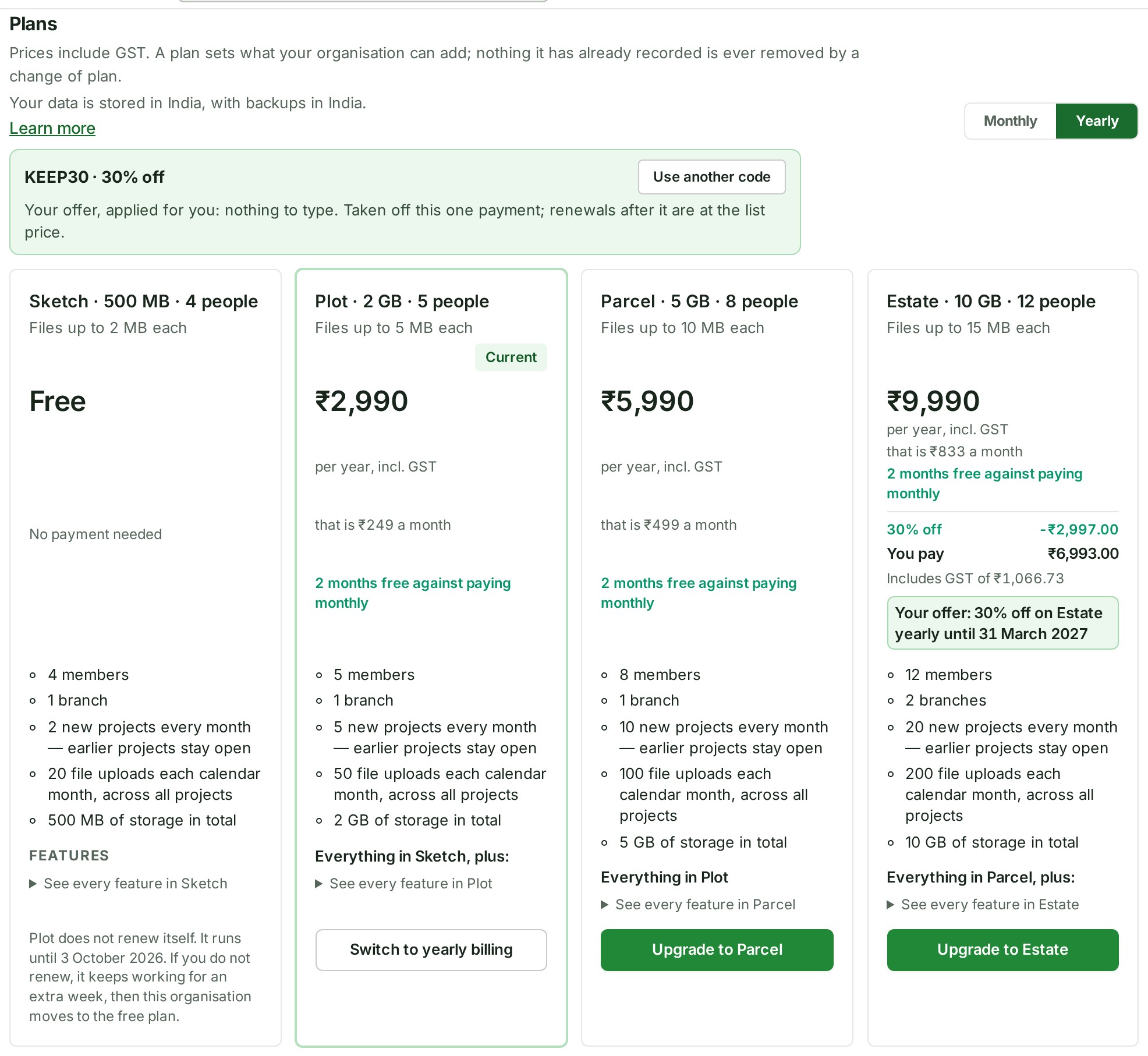
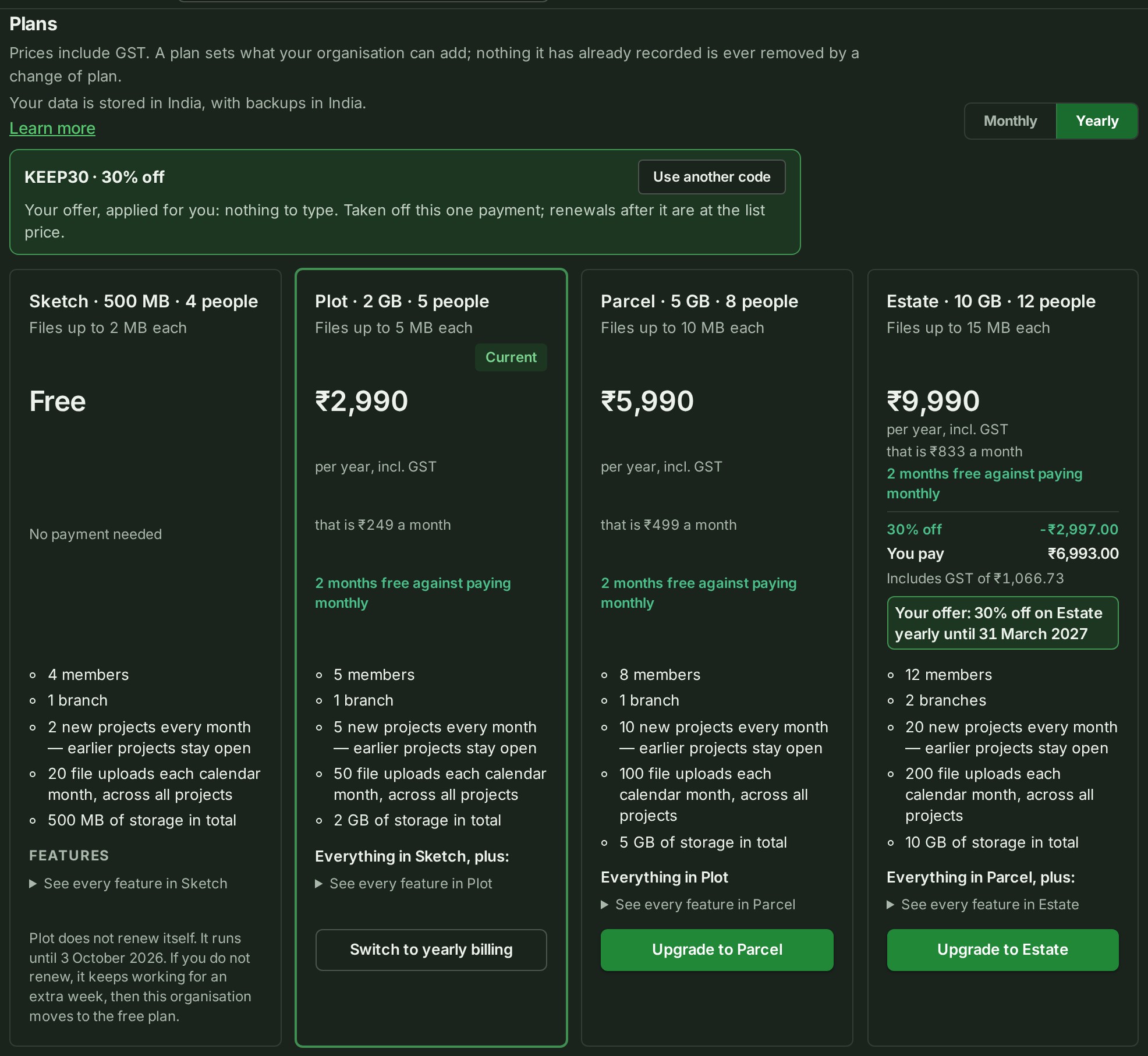
- It is used once, on the payment it is applied to. Renewals after that are at the list price.
- To use a different code instead, select Use another code and apply it. Billing asks whether it replaces your offer. The offer is not used up and stays until it closes, and Use my offer again brings it back.
- If your organisation was referred by another and the referral programme does not allow codes, the offer is treated as a code: the referral reduction stays, the review says why, and the offer stays for a later checkout.
- If GISweaver tells you about an offer by email, the letter is sent once and names the plan, what it takes off and until when.
Redeem a gift code
- Open Settings → Organisation → Profile → Discount and gift codes and select Gift code. The box says what it is for under Gift code.
- Type the code and select Redeem gift code. Only the Owner, an Admin or a Billing manager can; for anyone else the button is disabled and says why.
- Read the result: the gift code, what you now have and the day it ends.
If you type a discount code here, the reason says it is a discount code and points to Discount code over the plans. Nothing is redeemed and nothing is charged. See also Redeem a gift code or refer another firm.
Refer another firm
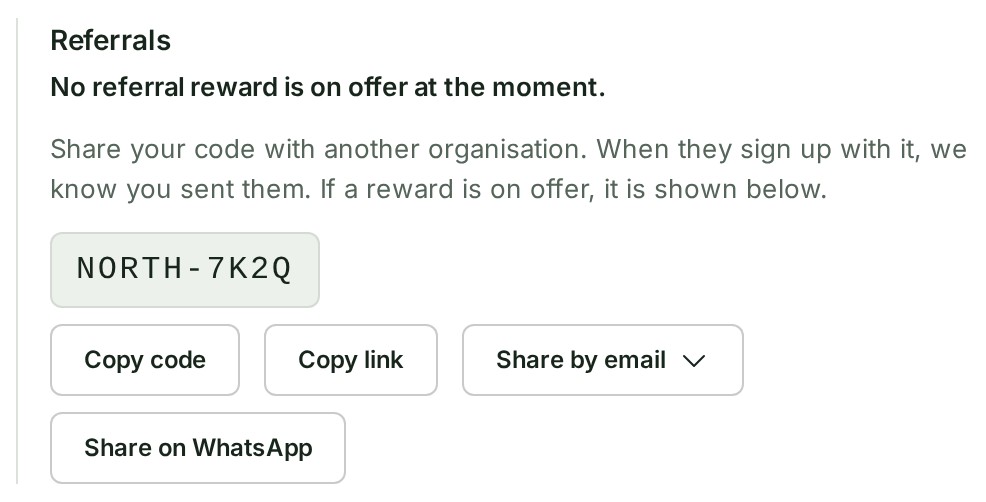
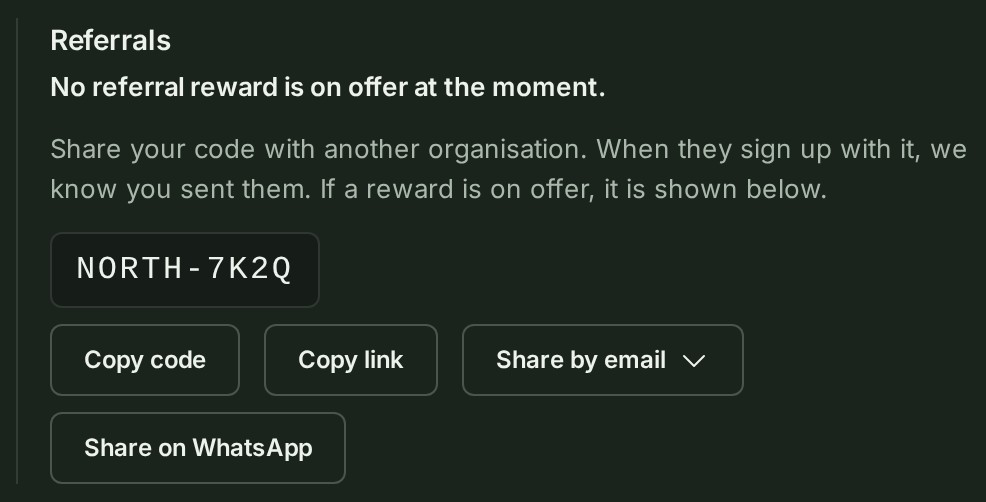
Referrals is the part of the Discount and gift codes card, in Settings → Organisation → Profile, that holds your organisation's own referral code. It says what the referral programme gives while GISweaver is running one, and lists what your organisation has earned from the firms it referred.
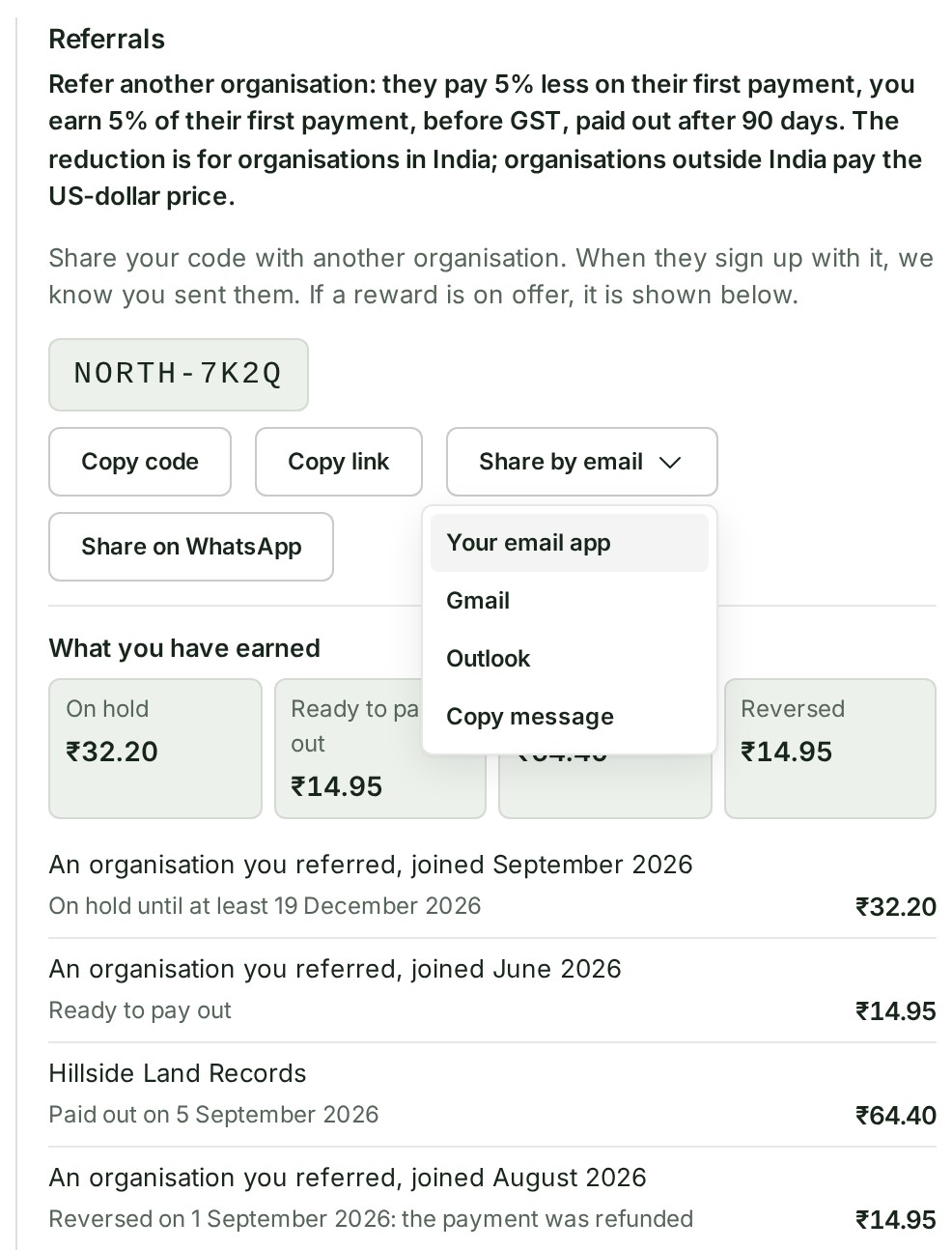
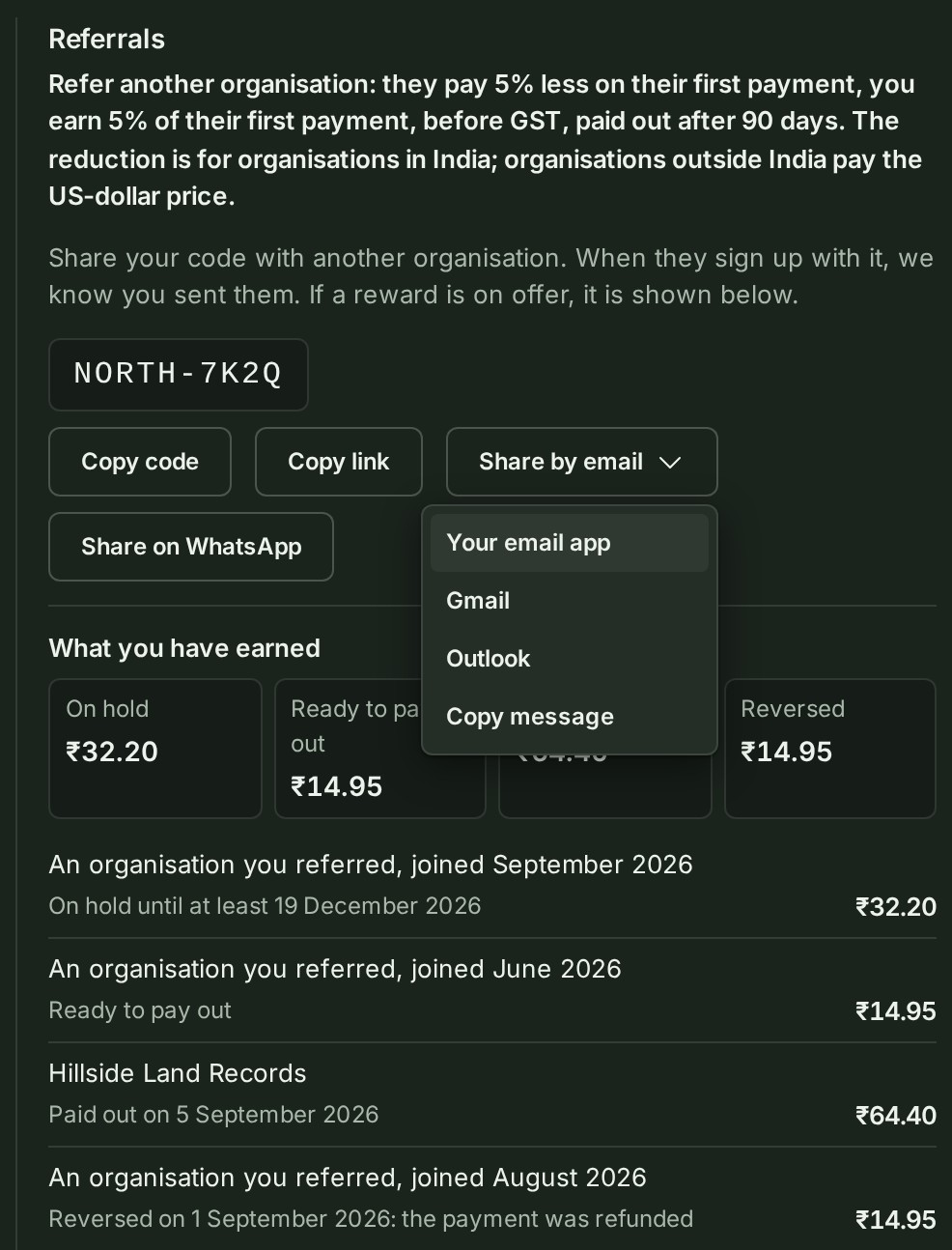
- Pass the code on with Copy code, Copy link, Share by email or Share on WhatsApp. The link fills the code in for the firm you send it to.
-
For Share by email at a desk, choose from the menu: Your email app, Gmail or Outlook (on the web, in a new tab), or Copy message to paste into any email. On a phone or tablet with a share sheet, it opens the share sheet instead. The message is one sentence with the code and the link.
-
If you choose Your email app, the message is copied at the same time. A moment later a line under the buttons asks No email opened?, says the message is copied, and offers Gmail, Outlook and Copy message as buttons.
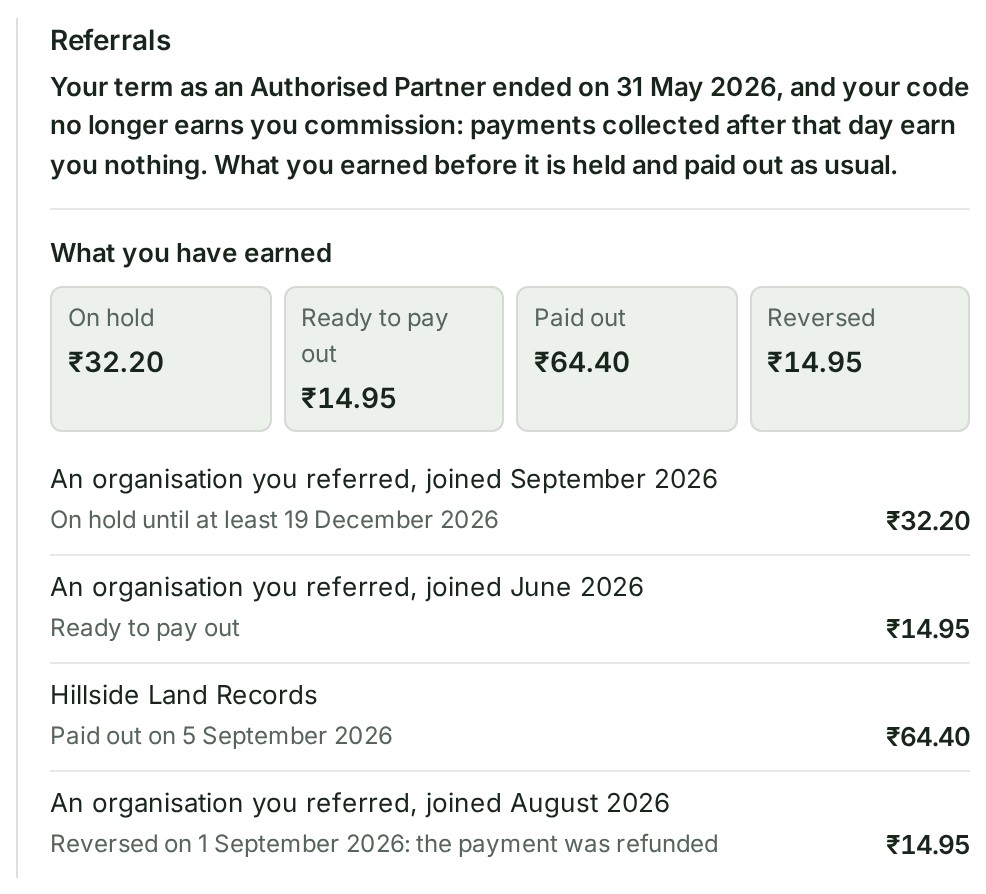
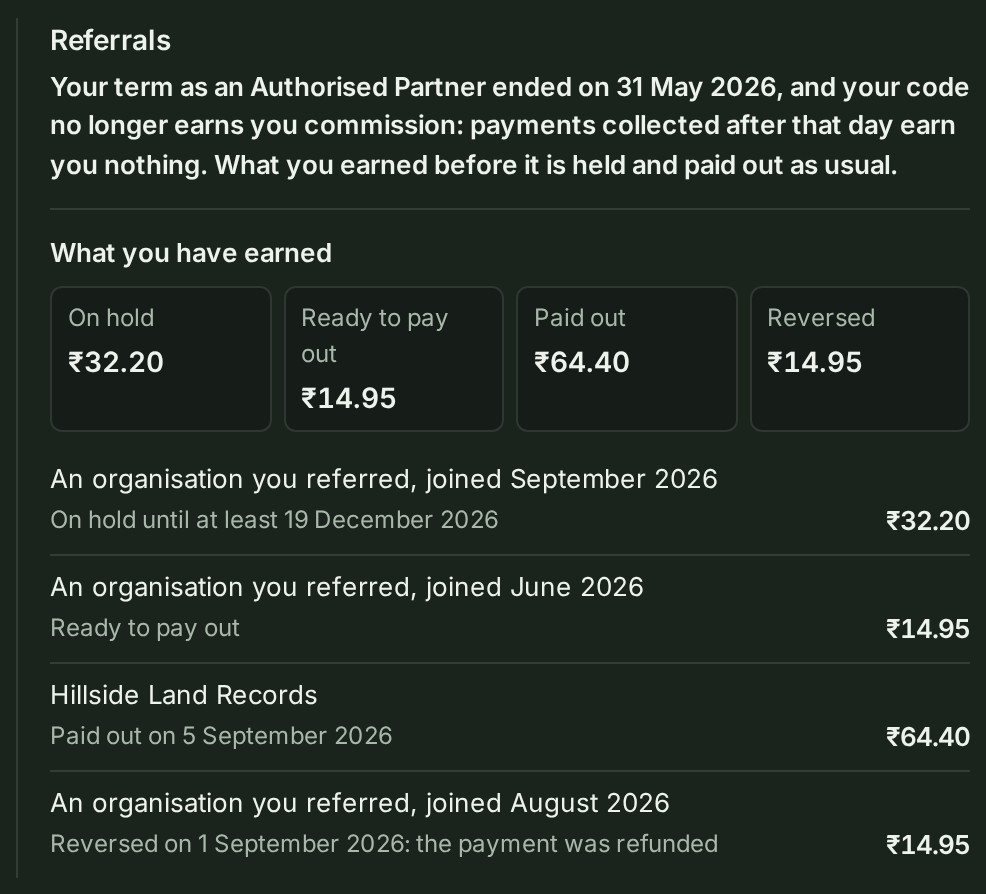
- Read the line under Referrals to see what the programme gives. Under What you have earned, read the four totals and then one line for each earning, newest first, with its amount.
What the line under Referrals says:
| The line says | What it means |
|---|---|
| Refer another organisation: they pay 5% less on their first payment, you earn 5% of their first payment, before GST, paid out after 90 days. | A programme is running. It says what a firm you refer is given, what your organisation earns and when it is paid. |
| A further sentence: Earnings are paid out only once N referred organisations have completed a payment. Until then they stay on hold. | The programme holds every earning back until at least N referred organisations have paid. |
| No referral reward is on offer at the moment | No programme is running. The code still works and records that a firm came on your recommendation, but no discount or earning follows from it. |
| The last day of an agreed term | Your organisation has an agreement with GISweaver that pays it for a set term. A payment counts by when it was made, not when GISweaver processed it. A payment made while the agreement had lapsed, before it was renewed, earns nothing. |
| Your code no longer earns commission | The term has ended. Payments collected after that day earn nothing, and what was earned before it is still held and paid out as usual. The card shows no code and none of the ways to share it, and keeps what you have earned below the line. |
What each earning says under What you have earned:
| An earning says | What it means |
|---|---|
| On hold until at least date | The firm has paid and the earning is held through the programme's holding period. An open dispute or a refund in flight can keep it on hold after that date. |
| On hold until N referred organisations have paid (M so far) | Some programmes hold every earning back further, until you have referred at least N organisations that have themselves paid GISweaver at least once. This line replaces On hold until at least date for as long as the count is short. |
| Ready to pay out | The holding period is over, and under such a programme enough referred organisations have paid. The earning waits for the next payout. |
| Paid out on date | GISweaver has paid it to your organisation. |
| Reversed on date: reason | The payment it was earned on was refunded, or disputed and the dispute was lost, or the referral did not meet the programme's terms. An earning reversed after it was paid out is deducted from your next payout, and its line says both dates. |
GISweaver writes to your organisation's billing contacts when an earning arises, when it is paid out, and if it is taken back.
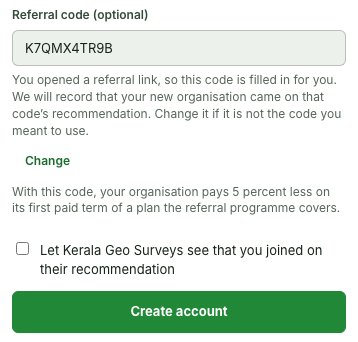
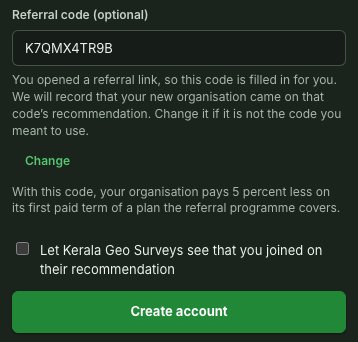
When a firm signs up with your code, the sign-up form tells it what the programme gives it, and asks whether your organisation may see that it joined on your recommendation; the box starts unticked. A firm is named on your card only if it ticked the box. A firm that did not appears as An organisation you referred, joined month.
Why this is so
The programme shown is the one that applies to your organisation as the one recommending: a deal GISweaver agreed with you in writing, or otherwise the programme it runs for everybody. An earning is worked out on what the referred firm actually paid, before GST unless the programme says otherwise, because the GST in that payment is collected for the government. It is held for the holding period because a card payment can still be disputed for weeks after it is made, and is paid by bank transfer in the month after it becomes payable. Earnings are not credits and cannot be put against your own invoices. Nothing about the firm you referred — its name, its plan or its address — is shown to you unless it agreed, and the programme's full terms are in Section 4.2 of the Terms of Service.
Keep your billing details current
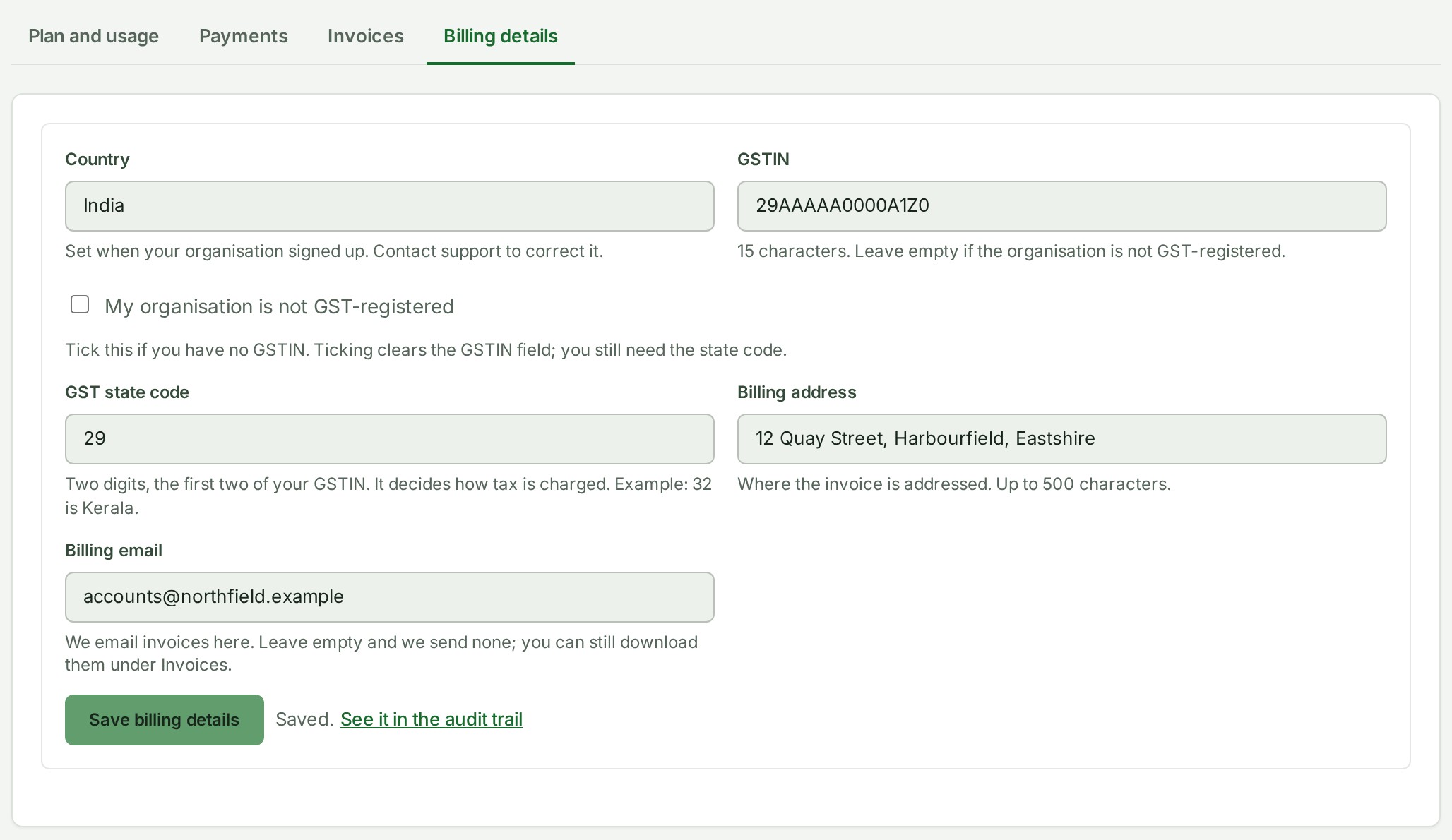
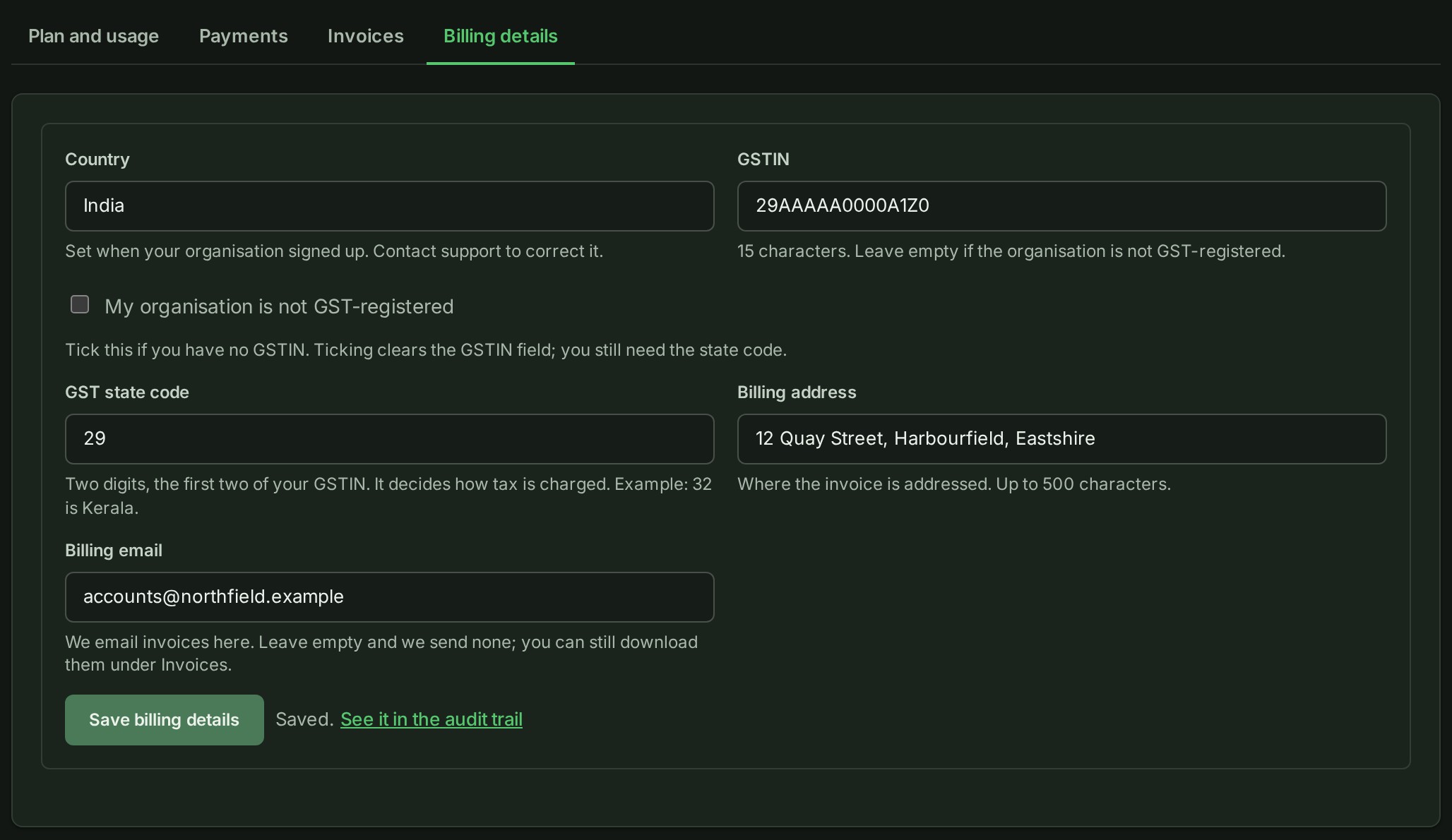
Billing details, the fourth tab of Billing beside Plan and usage, Payments and Invoices, holds what appears on your organisation's invoices. Owners, Admins and Billing managers can change it. For an organisation in India it holds the GSTIN, the GST state code, the billing address and the billing email.
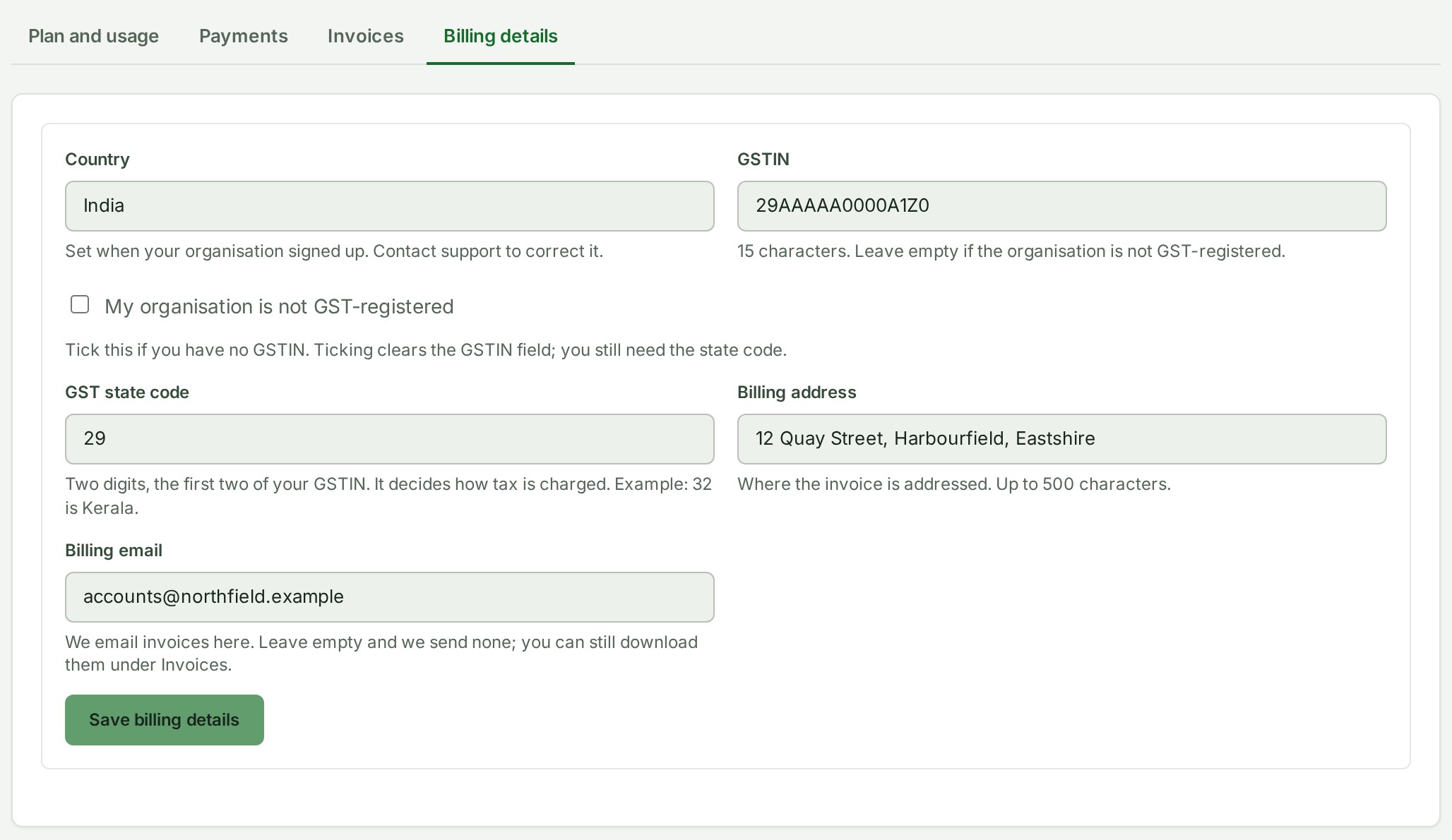
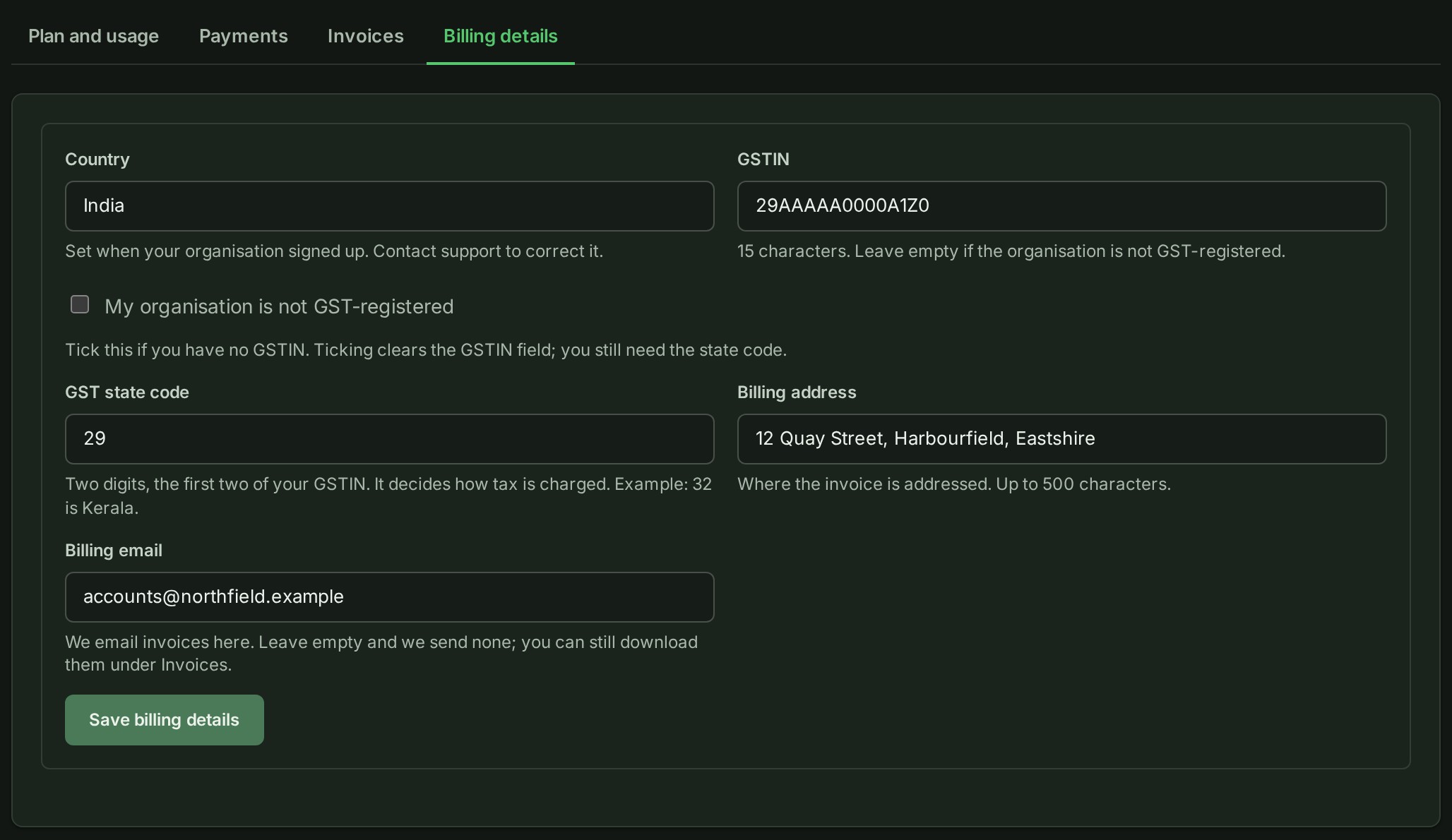
- Open Billing details and correct the fields that are wrong. Give your organisation's two-digit GST state code: the first two digits of its GSTIN, if it has one (for example, 32 is Kerala). If it is not GST-registered, select My organisation is not GST-registered. This clears the GSTIN and keeps your state.
- Select Save billing details. The notice Billing details saved. confirms it and closes after a few seconds. Beside the button, Saved. stays until you change a field again or leave the page.
- To see the change recorded, select See it in the audit trail beside Saved. (the notice carries the same link while it is open). It opens Settings → Audit trail on the entry this save wrote, naming the fields you changed without their values. Owners and Admins see the link; a Billing manager sees Saved. alone, because the audit trail is not part of that role.
A correction that keeps a value's shape, such as one GSTIN for another, is named too. An example of the entry: The billing identity was changed: the billing address, the billing email and the GST state code.
- A change to the billing identity is a change to the organisation, so it is never on a project's Activity tab. See Find a change to the organisation.
- If an older record says the organisation is not GST-registered but has no state, Billing details says so. Record the actual state before starting a new GST payment. The old record stays, and an unrelated address or email correction is still possible. Do not choose GISweaver's state as a substitute for your own.
If your organisation is outside India
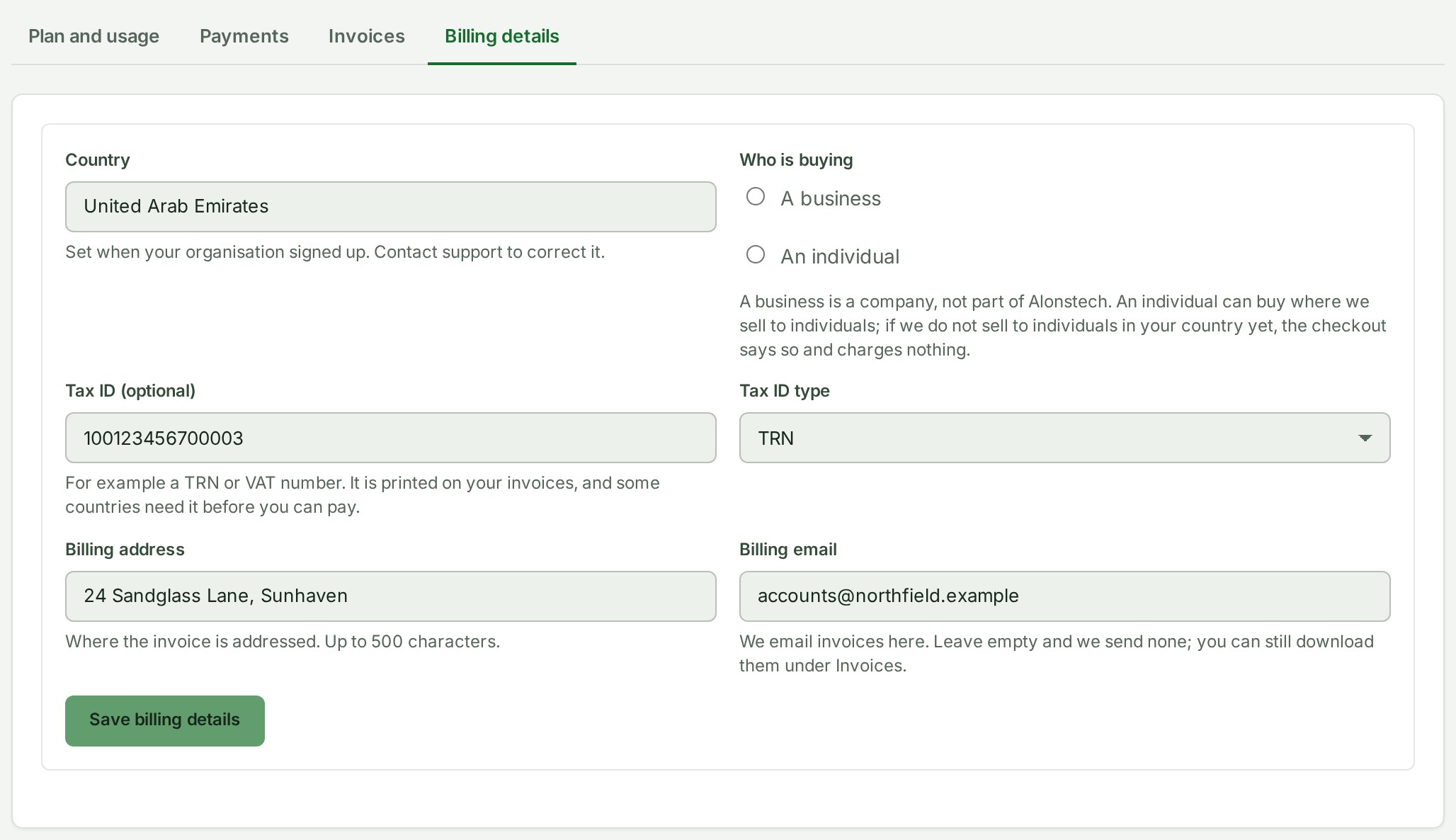
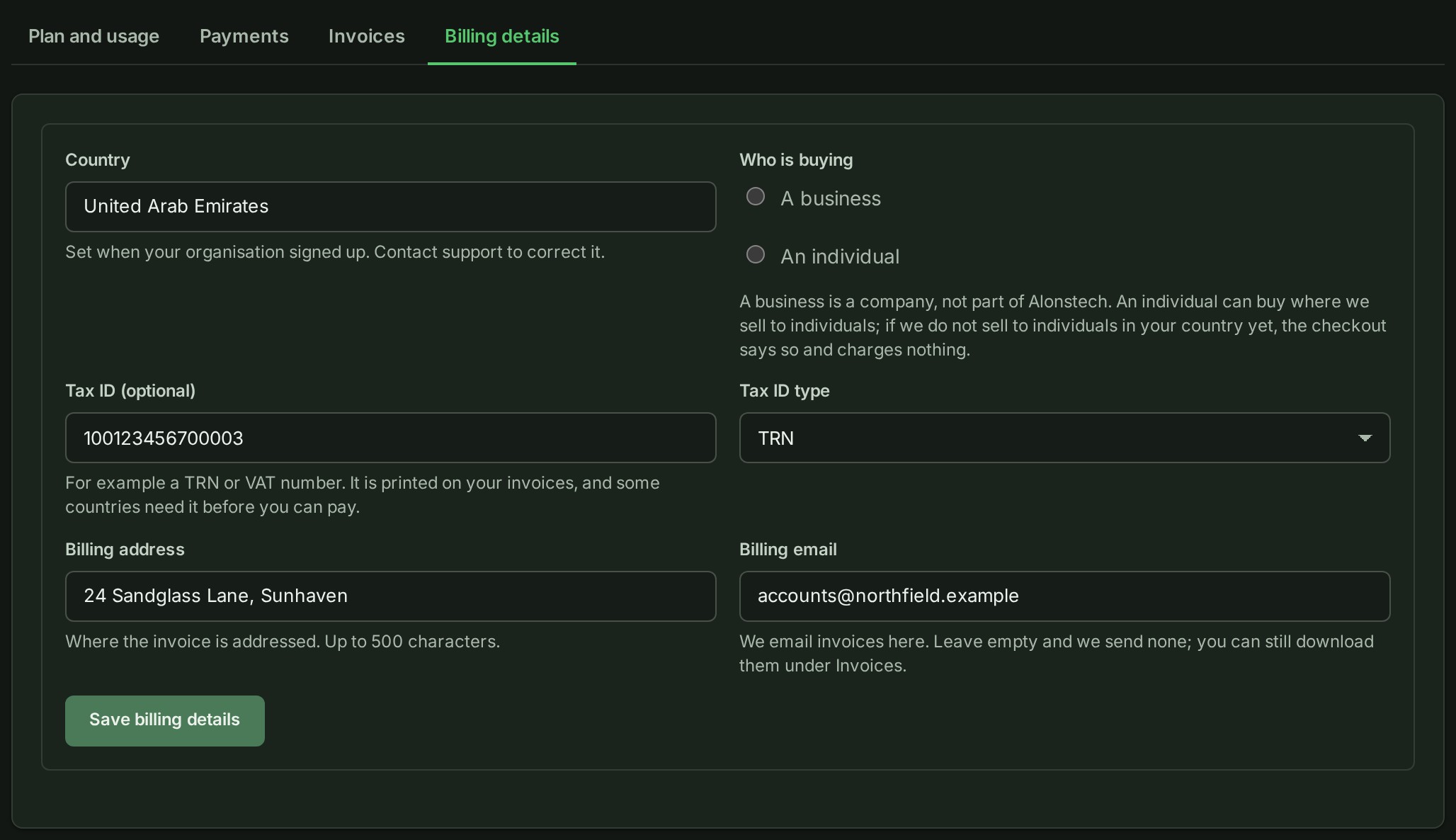
Billing details shows your organisation's Country, read-only: you chose it when you signed up, it fixes whether your organisation is in the India market or the international market, and support corrects it if it is wrong. The GSTIN, the GST state code and the GST declaration are for firms in India and are not shown. In their place you may record a Tax ID (optional), such as a TRN, a VAT number, an ABN or an EIN, with its Tax ID type. GISweaver keeps it for invoices later and uses it nowhere yet. To remove it, empty Tax ID (optional) and select Save billing details.
Until paid plans open outside India, asking to pay is refused and nothing is charged.
Review a purchase or offer
Only proceed when the plan change, billing-period change or offer is shown as available for the current organisation.
- In Plan and usage, choose the plan or billing-period action you want to review.
- Read the review screen: current plan, new plan, billing period, when the change takes effect, amount and applicable terms.
- Check the billing details. Complete or correct them if Billing asks you to; in India, see Tell Billing which state your organisation is in.
- Choose Continue to payment only when the details are correct.
- Complete the payment in the payment window and wait while GISweaver records the result.
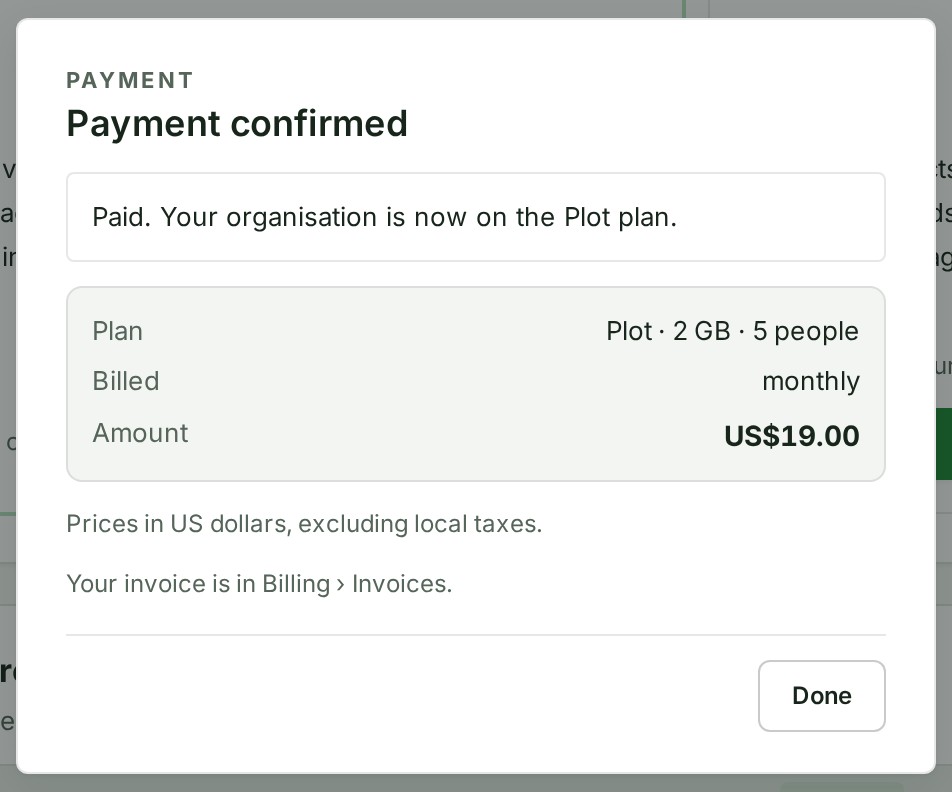
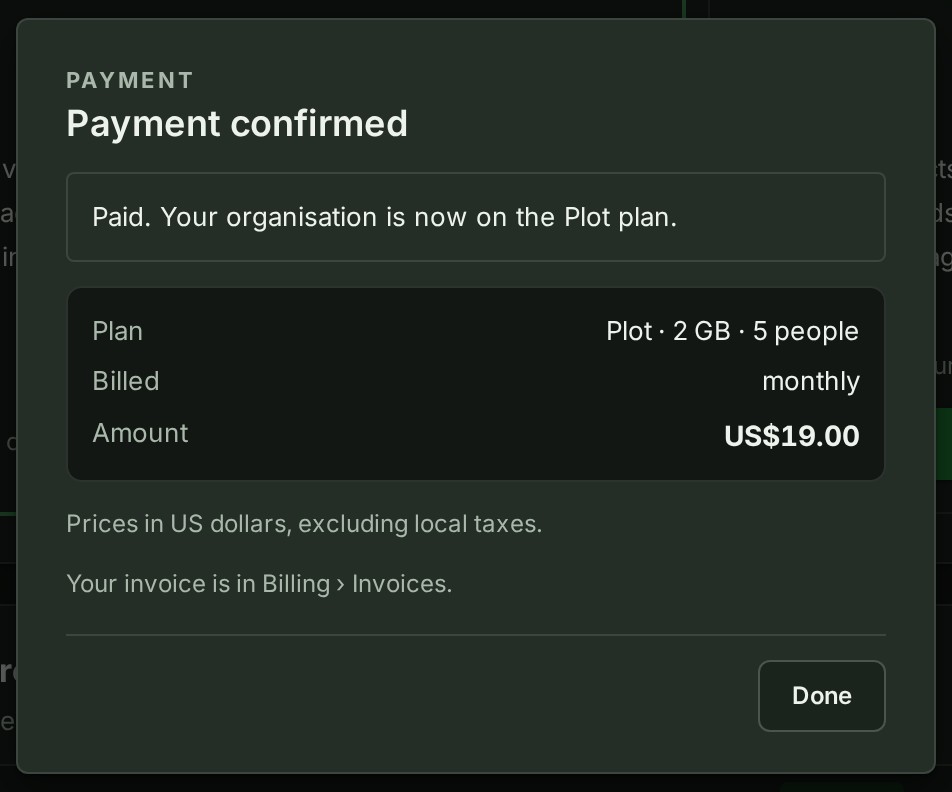
- When the result says Payment confirmed, return to Plan and usage and check the plan, billing period and effective date.
Use the amount and tax information shown in that checkout and its issued invoice. Do not rely on an old price list or a tax rate from another transaction.
If a payment is already open, do not open another one for the organisation. Billing lets you continue that payment, or shows a cancellation and restart option where it is safe to use. Do not cancel a payment if you may already have completed it: we may still be confirming it.
Tell Billing which state your organisation is in
This applies to organisations in India. Before a new domestic GST payment, GISweaver needs a valid state, including for an organisation that is not GST-registered. The state decides the tax on your invoice: whether GST is charged as CGST and SGST or as IGST.
- Start the payment. If your state or registration details need attention, Billing asks for Your GST details before opening a new payment window.
- Choose We are GST-registered and enter the GSTIN and the two-digit GST state code. The code must match the GSTIN's first two digits: Kerala is 32, Tamil Nadu is 33.
- Choose We are not GST-registered if that is your organisation's position, and enter its GST state code. This records that you are not GST-registered, together with your state and no GSTIN.
- Select Save and continue to payment.
To read or change the state later, open the Billing details tab of Billing. Captured payments freeze the buyer identity used for their invoices. A later correction does not change those captured records or issued invoices. An already-open payment remains recoverable; its invoice uses the identity recorded when the payment is captured. Older documents with no buyer state remain historical records, and GISweaver does not invent a state for them. Each change to the billing identity is recorded in your organisation's audit trail.
What changes at payment
Changing a plan or billing period is a new payment. Only a move to a higher plan is reduced by a credit for unused time.
| Change shown in Billing | What the review screen tells you | What to check before paying |
|---|---|---|
| Higher plan while a paid plan is running | The new plan's price, the credit for the unused days of your current period, and the amount to pay. The new plan starts when payment is confirmed. | The credit, the amount and the start time. |
| Smaller plan while a paid plan is running | Not available until the current period ends. | Cancel the current plan, then buy the smaller one when it ends. |
| Monthly to yearly, or yearly to monthly, on the same plan | You pay now. The new period starts on the day your current period ends, shown as Starts. You don’t lose any days you have already paid for, and nothing is refunded. | The day the new period starts, and that you want to pay for it now. |
| Trial or free access from Alonstech | Payment ends the remaining trial or granted access when confirmed. | The plan and date that will replace the current access. |
| Same plan, renewed before its current paid period ends | The new period starts when the current paid period ends, so paid time is kept. | That Billing shows Renew plan and that the plan and billing period are correct. |
| Same plan after its paid period has ended, including the extra week | Payment starts the renewed plan when confirmed. | The current expiry or extra-week date and the plan you are renewing. |
| Different plan while renewal is due or the extra week is running | Payment ends the current renewal or extra week and starts the new plan when confirmed. | The plan that will replace the current access. |
Check your payments
Compare GISweaver's record with your bank or payment-provider record.
- Open Payments.
- Read the list, newest first. Refunds sit below the payment they came from; attempts that did not complete are in a separate list.
- Use Show older payments or Show older attempts when you need an earlier record.
| Status | Meaning | Next step |
|---|---|---|
| Paid | GISweaver recorded the payment. | Open its invoice if one is shown and check the current plan. |
| Refunded or Partly refunded | Money was returned, fully or in part. | Read the refund amount, reference and status below the payment. |
| Failed | The attempt did not complete. | Read the reason. A later successful payment can resolve the intended purchase. |
| Received, not used | The money arrived but could not be applied to your plan. The plan did not change and no invoice was made. GISweaver is reviewing it and will apply it or return it. | Do not pay again. Contact support with the payment reference. |
A refund that says on its way has not completed. A declined attempt does not charge money; its outcome can say that a later try was paid, is still open or was not completed.
If the result says the provider has not confirmed payment yet, use Check again or return later. Do not pay a second time while the first payment may still be confirmed. If the provider did not finish opening the payment, nothing has been charged; follow the option shown to check again or come back later.
Pay a payment request by bank transfer
In India, Alonstech can send a payment request that you pay by bank transfer. Offline payment requests support INR quotes only.
- While staff prepares a draft, the payment dialog says Alonstech is preparing your payment request. Don’t pay yet: no payment instructions or draft download are offered until Alonstech has reviewed and sent it.
- When Alonstech has sent the request, the payment dialog says Pay by bank transfer and offers Download request. Download it.
- Pay the exact full amount, using the bank details on the request. Read the frozen full amount, the recipient, the expiry and the receiving instructions on that document. It says it is a payment request, not a tax invoice. If it has no receiving account, ask Alonstech for payment instructions; no default account is silently chosen.
- Wait for Alonstech to confirm your payment. Select Check again to read the payment's current status. Staff records the verified exact payment before your plan starts and its invoice is issued.
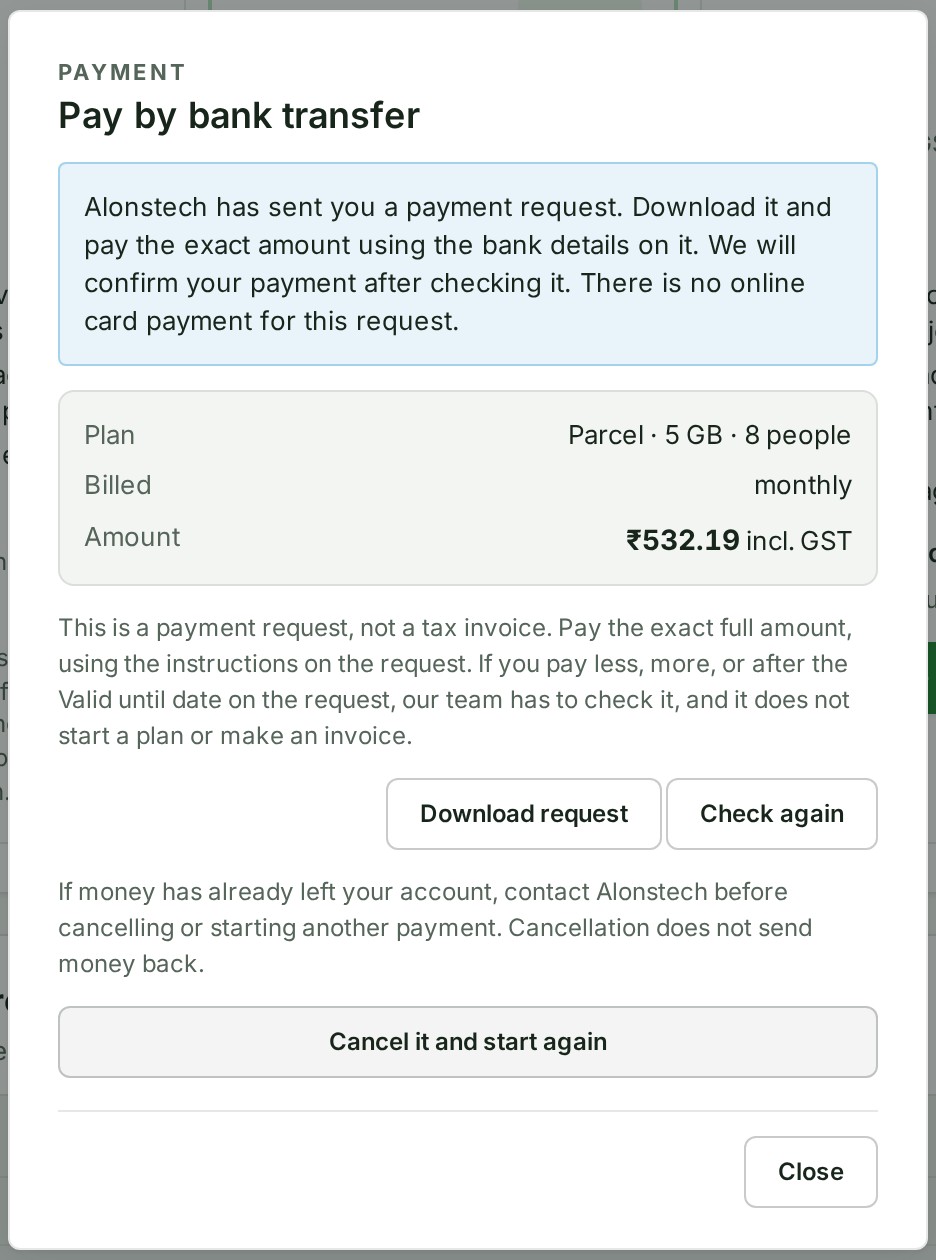
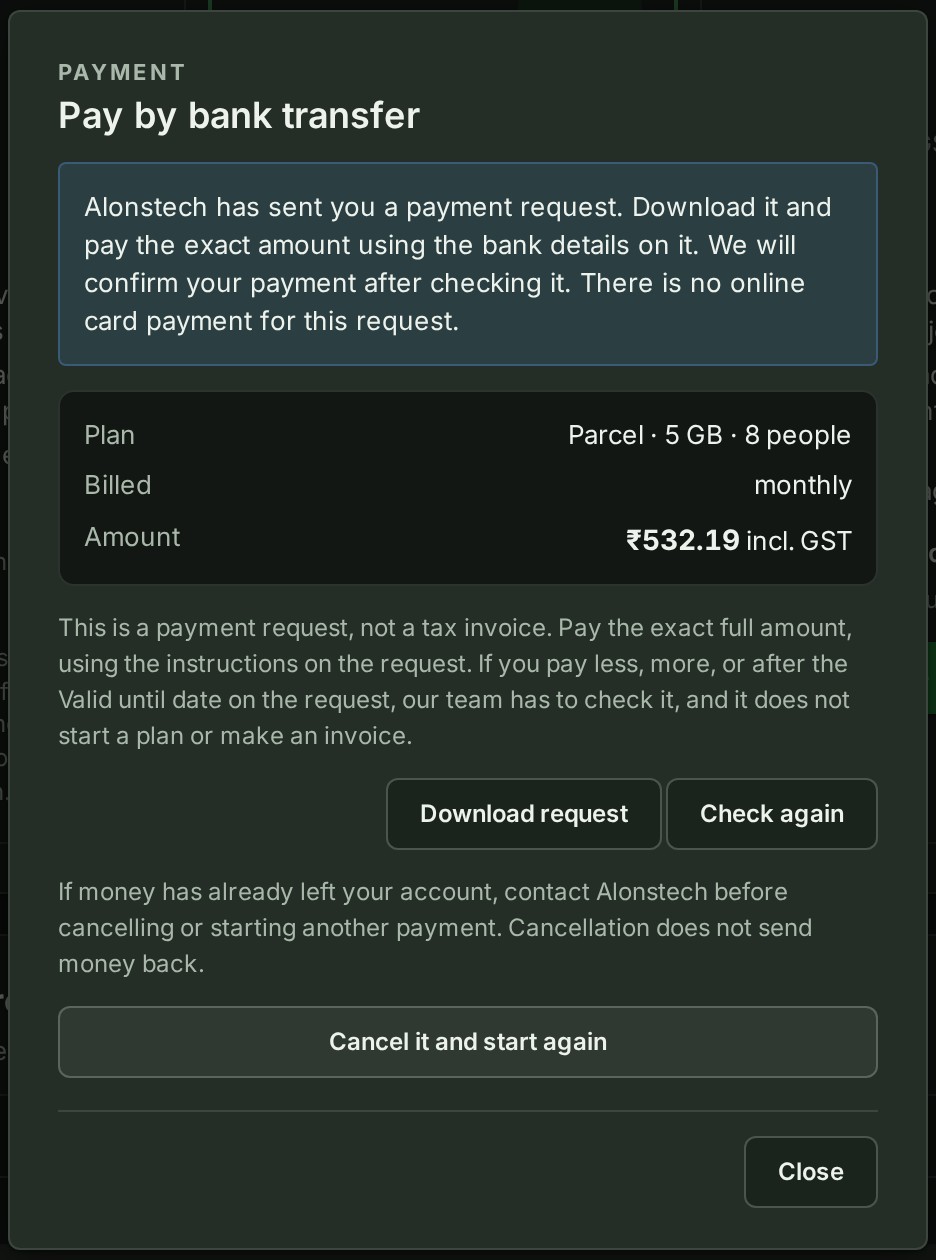
- If you pay less, more, or after the Valid until date on the request, our team has to check it, and it starts no plan and makes no invoice. Do not send a top-up as an instalment.
- An early renewal or a switch between monthly and yearly billing starts when your current paid period ends. There is no online card payment for this request.
- If money has already left your account, contact Alonstech before cancelling or starting another payment. Cancelling a request sends no money back.
- A closed request says Payment request closed — do not pay. If you have already sent money, contact Alonstech before you start a new payment.
- An exception being escalated still awaits review; it is not a paid plan.
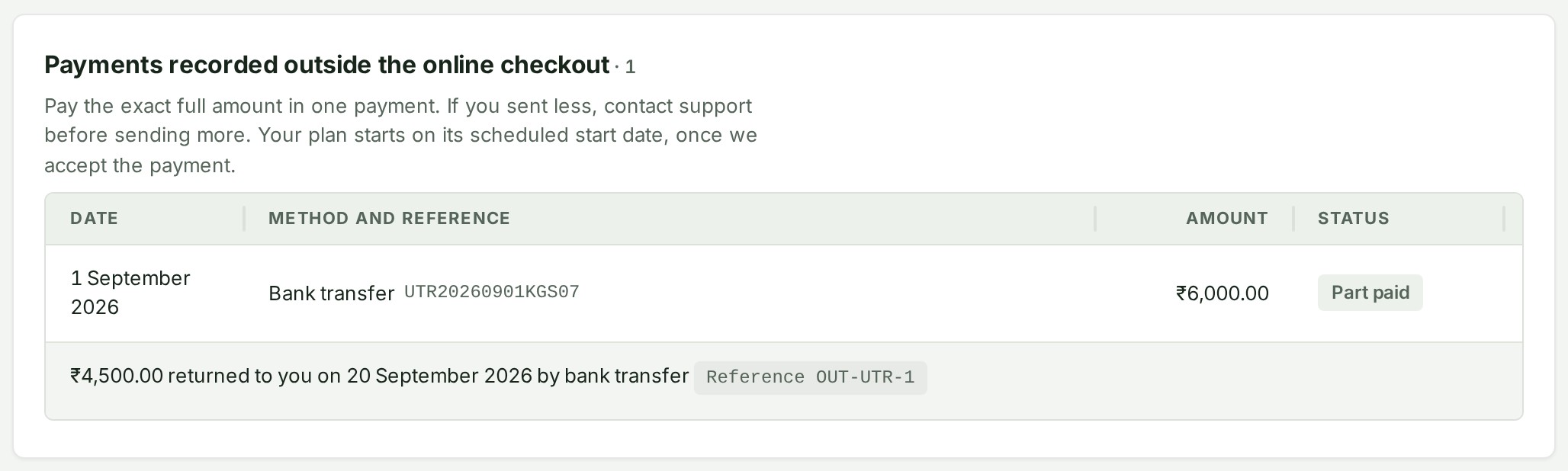
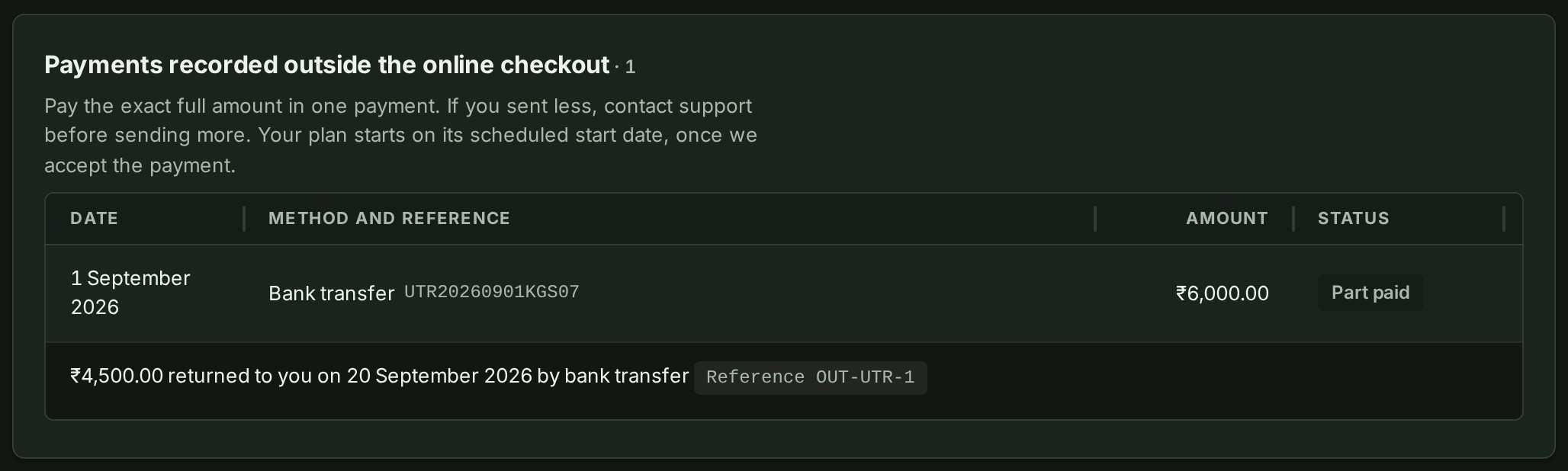
Payments made this way are listed under Payments recorded outside the online checkout, matched to your payment request: the date the money arrived, how it came and its reference, the amount, and, for older receipt records, Part paid while the request still waits for the rest or Fully paid once it is complete. Current payment requests require one payment for the exact full amount; their exceptions are not instalments. If you sent less, contact support before sending more. Your plan starts on its scheduled start date, once we accept the payment. If GISweaver sent any of that money back to you, the amount, the date and how it went back are shown beneath the payment it returns, with the reference of our payment.
Understand the payment wording
- In an upgrade review, Unused days is the value taken off this purchase, based on the days left on the paid plan. It is not a refund.
- Account credit from a gift code is saved separately. It is not taken off this or any payment yet; the gift-code result shows the amount.
- A Credit note is a document reducing an invoice already issued.
- After payment, find the invoice under Billing → Invoices. The confirmation does not promise postal delivery or assume that email has arrived.
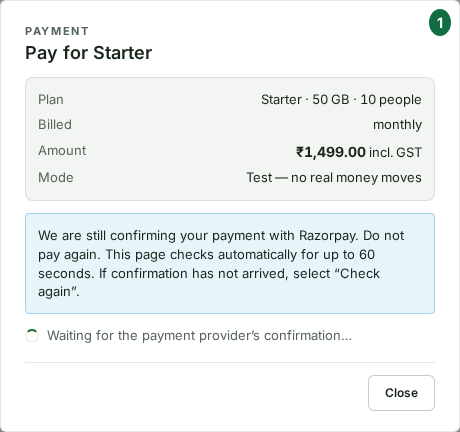
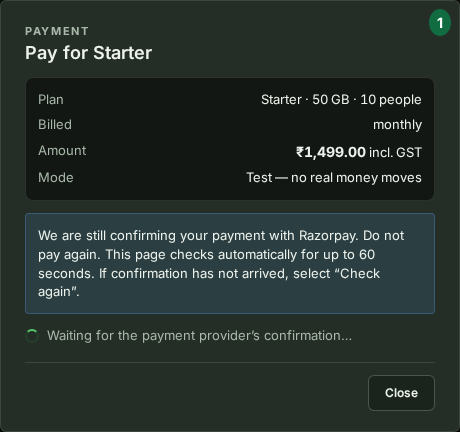
- If Razorpay is still confirming the payment, do not pay again. The page checks automatically for up to 60 seconds. If confirmation has not arrived, automatic checks stop; select Check again to check the payment status.
Why this is so
Cancelling a plan does not stop an automatic charge: there are no automatic charges. It removes the extra week to renew. To move to a smaller plan, cancel the current one and buy the smaller plan on or after its end date; the organisation is on the free plan between those purchases.
Download financial documents
- Open Invoices to see every invoice and credit note, newest first. Until your organisation has made a payment the list is empty and says Invoices appear here after you pay for a plan. Paid already? Check Payments.
- Use Download PDF to save a document, or Print for the browser print view, or use the invoice link beside a payment when available.
- Save it where your organisation keeps accounts records.


For an invoice, check the document number, date, total and status (Valid or Cancelled) before using it for reconciliation. For a credit note, check its document number, issue date, amount and the invoice it reduces. A credit note is not a second amount to pay.
If the page says it couldn’t load your credit notes, do not treat the visible invoice list as the complete financial record. Retry first, then contact support if the problem remains.
Why this is so
New invoice and credit-note PDFs display the colour GISweaver logo and follow the layout described under What an invoice shows; previously issued documents retain their original appearance and number.
What an invoice shows
An invoice is laid out from the top as follows.
| Part | What it holds |
|---|---|
| Supplier and buyer | GISweaver's legal name and address, then your organisation as it was when you paid: name, address, tax details and the place of supply. |
| The number and the references | The invoice number and date, how it was paid, the payment reference and its date (the payment provider's reference, or for a bank transfer the reference your bank gave it), and the period the payment covers. |
| The lines | What was supplied, with its period beneath it, the quantity, the rate and the amount. A yearly saving, a discount code, a referral reduction or an upgrade credit is a line of its own with a minus amount. Tax lines follow, then the total. |
| The footer | GISweaver's bank details when a receiving bank account is selected, and the signature line. With no selected bank account the bank block is absent. The current document also carries a computer-generated footer. |
Invoice numbers run in order within each financial year. Credit notes have their own series and say which invoice they reduce. Invoices issued before this layout keep the number they were issued with, and their original appearance. A credit note carries the same tax words as its invoice and says that no tax was charged on the supply it reduces.
For an organisation in India
The invoice is laid out the way an Indian accountant enters a bill into their accounts. It shows GISweaver's GSTIN and state, your GSTIN (or Unregistered) and state, and the place of supply. Each line carries a serial number, its SAC code and what it is charged per. The GST lines (CGST and SGST, or IGST) follow, then the amounts in words and a summary of the taxable value and the tax under each head for the SAC code. Numbers look like GS110/26-27: the seller's two-letter series, the number, and the financial year. Credit notes use the same letters followed by CN, such as GSCN3/26-27, and say Against invoice GS110/26-27 dated 07 October 2026. Older invoices keep numbers such as GW/2627/000041. The invoice shows how it was paid, for example Razorpay — Paid, with the payment provider's order reference.
For an organisation outside India
Every invoice for an organisation in India carries GST. The checkout you paid through shows the GST breakdown (CGST and SGST for an in-state billing address, or IGST otherwise) before you pay, and the same figures appear on the issued invoice. GISweaver does not state a GST rate here, because it can change; read the rate and amount from your own checkout and invoice.
A specimen invoice
If the checkout ever runs in the payment provider's test mode (it says so beside the amount), a payment does not receive a tax invoice. It receives a specimen: the same sheet headed Specimen Invoice, with the line SPECIMEN — test payment, not a tax invoice across the top. No money was received and nothing was supplied, so do not file a specimen in a return or use it to claim input tax credit. A real payment still receives a tax invoice. While a test environment is switched to show it, each specimen on the Invoices tab also carries a Test copy (PDF) link: the same document drawn the way a real payment's would be printed, with a PREVIEW watermark and a line across the top saying it is not issued. Opening it creates nothing: no number is taken and nothing is sent.
Billing outside India
If your organisation is outside India, paid plans are billed in US dollars. Your country was fixed when your organisation signed up, and your organisation is never shown the rupee list. Paid plans open to organisations outside India on a date we announce.
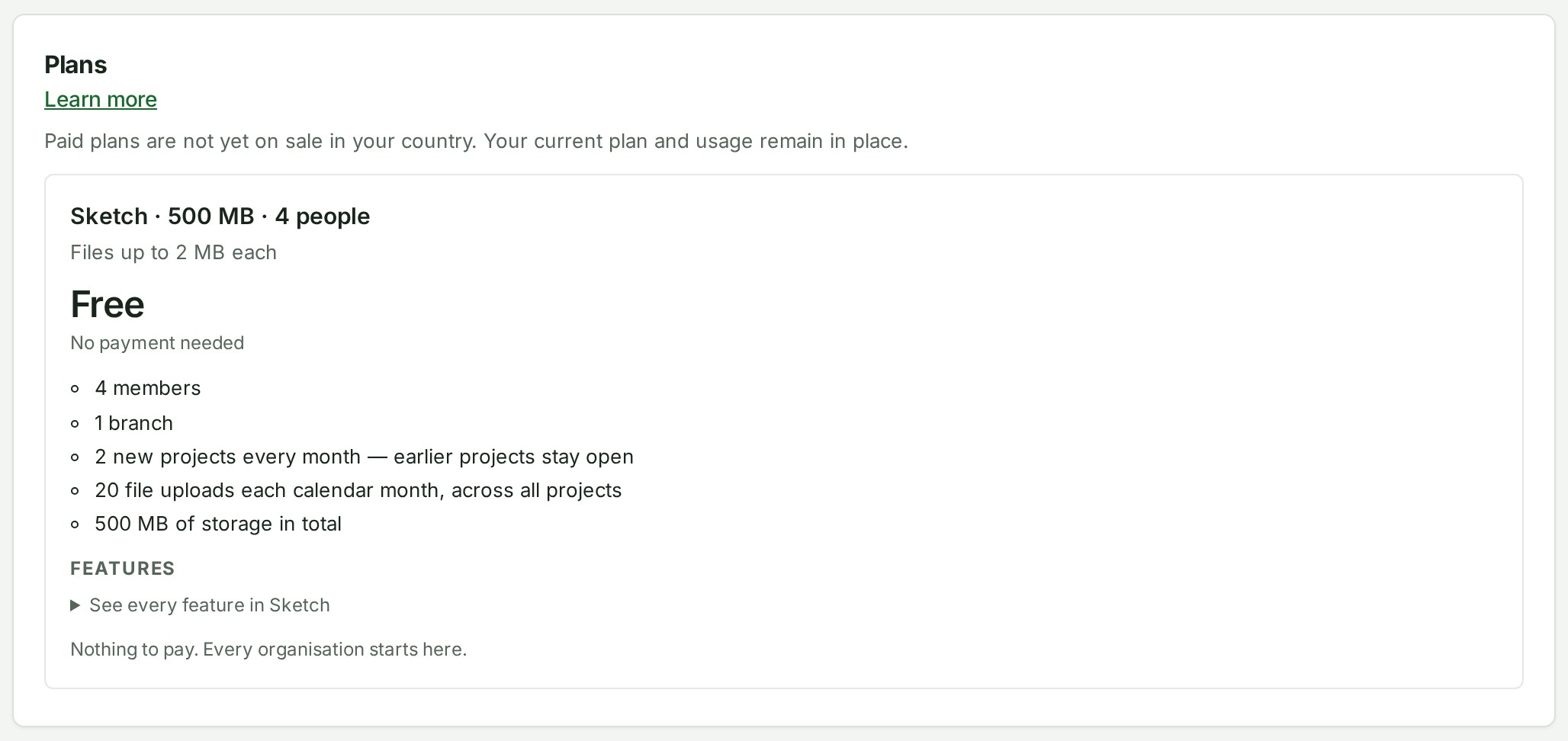
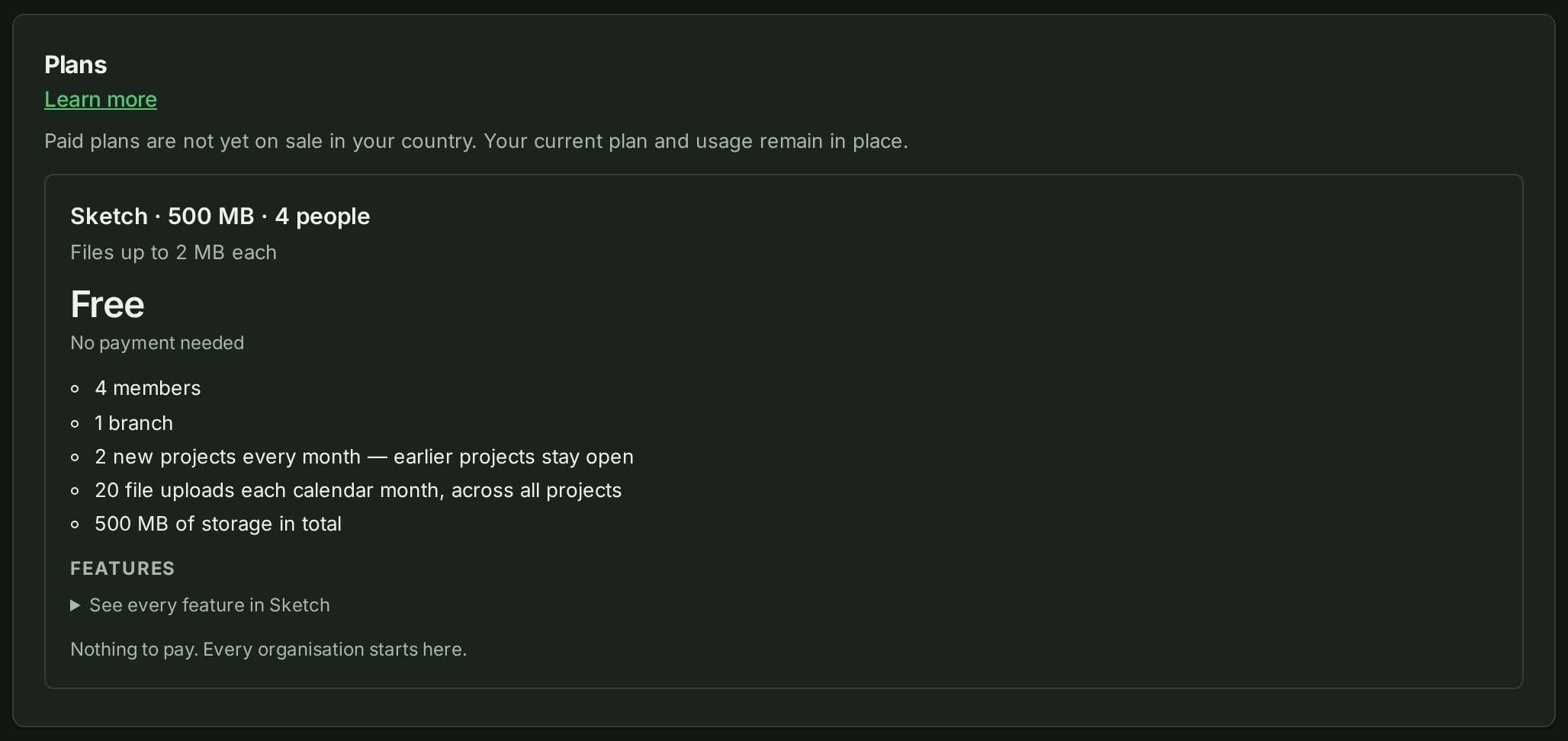
Until then, Plan and usage shows your current plan and usage with a Paid plans are not yet on sale in your country message. Only the free plan is shown, with no payment buttons. You can still read your plan and use a gift code. If you already hold a paid term, you can cancel it or withdraw a pending cancellation.
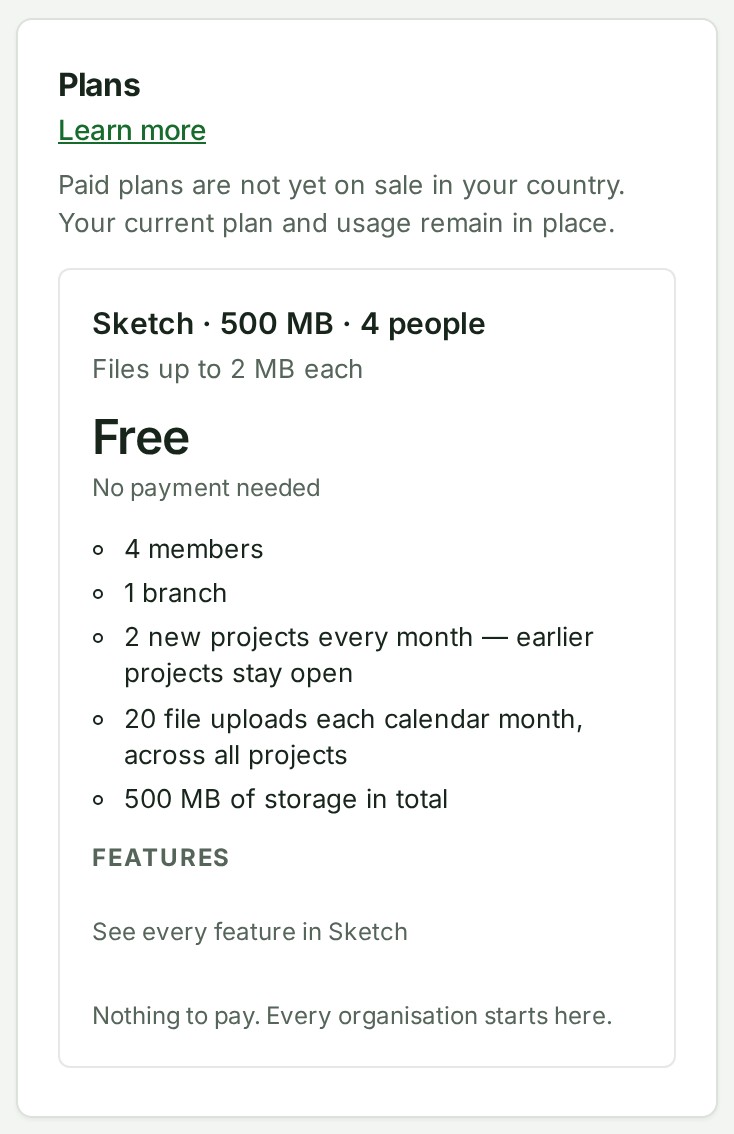
Once they are open:
- Open Billing details. Your country is shown and cannot be changed here.
- Under Who is buying, choose A business, which is a company registered outside India (not part of Alonstech), or An individual if you are buying for yourself. We sell to individuals in the countries our settings allow; if yours is not one of them, the checkout says so and nothing is charged.
- Write your Billing address. If your country is one where businesses account for the tax on the strength of a registration (the United Arab Emirates, the European Union, the United Kingdom, Australia, Saudi Arabia and Norway among them), also write your Tax ID and choose its Tax ID type (TRN, VAT, ABN, EIN or other). Elsewhere it is optional.
- Select Save billing details, then open Plan and usage and choose a plan.
The plan cards show dollar prices. A plan that has no dollar price is not shown to you. The Plans heading says prices are in US dollars, excluding local taxes.


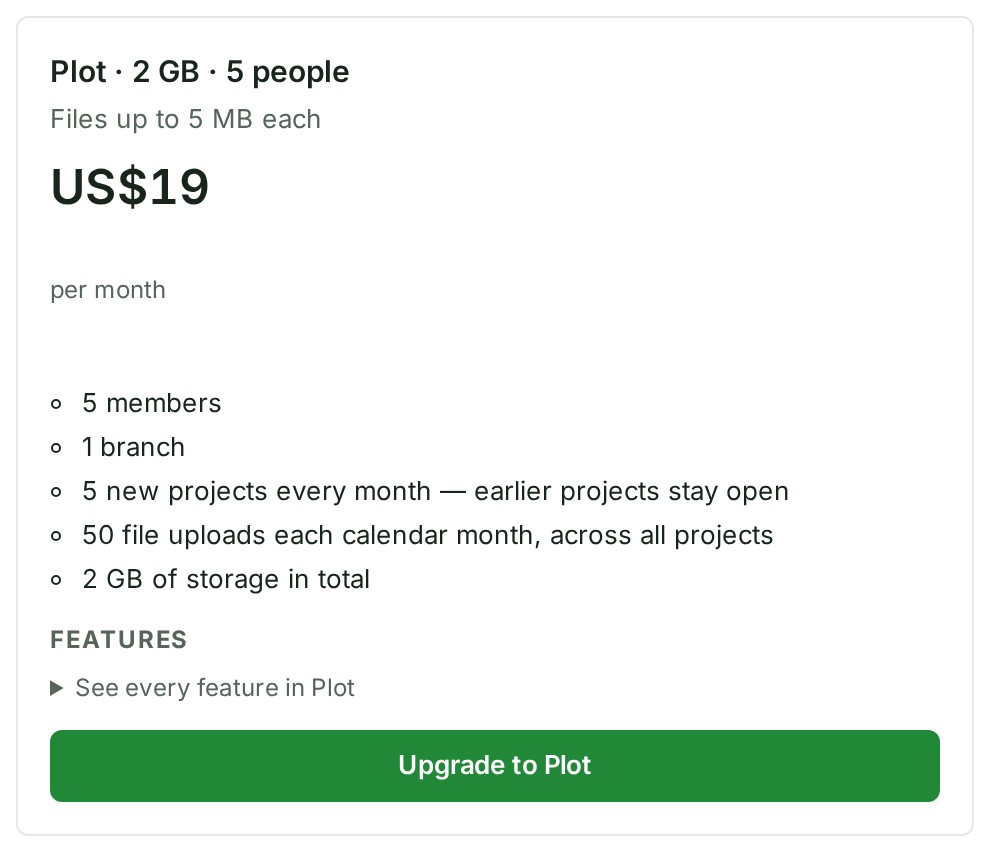
The payment sheet shows the amount in dollars and says no Indian tax is added. The figure is the one the invoice will carry.
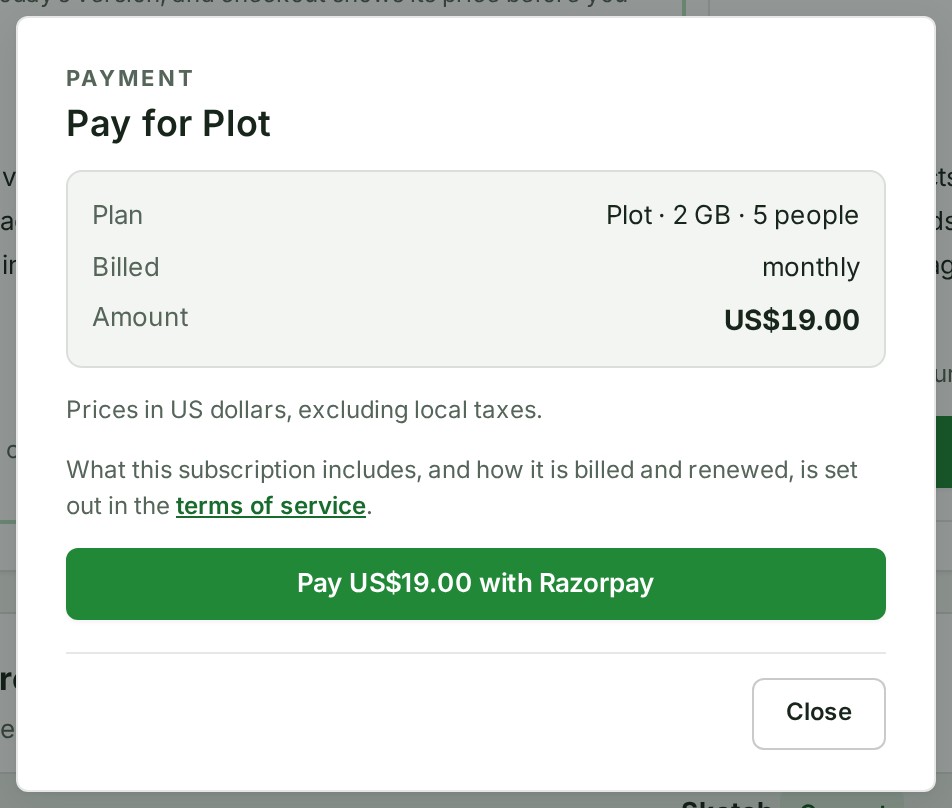
Your invoice is a tax invoice in US dollars, numbered in its own series, with your tax ID and address. It says no Indian tax was charged and that any tax in your country is yours to account for. It also records whether you bought as a business or as an individual. A credit note carries the same words.
Not available to organisations billed in dollars yet: discount codes, referral reductions, changing to a different plan while a paid period is running (you can move to the new plan when the current period ends), and payment by bank transfer. Each is refused with a sentence that says nothing was charged.
An organisation based in India stays on rupees whatever its address abroad, and an Indian branch of a foreign firm signs up as an Indian organisation.
How billing works
Every plan is prepaid for a fixed term. The catalogue says whether yearly plans are currently offered. When they are not, the page shows monthly prices only and there is no Monthly and Yearly choice; when they are, that choice appears above the cards.
There is no ongoing subscription running in the background: a period is either paid for, or it is not. GISweaver holds no card or bank mandate against your organisation, so nothing is ever charged without somebody starting a checkout.
Troubleshooting billing
| What you see | What to do |
|---|---|
| Current plan is disabled | You are already paying for that exact plan and billing period, outside the renewal window. Nothing has been charged. Wait until Renew plan appears, or choose a different plan or billing period if that is your intention. |
| You can read Billing but cannot change it | Ask the Owner, an Admin or a Billing manager to make the change. |
| A payment is already open | Continue the existing payment where possible. Do not cancel it if payment may already have been completed. |
| Payment declined | Use the provider's retry option or a different available method. The decline does not charge money. |
| Payment needs review or remains unconfirmed | Keep the payment reference, check again later and contact support before starting another payment if the outcome is unclear. |
| We could not load the payments recorded outside the online checkout. | Select Try again. The Payments card above it still says whether there are card payments. |
| Plan or usage looks wrong | Confirm the active organisation, then refresh Plan and usage. If it remains wrong, contact support with the plan name, visible status and payment reference where relevant. |
| A change is refused with This organisation is frozen, so nothing new can be added. | Pay for a plan to end the freeze. A frozen organisation has no download cap; it cannot add work or generate new exports; existing data stays downloadable. You can still withdraw access you have given other organisations — see what you can still do while suspended, frozen or closed. |
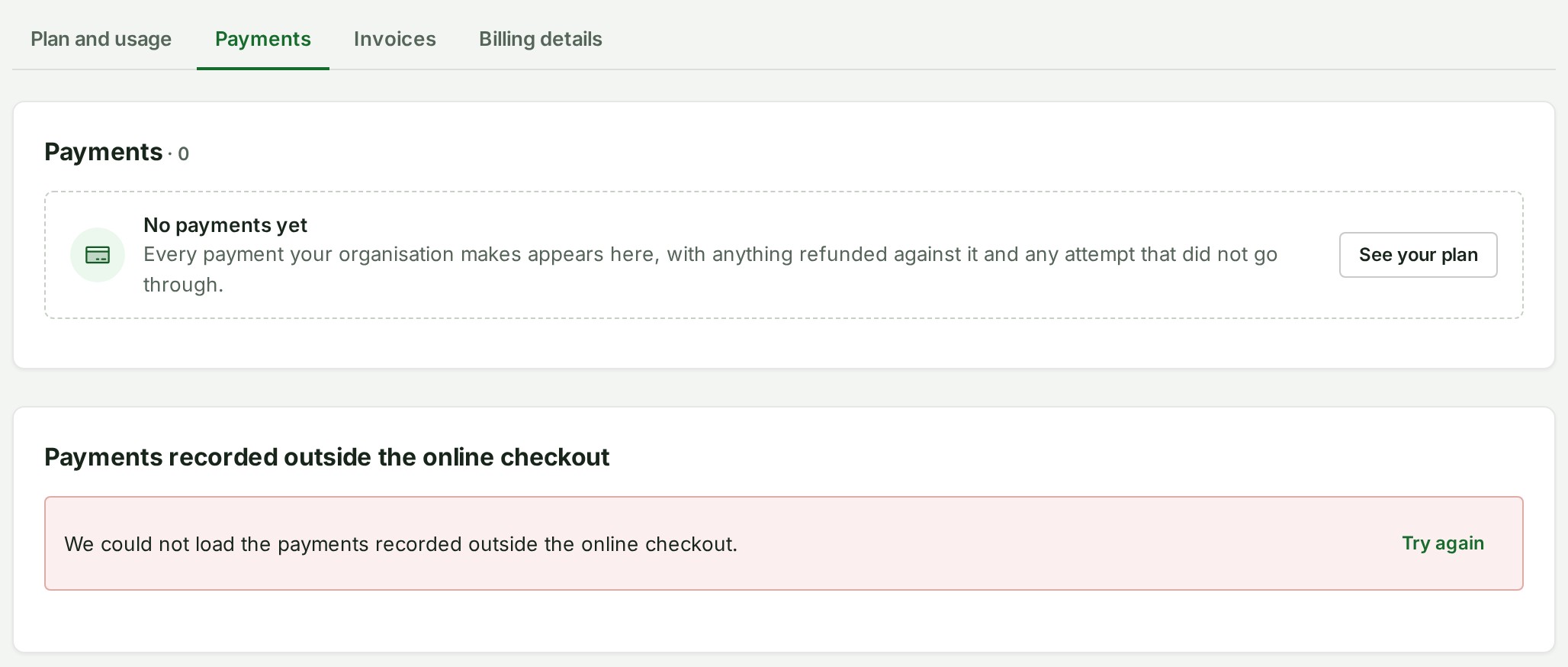
Billing status and data downloads are different records. A restricted or dormant account can show a banner with specific next steps. For organisation records and release downloads, see Data downloads. Read the current Terms for the terms that apply to the account.