Approve a checklist step
Who can do this
Owners, Admins, the branch's manager and the project's lead. Other people who work on the project can tick other steps but not this one. Every plan.
Approve an Approval step on a project's checklist as a professional sign-off in your own name.
-
Open Projects, choose the project and select its Checklist tab.
The tab lists the steps.
-
Tick the box beside the Approval step.
A question opens: Approve
as with an optional Note.? 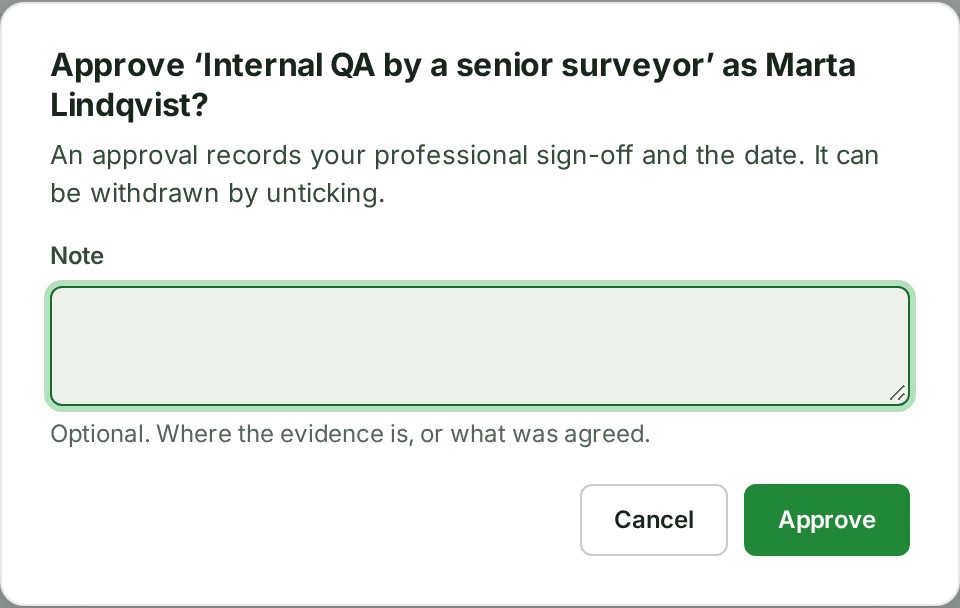
-
Add a Note if you want, then select Approve.
The step shows your name and the date.
What happens next
The summary counts the step as done. An approval is your declaration in your own name. To withdraw it, untick the step; GISweaver asks first when it was approved by someone else.
If something goes wrong
-
Approval is for the project's leads appears on the step, and its box cannot be ticked. Your role cannot approve. Approval is limited to the project's lead, a branch manager, an Admin or the Owner.


Ask one of them to approve it.
Details
Some steps are sign-offs, such as Internal QA by a senior surveyor, and have the kind Approval. Only the people who move the project between states can approve one, so a sign-off is never a colleague's quick tick, and there is no separate list to keep. An approval step can also only be added, changed, turned into another kind of step or removed by those people; see Change a project's checklist steps.