Publish a release
Who can do this
Owners, Admins, the branch's manager and the project's lead. Every plan.
Publish a project's files together as a release: a fixed copy, with a checksum, that never changes afterwards.
Before you start: You can publish from Review, or straight from Draft.
- Open Projects and choose the project. Result: the state bar shows the main button.
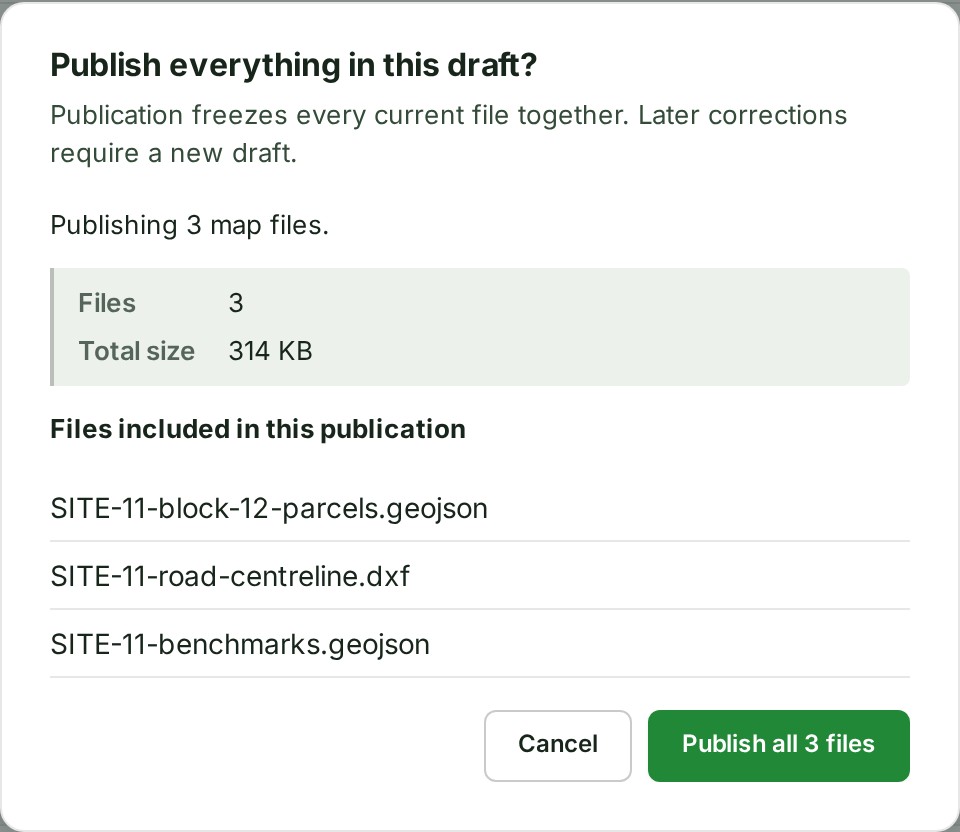
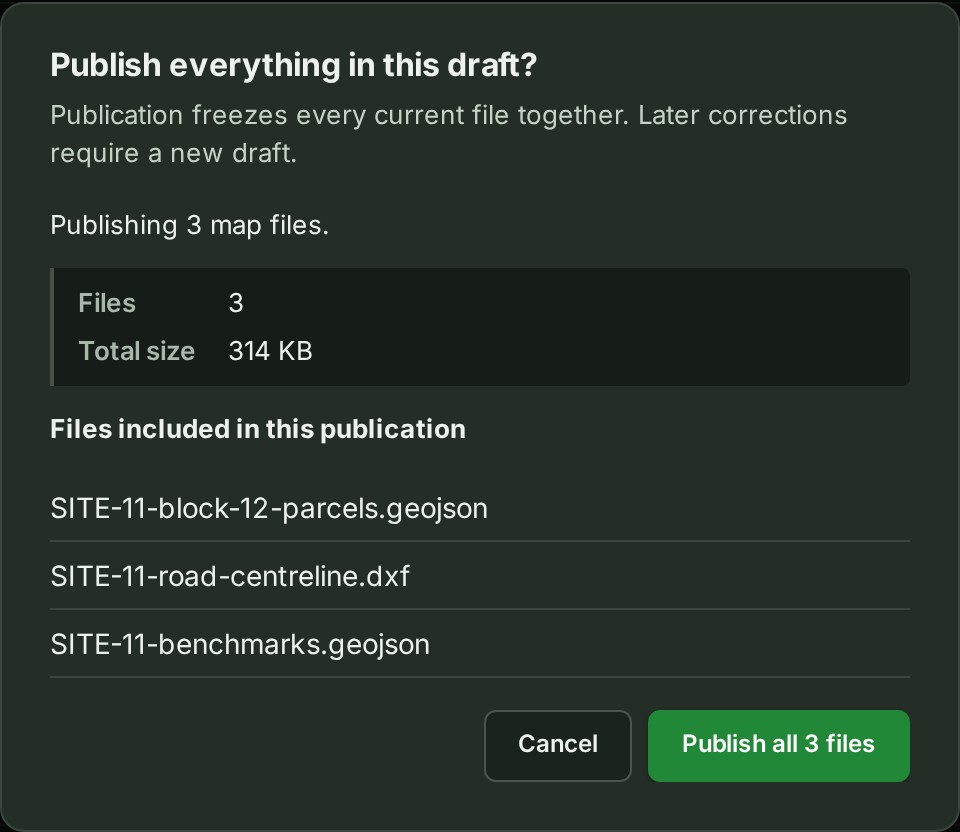
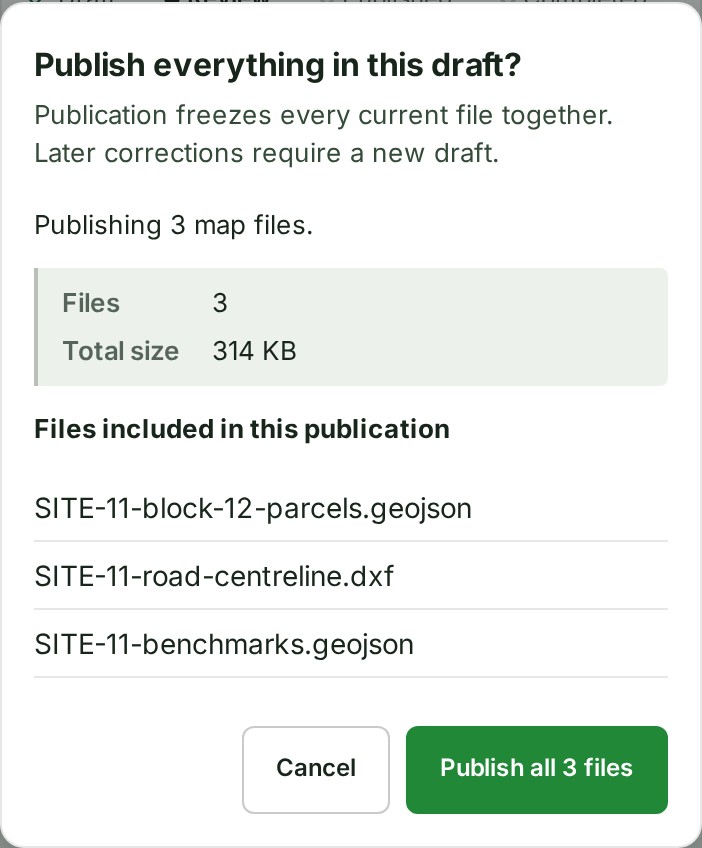
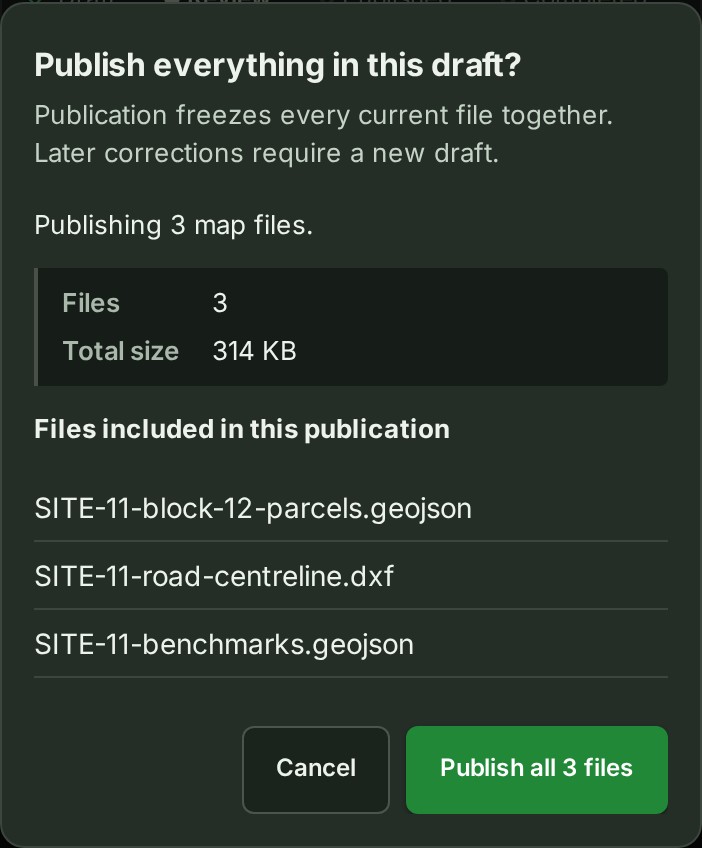
- Select Publish as Release n. Result: the Publish everything in this draft? question opens. n is the number the release will take.
-
Read the number of Files, the Total size and the list of Files included in this publication. Result: you know what the release will hold.
-
Select Publish all n files, which names how many files will be published. Result: a strip under the state reads Publishing.
What happens next
The strip reads Publishing, with how many parts of the release have been copied. It finishes by itself, and you can leave the page.
When every part is copied, the steps mark Published and the line beside them names the release (Release 2 · 20 Sept 2026). The release is listed first on the project's Releases tab, and the audit trail records the publication.
If something goes wrong
- Publish as Release n cannot be selected, with a sentence under it that starts Not ready: and names the files holding it back. Wait for those files to be ready, or remove any that failed.
- A publication is running. It finishes by itself. A colleague has already started publishing. Wait for the state bar to show Published; the line beside it then names the release.
- The working files changed while this confirmation was open. Close it and review the current draft again. Someone added or removed a file while you were reading the list. Select Cancel, then Publish as Release n again.
- The strip reads Publishing did not finish: nothing was published. See Try publishing again.
- The button reads Publish, or you are on a phone. See Review and publishing reference.