Messages
Messages are private one-to-one chats and private groups for colleagues in your organisation: a quick question about a site visit, a heads-up before a delivery, or a standing channel for the team on a job. They sit in the Console under Work, beside your projects, and the number beside Messages is how many messages you have not read yet — in conversations and in threads you follow.
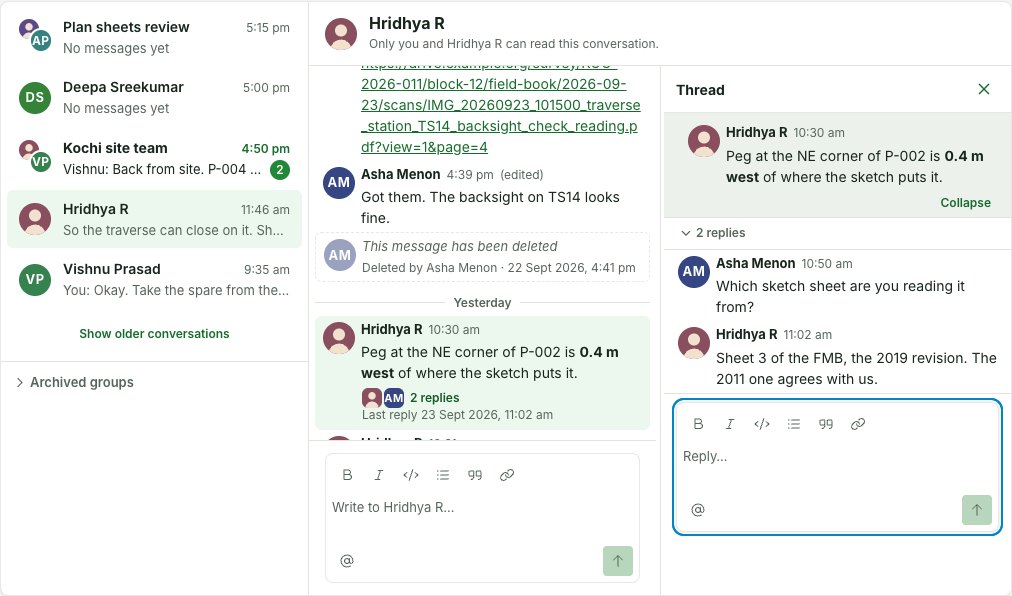
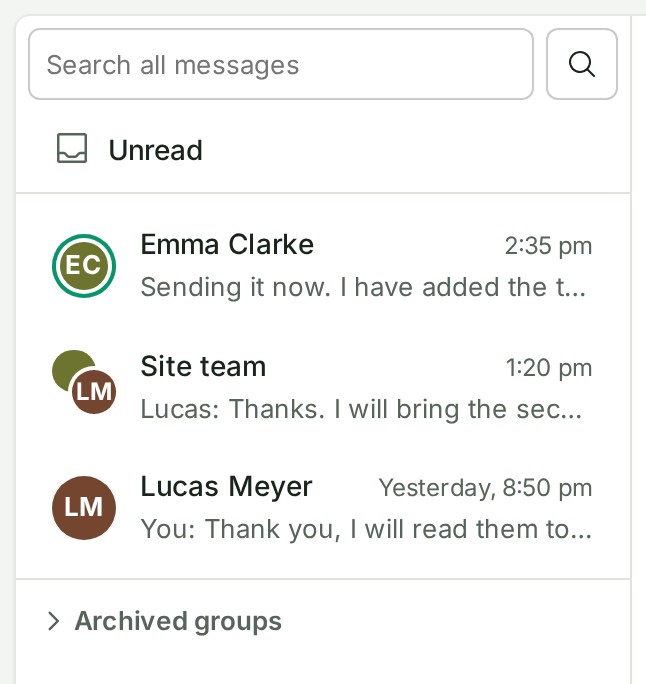
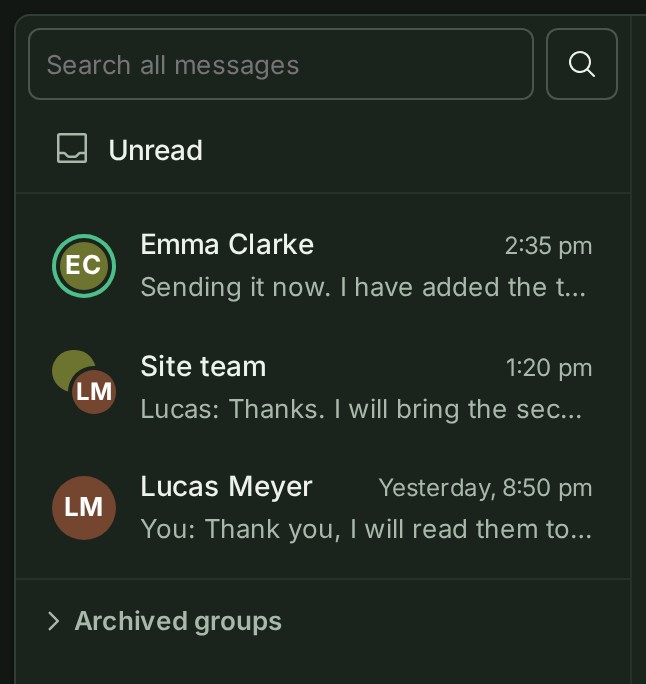
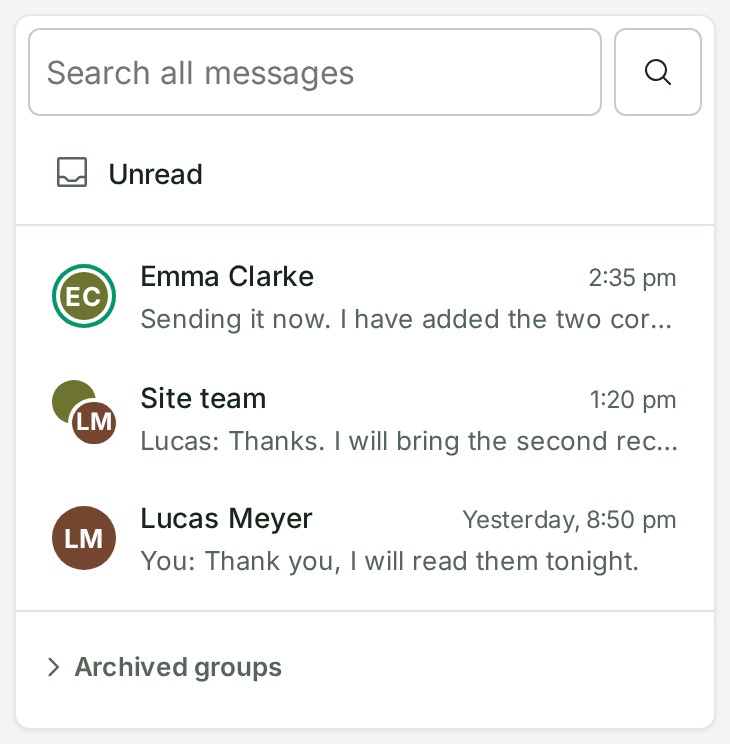
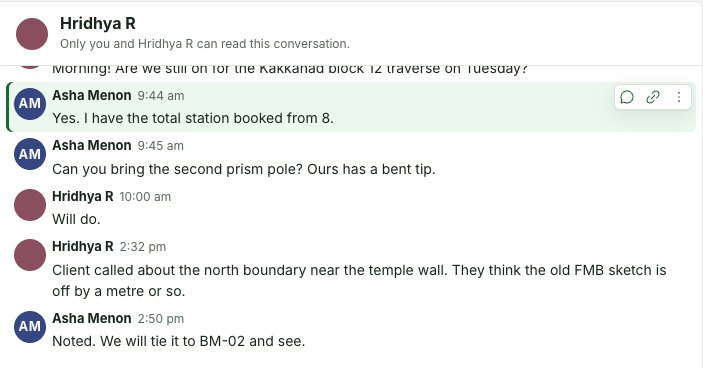
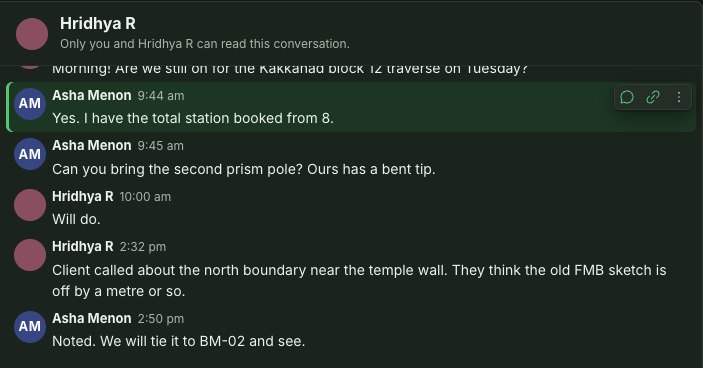
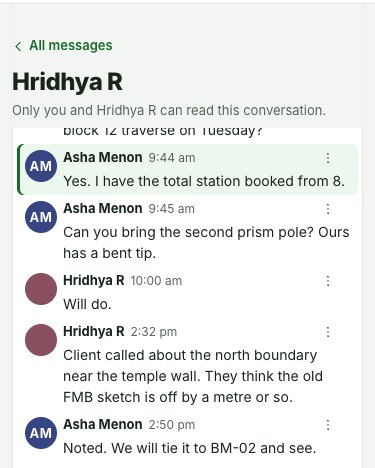
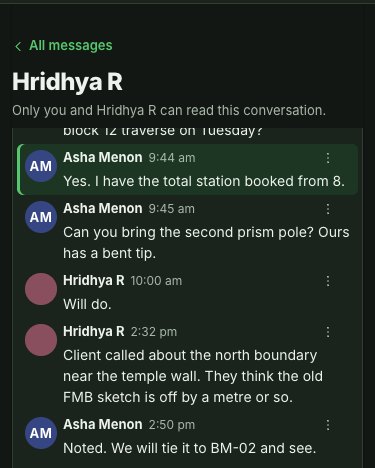
Everybody's messages are drawn the same way, as in a project's conversations: left-aligned, each with a picture, a name and a time, and the same menu. Any message can start a thread.
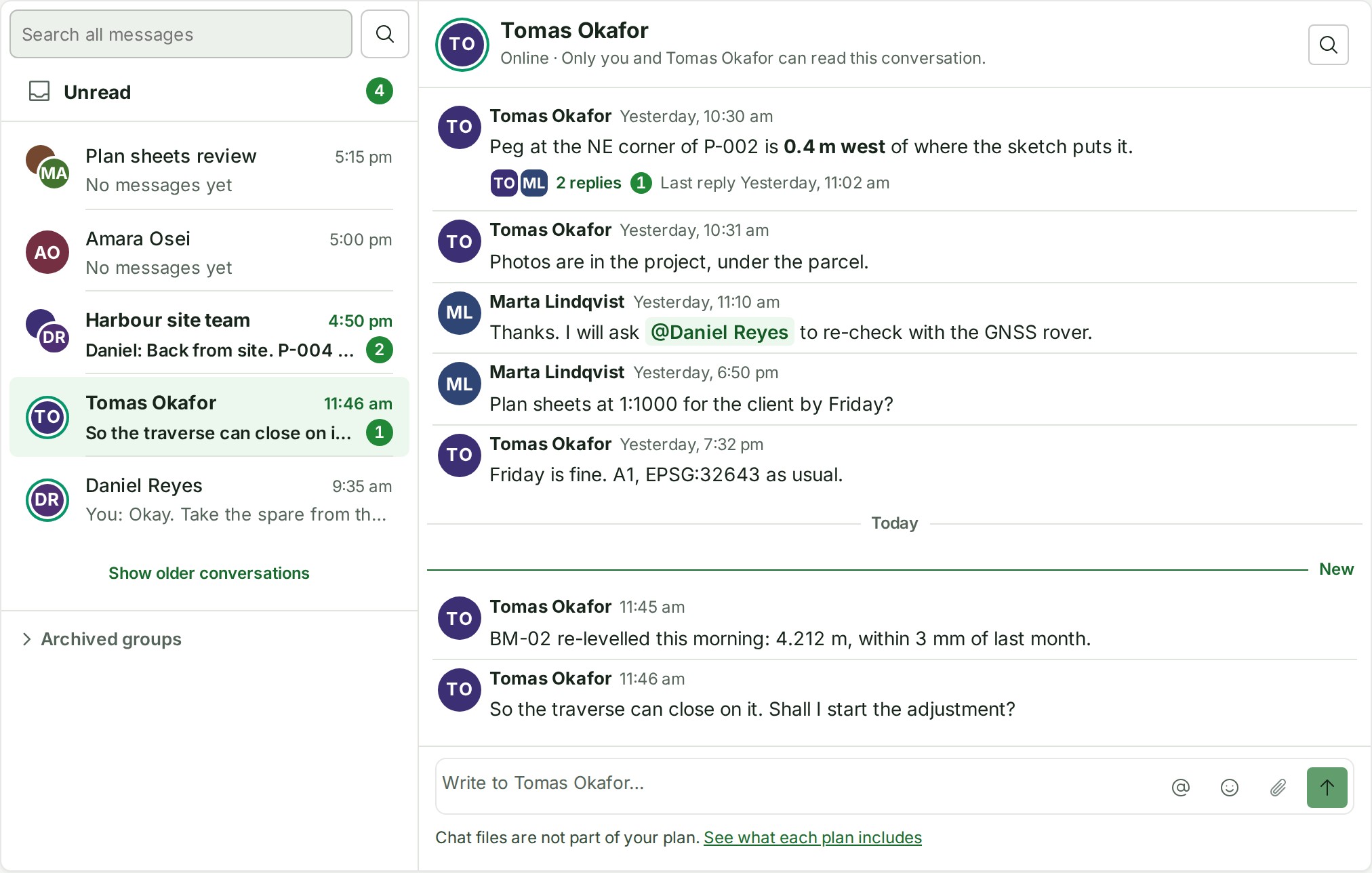
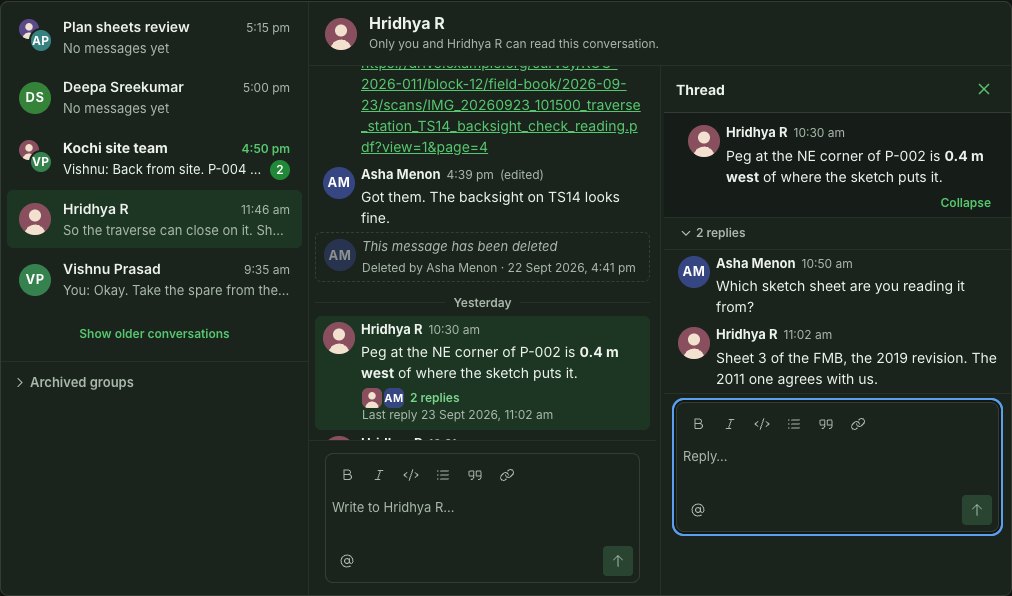
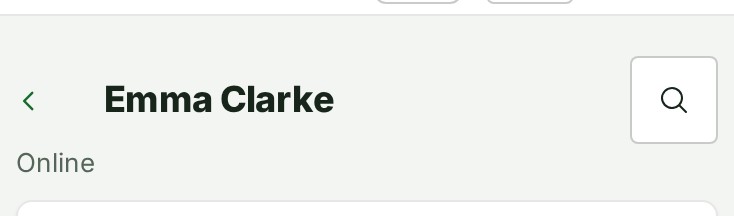
Messages at a desk and on a phone · Synthetic example.
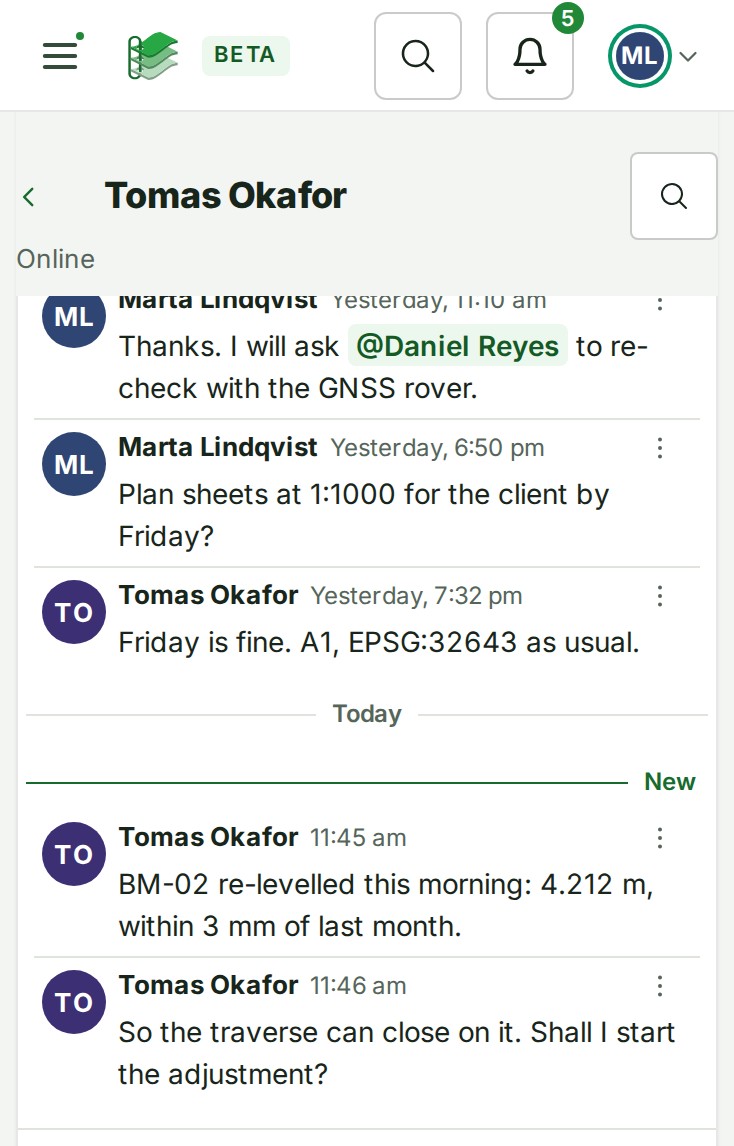
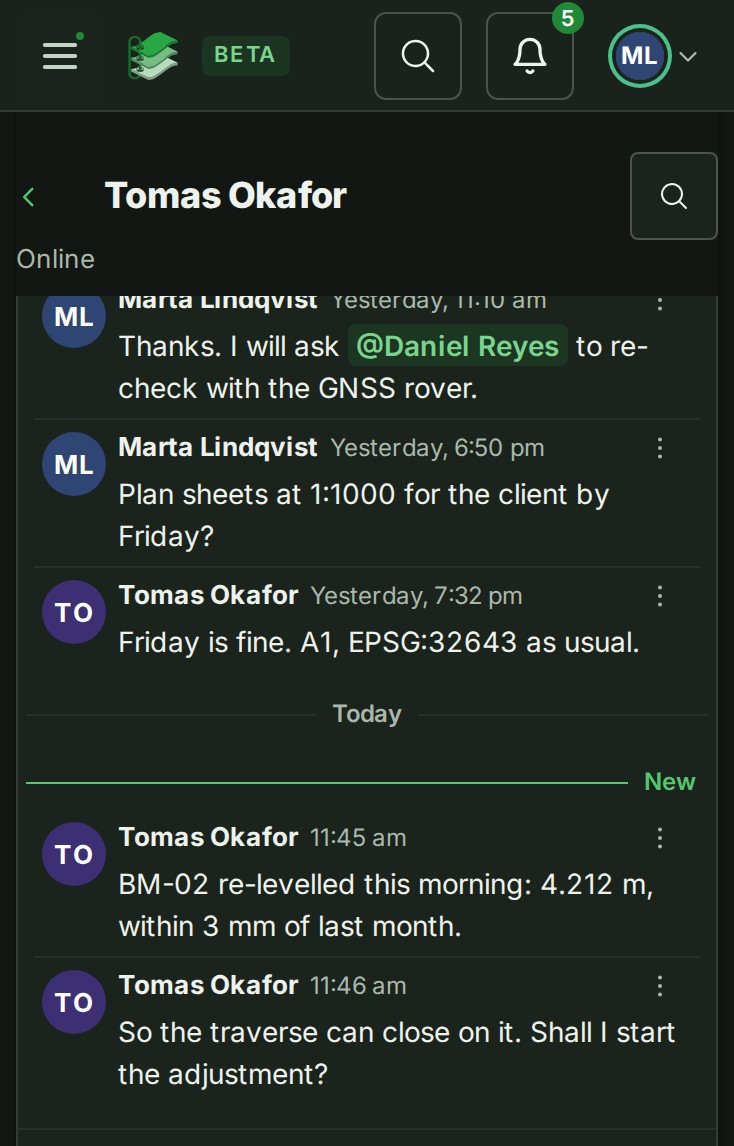
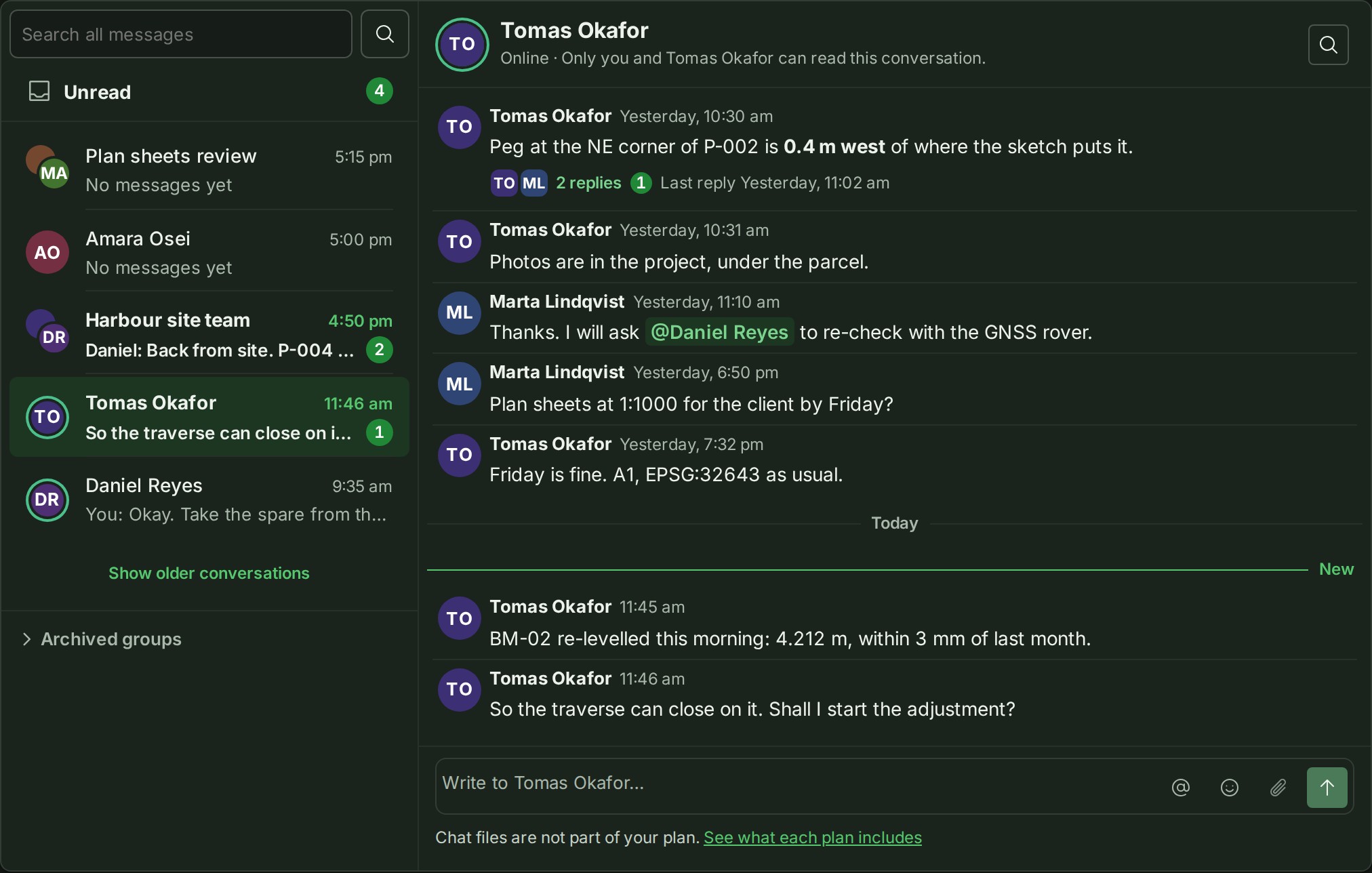
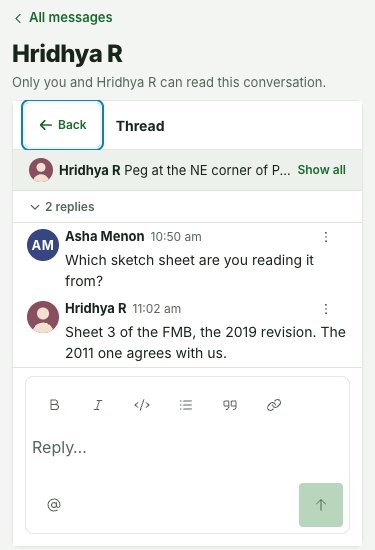
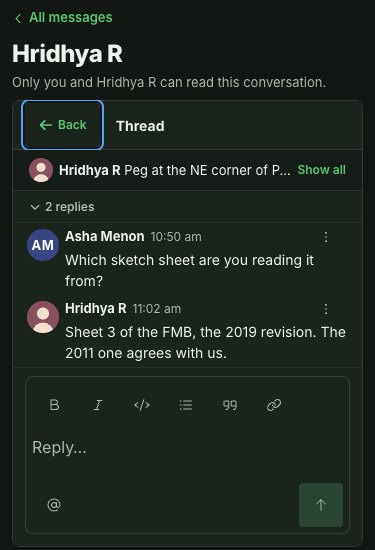
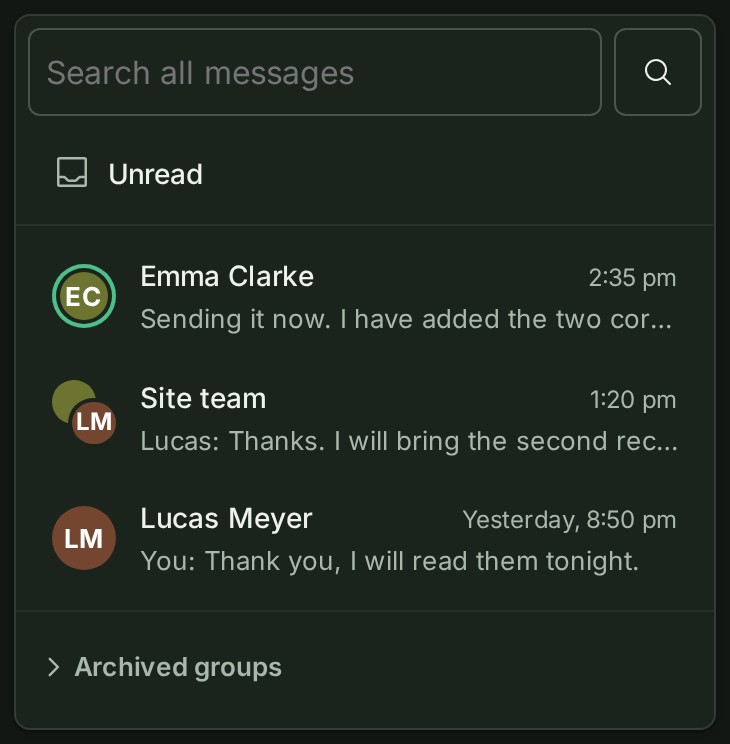
Messages at a desk and on a phone · Synthetic example.
Who can read a message
A direct conversation is read by the two of you, and nobody else. A private group is read by the people who are in it now, and nobody else. Nobody else in your organisation can open either — not the Owner, not an Admin who is not in the group, not an Auditor — and neither can Alonstech's support staff. Your organisation's audit trail records that a direct conversation was started, by whom and with whom, and that a group was created, who was added or removed or left, and that it was renamed, archived or unarchived; it never records anything that was said, or what a group is called. Alonstech discloses a conversation only under a court or government order, as the Privacy Policy describes.
A person who is added to a group later can read everything written in it, including earlier messages and threads, and the dialog that adds them says so: They will be able to read everything written here, including earlier messages and threads. Think before you add somebody to a group where something was said that they should not read; start a new group instead.
Why this is so
A message is between the people in the conversation, so it is kept that way: there is no screen, export or search anywhere in GISweaver that shows it to a third person. It is not end-to-end encrypted — it is stored the way every other message is, encrypted at rest and in transit. A court or government order is the only reason Alonstech produces a conversation. That is done by hand and is not a feature of the product. Nobody who manages a group from outside it, such as an Admin who is not a member, can read it or put themselves into it.
Start a conversation
- Select Messages in the Console's navigation (on a phone, open the menu first).
- Select New message, and type part of a colleague's name to find them.
- Choose them with the pointer, or with the arrow keys and Enter. If the two of you already have a conversation, it opens; otherwise a new one starts.
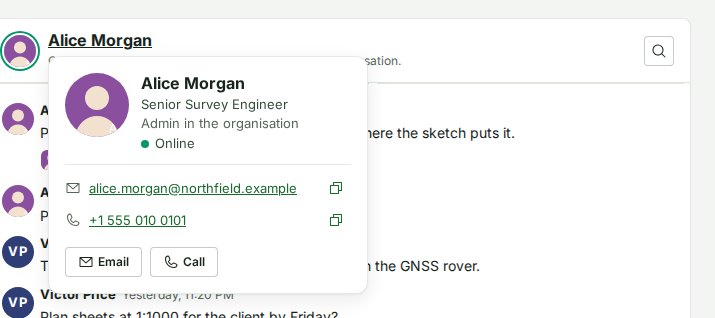
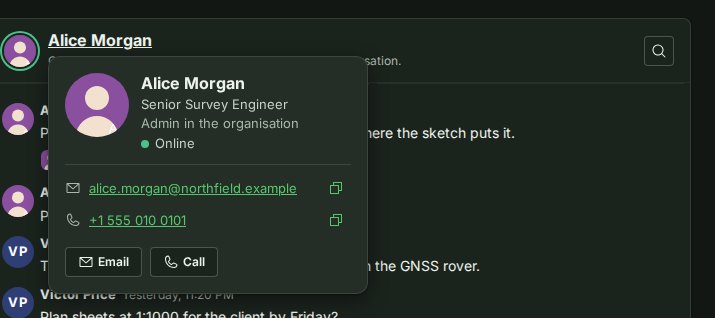
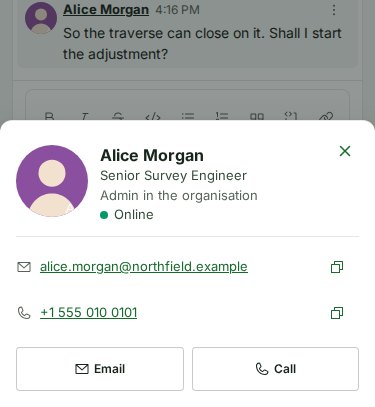
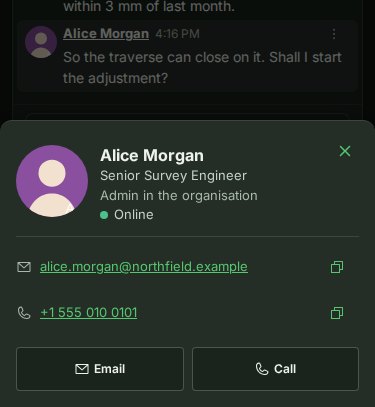
You can also start from the person: rest the pointer on a colleague's name or picture in a project's conversation, in a group or in a group's Members, and select Message on their card (see See who someone is), or, if you can open People, choose Message from a colleague's row menu on the People page. In a conversation with one colleague, their card has no Message: you are already in it. Every colleague's card in Messages shows their job title, when they have added one; if you are one of the people who see their email address, it shows their phone number and Call too (see See who someone is for who that is).
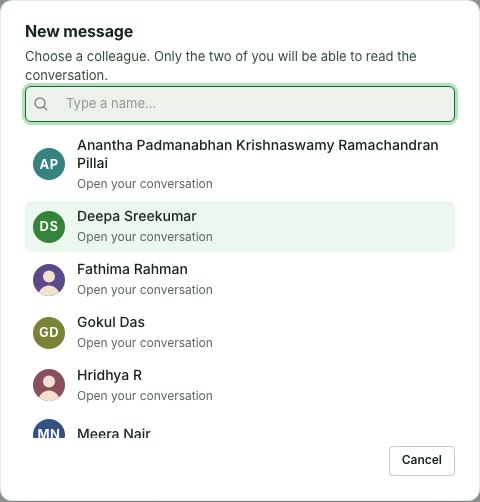
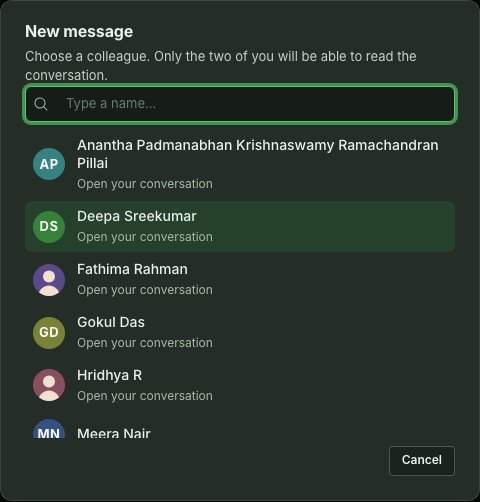
You can message any active member of your organisation, whatever their role. You cannot message a client's reviewer here, a former or suspended member, or yourself. The list shows every active colleague's name and picture and nothing else about them, and every member of your organisation sees the same list.
Start a group
Only an Owner or an Admin can start a private group (on a plan without roles, any member can), and only at a desk: New group is not offered on a phone, though a phone can read, reply in and leave a group.
- Select New group, next to New message in the list.
- Give the group a name of up to 80 characters. Names need not be unique, and an Owner or Admin in the group can change one later.
- Choose the colleagues to put in it, by searching for their names; each one you choose appears as a chip above the list. A group holds from 2 to 100 people, you included, and the line above the chips counts it as you choose — for example "2 chosen · 3 of 100 people, you included". Anyone in your organisation can be in it, whatever their role, but nobody outside it, and no client reviewer.
- Read the line under the list — only the people in the group can read it, and nobody else in your organisation can, the Owner and Admins included — and select Create group.
Everyone you chose finds the group in their list at once, with nothing sent to their email.
<figure class="gw-screenshot">
<img class="gw-shot-light" src="../../assets/screenshots/messages-group-new-1280-light.d8cfd0136121.jpg" width="480" height="600" alt="New group: a Group name field, the line 2 chosen · 3 of 100 people, you included, the colleagues chosen so far as removable chips under People, a search box and a list of colleagues with checkboxes, the line that only the people in the group can read it, and Cancel and Create group." loading="lazy">
<img class="gw-shot-dark" src="../../assets/screenshots/messages-group-new-1280-dark.6f5b16cc63f4.jpg" width="480" height="600" alt="The same screen in dark theme." loading="lazy">
<figcaption>Starting a group · Synthetic example.</figcaption>
</figure>
Write a message
- Write in the box at the foot of the conversation. Press Enter to send and Shift + Enter for a new line; on a phone or a tablet, select Send.
- Messages are words, links and files. The toolbar gives Bold, Italic, Code, a bulleted list, a quote and a link; a web address you paste becomes a link. To send a file or a picture, see Send a file.
- A message in Messages holds up to 4,000 characters. If you go over, a line under the box says by how many and Send waits until it is shorter; nothing you typed is cut.
- You can keep writing while a message is sending. When it has gone, only the words it sent leave the box; what you typed meanwhile stays there, ready to send next.
- If a message cannot be sent — the connection dropped, or you sent a great many in a short time — it stays in the box with a line saying why, so you can send it again.
-
Typing @ offers names, and the name shows in the message. In a direct conversation it offers your colleagues, and mentioning someone does not tell them and does not show them the conversation: only the two of you can read it. The box says so the first time you mention someone. In a group it offers only the people in the group, the box says "A member you mention is notified.", mentioning one tells them (see Notifications), and a message that names anybody else is refused with a line that says to remove the mention and try again, so a mention can never be used to find out who is in your organisation.
@Allis a group's alone: see Tell everyone in a group; a direct conversation never offers it. In a direct conversation the names cover everyone in your organisation you can message, however many people it has. The list shows the first fifty names that match; if there are more it says how many ("Showing 50 of 312"), and typing more of a name narrows it. When nobody matches, the list says where it looked: Nobody in this group is called that. in a group, Nobody you can message is called that. in a direct conversation. While the names are still arriving it says so too, and names you have not seen before (someone who joined, or left, in the last few minutes) are picked up when you next open the list. -
A name you have mentioned opens that person's card while you are still writing, as it does in a sent message: select the chip in the box, or put the cursor beside it and press Alt + Enter (Option + Enter on a Mac). Esc puts the card away and leaves the cursor where it was; typing puts it away too. See See who someone is.
Layout and language
- On a phone held sideways the box is shorter: the toolbar sits on the row with @ and Send, and the conversation's name scrolls away with the messages. While the keyboard leaves the screen very short, the box is one row — the words, @ and Send — and the toolbar comes back when the keyboard closes.
- A line that begins in Arabic, Hebrew or another right-to-left script is laid out right to left, in the box as you type and in the conversation after it is sent; a line in English stays as it is. The writer's picture, name and time stay at the left either way.
Send a file
You can send documents, pictures, short videos and drawings in a conversation, up to ten in one message, each up to 100 MB or your plan's per-file limit if that is smaller: PDF, PNG, JPEG, WebP, HEIC, MP4, MOV, DWG and DXF. Survey data such as LAS or LAZ point clouds and GeoTIFF belongs in a project, not here.
- Select the paperclip, Attach a file, in the row under the box, or drop files onto the box, or paste a picture or a screenshot into it.
- Each file appears as a tile in this message box. Its upload and safety check start at once. You can keep writing while the tile says Sending \<percent>% or Checking. Select Remove \<name> to cancel a file or take it out of the message.
- Wait until every tile says Ready to send, then select Send. Your words and all the files go together as one message. You can also send files without words. A thread's files stay in its reply box; the main conversation box can send independently.
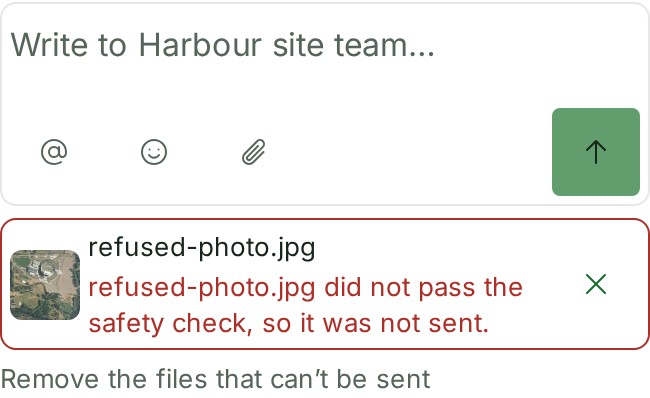
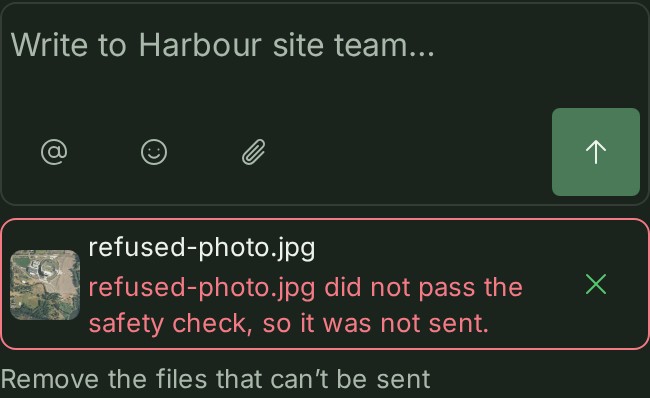
- If a file cannot be sent, its tile gives the reason. Select Retry after a transfer or check failed, or Remove \<name> for a refused file. Send waits until every tile is ready or removed. If the message send fails, your words and ready files stay in the box so you can try again.
A file is checked for harm when it is sent, as every file in GISweaver is, and a photograph loses the place it was taken before anybody receives it. A file goes on sending when you open another conversation or close the thread, and stays in the box where you added it. Closing the browser tab while a file is staged asks you first.
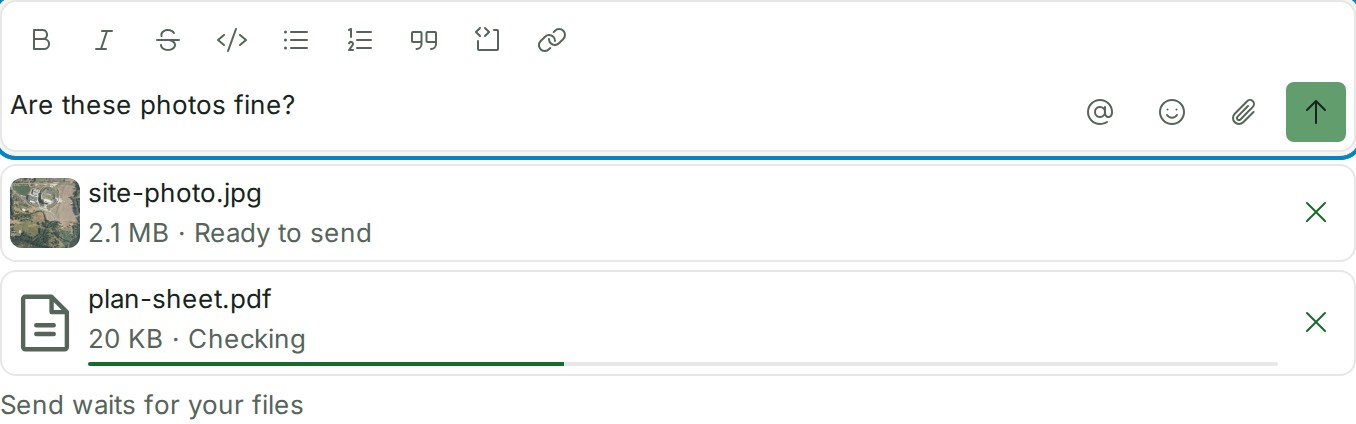
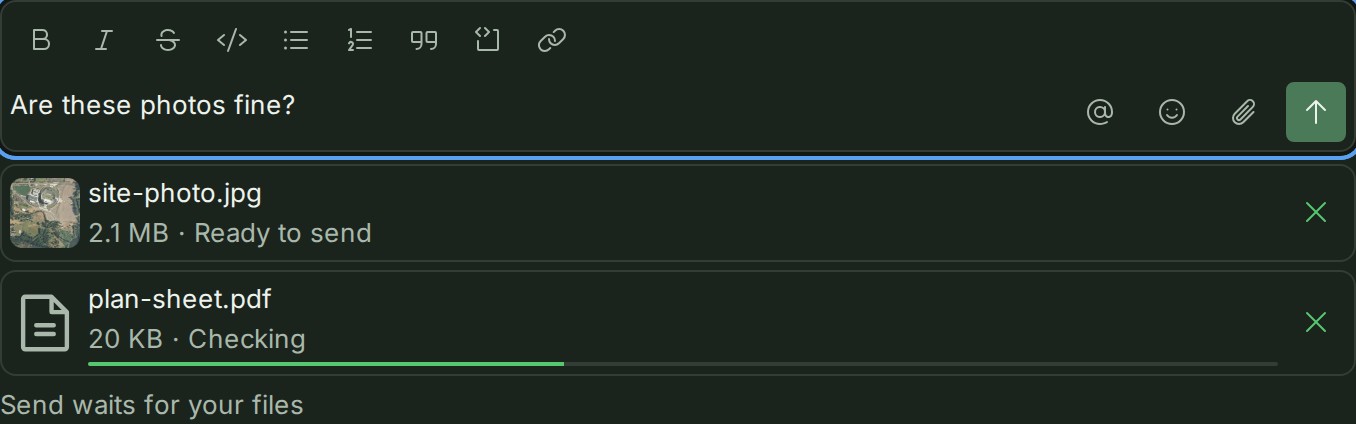
Words and files waiting together in one message · Synthetic example.
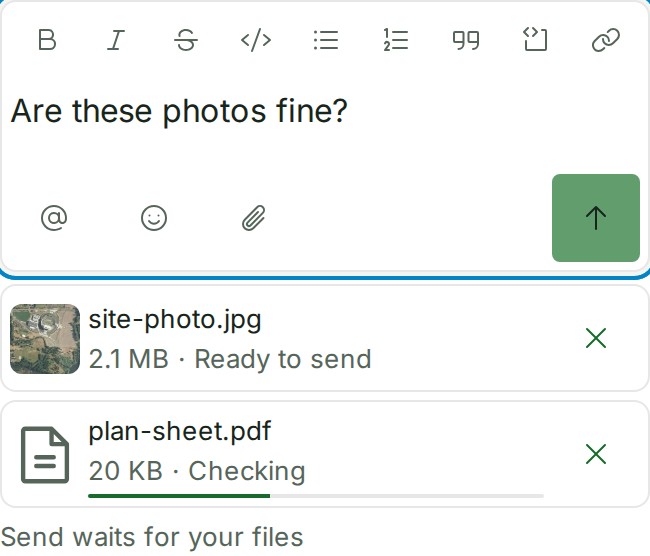
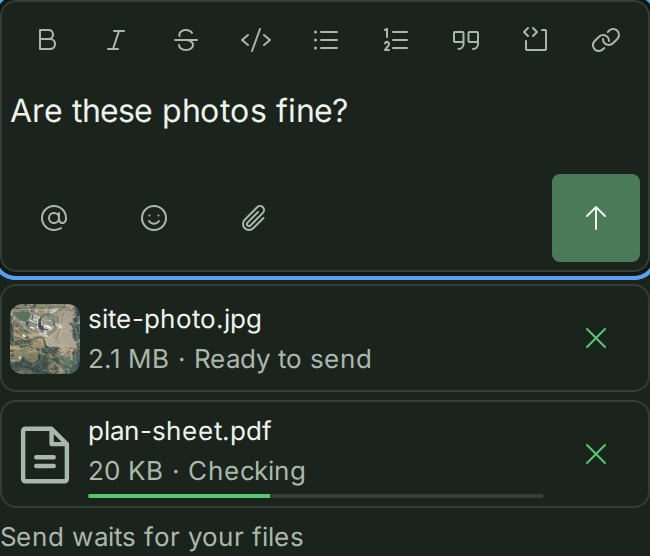
The same, on a phone · Synthetic example.


A refused file must be removed before Send · Synthetic example.
The same, on a phone · Synthetic example.
Anyone who can read the conversation can open a file. Select a picture (PNG, JPEG or WebP) or the name of a PDF and it opens in the same viewer as a project's files, where you can also download it; any other file has only Download on its card. The file is read only by the people in the conversation, as the words are, and nobody else in your organisation can open it, the Owner and Admins included; an Admin sees only how much storage chat files use altogether (see Plans and usage). The audit trail records that a file was opened, and never which one or in which conversation.
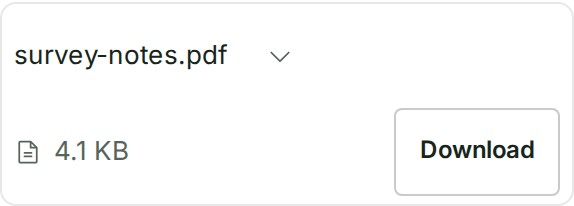
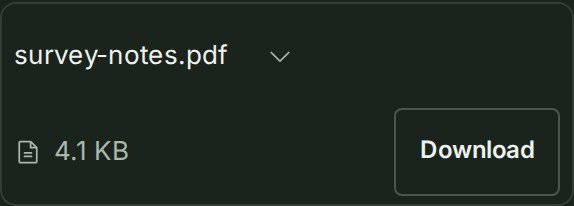
Press the arrow beside a file's name to hide its preview; press it again to show it. A picture's preview is not loaded while it is hidden. GISweaver remembers this for you on this browser. Here a PDF card is shown, first open and then hidden:




A file card open, then hidden · Synthetic example.


The same, on a phone · Synthetic example.
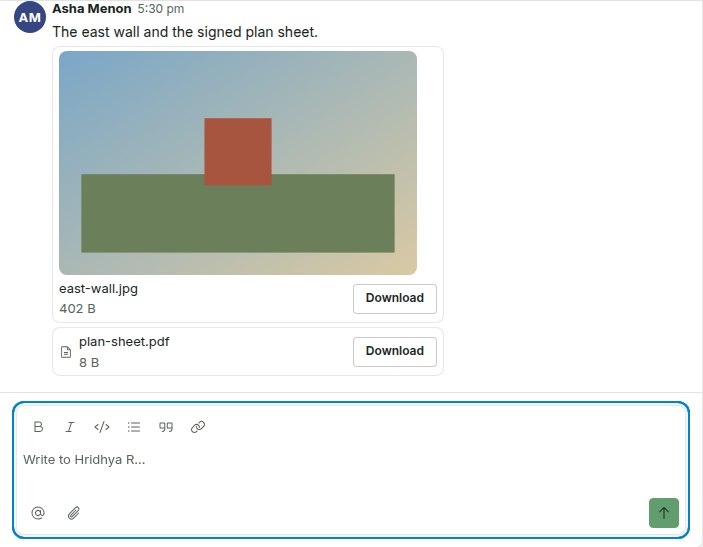
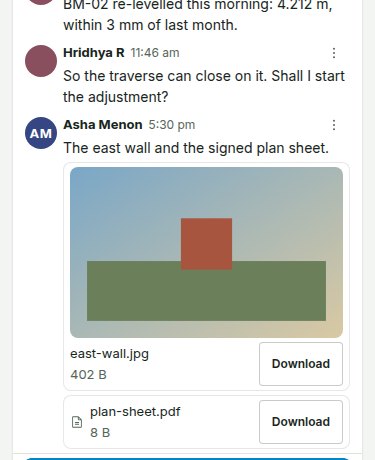
A message with files looks like this:
When a file cannot be sent, its entry in the list under the box says why, Send waits until you remove it, and the words stay in the box:
- … is larger than 100 MB, the most a file in a chat can be. The figure is the smaller of 100 MB and your plan's per-file limit. Send a smaller file, or put it in a project.
- … cannot be sent in a chat. The type is not one chats take.
- … was refused: it did not pass the safety check, or it is not a kind of file chats take.
- You have sent a lot of files in the last hour. Try again later. Each person can send 20 files an hour.
- Chat storage is full. Chat files may use only a share of your organisation's storage. Delete files you sent, or ask an Owner or Admin about more storage (see Plans and usage).
Why this is so
Chat files count towards your organisation's storage, so that conversations cannot become a place to keep files nobody pays for, and they have their own share of it so that a busy conversation can never use up the room your project deliveries need. Deleting a message removes its files at once. A message can contain words, files or both; it cannot be empty.
Tell everyone in a group
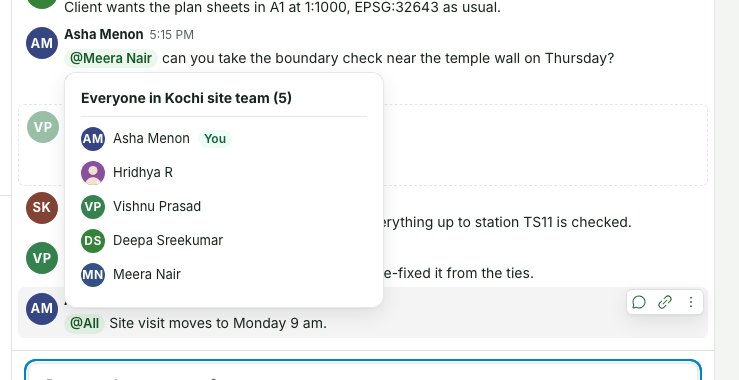
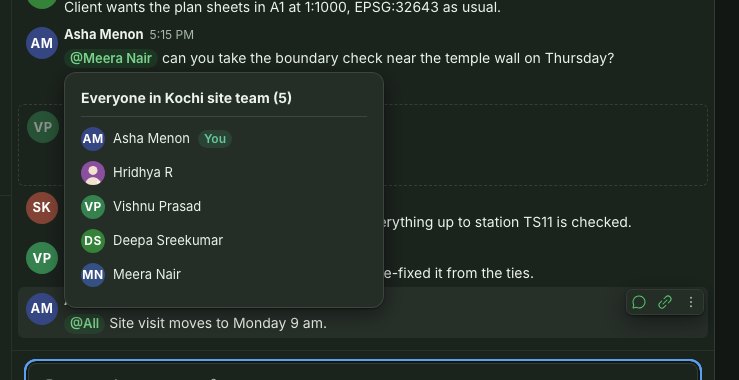
An Owner or an Admin in a group — anybody, on a plan that does not enforce roles — can tell everyone in it at once. Type @ at the start of a new message to the group and choose All, the first row in the list. The row says who that is, for example "Everyone in Harbour site team (5)": everybody taking part in the group now, you included.
Each of them apart from you gets one notice in the bell, "name mentioned you in group.", and a
person you also named in the message is told once. No email is sent. @All is for a new message
to the group: in a thread reply, or when you correct a message, the row reads "Only in a new message
to the group" and selecting it writes nothing. For everybody else in the group the list does not
offer All; typing @all shows it with "Only Owners and Admins", and selecting it says
"Only Owners and Admins can notify everyone in a group with @All. Name the people you need instead."
The server refuses the same message if it is sent another way, and nobody is told.
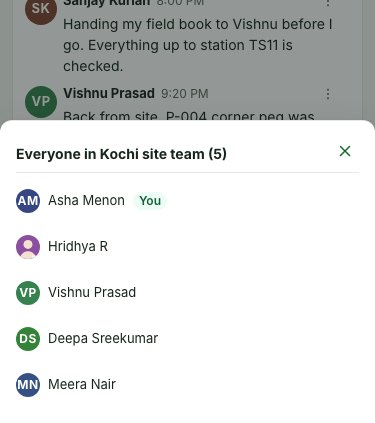
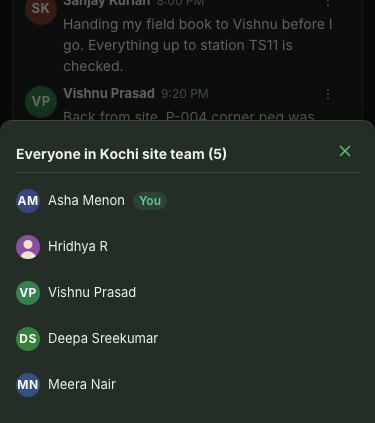
Select an @All chip — in a sent message, or in the box while you write — to see who it
includes: "Everyone in Harbour site team (5)" and the list of names, which scrolls if it is long.
Select a name to open that person's card. On a phone the list rises from the bottom of the screen;
Close puts it away.
Reply in a thread
A reply belongs to one message and sits under it, as in a project's conversations. It works the same in a direct conversation and in a group.
- Point at a message and select the speech-bubble, Reply in thread — on a phone, open the ⋮ beside it and select Reply in thread there. A message that already has replies shows who answered, as faces, and a line such as 3 replies followed by Last reply time; select that line.
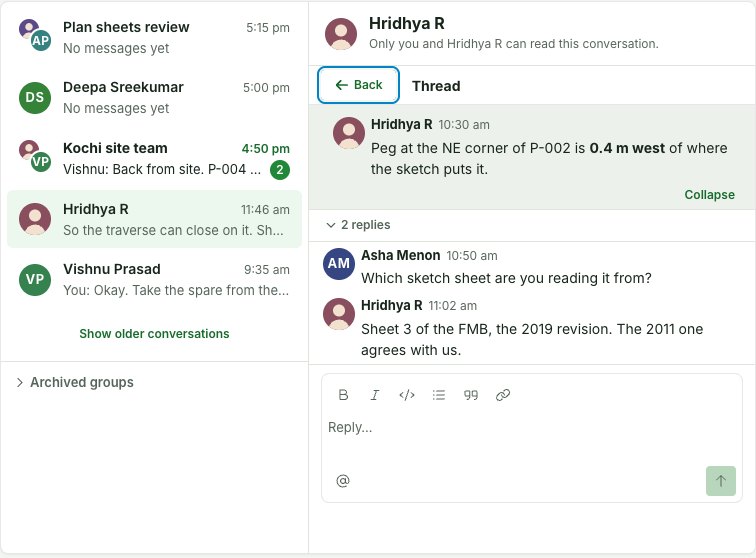
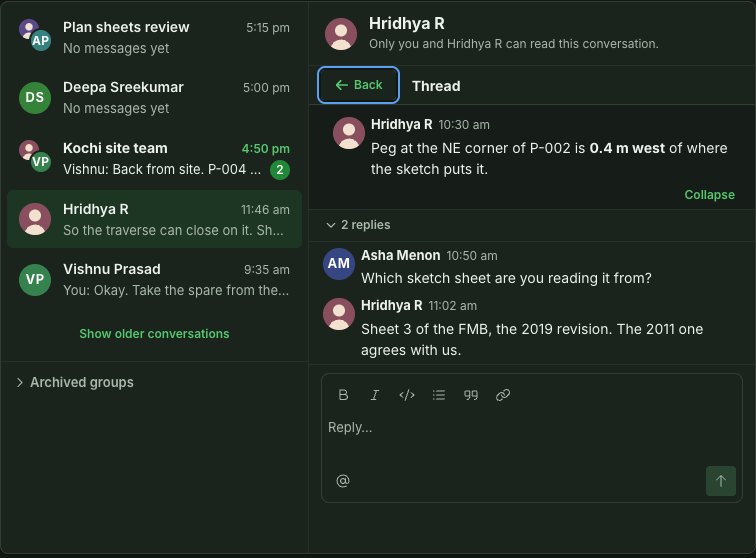
- The thread opens with the message it answers in view. On a window 900 pixels wide or more, when the conversation itself has room for two columns, the stream stays on the left and the thread opens on the right, with a divider you can drag. On a narrower window, on a desk where the list beside the conversation leaves it too little room, and on a phone, the thread takes the stream's place.
- The message you are answering is pinned at the top of the thread. On a phone a thread with replies opens with it folded to one line; select the line to read it whole.
- Write your answer in the thread's own box and press Enter (or select Send). A reply goes to the thread only, not to the conversation.
- Select Back (on a phone and on a narrow screen) or the close button (beside the stream) to return to the conversation, or press Esc — in the thread's box too, where anything you have written stays for when you open the thread again. Your browser's Back, or your phone's, closes the thread as well, and you are back where you were in the conversation. A thread with nothing in it yet says No replies yet. under the message it answers.
An open thread is part of the page's address: reloading the page keeps it open, and the address can be bookmarked or shared like any other.
A reply cannot itself be replied to: replies do not nest, so Reply in thread is not offered on one. If the message a thread is under is deleted, it keeps its place as This message has been deleted, its replies stay, and you can still reply under it.
You follow a thread when you wrote its first message, replied in it, or, in a group, were mentioned in it. In a direct conversation both of you follow every thread, since every reply is meant for the other person. The number beside Messages, and the count on a conversation in the list, include the replies you have not read in the threads you follow; a thread you do not follow shows its replies line and no count. A thread counts as read when you have opened it and reached its last reply.
Reading
A conversation opens at the first message you have not read, under a green New rule, or at the latest message. Each day starts with Today, Yesterday or the date — and a conversation you leave open overnight moves on at midnight, so yesterday's messages stop saying Today. Every message shows its writer's picture, name and time. Show earlier messages at the top reads further back without moving you.
A new message arrives while the conversation is open; if you have scrolled up, a chip such as 3 new messages takes you down to it. While your connection carries live updates, what changes reaches you as it happens, and the conversation only checks again as a safety net, about once every five minutes. If live updates are off for your plan, or the connection has dropped or has gone quiet, the conversation checks about once a minute instead, less often while your connection keeps failing. Either way it does not check while its tab is in the background; coming back to the tab checks at once. A colleague's edit or deletion, a reply in the thread you have open, or a message you read on another device, shows up the same way.
The list puts the conversation with the most recent activity first, and a reply in a thread lifts its conversation too. A direct conversation shows the colleague's picture and name; a group shows its first two faces, its name, and the start of the latest message with its writer's name in front ("Marta: …"). Archived groups, a line at the foot of the list, opens to list the groups that have been archived.
A conversation counts as read when it is open on your screen and you have reached its latest message. In a direct conversation, when a colleague writes to you, the bell in the top bar says "name sent you a direct message." — without any of the words — and selecting it opens the conversation. In a group there is no bell for each message; the count in the list and beside Messages carries those, and the bell tells you two things (see Notifications).
Who is online
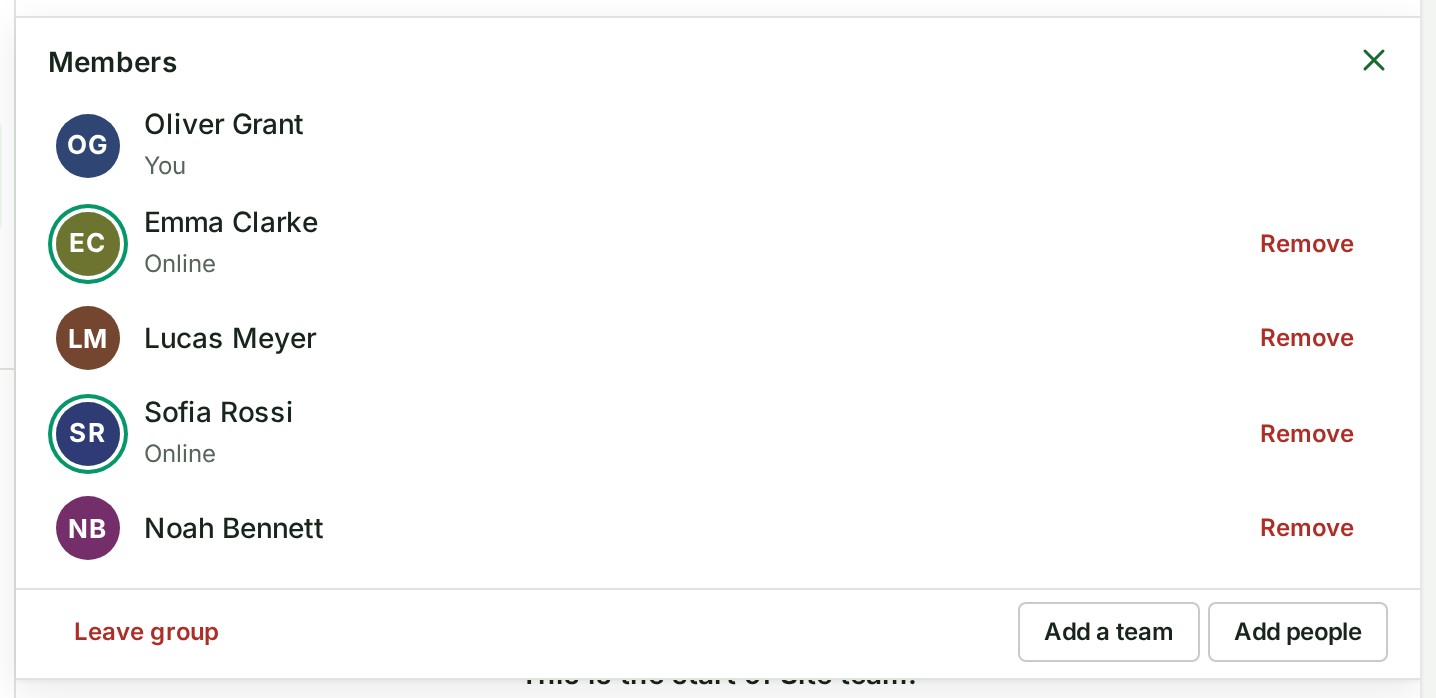
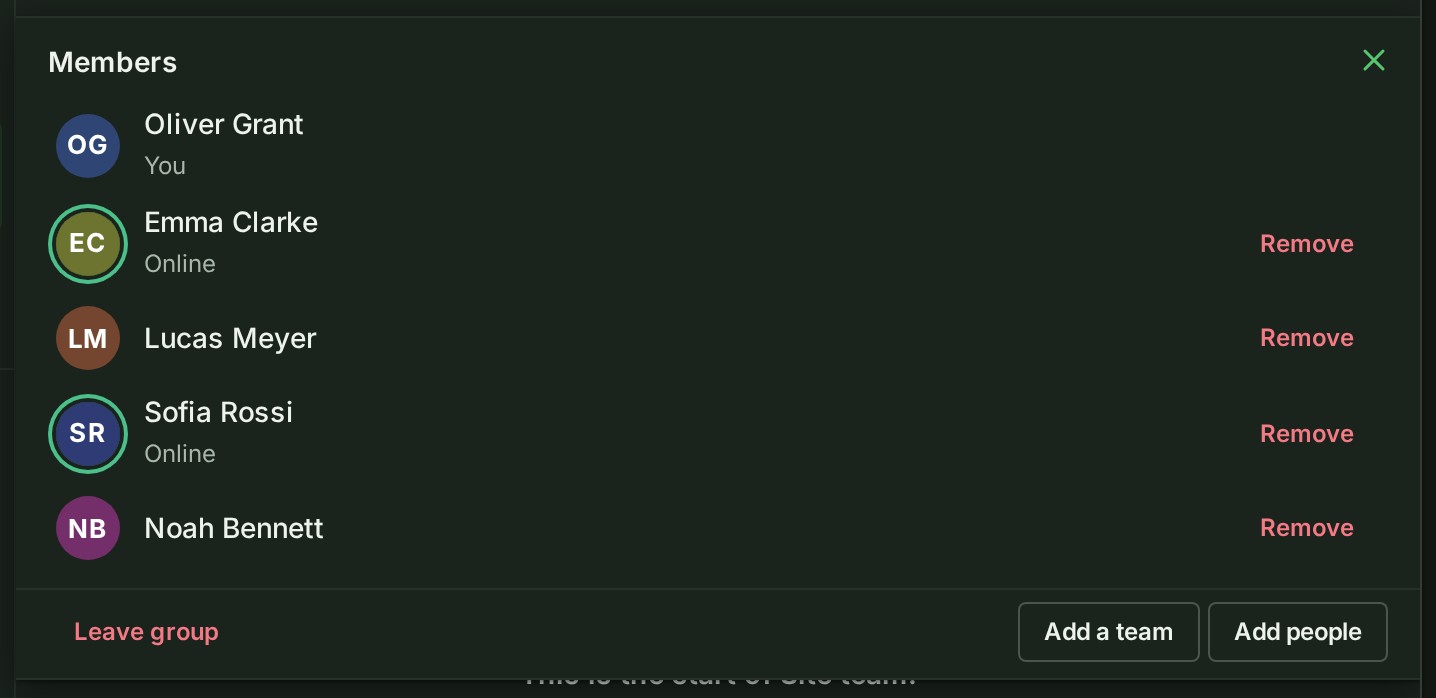
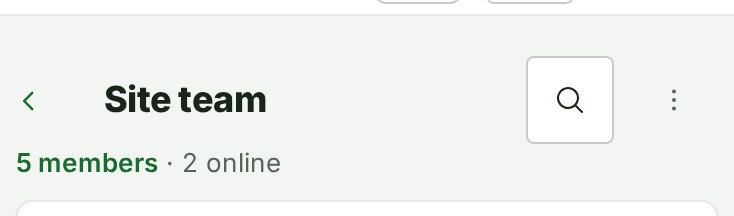
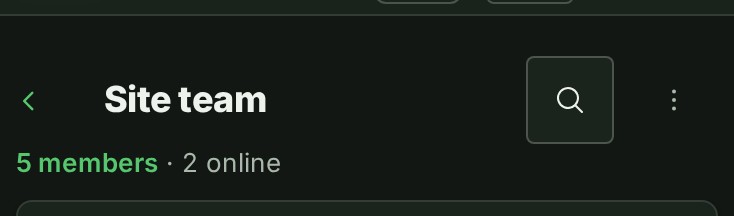
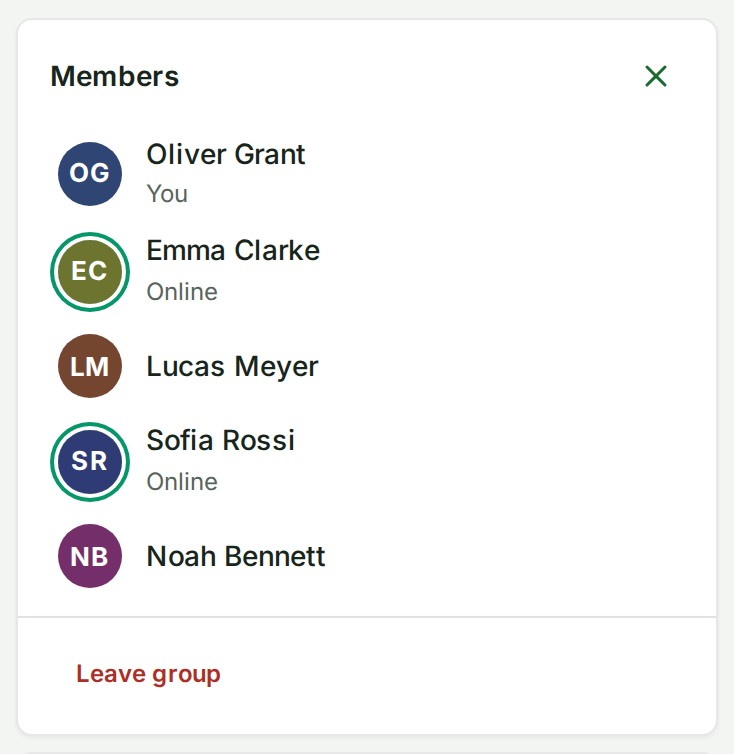
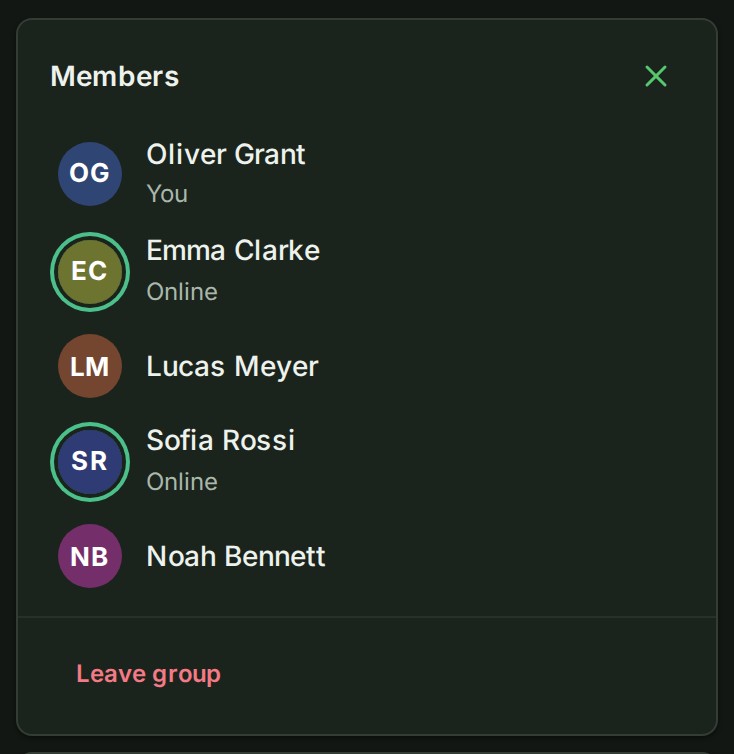
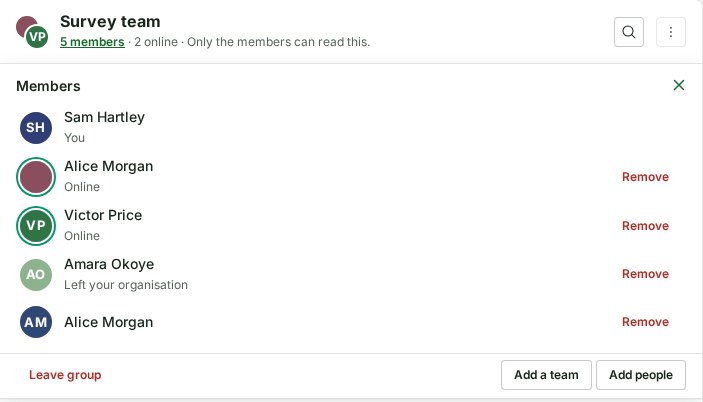
A colleague who has your organisation open in GISweaver right now has a green ring round their picture in your list of direct conversations and in the head of the conversation with them. The line under their name then begins with Online. In a group's head the line gives, after the member count, how many of the others are online, such as "2 online", and Members shows the ring and the word Online against each member who is here. Nothing is drawn for you, for a colleague who has left your organisation, or for the pictures beside messages; GISweaver does not say when someone was last here, and a group's pictures in the list carry no ring.
If your plan does not include presence, or the connection to live updates drops, no rings are drawn until it is back; they are never a promise that someone will answer.
A colleague's card, opened from any name or picture here, also shows whether they are Online, Busy or Offline; your own card shows how others see you, including Appearing offline. The card shows none of these in the same cases the rings are not drawn.




Search a conversation
To find words in the conversation you have open, select Search this conversation (the magnifying glass) in its header; on a phone it is beside the person's or group's name at the top of the page. A row opens under the header with a field. Type at least two characters and the row says No results, or how many it found, such as 12 results. When there are more than a page of them it says 25+ results until you have stepped to the end.


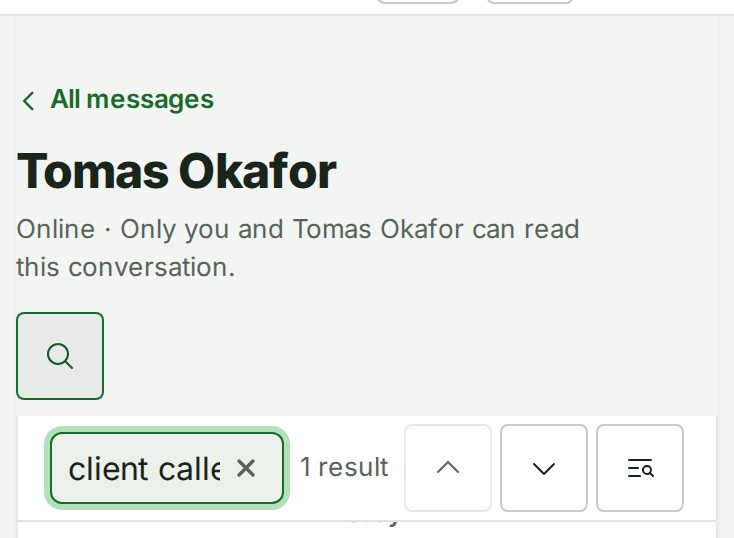
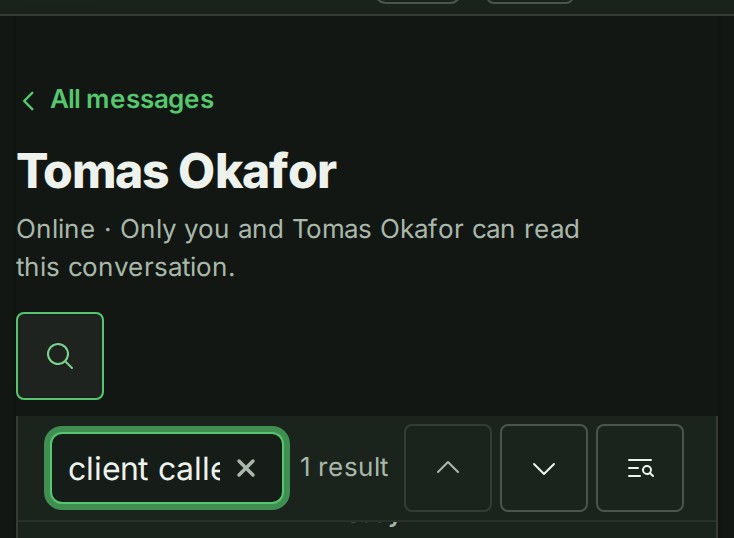
Press Enter or Next result to go to the newest match, then to older ones; Shift+Enter or Previous result goes back toward newer ones. The row says where you are ("3 of 25+"). The match is marked in the conversation as a linked message is, and stays marked while it is the current one. A match in a reply opens that thread with the reply marked, and on a phone the thread takes the place of the conversation until you step to a message outside it. The search finds the words you can read, not the formatting around them, and finds nothing in messages that were deleted.
Escape or Close search closes the row and leaves the conversation where it is. A match too far back for the conversation to show says so, and Next result carries on to the one after it. You can search only a conversation you are in now: someone removed from a group can no longer search it.
Search all messages
To find words in any conversation you are in, type them in the Search all messages box above Unread at the top of your list, then press Enter or select the magnifying glass beside it. Pressing Enter with the box empty does nothing, and Escape clears what you typed.
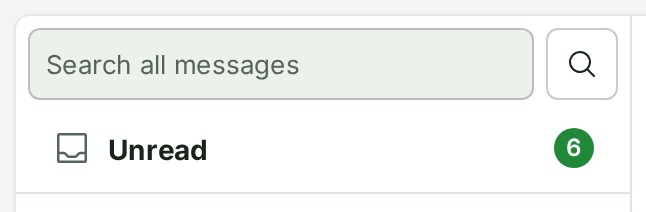
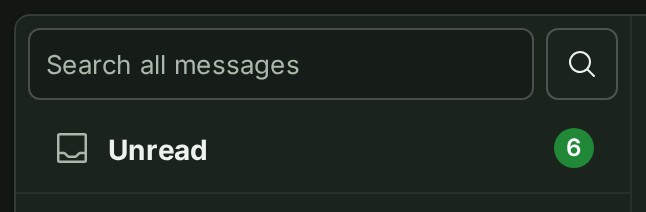
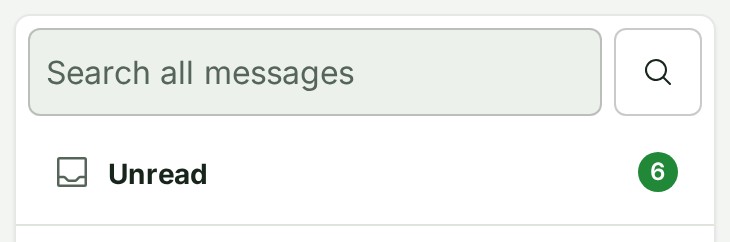
You can also open the search row of a conversation (see above) and select Search all messages (the magnifying glass with lines) beside the steps; the words you have typed go with you. On a desk the results fill the space beside your list of conversations; on a phone they are a page of their own, with All messages at the top to go back. You can change the words in the field there.
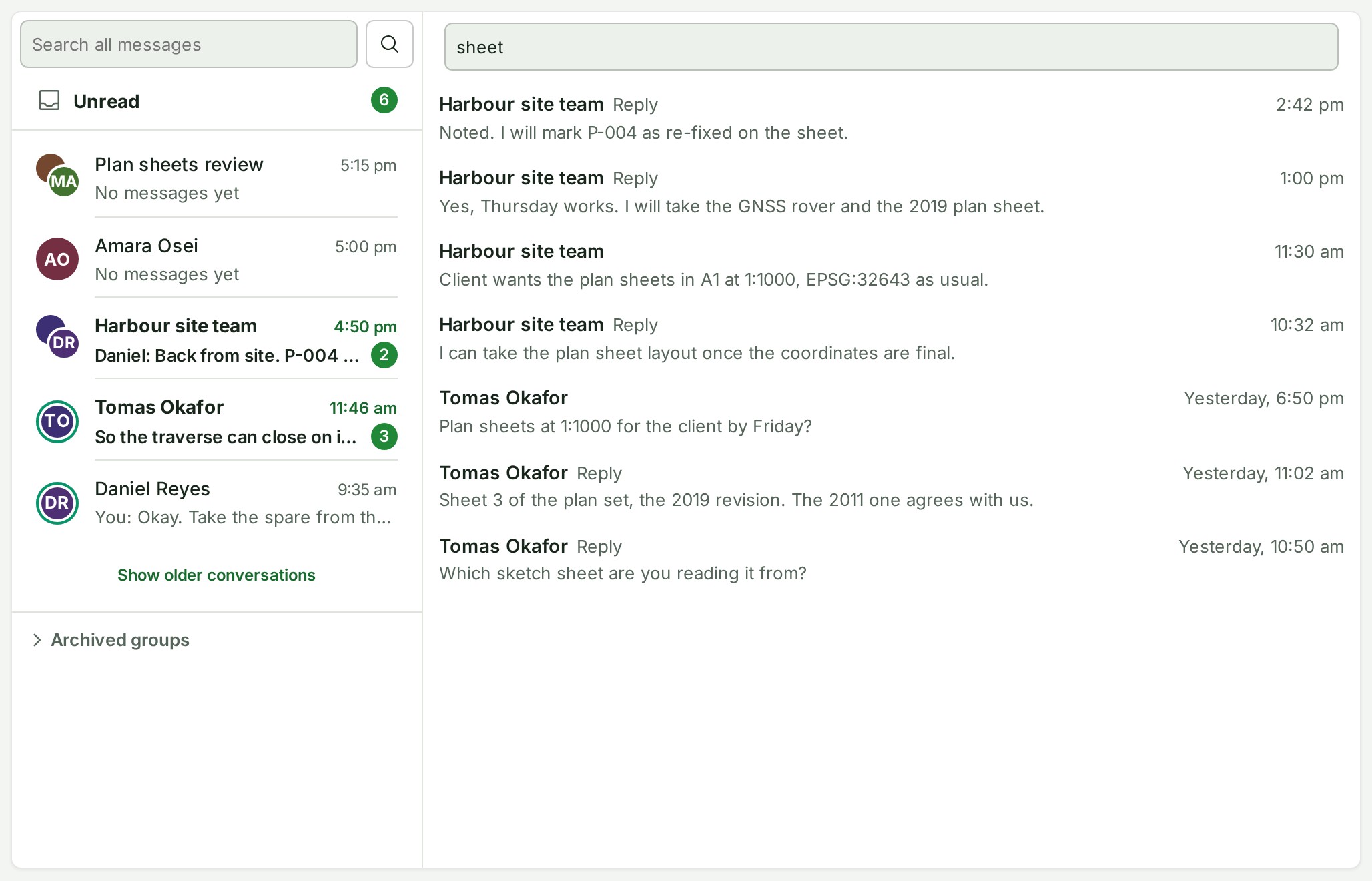
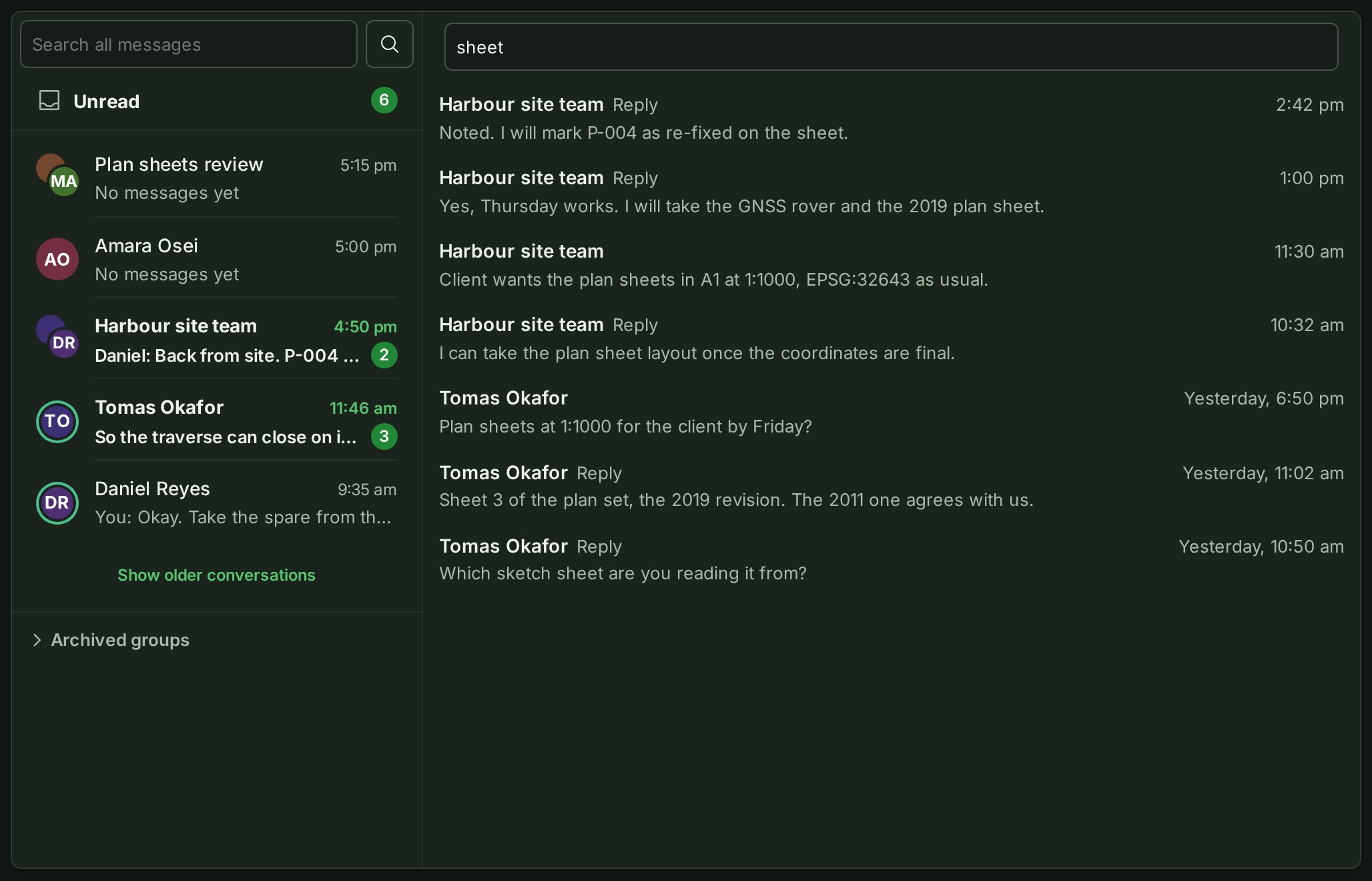
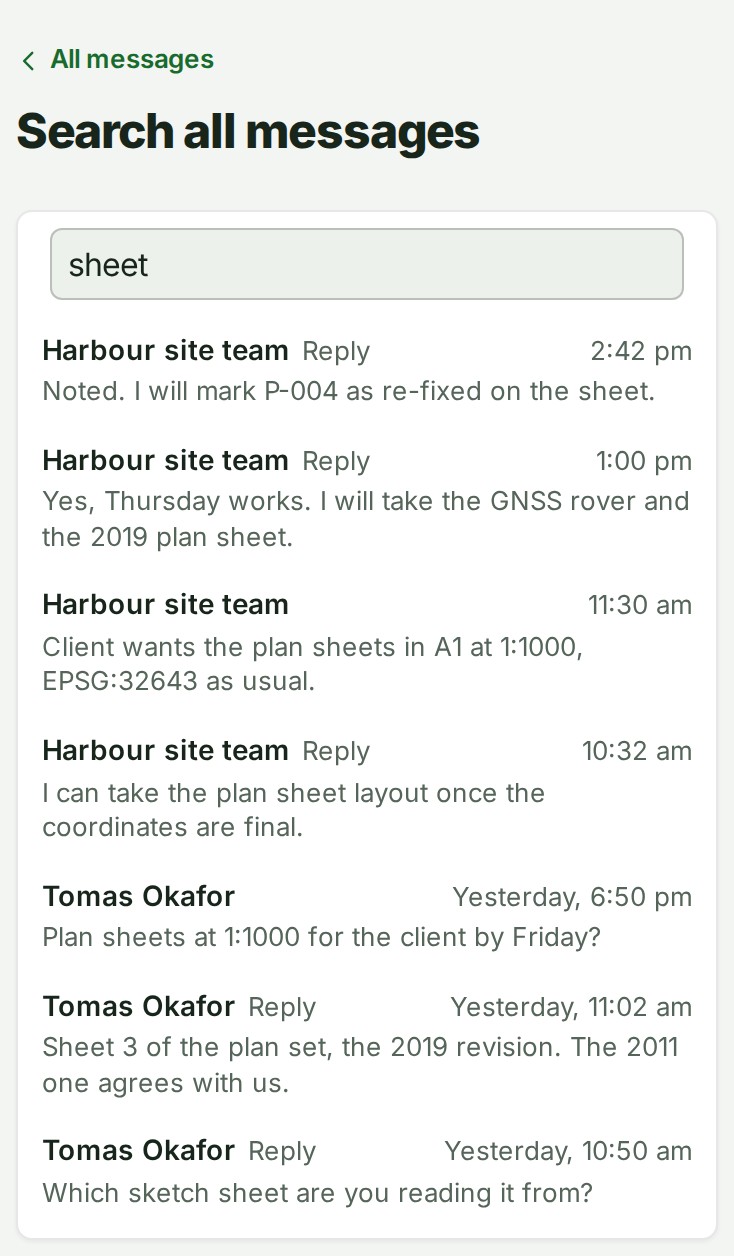
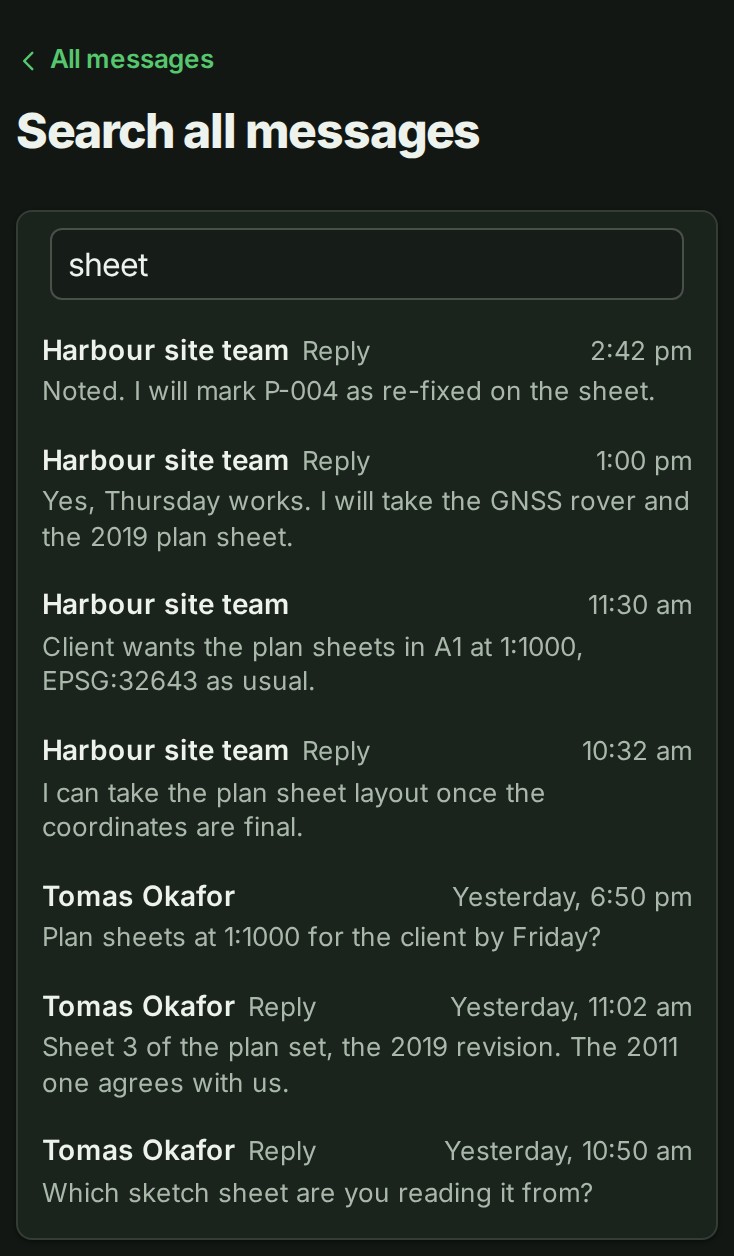
Results are the newest first, a page at a time; select Show more results for the next page. Each one names the conversation, the time, and the words around the match, and a reply says Reply. Select a result to open that message in its conversation, or that reply in its thread. If nothing matches, the page says No messages match followed by your words, and a field with only one character asks for at least two letters. If the search fails it says so and offers Try again. Only conversations you are in now are searched, and a match too far back for the conversation to show says so when you open it.
The message menu
A message's own action bar appears inside its top-right corner when you point at the message. It holds the speech-bubble (Reply in thread) and the link (Copy link), and, on a message you wrote, ⋮ (More actions for this message), whose menu holds Edit and Delete. A phone has no hover bar, so each message carries one ⋮ beside its time, and its menu holds all four: Reply in thread, Copy link, Edit (yours only) and Delete (yours only). A reply has Copy link too, and Edit and Delete on your own, never Reply in thread. Right-click a message, or press and hold it on a phone, for the same menu; a link in a message, or text you have selected, keeps your browser's own menu.
From the keyboard, Tab stops once on each message's bar, which appears as it takes the focus; the left and right arrow keys move between its buttons, and the next Tab goes on to the next message.
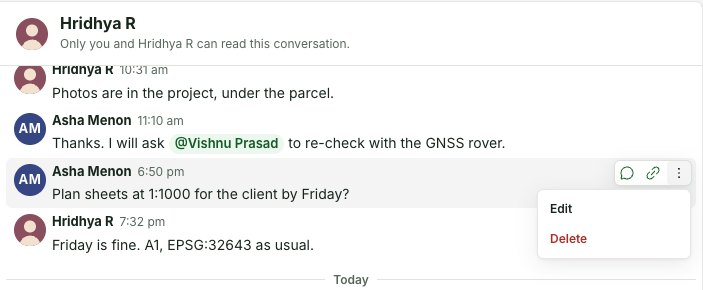
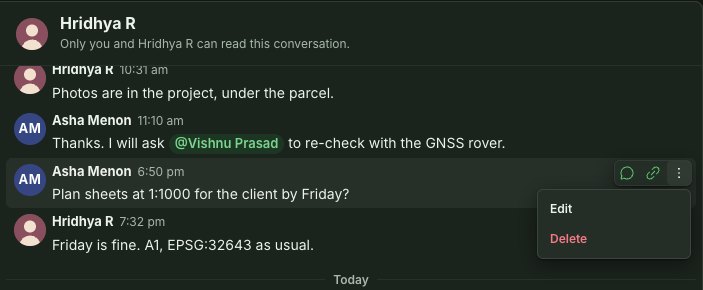
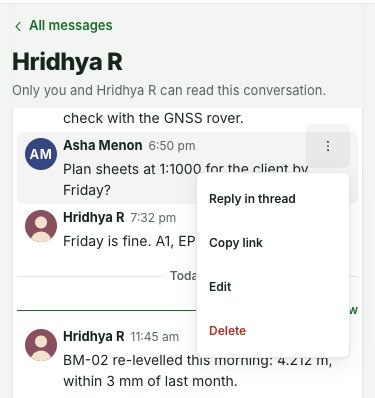
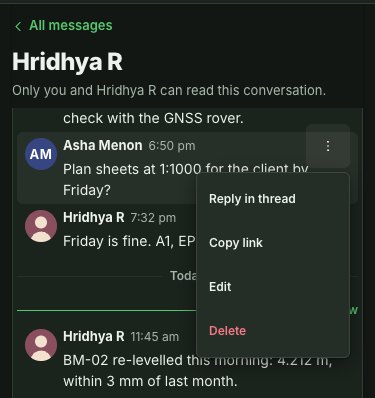
Copy link puts the message's own address on the clipboard. Pasting it into another message, an email or a chat opens this exact conversation at that message, however far back it is, with everything after it loaded and the message marked for a moment — or at that thread, with the reply marked — for whoever is in the conversation; for anyone else it says This conversation is not available to you. A message more than a thousand messages back opens at the newest ones and says The linked message isn’t in what’s shown here. Choose Show earlier messages to look further back. The page says Link copied. when it has worked, and The link could not be copied. when the browser does not allow it — copy the address from the browser's address bar instead.
Every change you make here is confirmed the same way, for a few seconds in the middle of the screen: Message saved., Message deleted., and for a group Group renamed., People added., name removed from the group., Group archived., Group unarchived. and You left the group.
Edit or delete your own message
Open the More (⋮) menu on one of your own messages (on a phone, the ⋮ beside it):
- Edit rewrites it in place; it then shows (edited).
- Delete asks first. The message keeps its place and time and reads This message has been deleted; what it said is gone.
This is the same in a thread and in a group. You cannot change your colleague's messages, and they cannot change yours, and nobody can delete a whole group's history for everybody. If you change a great many messages in a short time, Save and Delete message wait a few seconds, and the line under them says how long.
When a colleague leaves
If a colleague is removed from your organisation or suspended, the conversation stays in your list and you can read all of it, but no new messages can be sent; the conversation says they are no longer in your organisation. You can still edit or delete your own messages, as long as your plan includes messages (see Plans below: when direct messages are not included, only delete is left). If they rejoin, the same conversation carries on.
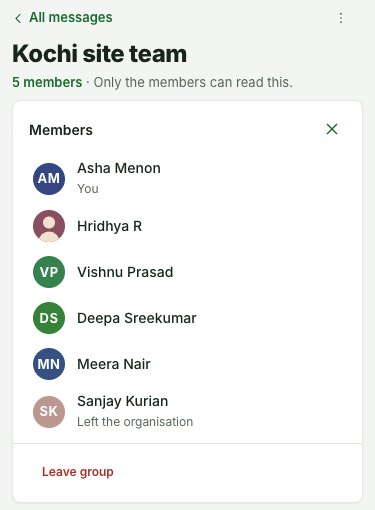
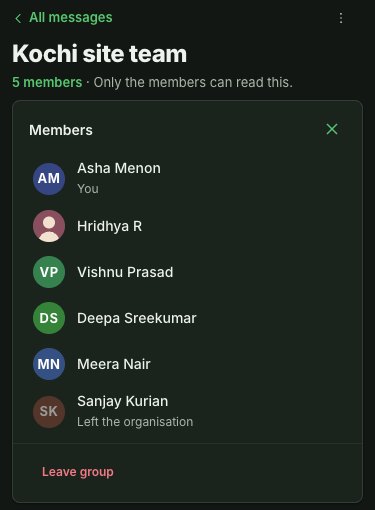
In a group the group carries on without them: their row in Members says Left your organisation (or disappears, if they left the group), their earlier messages stay, and nobody is told. If they rejoin your organisation they are not put back in the group; somebody who manages it adds them again if that is wanted.
When your organisation is frozen, suspended or closed, every conversation stays readable, and nothing new can be sent, started, edited or deleted until it is open again.
Members of a group
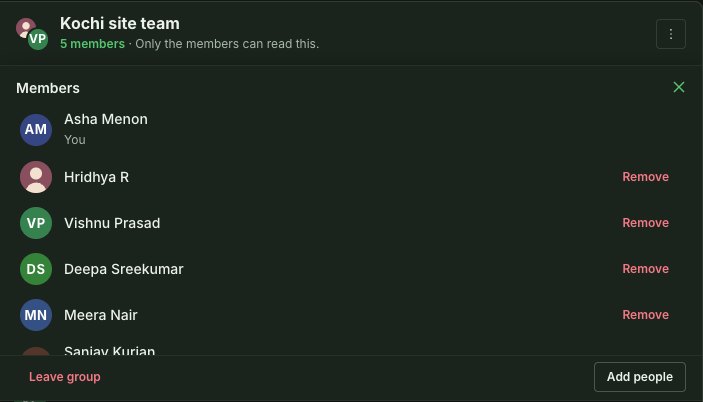
Under a group's name the line reads, for example, "5 members · Only the members can read this." On a phone the head is one row, with the back arrow, the name, Search and the menu, and the line under it reads "5 members" and how many are online without that sentence; that only the members can read a group is still said when you start one and in the empty Messages list. Select the number to open Members, a panel that opens in place under the group's name (it is not a dialog, because it holds Remove and Leave group, which ask before they act). It lists each person's picture and name, You against yourself, and Left your organisation against anyone who has left your organisation. At a desk the panel lies over the top of the stream: its head (Members and Close, ×) and its foot (Leave group and, for somebody who manages the group, Add people) stay in place while a long list scrolls between them. Select Close to put it away. The ⋮ menu (Group actions) beside the group's name holds Add people, Rename, Archive (or Unarchive) and Leave group. A phone shows Members to read and Leave group; for the rest the menu says Manage this group on a larger screen.
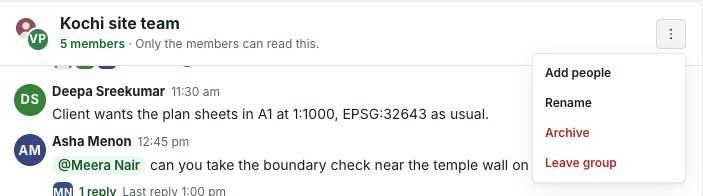
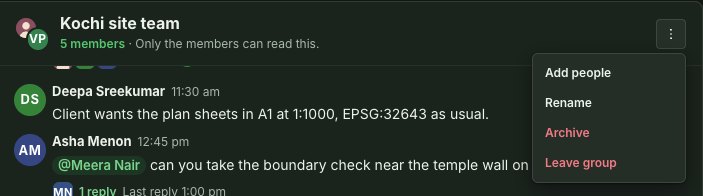
- Add people. An Owner or Admin in the group chooses colleagues in a dialog, several at once, and selects Add to group. The dialog says: "They will be able to read everything written here, including earlier messages and threads." People already in the group are not offered. A person who was removed, or left, can be added again. The people added are told in their bell ("name added you to group.", which opens the group), and the group's conversation shows a quiet line, "name added person", with the time.
- Remove. An Owner or Admin in the group selects Remove on a person's row in Members and is asked in place, "Remove name from this group?", with Keep them and Remove from group. They stop being able to read it at once, and it leaves their list. They are told in their bell ("name removed you from group.", which opens Messages, not the group), and the group's conversation shows a quiet line, "name removed person", with the time. Their messages stay, under their name. To leave yourself, use Leave group.
- Leave group. Anyone can. You are asked first, "Leave this group?": you can no longer read the group, and an Owner or Admin who is in it can add you again. Select Stay in group to stay or Leave group to go. Your messages stay.
- Rename opens a small dialog with the name, Save and Cancel, and changes the name for everybody. Nothing records the old or the new name.
- Archive. Select Archive in the menu and you are asked in place, under the group's name, "Archive name?": everyone in the group can still read it and delete their own messages, but nobody can write in it until an Owner or Admin who is in the group unarchives it. Select Keep group to leave it as it is or Archive group to go on. Archiving, like renaming and adding people, is done from a larger screen; a phone does not offer it. An archived group is read-only for everybody, listed under Archived groups, with This group is archived. You can still read it. in place of the message box. People can still read it, delete their own messages and leave it. Unarchive group (an Owner or Admin in the group, beside that sentence and in the menu) opens it again. A group cannot be deleted; it is erased only with your organisation.
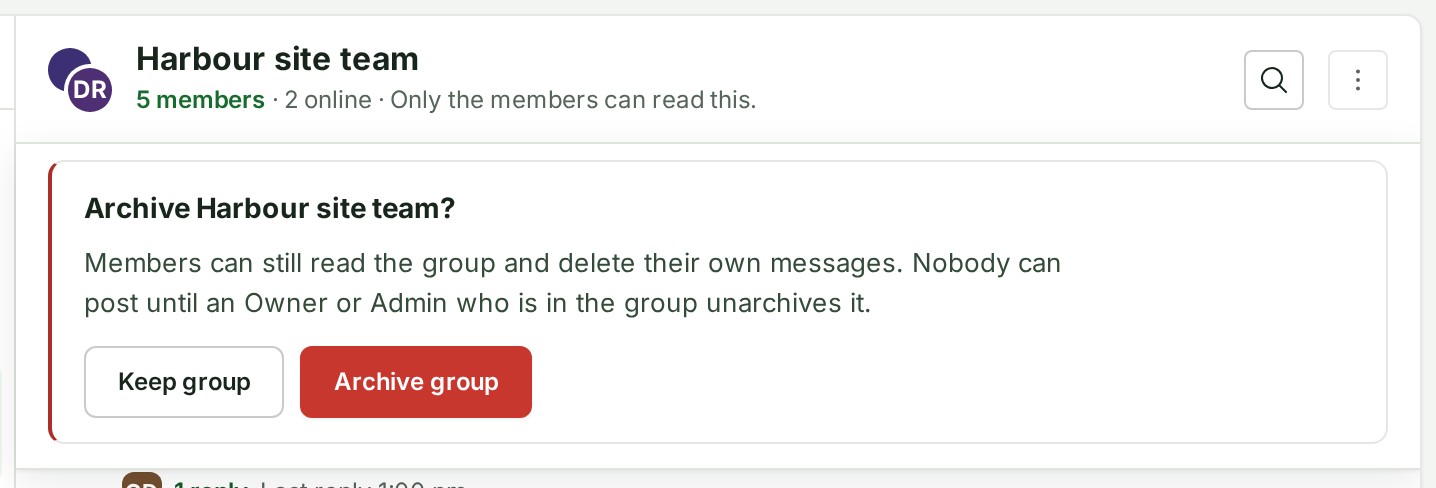
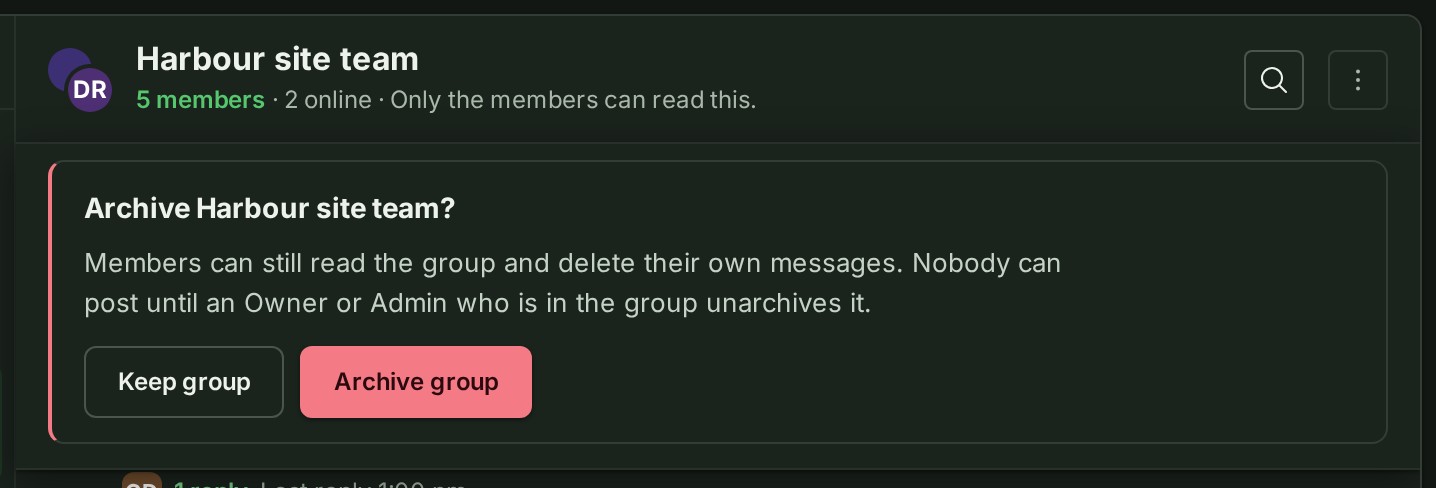
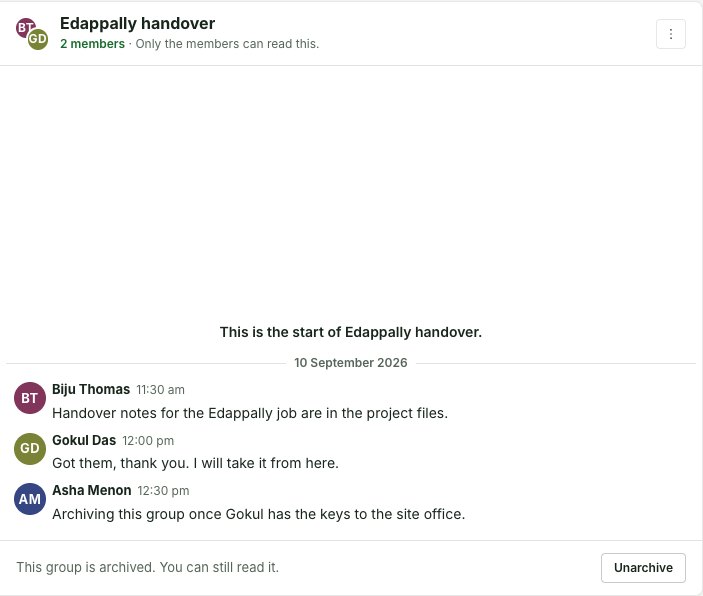
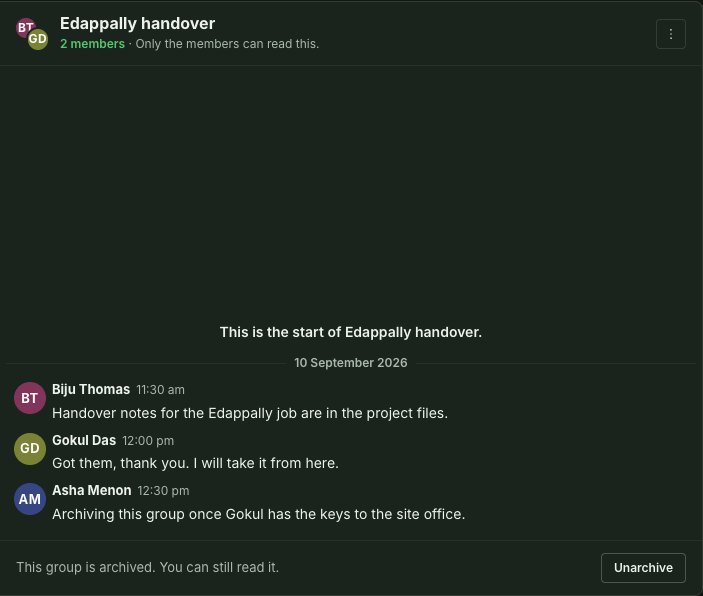
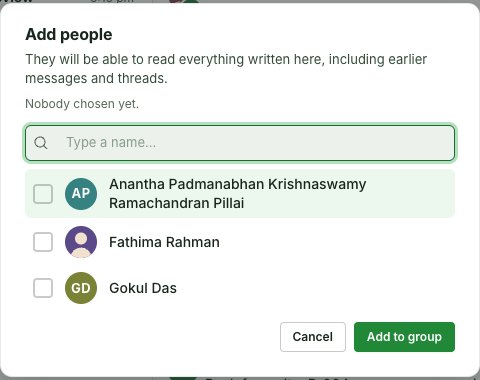
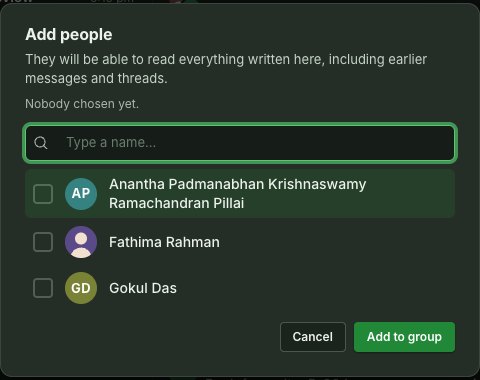
Who manages a group: a person in the group who is the organisation's Owner or an Admin (on a plan without roles, any member of it). An Admin who is not in the group cannot add themselves, rename it or read it. If nobody who manages it is left in the group, Members says Nobody in this group can add people any more, because no Owner or Admin is in it.; people can still write and leave.
If a group is full, adding is refused with A group can have at most 100 people. — and Add people counts the group as you choose ("1 chosen · 6 of 100 people in the group"), saying the same sentence before you select Add to group once the choice would go past 100; no name is refused with Name the group.; a name over 80 characters with Give the group a name of up to 80 characters.; choosing nobody with Choose at least one colleague.; and a person who is not an Owner or Admin in the group who tries to change it with Only an Owner or Admin who is a member of this group can do that.
Notifications
The bell in the top bar has three sentences about messages, and none carries any of the words:
- "name sent you a direct message." — in a direct conversation, for any message or reply.
- "name replied in a thread in group." — in a group, once for each thread you follow, however many replies it gets; it clears when you have read the thread to its end. Selecting it opens the thread with the first reply you have not read marked, and the page's heading and the group's name stay in view under the top bar.
- "name mentioned you in group." — when somebody in a group names you in a message, or tells
everyone in it with
@All.
Nothing is sent to your email for any of them, and a message in a group that does not name you does not ring the bell; it counts in the list and beside Messages. A message you have opened clears its mention.
When a message arrives while GISweaver is open, Messages gives the same short ring as the bell (its icon swings, or on a phone the dot on the menu button pops twice), a screen reader hears "1 new message" (or the number) once, and the same soft sound plays if it is on. Nothing rings when you open the page or switch organisation, for a message you have just sent, or when the count goes down; a burst is one ring, at most once in ten seconds. The sound stays quiet for a message in the conversation or thread you are reading, with the tab in front of you, so two people chatting do not chime at each other; a message in another conversation, or one that arrives while the tab is in the background, still sounds. Turn the sound off under Preferences → My notifications (Choose a notification sound).
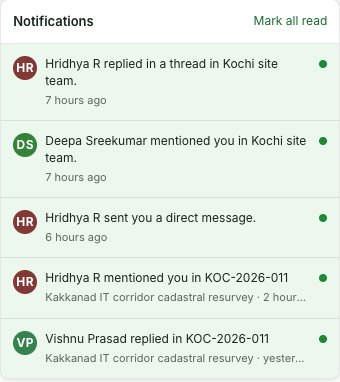
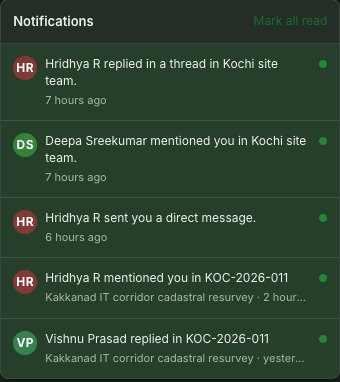
A thread opened from the bell, on a desk and on a phone:


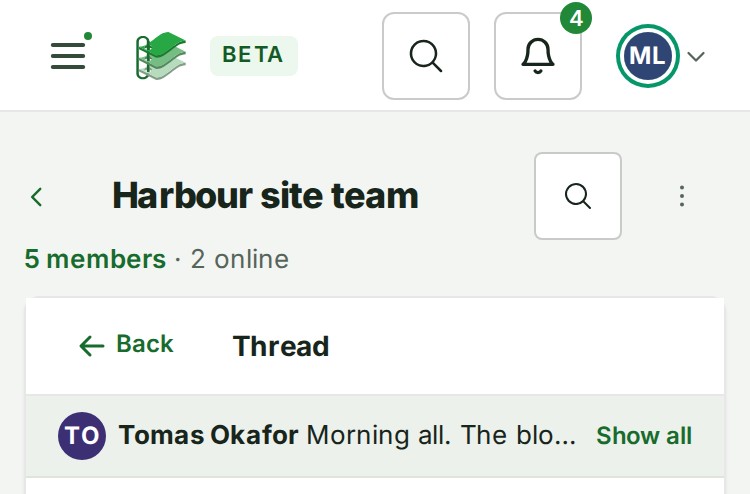
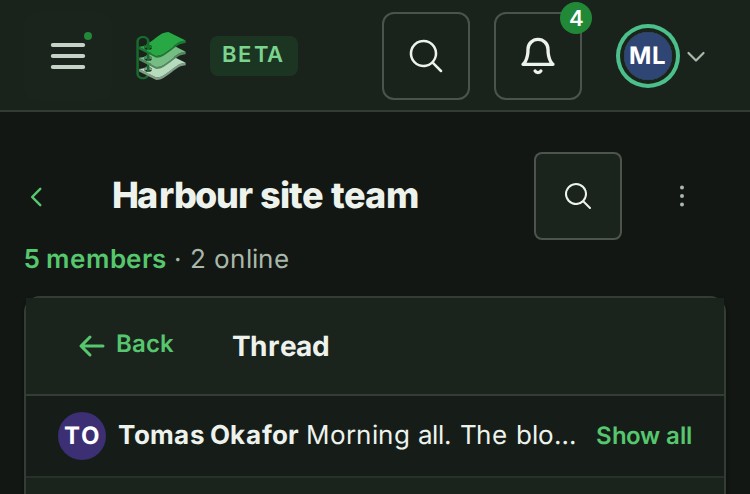
Recover an expired session
If your session ends while you are writing, the words stay in the open message box. Sending pauses until you restore the original session. Keep this tab open, sign in using the notice's new-tab link, then return and check the session before sending. Switching to another account or organisation clears the message draft.
Plans
Your plan card and Compare all features show whether your plan includes direct messages and private groups. On a plan with a free window, they work for 60 days from the first message, of either kind, that anyone in your organisation sends; while that window is open, each conversation says the date it closes.
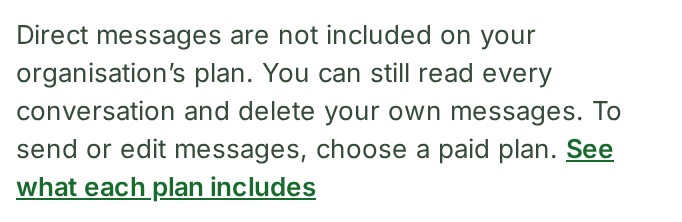
When the 60 days end, or when your plan does not include direct messages, every conversation becomes read-only: you can open and read all of them, and you can still delete your own messages and leave a group — taking back what you wrote is always yours to do — but no conversation or group can be started, no message sent, no message edited, and no one added to a group or a group renamed, until your organisation moves to a paid plan. New message and New group are unavailable, Edit is no longer offered, and the inbox and each conversation say that direct messages are not included on your organisation's plan and that you can still read every conversation and delete your own messages — with a link to the plans for someone who can change the plan, and a note to ask the Owner or a Billing manager for everyone else.
This is separate from your organisation's standing (see above): while it is frozen, suspended or closed, your own messages cannot be deleted either.