Try publishing again
Who can do this
Owners, Admins, the branch's manager and the project's lead. Every plan.
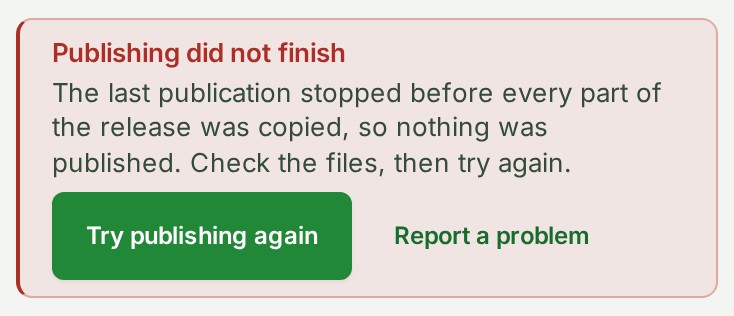
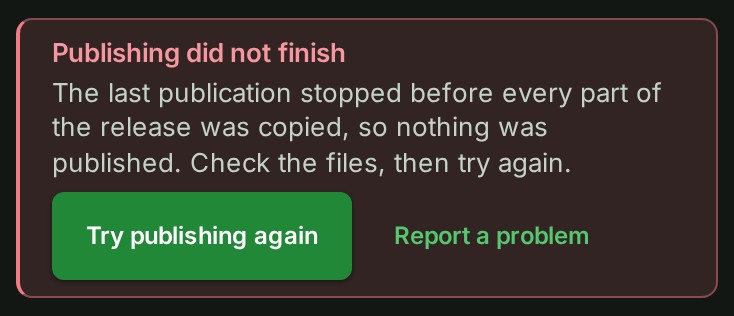
Publish again after the strip says Publishing did not finish.
- Open Projects and choose the project. Result: the strip under the state bar reads Publishing did not finish.
- Open the Files list on the Project tab. Result: the project's files are listed.
- Check that every file you expect is there and ready. Result: you know the list is right. A file may have been added or removed while the last publication ran.
-
Select Try publishing again in the strip. Result: the Publish everything in this draft? question opens.


-
Read the list of files. Result: you know what will be published.
- Select Publish all n files. Result: the strip reads Publishing again.
What happens next
The strip goes when the release is made, and the state bar reads Published with the new release's name. If a colleague publishes first, the strip changes by itself.
If something goes wrong
- A project lead or an Admin can publish it again. Your role cannot publish, so Try publishing again is not offered. Ask the project's lead or an Admin.
- It stops again: select Report a problem beside Try publishing again, so GISweaver support can see what happened.
- You want to know why nothing was published, or the project went back to Draft after the publication stopped. See Review and publishing reference.