Accept a client invitation
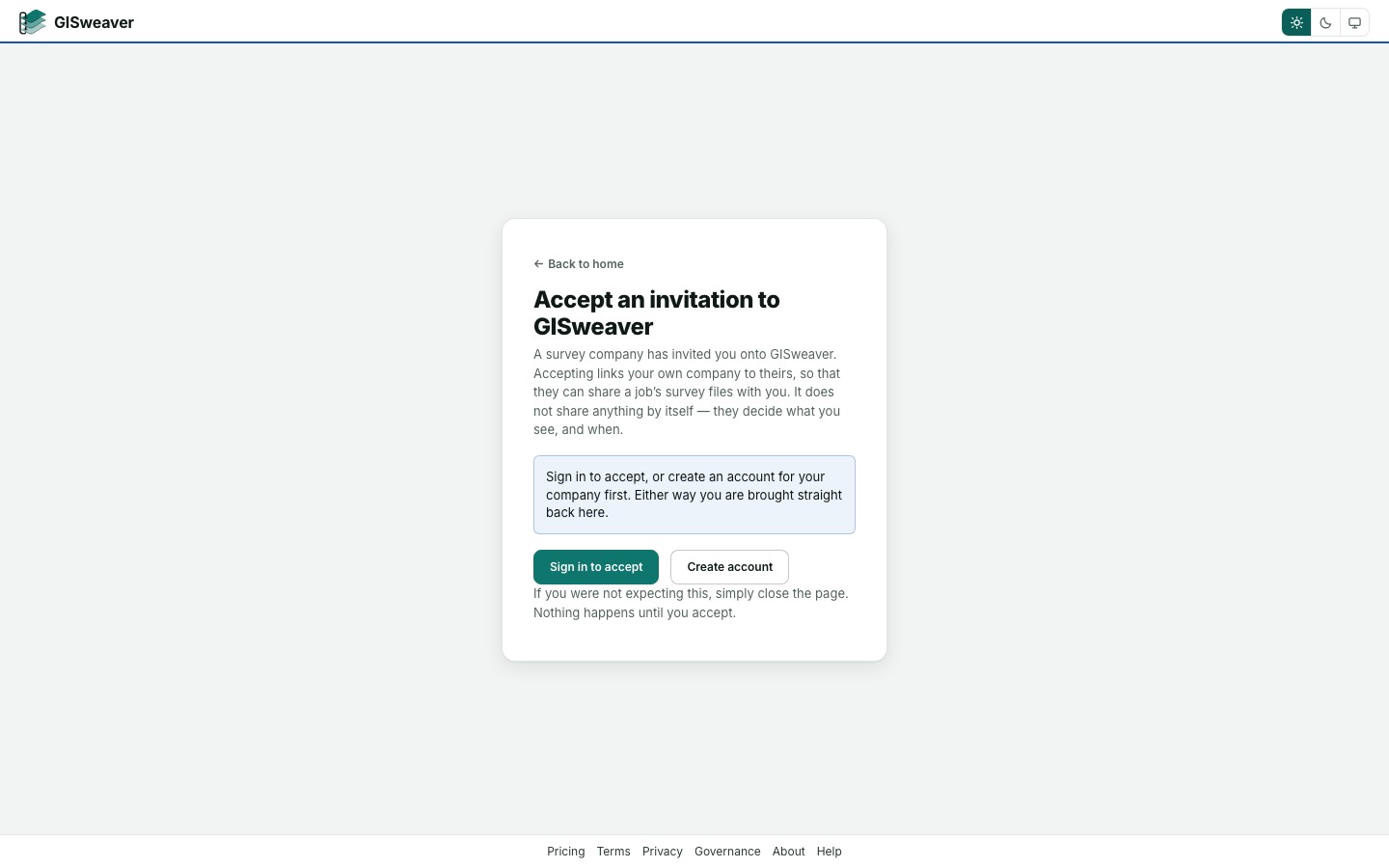
Use this when another organisation has invited yours to GISweaver as its client. Only an Owner or an Admin of your organisation can accept, because accepting links the whole organisation to the sender.
- Open the link in the invitation email, or select the organisation invited your organisation as a client notification if your address already has an account.
- Select Sign in to accept, or Create account if you have none.
- Check that the active organisation is your own, then select Accept the invitation.
- Select Go to Shared with you. It opens Deliveries on its Shared releases tab, which may be empty until the sender separately shares or gives access to a project.
If the invitation was sent to someone else
If the invitation was sent to a colleague who is not an Owner or an Admin and who belongs to no other organisation on GISweaver, it is also in the notifications of your Owners and Admins. One of them can accept it from there or from the same link.
If that colleague belongs to more than one organisation, no Admin can answer for them. The sender has to send the invitation again to an Owner or an Admin.
If the link does not work
If the link is expired, withdrawn, already used, or opened while signed in as a different address, GISweaver gives the same refusal. Ask the sender for a new invitation.
The same refusal appears if your organisation has turned Accept connection requests off. An Owner or an Admin can turn the switch on under Settings → Organisation → Connections.
Why this is so
A member who is not an Owner or an Admin is told that only an Owner or an Admin of their organisation can accept, and the Accept button goes. The invitation stays open for them. Accepting needs the same right as answering a connection request. An Owner or an Admin of a different organisation gets the same refusal as for any invitation that is not theirs. The audit trail records who accepted and whether an Admin answered for the person it was sent to. There is no separate decline action; closing the page leaves the invitation unanswered.