Read and filter the audit trail
Read every change in your organisation, who made it and when, and narrow the list to find one change.
-
Open Settings from Organisation controls.
Settings opens on its tabs.
-
Select the Audit trail tab.
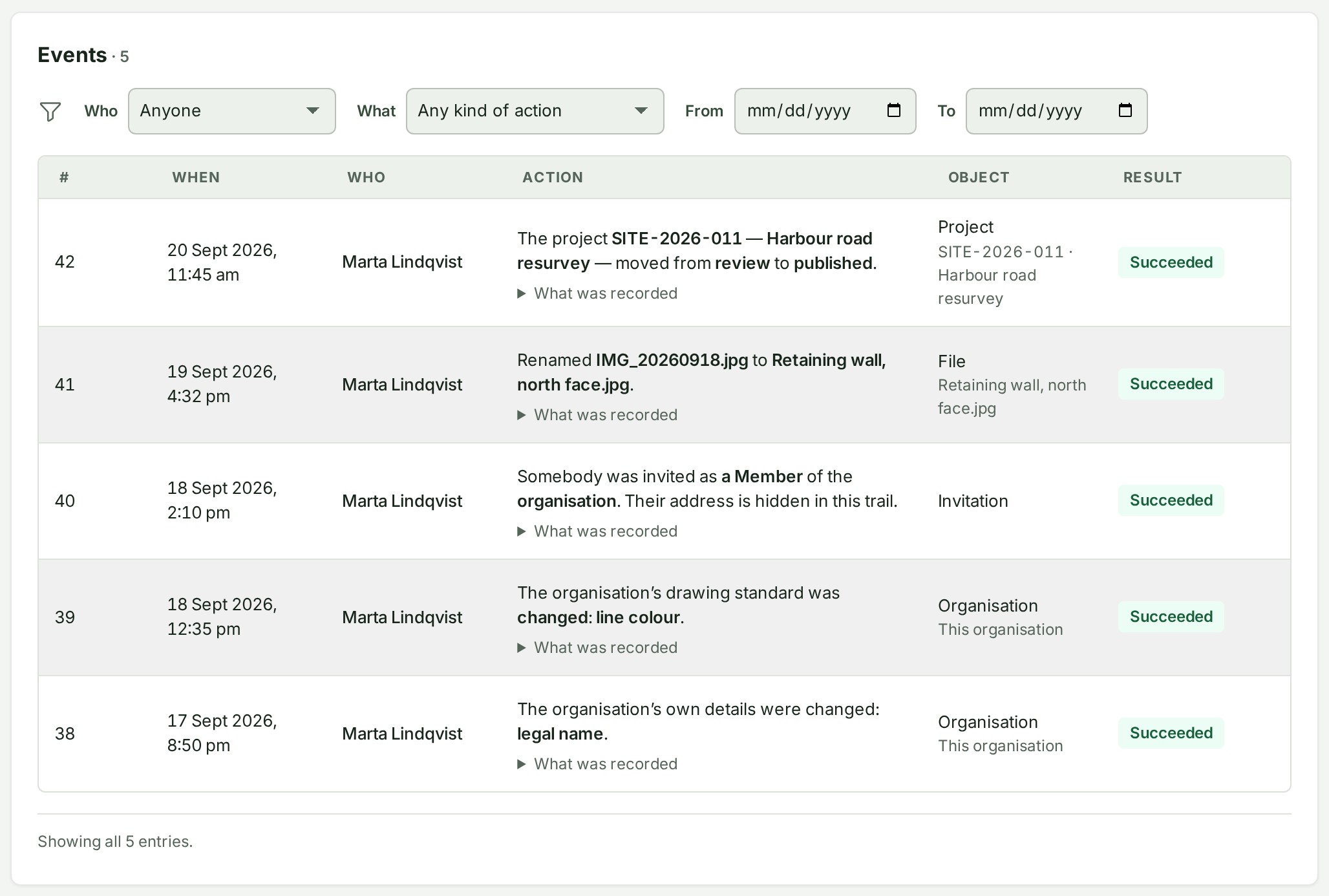
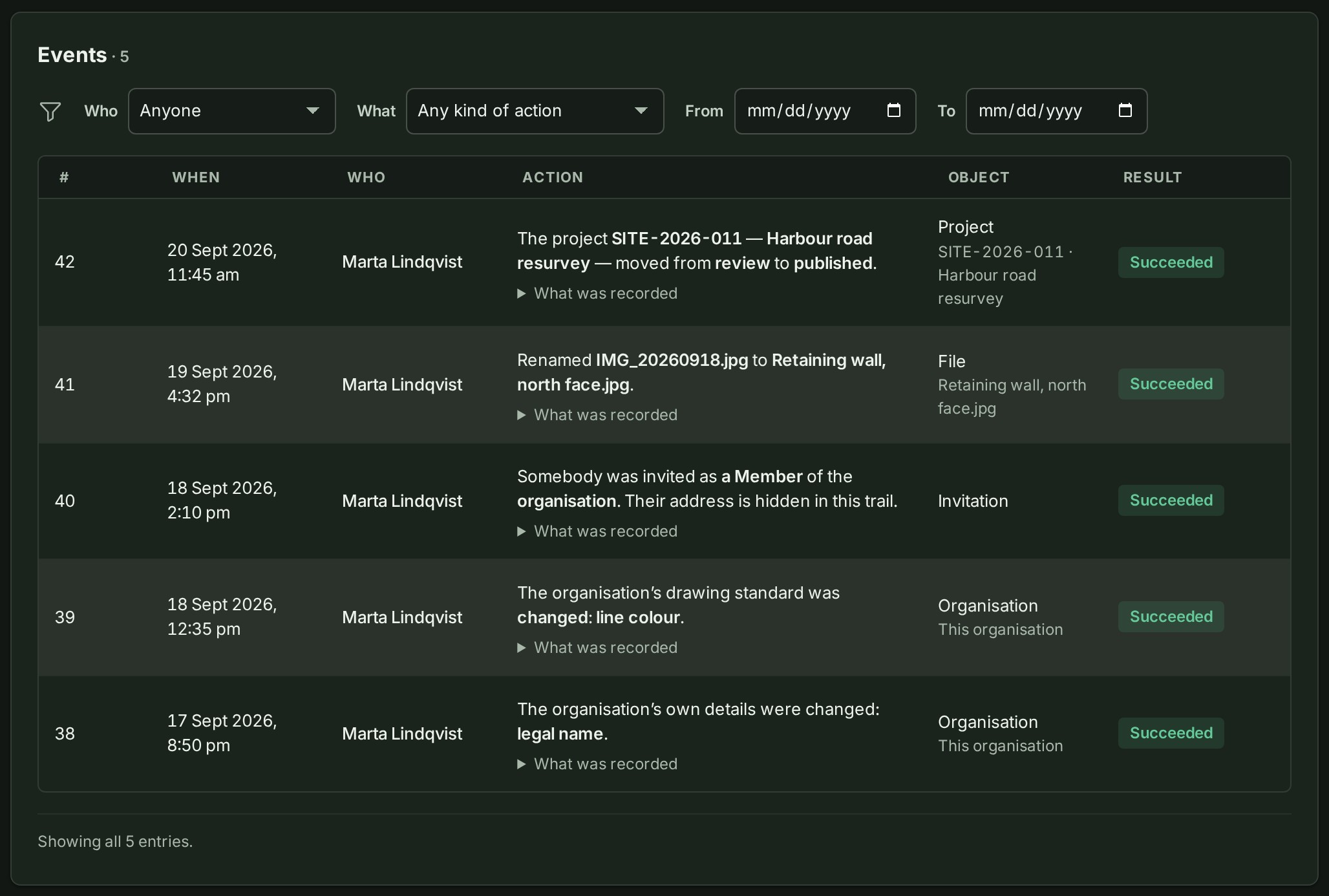
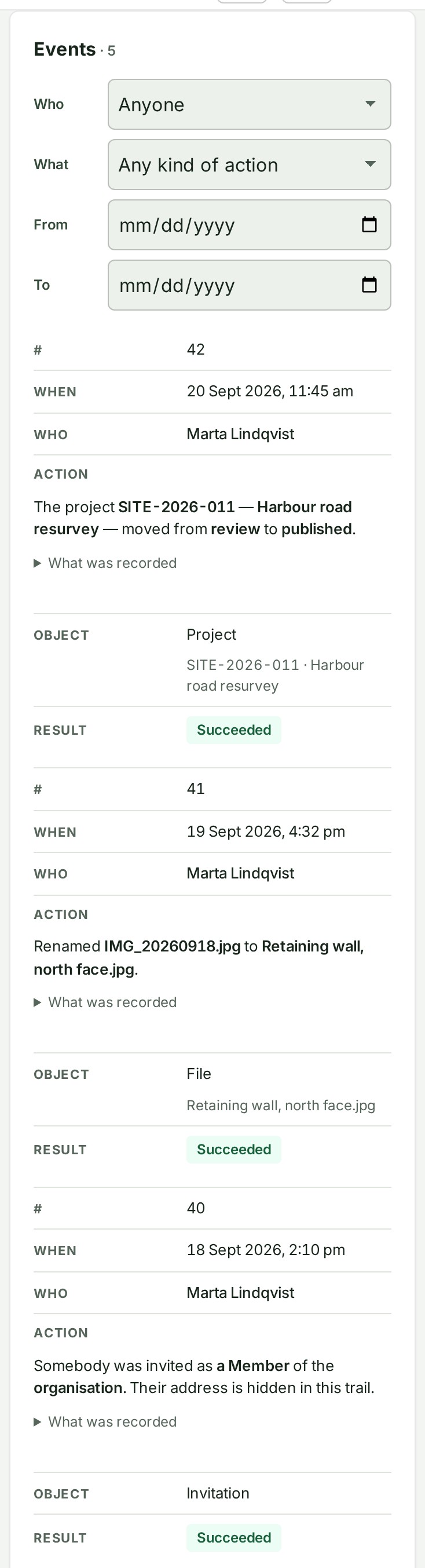
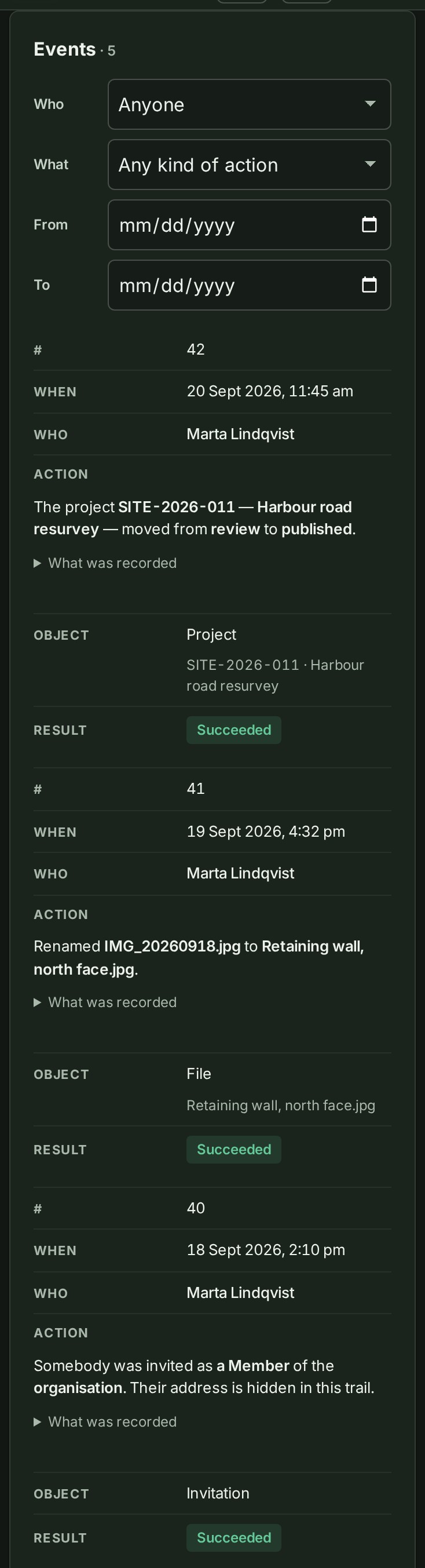
The trail opens, newest first, under the line Every change inside the organisation, by whom, newest first. Never edited or removed.
-
Read down the Events list.
Each event shows its number, when it happened, who did it, the action, what it was about and its result. A line under the list says how many entries it shows.
-
Above the table, choose a person, GISweaver support or GISweaver itself in Who.
The list shows only that actor's events. Anyone shows all of them again.
-
Choose a kind of action in What.
The list shows only that kind: People and access, Projects, files and shares, Deliveries, Clients and public profile, Plan and billing or Organisation and settings.
-
Set the From and To dates.
The list shows only events between the two dates.
-
Select Clear filters to see the whole trail again.
The list returns to every event.
What happens next
Select Load older under the list to read further back. The trail keeps every entry: nothing in it is edited or removed.
If something goes wrong
- The From date has to be on or before the To date. The dates are the wrong way round. Swap them.
- Nothing matches these filters No entry matches what you chose. Select Clear filters.
- The audit trail is visible to the owner, admins and auditors. Your role cannot read the trail. Ask an Owner or an Admin.