Find a feature on the map
Who can do this
Anyone who can read the project Matches on the map are listed on every plan. Your plan card and Compare all features show whether your plan includes searching the whole release.
Find a parcel, benchmark or road by its name or ID, and go straight to it.
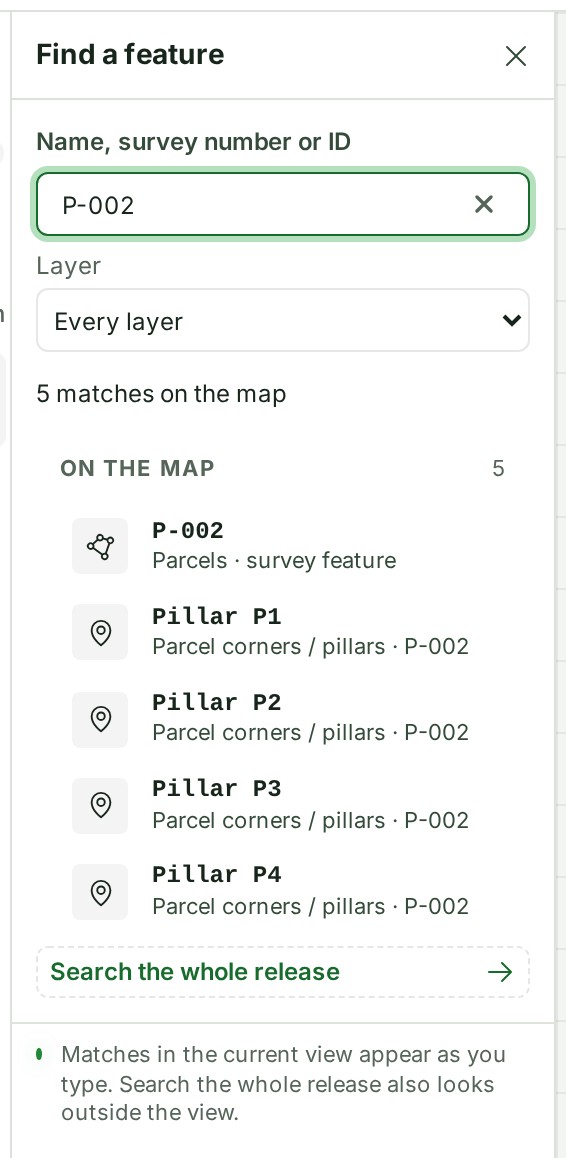
- With a project open on the map, select Find in the rail on the left (on a phone, More, then Find). The Find a feature panel opens.
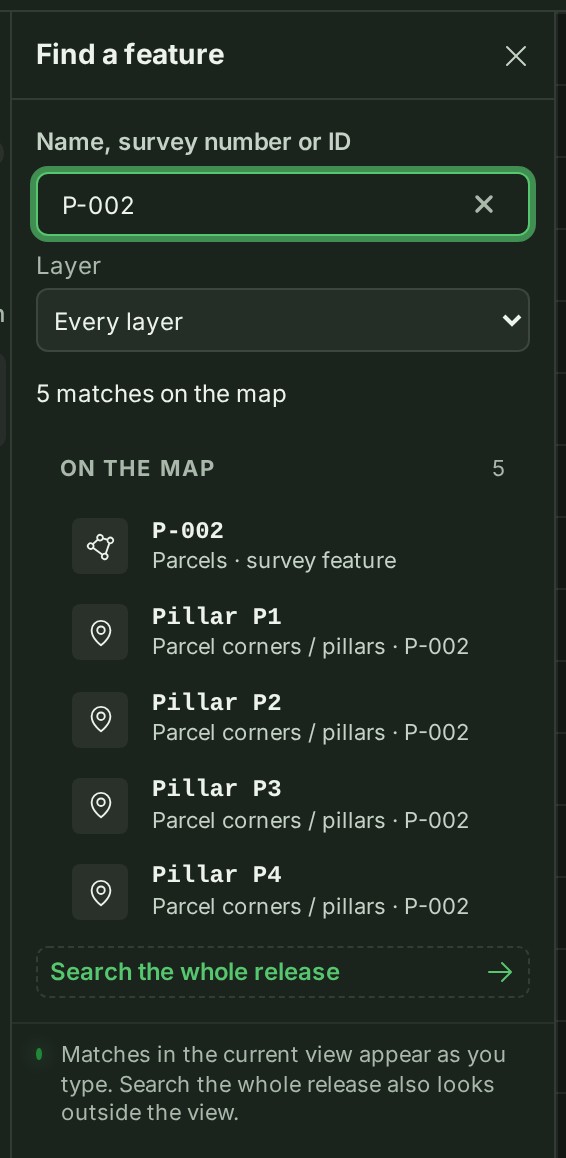
- Type in Name, survey number or ID. Matches among the features on the map are listed under On the map as you type.
- To narrow the results, choose a Layer. Every layer looks in all of them.
-
Select a result.
What happens next
The map moves to the feature and selects it, and the Inspector shows its name, its ID, its shape and the details delivered with it. If the feature's layer was hidden, it is turned on; if you were in 3D, the map returns to the flat 2D view.
If something goes wrong
- Your feature is not in the list: select Search the whole release to look through every feature in the survey, including those outside the view.
- No feature in this release matches. Check the spelling, or try the feature's ID instead of its name.
- This result is in a layer that is not on the map, so its details cannot open here. If the layer is listed in Layers, turn it on. The feature is in the release but its layer is not on this map. Open Layers and turn the layer on, then select the result again.
- No position recorded under a result: the feature has no shape to go to.
- Search the whole release is not offered: your plan does not include it, and Find lists the matches on the map only.
Details
- A long list of matches on the map stops at the first few and says so: type more of the name to narrow it.
- Each result says why it matched, for example the field that holds the survey number.
The product words on this page are explained in the glossary.