Sign out a device
Each browser you sign in on keeps its own session; end the one you lost, borrowed or do not recognise.
- Open your picture or name at the top right and choose Security, or open Security directly. The Security page opens.
-
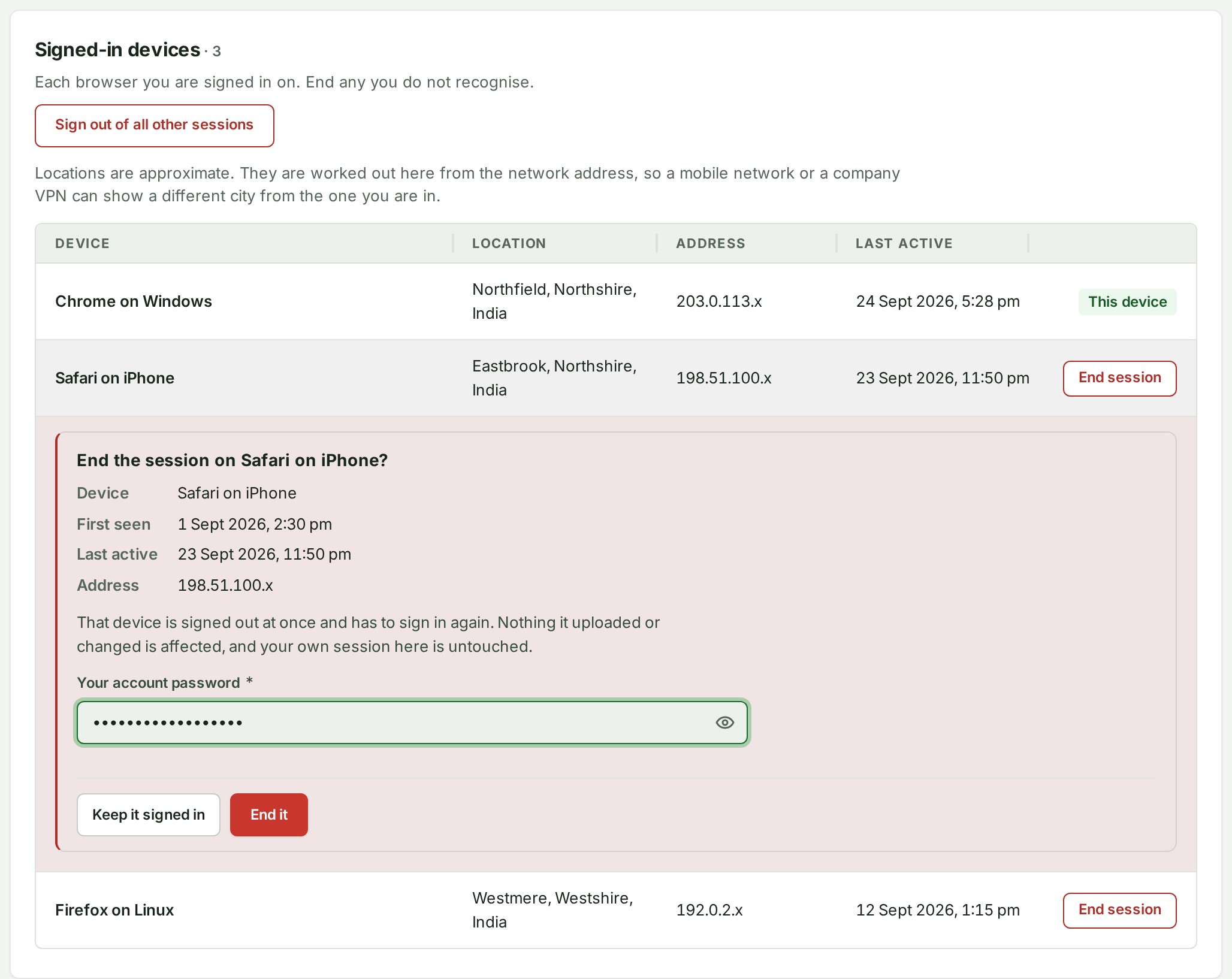
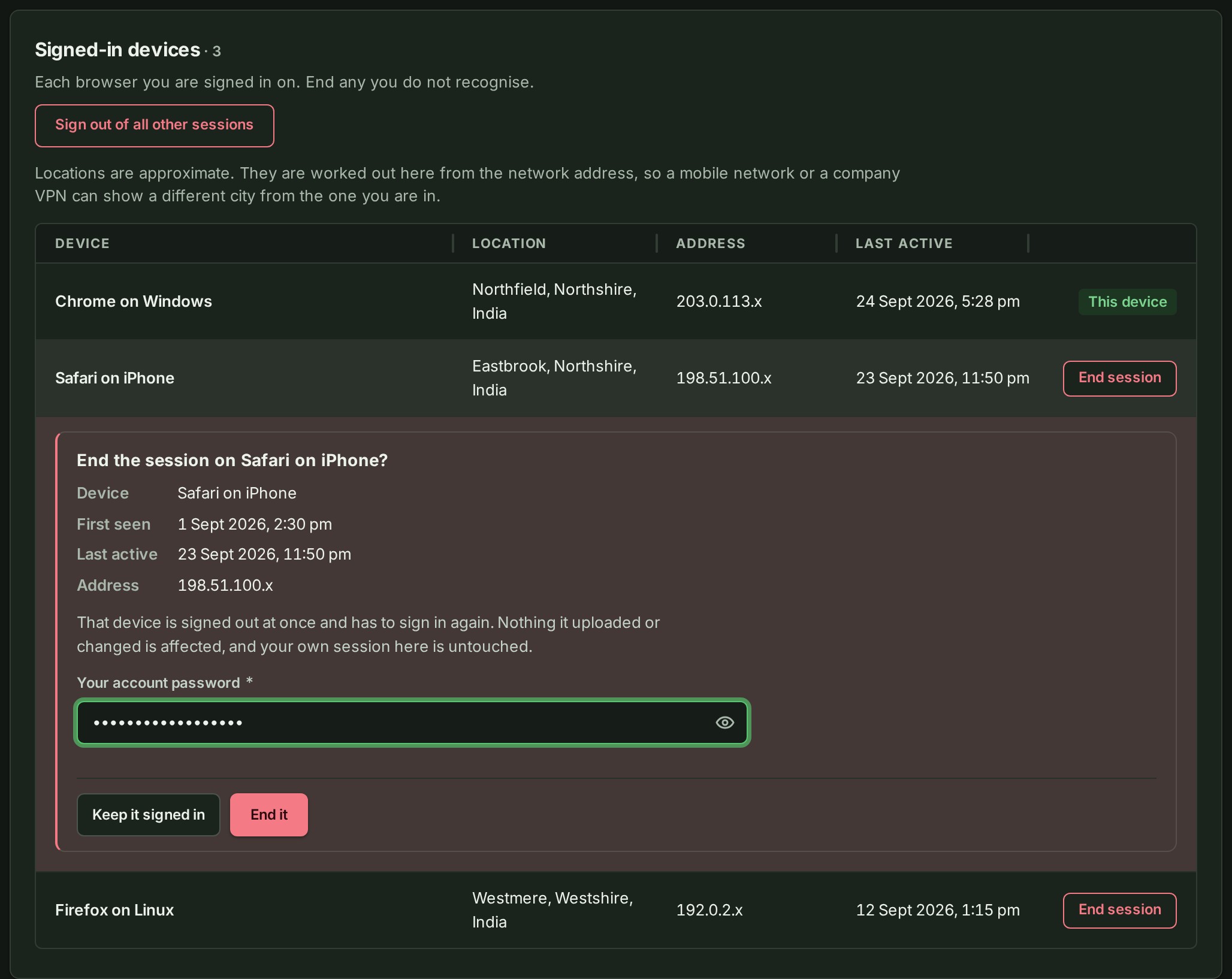
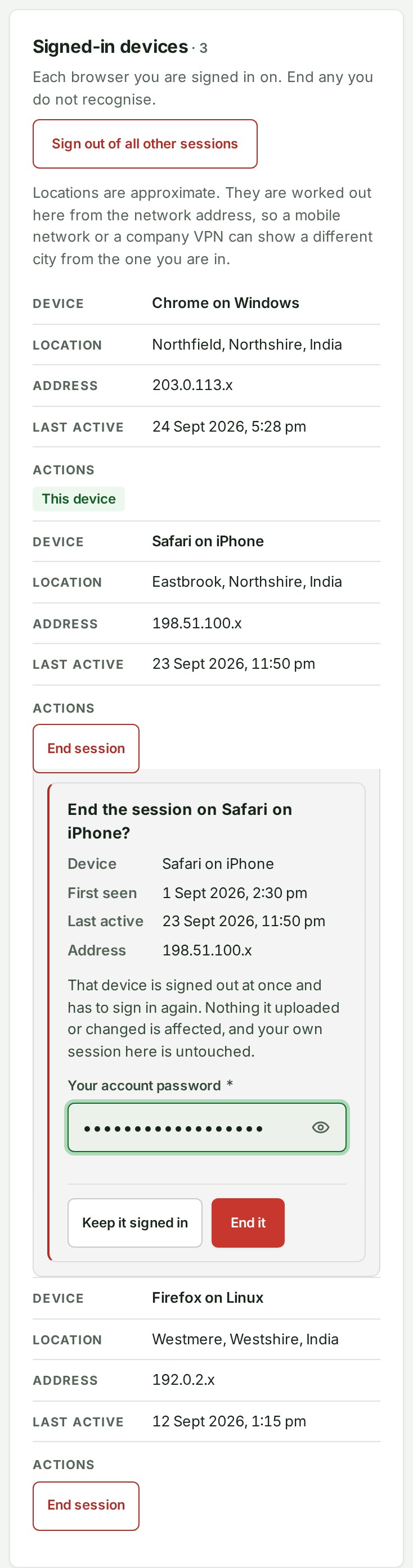
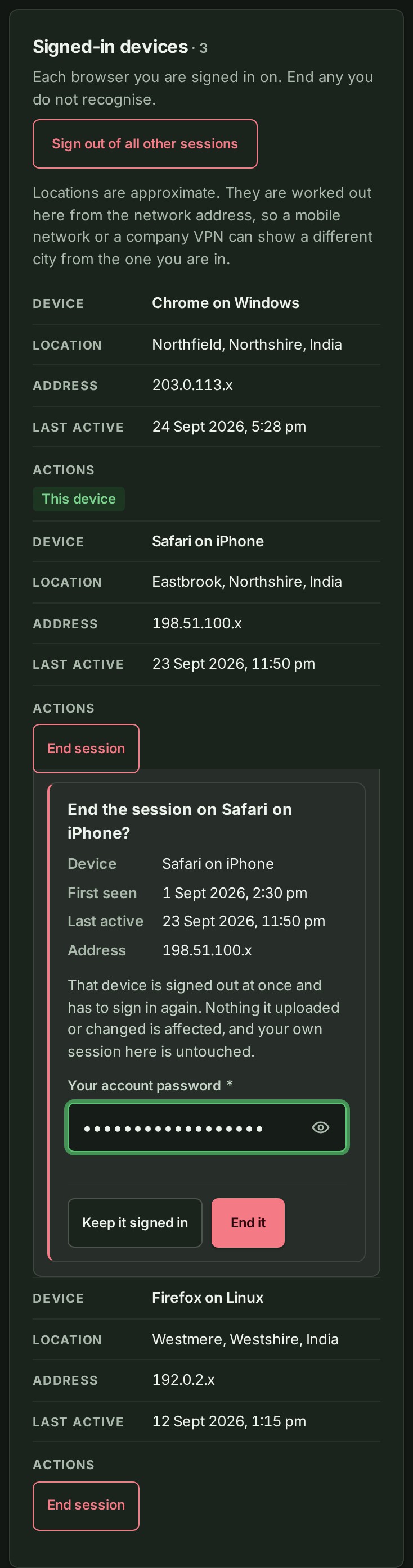
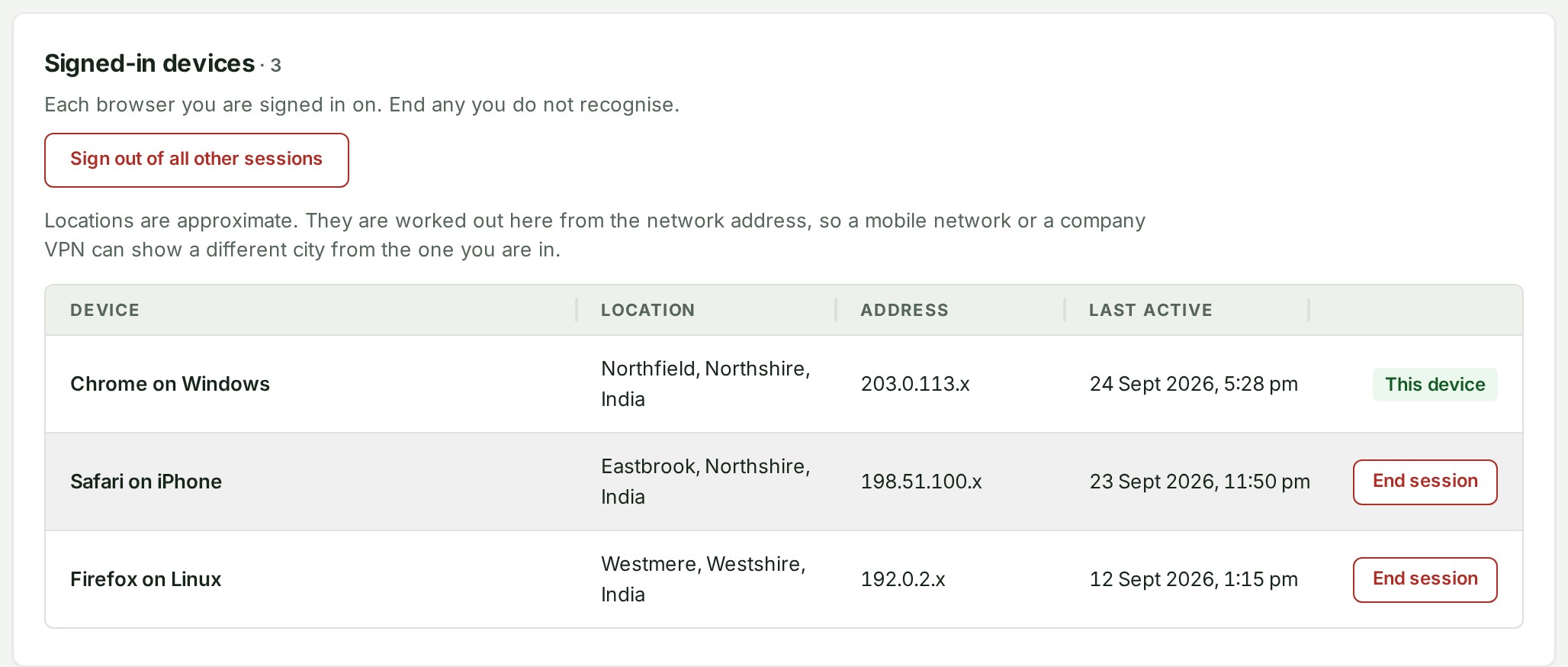
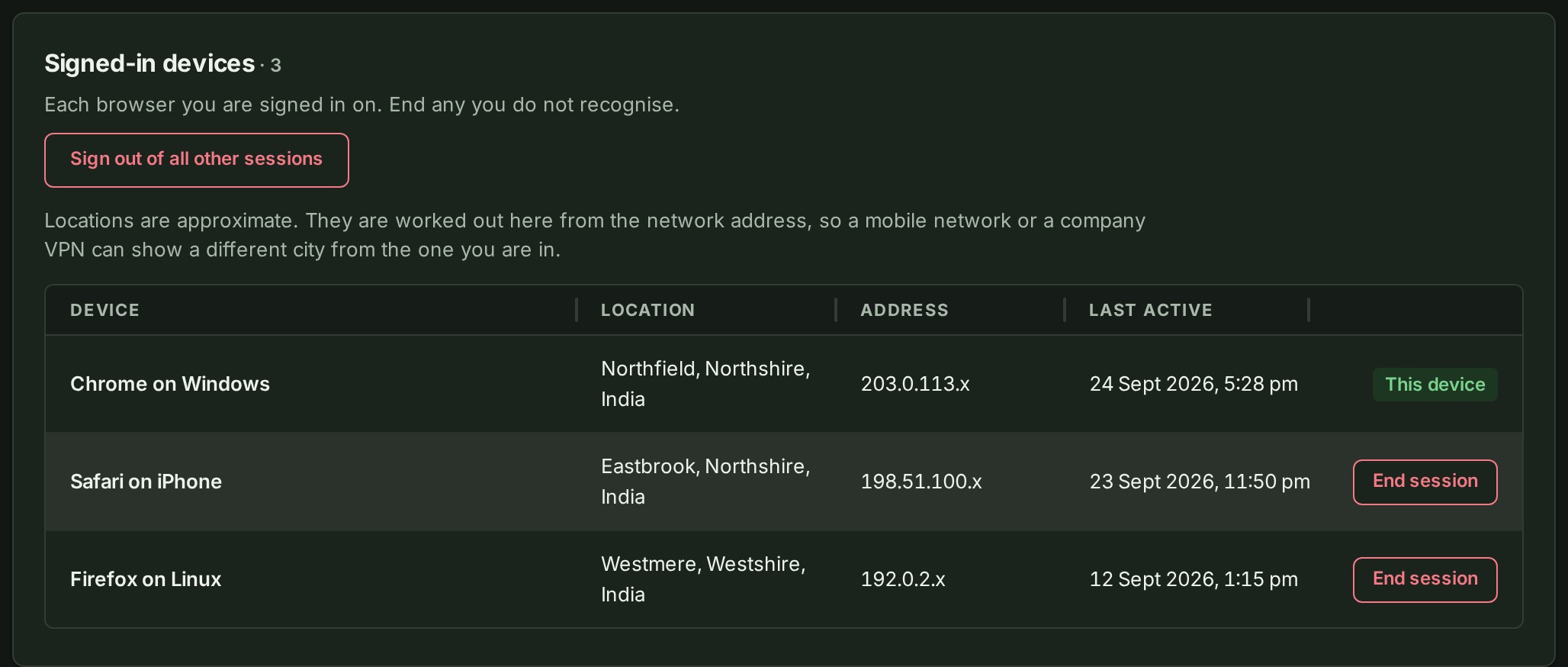
Scroll to Signed-in devices. Each row is one session, with its Device, approximate Location, Address and Last active time. The row for the browser you are using reads This device.
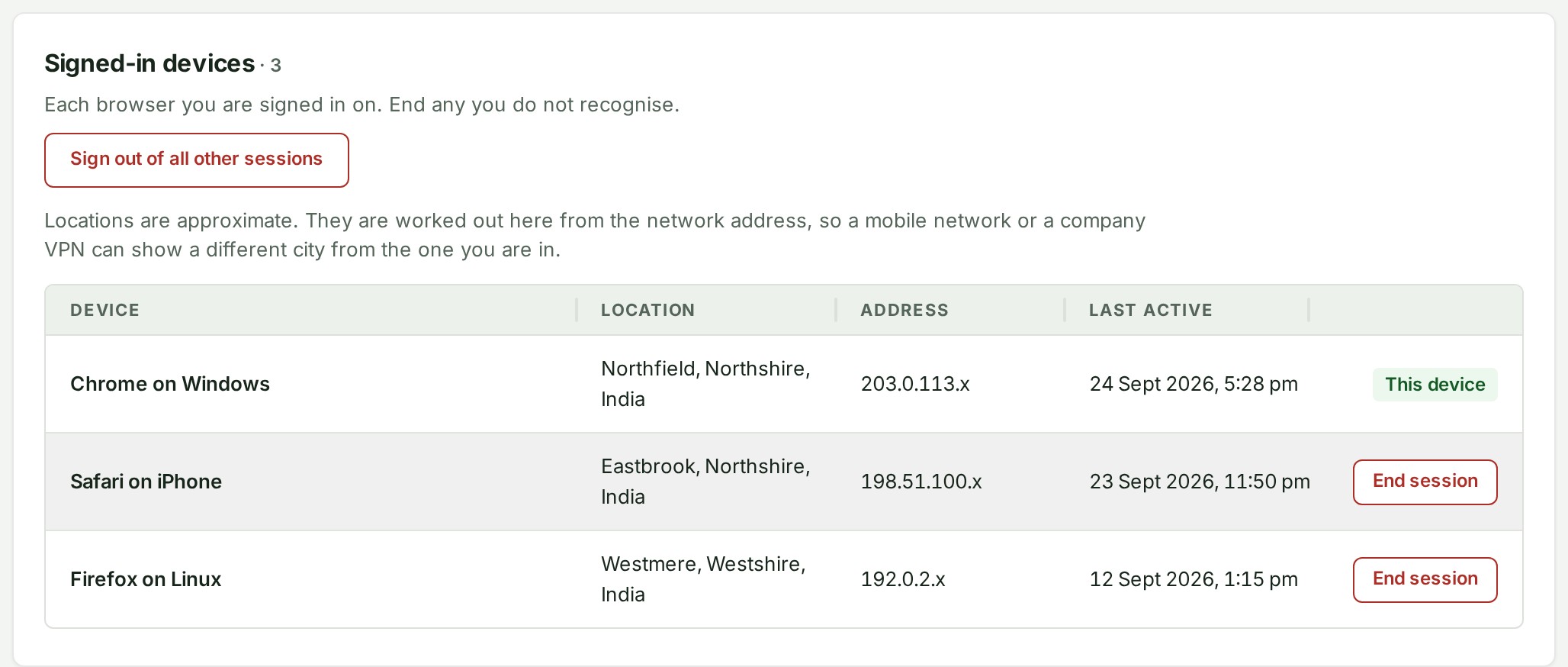
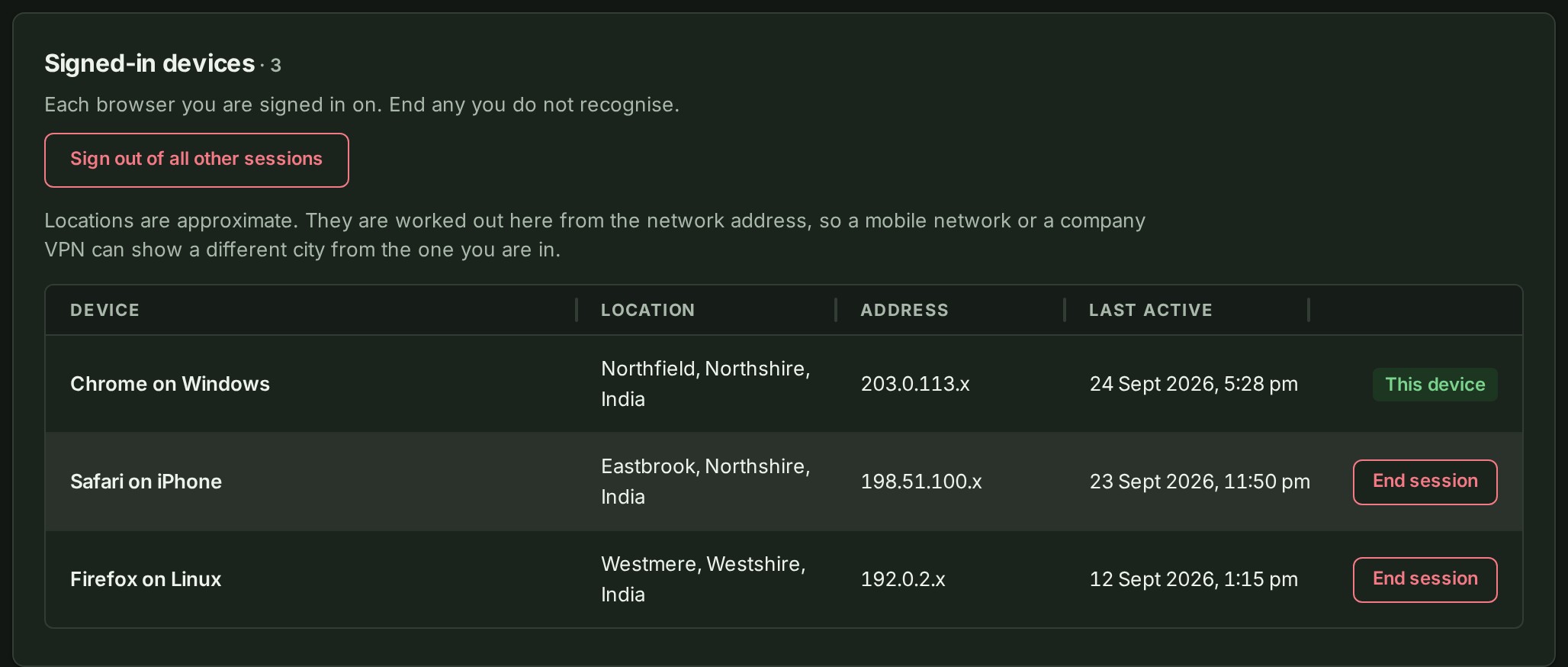
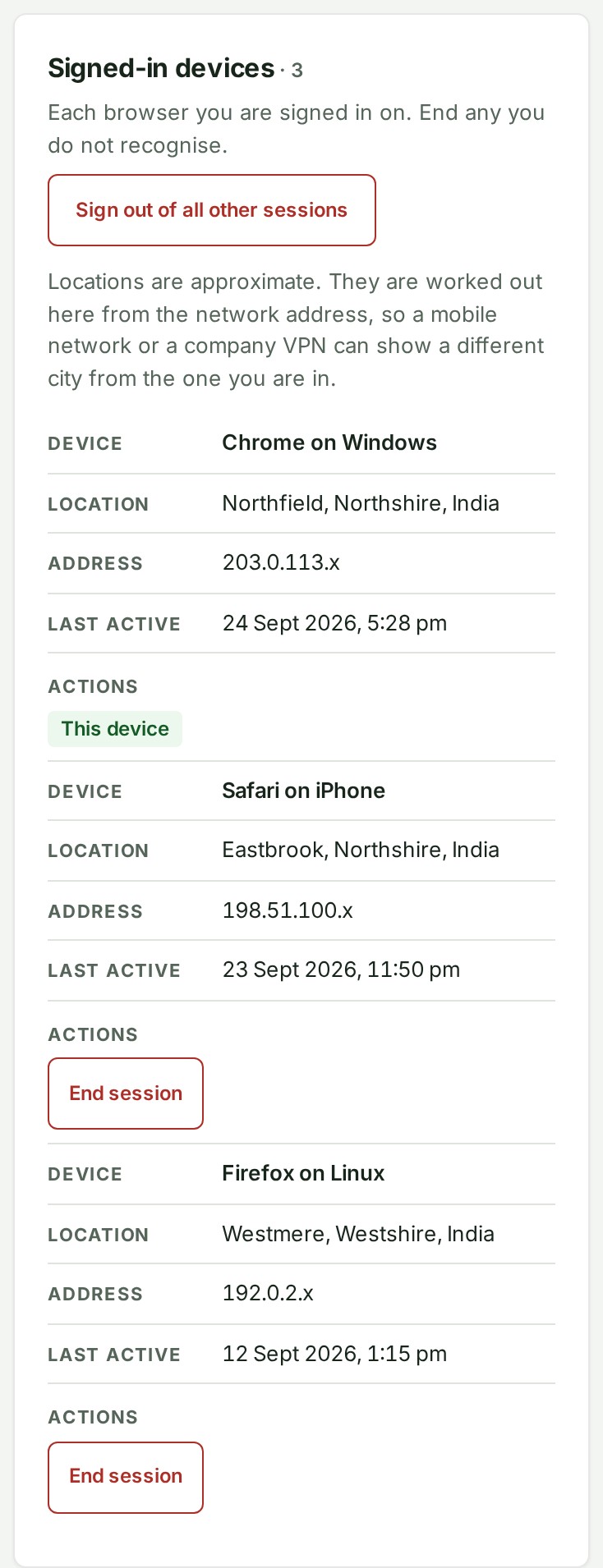
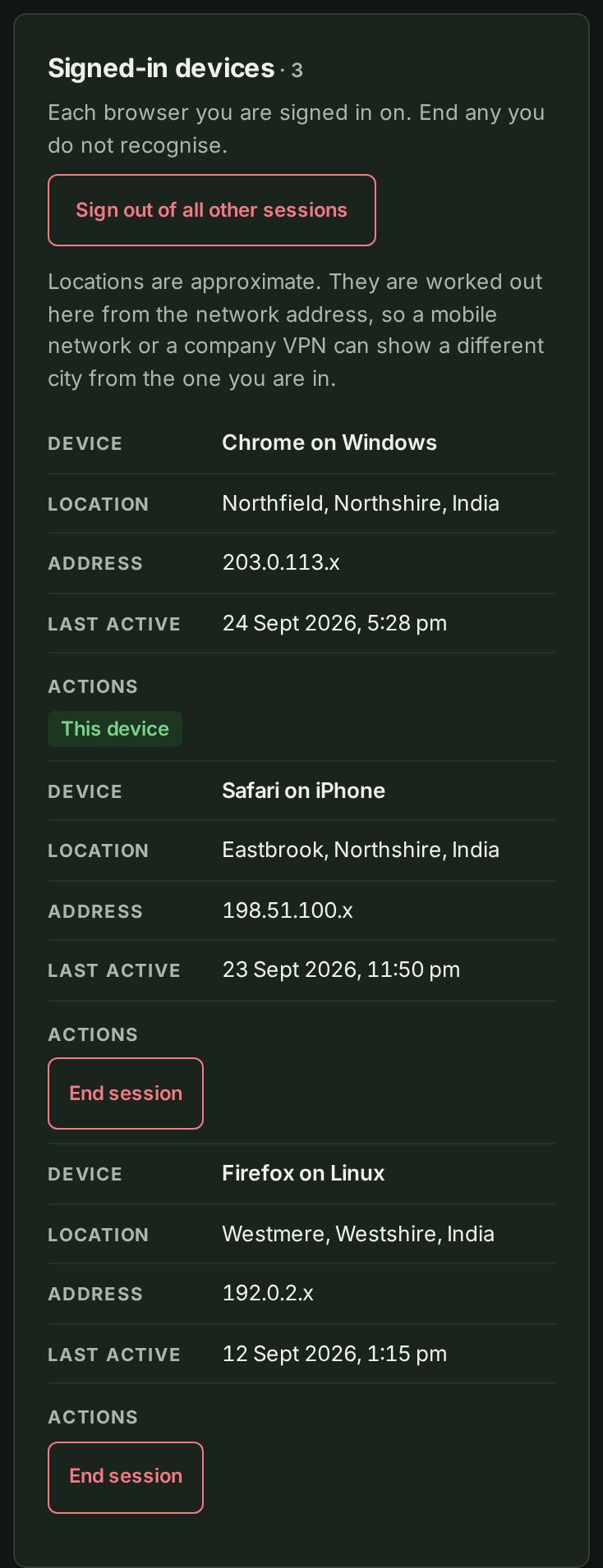 3. Select End session on the row of the device you do not recognise.
The question End the session on …? names the device and shows when it was First seen.
4. Enter Your account password and select End it, or Keep it signed in if you changed your mind.
The row goes from the list.
With two-factor authentication on, enter a current Authenticator or recovery code instead. If you sign in only with Google or Microsoft, select Continue with Google or Continue with Microsoft, sign in with that provider again, and you come back to Security with that session ended.
Sign out of every other device at once
When the list is long, or you want a clean slate, end every session except the one you are using.
-
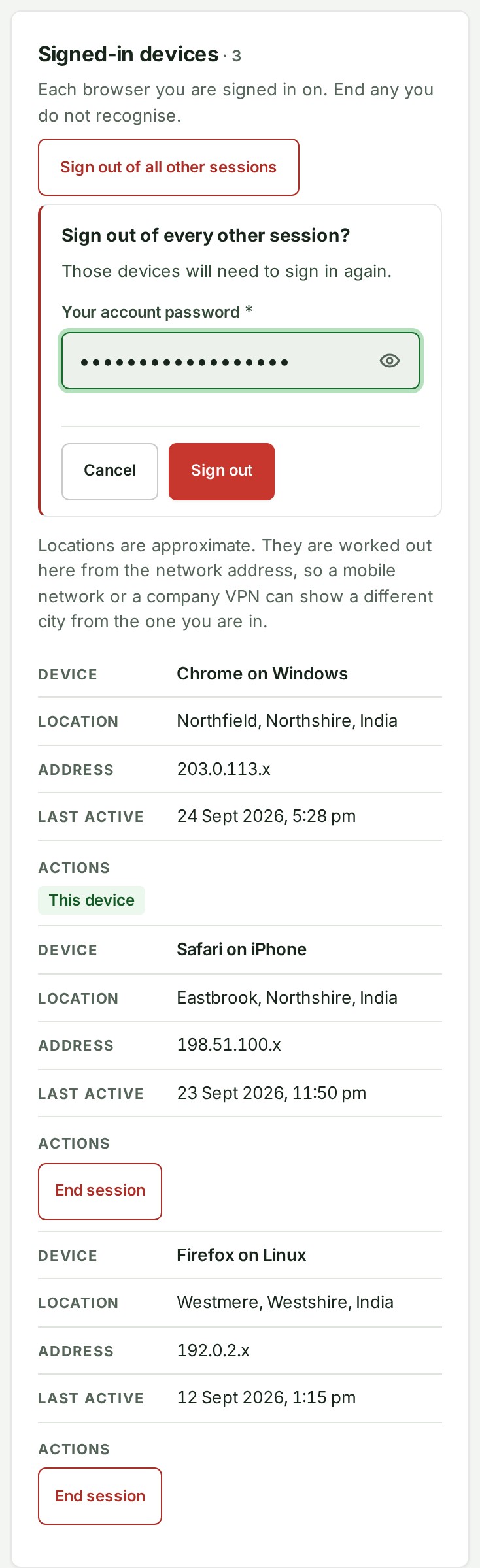
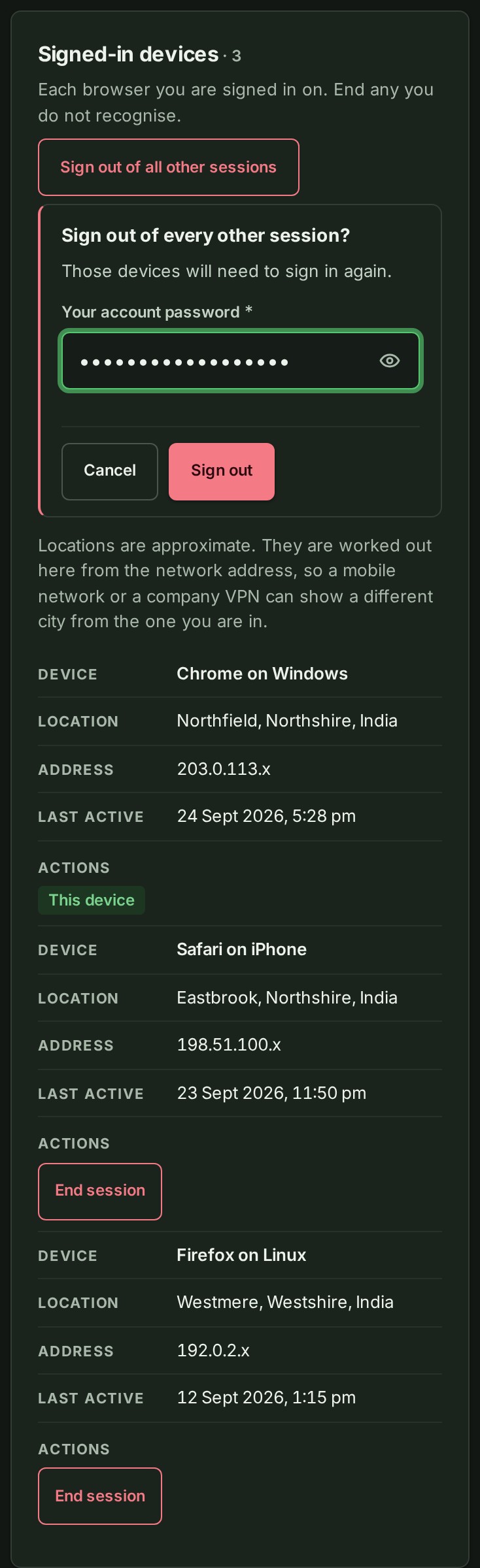
On the Security page, above the Signed-in devices table, select Sign out of all other sessions. The button appears only when the account is signed in somewhere else.
-
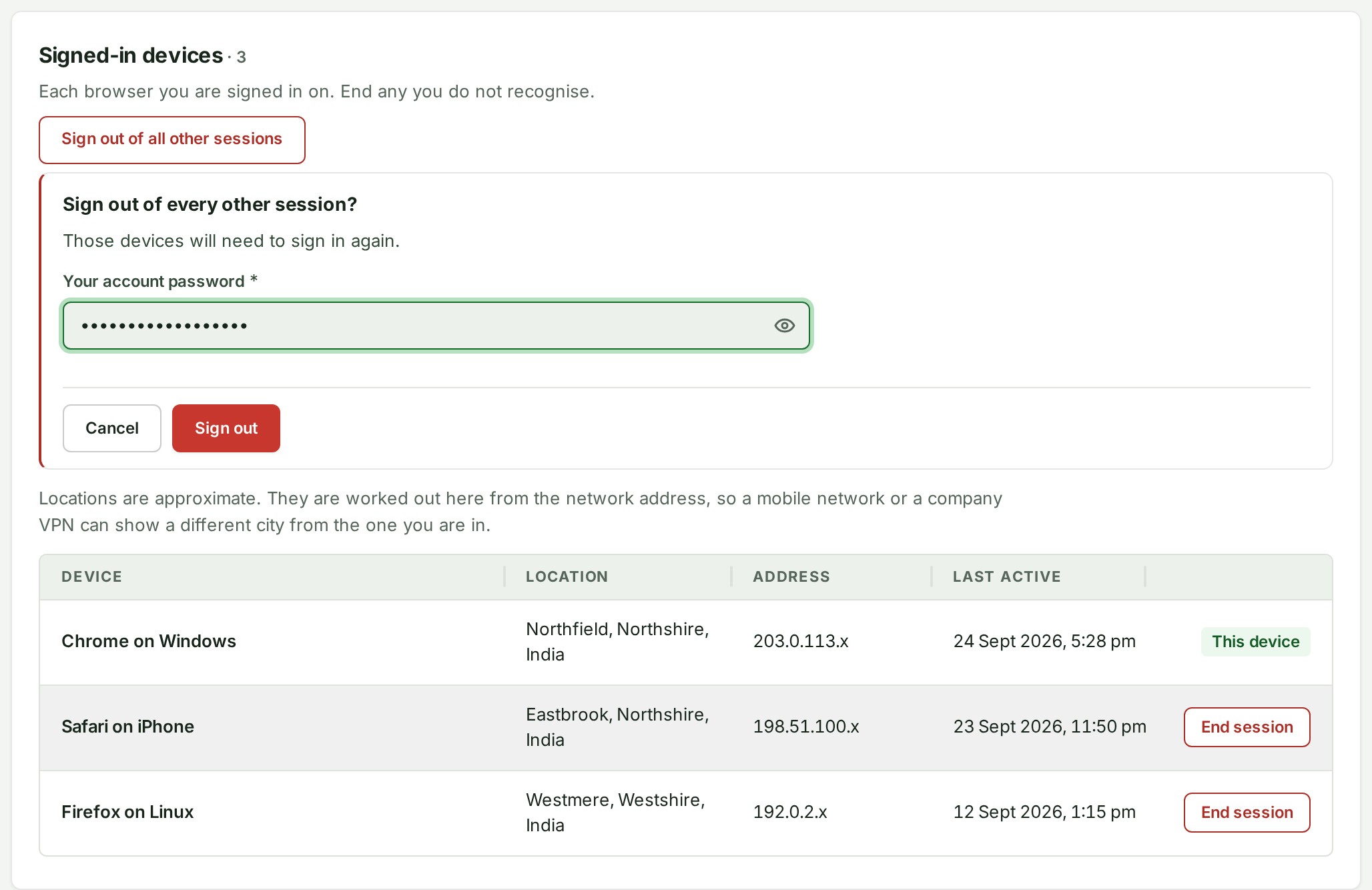
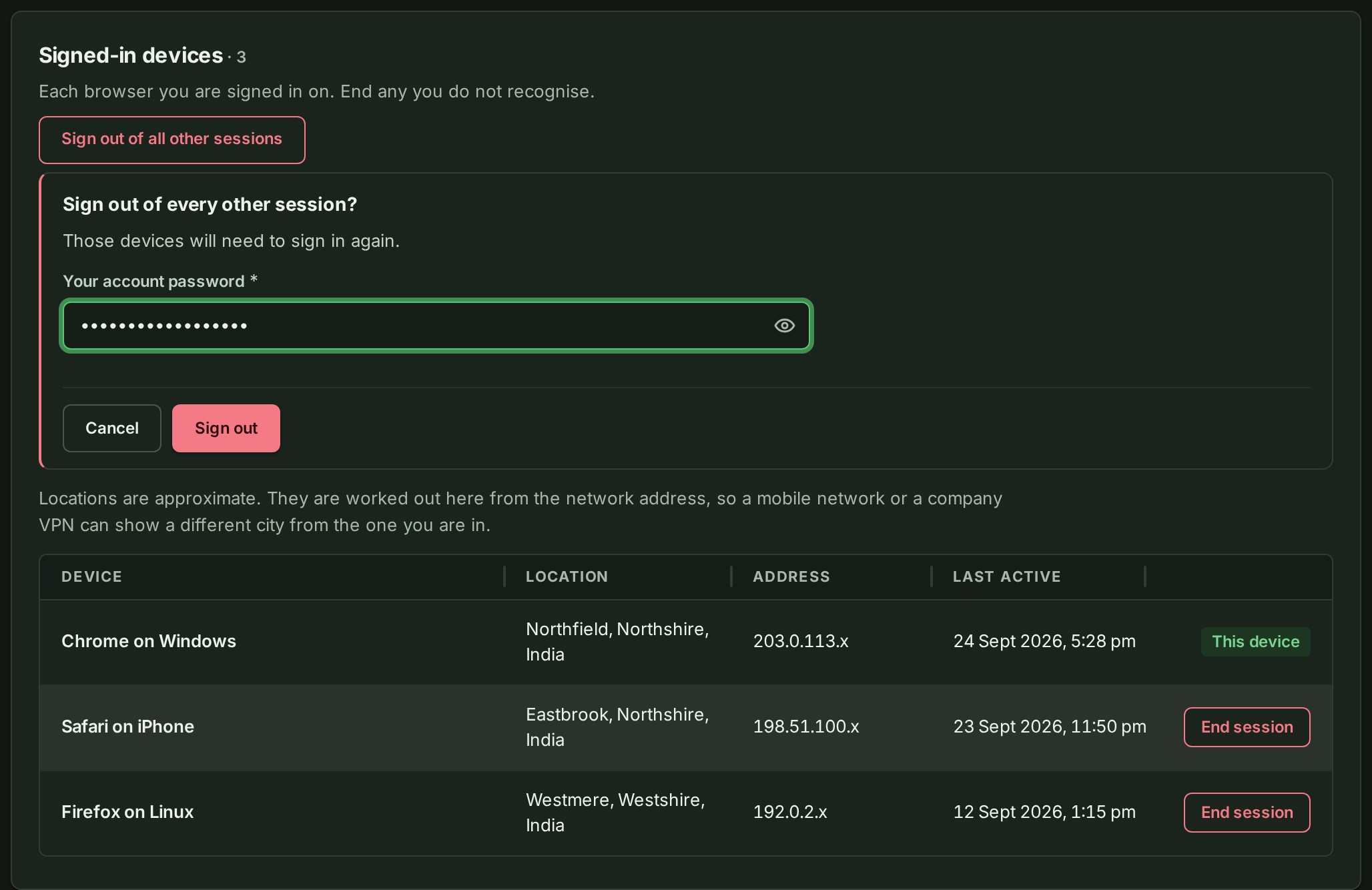
The question Sign out of every other session? opens under the button. Enter Your account password and select Sign out, or Cancel if you changed your mind.
With two-factor authentication on, enter a current Authenticator or recovery code instead. If you sign in only with Google or Microsoft, select Continue with Google or Continue with Microsoft, sign in with that provider again, and you come back to Security with the other sessions ended.
-
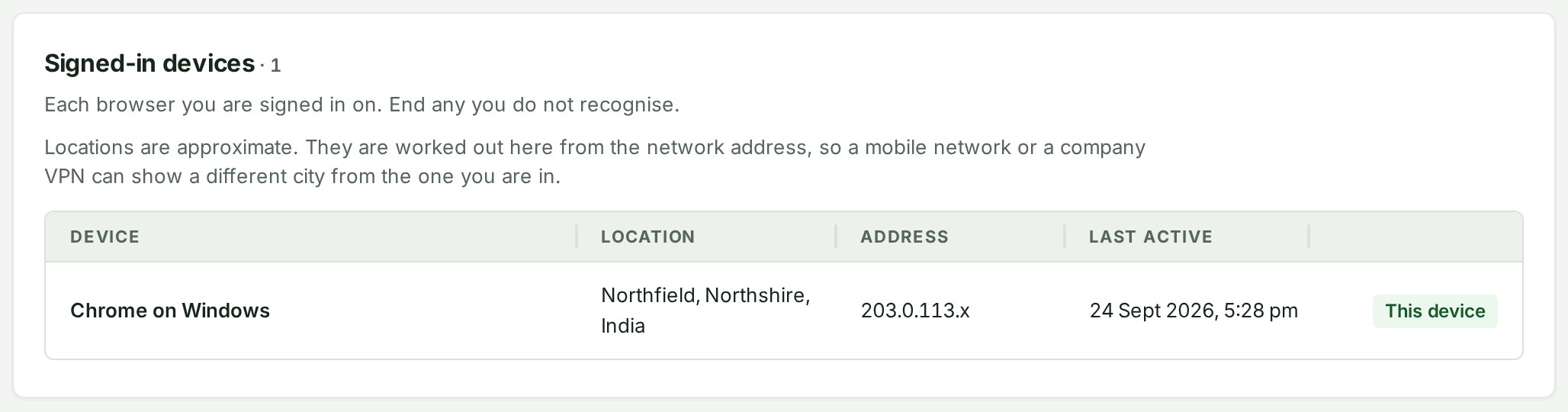
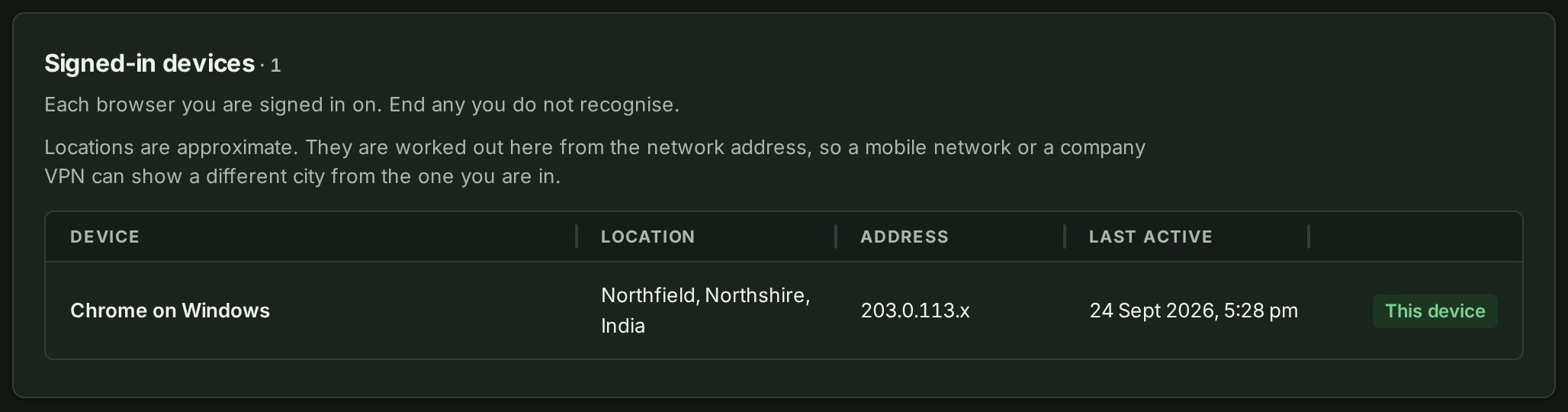
GISweaver says Signed out of N other sessions. The list now holds only This device.
Those devices have to sign in again. Your own session here stays as it is. GISweaver asks you to prove it is you first, here and when you end one session, so that somebody holding a stolen session cannot sign you out everywhere else, all at once or one device at a time.
What happens next
GISweaver says The session on … has been signed out. That device is signed out at once and has to sign in again. Nothing it uploaded or changed is affected, and your own session here stays as it is.
If something goes wrong
- Unknown device instead of a name: GISweaver could not tell what the browser was. Use Last active and Location to decide, and end the session if you are unsure; you can sign in again.
- A different city is normal on a mobile network or a company VPN.
- You cannot find an old session. The list shows 50 sessions at a time, newest first. Select Show older sessions for the next 50.
- You think someone else knows your password. Change it under Password on the same page: every other device is signed out when you do. Then turn on two-factor authentication.