People
Use People and clients to invite colleagues and to see, change or end what each person may do in your organisation. Teams, clients and branches have their own pages: Teams, Clients and Branches.
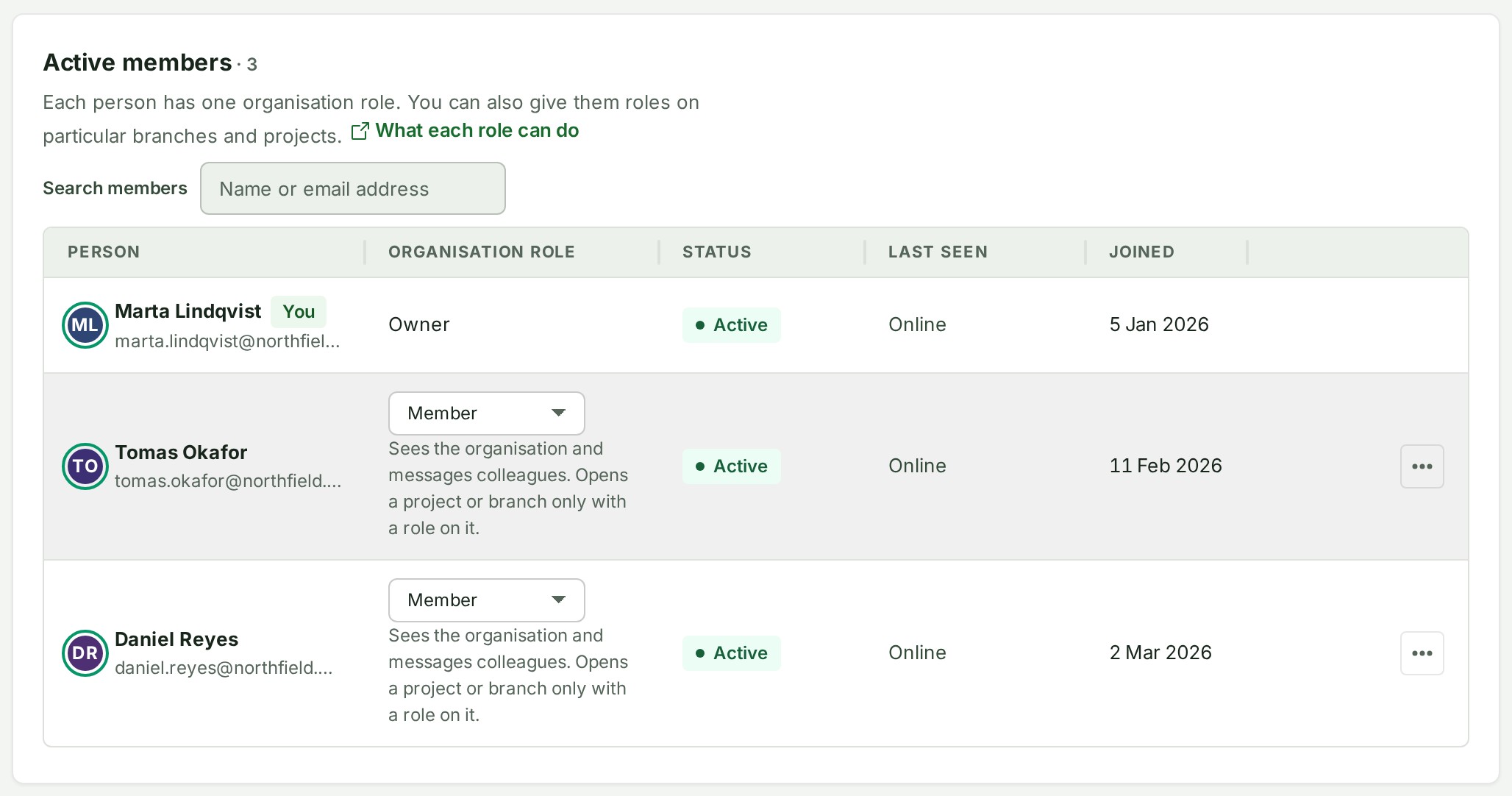
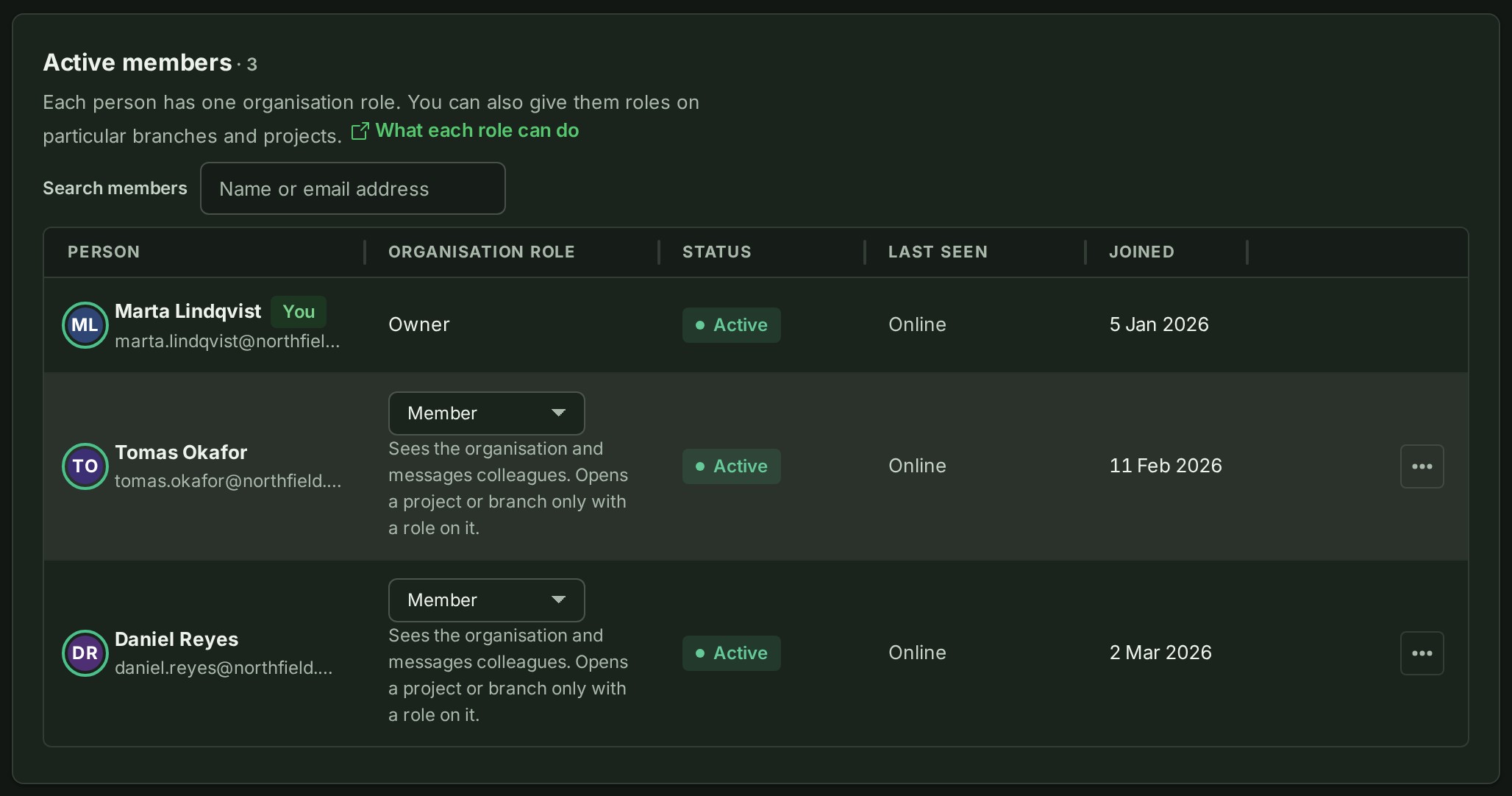
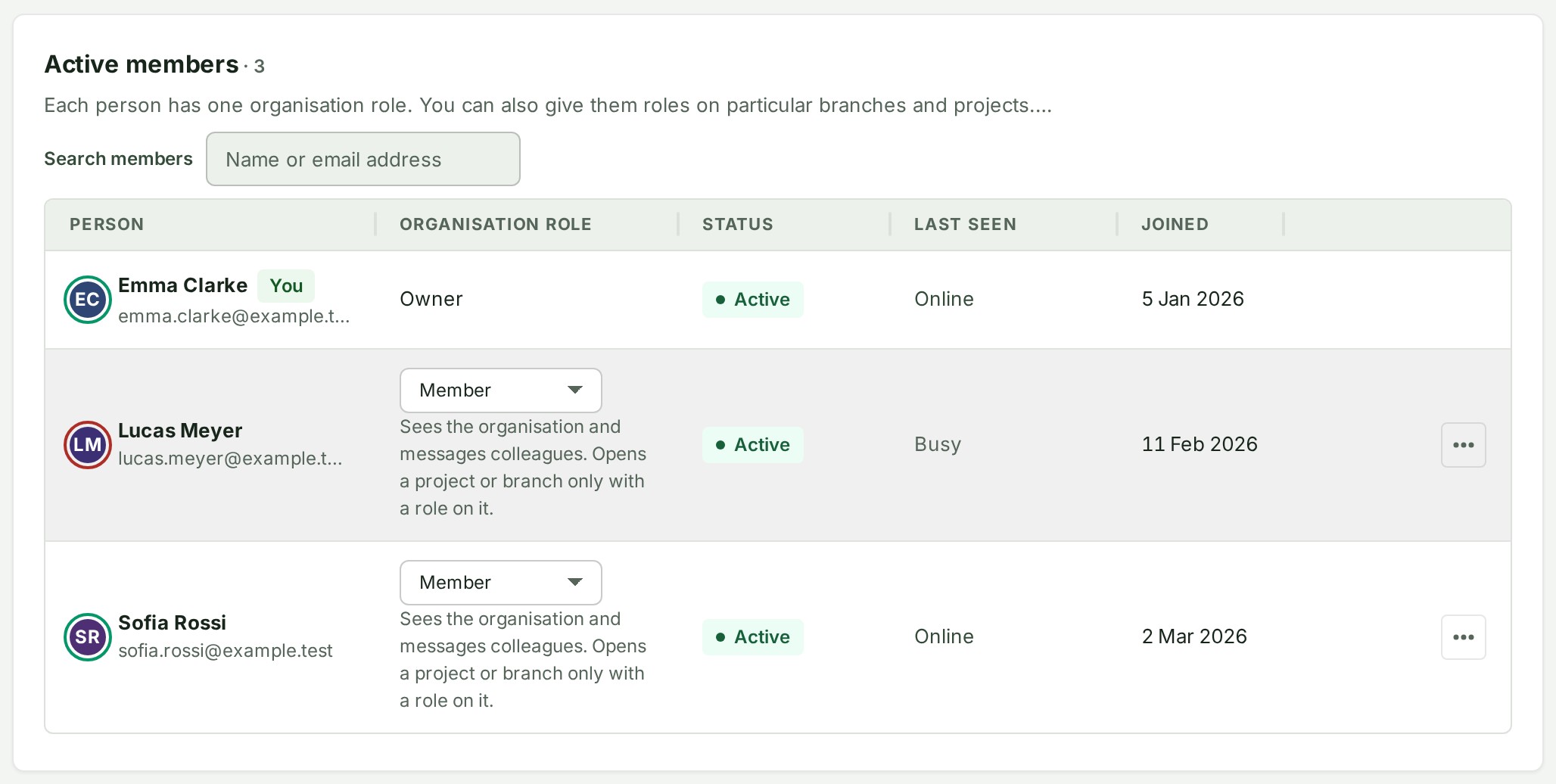
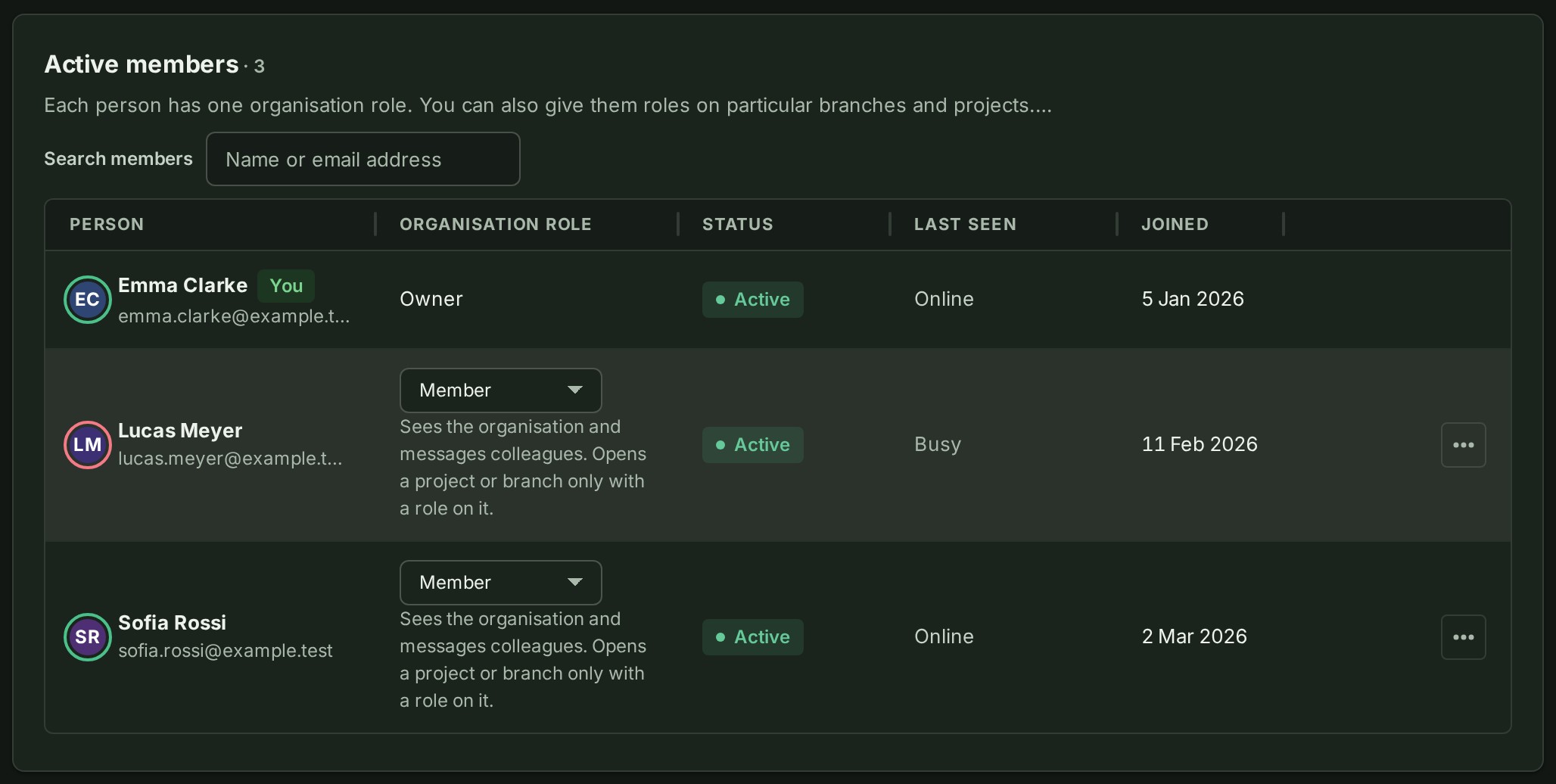
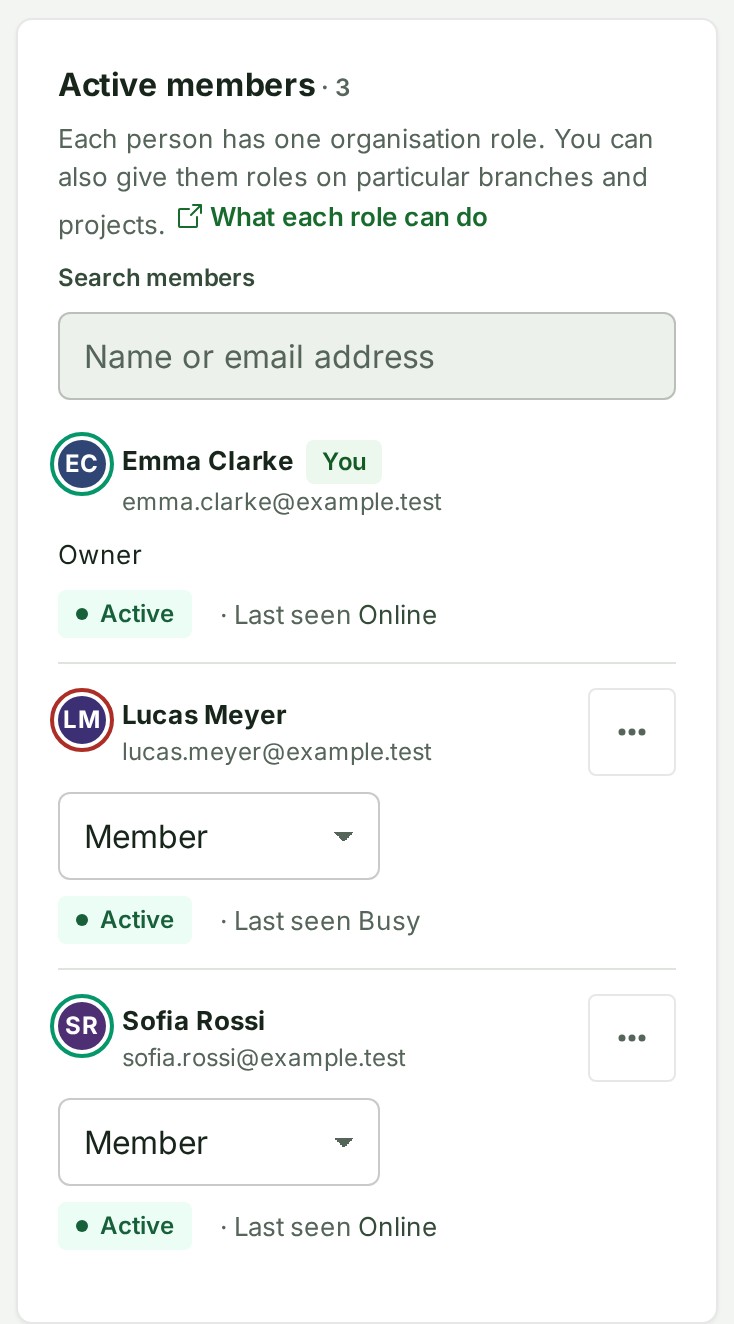
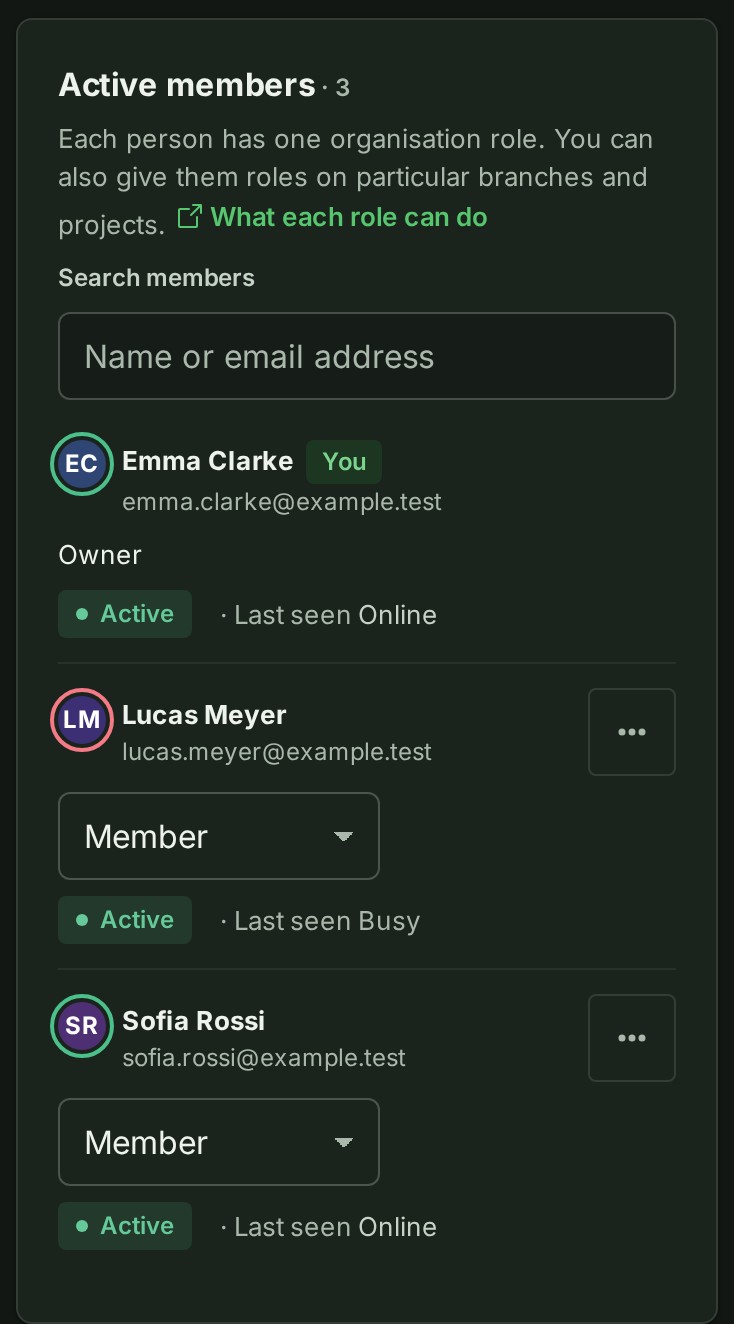
The picture ring and the words beside it show a colleague's chosen presence. A green ring means online; a red ring and Busy mean they are online but busy. Someone who chooses Appear offline has no online ring and is omitted from live viewer lists. Their last seen time is hidden from colleagues. You can choose your own status with Show me as in your account menu or Profile preferences.
Invite a colleague
- Open People and clients and choose Invite a colleague.
- Enter their Email address carefully. They must accept using that exact address.
- Under Where, choose Whole organisation, One branch or One project.
- Choose a Role you may give.
- Choose Send invitation.
- Ask the colleague to open the newest invitation email and accept it.
The email comes from GISweaver invitations, and its subject starts with your name and your
organisation's. A first message from a new sender can be filed as spam: if it is not in the
inbox, ask the colleague to look in Spam or Junk, mark it Not spam, and add
support@gisweaver.com to their contacts. Replying to the email reaches GISweaver support.
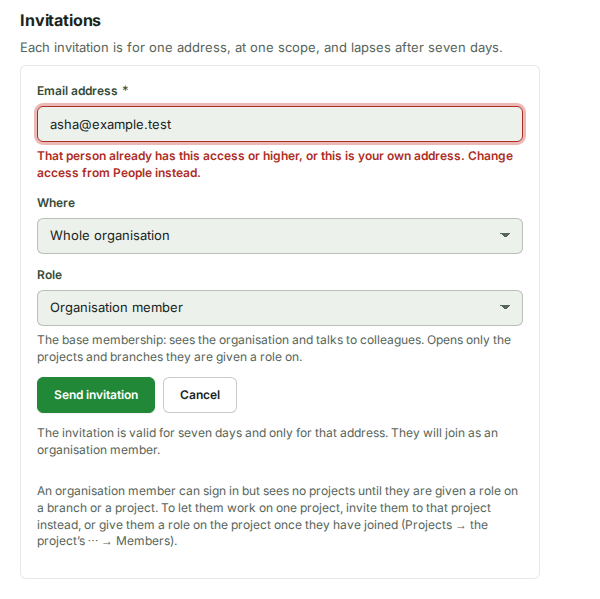
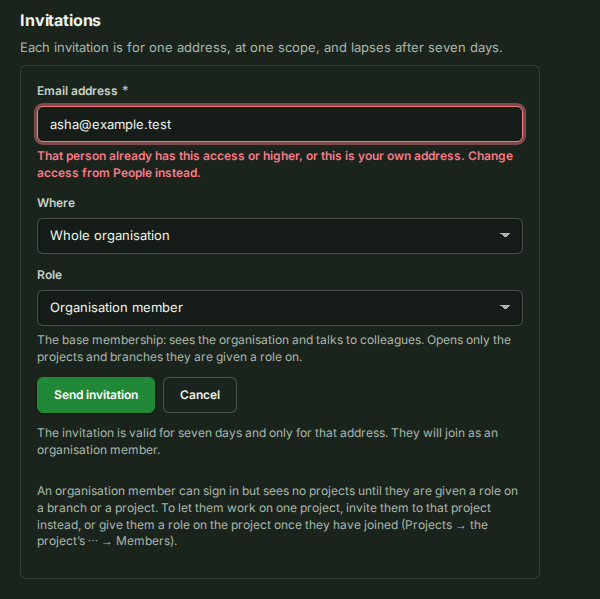
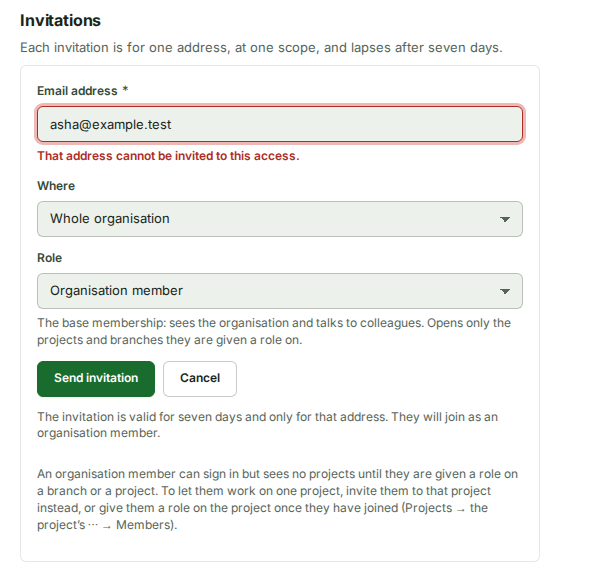
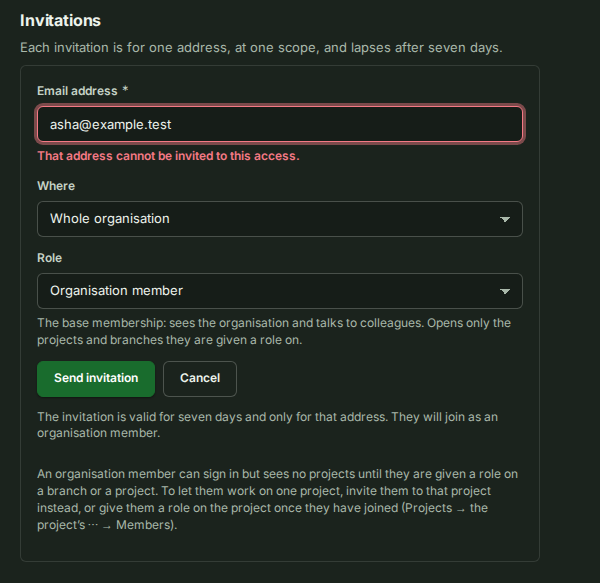
You cannot invite your own address, or give a role the person already holds or a wider one. No invitation is sent and no seat is reserved. The address stays in the form so you can correct it. To change an existing role directly, use People, the branch's Roles panel or the project's Members panel. Invitations that raise a role or add a branch or project remain available.
If you can invite but cannot read People, the refusal says only that the address cannot be invited with this role. It does not say whether the person belongs to the organisation.
Why accepting an invitation never lowers access
Accepting an invitation never lowers anyone's access. A branch or project invitation gives that branch or project role to someone who has none there and raises a lower one to it; a colleague who already holds the same or a higher role there keeps it, and their organisation role, whichever it is, is not touched. Someone new to the organisation joins as a member with the access you chose. An invitation to the organisation raises a colleague only to a higher organisation role (Owner, then Admin, then Billing manager or Auditor, then Member), and the audit trail records that as a change of role; between Billing manager and Auditor neither is higher, so the colleague keeps the one they hold. To lower someone's access, or to move them between Billing manager and Auditor, change it from People or from the branch's Roles panel or the project's Members panel.
An invitation is only as good as the person who sent it. If its sender is removed, paused, or no longer allowed to send that role, the invitation ends, the audit trail records why, and the link says the invitation is no longer valid; ask someone who may send it for a new one. Whether the sender may still send it is judged on your plan as it is when the link is opened. On a plan without Roles and permissions, where every member may invite, a member's invitation stands when their role changes; if the plan gains Roles and permissions and they could no longer send it, it ends. Removing a colleague also ends every invitation addressed to them, so they cannot come back through an old link; to bring them back, send a new invitation. A colleague whose access is paused cannot accept an invitation until it is restored: the invitation stays waiting, and nothing about their role changes.
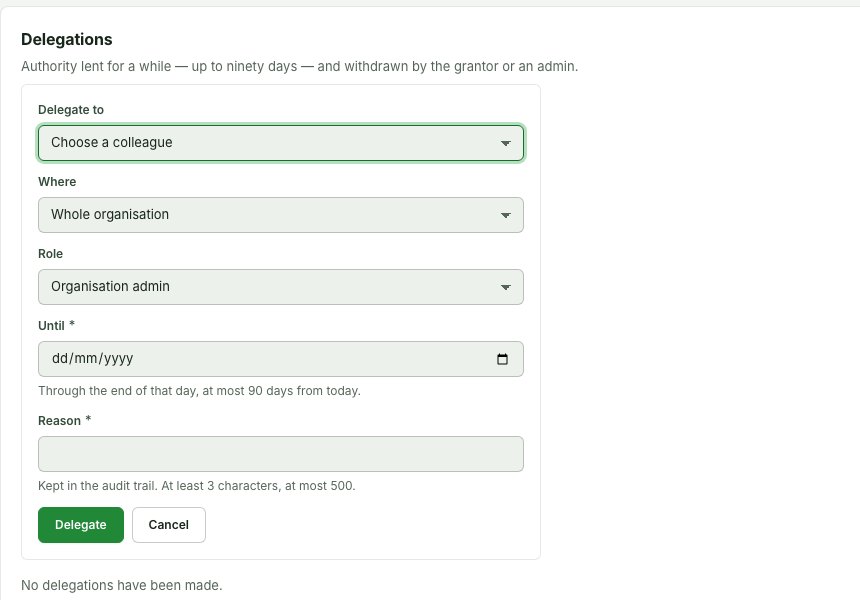
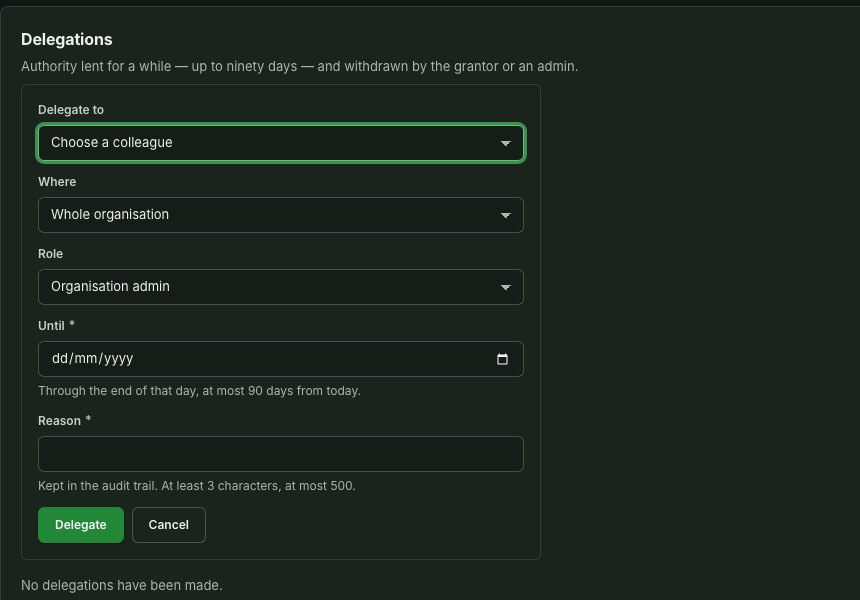
Invite a colleague is the main button at the top of the People page. In a new organisation, where you are the only person, the page shows it once, under Invitations as Invite your first colleague, and leaves out Lent roles until there is someone to lend a role to; Lend a role stays under More. Lend a role and Transfer ownership are under More, beside it. See Lent roles. Each opens its form further down the page, under Invitations, Lent roles or Active members; the page moves to the form and puts the cursor in its first field as soon as you choose it.
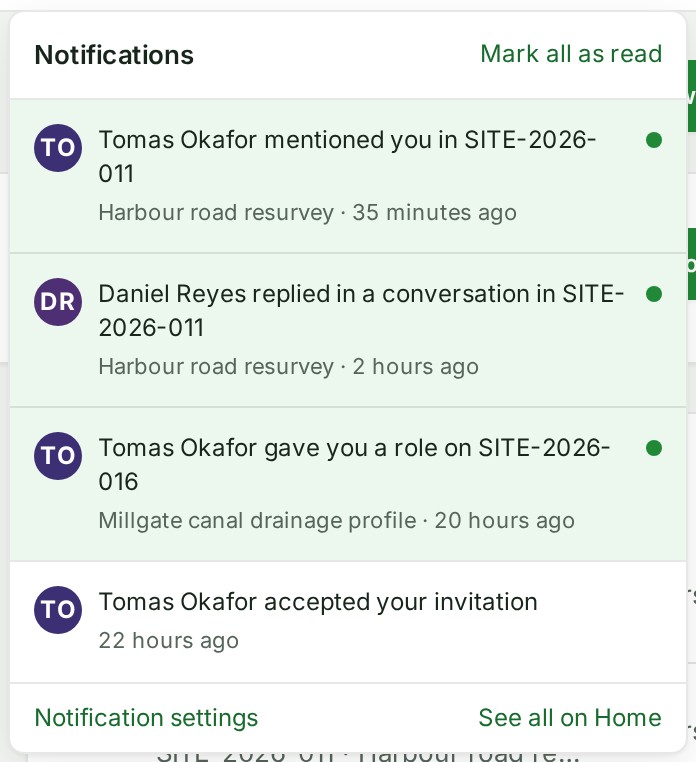
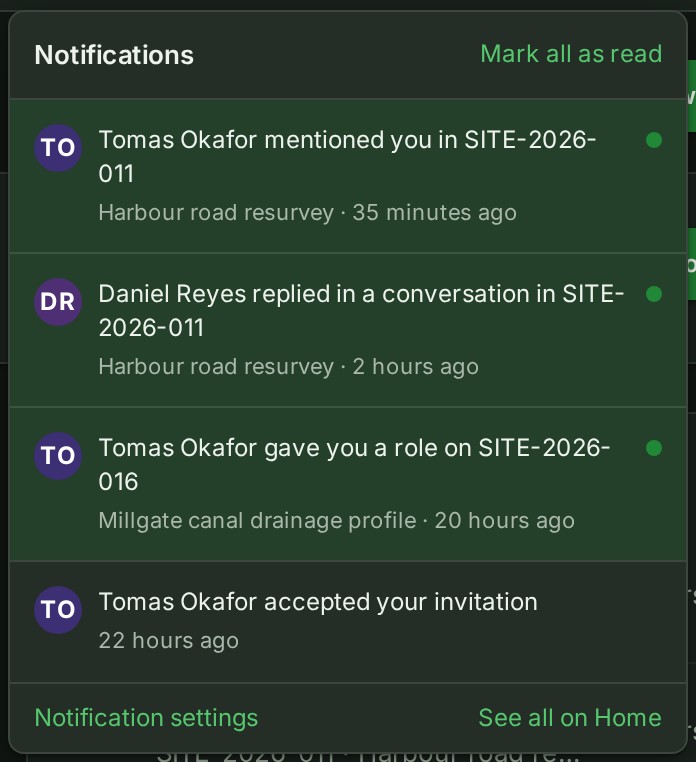
When the colleague accepts, your bell reads "\<name> accepted your invitation to \<organisation or project>" and opens People; the same news arrives by email.
Why this is so
GISweaver sends the invitation by email only — the join link lives in that message alone. Each invitation's acts are in the More actions menu (the … button) at the end of its row. Tell them opens Tell them it is waiting: the same wording as a message to copy or send by WhatsApp, for when email is not the easiest way to reach them; it never shows the join link itself. The list shows each invitation's state — Waiting (with the day it lapses), Expired, Accepted or Withdrawn — and the menu offers Resend for a waiting or expired one (ask the recipient to use the newest link) and Withdraw for a waiting one sent to the wrong address or no longer needed. A person can be an organisation member without direct access to any project — invite at project scope, or add them through that project's Members panel after they join. Ownership transfer is a separate workflow. If the role or scope you need is not offered, it may be beyond your own authority or unavailable on the current plan; ask an owner or administrator.
Adjust a colleague's access
- Open Roles on a branch, or Members on a project, to add an existing colleague or change a direct role.
- Use People to find active, suspended and invited people across the organisation. To change a colleague's organisation role, choose the new role in the Organisation role list on their row; the line under it says what the role is for, and What each role can do is the table. If your organisation asks for a second access administrator's approval, People asks you to say why, in 3 to 500 characters, and shows Ask for approval: the change waits under Access, Approvals, and a notice titled Sent for approval says Waiting for approval by another access administrator. See Approve or reject an access change.
- Every act on a colleague is in the More actions menu (the … button) at the end of their row: Send reset link, Message, Suspend and Remove. A suspended colleague's row also shows Reactivate beside the menu. Message is shown for an active colleague other than yourself; it opens your direct conversation with them. On a narrower window, Last seen and Joined move under the colleague's status rather than taking columns of their own, and the menu stays at the right-hand edge of the list. Right-click a colleague's row, or press and hold it on a phone, for the same menu. On a computer screen you can drag the right edge of a column heading to widen or narrow it; see Resize columns.
- When nobody is waiting to answer an invitation, Invitations says so. You can also start an invitation by searching for Invite in the bar at the top of the Console.
- Before reporting that a removal "did not work", check: the person's current role; whether their access is organisation, branch or project scoped; whether they hold a second, wider membership; and that you are looking at the right organisation and project.
Why this is so
Access can come from more than one place, so removing a direct project role does not remove access the person still has through a branch or organisation role. Suspending or removing a person changes access; it does not erase the work they already uploaded or wrote.
A change that takes access away also reaches a download the person already has open: suspending or removing them, lowering their role, taking them off the branch or project, withdrawing a role lent to them, that role reaching its end date or the person who lent it losing it, or the session the download was started from ending, for example when they change their password or sign out of every device. The download stops a short time afterwards, not at the instant the change is made, so do not tell anyone it stopped "immediately". Files that finished downloading before then stay with the person.
Roles your organisation defines
Where custom roles are switched on for your organisation (they are part of the beta programme), an Access administrator can create roles with the names your trade uses and give them to a colleague across the organisation, at a branch or on a project, until a day if they choose. These roles are listed and given under Access, not on People; a colleague can hold one beside their organisation role, and may do what either allows. A role of your own can also be lent, like a provided one, for at most 90 days (see Lent roles). See Create a role.